
To import your contacts, companies, deals, pipelines, and properties from HubSpot, you need a service key — a HubSpot-generated token that lets the importer read your data on your behalf. This article walks you through creating one in HubSpot and pasting it back into the Connect HubSpot panel.
Before you start
- You need a HubSpot account, and you must be signed in as a Super Admin (or a user with permission to create service keys).
- The whole process takes about 2 minutes.
- The importer only needs read-only access — it will never modify or delete data in HubSpot.
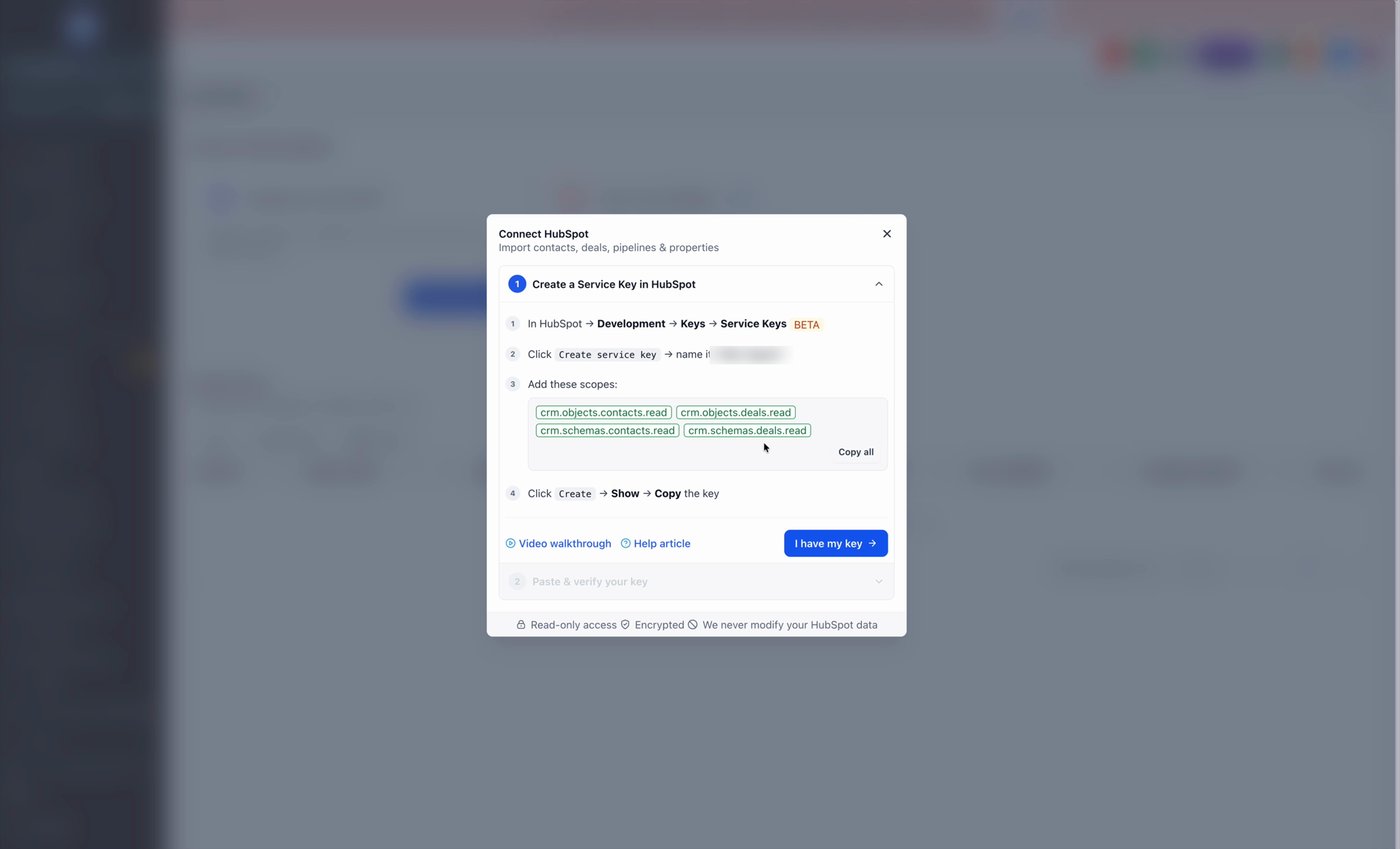
Step 1 — Open the Connect HubSpot panel
In your account, start the HubSpot connection flow. You'll see a panel titled Connect HubSpot with on-screen instructions for creating a service key. Keep this window open in one browser tab — you'll come back to it at the end to paste your key.
Then, in a new browser tab, sign in to your HubSpot account so you can create the key.
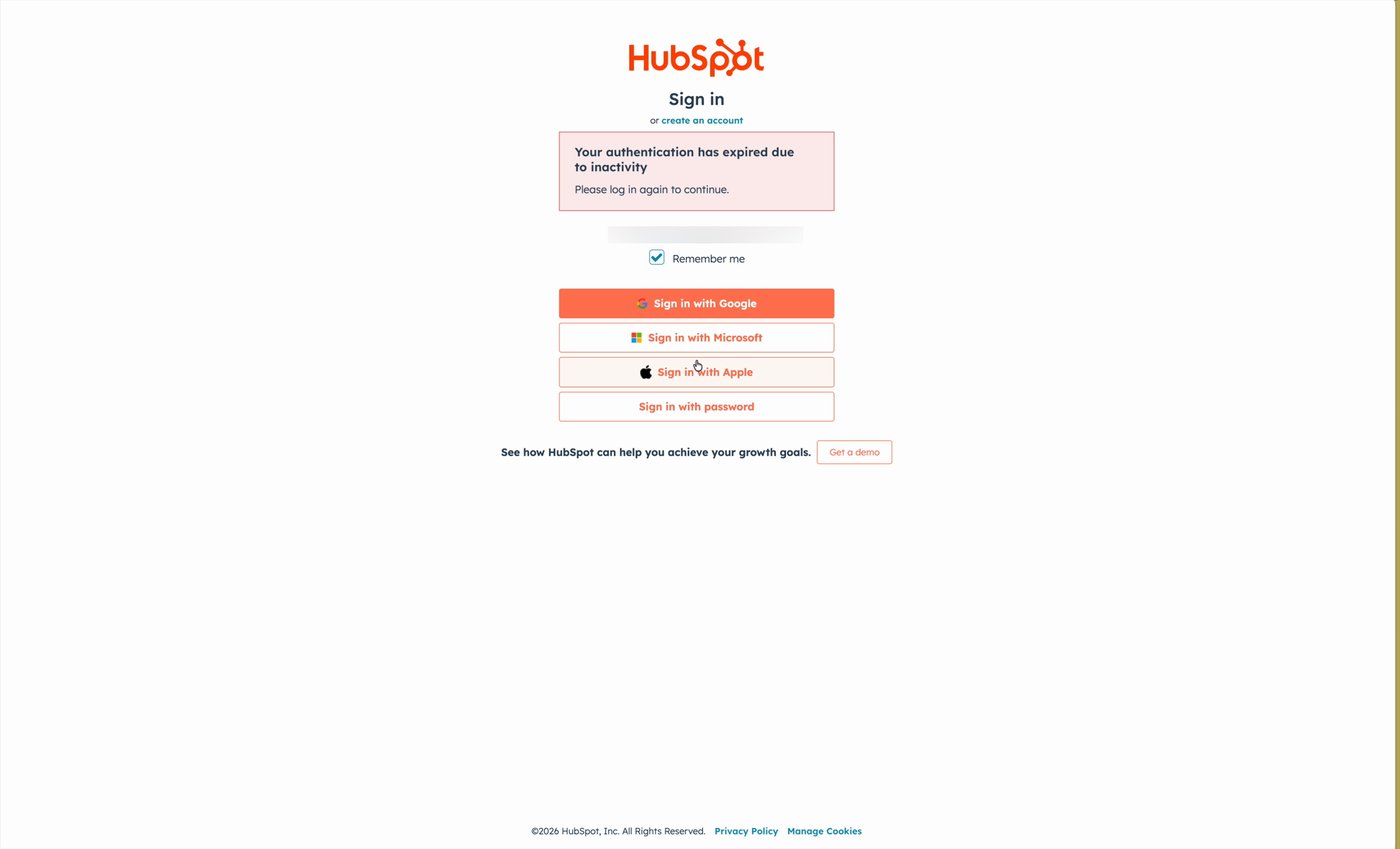
Step 2 — Sign in to HubSpot
Go to app.hubspot.com and sign in with the account that owns the data you want to import. You must be signed in as a Super Admin, or a user with permission to create service keys, otherwise the option won't appear in the next step.
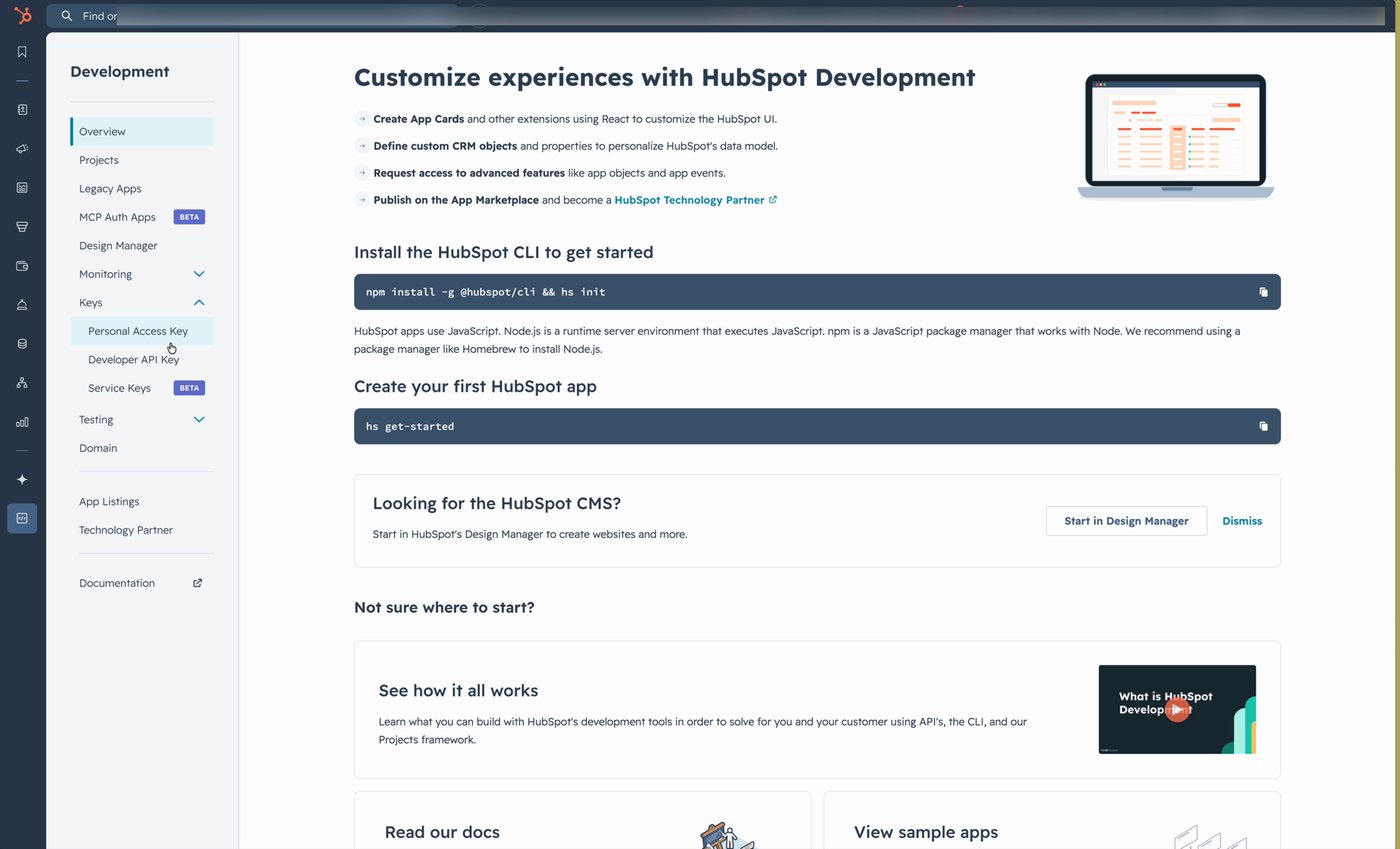
Step 3 — Go to Development → Keys → Service Keys
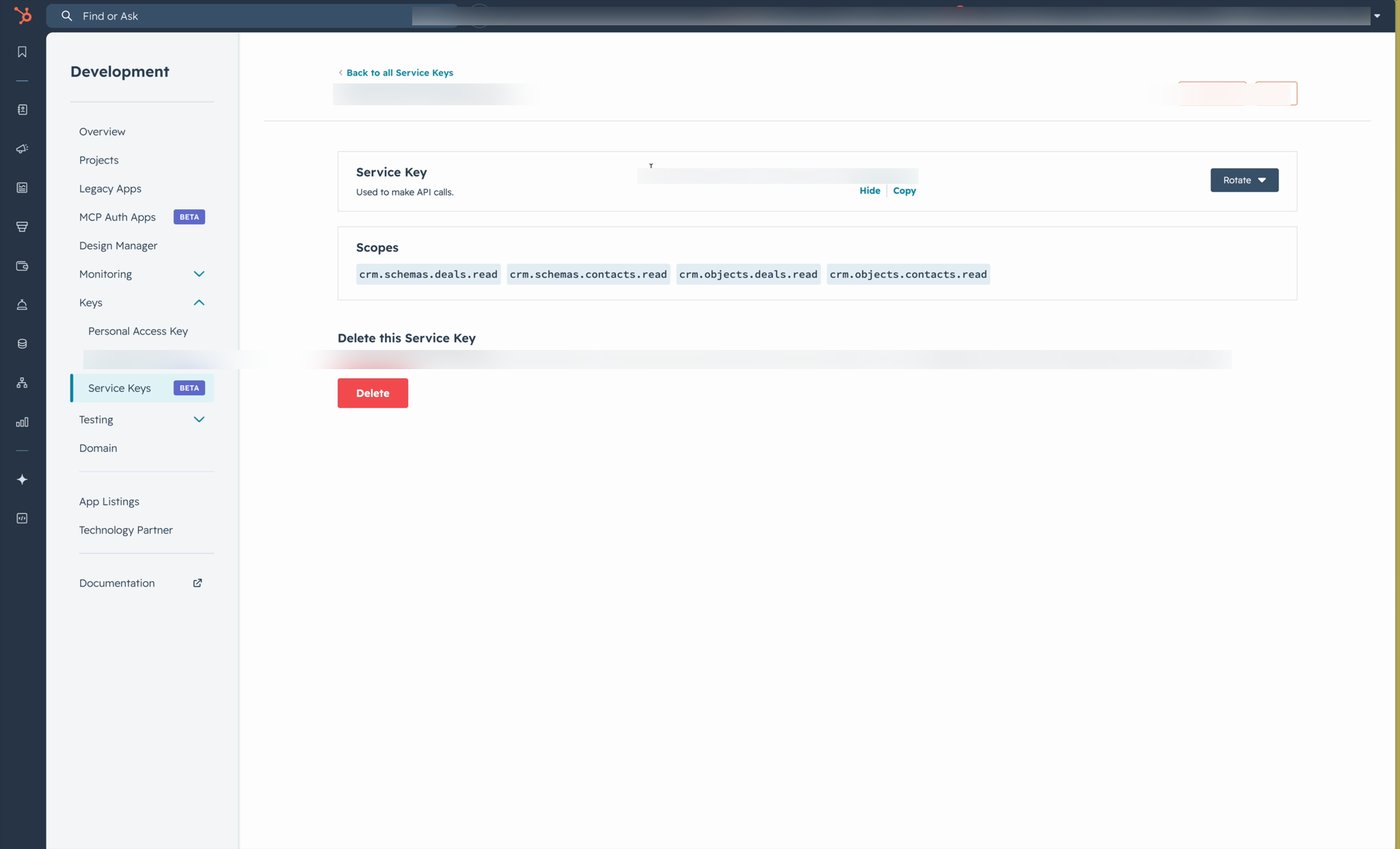
From the HubSpot left sidebar, open Development. Inside Development, expand Keys and click Service Keys.
Tip: Service Keys is currently labelled BETA in HubSpot. If you don't see it, refresh the page and confirm you're signed in as a Super Admin.
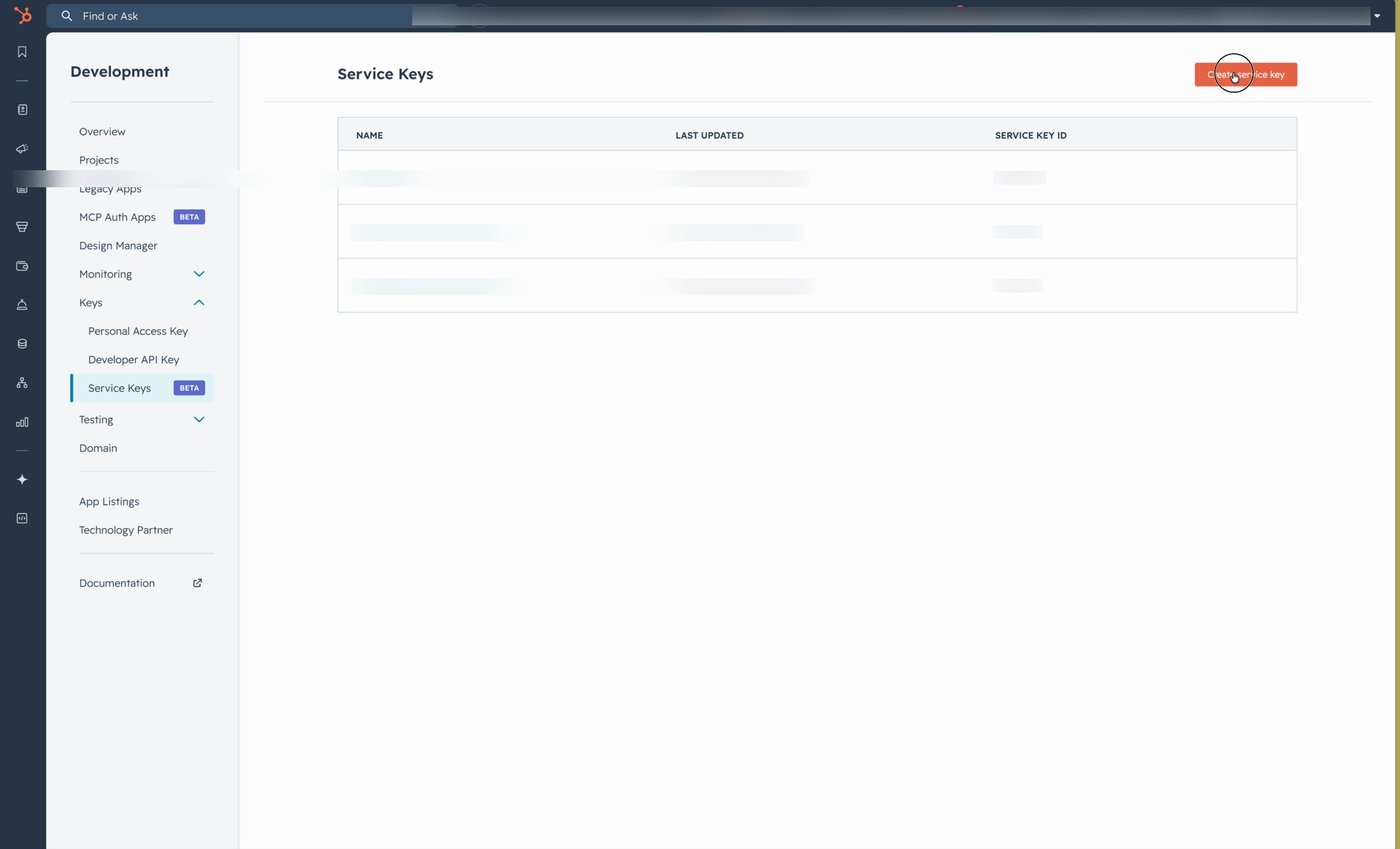
Step 4 — Click "Create service key"
You'll land on the Service Keys list. Any keys you've already created will appear here. Click the orange Create service key button in the top-right corner to start a new one.
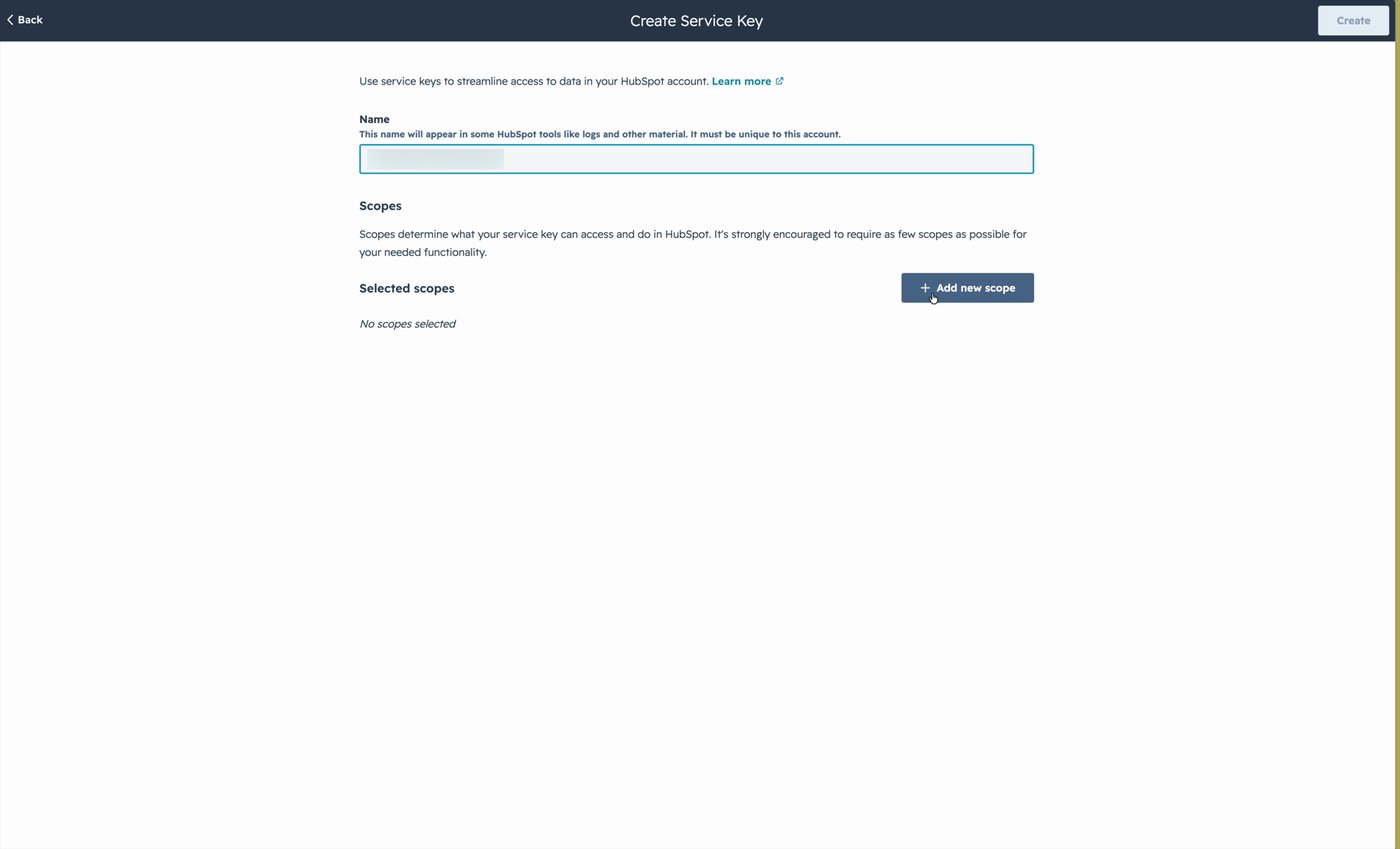
Step 5 — Name your service key
Give your key a descriptive Name — for example, HubSpot Import. This name appears in HubSpot logs and audit material, so use something you'll recognize later.
Heads-up: the name can't start or end with a space, and it must be unique within your HubSpot account.
Step 6 — Add the contact scopes
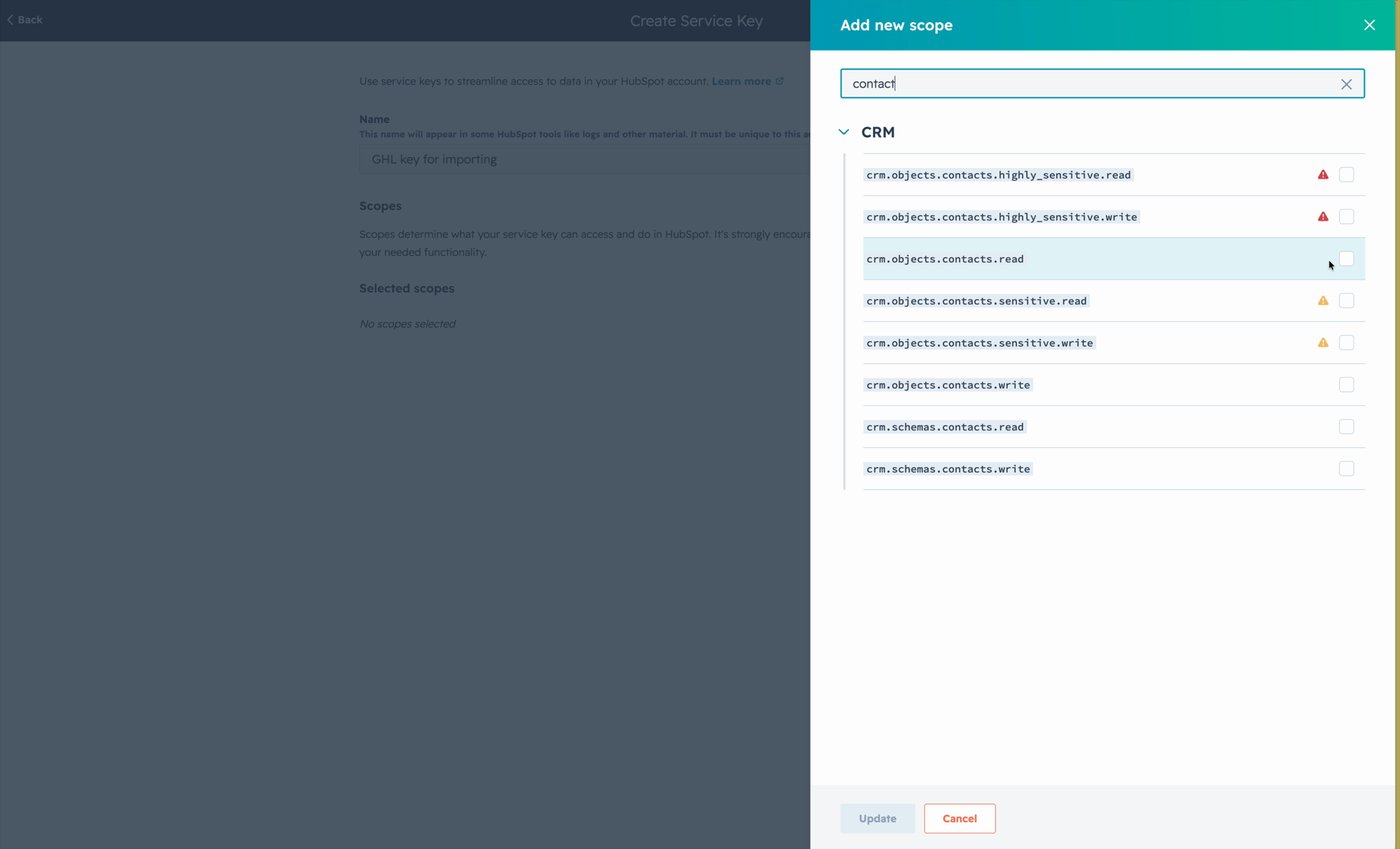
Click + Add new scope to open the scope picker. In the search box at the top, type contact to filter the list, then check the boxes for these two scopes:
crm.objects.contacts.readcrm.schemas.contacts.read
Both are read-only scopes — they let the importer pull your contacts and contact field definitions without ever changing anything in HubSpot.
Step 7 — Add the deal scopes
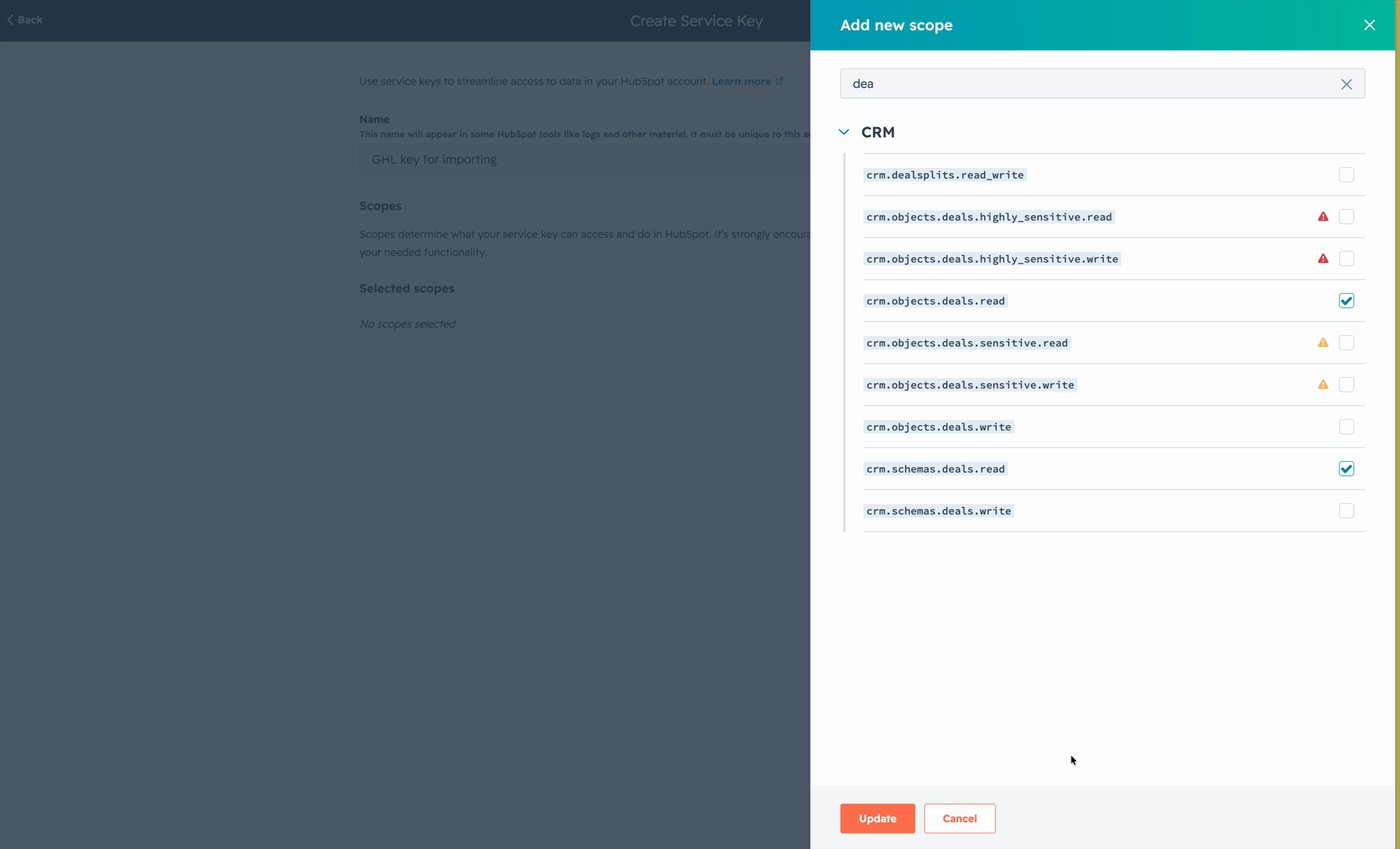
Clear the search box and type deal to filter again. Check the boxes for:
crm.objects.deals.readcrm.schemas.deals.read
Click Update at the bottom of the panel to save your scope selections.
Note: only check the four .read scopes listed in steps 6 and 7. Don't check anything labelled highly_sensitive, sensitive, or .write — the importer doesn't need those, and HubSpot will warn you about them.
Step 8 — Review and click "Create"
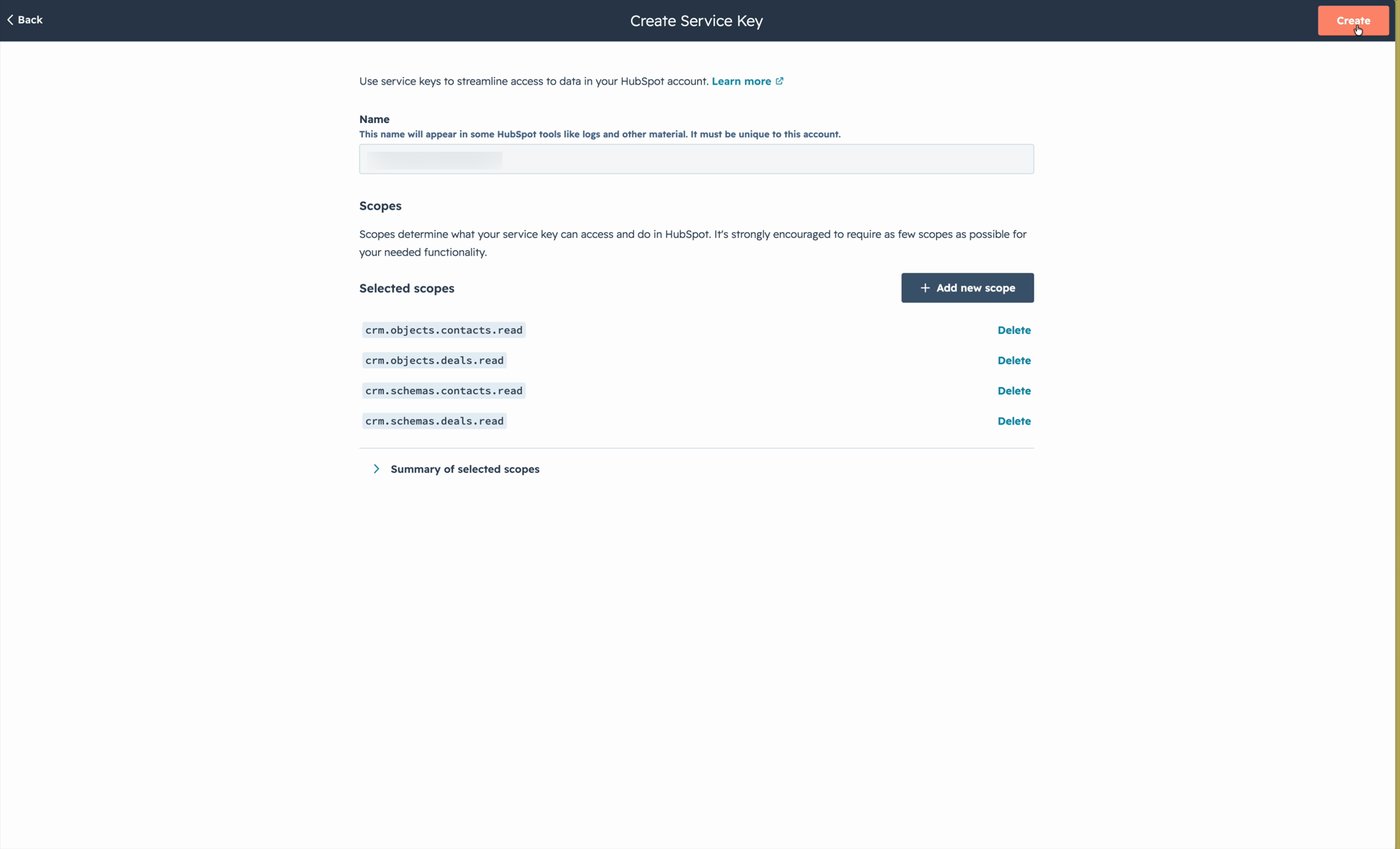
You should now see all four scopes listed under Selected scopes:
crm.objects.contacts.readcrm.objects.deals.readcrm.schemas.contacts.readcrm.schemas.deals.read
Click Create in the top-right corner. HubSpot will ask you to confirm — click Create again to finish.
Step 9 — Copy your service key
HubSpot will show your new service key on the next page (it starts with pat-). Click Copy to copy the full key to your clipboard.
Switch back to the browser tab where you opened the Connect HubSpot panel in Step 1, click I have my key, paste your key into the Paste & verify your key field, and finish the connection.
That's it — your contacts, companies, deals, pipelines, and properties will start importing from HubSpot. ?
Troubleshooting & FAQ
I don't see "Service Keys" in the left sidebar.
You're likely not signed in as a Super Admin, or your account doesn't have access to the Service Keys beta. Ask your HubSpot admin to grant you Super Admin access, or to create the key for you and share it via a secure channel (a password manager, not chat or email).
HubSpot won't let me name my key.
The name has three rules: it must be unique inside your HubSpot account, it can't start or end with a space, and it can't be empty. Try a name like HubSpot Import.
I've created a key but the connection says it's invalid.
Two common causes:
- Missing scopes. Go back to the key in HubSpot and confirm all four
.readscopes are listed. - The key was rotated or revoked. If you (or another admin) clicked Rotate or Delete in HubSpot, the old value stops working immediately. Generate a new key and paste the new value.
Can I revoke this key later?
Yes — go back to Development → Keys → Service Keys in HubSpot, open the key, and click Delete. The connection will stop working immediately. To restore it, create a new key and re-paste it into the Connect HubSpot panel.
What's the difference between a service key and an API key or private app token?
HubSpot used to offer "API keys," but those are deprecated. Service keys are the current recommended way for a partner integration to access your HubSpot data. They're scoped (you choose exactly what they can read), rotatable, and revocable.