How to Enable WhatsApp in your account?
Print
Modified on: Mon, 16 Nov, 2026 at 6:08 AM
WhatsApp Setup
How to Enable WhatsApp in Your Account
Connect WhatsApp to LeadConnector using Meta’s latest Embedded Signup. Pick your setup, finish it in one go, and know what to expect.
Overview
Meta’s WhatsApp setup now uses Messaging accounts, WhatsApp accounts and conversation routing. The steps depend on where your number lives today, so start with Which setup is mine? and then follow only that section.
Already connected but getting “Unsupported post request. Object with ID … does not exist” when you send a message? Jump to the fix.
Start hereWhich setup is mine?
Answer the questions below to find your setup. Each setup has its own full steps and FAQs.
Not sure which one you are?
Open the number in the WhatsApp Business app. If you can open the app and chat with it, you’re in setup 3 or 4. If the number only works through a provider’s dashboard, you’re in setup 2. If the number isn’t on WhatsApp at all, you’re in setup 1.
Setup 1New number (Cloud API)
Video Walkthrough: New Number
Before you start
You need a Facebook account that can manage your business, and a phone number that can receive an SMS or voice call. Landlines and virtual numbers work.
Number requirements
- The number must be able to receive an SMS or a voice call for verification.
- Landlines and virtual numbers are supported.
- A number that is used on a personal WhatsApp account must be deleted from WhatsApp first (see below).
If the number is on a personal WhatsApp account
In WhatsApp on your phone, go to Settings > Account > Delete my account and confirm. Wait a few minutes before you continue.
Important
Deleting the account removes that number’s chats from the personal WhatsApp app. If you want to keep using the app with the number, use
setup 3 (Coexistence) instead (WhatsApp Business app only).
Setup steps
Step 1
Start the signup
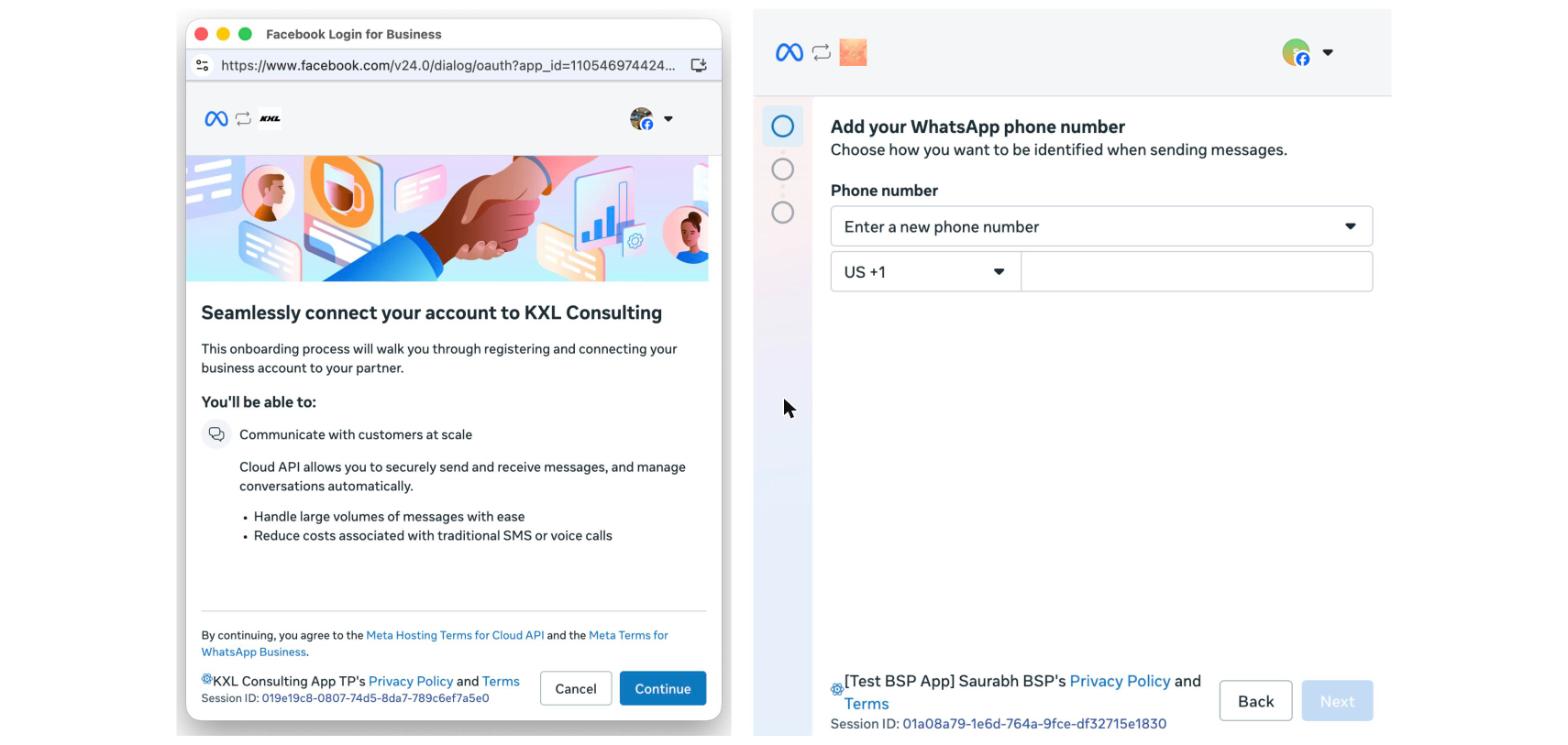
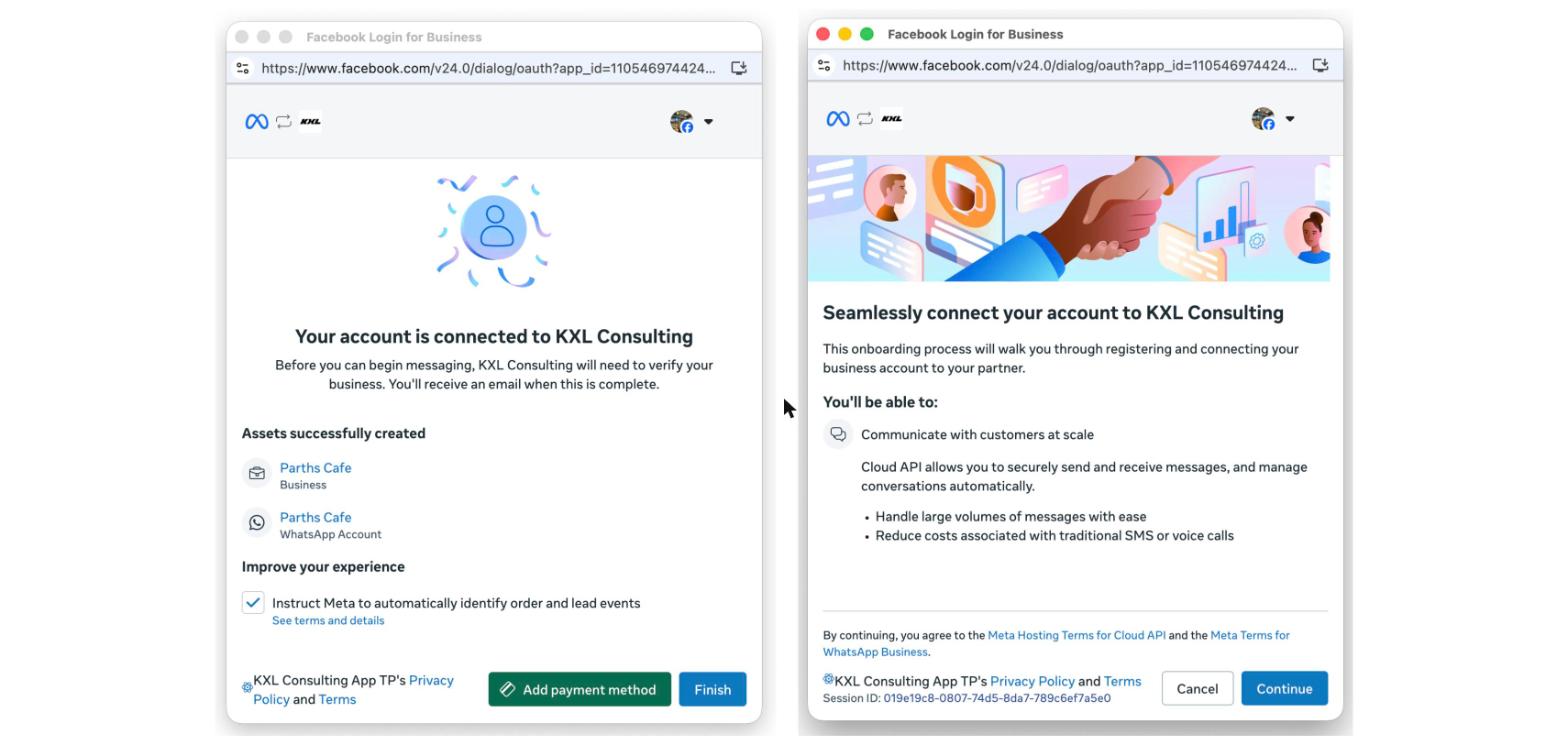
In LeadConnector, go to Settings > WhatsApp and click Create a new WhatsApp business account.
Step 2
Log in with Facebook
Click Continue with Facebook and log in with the Facebook account that manages your business.
Step 3
Choose or create your business portfolio
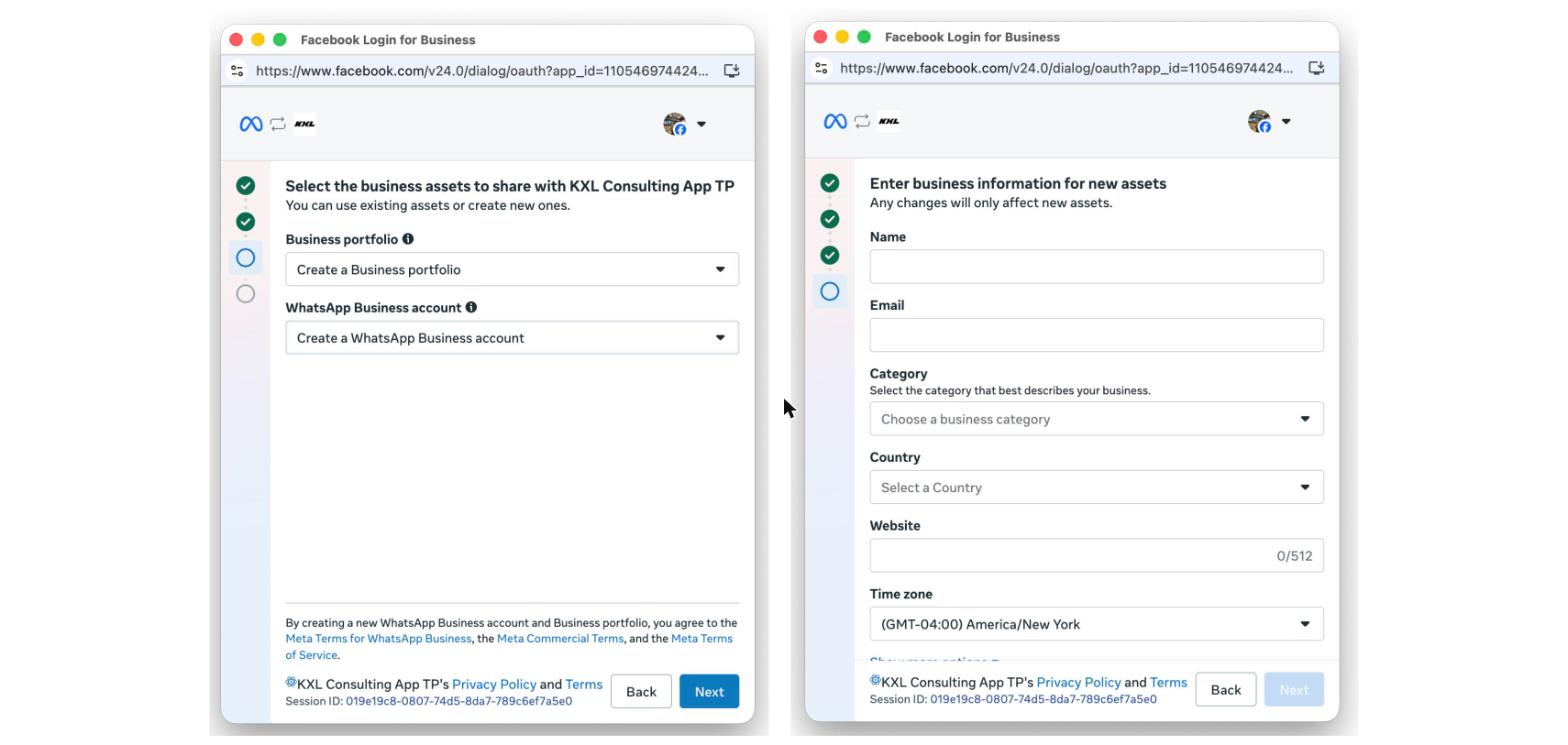
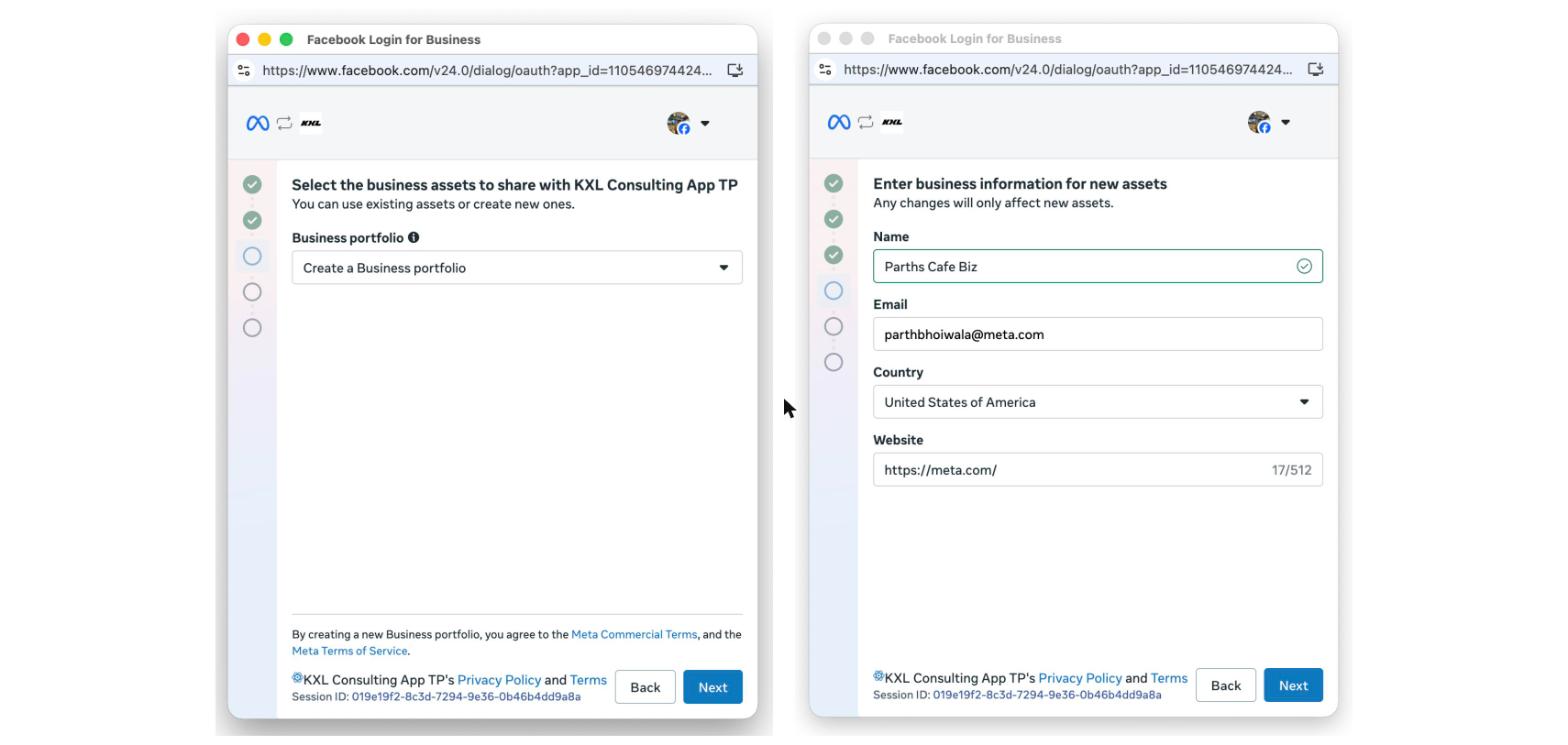
Select an existing business portfolio, or choose Create a business portfolio and follow Meta’s prompts.
Step 4
Choose or create your WhatsApp account
Select an existing WhatsApp account, or choose Create a WhatsApp account.
Step 5
Enter your business details
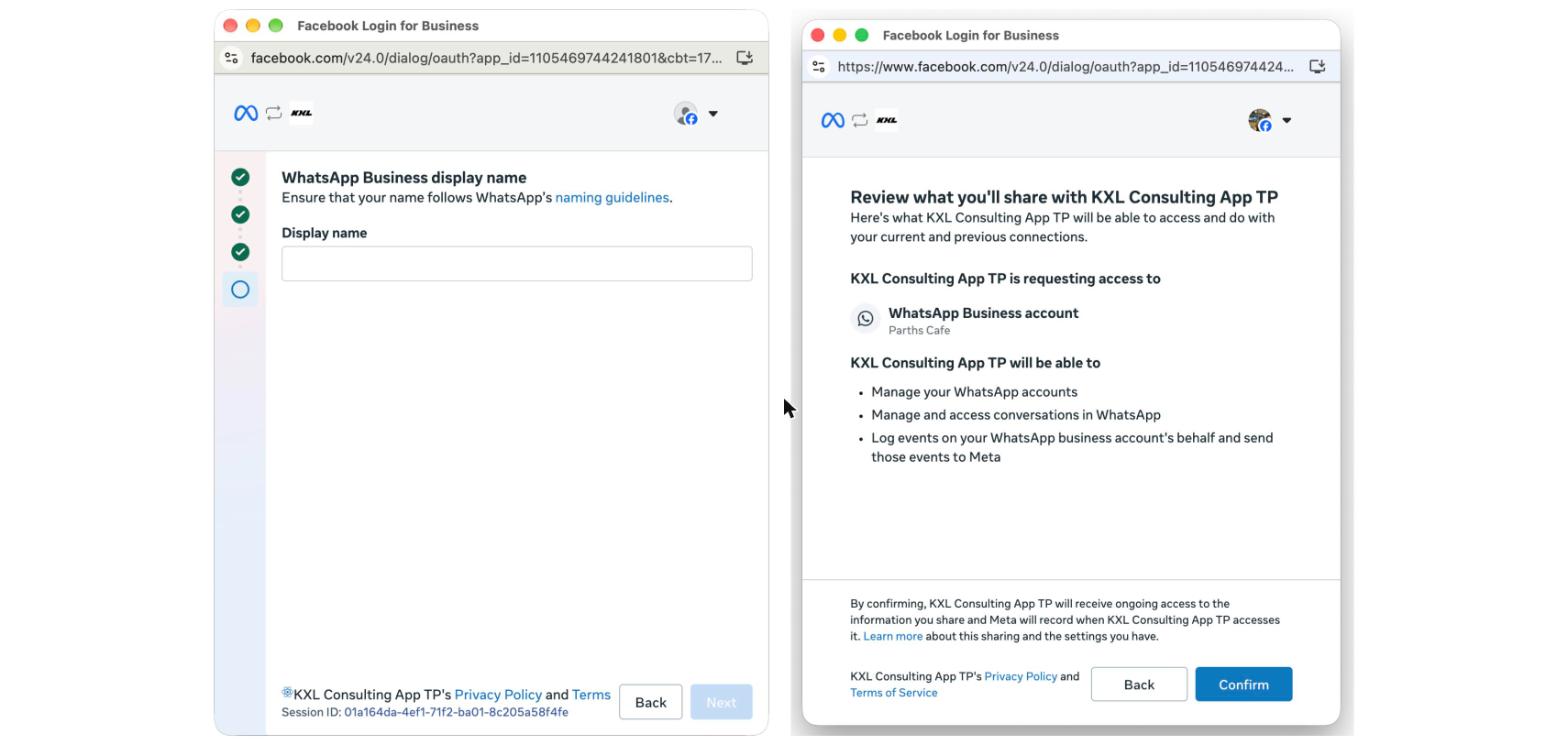
Fill in the business name, WhatsApp display name, category and website, then click Next.
Step 6
Add your phone number
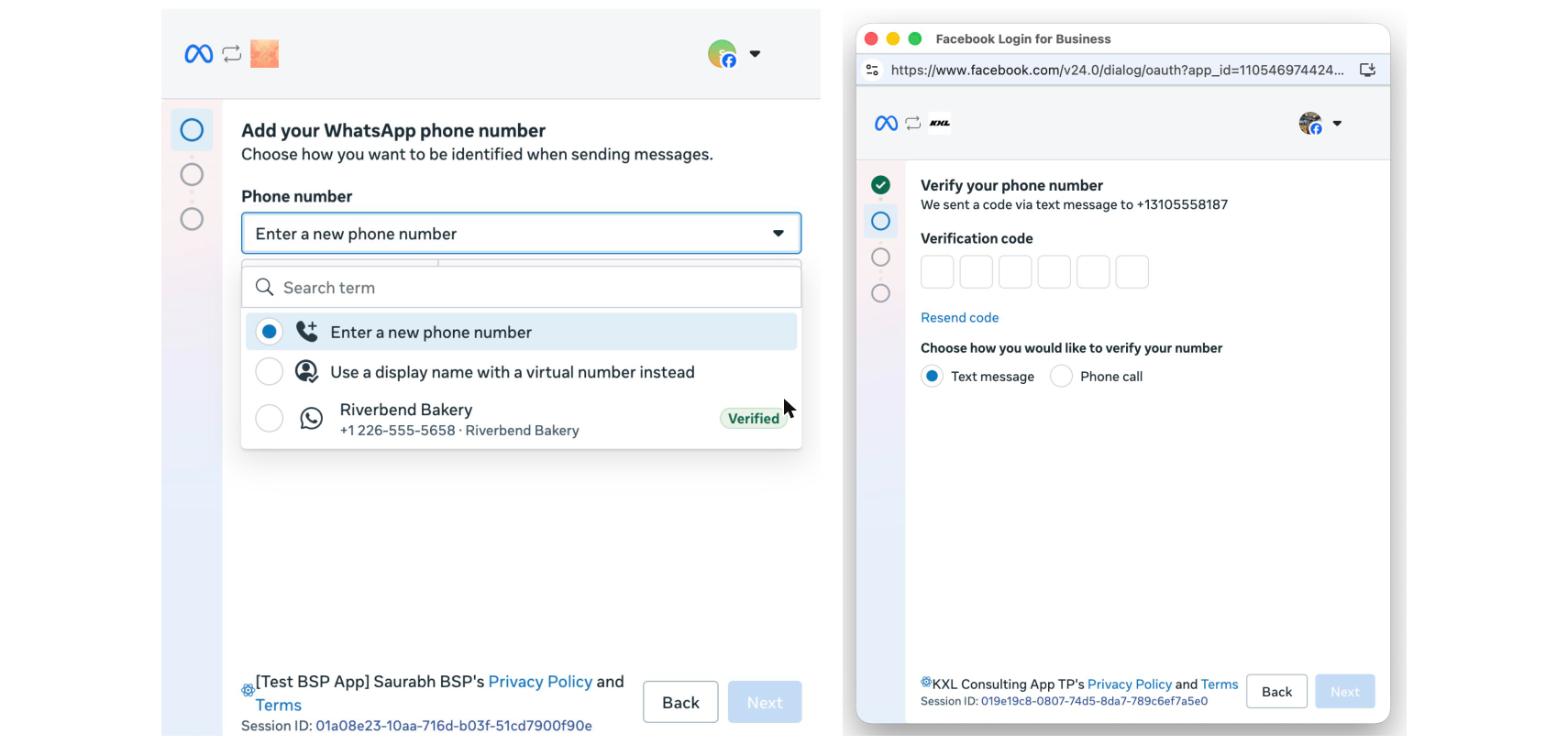
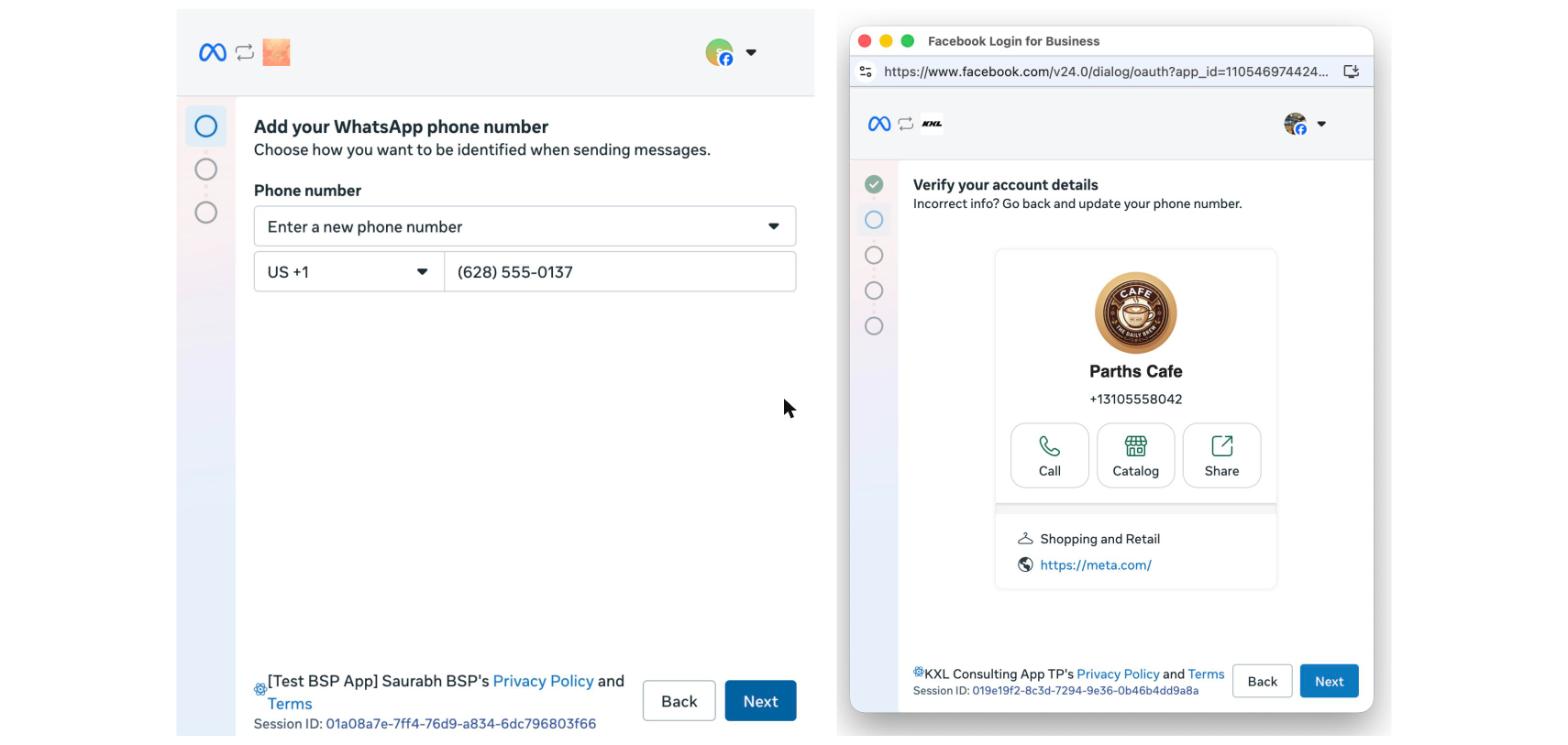
Enter the number you want to use, choose Text message or Phone call, and click Next.
Step 7
Verify with the code
Enter the 6-digit code you receive, then click Next.
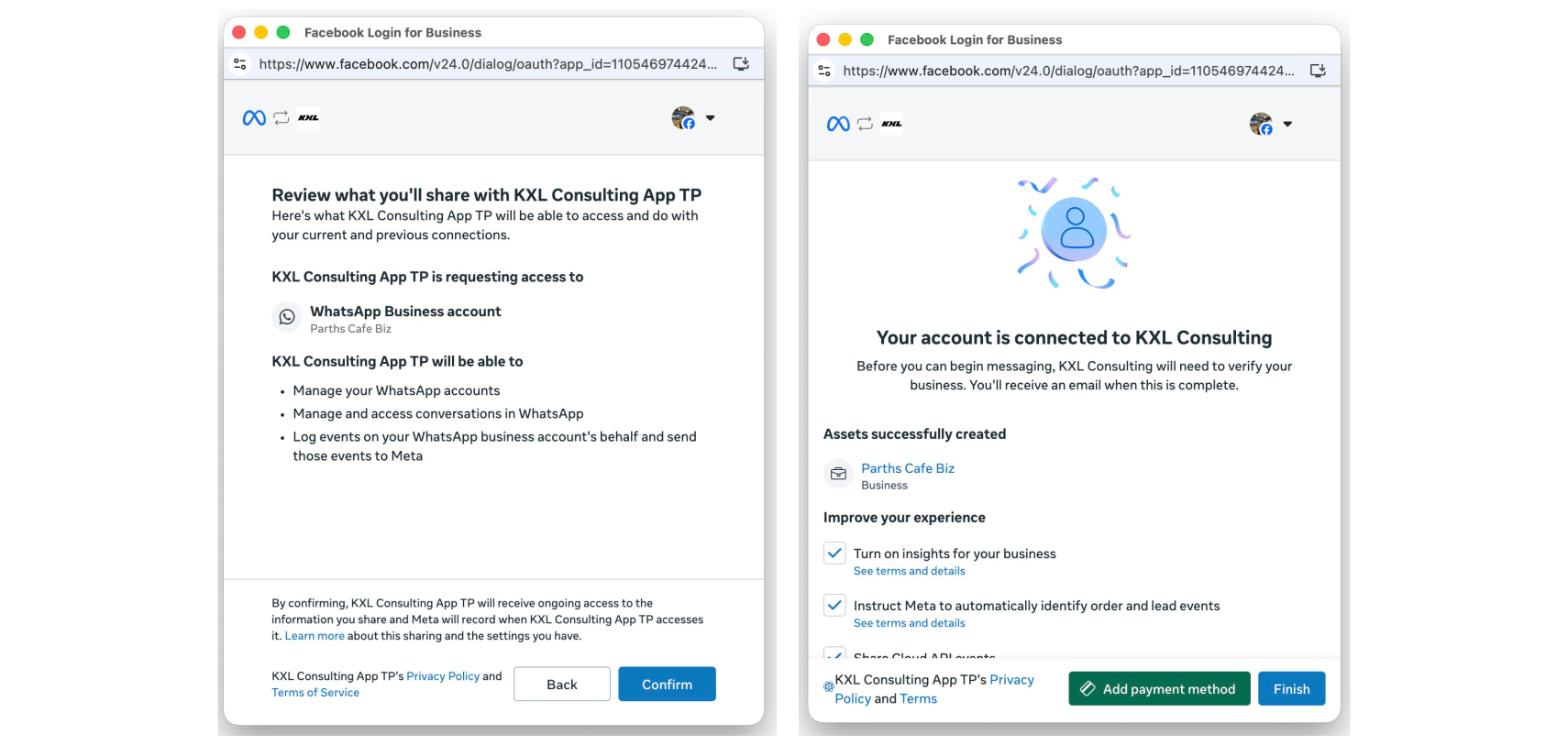
Step 8
Review permissions
Review what LeadConnector can access and click Continue.
Step 9
Finish
Click Finish. You’re taken back to LeadConnector, where the number now appears in Settings > WhatsApp.
What happens after you connect
| What | What to expect |
|---|
| Display name review | Meta reviews your WhatsApp display name. This can take from a few minutes to a couple of days. You can start messaging with limits while it’s reviewed. |
| Business verification | Complete business verification in Meta Business Suite to raise your messaging limits and unlock more features. |
| “Pending” number | A number shown as Pending hasn’t finished Meta’s checks yet (display name review or verification). It becomes active automatically once Meta approves it. No action is needed unless Meta asks for something. |
FAQs for this setup
Q: Can I use a landline or virtual number?
Yes, as long as it can receive an SMS or a voice call for the verification code.
Q: I never got the verification code. What should I do?
Go back and choose the other method (text message or phone call). Check the number is entered with the correct country code and can receive calls.
Q: The number says it’s already registered on WhatsApp.
If it’s on a personal WhatsApp account, delete that account first (see above). If it’s connected to another provider, use
setup 2. If it’s on the WhatsApp Business app, use
setup 3.
Q: Why is my number Pending?
Meta is still reviewing your display name or business details. It updates automatically once Meta approves it.
Already on another partner?
Switching providers? Start here
You can add LeadConnector to a number that’s connected to Wati, 360dialog or another partner – no disconnect needed.
Setup 2Number already connected to another partner (Wati, 360dialog, etc.)
Good to know
You don’t need to disconnect from your current partner. LeadConnector is added alongside it, and then you choose which partner receives incoming messages (see routing below).
Heads up
Any partner connected to a number can deregister it. Keep your current partner connected until you’ve confirmed messages arrive in LeadConnector.
Setup steps
Step 1
Start the signup
In LeadConnector, go to Settings > WhatsApp and click Create a new WhatsApp business account.
Step 2
Log in with Facebook
Click Continue with Facebook and log in with the Facebook account that manages your business.
Step 3
Choose your business portfolio
Select the business portfolio that owns the WhatsApp account.
Step 4
Choose the WhatsApp account that already has the number
Select the existing WhatsApp account that holds the number connected to your other partner. Do not create a new one.
Step 5
Confirm your business details
Check the business details and click Next.
Step 6
Select the number
Choose the number that is connected to your other partner and click Next. If asked, verify it with a text message or phone call.
Step 7
Verify with the code
Enter the code you receive and click Next.
Step 8
Review permissions
Review what LeadConnector can access and click Continue.
Step 9
Finish
Click Finish. The number now appears in LeadConnector, and your previous partner stays connected.
Set LeadConnector to receive messages (conversation routing)
After setup, Meta keeps sending incoming messages to the partner that connected first. To receive them in LeadConnector, change the conversation routing settings in Meta Business Suite so that LeadConnector is the partner that receives and replies to messages.
- Open Meta Business Suite > Settings > WhatsApp accounts and select the account that holds your number.
- Open the conversation routing settings for the number.
- Choose LeadConnector as the partner that receives incoming messages, then save.
“Payment method already attached” message
You may see a message that a payment method is already attached to the WhatsApp account. This appears when your previous partner’s credit line is still shared with the account.
How to resolve it:
- Ask your previous partner to stop sharing (revoke) their credit line on the WhatsApp account, or
- In Meta Business Suite > WhatsApp Manager > Payment settings, set up your own payment method for the account.
- Return to LeadConnector and retry the connection.
FAQs for this setup
Q: Do I need to disconnect from my current partner first?
No. Your current partner stays connected. You only change conversation routing so messages come to LeadConnector.
Q: Why am I not receiving messages in LeadConnector?
Meta routes incoming messages to the first partner that connected. Update the conversation routing settings (see above) so LeadConnector receives them.
Q: Will I keep my number, templates and chats?
Your number stays the same. Message templates and history stay with the WhatsApp account and your previous partner’s data isn’t moved automatically.
Q: What is the “payment method already attached” message?
It means your previous partner’s credit line is still shared with the WhatsApp account. See the steps above to resolve it.
Setup 3WhatsApp Business app number (Coexistence)
Video Walkthrough: Coexistence
Availability
Coexistence is now supported for numbers from Nigeria and South Africa, in addition to the other supported countries.
Before you start
- WhatsApp Business app version 2.24.17 or later installed on your phone.
- The phone with the Business app and the number nearby. You’ll need it to receive a message and scan a QR code.
Setup steps
Step 1
Start the signup
In LeadConnector, go to Settings > WhatsApp and click Connect your WhatsApp.
Step 2
Log in with Facebook
Click Continue with Facebook and log in with the Facebook account that manages your business.
Step 3
Choose your business portfolio and WhatsApp account
Select your business portfolio and WhatsApp account, or create new ones, then click Next.
Step 4
Enter your Business app number
Enter the phone number you use in the WhatsApp Business app and click Next.
Step 5
Open the message from Facebook Business
On your phone, open the WhatsApp Business app and look for the message from the official Facebook Business account.
Step 6
Scan the QR code
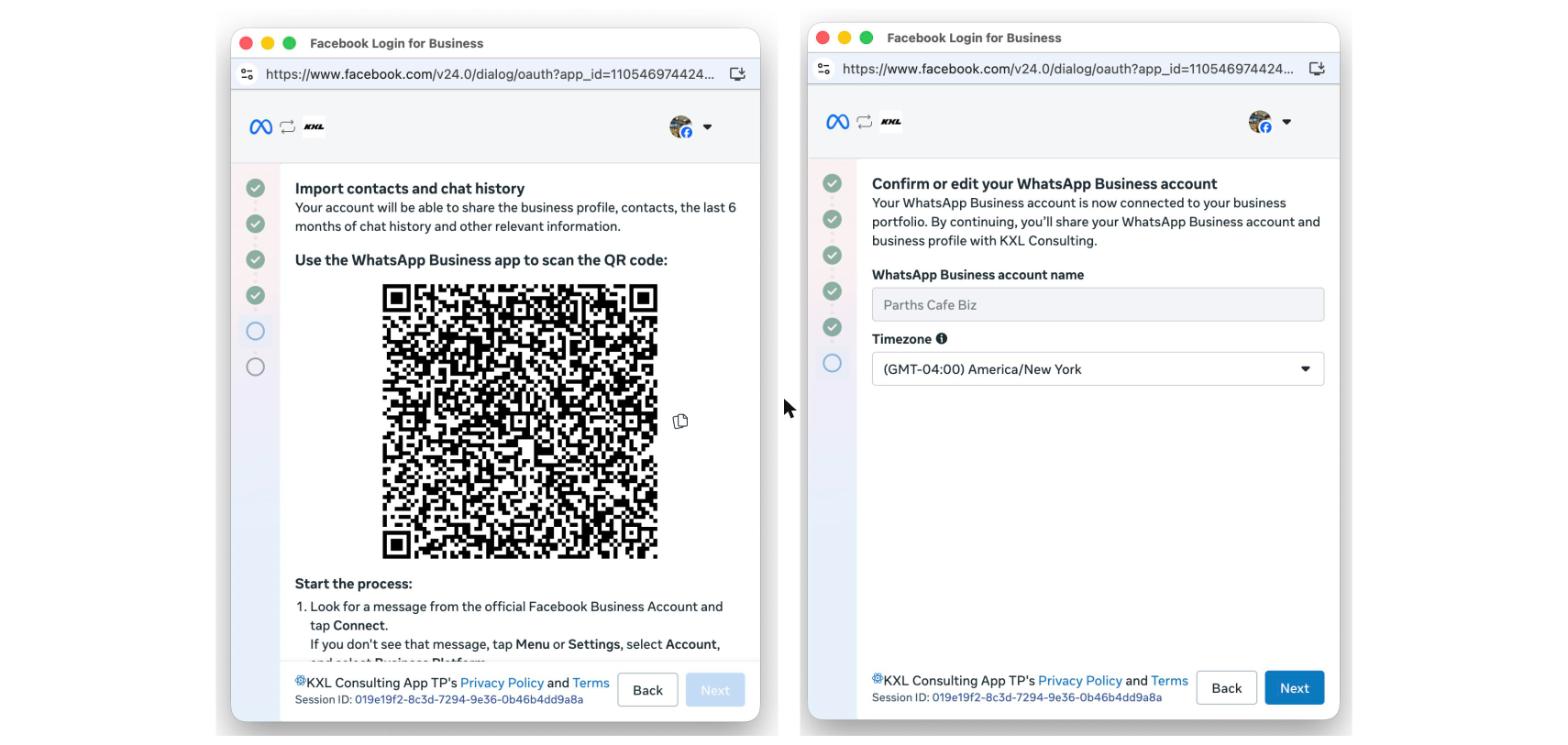
Tap the link in the message, then scan the QR code shown on your computer screen with your phone.
Step 7
Choose whether to share chat history
Choose whether to share your chat history and contacts with LeadConnector, then continue.
Step 8
Finish
Click Finish. Your Business app is now connected. Keep the app open while chats import.
What comes over
- Up to 6 months of one-to-one chats and your contacts.
- Group chats don’t come over.
- Photos and files only from the last 14 days.
Keep the app open
Keep the WhatsApp Business app open on your phone while chats import. It usually takes a few minutes.
What changes in the app after connecting
- WhatsApp on linked devices (web, desktop, tablet) is logged out and needs to be linked again. Messages sent from WhatsApp for Windows and Wear OS don’t show up in LeadConnector.
- Broadcast lists become read-only.
- Disappearing messages, view once and live location are turned off.
Good to know
Note
1. Template messages can’t be sent from the WhatsApp Business app. They are sent from the CRM.
2. You manage your WhatsApp profile from the WhatsApp Business app, not the CRM.
3. You can have a maximum of one phone number under Coexistence.
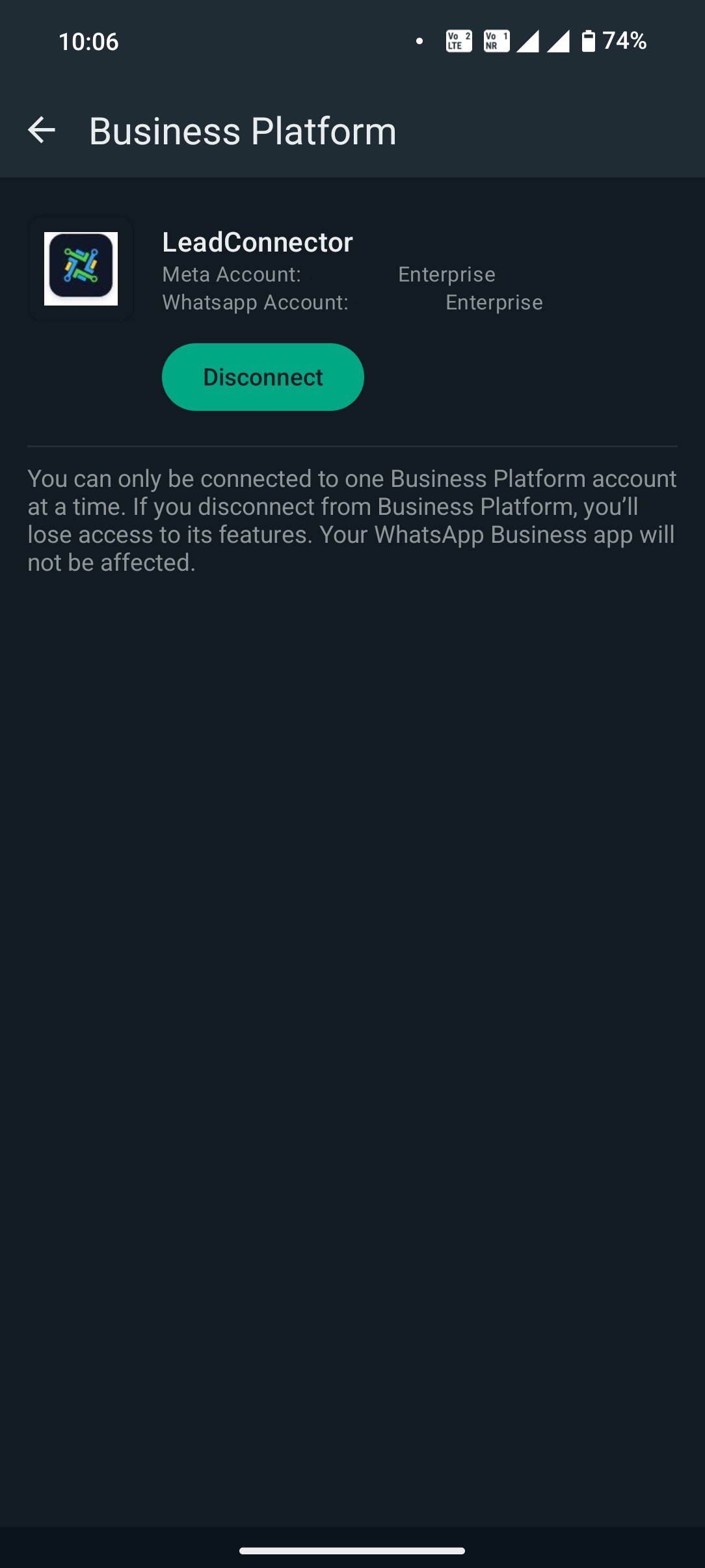
Disconnect WhatsApp Coexistence
The sub-account doesn’t show an option to disable or delete a Coexistence number from the CRM. Disconnect it from the WhatsApp Business app on the phone:
Step 1
Open the WhatsApp Business app
Open the app on the phone linked to the Coexistence number.
Step 2
Go to Business Platform
Go to Settings > Account > Business Platform.
Step 3
Disconnect
Under LeadConnector, tap Disconnect and confirm.
FAQs for this setup
Q: Can I keep using the WhatsApp Business app?
Yes. The app and LeadConnector work side by side on the same number.
Q: Will my old chats show up in LeadConnector?
If you choose to share chat history, up to 6 months of one-to-one chats and your contacts are imported. Group chats don’t come over, and photos and files only from the last 14 days.
Q: Why can’t I send messages from a Coexistence number?
If you see “Unsupported post request. Object with ID … does not exist”, see
the fix below.
Q: My linked devices were logged out.
This is expected after connecting. Link your web, desktop or tablet devices again from the WhatsApp Business app.
Q: How do I stay connected?
Open the WhatsApp Business app on your phone at least once every 14 days.
Setup 4WhatsApp Business app number already connected to another provider
Heads up
A Coexistence number can be connected to only one provider at a time. Disconnect it from your current provider first, then connect it here.
Disconnect from the other provider
Step 1
Open the WhatsApp Business app
Open the app on the phone that holds the number.
Step 2
Go to Business Platform
Go to Settings > Account > Business Platform.
Step 3
Disconnect
Tap Disconnect next to the other provider and confirm.
Connect it to LeadConnector
Once the number is disconnected, follow the steps in setup 3 (Coexistence) to connect it here.
FAQs for this setup
Q: Can I connect to two providers at once?
No. A Coexistence number connects to only one provider at a time.
Your chats stay in the WhatsApp Business app. After connecting here, you can choose to share up to 6 months of chat history with LeadConnector.
FixFix: “Unsupported post request. Object with ID … does not exist”
When it appears
Sending a message from a Coexistence number fails with: “Unsupported post request. Object with ID … does not exist”.
Why this happens
Meta removes LeadConnector’s connection to the WhatsApp account when the WhatsApp Business app hasn’t been opened on the main phone for 14 days, or a linked device has been inactive for 30 days. The number then shows as Offline.
What to do
Step 1
Delete the Coexistence number in LeadConnector
Step 2
Connect it again
Connect the number again through Embedded Signup, using the steps in
setup 3.
How to stay connected
Open the WhatsApp Business app on your phone at least every 14 days.
Did you find it helpful?
Yes
No
Send feedback Sorry we couldn't be helpful. Help us improve this article with your feedback.