
Sending review request emails is an essential part of gathering feedback and improving your business's reputation. Including a review link in these emails makes it easy for customers to leave feedback, but setting it up correctly is crucial. This guide will walk you through the steps to set up a review link in your review request email effectively.
Step 1: Access Settings in Reputation tab
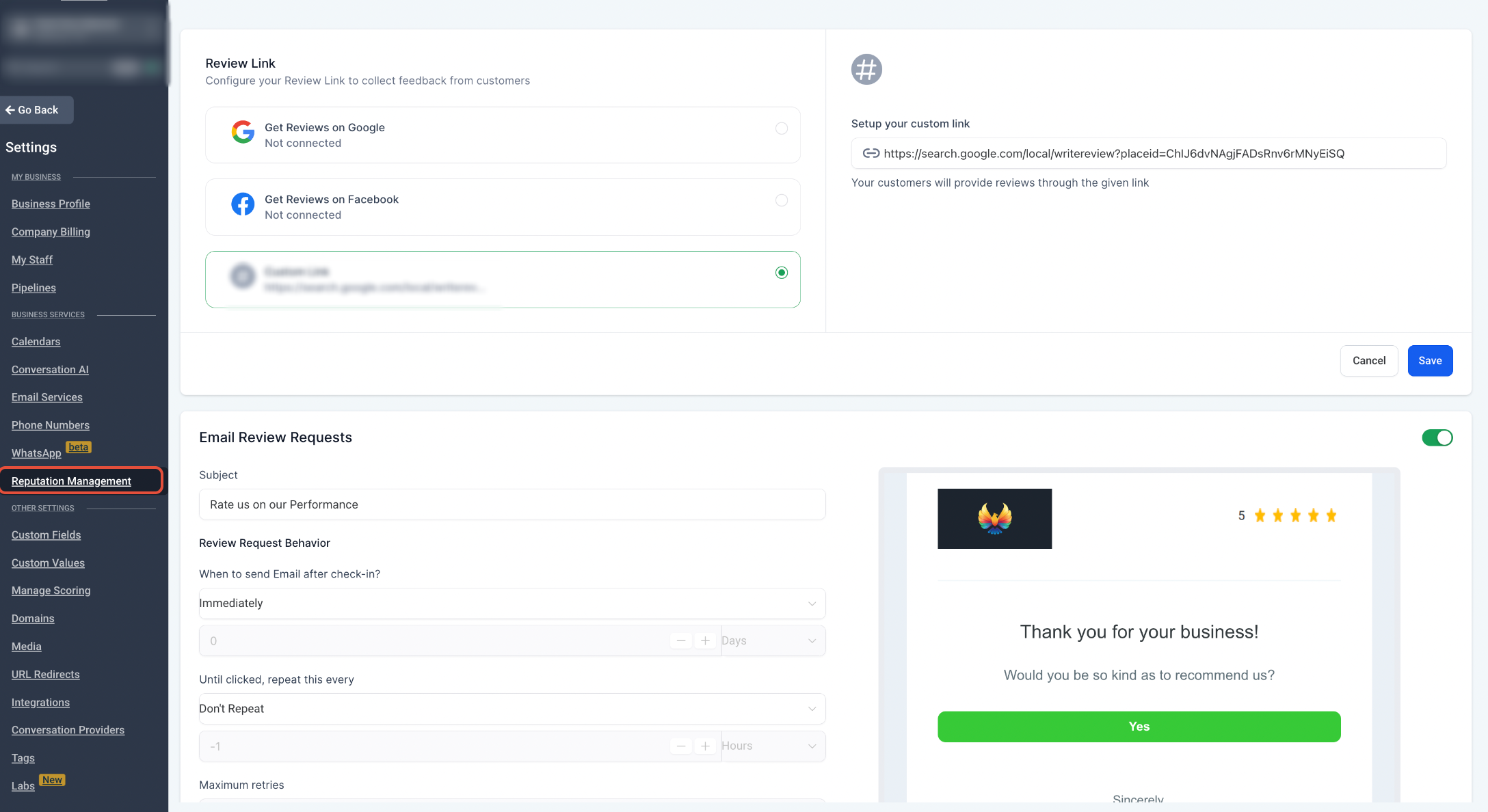
- Go to Reputation Tab in your sub-accounts and click on settings. You will see a section for setting up your Review Link.
Step 2: Set a Review Link for sending out Emails/SMS
- You can set up your review Link based on which platform you would need your reviews to be obtained from users - Google, Facebook, or a Custom Link
- This Link will be the default link used in all your Review Requests sent via Email/SMS
Step 3: Set a Review Link for in the Email Builder
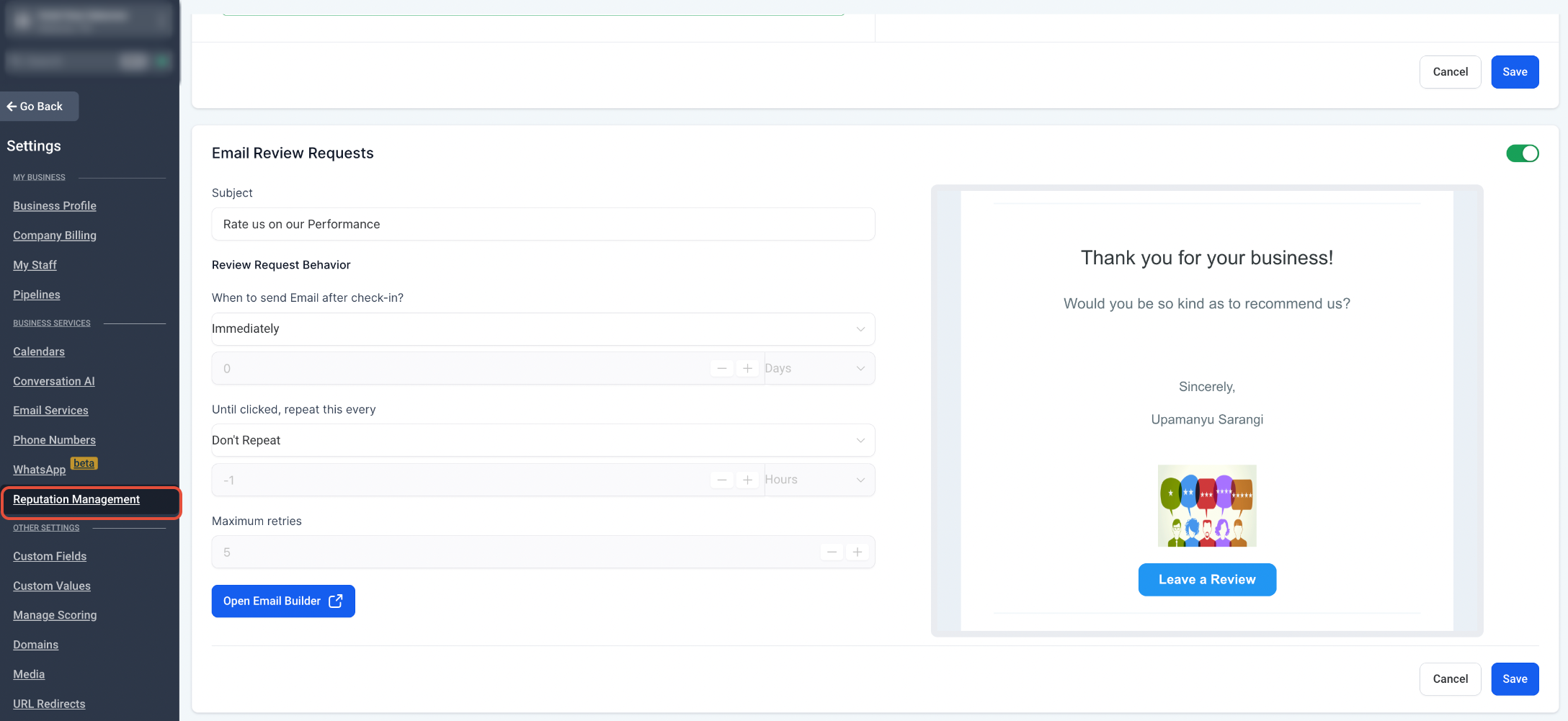
- Alternatively you can also go to the Email Review Requests section of Settings tab. Open Email Builder -> Add a Button -> Set the Link URL as {{reputation.review_link}}.
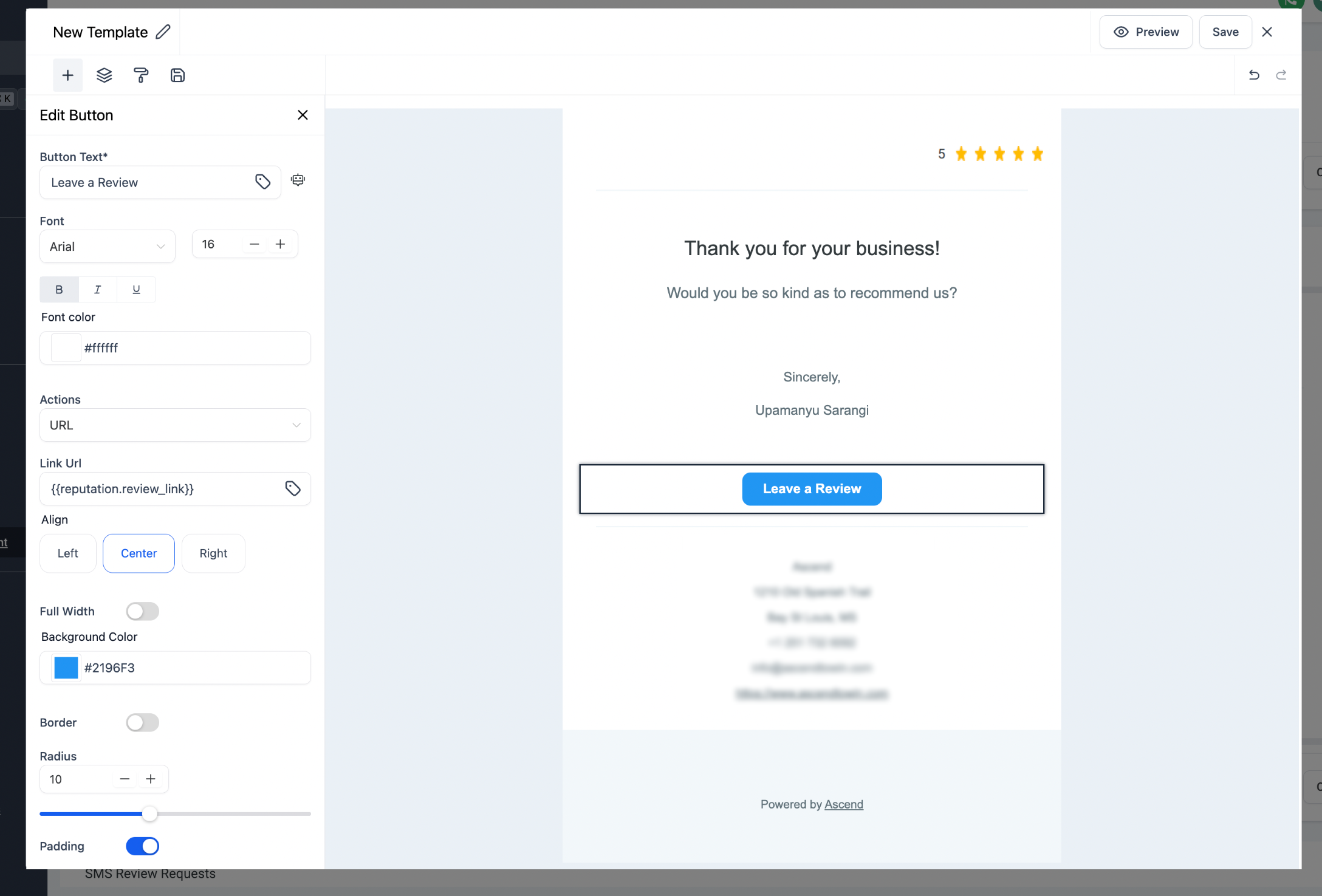
Note: You wont be able to send a review request without setting up a Review Link.
By following these steps, you can seamlessly set up review links in your review request emails, streamlining the process for collecting valuable feedback from your customers.
Need Help?
If your review request email is not sending or the review link is not working correctly, first review the Review Link and email template settings.
Verify that:
- A valid Review Link is configured under Reputation > Settings.
- The correct review destination is selected, such as Google, Facebook, or a custom URL.
- The
{{reputation.review_link}}value is inserted correctly in the email button or link. - The email template has been saved after adding the review link.
- The destination link opens successfully when tested.
- The contact has a valid email address.
- The review request email is enabled and configured to send.
- The correct template is being used for the request.
- The request is being triggered from the intended contact, Reputation, or workflow process.
If the email sends but the button opens the wrong page, review the configured Review Link and confirm the email is using the {{reputation.review_link}} value rather than a different URL.
If the issue continues, collect the contact, template name, configured review destination, sending method, exact error message, and screenshots of the Review Link and email template settings before contacting support.