
Connecting multiple business listing pages allows you to manage customer messages, incoming leads, and reviews from several locations in one place. Instead of switching between listings or accounts, all engagement data can be viewed, monitored, and responded to from a single workspace. This setup is especially useful for businesses with multiple locations or service areas that want consistent visibility and centralized communication.
When multiple pages are connected, you can control which pages receive messages, enable call tracking selectively, and manage each page’s settings without losing clarity or control.
TABLE OF CONTENTS
- Where to Begin the Connection Process
- Starting a New Business Listing Connection
- Selecting One or More Pages to Connect
- Configuring Messaging and Call Settings
- Completing and Confirming the Connection
- Viewing Connected Pages and Status
- Updating or Disconnecting Pages
- Important Considerations
- Frequently Asked Questions
- Need More Help?
Where to Begin the Connection Process
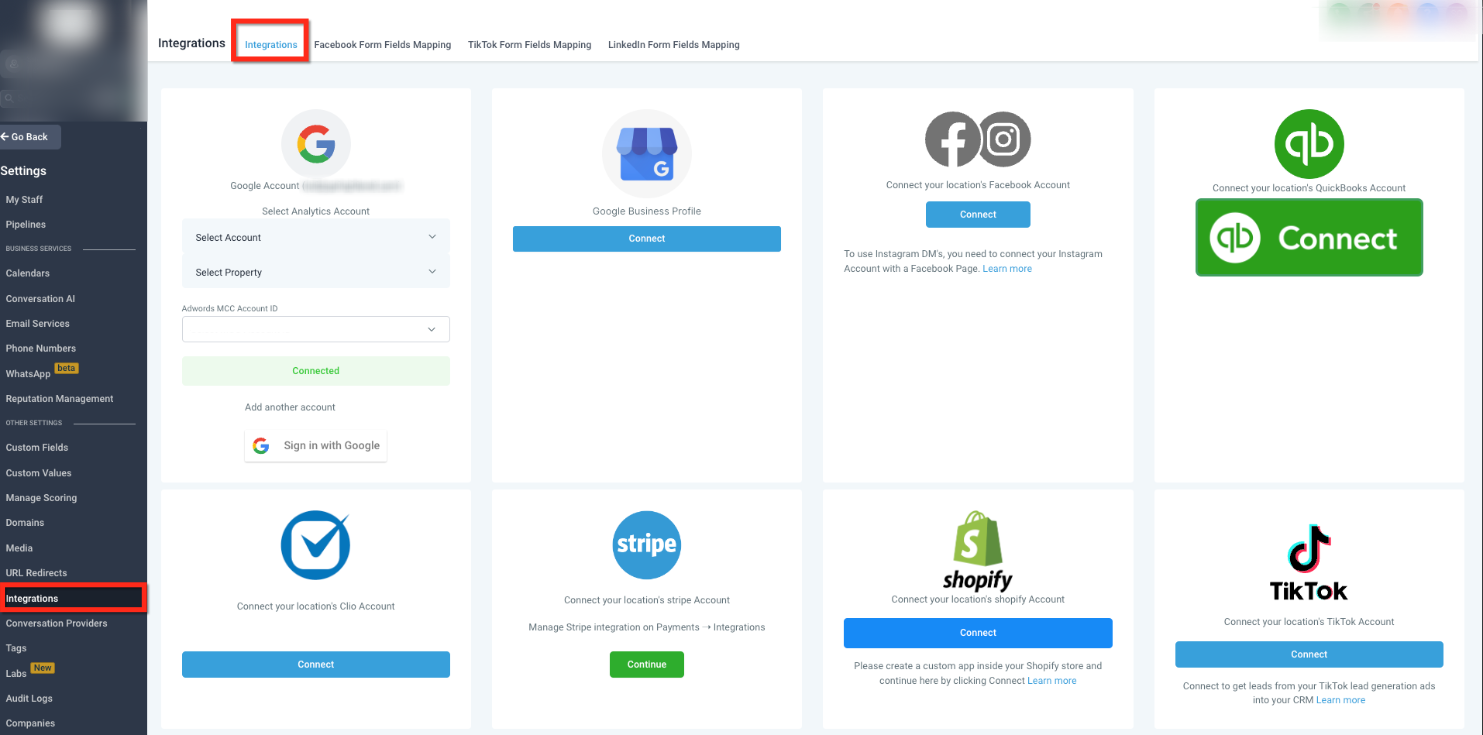
This image shows the main integrations area where different external connections are managed. From here, you can start linking business listing pages and manage existing connections.
To begin, navigate to the integrations section inside your account settings. This is where all external services and page connections are initiated and maintained.
Starting a New Business Listing Connection
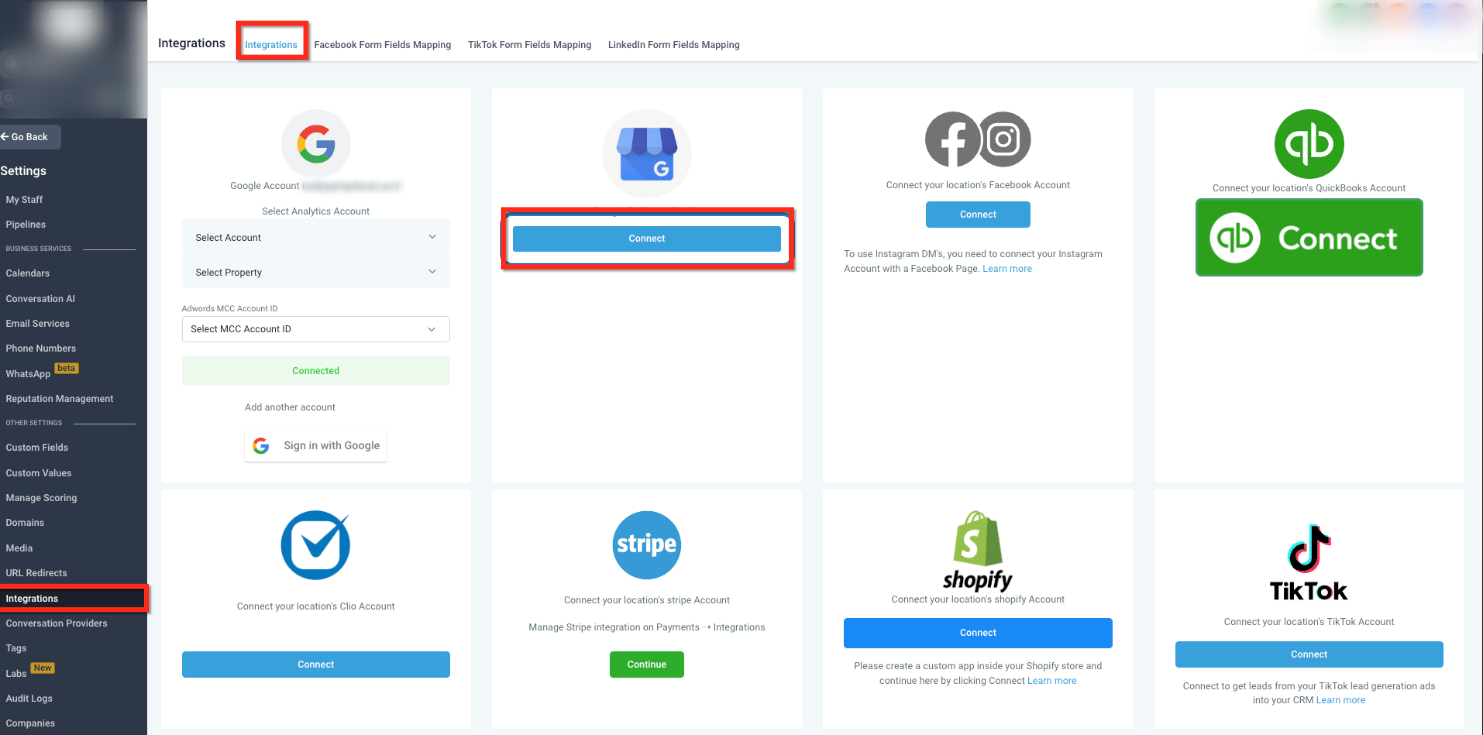
This image highlights the connection button used to start the authorization process for business listing pages.
Selecting the connect option begins a secure authorization flow that retrieves all business listing pages you have permission to manage. Only pages you control will be available for selection.
Selecting One or More Pages to Connect
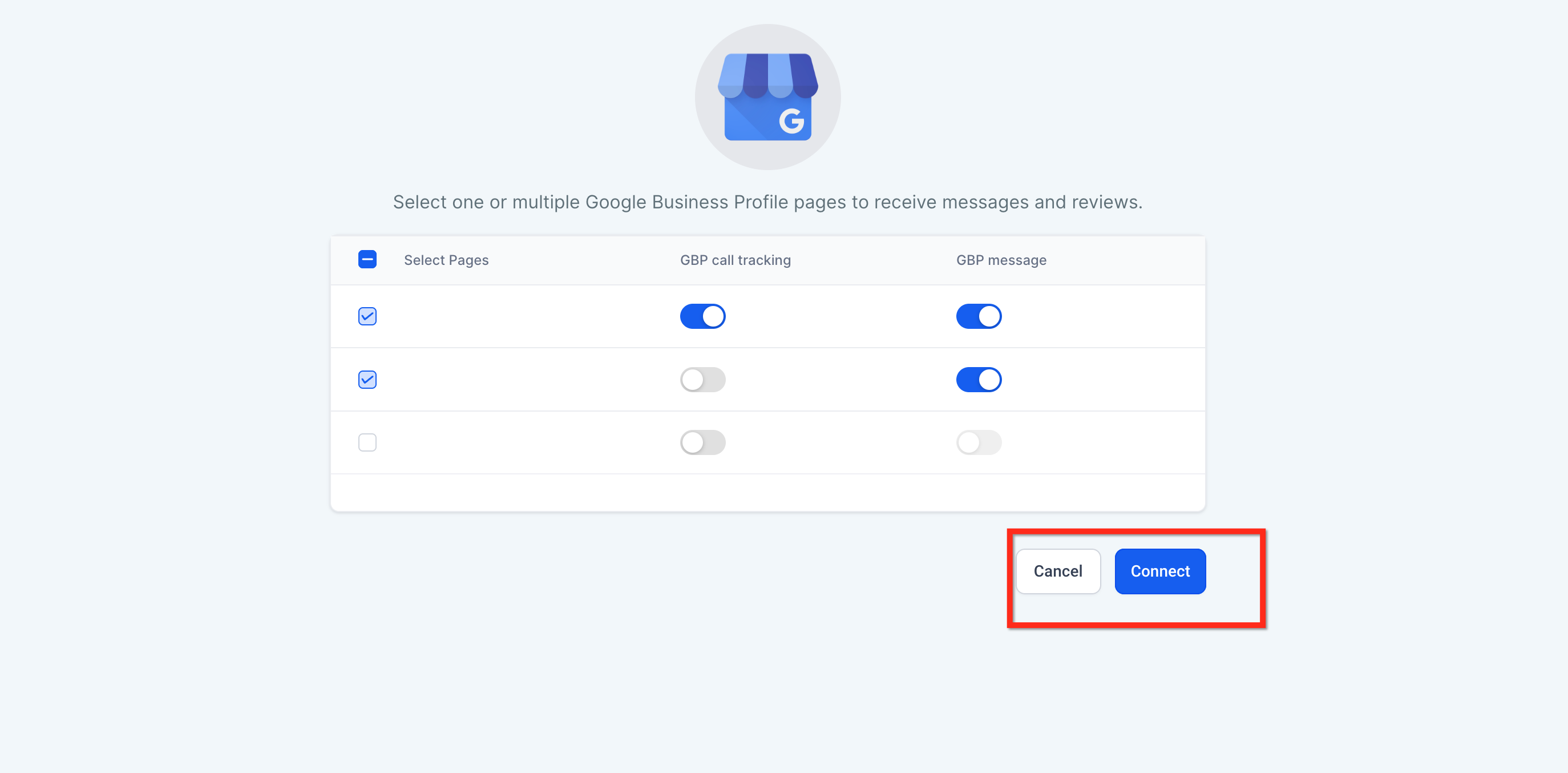
This image displays a list of available business listing pages that can be selected for connection.
You may select a single page or multiple pages during this step. Each selected page will be connected to your account and made available for message handling, lead visibility, and review monitoring.
Configuring Messaging and Call Settings
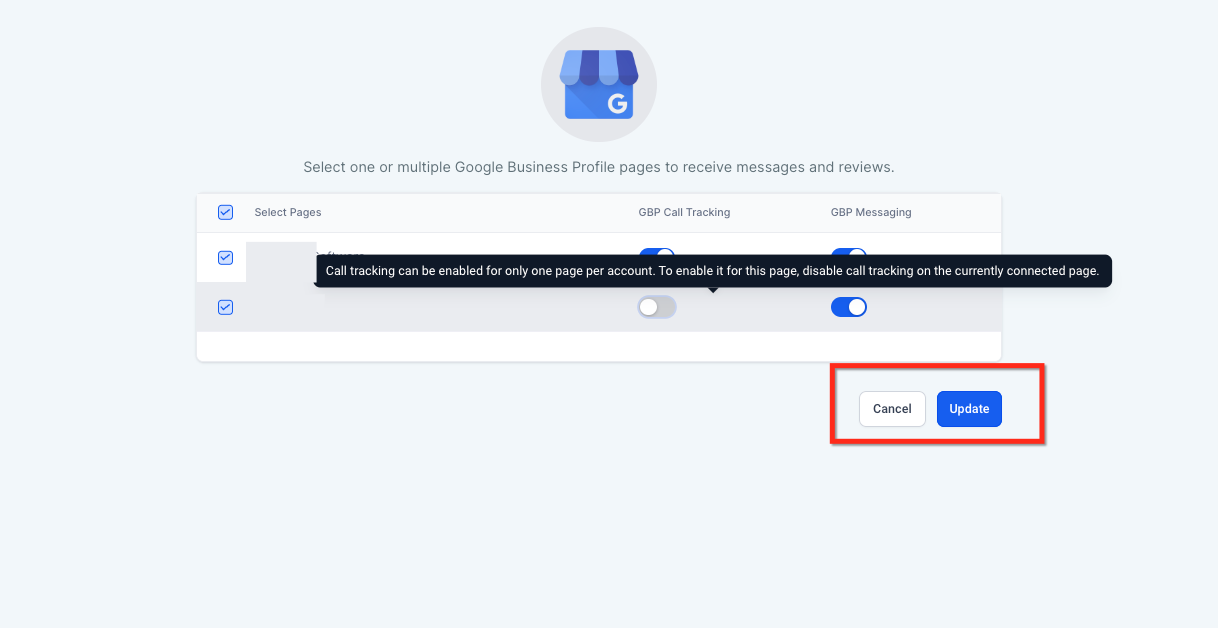
This image shows the toggles used to enable or disable messaging and call tracking for each connected page.
Messaging can be enabled independently for each page, allowing customer messages sent from the listing to appear in your workspace. Call tracking can also be enabled, but only one page can have call tracking active at a time. If call tracking is already enabled on another page, it must be disabled there before activating it on a new one.
Completing and Confirming the Connection
This image shows the confirmation step where selected pages are connected.
Once your selections and preferences are set, completing the connection links the pages to your account. The system may briefly process the request before the pages become active.
Viewing Connected Pages and Status
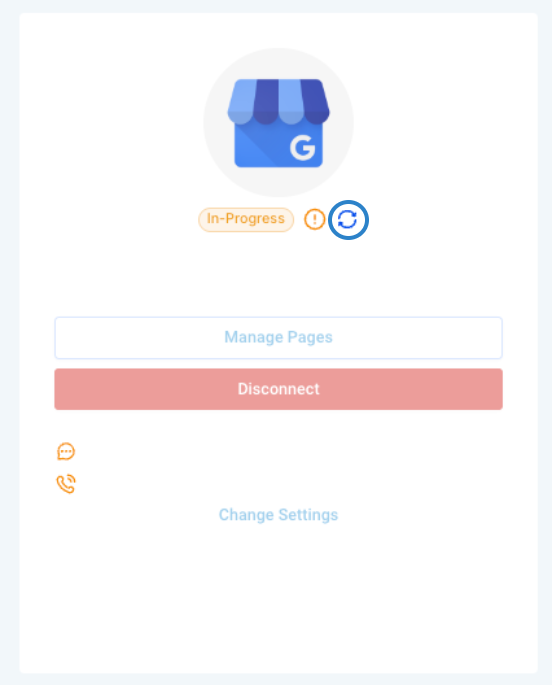
This image displays the connected pages along with their current status.
After a successful connection, all linked pages are listed in one place. From here, you can see which pages are active, which features are enabled, and access options to manage or disconnect pages as needed.
Updating or Disconnecting Pages
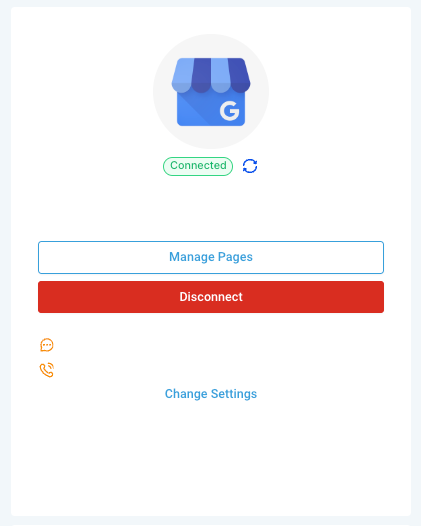
This image shows the options to update settings or disconnect pages entirely.
At any time, you can modify page settings, change messaging or call preferences, or disconnect pages that are no longer needed. Disconnecting removes the page from your account but does not affect the listing itself.
Important Considerations
Only pages you have permission to manage can be connected. Messaging can be enabled for multiple pages at the same time, but call tracking is limited to one page per account. Changes to settings may take a short time to reflect publicly.
Frequently Asked Questions
Q: Can I connect more than one business listing page at the same time?
Yes. You can select and connect multiple pages during the setup process, as long as you have access to manage them.
Q: Can messaging be enabled for all connected pages?
Yes. Messaging can be turned on or off individually for each page based on your preference.
Q: Why can call tracking only be enabled for one page?
Call tracking is designed to work with a single page at a time to ensure accurate routing and reporting.
Q: What happens if I disconnect a page?
Disconnecting a page removes it from your account view. Messages, calls, and reviews from that page will no longer appear.
Q: Can I reconnect a page later if needed?
Yes. A disconnected page can be reconnected at any time by repeating the connection process.
Need More Help?
If you need assistance connecting pages, adjusting messaging or call settings, or resolving connection issues, open the help section within your account and search for related articles, or contact support for guided assistance.