
TABLE OF CONTENTS
Step 1: Create a QR Code for your Business
To get started, follow these simple steps to create a QR Code that links directly to your review page:
- Navigate to Reputation: Access the reputation management platform and navigate to the "Reviews QR" section under Reputation -> Settings.
- Select the Page: Choose the specific review page you want your QR Code to direct customers to.
- Generate the QR Code: Click on the “Create QR Code” button. A unique QR Code will be generated that customers can scan to leave their reviews or feedback.
? Tip: You can create multiple QR Codes for different pages, such as Google Reviews, Facebook Reviews, or a custom feedback form.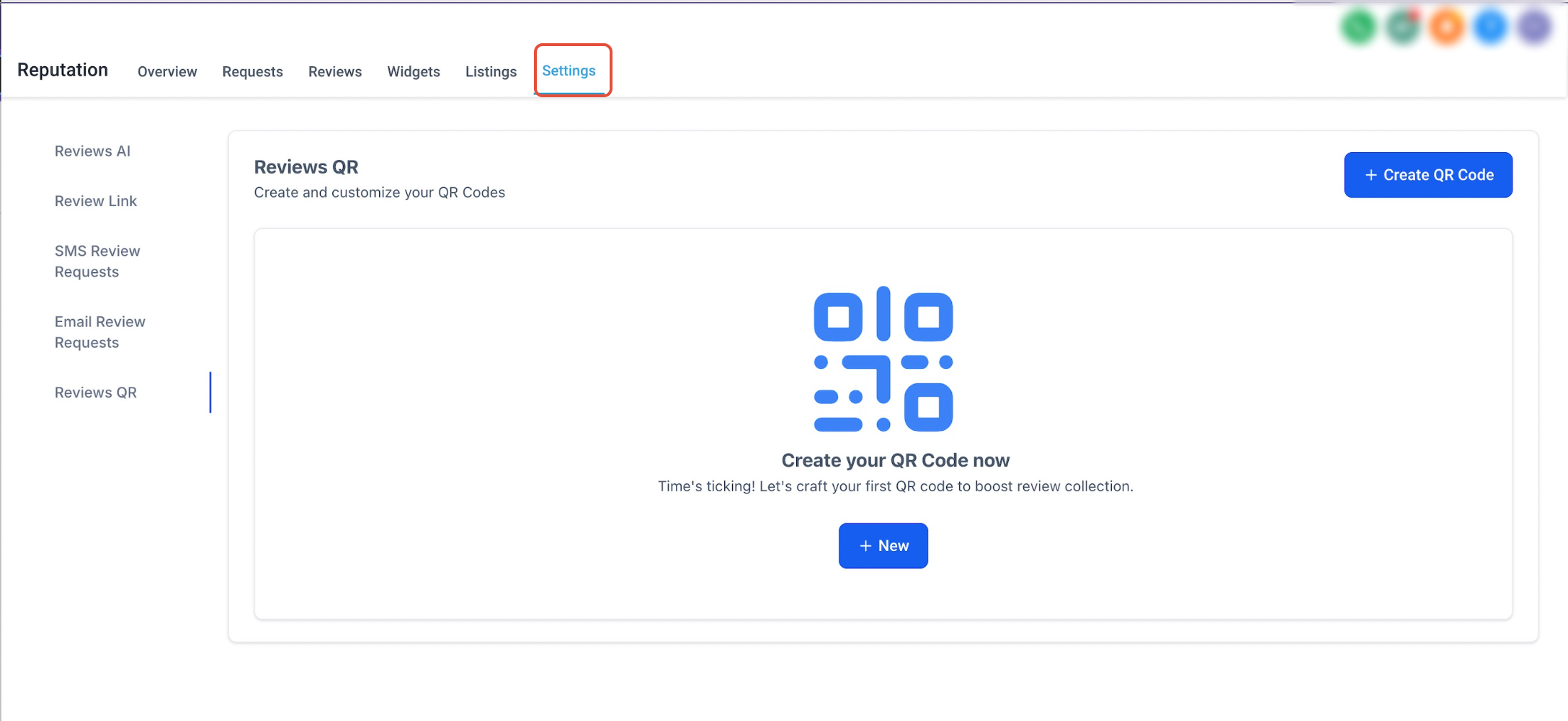
Step 2: Customise the QR Code
After generating your QR Code, you can customise it to align with your brand and messaging:
- Add a Logo or Image: Personalise your QR Code by adding your company logo or any relevant image.
- Change the Text: Modify the text that appears with your QR Code to include any vital message you want to convey.
Tip: Make sure your QR Code remains scannable after customisation by testing it with different devices.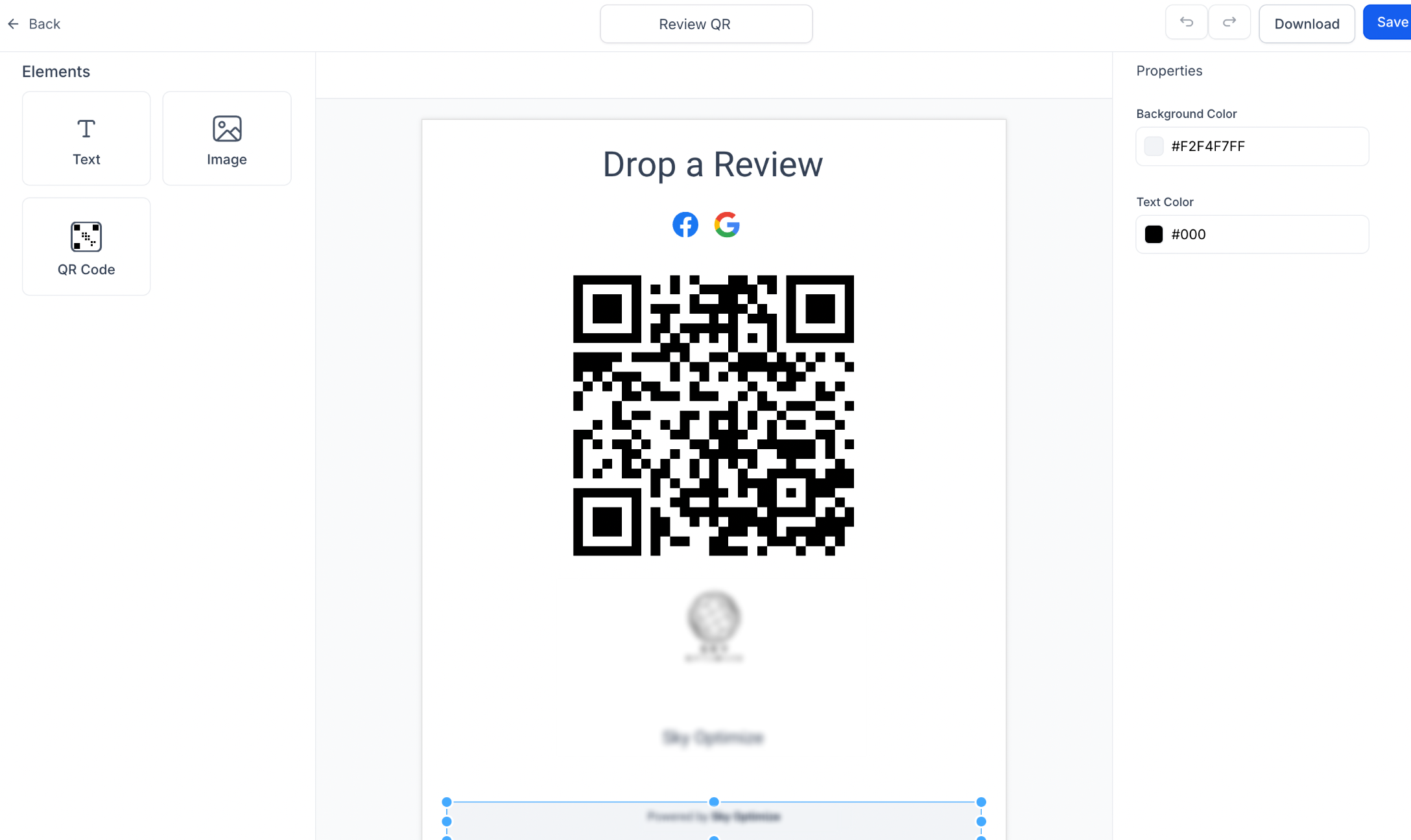
Step 3: Display your QR Code
Once your QR Code is ready, it’s time to make it accessible to your customers:
- Download the QR Code: Save the QR Code in the PDF format.
- Print and Display: Add the QR Code to printed materials such as flyers, receipts, or business cards.
- Share Digitally: Include the QR Code in your email signatures, social media posts, or on your website.
Tip: Position the QR Code in high-visibility areas where customers are likely to see and scan it.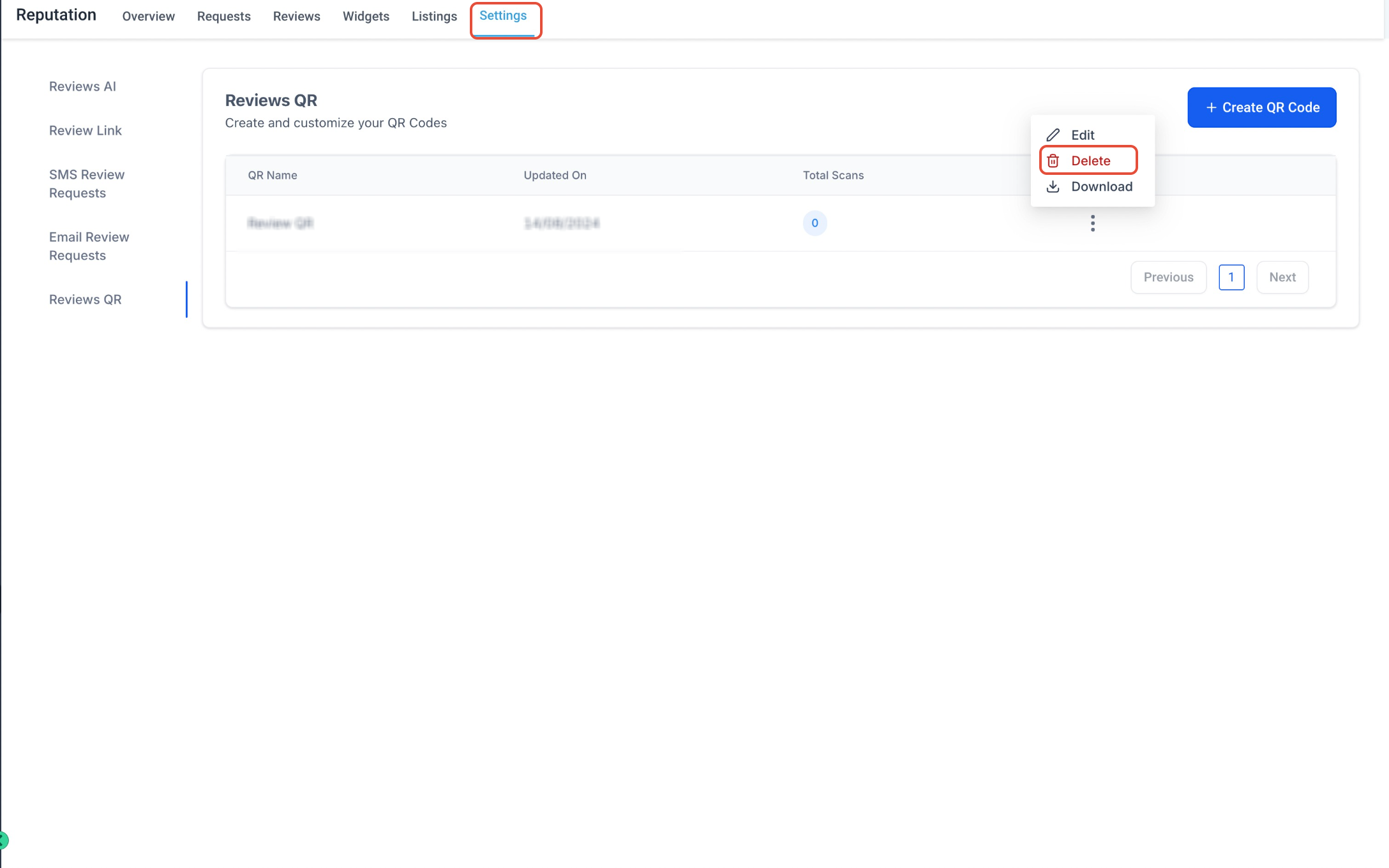
Step 4: Monitor and Track
After deploying your QR Code, it's essential to monitor its performance:
- Track Scans: Access the "Tracking" section within the platform to view real-time data on how many times your QR Code has been scanned.
- Analyse Results: Review the data to understand customer engagement and determine the success of your QR Code campaign.
- Optimise: Based on the scan data, make adjustments to your strategy, such as changing the location of the QR Code or refining the call-to-action.
Tip: Regularly monitoring scan activity can help you identify trends and opportunities to improve your reputation management efforts.Need Help?
If your Reviews QR Code is not working as expected, first review the destination, customization, download, and display setup.
Verify that:
- The QR Code points to the correct review or feedback page.
- The destination link opens successfully.
- The QR Code still scans after adding a logo, image, or custom text.
- The code is displayed at a clear, readable size.
- The QR Code has not been stretched, cropped, or distorted.
- You tested the code on more than one mobile device.
- The downloaded file is the correct version you intended to use.
- Printed materials have enough contrast and spacing around the QR Code.
- The QR Code is placed where customers can easily see and scan it.
- Tracking is configured if you expect scan activity to appear in reporting.
If the QR Code scans but opens the wrong page, review the selected destination and regenerate the code with the correct review or feedback link.
If the issue continues, collect the QR Code name, destination URL, where it is being displayed, affected device or browser, and screenshots of the QR Code settings before contacting support.