
Multiple meeting locations allow you to offer bookers a choice of how and where a meeting will take place. When this option is enabled, people booking an appointment can select their preferred location directly from the booking screen. This helps reduce back-and-forth, improves clarity, and ensures everyone knows how the meeting will be conducted before it begins.
This feature is especially helpful when meetings can happen by phone, video, in person, or at a custom location.
TABLE OF CONTENTS
- Configuring Multiple Meeting Locations
- Available Meeting Location Types
- Team Member Location Assignment
- What Bookers See During Scheduling
- Limitations
- Frequently Asked Questions
- Need More Help?
Configuring Multiple Meeting Locations
Meeting locations are managed inside your calendar settings. Depending on the calendar type, locations can be added either at the calendar level or per team member. Once saved, these locations automatically appear as selectable options during booking.
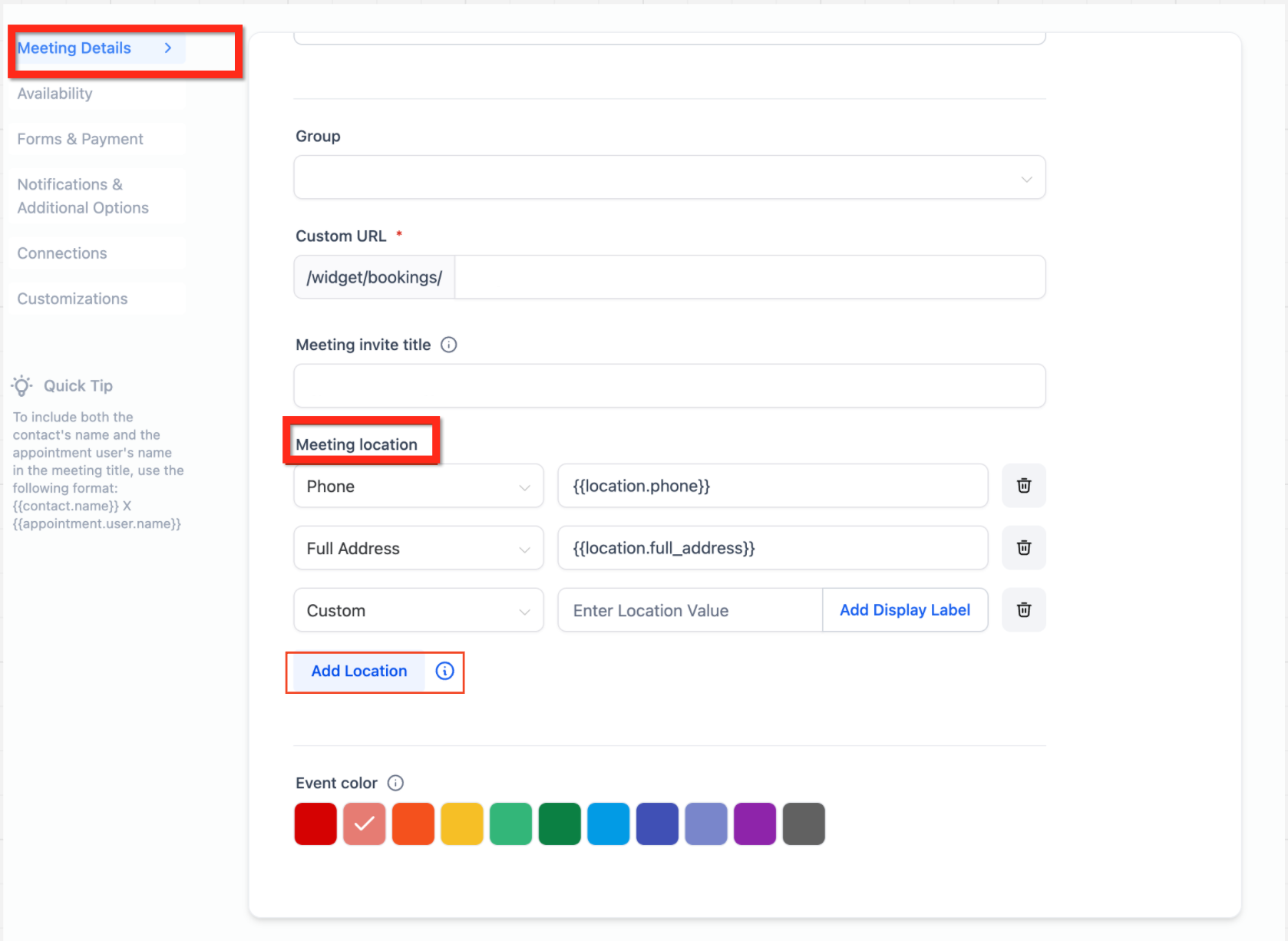
Accessing Calendar Settings
This image shows where calendar settings are located and how to open a calendar for editing.
After opening the calendar, scroll to the meeting location area. You can add more than one location and adjust the order in which they appear.
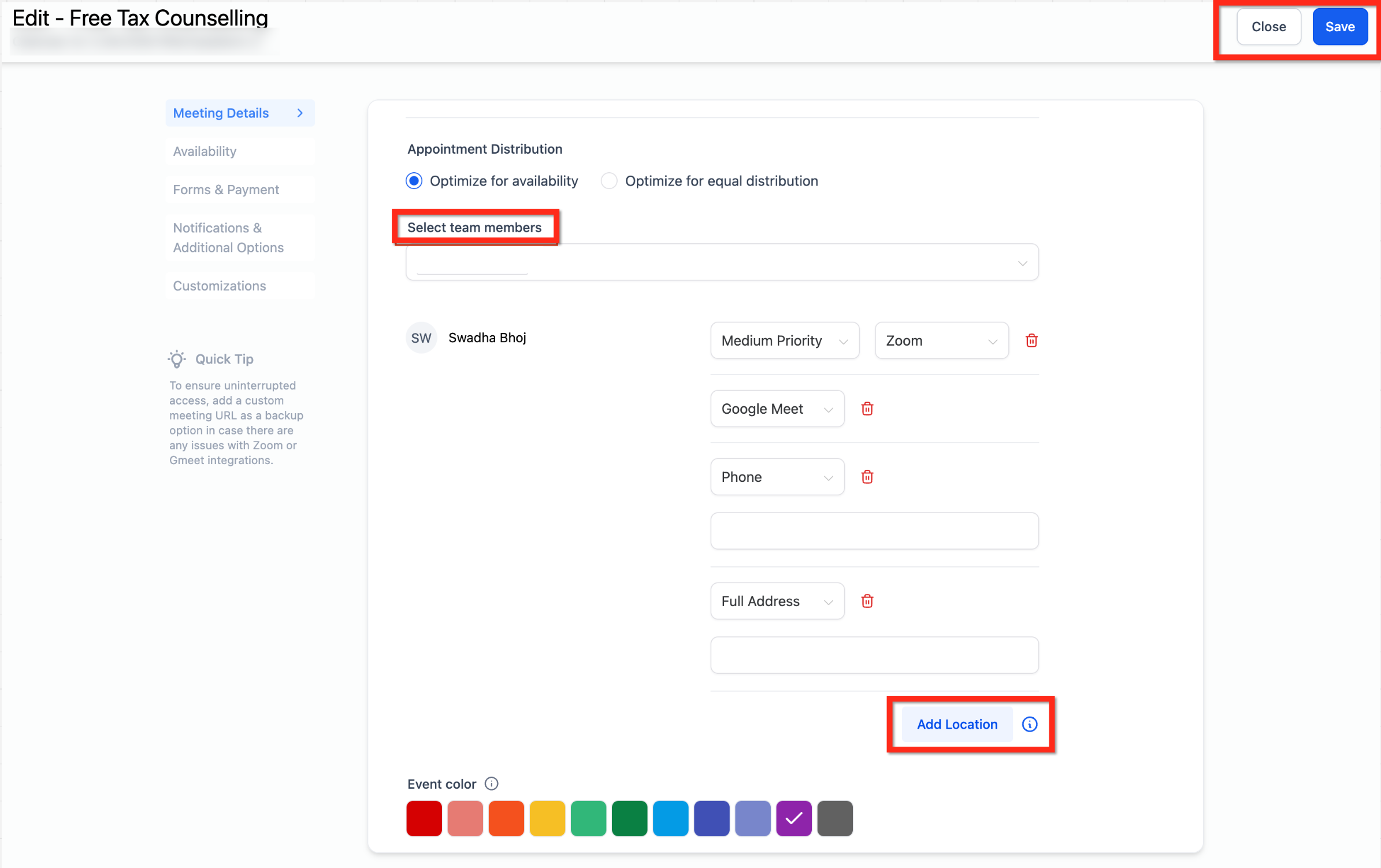
Adding Multiple Meeting Locations
This image highlights the option to add additional locations within the calendar configuration.
Each added location becomes an option that bookers can choose from when scheduling.
Available Meeting Location Types
Different location types can be offered based on how you prefer to meet with customers. These options are displayed clearly during booking.
Phone meetings use a predefined phone number that can be edited if needed. Address-based meetings use a physical location such as an office or storefront. Custom locations allow you to enter any value, such as special instructions or a static meeting link. You can also choose to ask the booker to enter their preferred location, which is useful for flexible or on-site meetings.
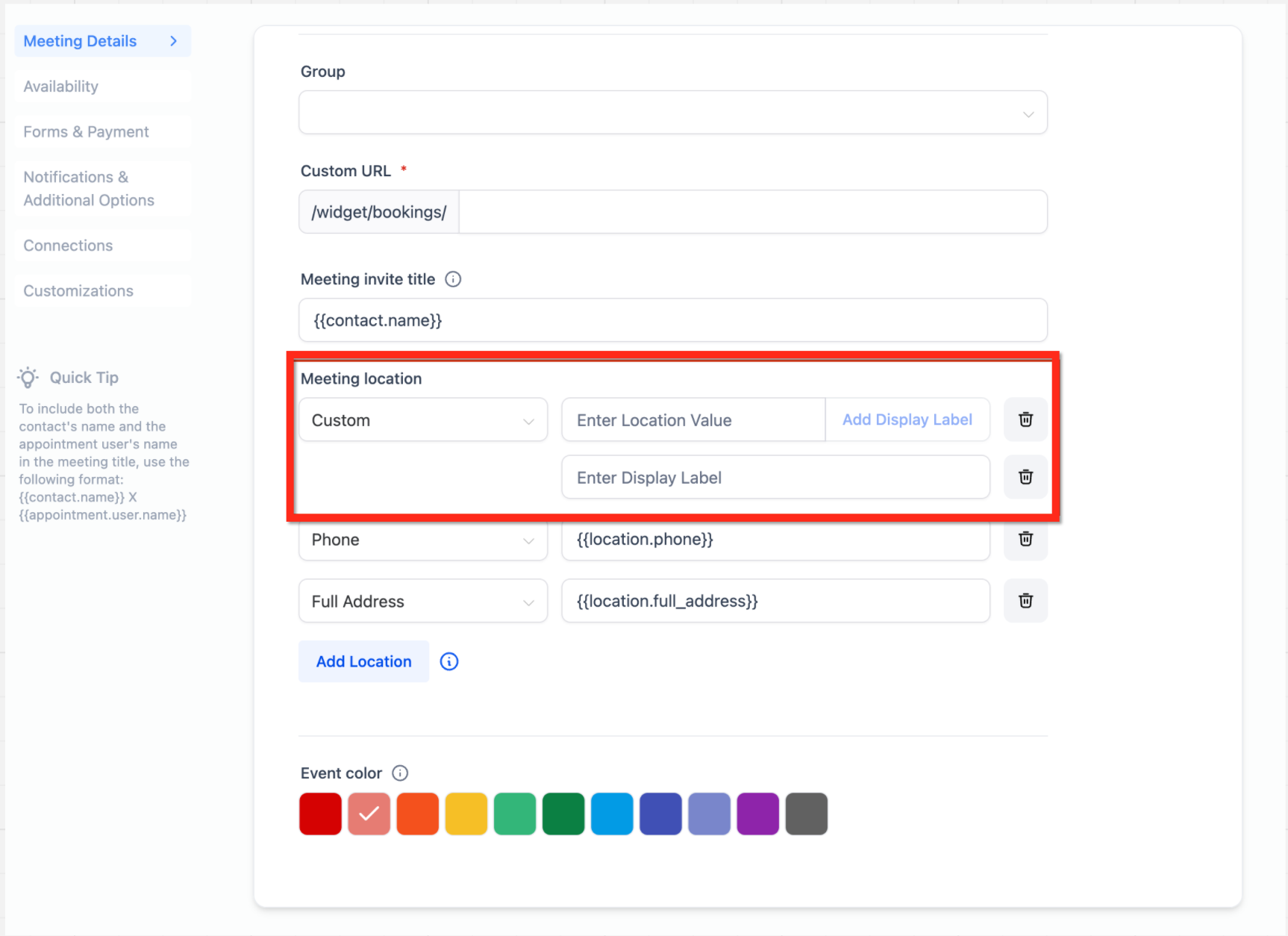
Meeting Location Options
This image shows the different types of locations that can be added, including phone, address, and custom entries.
When using a custom location, you may add a display label so the booking screen shows a friendly name while keeping the full details hidden until the meeting is confirmed.
Team Member Location Assignment
For calendars that involve team members, meeting locations can be assigned per person. This ensures that each team member uses the correct meeting method for their availability and role.
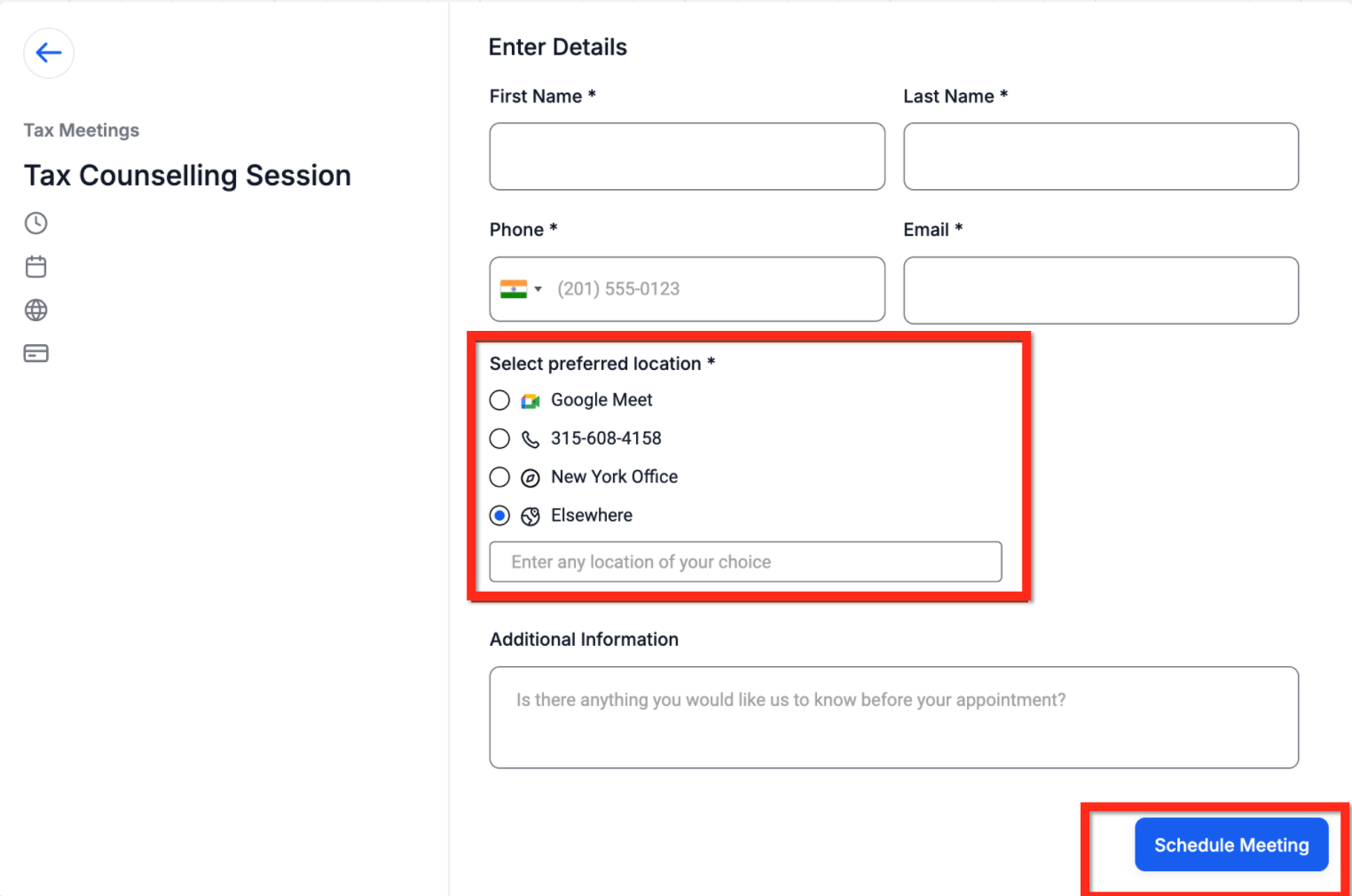
Assigning Locations to Team Members
This image shows how meeting locations are linked to specific team members within the calendar settings.
Once assigned, the selected locations are automatically included in booking confirmations and appointment details.
What Bookers See During Scheduling
All configured meeting locations appear directly on the booking page. The booker simply selects the option that works best for them before confirming the appointment.
The chosen location is then reflected on the confirmation screen, confirmation messages, reminders, and appointment details.
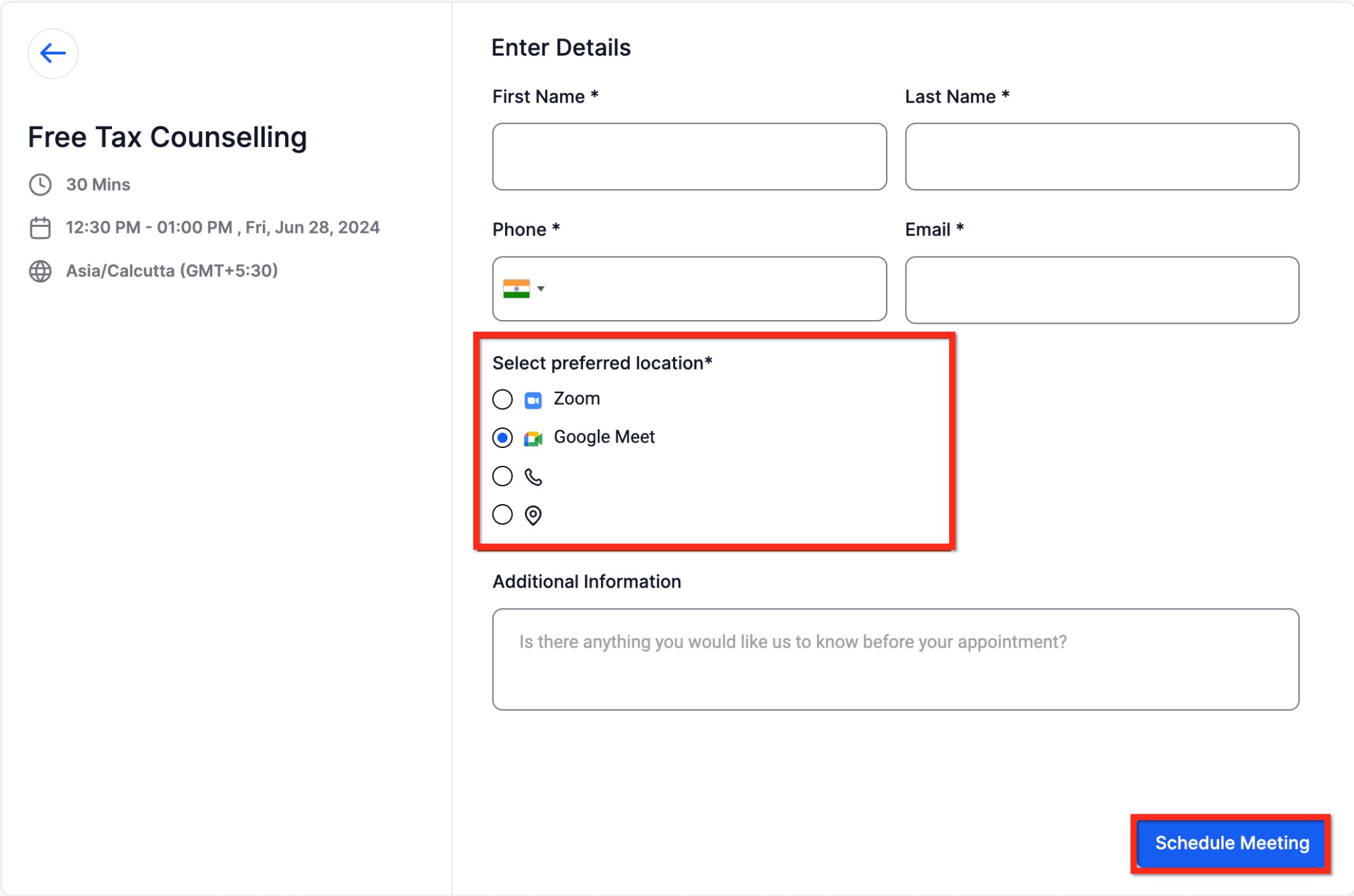
Booking Screen Location Selection
This image shows how meeting location choices appear to the booker during scheduling.
Limitations
Multiple meeting locations are supported only on specific calendar types and may not be available for all configurations. Availability depends on how the calendar and team members are set up.
Frequently Asked Questions
Q: Can I offer both virtual and in-person meeting options at the same time?
Yes. You can add multiple locations so bookers can choose between virtual, phone, or physical meeting options.
Q: Can I rename how a location appears to bookers?
Yes. Custom display labels can be used to show a friendly name while keeping full details hidden until after booking.
Q: What happens if a booker selects “Elsewhere”?
The booker is prompted to enter their preferred location, which is then used for the appointment.
Q: Will the selected location appear in confirmation messages?
Yes. The chosen meeting location is included in confirmations, reminders, and
appointment details.
Need More Help?
If you need assistance configuring meeting locations or understanding how they appear during booking, use the in-app help search to explore related scheduling articles or contact support for guidance.