
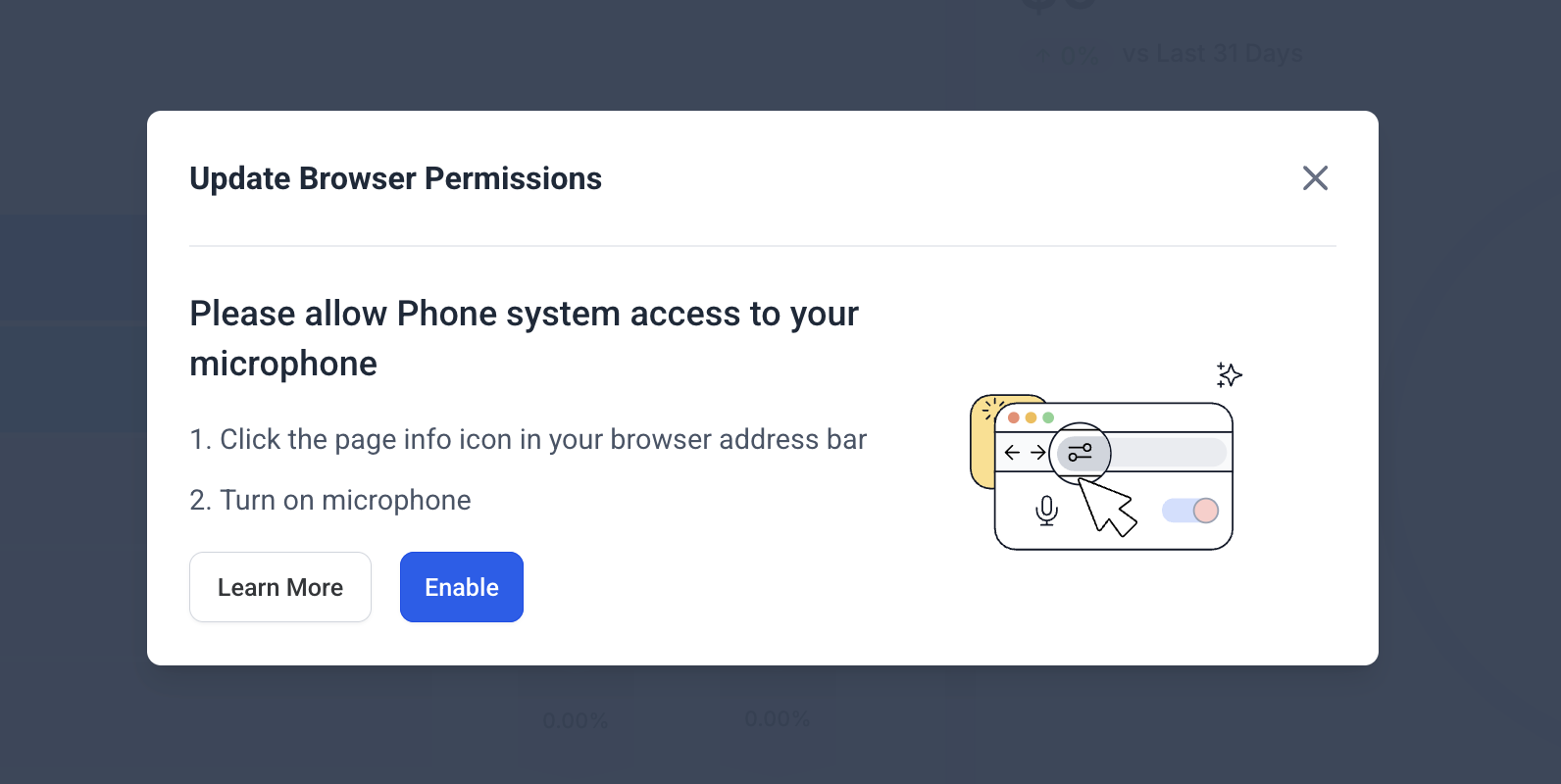
If you see this and clicking on 'Enable' does nothing, it means that your camera/mic is blocked by (1) your browser or (2) Operating System. Learn how to fix this below!
Chrome users
To check if Mic access to the website is blocked:
Click on 'Enable'
If nothing happens and you see a 'Mic blocked' icon on the left of your address bar, this means the mic access to this website has been blocked
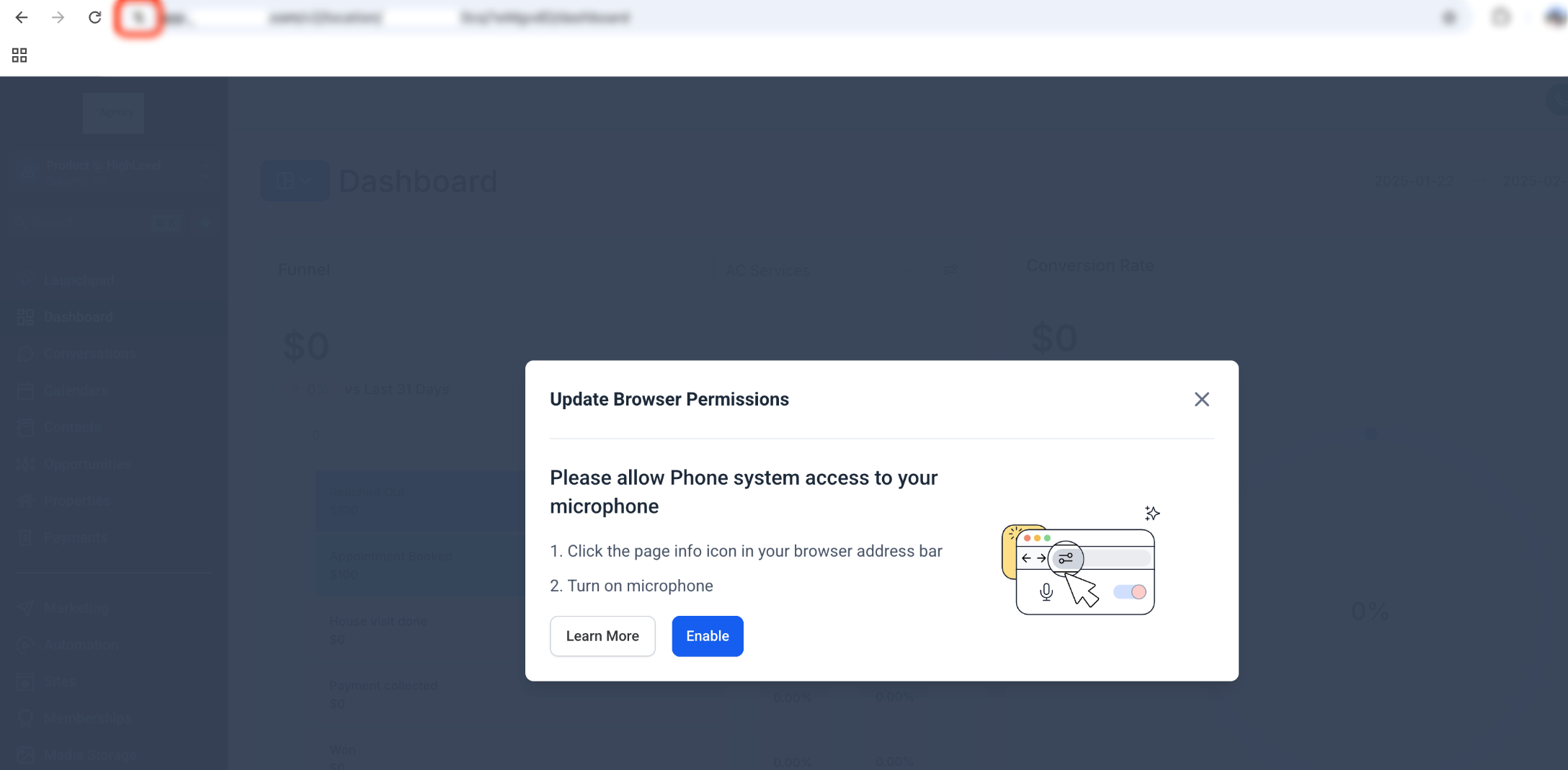
To unblock your camera/mic follow these steps:
- Click on the website settings icon on the left of the address bar
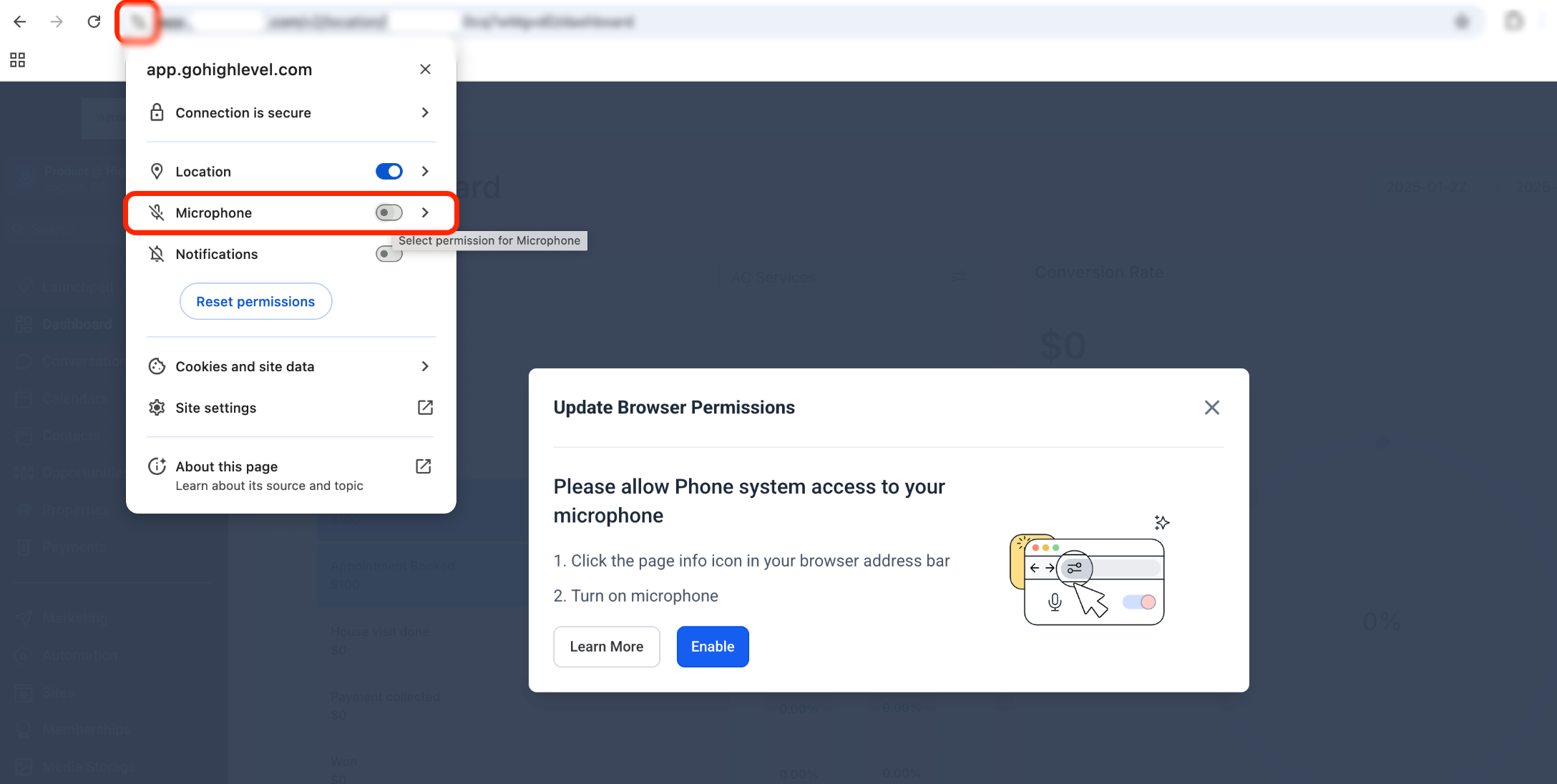
- Enable the 'Microphone' toggle
- Refresh/Reload the page
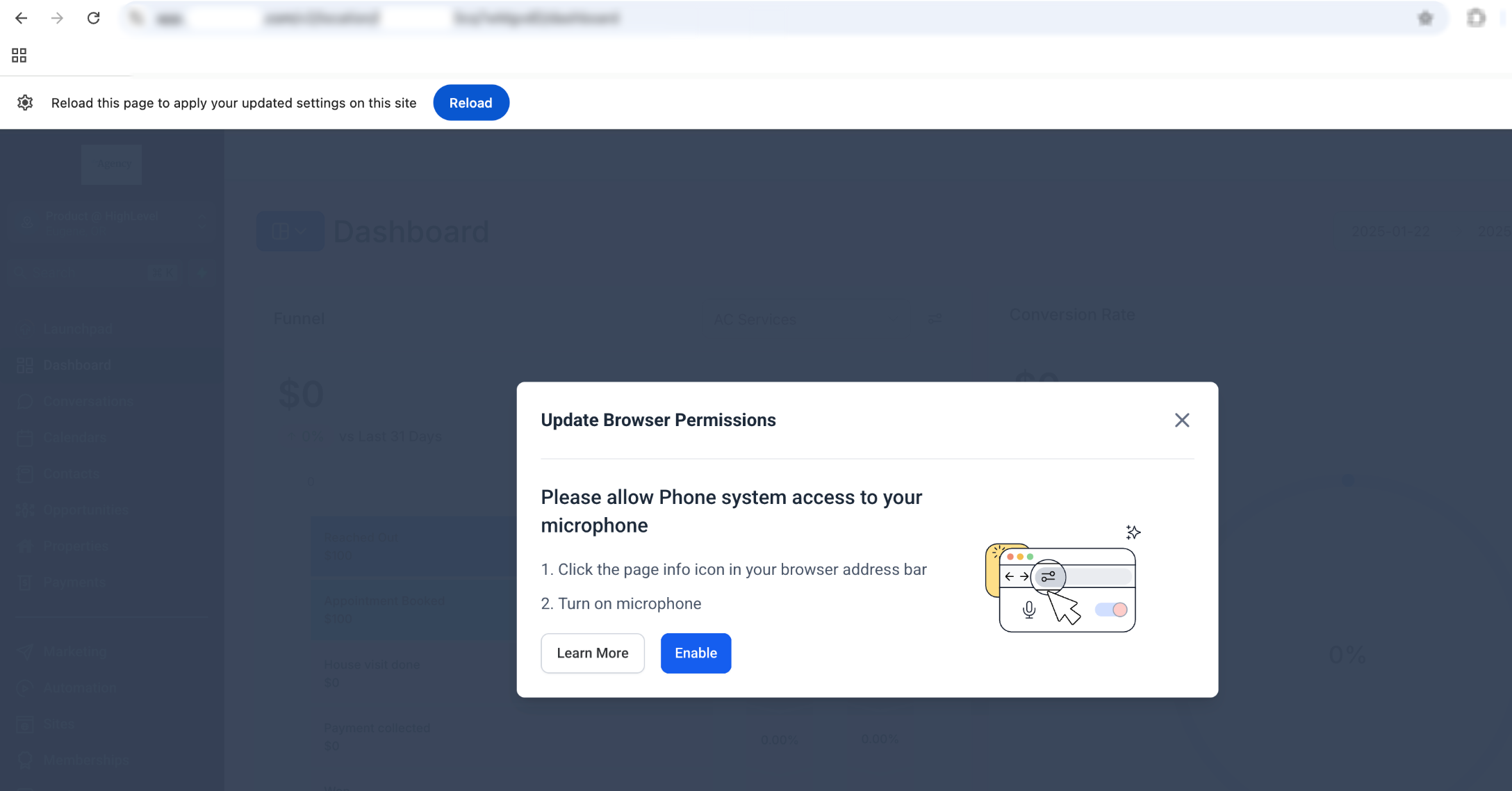
The Microphone permission is now given and you should be able to make and receive calls.
Firefox details
In a call, look at the address bar. Click the cam/mic icon there
Click the "x" to turn off blocking
Reload the website
Safari details
When opened, select ‘safari’ at the top left of your screen
Select ‘preferences’ and go to ‘websites’.
Click ‘camera’ and/or ‘microphone’ on the left list to change and save your settings to allow access
Reload the website. Click 'allow' when asked
MacOS users — check Systems Preferences
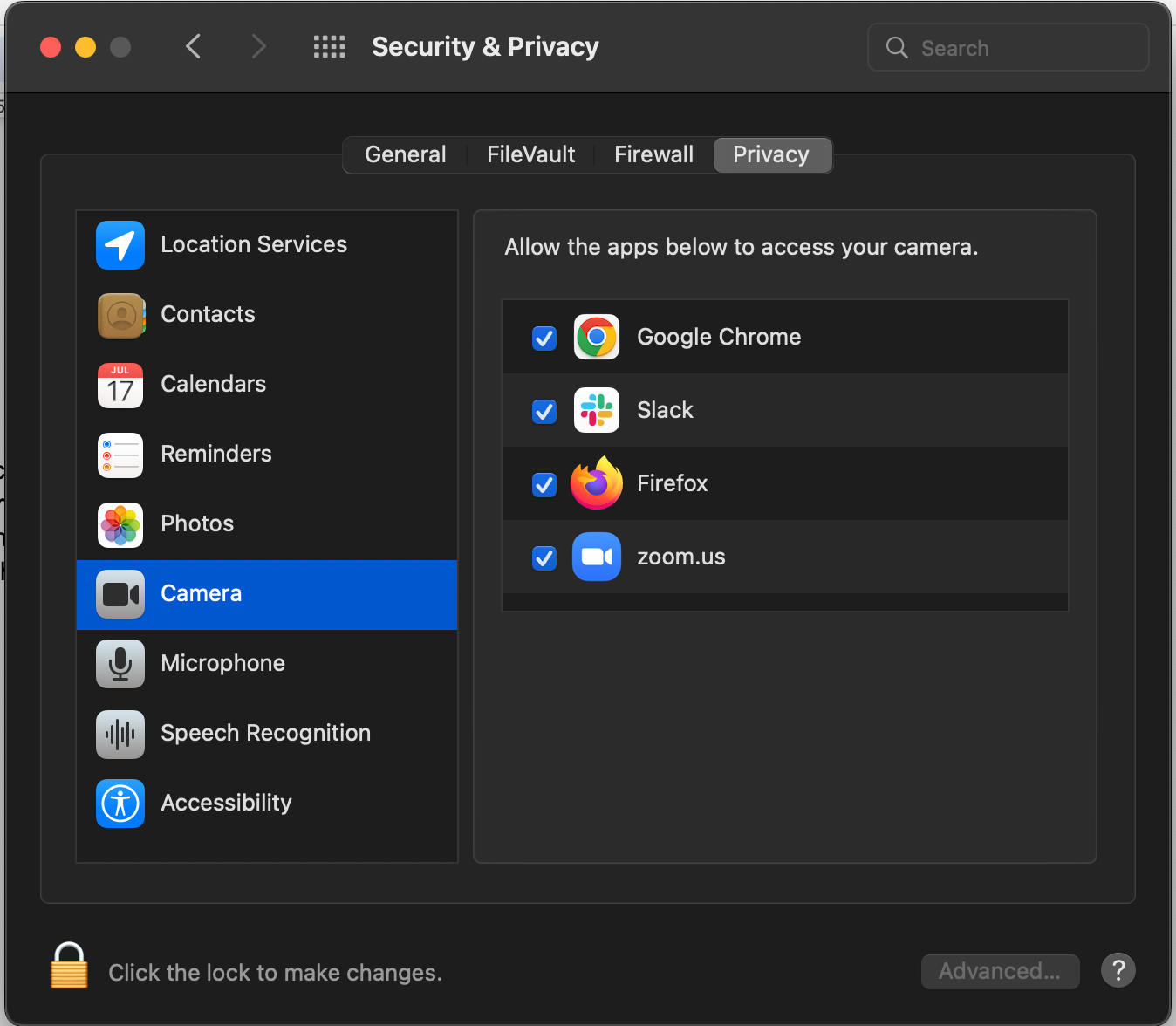
You can change the settings for all of your browsers from your Mac’s System Preferences. To do this, click on the Apple in the top left of your screen and select System Preferences.
Click on the Security & Privacy section and then select ‘privacy’. Click on Camera and or Microphone in the list of options, and tick the box next to your browser to allow access.
Windows users
PLEASE check for Systems Updates! This Lifewire post is helpful.
For Windows Edge:
Click the lock icon next to the address bar on the left and select ‘site permissions’. Use the menu to allow permissions for your camera and microphone.
Run the official Google test:
This is a page created by Google (not by us). If it can't see your camera and microphone, Google is saying something is wrong with your browser.
Go to https://test.webrtc.org
Click the green button
Need Help?
If your camera or microphone is still not working after clicking Enable, first check both your browser permissions and your computer’s privacy settings.
Verify that:
- The correct camera and microphone are selected on your device.
- Your browser has permission to access the camera and microphone.
- The website is not blocked in the browser’s site permissions.
- You refreshed or reloaded the page after changing permissions.
- Your operating system allows the browser to use the camera and microphone.
- No other application is currently using or locking the camera or microphone.
- Your browser is up to date.
- Your operating system has the latest available updates installed.
- You tested the camera and microphone using a browser-based WebRTC test.
- You restarted the browser after making permission changes.
If the issue continues, try another supported browser to determine whether the problem is browser-specific.
If you still cannot access your camera or microphone, collect your browser name and version, operating system, screenshots of the permission settings, and any displayed error message before contacting support.
- The correct camera and microphone are selected on your device.