
SMS compliance settings help protect your messaging reputation by automatically adding sender identification and opt-out language to the first message in a conversation when that information is missing. These protections also apply to automated messages such as Missed Call Text-Back and review requests. Certain accounts, newer locations, and user roles may be restricted from disabling these safeguards, while customization options allow approved users to adjust the default compliance text.
TABLE OF CONTENTS
- How to Access and Configure SMS Compliance Settings
- Why These Changes Matter
- Troubleshooting and FAQs
- Visual Reference
- Need Help?
How to Access and Configure SMS Compliance Settings
Follow these steps to review or customize your SMS compliance settings for sender ID and opt-out language:
- Navigate to Phone System Settings:
- Log in to your sub-account.
- Go to the Phone Numbers page in settings.
- Click on Advanced Settings in the top menu.
- Log in to your sub-account.
- Locate SMS Compliance:
- Under the Advanced Settings tab, find the SMS Compliance section.
- Review the Options:
- You’ll see two checkboxes under “SMS Compliance Customizations and Opt-Out”:
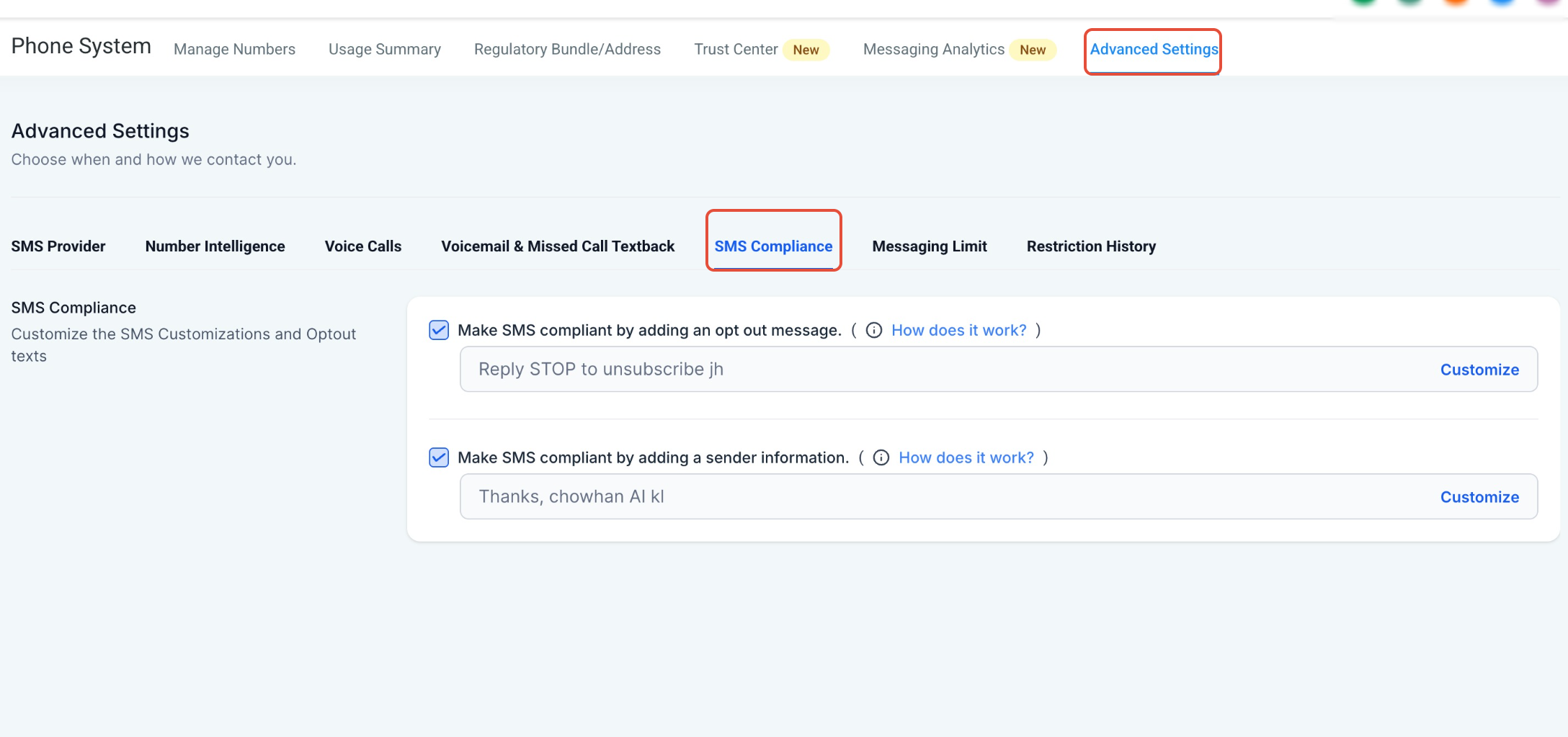
- Make SMS compliant by adding an opt-out message: This ensures every first message includes opt-out language (e.g., “Reply STOP to unsubscribe”). The default text is “Reply STOP to unsubscribe,” but you can customize it by clicking the Customize button.
- Make SMS compliant by adding sender information: This adds sender identification (e.g., your business name or contact info) to the first message. The default text is “Thanks, [YourName] at [YourBusiness],” but you can customize it by clicking the Customize button.
- Note: If your message already includes opt-out language or sender info, we won’t duplicate it.
- You’ll see two checkboxes under “SMS Compliance Customizations and Opt-Out”:
- Understand Restrictions:
- If you’re in trial mode, an agency, or managing a location less than 15 days old, you cannot disable these checkboxes. This ensures compliance during critical setup periods.
- Account Users and Admins also cannot disable these options, maintaining consistency across your account.
- Customize Text (If Allowed):
- Click the Customize button next to each checkbox to edit the default text for opt-out messages or sender information.
- Ensure your custom text meets regulatory requirements (e.g., clear opt-out instructions like “Reply STOP to unsubscribe”).
- Save Changes:
- After making adjustments, save your settings to apply them to your SMS communications.
Why These Changes Matter
- Compliance: Adding sender ID and opt-out language helps you adhere to A2P 10DLC regulations, preventing messaging restrictions or penalties from carriers.
- User Trust: Clear sender information and opt-out options build trust with recipients, improving engagement and reducing complaints.
- Automation Safety: Features like Missed Call Text-Back and review requests are now automatically compliant, saving you time and effort.
Troubleshooting and FAQs
Q: Can I disable sender ID or opt-out language?
A: No, if you’re in trial mode, managing a location less than 15 days old, or an Account User/Admin, you cannot disable these options. This is to ensure compliance during critical setup phases. Agencies and established locations may have more flexibility.
Q: What happens if my message already has opt-out language?
A: We will not add duplicate opt-out language. It checks the message content and only appends the required text if it’s missing.
Q: How do I customize the opt-out or sender text?
A: Click the Customize button next to each checkbox in the SMS Compliance section to edit the default text. Ensure your custom text is clear, concise, and meets regulatory standards (e.g., “Reply STOP to unsubscribe”).
Q: What if I don’t see the Customize button?
A: If the button is unavailable, it’s likely due to restrictions (e.g., trial mode, new location, or user permissions). Contact your account owner/admin or agency support for assistance.
Visual Reference
Below is a screenshot of the updated SMS Compliance tab under Advanced Settings, showing the current user interface for managing sender ID and opt-out language:
Need Help?
If sender identification or opt-out language is not appearing as expected, first review the SMS Compliance settings and the content of the first message being sent.
Verify that:
- SMS Compliance is enabled under Phone Numbers → Advanced Settings.
- The opt-out setting is turned on.
- The sender information setting is turned on.
- The first message in the conversation does not already contain equivalent opt-out language.
- The first message clearly identifies the sender or business.
- Any customized compliance text was saved successfully.
- Missed Call Text-Back and review request messages are using the expected first-message behavior.
- The account is not subject to restrictions that prevent these settings from being disabled or changed.
- The location is not within a restricted setup period.
- Your user permissions allow you to customize the available compliance text.
If the Customize option is unavailable, confirm whether the restriction is caused by account age, trial status, or user permissions.
If the issue continues, collect the affected phone number, example message, current SMS Compliance settings, user role, location age, and screenshots of the behavior before contacting support.