
Marketing audit reports provide valuable insights into a prospect’s online presence, helping you highlight opportunities and start meaningful conversations. You can easily share these reports via email, SMS, or a direct link to engage prospects and drive conversions.
TABLE OF CONTENTS
- What is Sharing a Marketing Audit Report?
- Key Benefits of Sharing Reports
- How to Share a Marketing Audit Report
- Choosing a Communication Method
- Following Up with Prospects
- Frequently Asked Questions
- Need More Help
What is Sharing a Marketing Audit Report?
Sharing a marketing audit report allows you to deliver performance insights directly to a prospect. These reports analyze areas like website performance, listings, SEO, and reputation—helping prospects understand gaps and opportunities.
Sending these reports through direct communication channels helps you initiate conversations and position your services effectively.
Key Benefits of Sharing Reports
Instant Engagement: Reach prospects via email or SMS
Personalized Outreach: Customize messages based on insights
Improved Conversions: Use data to drive conversations
Flexible Sharing: Send via email, SMS, or link
How to Share a Marketing Audit Report
Sharing a report involves selecting a prospect, choosing a contact, and sending the report through your preferred method.
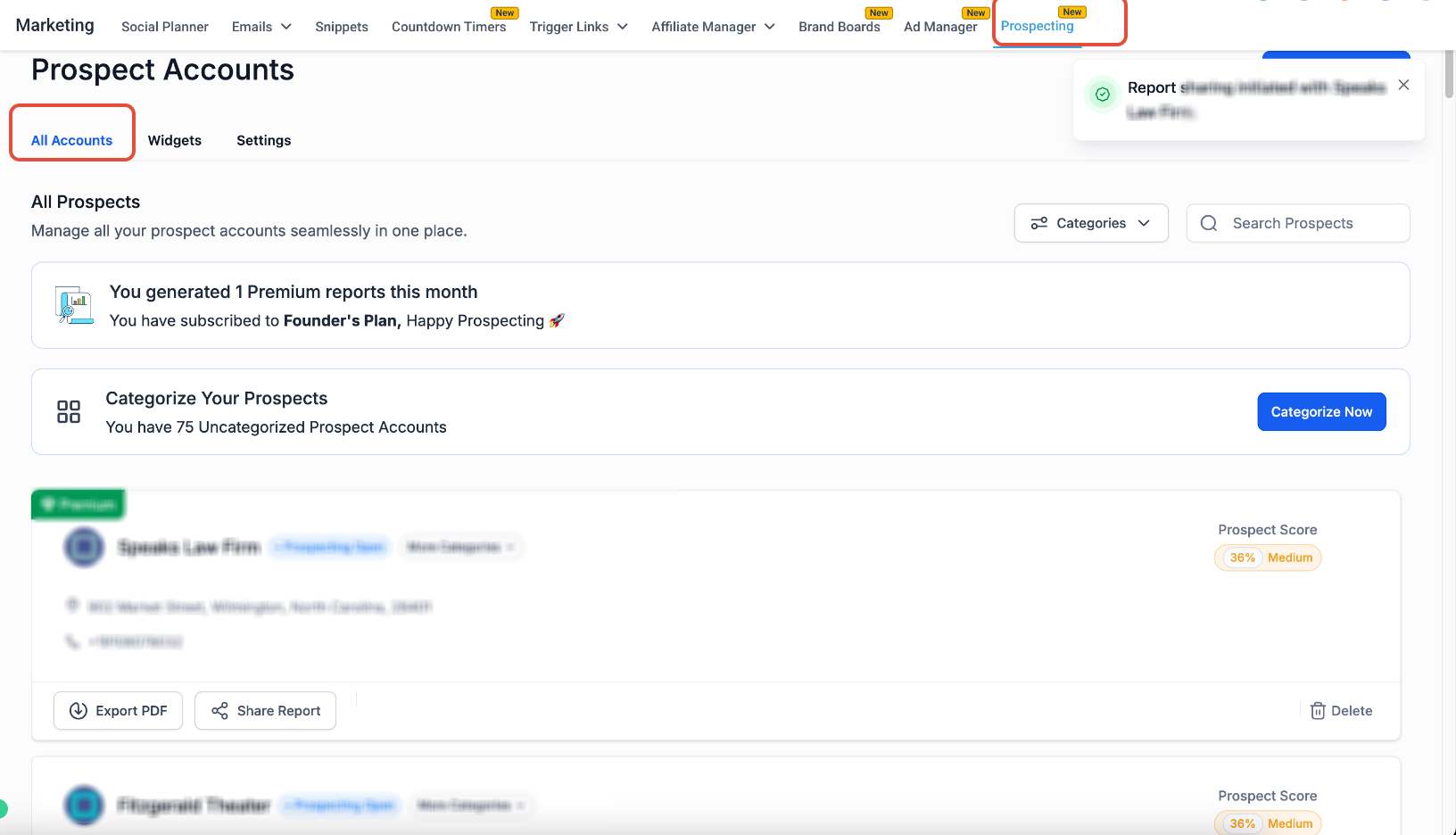
Select a Prospect and Open Sharing Options
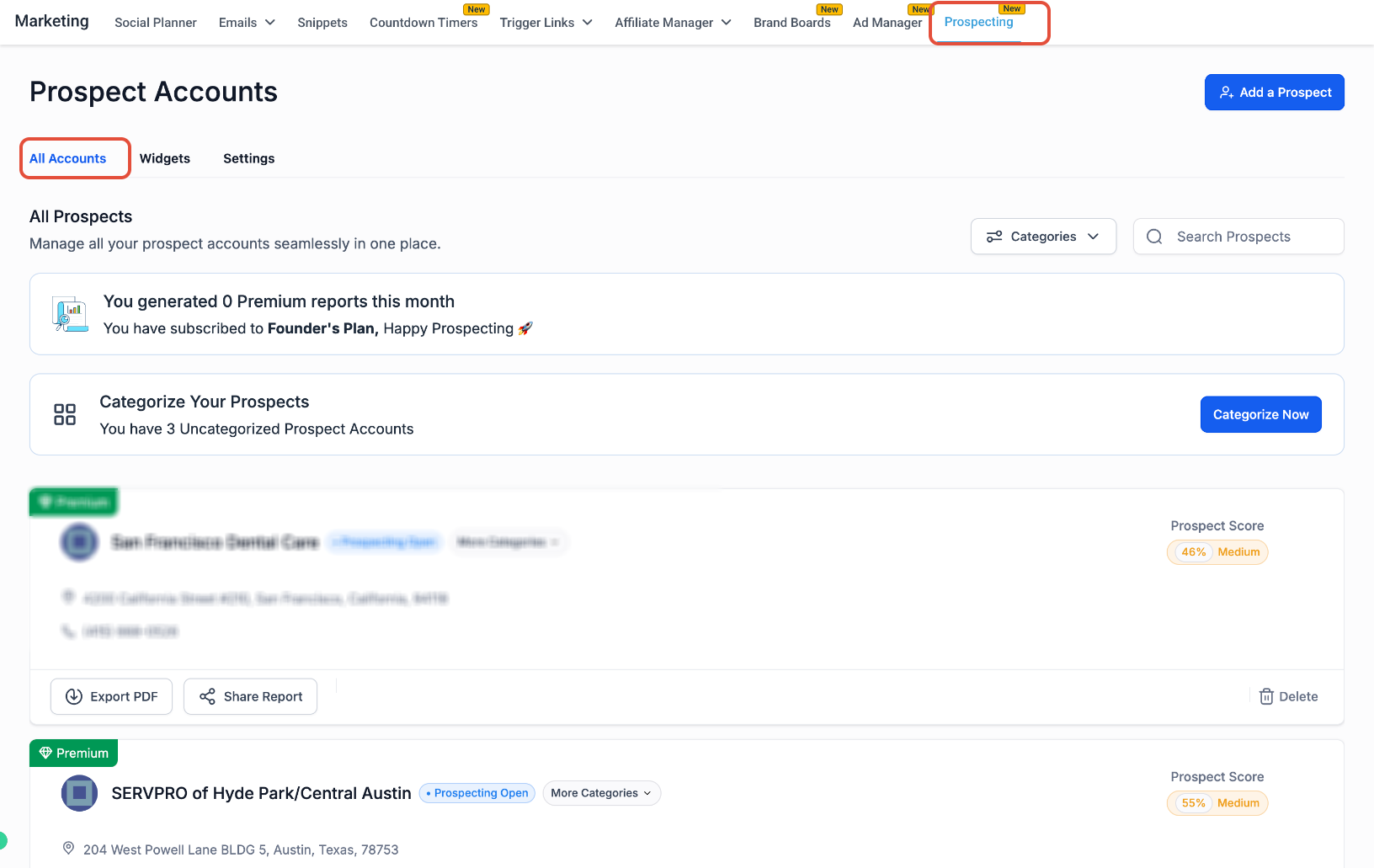
This screen shows the list of prospects where you can initiate report sharing.
What you’re seeing: A list of prospects with options like “Export PDF” and “Share Report.”
What to do: Find the prospect and click Share Report to open the sharing modal.
Choose or Create a Contact
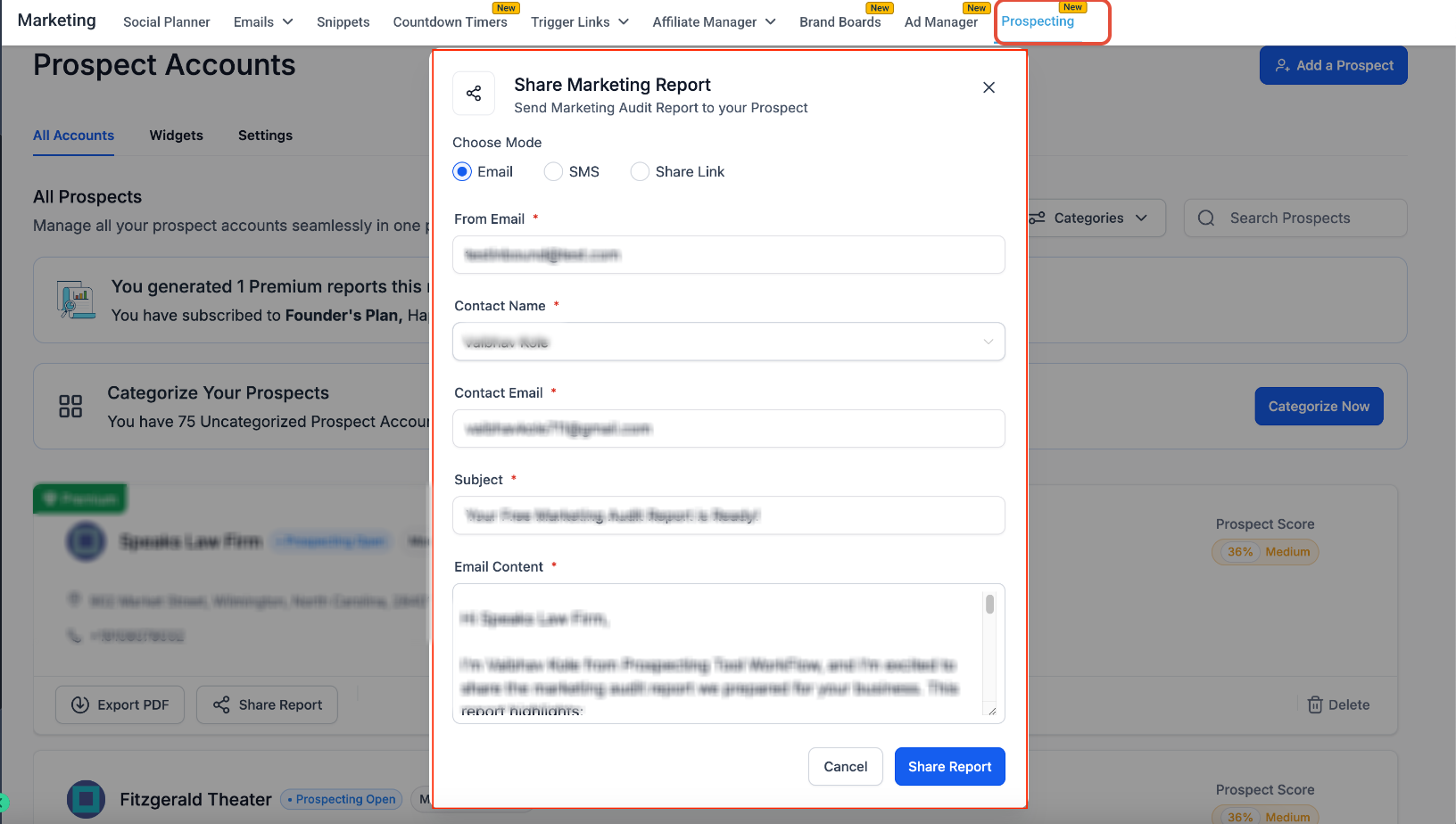
This screen allows you to create a new contact if one does not already exist.
What you’re seeing: A form to enter contact details such as name, email, and phone number.
What to do: Enter the required details and click Add Contact, or select an existing contact from the dropdown.
Send the Report via Email
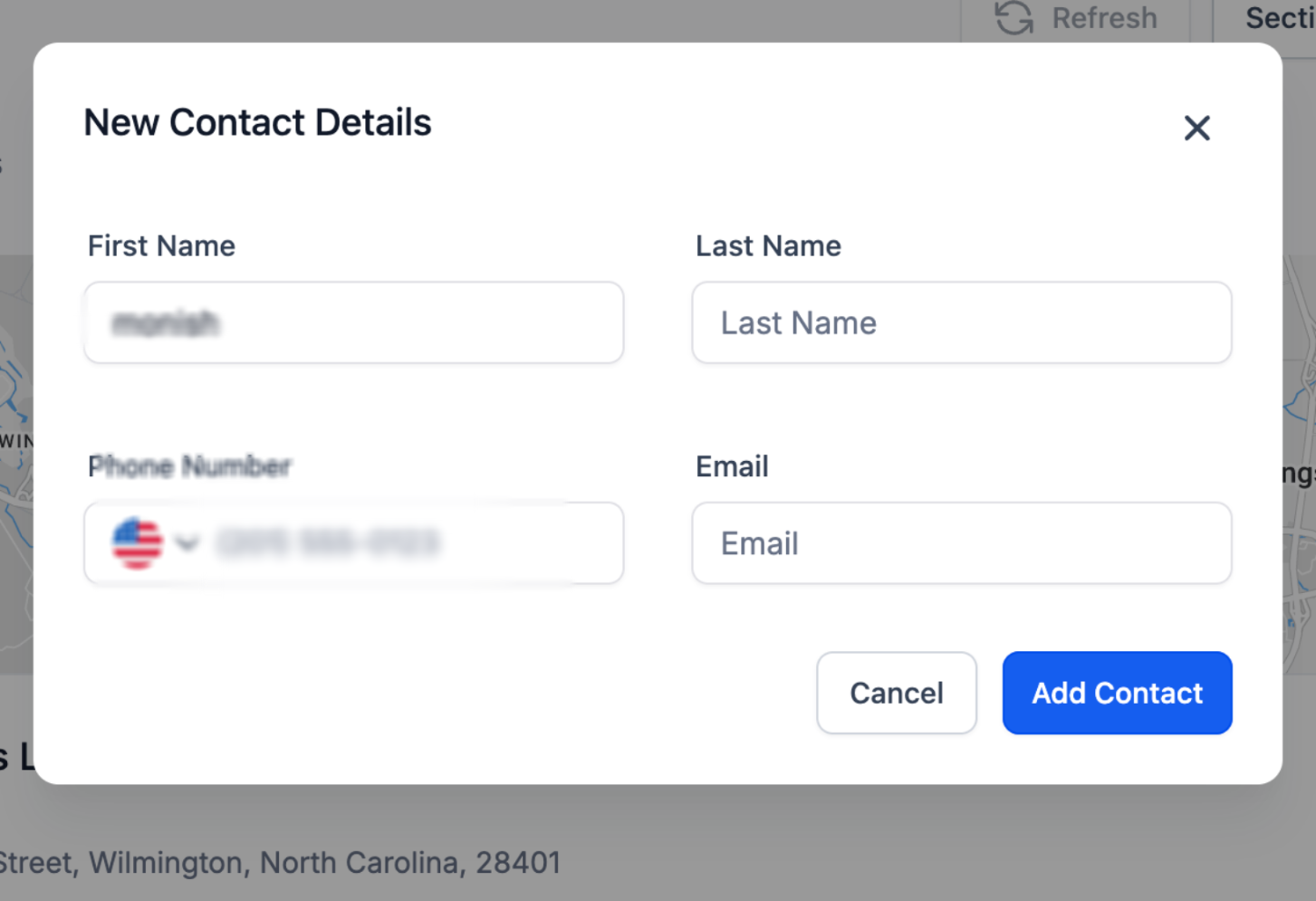
This screen shows how to send the report via email.
What you’re seeing: Fields for sender email, recipient, subject, and email content.
What to do:
Confirm the recipient’s email
Customize the subject and message
Click Share Report to send the email
Send the Report via SMS
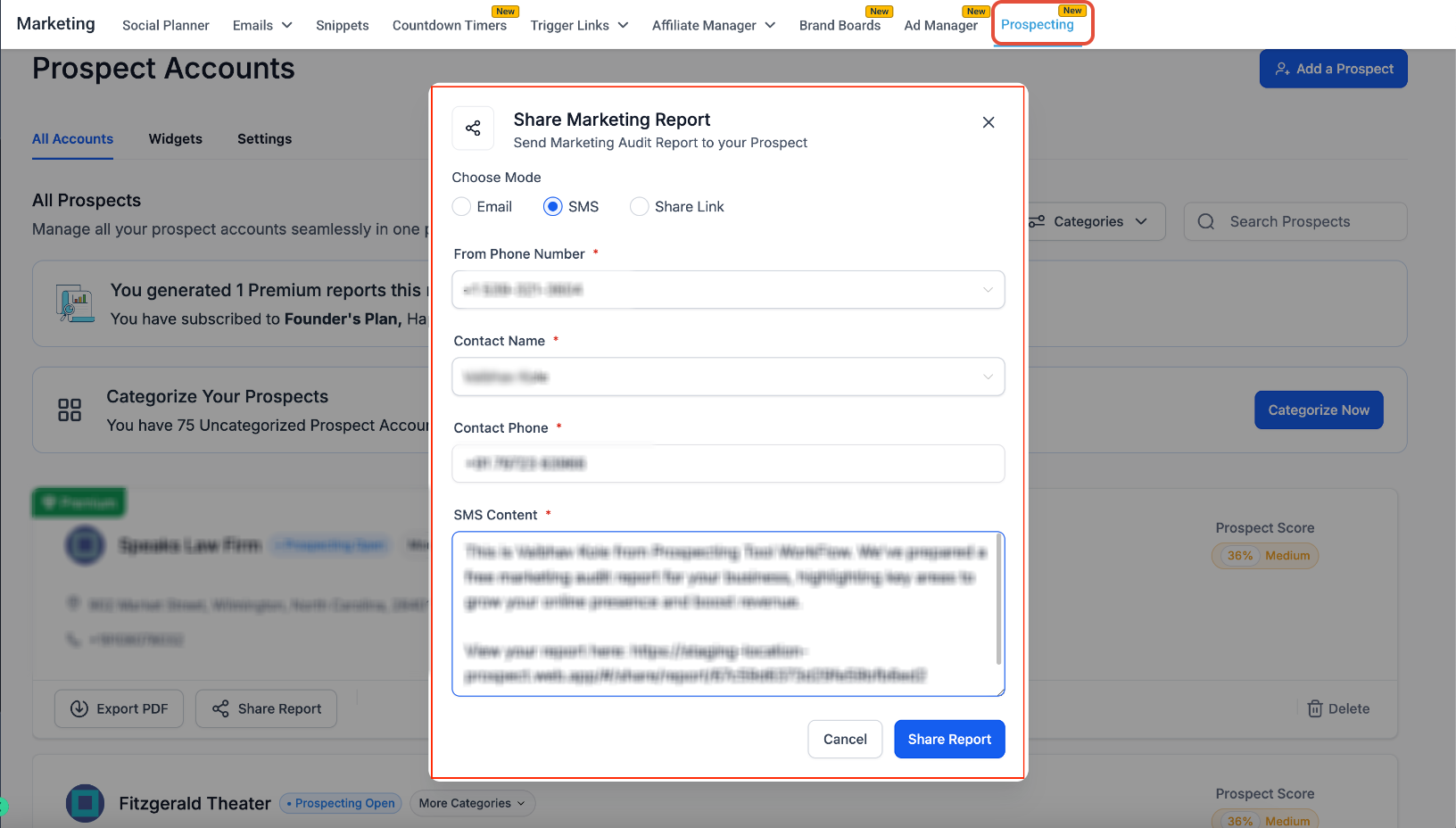
This screen shows how to send the report via SMS.
What you’re seeing: SMS fields including phone number and message content with a report link.
What to do:
Verify the phone number
Customize the SMS message
Click Share Report to send
View Sent Message and Continue Conversation
This screen shows the message after it has been successfully sent.
What you’re seeing: The delivered message with the report link inside the conversation thread.
What to do: Review the message and continue engaging with the prospect directly from the conversation view.
Choosing a Communication Method
You can choose the best method depending on your outreach strategy:
Email: Best for detailed communication
SMS: Best for quick engagement and higher open rates
Share Link: Ideal for manual or external sharing
Following Up with Prospects
Following up ensures better engagement and higher conversion rates.
Monitor delivery notifications
Continue conversations in messaging tools
Offer insights based on the report
Schedule next steps such as calls or demos
Frequently Asked Questions
Q: Can I send reports through multiple channels?
Yes. You can send via email, SMS, or share a direct link.
Q: Do I need a contact to send a report?
Yes. A valid contact with email or phone details is required.
Q: Can I customize messages before sending?
Yes. Both email and SMS content can be edited.
Q: Where can I track sent messages?
Messages appear in the conversation view for tracking and follow-up.
Q: Can I resend a report?
Yes. You can reopen the sharing modal and send again.
Need More Help
If you need help sharing reports or managing prospect communication, open the Help Center or contact support for assistance.