
Connecting a domain allows you to use branded URLs for websites, funnels, WordPress sites, webinars, client portals, and other customer-facing experiences. If your domain does not connect successfully, the issue is usually caused by incorrect DNS records, conflicting records, or the domain already being assigned to another product. Use this guide to identify the error you are seeing, understand what it means, and apply the correct fix without changing unrelated DNS records.
TABLE OF CONTENTS
- What is Domain Connection Troubleshooting?
- Key Benefits of Domain Connection Troubleshooting
- Before You Troubleshoot
- Quick Error Reference
- Common DNS Terms
- Where to Make DNS Changes
- Use Domain Connect When Available
- Understanding the Add Manually Fields
- Troubleshooting A Record Conflicts
- Troubleshooting AAAA Record Conflicts
- Troubleshooting CAA Record Issues
- Troubleshooting DNS Records That Do Not Match
- Troubleshooting Product Conflicts
- Troubleshooting Domains Connected Elsewhere
- Finding DNS Settings at Your Domain Provider
- How To Setup Domain Troubleshooting
- How To Fix a Multiple A Records Error
- Frequently Asked Questions
What is Domain Connection Troubleshooting?
Domain connection troubleshooting helps you identify why a domain or subdomain cannot be connected to a product. Most issues happen when the DNS records at your domain provider do not match the records it needs, or when the same domain is already connected somewhere else. Understanding the error type before making changes helps prevent unnecessary edits and reduces the risk of disrupting email, websites, or other services connected to the same domain.
Key Benefits of Domain Connection Troubleshooting
A clear troubleshooting process helps you resolve connection errors faster and avoid accidental DNS changes. Instead of guessing which record to edit, you can match the error to the correct fix and understand when the issue is related to DNS versus a product assignment conflict.
Faster Issue Resolution: Match the error message to the correct troubleshooting path so you can fix the issue more efficiently.
Safer DNS Updates: Learn which records may be causing the problem without deleting unrelated records that may support email, websites, or other services.
Clearer Product Assignment: Understand when a domain is already connected to another product and why DNS changes may not resolve that type of issue.
Better Setup Accuracy: Confirm that the records in your DNS provider match the values shown.
Reduced Support Delays: Know what information to gather before contacting support for domain ownership or account conflict issues.
Before You Troubleshoot
Domain issues are easier to resolve when you know where your DNS is managed and which product you are connecting. DNS records are not always managed where the domain was purchased, so confirm the correct DNS host before making changes.
Before editing DNS records, confirm the following:
You have access to the domain’s DNS provider or DNS host.
You know whether the domain was purchased through product or through an external registrar.
You are connecting the correct root domain or subdomain.
You have copied the exact DNS values.
You have checked whether Domain Connect is available for your provider.
You have reviewed whether the domain is already connected to another product.
You understand that DNS updates may take time to verify after changes are made.
Important: Do not delete DNS records you do not recognize unless you are sure they are not needed. Some records may support email, existing websites, tracking tools, verification services, or other business-critical systems.Quick Error Reference
Use the error message or issue shown to choose the correct troubleshooting path. DNS record errors usually need to be fixed at your DNS provider, while product conflicts usually need to be resolved.
| Error or Issue | What It Usually Means | Start Here |
|---|---|---|
| A record conflict | An existing A record points the domain somewhere that conflicts | Review A records |
| AAAA record conflict | An IPv6 record exists where the product expects IPv4 routing | Remove all AAAA records for the affected domain or subdomain. |
| CAA record issue | The domain’s certificate rules do not allow SSL provider | Update the CAA record |
| DNS records do not match | Records at the DNS provider do not match the values shown | Compare DNS values |
| Product conflict | The domain is already assigned to another product | Check product assignment |
| Domain connected elsewhere | The domain may be connected in another account or subaccount | Review access and contact support if needed |
| Verification still pending | DNS changes may not have fully updated yet | Wait for propagation and recheck records |
Common DNS Terms
DNS records tell the internet where to send traffic for your domain. Knowing the basic terms makes it easier to understand which record needs attention and helps you avoid changing records that are unrelated to the connection.
Root Domain: The main domain, such as
example.com.Subdomain: A prefix added to the root domain, such as
www.example.com,offers.example.com, orportal.example.com.DNS Provider / DNS Host: The platform where DNS records are managed. This may be your registrar, such as GoDaddy or Namecheap, or a DNS host such as Cloudflare.
A Record: Points a domain or subdomain to an IPv4 address.
CNAME Record: Points a subdomain to another domain name instead of an IP address.
AAAA Record: Points a domain or subdomain to an IPv6 address. Some connections may fail if an AAAA record conflicts with the required setup.
CAA Record: Controls which certificate authorities are allowed to issue SSL certificates for the domain.
DNS Propagation: The time it takes for DNS changes to update across the internet. Some changes verify quickly, while others may take up to 24–48 hours.
Where to Make DNS Changes
The correct place to update DNS depends on where the domain is managed. Editing records in the wrong platform will not resolve the connection issue, even if the records look correct there.
Domains purchased: Manage DNS records inside under Subaccount > Settings > Domains > Purchased Domains.
Domains purchased outside: Manage DNS records at the domain’s DNS provider or DNS host.
Domains using external nameservers: Check where the domain’s nameservers point. The DNS host may be different from the registrar where the domain was purchased.
Use Domain Connect When Available
Domain Connect can automatically add the required DNS records for supported providers. This reduces manual setup errors and is often the simplest way to connect a domain when the option appears during setup.
Use Domain Connect first if your DNS provider supports it. Manual DNS troubleshooting is usually needed only when Domain Connect is unavailable, fails, or the DNS records were changed after the automatic setup.
To use Domain Connect:
Go to the product or domain setup area where you are connecting the domain.
Enter the root domain or subdomain you want to connect.
Select the Domain Connect option if it appears.
Sign in to your DNS provider when prompted.
Approve the DNS changes.
Return and verify the connection.
Understanding the Add Manually Fields
The Add Manually option shows the DNS records needs you to create at your DNS provider. These fields are not meant to be edited to match your domain. Instead, copy the record type, host/name, and value exactly as shown, then paste them into your DNS provider’s DNS settings.
When using Add Manually:
- Type: Shows the kind of DNS record to create, such as A, CNAME, TXT, CAA, or another supported record type.
- Host/Name: Shows where the record should be added, such as @, www, or a specific subdomain.
- Value/Target: Shows where that host should point. This may be an IP address, domain target, or verification value provided.
- TTL: Controls how long DNS servers may cache the record. If your DNS provider has an automatic/default TTL option, that is usually acceptable.
Do not change the value shown to your own domain name unless specifically instructs you to do so. Changing the generated value can prevent the domain from verifying or routing correctly.
Example:

If that shows a CNAME record with the host/name www and a target value generated, enter www as the host/name at your DNS provider and paste the generated target into the value/target field. Do not replace the generated target with www.yourdomain.com.
Troubleshooting A Record Conflicts
An A record conflict means the root domain or subdomain is pointing to an IP address that conflicts with the record needs. This commonly happens when the domain was previously used for another website, parked domain page, hosting provider, or default registrar setup.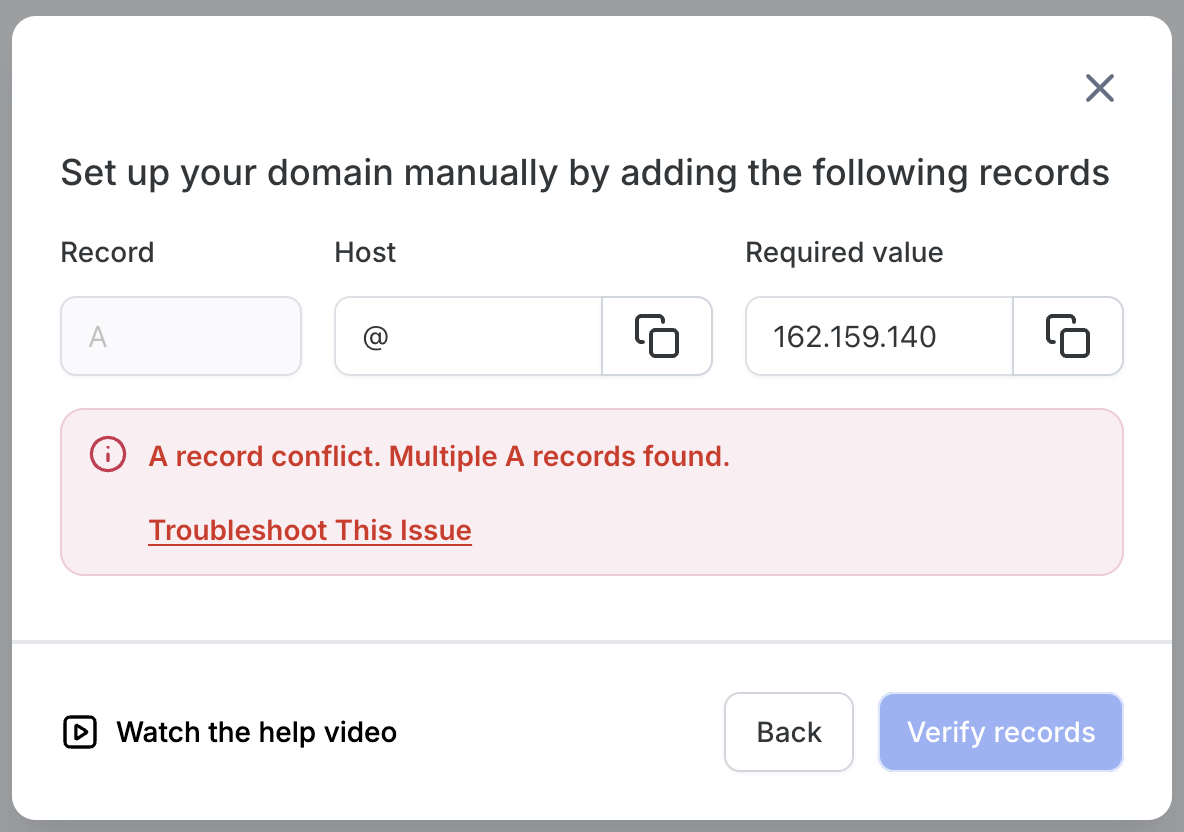
What This Means:
An existing A record is already controlling where the domain or subdomain sends traffic.
Why It Happens:
The domain may have old hosting records, default parking records, forwarding records, or records from a previous website provider.
How to Fix It:
Open the DNS records at your DNS provider.
Find the A record for the exact domain or subdomain you are connecting.
For a root domain, check records for
@or the root domain name.For a subdomain, check records such as
www,offers,links, or the specific subdomain prefix.
Compare the existing value with the value shown.
Remove or replace only the conflicting A record for the domain or subdomain you are connecting.
Save the DNS changes.
Return and verify the domain again.
Important: Do not delete all A records unless you are certain they are not needed. Only update the record that conflicts with the exact domain or subdomain being connected.Troubleshooting AAAA Record Conflicts
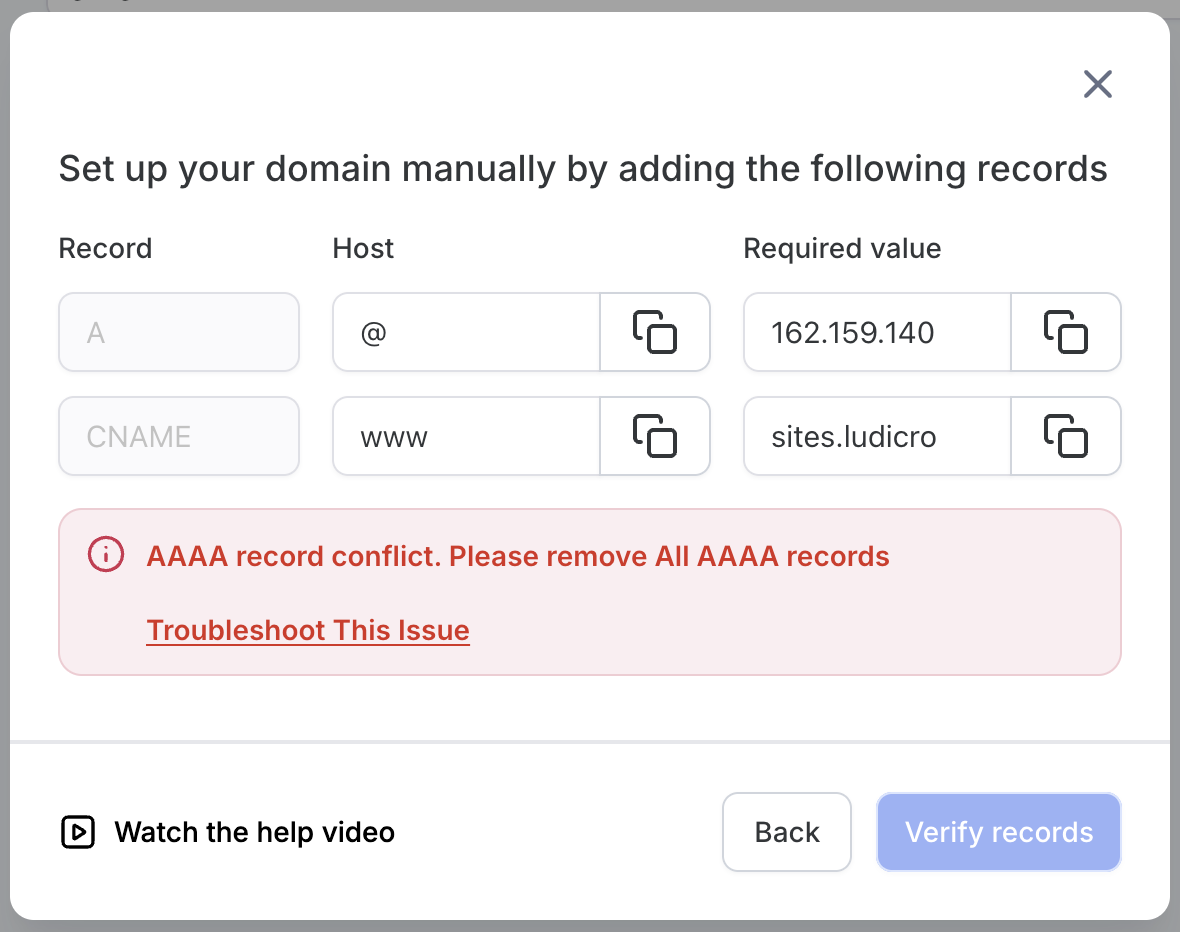
An AAAA record points a domain or subdomain to an IPv6 address. Some domain connections require IPv4 routing, so an active AAAA record can prevent the domain from verifying or routing correctly.
What This Means:
The DNS host has an AAAA record for the domain or subdomain, and that record may conflict with required setup.
Why It happens:
Some DNS providers automatically create AAAA records, or the domain may have used IPv6 records for a previous hosting provider.
How to Fix It:
- Open the DNS records at your DNS provider.
- Look for AAAA records connected to the exact root domain or subdomain you are trying to connect.
- Remove all AAAA records for that root domain or subdomain.
- Save the DNS changes.
- Return back and verify the domain again.
Troubleshooting CAA Record Issues
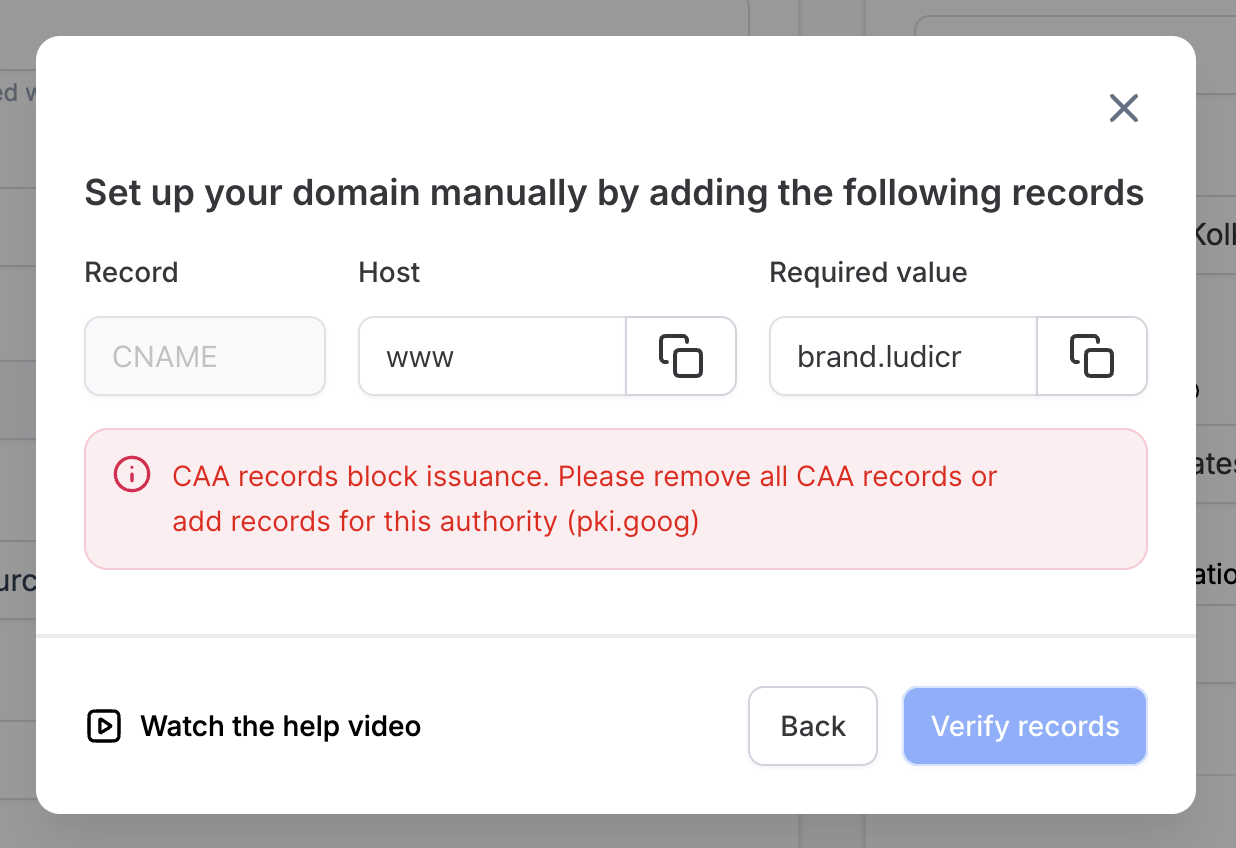
CAA records control which certificate authorities are allowed to issue SSL certificates for your domain. It may need permission for Google Trust Services by using the value pki.goog.
What This Means:
The domain’s CAA record does not allow the certificate provider required for SSL issuance.
Why It Happens:
A previous website, hosting provider, IT team, or security configuration may have limited which certificate authorities can issue SSL certificates for the domain.
How to Fix It:
- Open the DNS records at your DNS provider.
- Search for existing CAA records for the affected domain.
- Either remove all CAA records for the affected domain or update the CAA configuration to allow pki.goog.
- Save the DNS changes.
- Return back and verify the domain again.
Important: If your organization has strict SSL or security policies, check with your IT team before editing CAA records.
Troubleshooting DNS Records That Do Not Match
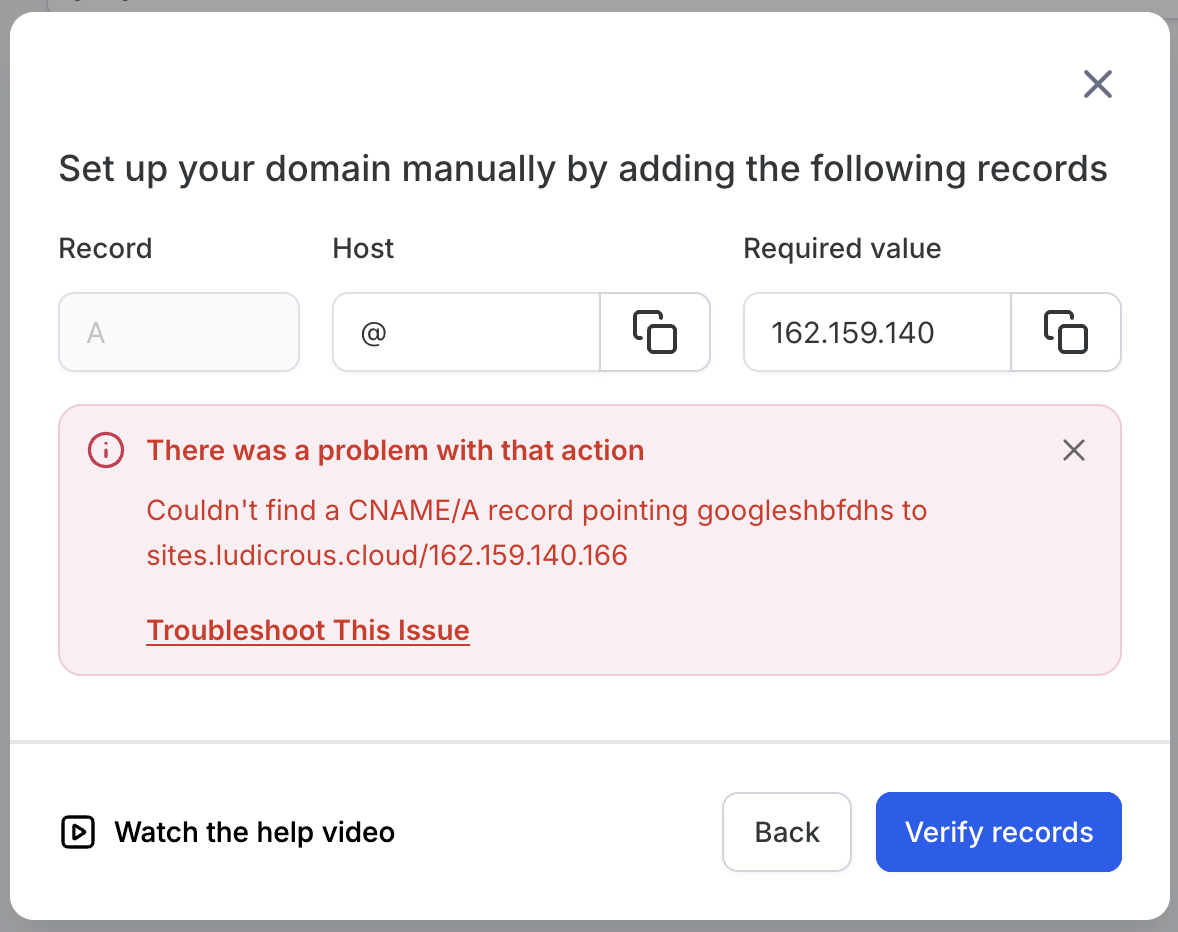
A DNS mismatch means the records at your DNS provider do not match the values expects. Even one incorrect character, extra record, missing record, or proxy setting can prevent verification.
What This Means:
Checked the domain’s DNS and found that the live records do not match the required values shown during setup.
Why It Happens:
This can happen when records are copied incorrectly, added to the wrong DNS host, added to the wrong domain, or changed after the domain was connected.
How to Fix It:
Open the domain setup screen and copy the required DNS values.
Open the DNS provider where the domain’s active nameservers are managed.
Compare each required record type, host/name, and value.
Confirm the record was added to the correct root domain or subdomain.
Remove or update conflicting records only when they apply to the exact domain or subdomain being connected.
Save the DNS changes.
Wait for DNS updates to apply.
Return and verify again.
Cloudflare note: If you use Cloudflare, some records may need to be set to DNS-only instead of proxied, depending on the product and setup instructions.Troubleshooting Product Conflicts
A product conflict means the domain is already assigned to a product that conflicts with the product you are trying to connect. This is different from a DNS issue, so changing DNS records may not resolve it.
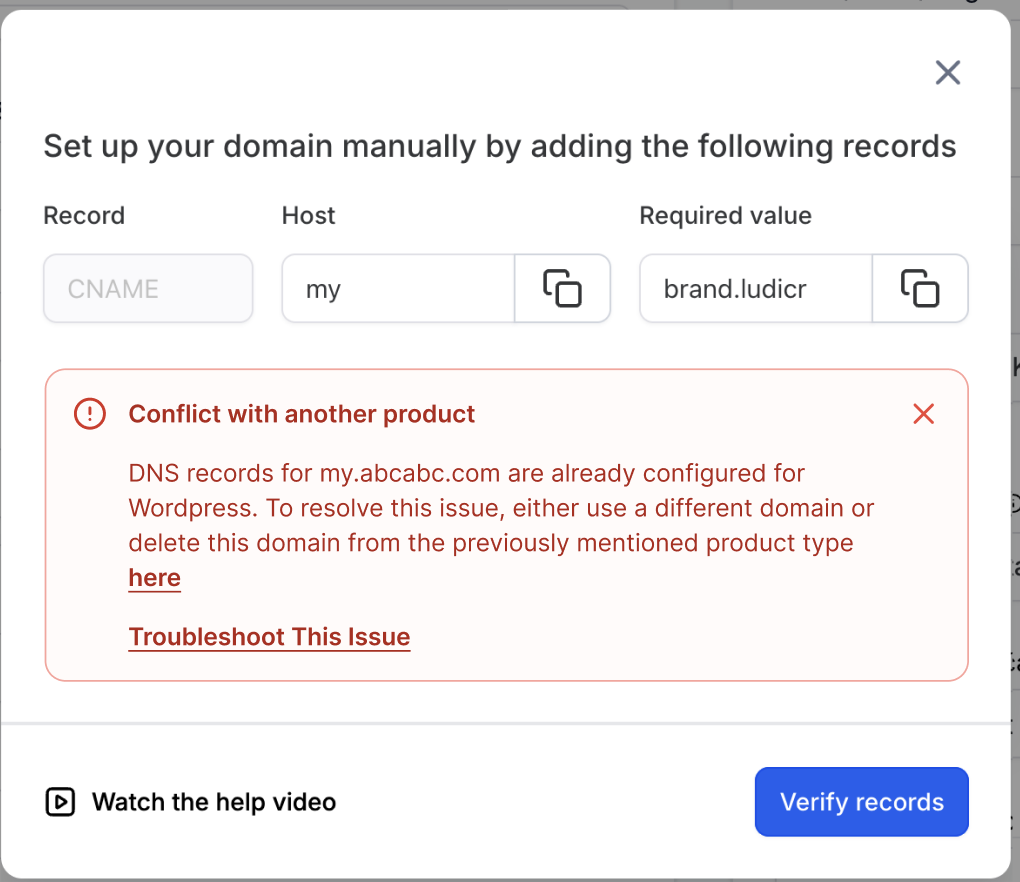
What This Means:
Detected that the domain or subdomain is already being used by another product, such as a website, funnel, WordPress site, webinar, or client portal.
Why It Happens:
A domain or subdomain can only be assigned where the product can route it correctly. If the same domain is already connected to another product, the product may block the new connection to prevent traffic from routing to the wrong place.
How to Fix It:
Review the error message shown.
Identify which product is currently using the domain, if displays that information.
Go to the product where the domain is currently connected.
Remove or replace the domain from that product if it is no longer needed there.
Return to the new product setup area.
Connect the domain again.
Verify the domain connection.
Important: If the domain should remain connected to the existing product, use a different subdomain for the new product. For example, keep www.example.com for your website and use portal.example.com for a client portal.Troubleshooting Domains Connected Elsewhere
A “domain connected elsewhere” message means the domain may already be connected in another account, agency, location, or subaccount. This type of issue usually requires checking access and ownership before the domain can be released or reassigned.
What This Means:
Found the domain in another place where you may not currently have access.
Why It Happens:
The domain may have been connected by another team member, another agency, a previous account owner, or a different location. It blocks duplicate use to prevent domain routing and ownership conflicts.
How to Fix It:
Check other locations or subaccounts you can access.
Review websites, funnels, WordPress sites, webinars, client portals, and other product areas where the domain may already be connected.
If you find the domain, remove it from the previous product or location if it is no longer needed.
If you cannot find or access where the domain is connected, contact the account owner or Support.
Provide the following details when requesting help:
Domain or subdomain
Location or subaccount where you are trying to connect it
Product you are connecting it to
Screenshot of the error message
Confirmation that you own or manage the domain
Any known previous account, agency, or location where the domain may have been used
Finding DNS Settings at Your Domain Provider
Each domain provider uses different labels, but the process is usually the same. You need to open the DNS records for the domain, find the record type mentioned in the error, and update only the record connected to the domain or subdomain you are trying to connect.
Common places to look inside your provider account:
- DNS
- Manage DNS
- DNS Records
- Advanced DNS
- Zone Editor
- Domain Settings
- Nameserver Settings
Common provider examples include GoDaddy, Cloudflare, Namecheap, Squarespace Domains, IONOS, Bluehost, Hostinger, and other registrars or DNS hosts.
Important: The company where you bought the domain may not be the same place where DNS is managed. If your domain uses external nameservers, make DNS changes at the DNS host listed in the nameservers, not necessarily at the domain registrar.How To Setup Domain Troubleshooting
A careful setup review helps you confirm whether the issue is caused by DNS records, a product conflict, or a domain already connected somewhere else. Following these steps in order prevents unnecessary DNS changes and helps you identify when support is needed.
Confirm the domain or subdomain you are connecting
Root domain example:
example.comSubdomain example:
www.example.comorportal.example.com
Check the product you are connecting
Website
Funnel
WordPress
Webinar
Client Portal
Look at the exact error message
Match the error to the quick reference table above.
Do not begin changing DNS records until you know whether the issue is DNS-related or product-related.
Confirm where DNS is managed
If the domain was purchased, check Subaccount > Settings > Domains > Purchased Domains.
If the domain was purchased externally, check the active DNS host.
If you are unsure, review the domain’s nameservers.
Use Domain Connect if available
Choose the automated option when supported.
Return to manual troubleshooting only if Domain Connect is unavailable or unsuccessful.
Compare DNS records carefully
Match the record type.
Match the host/name field.
Match the value/target field.
Check for conflicting A, AAAA, or CAA records.
Confirm proxy settings if using Cloudflare.
Resolve product conflicts
Check whether the domain is already assigned to another product.
Remove it from the old product if it should be reassigned.
Use a different subdomain if the domain must remain connected to the existing product.
Wait for DNS updates
DNS updates can verify quickly, but some changes may take up to 24–48 hours.
Recheck the domain after the records have had time to update.
Contact support if the domain is connected elsewhere
Include the domain, location, product, screenshot, and proof that you manage the domain.
How To Fix a Multiple A Records Error
A multiple A records error means your domain is pointing to more than one place at the same time. The system needs the domain or subdomain to point to the correct destination so it can verify and connect properly. This issue is fixed inside your DNS provider, which may be the company where you bought your domain or the platform currently managing your nameservers.
Follow these steps to fix the error:
- Open your domain provider or DNS provider
- Go to the platform where your domain’s DNS records are managed.
- This may be providers like GoDaddy, Cloudflare, Namecheap, Squarespace Domains, IONOS, Bluehost, Hostinger, or another DNS host.
- Go to the platform where your domain’s DNS records are managed.
- Find the DNS management area
- Look for a menu called DNS, DNS Records, Manage DNS, Advanced DNS, Zone Editor, or Domain Settings.
- The wording may be different depending on your provider.
- Look for a menu called DNS, DNS Records, Manage DNS, Advanced DNS, Zone Editor, or Domain Settings.
- Find the A records
- Look for records where the Type is listed as A.
- Check the record name carefully:
- @ usually means the root domain, such as example.com.
- www usually means www.example.com.
- A word like offers means offers.example.com.
- @ usually means the root domain, such as example.com.
- Look for records where the Type is listed as A.
- Check whether more than one A record exists for the same name
- If you are connecting example.com, check A records for @.
- If you are connecting www.example.com, check A records for www.
- If you are connecting another subdomain, check the matching subdomain name.
- If you are connecting example.com, check A records for @.
- Remove or replace the conflicting A record
- Keep only the A record that matches the value it gives you.
- Remove or update any other A record for the same name that points somewhere else.
- Do not delete unrelated records for email, TXT verification, MX records, or other services.
- Keep only the A record that matches the value it gives you.
- Save your DNS changes
- Most providers have a Save, Update, or Confirm button after editing records.
- Most providers have a Save, Update, or Confirm button after editing records.
- Return and verify the domain again
- Go back to the domain connection screen.
- Click the option to verify, check status, or reconnect the domain.
- Go back to the domain connection screen.
- Allow time for DNS updates
- Some changes verify quickly.
- Other changes may take up to 24–48 hours to fully update.
- Some changes verify quickly.
Frequently Asked Questions
Q: Why does it still show an error after I updated my DNS records?
A: DNS changes may take time to update across the internet. Also confirm that the records were added to the correct DNS host and that the values match exactly.
Q: Can I connect the same domain to more than one product?
A: Not in conflicting ways. If one product already uses the domain, you may need to remove it from that product or use a different subdomain for the new product.
Q: What is the difference between a root domain and a subdomain?
A: A root domain is the main domain, such as example.com. A subdomain adds a prefix, such as www.example.com, offers.example.com, or portal.example.com.
Q: Should I delete DNS records I do not recognize?
A: No. Unknown records may support email, websites, verification tools, or other services. Only update the record connected to the exact domain or subdomain you are troubleshooting.
Q: Why does the product show a product conflict before checking DNS?
A: It may check whether the domain is already assigned to another product before validating DNS records. If the domain is already in use, the product conflict must be resolved first.
Q: What should I do if I do not know where my DNS is hosted?
A: Check the domain’s nameservers. Nameservers usually indicate which provider is managing the active DNS records.
Q: When should I use Domain Connect instead of manual DNS setup?
A: Use Domain Connect whenever it is available for your DNS provider. It can automatically add the required records and reduce manual setup mistakes.
Need Help?
If a domain is still not connecting after you update DNS, first confirm whether the problem is a DNS mismatch, conflicting record, product assignment, or domain ownership/access issue.
Verify that:
- You are working with the correct root domain or subdomain.
- You are making changes at the active DNS host, not just the registrar where the domain was purchased.
- The record type, host/name, and value/target exactly match the values shown during setup.
- Domain Connect was used when available, or manual records were added correctly when it was not.
- There are no conflicting A records for the same host.
- There are no conflicting AAAA records when IPv4-only routing is required.
- Required CAA values are allowed when SSL issuance depends on them.
- Cloudflare records are set to the required proxy status when applicable.
- The domain is not already assigned to another website, funnel, WordPress site, webinar, client portal, or other product.
- The domain is not connected in another account you can access.
- You did not remove unrelated DNS records that support email, verification, or other services.
- Enough time has passed for DNS changes to propagate before checking again.
- You tested the domain again after saving the DNS changes.
If the error is a product conflict or domain connected elsewhere message, changing DNS records alone will not resolve it. Review where the domain is already assigned, remove it from the previous product if appropriate, or use a different subdomain.
If the issue continues, collect the domain or subdomain, product you are connecting it to, current DNS records, active nameservers, exact error message, approximate time of the last DNS change, and screenshots of the domain setup and DNS provider before contacting support.