
Uploading transaction data via CSV allows you to quickly import large volumes of payment records into your system. Using the correct format ensures your data is processed accurately and prevents common import errors.
TABLE OF CONTENTS
- CSV Format Requirements
- Required Transaction Fields Explained
- Image Placement
- Common Upload Errors to Avoid
- Tips for Successful Imports
- Frequently Asked Questions
- Need Help?
CSV Format Requirements
Using the correct file structure is essential for a successful upload. Each column must match the expected format so the system can correctly map and process your data.
The file must be saved in .csv format
Column headers must exactly match the required field names
Each row should represent one transaction
All required fields must contain valid data
Avoid extra spaces, symbols, or unsupported formatting
Required Transaction Fields Explained
Each column in your CSV represents a specific part of a transaction. Providing accurate data ensures proper record creation and reporting.
Customer First Name / Last Name: Identifies the customer associated with the transaction
Customer Email: Used for contact identification and communication
Customer Phone: Include country code for accuracy
Currency: Must use standard 3-letter codes (e.g., USD, EUR)
Amount Paid: Final amount collected from the customer
Transaction Date & Time: Indicates when the payment occurred
Payment Method: Specifies how the payment was made (e.g., card, cash)
Payment Provider: Identifies the payment processor used
Address Fields: Capture billing or customer location details
Optional fields such as taxes, discounts, tips, and item details can be included to provide deeper transaction insights.
Image Placement
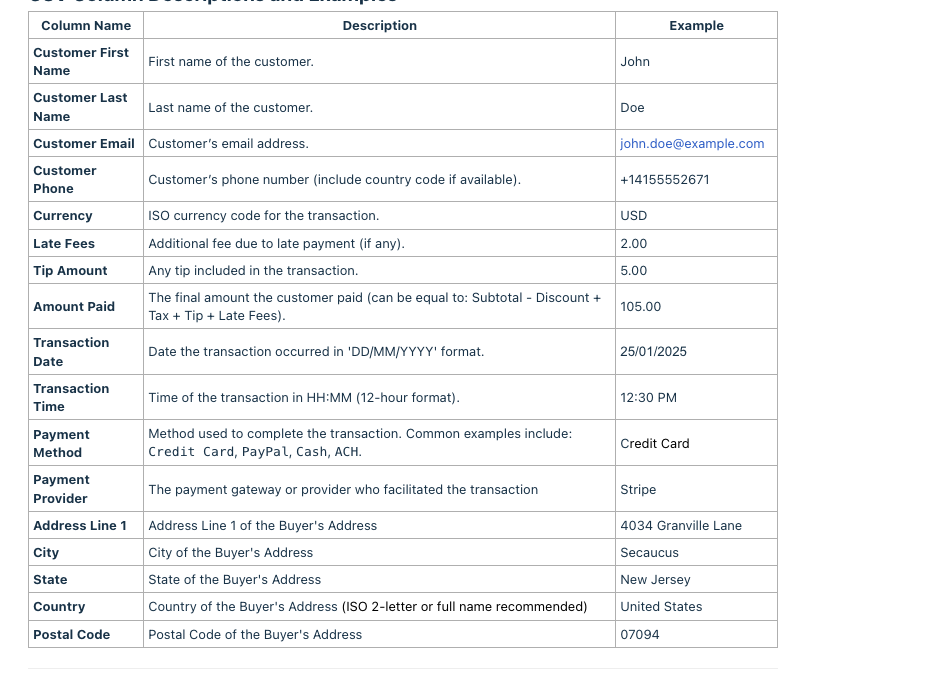
Shows a sample table of all supported CSV columns including customer details, payment data, and address fields. Use this as a reference to structure your file correctly before uploading.
Common Upload Errors to Avoid
Incorrect formatting is the most common reason for failed imports. Reviewing your file before uploading can save time and prevent data issues.
Missing required fields such as Amount Paid, Transaction Date, or Customer Email
Incorrect date or time formats
Using symbols instead of ISO currency codes (e.g., $ instead of USD)
Invalid email or phone number formats
Mismatched or misspelled column headers
Tips for Successful Imports
A few simple checks can ensure your CSV uploads without issues and your data remains accurate.
Double-check column headers before uploading
Keep formatting consistent across all rows
Use a spreadsheet tool to validate data before export
Test with a small file before importing large datasets
Frequently Asked Questions
Q: Can I upload multiple transactions at once?
Yes, each row represents a transaction, so you can upload multiple records in a single file.
Q: What happens if required fields are missing?
The file may fail to upload or skip invalid rows depending on the issue.
Q: Can I include additional fields not listed?
Only supported fields will be processed. Extra columns may be ignored.
Q: What format should dates be in?
Use a consistent format such as DD/MM/YYYY or MM/DD/YYYY based on your system settings.
Q: Can I update existing transactions using CSV?
This depends on system behavior. Typically, CSV import creates new records unless specified otherwise.
Need Help?
If your CSV file isn’t uploading or you’re unsure about formatting, reach out to support or review your file against the sample structure to identify any issues.