
Fix "From Number Not SMS Capable" Error
This article explains why you might encounter the "from number is not SMS capable" error when sending text messages and provides step-by-step troubleshooting to resolve the issue.
You'll learn how to identify non-SMS-capable numbers, enable SMS capabilities, and update workflows to use proper messaging numbers.
Understanding the Error
The "from number is not SMS capable" error appears when LeadConnector attempts to send a text message from a phone number that doesn't have SMS functionality enabled. This prevents the message from being delivered to your contacts.
Not all phone numbers can send text messages by default. Voice-only numbers, certain toll-free numbers, and numbers in specific configurations lack the technical capability to transmit SMS messages. When these numbers are used as the "from" number in messaging workflows or campaigns, the system generates this error to prevent failed delivery attempts.
Understanding which numbers support SMS is essential for maintaining reliable communication with your contacts and ensuring your automated workflows function correctly.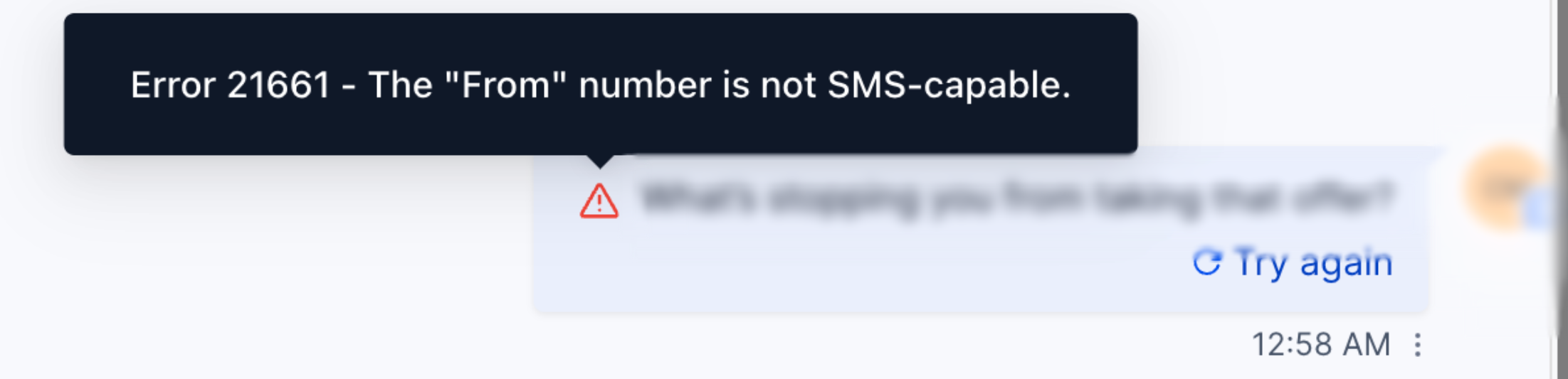
Common Causes
Several scenarios can trigger this error. Recognizing these common causes helps you identify and resolve the issue quickly.
How to Check if a Number is SMS Capable
Before troubleshooting, verify whether your number has SMS capabilities enabled. LeadConnector provides tools to check number status and capabilities.
From your dashboard, go to Settings → Phone Numbers to view all numbers associated with your account.
Locate the number generating the error and check the Capabilities column. SMS-capable numbers display "SMS" or "Voice + SMS" as available features.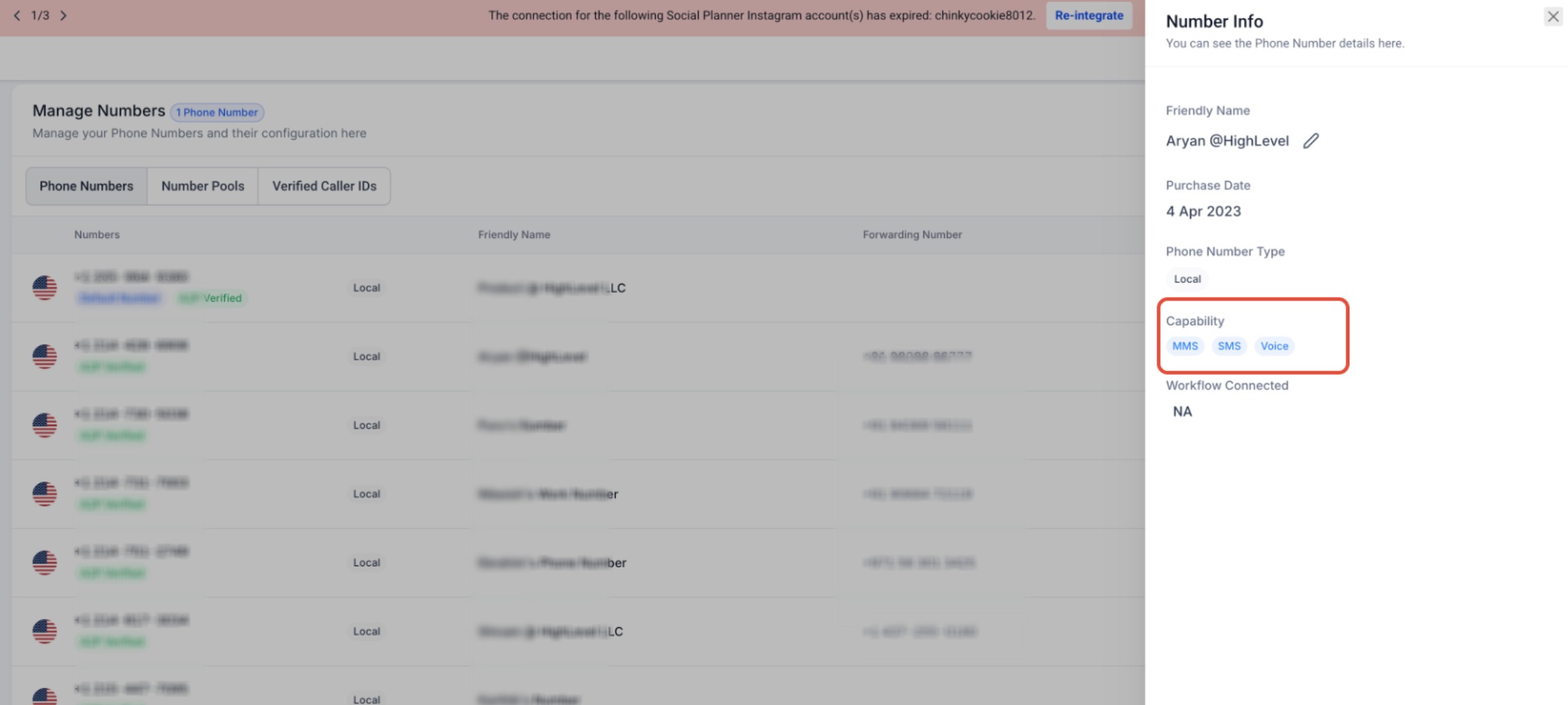
Numbers showing only "Voice" in the capabilities column cannot send text messages and will trigger this error when used in SMS workflows.
If your number list doesn't display capability information, click on individual numbers to view detailed settings and features.
How to Fix the Error
Once you've identified a non-SMS-capable number causing the error, choose one of the following solutions based on your needs.
Solution 1: Enable SMS Capabilities
If you want to continue using the same number for text messaging, add SMS capabilities to the existing number.
Navigate to Settings → Phone Numbers and click on the voice-only number you want to enable for SMS.
Look for an option to Add SMS Capability or Enable Messaging. Click this option to upgrade the number to support text messages.
Some number types, especially toll-free numbers, may require additional verification before SMS can be activated. Follow the on-screen prompts to complete any required steps.
After enabling SMS, verify that the number now shows "SMS" or "Voice + SMS" in the capabilities list. This confirms the number can send text messages.
Solution 2: Use an SMS-Capable Number
If enabling SMS on your current number isn't possible or practical, switch to a different number that already has SMS capabilities.
Review your phone numbers list and note which numbers show SMS capabilities. These numbers can be used as sender numbers for text messages.
If you don't have any SMS-capable numbers, purchase a new number with SMS capabilities by navigating to Settings → Phone Numbers → Buy Number and ensuring "SMS" is selected in the capabilities filter.
Set an SMS-capable number as your default for text messaging. Go to Settings → Phone Numbers, select an SMS-capable number, and click Set as Default for SMS.
Setting a default SMS number ensures that new workflows and campaigns automatically use an SMS-capable number, preventing this error in future automations.
Updating Workflows and Automations
After fixing number capabilities, update existing workflows and automations to use the correct SMS-capable number. This prevents future errors and ensures message delivery.
Navigate to Automation → Workflows and identify workflows that send SMS messages. Check the error logs or workflow history to find which automations triggered the "not SMS capable" error.
Open each affected workflow and locate the Send SMS action. Click to edit the action settings.
In the SMS action settings, find the From Number field. Select an SMS-capable number from the dropdown menu or choose Use Default SMS Number if you've set a default.
Save the workflow changes and run a test to confirm messages send successfully. Check that no errors appear in the workflow execution log.
Check any SMS campaigns, bulk messaging tools, and trigger-based automations that may also use the non-SMS-capable number. Update these to use the correct sender number following the same process.
Create a checklist of all workflows and campaigns using SMS to systematically verify and update sender numbers. This ensures nothing is missed and prevents errors from recurring.
If you continue experiencing this error after following these troubleshooting steps, our support team is ready to assist.
- Click the Help icon in your LeadConnector dashboard
- Select Contact Support and provide your account details
- Include the phone number generating the error and screenshots of the error message
- List which workflows or campaigns are affected