
Finalizing a domain transfer completes the authorization needed to move your domain from its current registrar into the platform. This step typically requires disabling transfer-blocking settings, unlocking the domain, obtaining the EPP or authorization code, validating the transfer, and completing the required payment before the request is submitted.
TABLE OF CONTENTS
- Overview
- What Happens During This Step
- Login into your current registrar
- Disable DNSSEC and Whois Privacy
- Unlock Domain & Get Authorization Code
- Transfer Processing & Payment
- FAQS
Overview
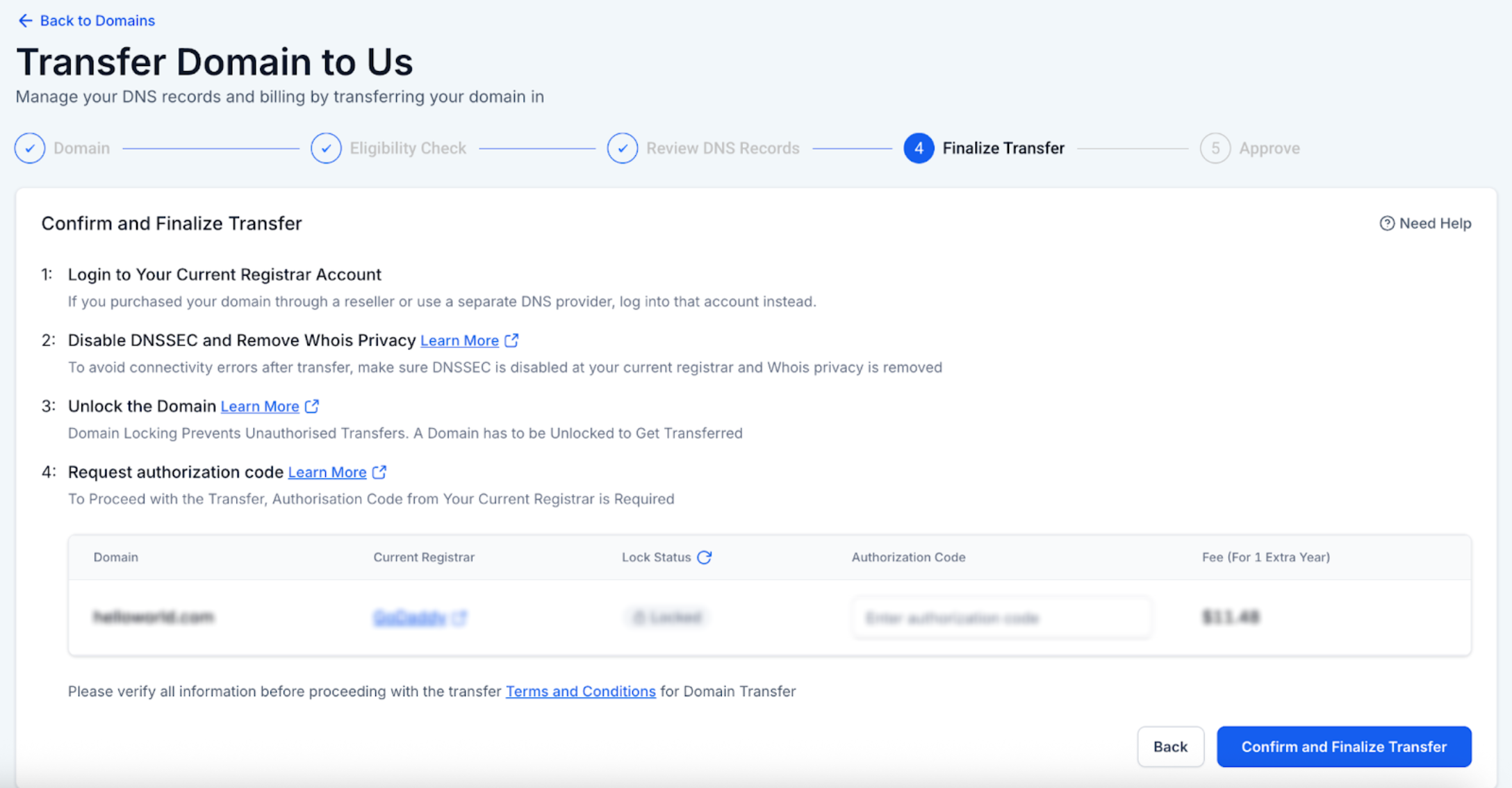
The Finalize Transfer step is where you complete the authorization process to move your domain from your current registrar (like GoDaddy, Namecheap, IONOS, etc.) to your CRM. This step ensures that your domain and related services continue working smoothly after the transfer.
What Happens During This Step
On the Finalize Transfer screen, you will:
Log into your current registrar (where you originally registered the domain)
Disable DNSSEC & Whois Privacy
Unlock your domain
Request and enter the authorization code (EPP code)
Submit the transfer and complete payment
Login into your current registrar
Log into the domain register where you originally purchased your domain
Disable DNSSEC and Whois Privacy
Before initiating a domain transfer, it is important to disable DNSSEC and remove Whois privacy protection from your current registrar.
Steps (General Instructions):
Log in to your current registrar account.
Go to DNS or Domain Settings.
Find the option for DNSSEC and disable it.
If Whois Privacy Protection is enabled, turn it off.
Save changes
1. GoDaddy
Disabling DNSSEC | Removing Whois Privacy
Note: It may take a few minutes for the DNSSEC record to be fully removed. You’ll see a confirmation on GoDaddy once the setting is updated.
2. NameCheap
Disabling DNSSEC | Removing Whois Privacy
3. IONOS
Disabling DNSSEC | Removing Whois Privacy
Unlock Domain & Get Authorization Code
Before transferring your domain, it must be unlocked, and you’ll need an authorization code (also called an EPP or transfer code) from your current registrar.
General Instructions:
Log in to your current registrar account (e.g., GoDaddy, Namecheap, IONOS).
Go to your domain management or domain settings section.
Look for the Domain Lock or Registrar Lock option.
Disable or turn off the lock to unlock the domain.
Once unlocked, locate the option to get the authorization code (may be labeled EPP code, Transfer Code, or AuthInfo).
The code may either be displayed on screen or sent to your registered email.
1. GoDaddy
You can read in detail about transferring your domain out of GoDaddy HERE.
2. Namecheap
You can read in detail about transferring your domain out of Namecheap HERE.
Note: Make sure WhoisGuard is disabled before requesting the auth code.
3. IONOS
You can read in detail about transferring your domain out of Ionos HERE.
Transfer Processing & Payment
When Confirm and Finalize Transfer is clicked, we will
Validate domain unlock status, auth code and for any other registry level statuses.
If the domain is valid for transfer, charge the wallet for the fee.
Submit the transfer request
FAQS
1. How long does it take after I finalize the transfer?
Once submitted, transfers typically complete within 1-5 days depending on your registrar. Some domains may complete faster if approved manually.
2. I don’t see the option to unlock my domain. What should I do?
Some registrars hide this setting under “Security” or “Transfer Settings.” If it’s not visible, search their help center or contact their support.
3. What if my auth code is wrong?
You’ll see an error. Double-check with your registrar and make sure the domain is also unlocked.
4. Will transferring my domain cause downtime?
Not if DNS records are accurately reviewed and migrated before the transfer. Always cross-check.
Need Help?
If the domain transfer cannot be finalized, first review the registrar settings, domain lock status, authorization code, and payment requirements.
Verify that:
- You are logged in to the correct current registrar.
- DNSSEC is disabled if required for the transfer.
- Whois Privacy or similar domain privacy protection is disabled if required.
- The domain is unlocked and no registrar lock is active.
- The authorization code or EPP code was copied correctly.
- The authorization code has not expired or been replaced by a newer code.
- The domain does not have a registry-level status that blocks transfers.
- The transfer request is being submitted for the correct domain.
- The required transfer fee can be charged successfully.
- DNS records were reviewed before finalizing the transfer to reduce the risk of service interruption.
- Enough time has passed if DNSSEC or privacy settings were changed recently.
- The current registrar has not added any additional approval step.
If the authorization code is rejected, request a new code from the current registrar and confirm the domain is unlocked before trying again.
If the issue continues, collect the domain name, current registrar, domain lock status, transfer status, exact error message, approximate time the transfer was submitted, and screenshots of the registrar transfer settings before contacting support.