
After submitting a domain transfer request, you may need to approve the transfer with your current registrar before it can complete. Approval is typically handled through the registrar’s dashboard or a confirmation email. Once approved and processed, the domain becomes available for ongoing DNS, renewal, and billing management in the platform.
TABLE OF CONTENTS
- Overview
- Why Approval Is Required
- How to Approve the Transfer at Your Registrar
- What Happens After Approval
- If the Transfer Is Rejected
- FAQs
Overview
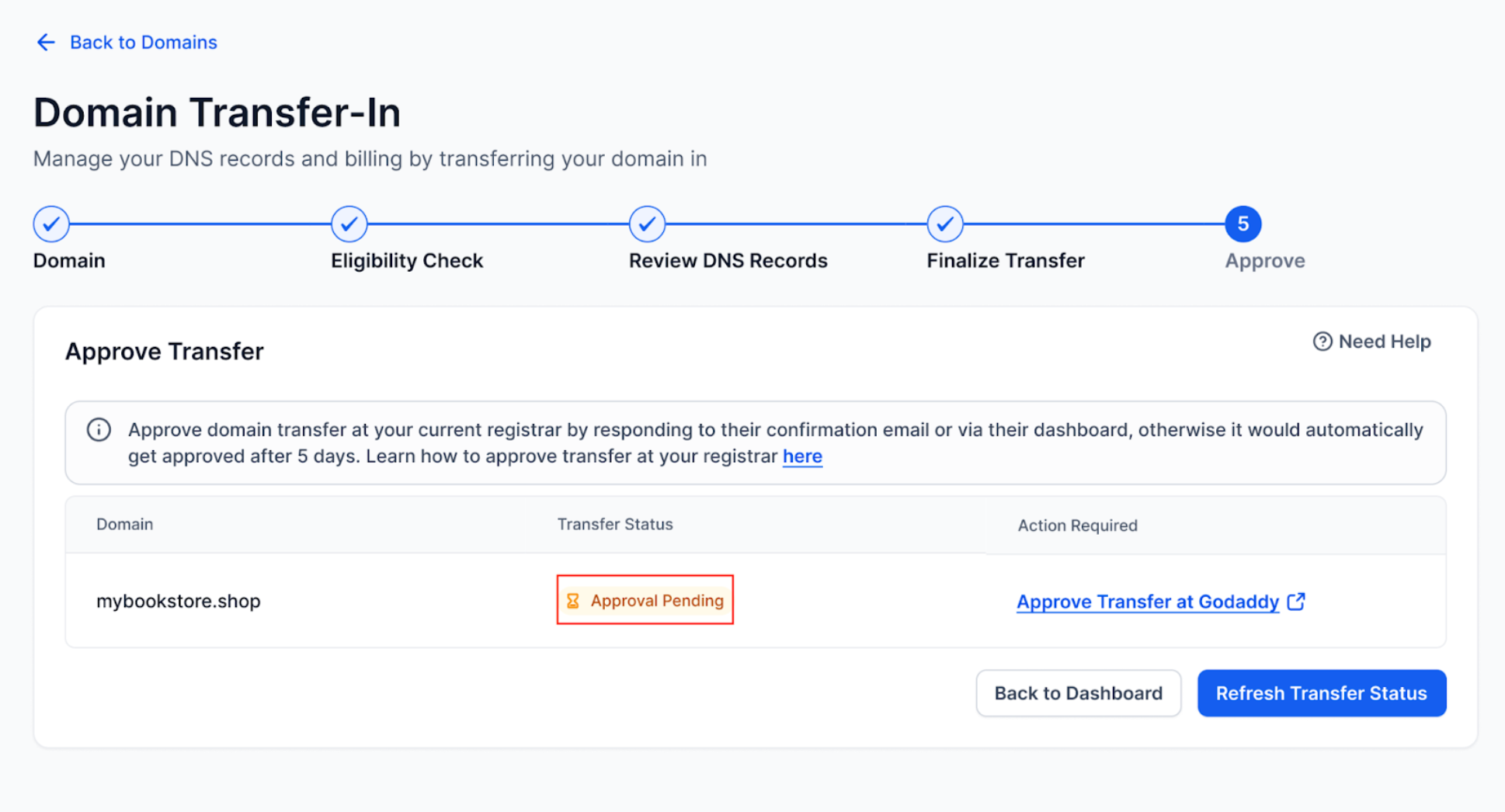
Once you’ve submitted your domain transfer request, the final step is to approve the transfer at your current registrar. Until you do that, the transfer stays in a pending state and won’t complete.
Why Approval Is Required
Domain transfers require explicit confirmation from your current registrar (such as GoDaddy, Namecheap, or IONOS) to protect against unauthorized changes. You must manually approve the transfer either through your email inbox or your registrar’s dashboard.
If no action is taken, the transfer may auto-approve after 5–7 days, depending on the registrar’s policy.
How to Approve the Transfer at Your Registrar
Here’s how to approve the transfer depending on who your registrar is:
GoDaddy
Namecheap
Transfer a domain out of Namecheap.
IONOS
Sign in to IONOS
Go to Domains & SSL
Click on the domain you’re transferring
Look for a Pending Transfer prompt or email instructions
Approve the transfer when prompted
What Happens After Approval
Once you approve the transfer:
Your domain is moved under our registrar partner (Cloudflare)
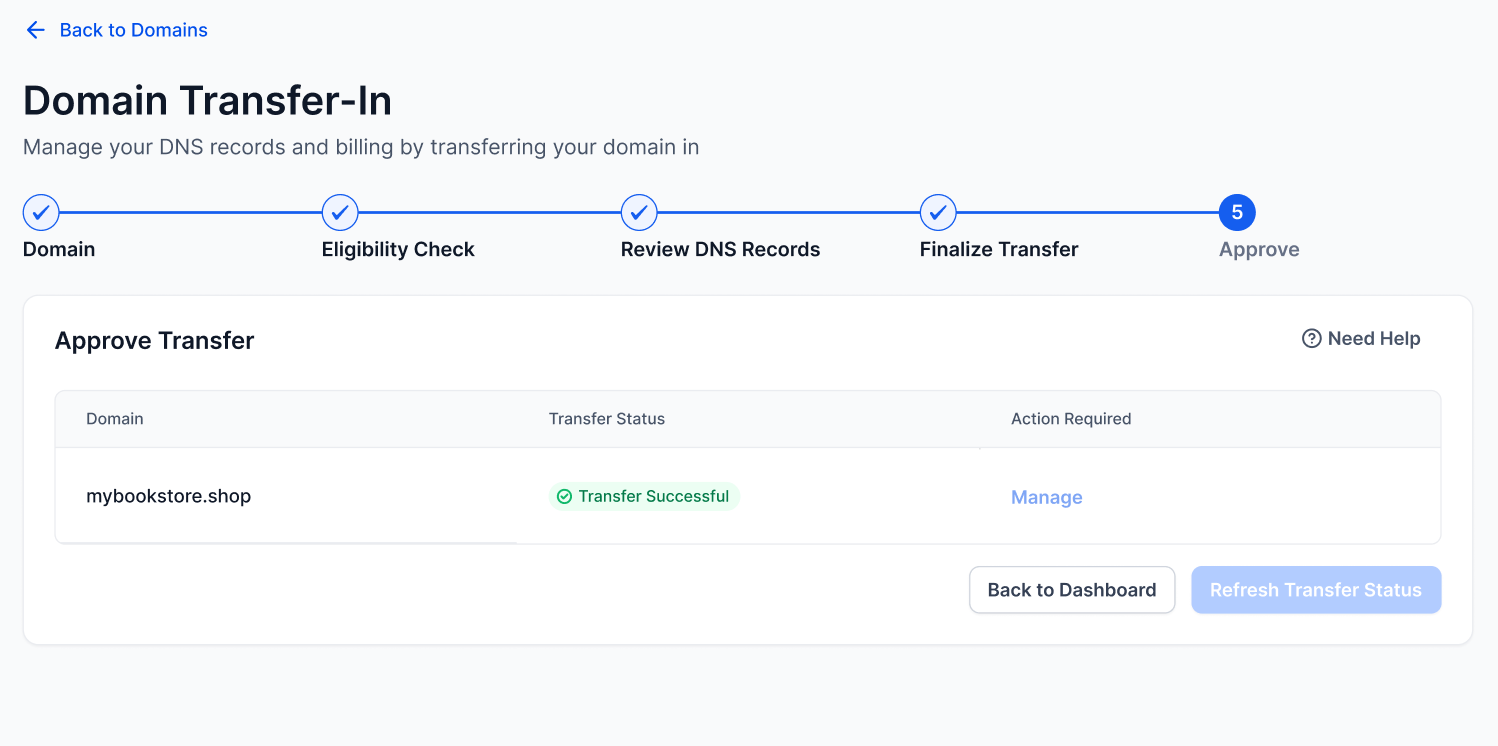
You’ll see it listed under Internal Domains in your account
You can manage DNS, renewals, and billing right inside our platform
The Manage button becomes active so you can take further actions
If the Transfer Is Rejected
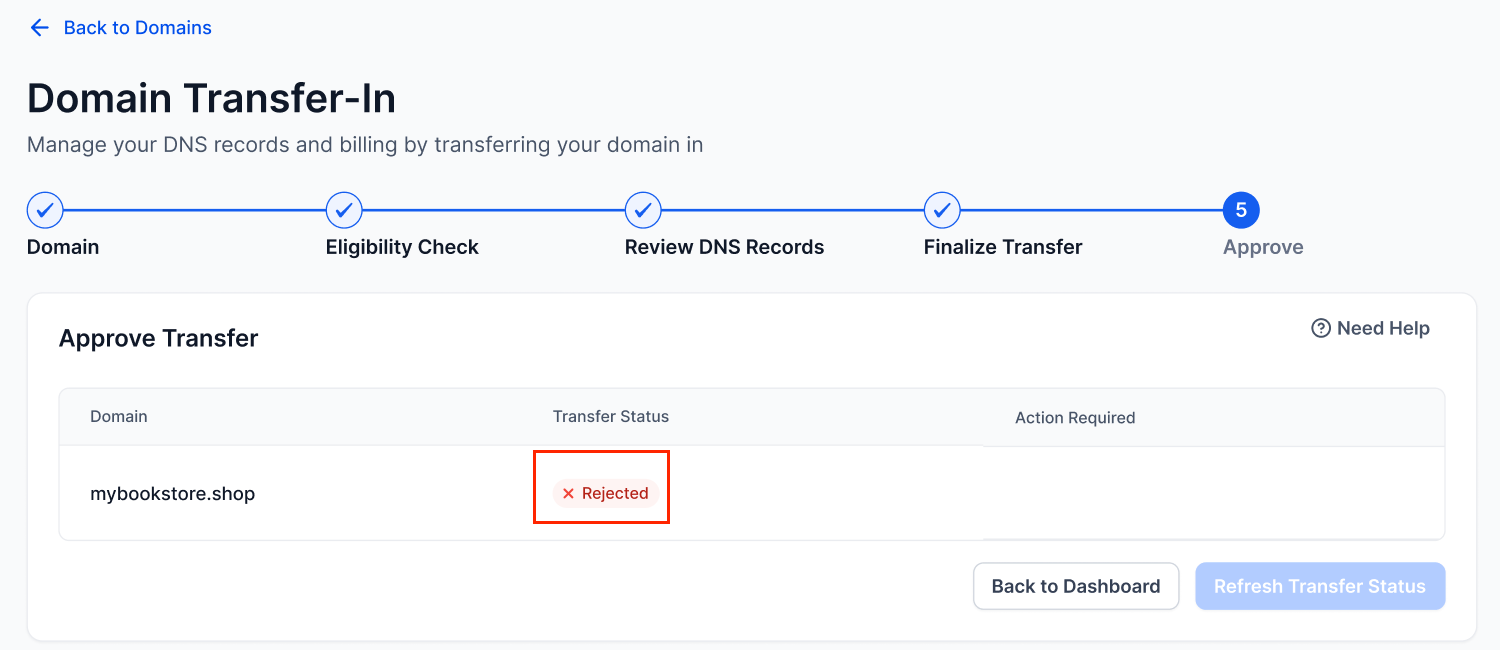
Your transfer can be rejected if:
You manually cancel it
Your registrar blocks it (e.g., 60-day lock)
You don’t approve it in time
When this happens:
The domain status shows as Rejected
The Transfer to Us button reappears so you can try again
FAQs
1. Can I transfer my domain back to another registrar later?
Yes but typically, you’ll need to wait 60 days after the last transfer, per ICANN rules.
2. Will transferring my domain cause downtime?
Not if DNS records are accurately reviewed and migrated before the transfer. Always cross-check.
If you have any questions or run into issues during your domain transfer, feel free to reach out to our support team from the help icon in your account.
Need Help?
If your domain transfer is still pending, rejected, or cannot be approved, first review the transfer status at your current registrar.
Verify that:
- You are checking the correct domain and registrar.
- The transfer request was submitted successfully.
- The domain is unlocked for transfer.
- The authorization or EPP code used for the transfer was valid.
- You have checked your registrar account for a pending transfer approval.
- You have checked the registrant email address for a transfer confirmation message.
- The transfer has not been manually canceled.
- The domain is not under a registrar or registry transfer lock.
- The domain was not registered or transferred recently enough to trigger a transfer restriction.
- Any required approval was completed before the registrar’s deadline.
- Enough processing time has passed after approval.
- DNS records were reviewed before the transfer to reduce the risk of service interruption.
If the transfer shows as Rejected, review the rejection reason before submitting a new request. A rejected transfer may need the domain to be unlocked, a new authorization code, or a registrar restriction to be resolved first.
If the issue continues, collect the domain name, current registrar, transfer status, approval date and time, rejection reason if shown, and screenshots of the registrar and domain transfer status before contacting support.