
Overview
The Call Disposition feature helps you capture the business outcome at the end of each call and take the right next steps, all within your dialer.
After completing a call, you can now select a disposition (the outcome of the call) such as Interested, Requested appointment, or Not interested. These dispositions can be used to track call outcomes and save time by triggering workflows.
Why This Matters
By using Call Dispositions, you can:
Save time on manual tracking and follow-ups
Trigger workflows instantly (e.g., send an SMS, add to a campaign, schedule a callback)
Analyze call outcomes more effectively in Call Reporting
How to Add Custom Dispositions in Lead Connector
Default Dispositions
By default, every account starts with preset dispositions for visibility and ease of use. Admins can add or modify these.
Creating & Editing Dispositions
Only sub-account admins can create, edit, or delete dispositions.
You can have up to 10 dispositions per sub-account.
To set up:
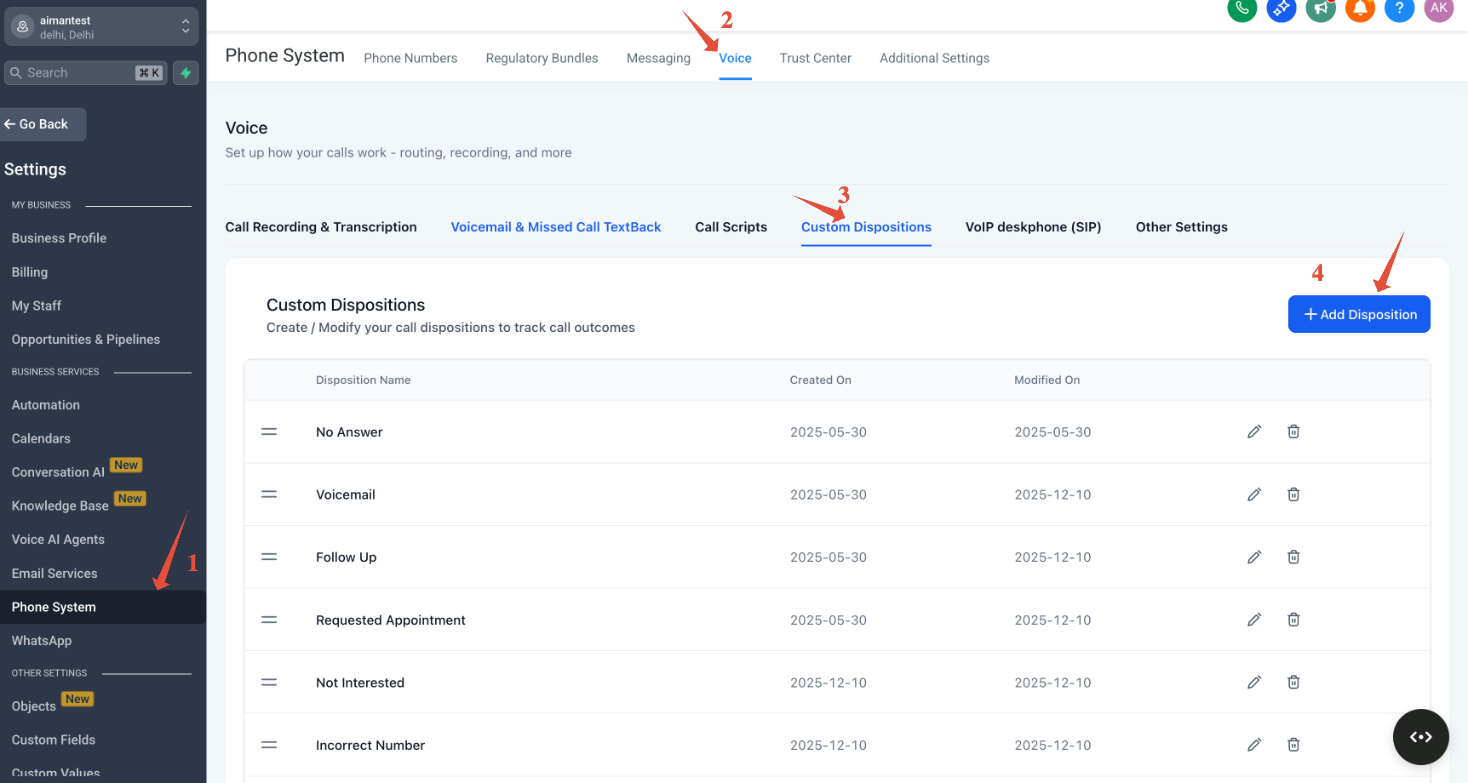
Go to Sub-account Settings → Phone System → Voice → Call Dispositions
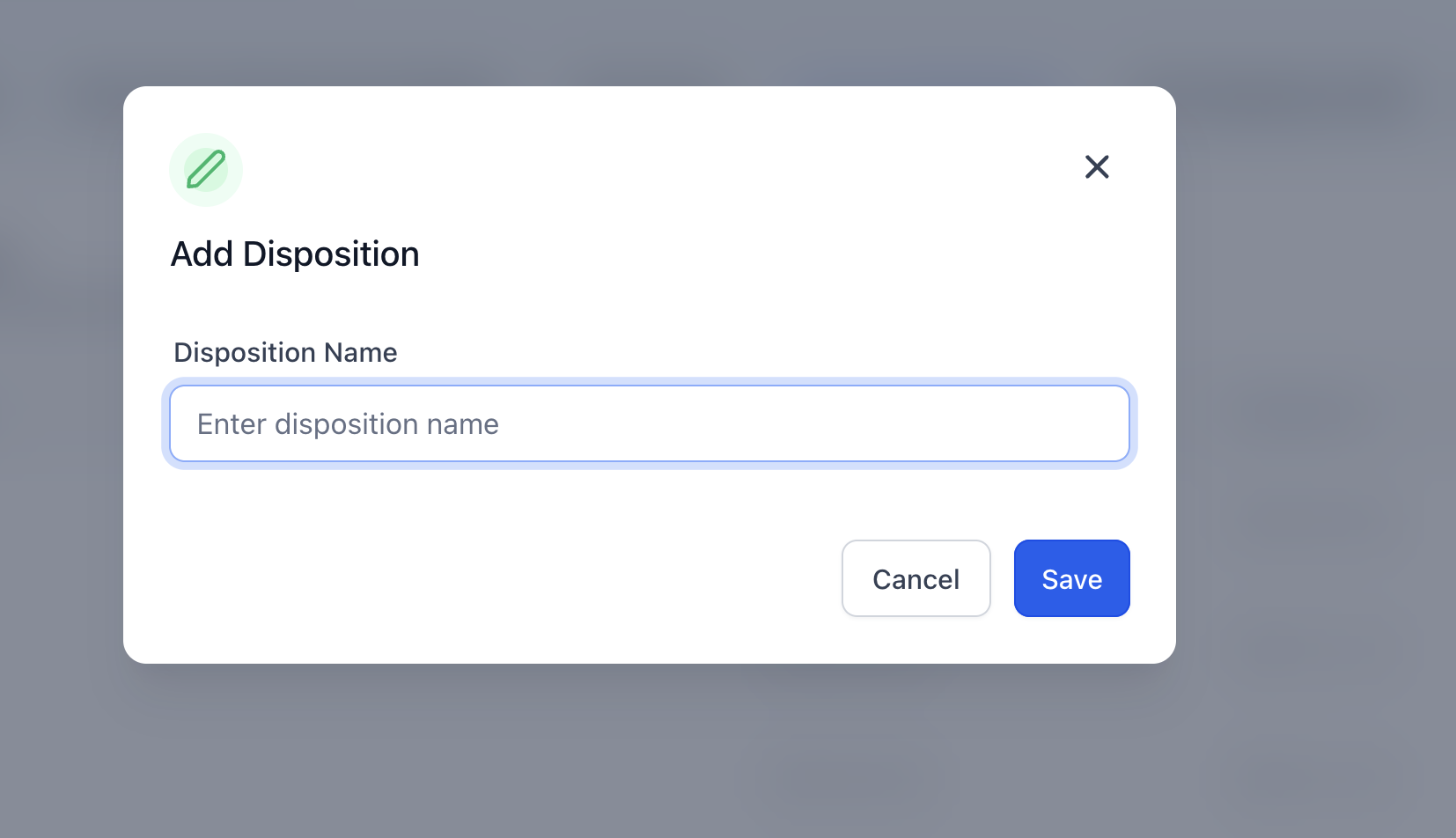
Edit the existing ones or add new ones
How It Works
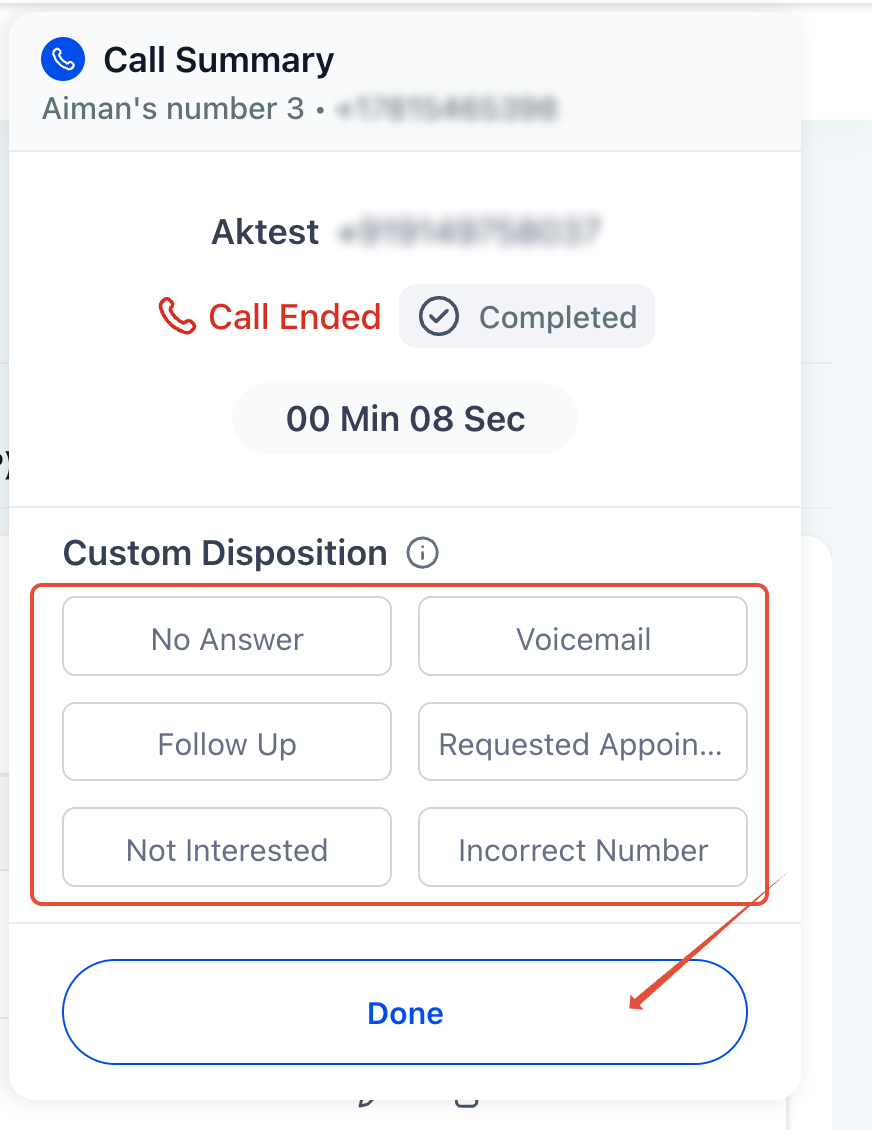
When a call ends in the web dialer, you’ll see up to 10 call dispositions to choose from, for example, Follow Up or Requested Appointment.
You simply select the appropriate one to log the outcome.
Connecting to Workflows
Head to Automation
Add a trigger: Call Details
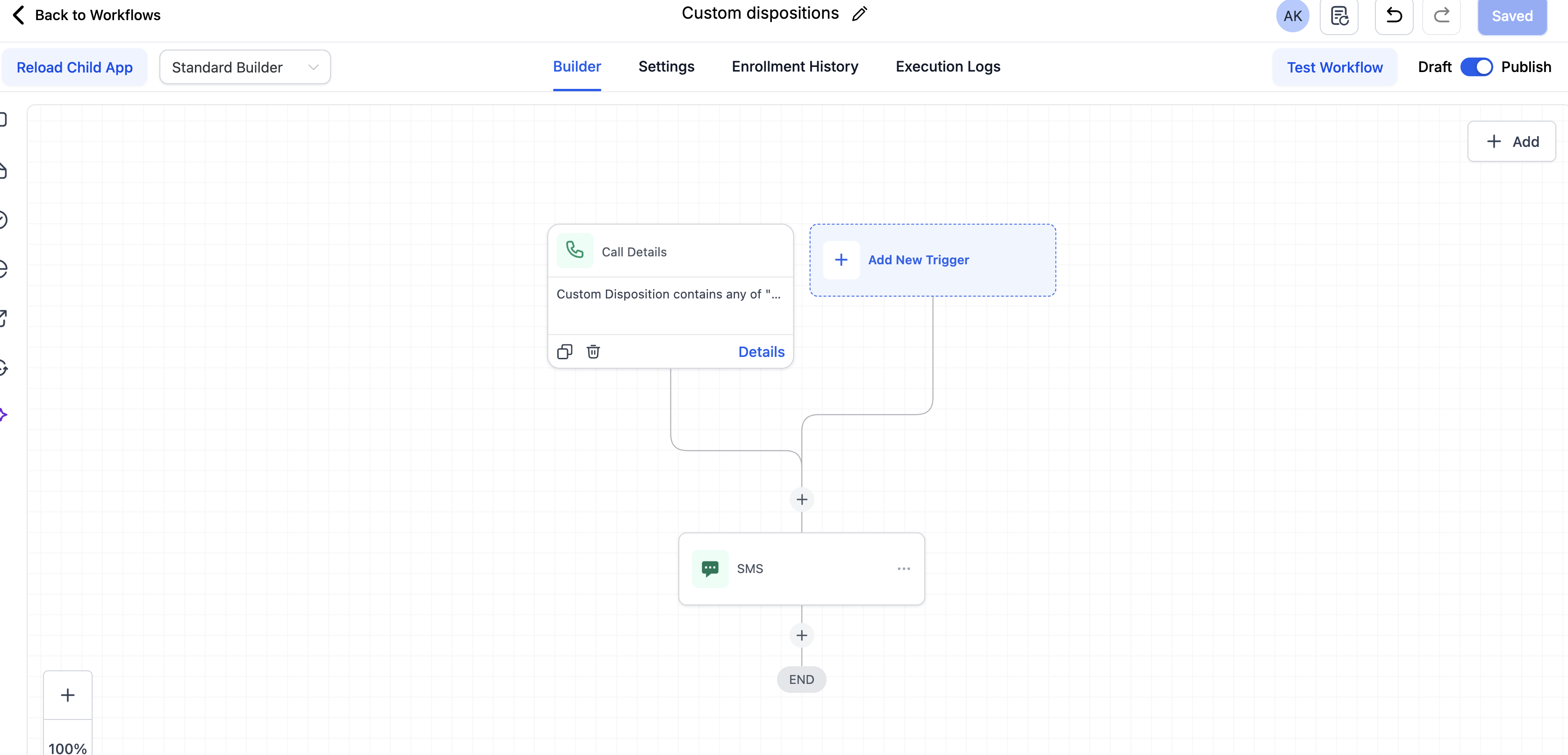
Select the filter Custom Disposition
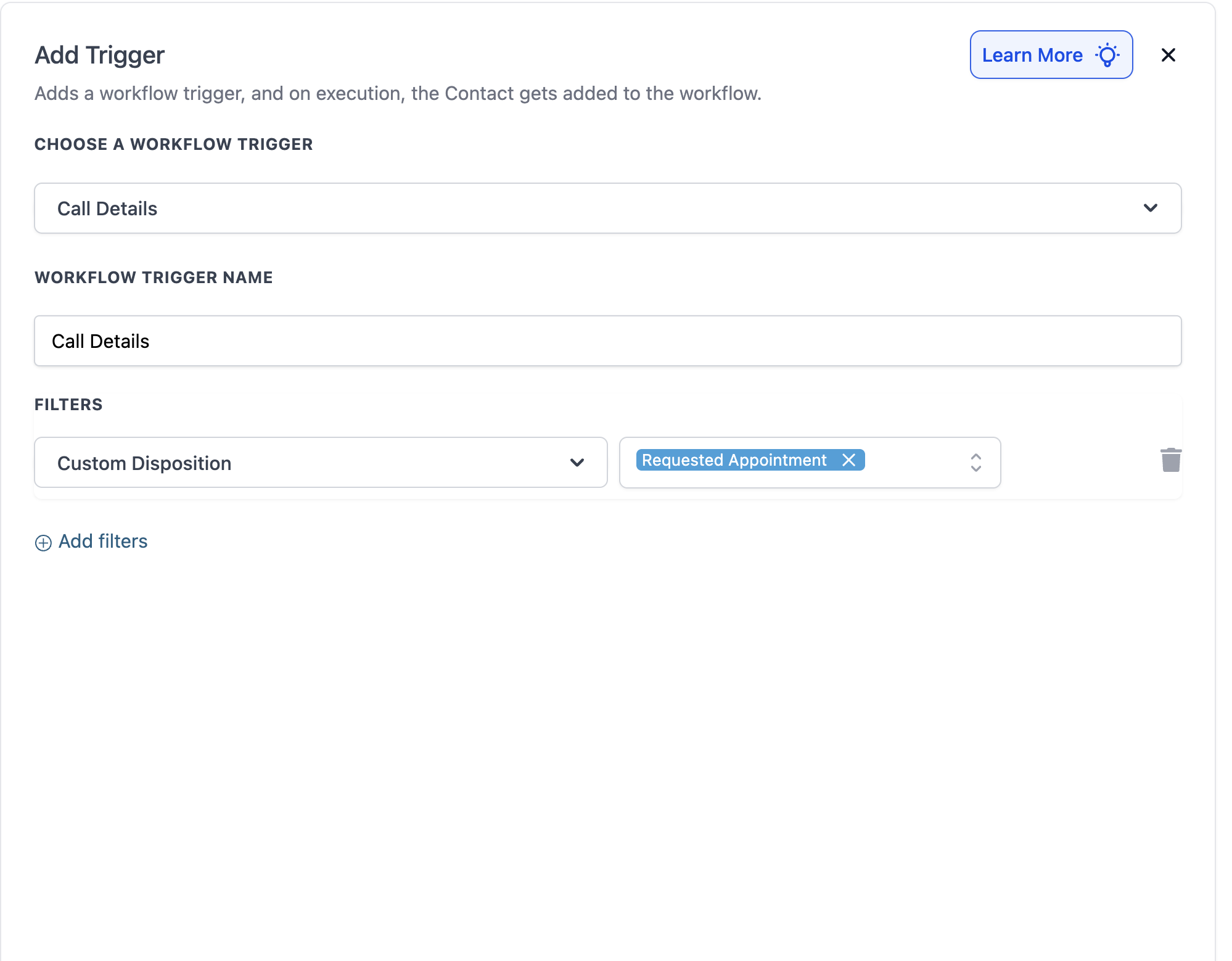
Choose one or more dispositions to automate your desired follow-up actions
Your chosen disposition can automatically trigger workflows such as:
Sending a follow-up SMS or email
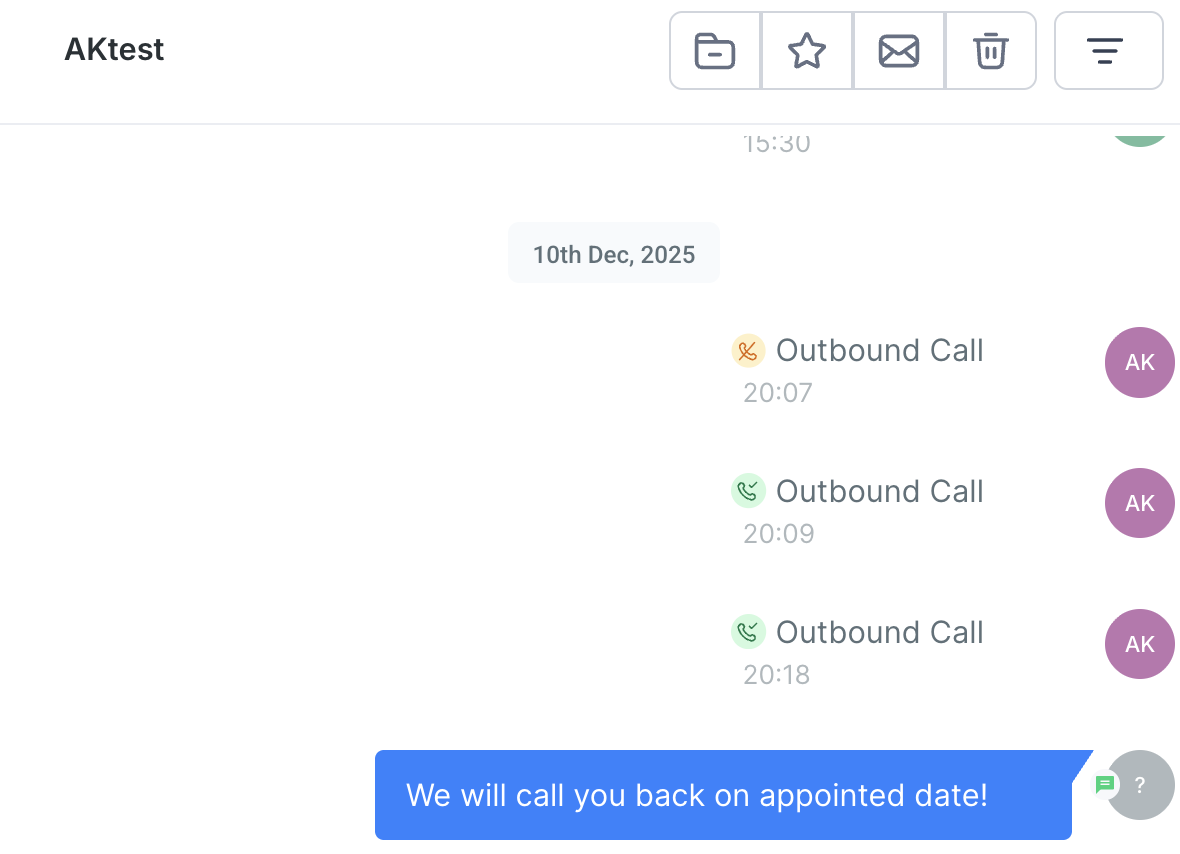
Scheduling an appointment
Adding the contact to a specific pipeline or campaign
Using Dispositions in Reporting
Reporting
All selected dispositions are stored and can be viewed in:
Reporting → Call Reporting
This lets you track patterns like call outcomes per user or team performance.
In Call Reporting table, you’ll now see a new column for Call Disposition.
You can also use it as a filter to analyze performance by disposition , for example, how many calls resulted in “Requested Callback”.
Custom Dispositions on Mobile
Custom Dispositions are now fully supported on mobile, making it easy to log clear call outcomes and trigger next steps instantly, right from your phone. This feature is live across LeadConnector, and mobile apps on both iOS and Android.
What's New
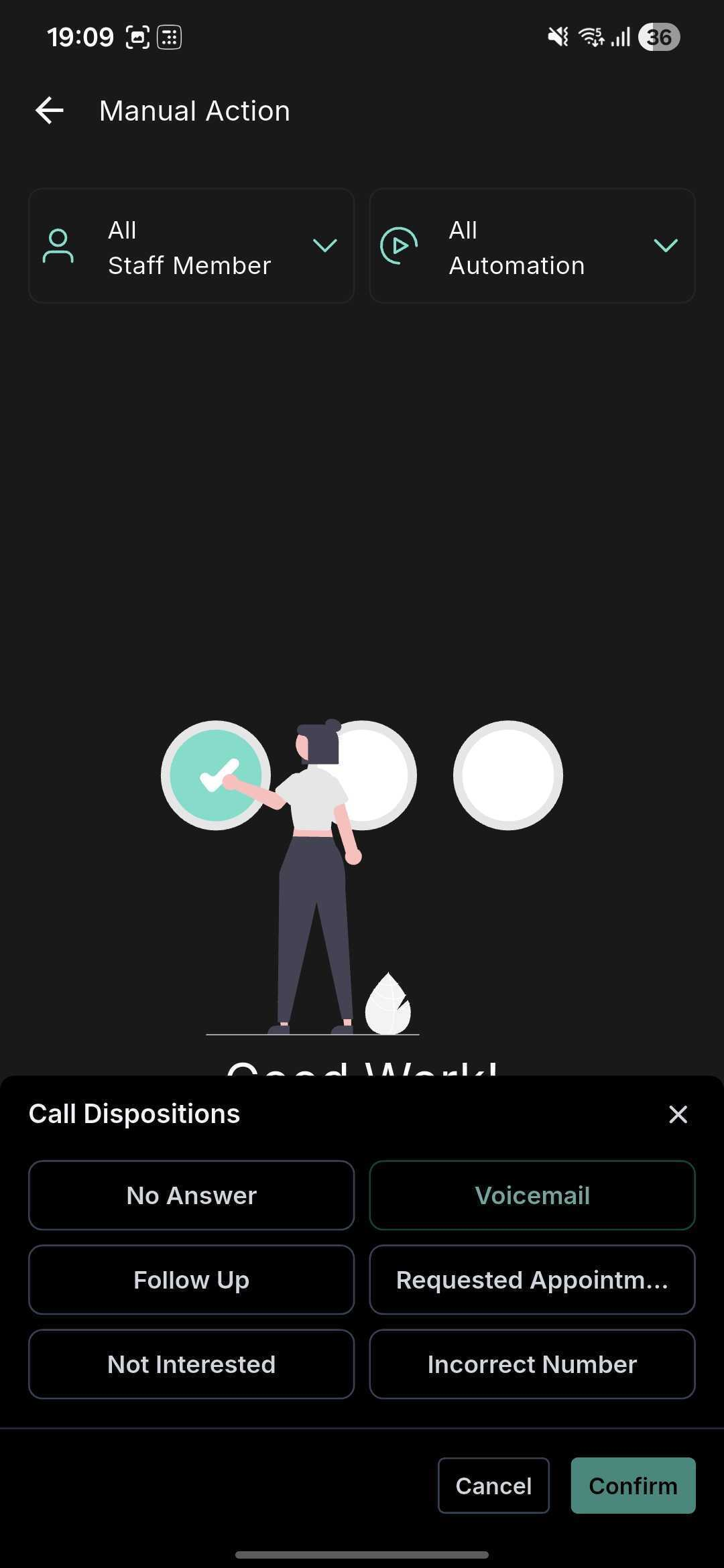
Call End Screen Support
Select a disposition immediately when a call ends or from the post-call view, no desktop required.Single Disposition per Call
Log one definitive outcome (e.g., Follow Up, Qualified) to ensure clean data and consistent reporting.Workflow-Ready
Use the Custom Disposition filter in workflows to automatically trigger follow-ups, tasks, pipeline movements, and more.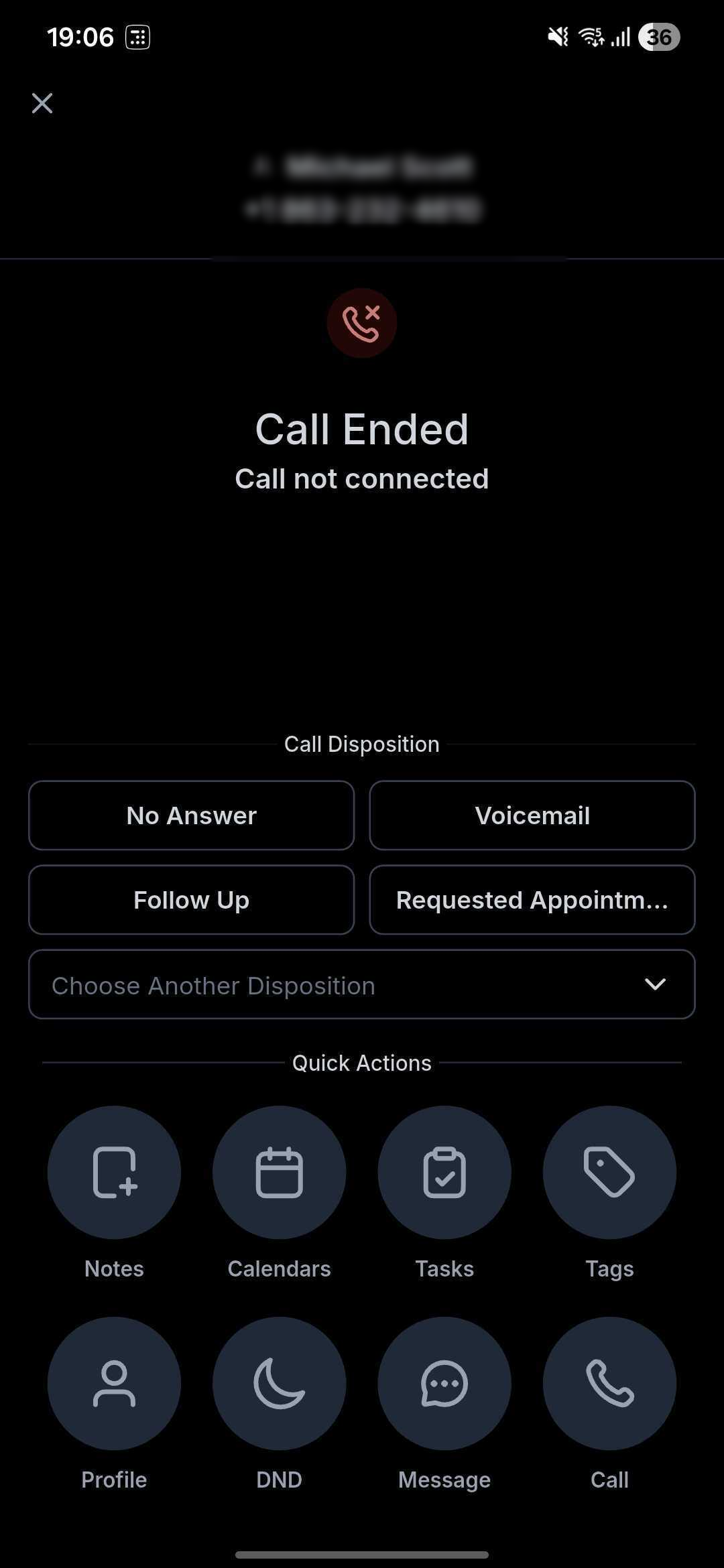
Mobile-Specific Notes
Sub-Account Matching Required
Dispositions only appear when the selected sub-account matches the call’s location. Since mobile apps can receive calls across multiple sub-accounts, cross-sub-account dispositions are not supported. Use the Switch option if needed.
Supported Call Types
Call Dispositions work for:
All calls made or received via the web or mobile app
Not supported for:
Calls answered via personal number or desk phone
Limitations
Only one disposition per call
Maximum 10 dispositions per account
Sub-dispositions (nested outcomes) are not available
Multiple selections are not supported
Migration Note: Call Status → Call Disposition
If you were previously using Call Status in the Power Dialer (Manual Actions):
The manual call status selection option has been replaced by Call Disposition
Existing workflows using “Call Status” triggers should be updated to use the Custom Disposition filter in Call Details Trigger instead
Your older data will remain visible, but new automations should use the new system
Permissions
| Role | Action |
|---|---|
| Admin | Create, Edit, Delete dispositions |
| User | Select disposition after call |
FAQs
Q: What if I don’t select a disposition after a call?
A: Dispositions are optional and you can choose not to select any disposition at all.
Q: How many dispositions can I have?
A: Currently, up to 10 are supported.
Q: Can I trigger a workflow from a deleted disposition?
A: No. Once deleted, associated workflows will stop triggering.
Q: Do Call Dispositions work on mobile?
A: Mobile app support is coming soon.
Q: What about calls I answer on my personal phone or desk phone?
A: Those calls cannot use dispositions. The web or mobile app is required for now.
Q: What happened to the Call Status Trigger?
A: It has been renamed to Call Details and now supports the new filter of Custom Disposition. Call Status is still a filter on the Call Details trigger but different from Disposition.