
Domains give your business a branded web address for websites, funnels, stores, blogs, webinars, client portals, WordPress sites, and email authentication. You can connect a domain purchased through the platform or from an external registrar, manage its product connections and status from the Domains area, and use root domains or subdomains depending on how you want to organize your online presence.
TABLE OF CONTENTS
- Overview: What Is a Domain?
- What are DNS Records?
- What You Can Do with Domains on Our Platform
- Before You Get Started
- Buying a Domain: Where to Start
- Centralized Domain Management
- What You Can Do
- Manage Domains
- Root Domain vs Subdomain vs WWW
- Root Domain
- Subdomain
- WWW (www.yourbrand.com)
Overview: What Is a Domain?
A domain is the web address people type into a browser to access your online presence—such as yourbrand.com. On our platform, domains allow you to brand and power multiple tools including funnels, websites, blogs, webinars, client portals, and email communications.
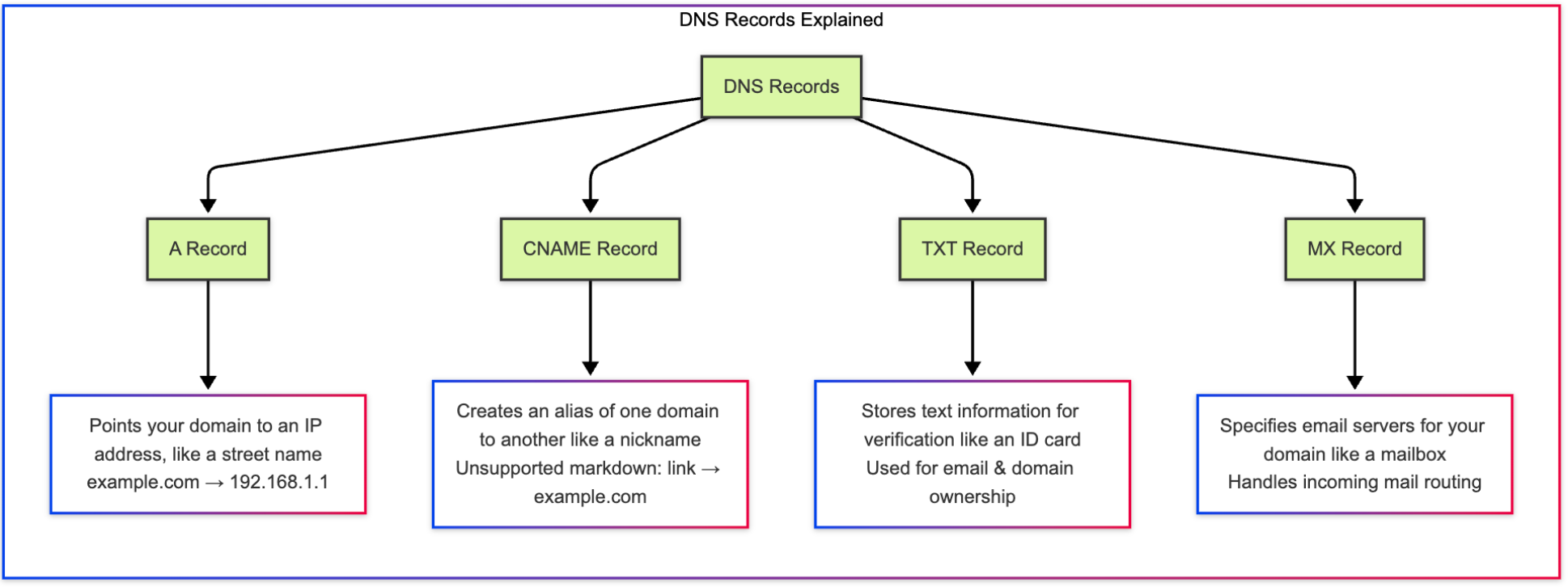
What are DNS Records?
DNS records (Domain Name System records) are essential building blocks of the internet. They act like a digital phone book, telling browsers and services how to reach your domain or subdomain by translating human-friendly domain names (like yourbrand.com) into machine-readable IP addresses.
What You Can Do with Domains on Our Platform
You can manage all domain connections in one place, ensuring clear visibility and streamlined setup.
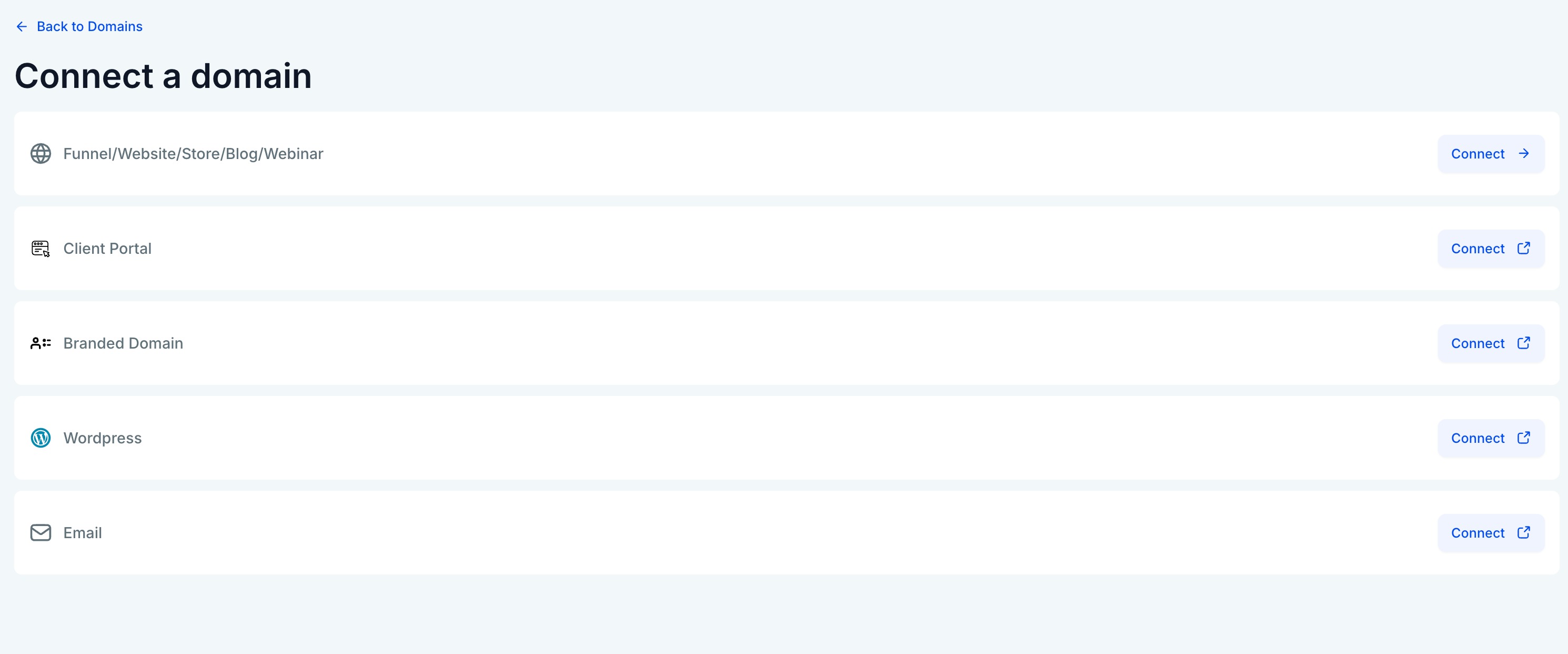
Funnel / Website / Store / Webinar / Blog
Use your domain to host customer-facing pages such as funnels, ecommerce stores, webinars, or blogs.
Client Portal
Use your custom domain to host a client-facing dashboard.
Gives your clients a branded experience when accessing assets, campaigns, or reports.
WordPress
If you're using our WordPress hosting, point your domain to your WordPress site using provided DNS records.
The system will auto-detect and validate once DNS setup is complete.
Email
A domain is required to authenticate your email sending (e.g., via SPF, DKIM, DMARC).
Connecting it improves email deliverability and ensures your messages aren’t flagged as spam.
Before You Get Started
What do you need?
An active account
A domain, either:
Purchased internally
Purchased via a third-party registrar (e.g., Namecheap, GoDaddy)
Access to the domain’s DNS settings (required for manual setup)
Buying a Domain: Where to Start
Before you can connect a domain, you need to own one. There are two ways to purchase a domain:
1. Buy Directly
Easiest option handled fully inside the platform.
Go to Settings > Domains > Purchase Domain.
Search for your desired domain name and complete the purchase.
Domains bought internally are automatically labeled as Internal and come with built-in DNS management and SSL.
2. Buy from a Third-Party Registrar
Use providers like GoDaddy, Namecheap, Google Domains, etc.
After purchasing, you’ll need to manually connect the domain by updating DNS records.
These are categorized as External Domains in the system.
Tip: Make sure you have access to your registrar’s DNS settings if purchasing externally—this will be required during setup.
Centralized Domain Management
All domains whether internal or external (connected via third-party providers) can be managed from the centralized Domains settings page within each sub-account.
What You Can Do
From this page, you can:
Add domains or subdomains
View connected products (Funnels, Websites, Emails, etc.)
Check domain and SSL status
Access DNS settings (for internal domains)
Identify and resolve required actions (e.g., verification, connection issues)
Domains are clearly labeled:
Internal Domains – Purchased through our platform
External Domains – Connected from external provider
Manage Domains
Includes tabs for Connected Products and DNS Records (DNS available for internal domains)
Lists connected product types (Funnels, Email, Website)
Status indicators help with quick troubleshooting
Filters allow sorting by product type; the menu (three dots) provides edit/remove options
Additional Features:
Search bar for quick domain lookup
Auto-renewal and expiry tracking for internal domains
Visual indicators highlight domains needing attention
Root Domain vs Subdomain vs WWW
Root Domain
Your main domain name.
Example:
example.comUsed for your primary site or homepage.
Subdomain
A prefix added to your root domain.
Example:
blog.example.com,store.example.comUsed to separate different sections (like blogs, funnels, portals) without needing a new domain.
WWW (www.yourbrand.com)
Technically a subdomain of
yourbrand.com.Example:
www.example.comOften used as the default web address.
Best practice: Pick one version (with or without
www) and redirect the other to it for consistency and SEO.
Need Help?
If a domain is not connecting, validating, or routing as expected, first review the domain, DNS configuration, and the product it is connected to.
Verify that:
- You are working with the correct domain or subdomain.
- You have access to the DNS settings for the domain.
- You know which provider currently manages the domain’s active DNS.
- The required DNS records were added exactly as provided.
- The domain is connected to the intended website, funnel, store, webinar, blog, portal, WordPress site, or email setup.
- The domain is not already assigned to another conflicting product.
- The domain and SSL status do not show a pending action or error.
- DNS changes have had enough time to propagate.
- You are using the intended root domain,
wwwaddress, or subdomain. - Redirects between
wwwand the root domain are configured as intended. - Required email authentication records such as SPF, DKIM, or DMARC were not removed while editing DNS.
- You have not deleted unfamiliar DNS records that may support other services.
If the domain connects but the wrong page or product opens, review the connected product assignment and confirm the correct domain or subdomain is attached to it.
If the issue continues, collect the domain or subdomain, DNS provider, connected product, current domain and SSL status, exact error message, and screenshots of the domain settings and DNS records before contacting support.