
Deliver professional, branded reports that help you stand out and convert more prospects. The Report Builder allows you to fully customize how your reports look, feel, and communicate your value—giving you control over branding, messaging, and calls-to-action.
TABLE OF CONTENTS
- What is the Report Builder?
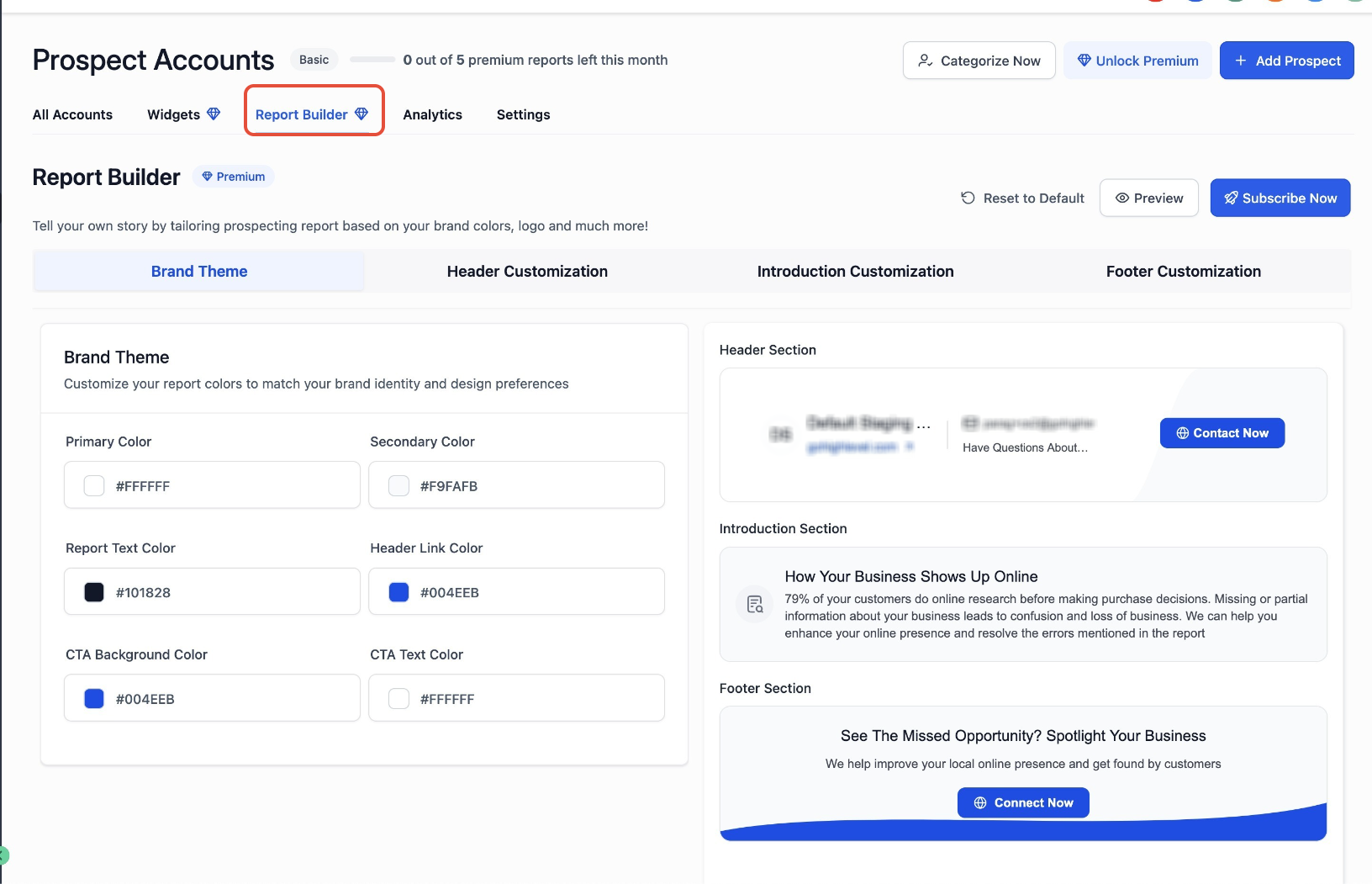
- How to Access the Report Builder
- How to Customize Your Report
- Header Customization
- Introduction Section Customization
- Footer Customization
- Preview and Apply Changes
- How the Final Report Appears
- Why This Matters
- Frequently Asked Questions
- Need More Help?
What is the Report Builder?
The Report Builder is a powerful customization tool that lets you design your prospecting reports to match your brand identity. From colors and fonts to messaging and CTAs, every element can be tailored to create a polished and high-converting experience for your prospects.
This works alongside the updated Web Report UI, which improves readability and layout for a smoother viewing experience.
What’s New in the Web Report Experience?
The updated report interface improves how reports are presented and consumed, making them more engaging and easier to navigate.
Key Improvements
Cleaner Layout: Removes unnecessary spacing for better focus on content
Improved Readability: Optimized structure for faster scanning
Better User Experience: Reports feel more modern and professional
Note: These improvements currently apply to web-based reports. PDF enhancements are coming soon.
How to Access the Report Builder
The Report Builder is available at both account and admin levels and requires a premium subscription.
To access:
Navigate to Prospecting
Open the Report Builder tab
Start customizing your report
How to Customize Your Report
The Report Builder is divided into four main sections. Each section controls a different part of your report experience.
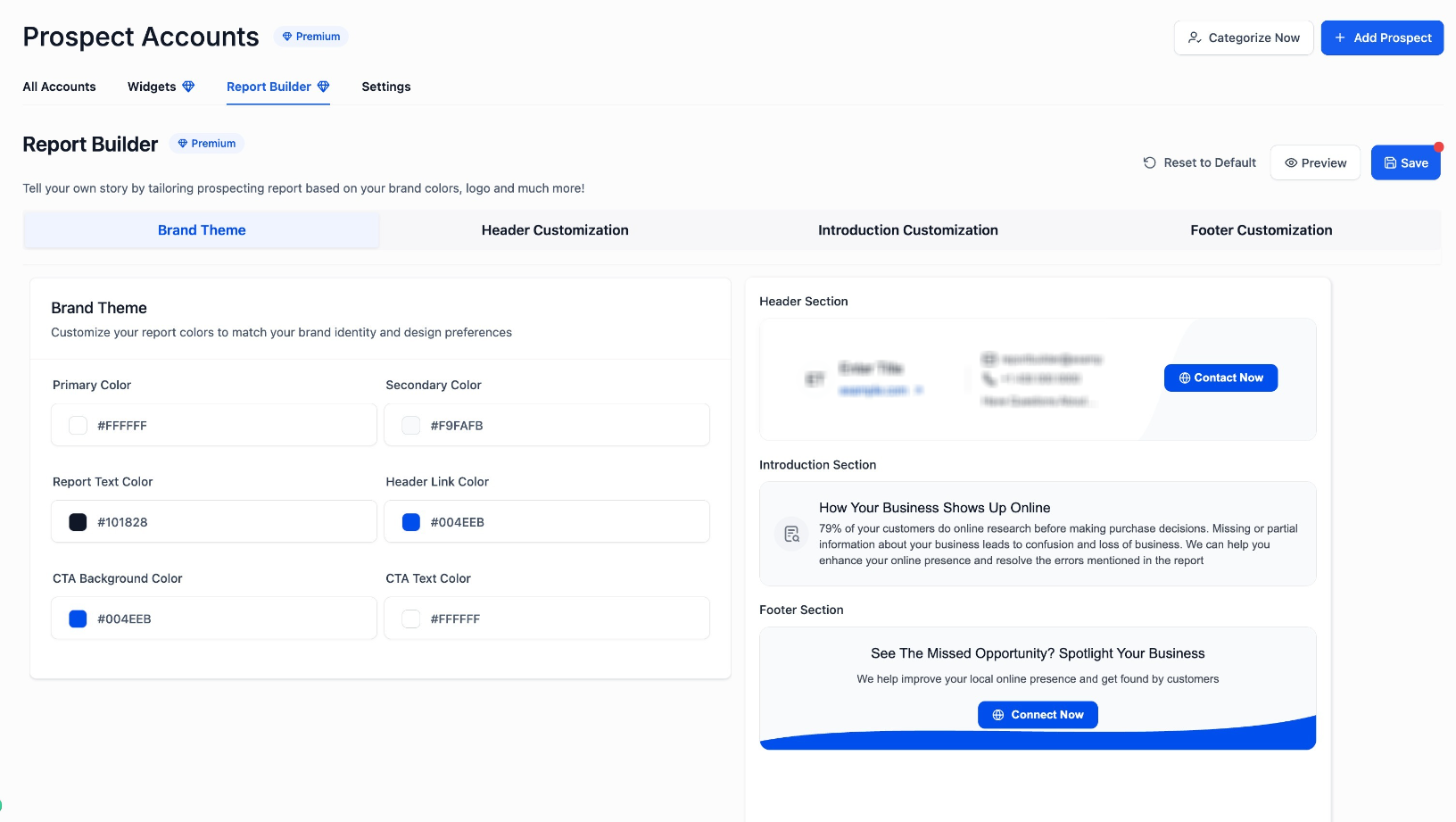
Brand Theme Customization
Brand colors define the overall visual identity of your report. Consistent branding helps build trust and recognition with prospects.
You can customize:
Primary and secondary colors
Text color across the report
Link colors
CTA button colors and text
What you’re seeing: Color controls for branding elements
What to do: Select colors that match your brand identity and preview changes in real time
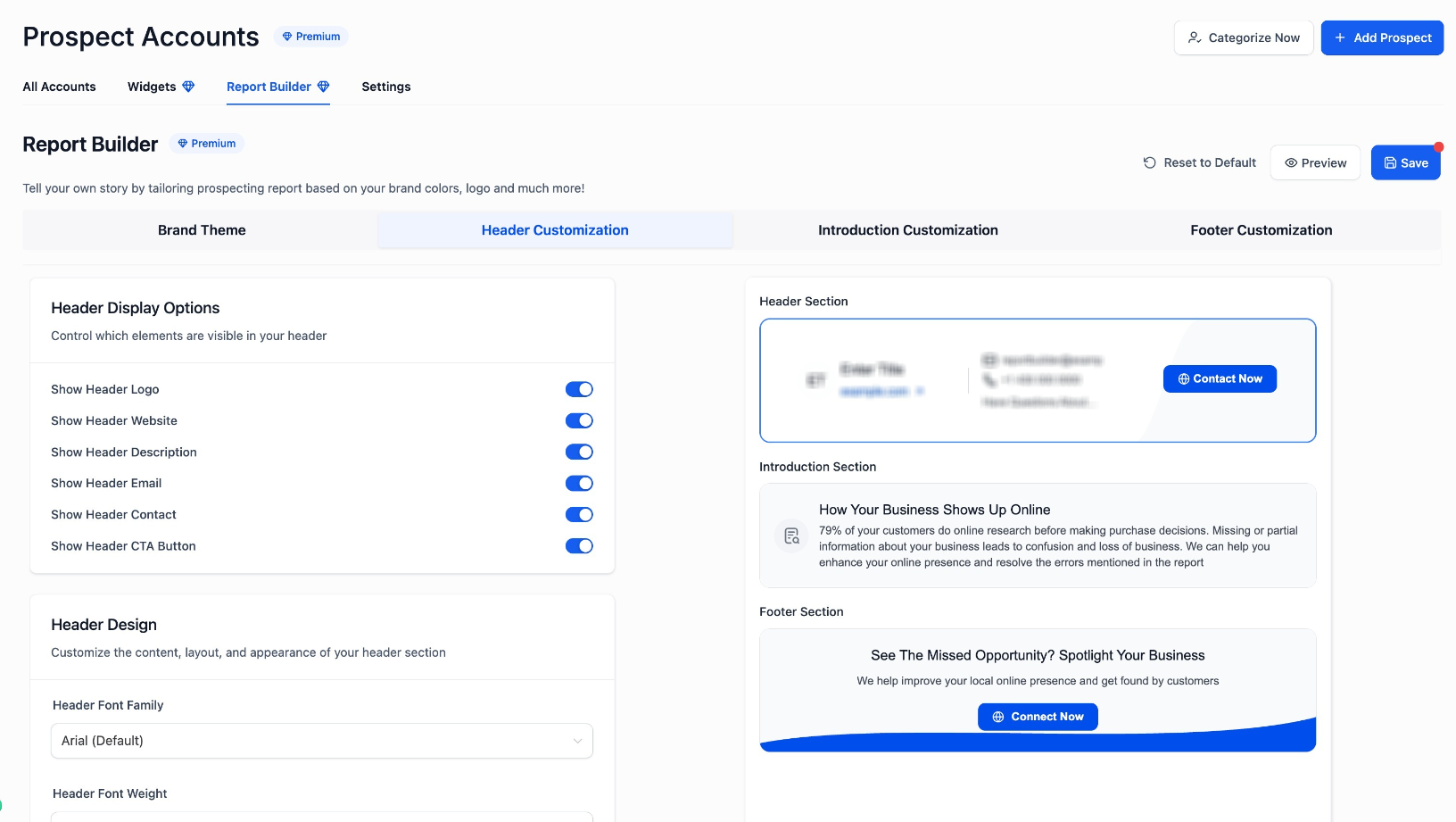
Header Customization
The header is the first thing prospects see. It sets the tone and provides key contact information.
Display Options
You can control visibility for:
Logo
Website
Description
Email and phone
CTA button
What you’re seeing: Toggle options for header elements
What to do: Enable or disable elements based on what you want prospects to see
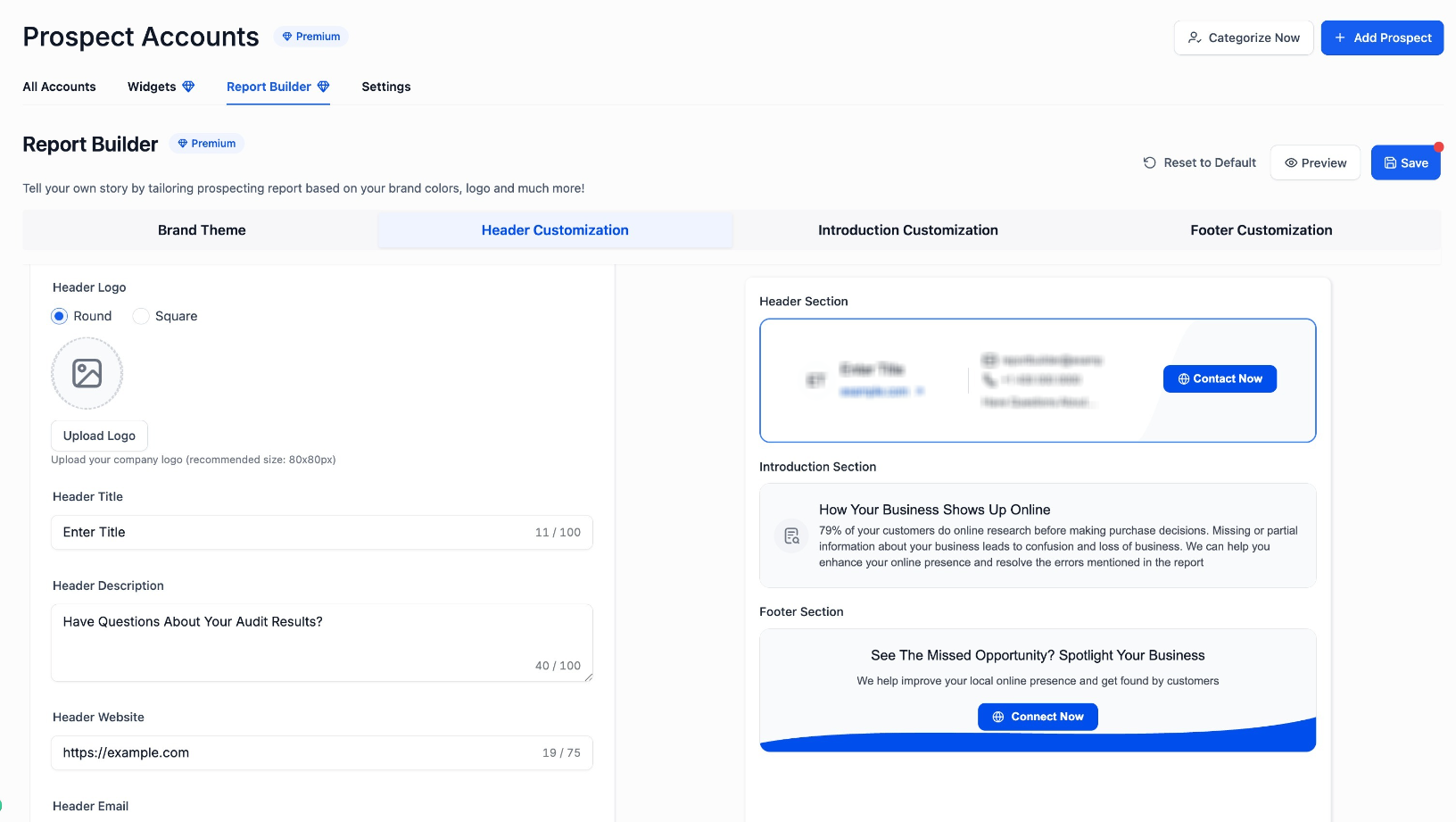
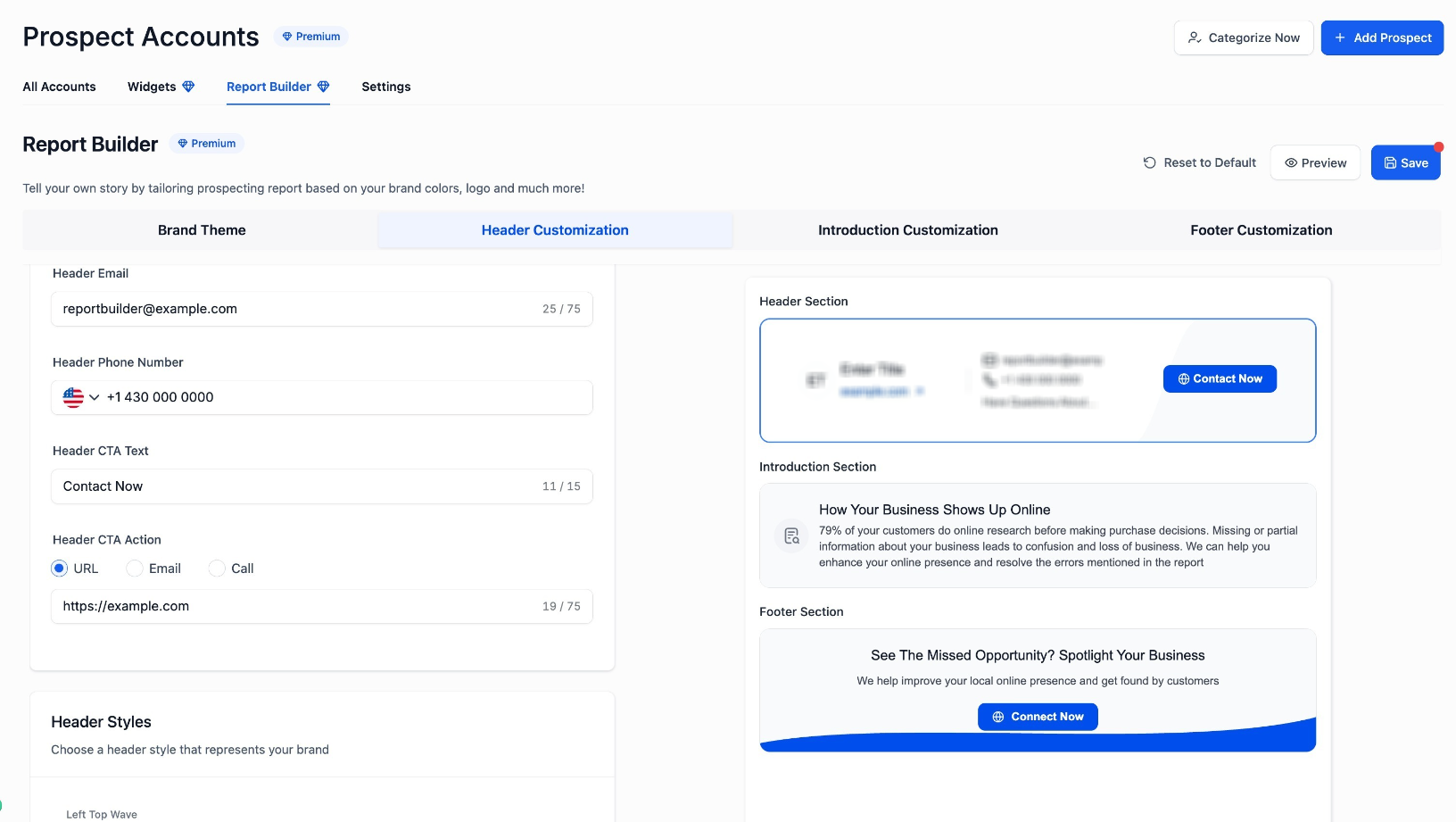
Header Content Setup
This is where you define the actual content displayed in the header.
You can add:
Logo (recommended size: 80x80px)
Title and description
Website URL
Email and phone number
CTA Configuration
CTA text (e.g., “Contact Now”)
CTA action:
Open a URL
Send an email
Trigger a call
What you’re seeing: Fields for entering header content and CTA settings
What to do: Add your business details and define the action you want prospects to take
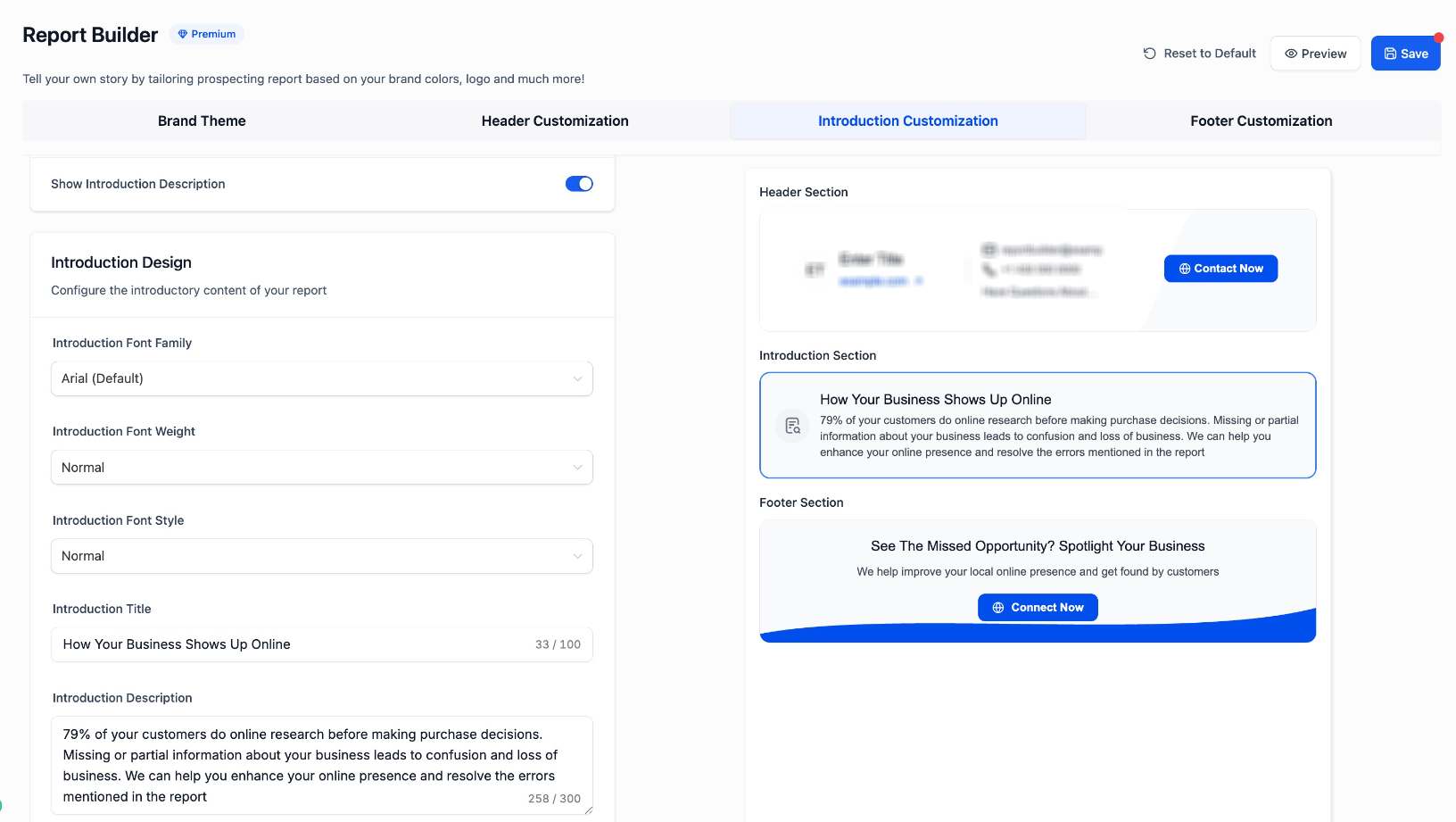
Introduction Section Customization
The introduction helps explain the purpose of the report and sets expectations for the reader.
You can customize:
Visibility of the section
Title and description
Font style and formatting
What you’re seeing: Controls for introduction text and styling
What to do: Write a clear, benefit-driven message explaining the value of the report
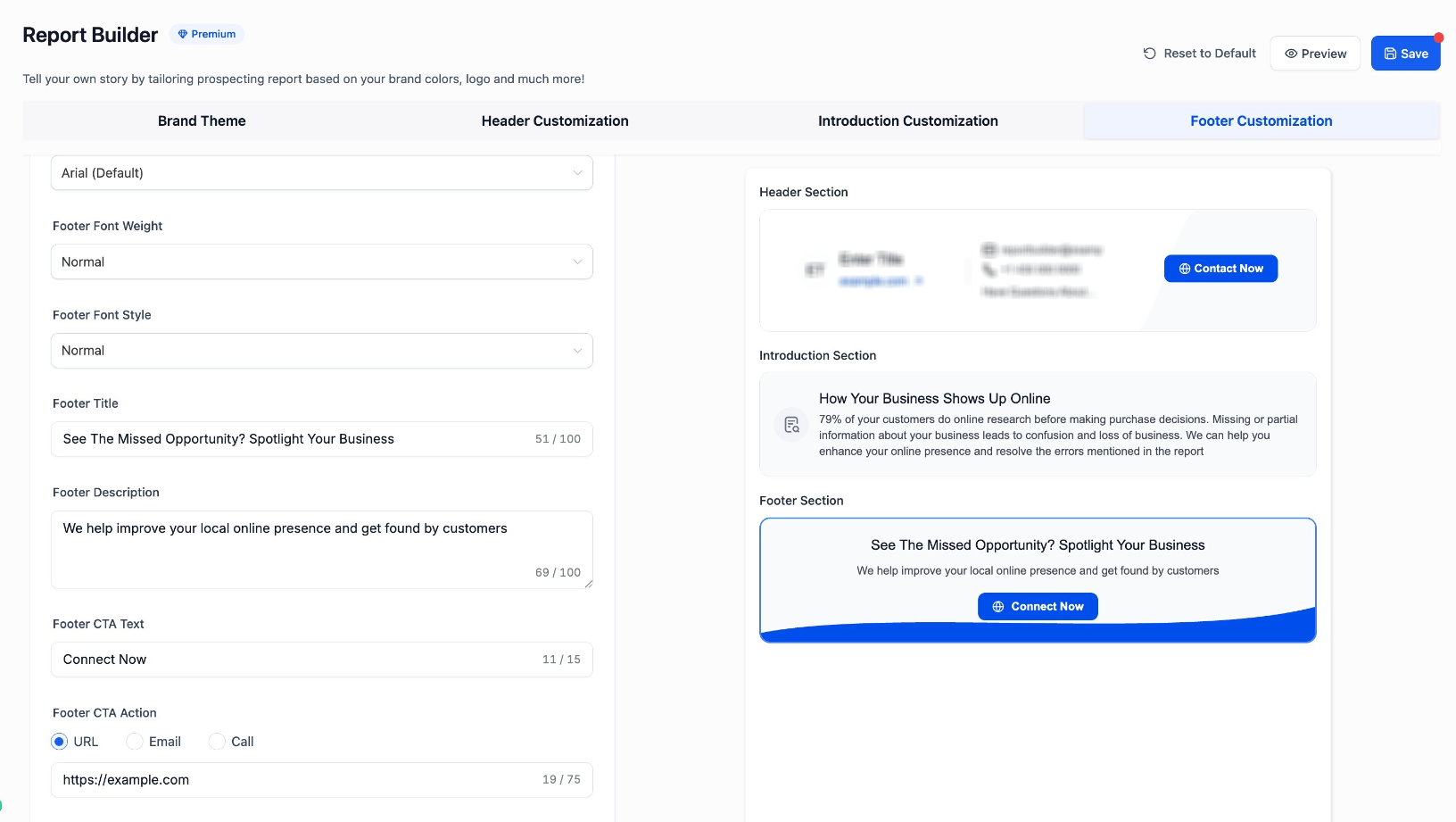
Footer Customization
The footer is your final opportunity to drive action after the report is reviewed.
You can customize:
Footer title and description
Font styling
CTA button and action
What you’re seeing: Footer text and CTA configuration options
What to do: Add a strong call-to-action encouraging prospects to take the next step
Preview and Apply Changes
Once your customization is complete, you can review and apply changes across all reports.
What you’re seeing: Preview, Save, and Reset options
What to do:
Click Preview to review the full report
Click Save to apply changes globally
Use Reset to Default if needed
How the Final Report Appears
After customization, your reports reflect your branding and messaging across all sections.
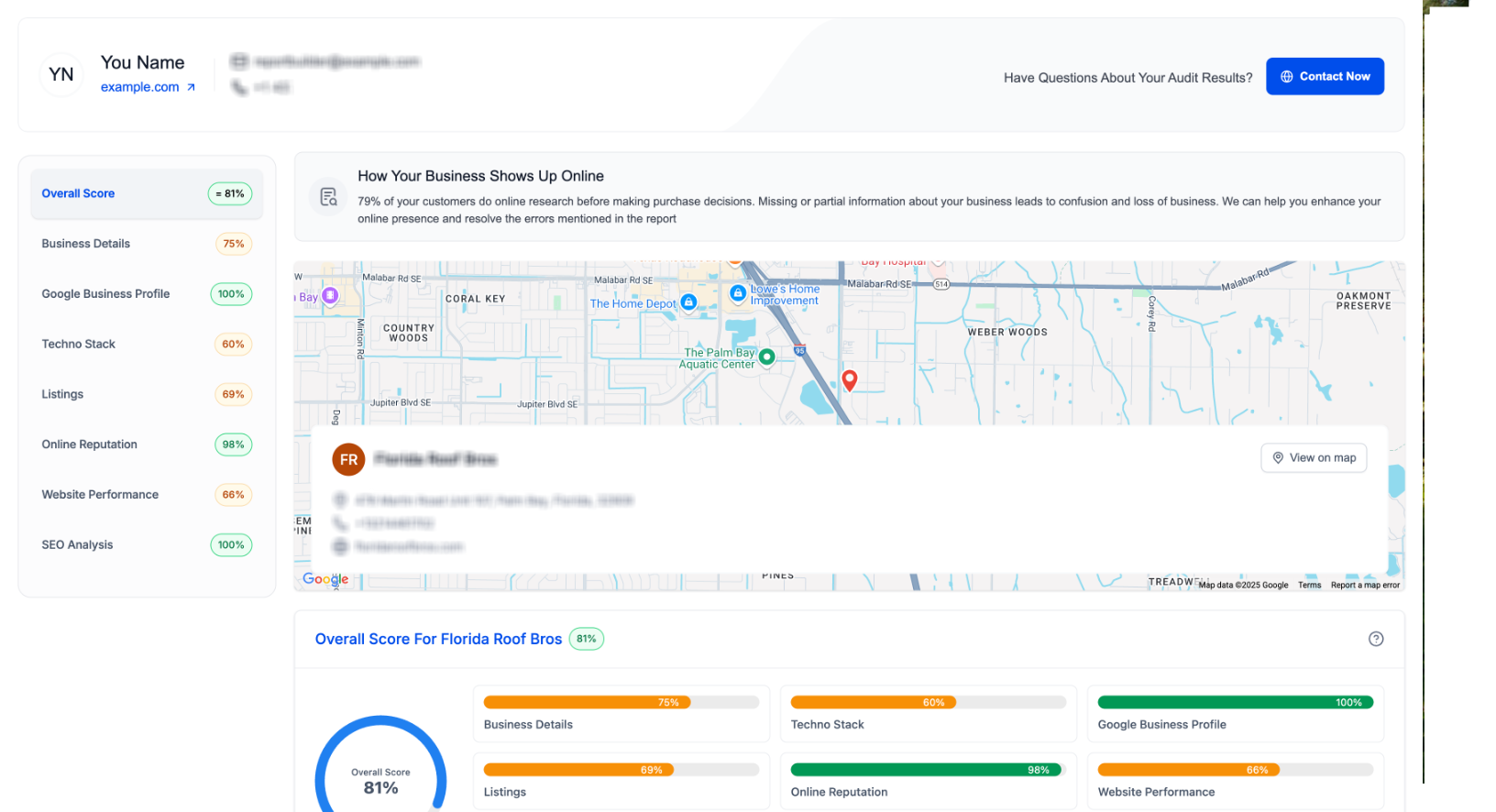
What you’re seeing: Customized header with branding and CTA
What to do: Ensure branding and contact details are accurate
What you’re seeing: Clean and structured report layout
What to do: Review readability and clarity
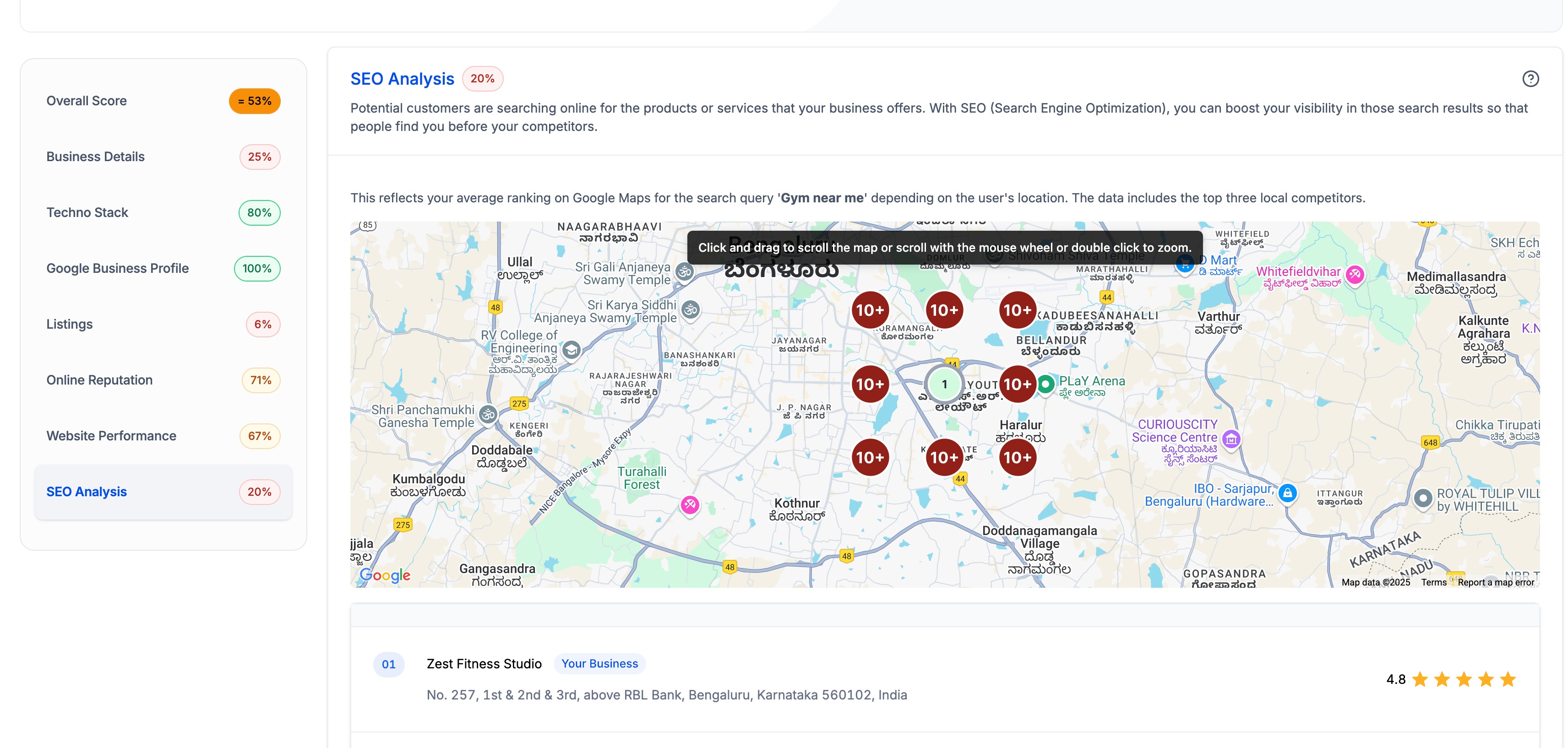
What you’re seeing: Data-rich section with visual insights
What to do: Confirm content aligns with your messaging
Why This Matters
Customizing your reports helps you:
Build trust with branded, professional presentations
Improve engagement with clear messaging and design
Increase conversions with strategic CTAs
Save time by applying changes across all reports
Frequently Asked Questions
Q: Do changes apply to existing reports?
Yes. Saved changes apply to both past and future reports.
Q: Can I preview changes before publishing?
Yes. Use the Preview option to review the report before saving.
Q: Can I customize reports without a premium plan?
You can explore the builder, but saving changes requires a premium subscription.
Q: Can I remove sections like header or footer?
Yes. You can toggle visibility for most sections.
Q: Can I use different CTAs in header and footer?
Yes. Each section can have its own CTA and action.
Need More Help?
If you need assistance customizing your reports or optimizing your setup, open the Help Center and search for “Report Builder” or contact Support for further guidance.