
Connecting your Google Calendar helps you sync your bookings from Google Calendar to the system and vice versa. This ensures correct availability, prevents double bookings, and facilitates seamless scheduling and booking management.
TABLE OF CONTENTS
- Prerequisites
- How to Connect a Google Calendar
- Configure Your Calendar
- Linked Calendar
- Integrating Google Meet (Important)
- Conflict Calendar
- Frequently Asked Questions
- Need More Help?
Prerequisites
You need access to your Google account associated with the Google Calendar you want to connect.
Check if writer's access is required:
- If you want to add events created in the system to your Google Calendar, writer's access is necessary for the calendar.
- If you simply want to fetch all your events from your Google Calendar to the system, read-only access will suffice.
How to Connect a Google Calendar
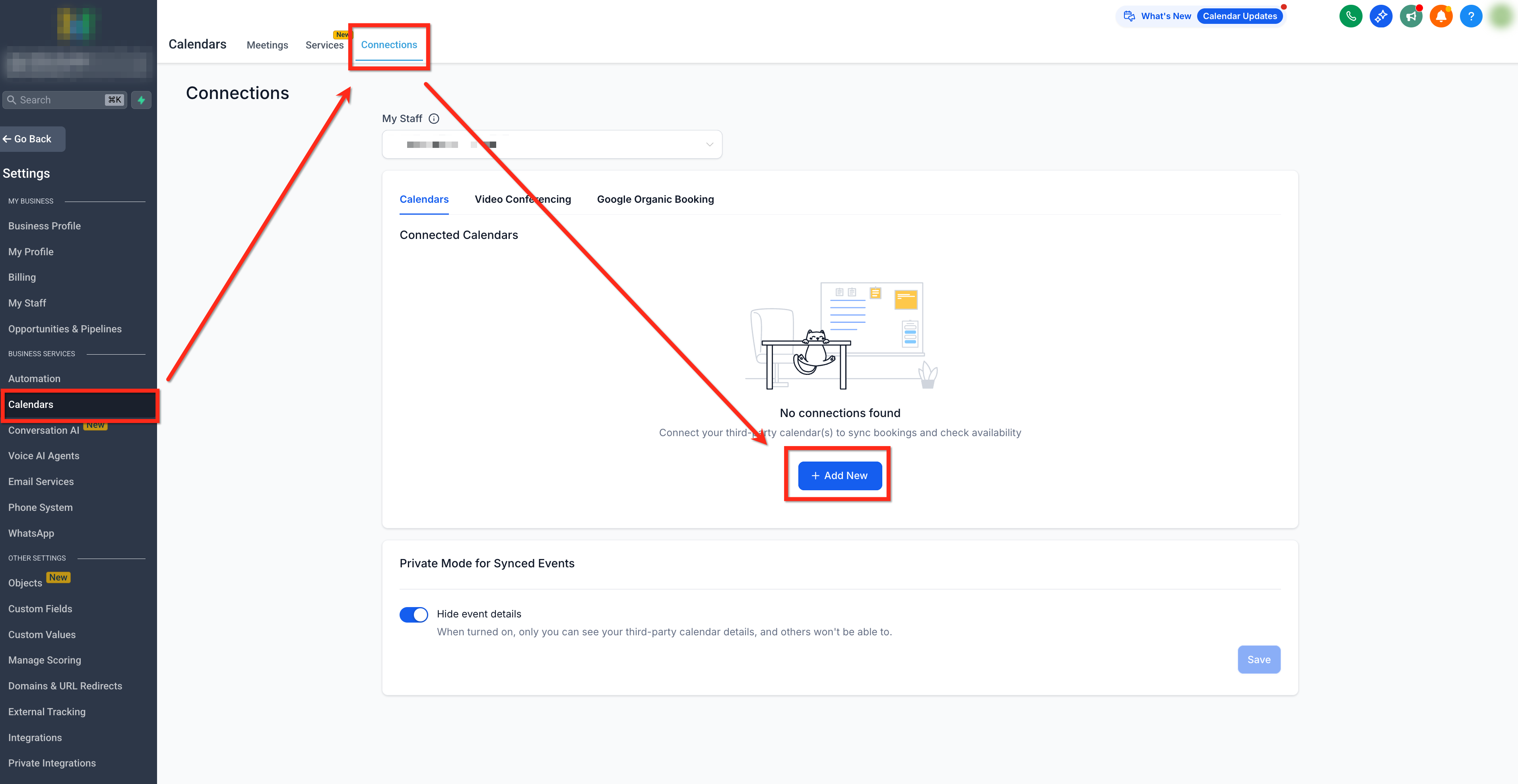
- Go to your Settings > Calendars > Connections then click on + Add New.
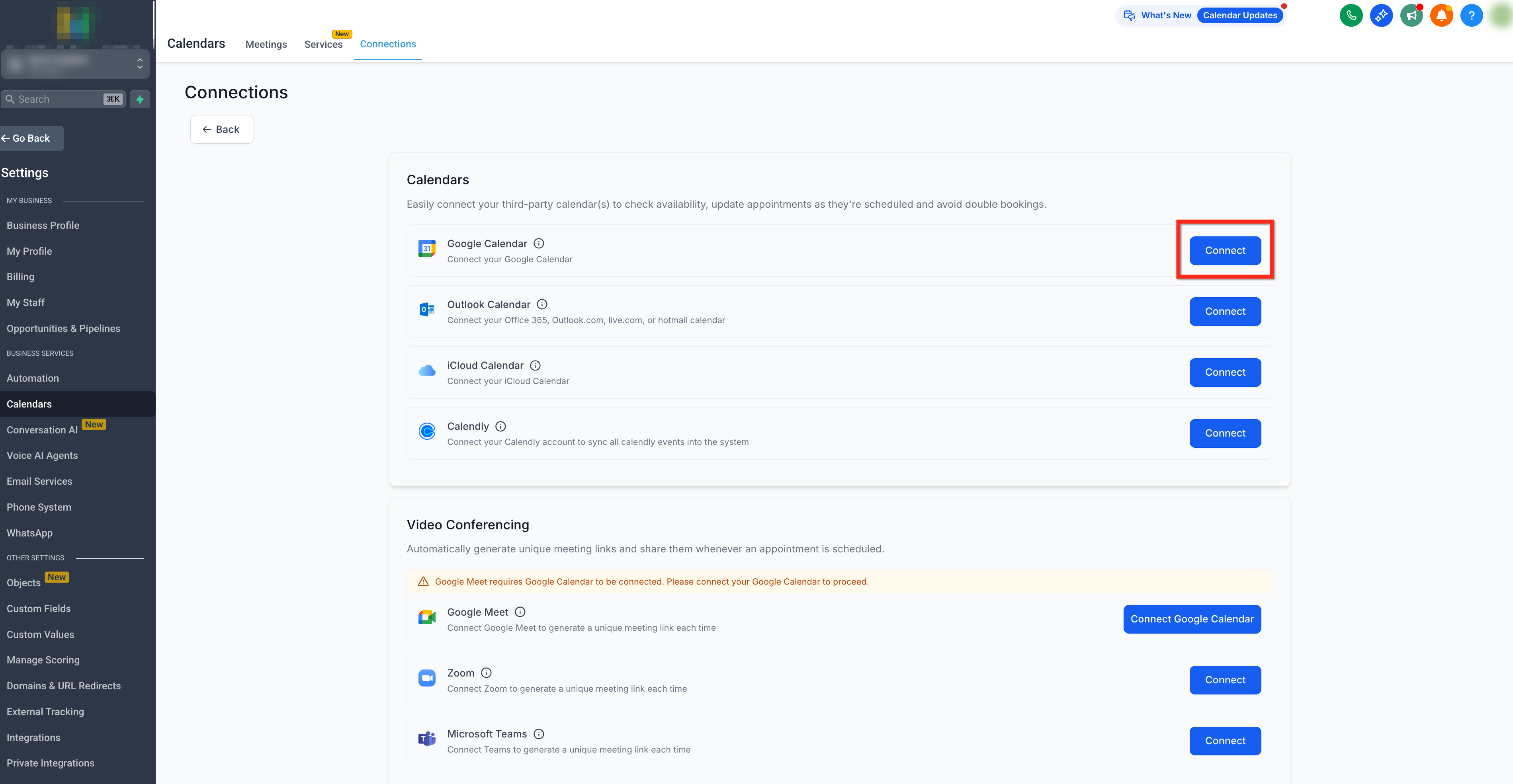
- Navigate to Google Calendar and click on Connect.
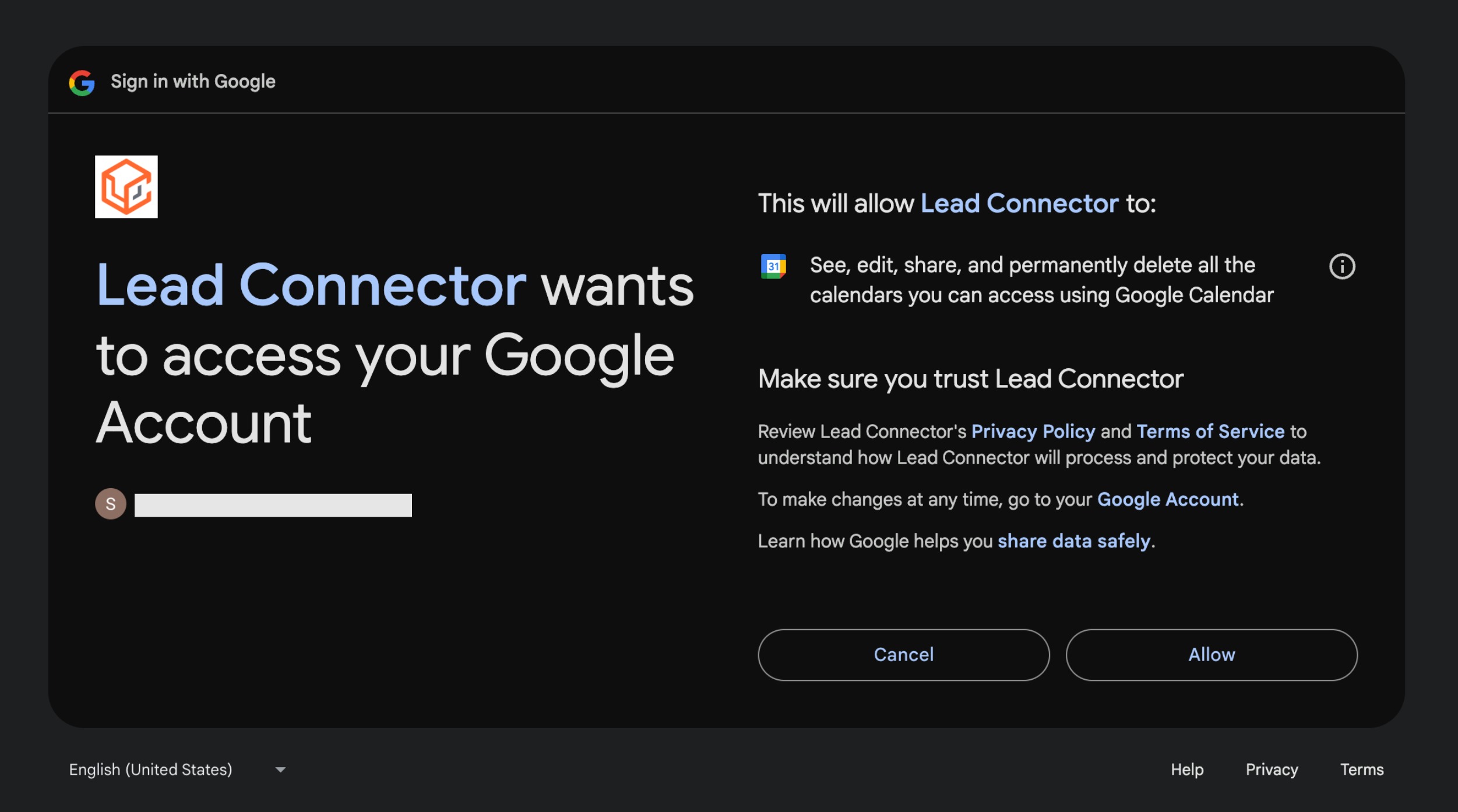
- Complete the authentication process by choosing your account and granting access to your Google calendar.
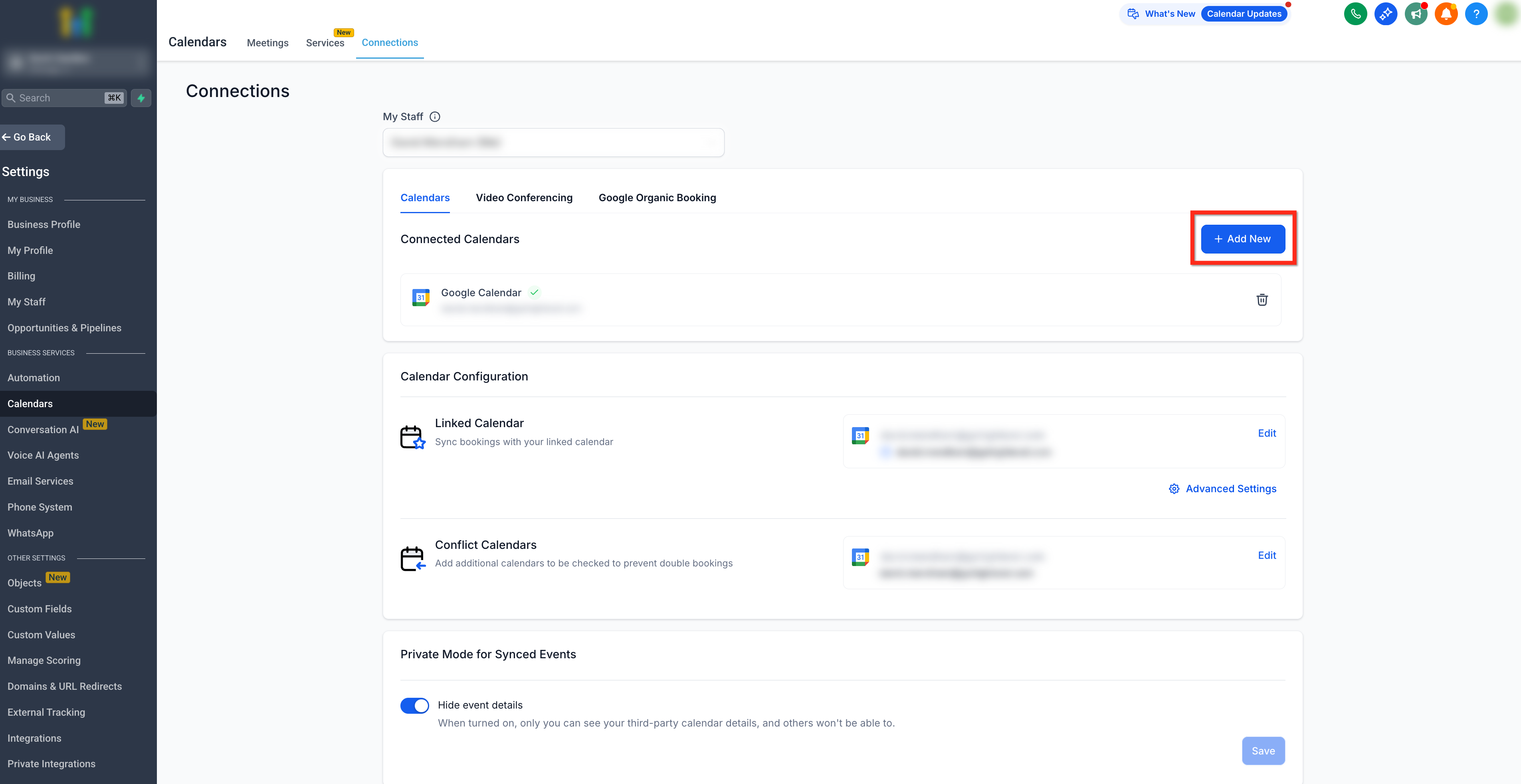
- You can add multiple Google calendars by clicking on + Add New on the connections page.
Configure Your Calendar
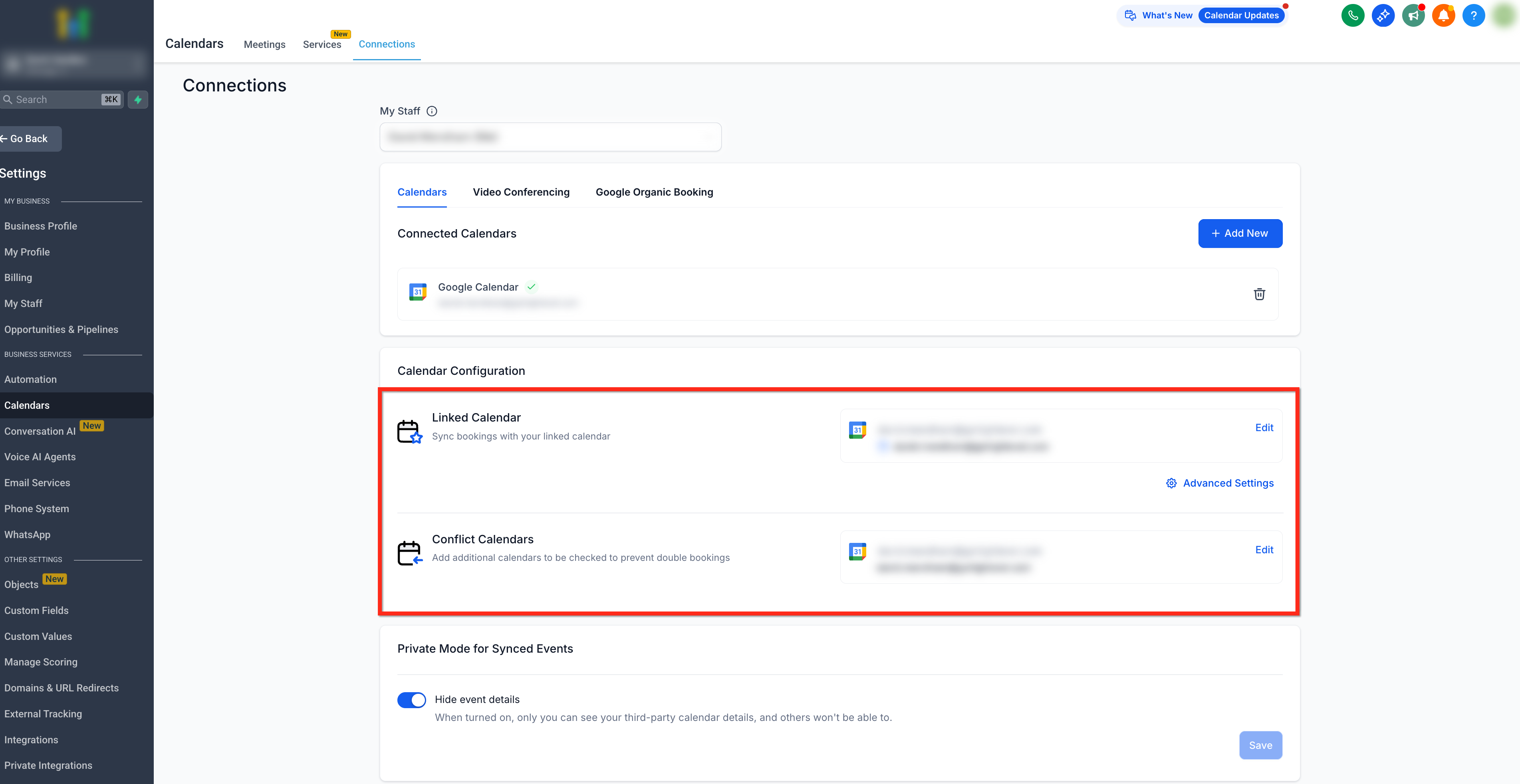
Once your Google account is successfully connected, you need to complete your calendar configuration by selecting your linked calendar and conflict calendar. Head to Calendars > Calendar Settings > Connections.
Calendar configuration involves two settings: Linked Calendar & Conflict Calendar.
Linked Calendar
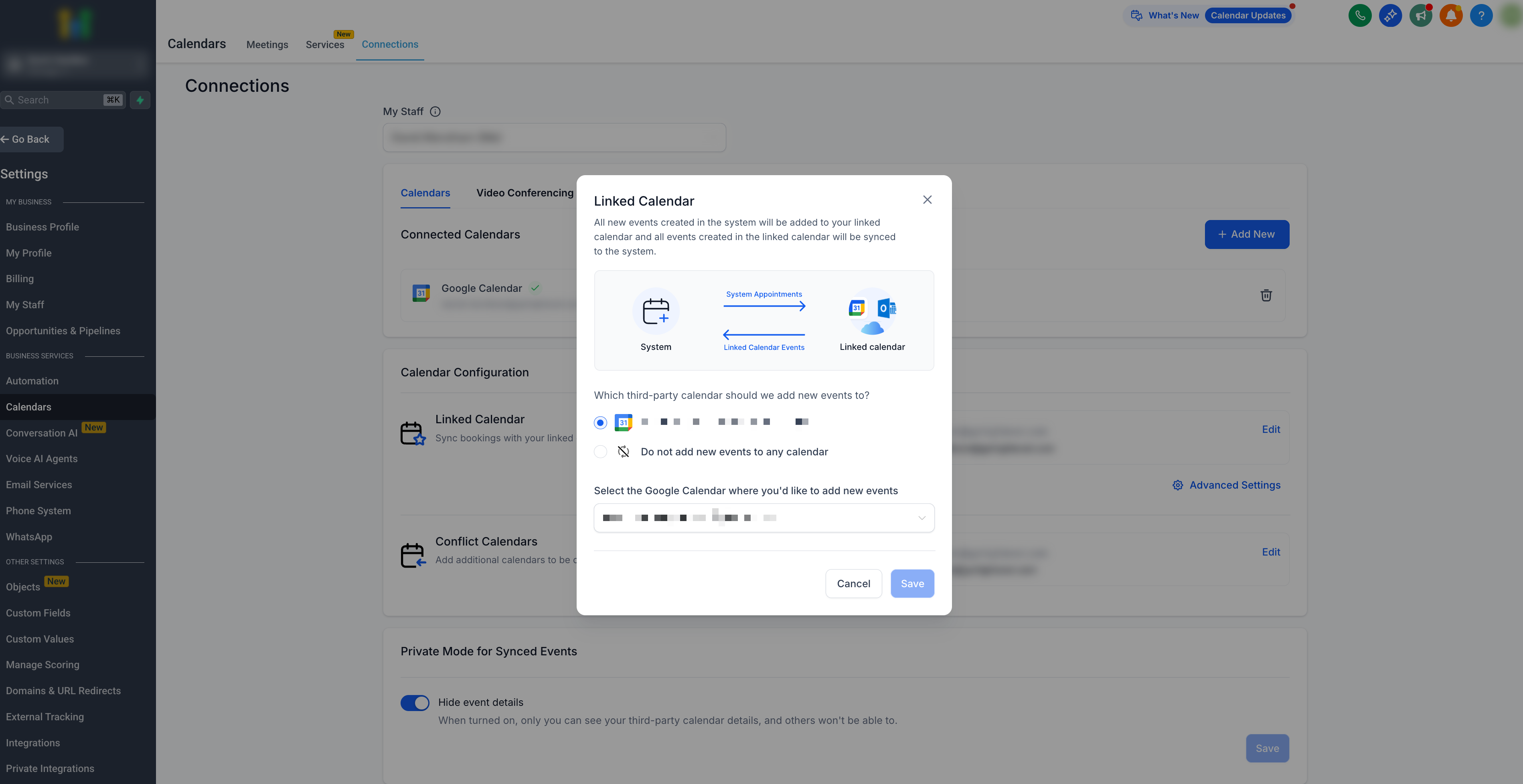
All new events created in the system will be added to your linked calendar. For example, any new event created in the system will sync to your linked calendar, allowing you to view it directly on this third-party calendar (e.g., Google).
Note: Writer's access is required for the user to select a calendar as a linked calendar.

The linked calendar is by default added to the conflict calendar. This means any event created on the third-party linked calendar will be fetched in the system, and any event created in the system will be pushed to the third-party linked calendar.

You can set your Sync Preferences from the Advanced Settings.
Integrating Google Meet (Important)
When you connect your Google Calendar, Google Meet is automatically integrated. To generate unique Google Meet links for each appointment, ensure your Google Calendar is set as the linked calendar. If no Google Calendar is set as the linked calendar, Google Meet links will not be generated.
Conflict Calendar
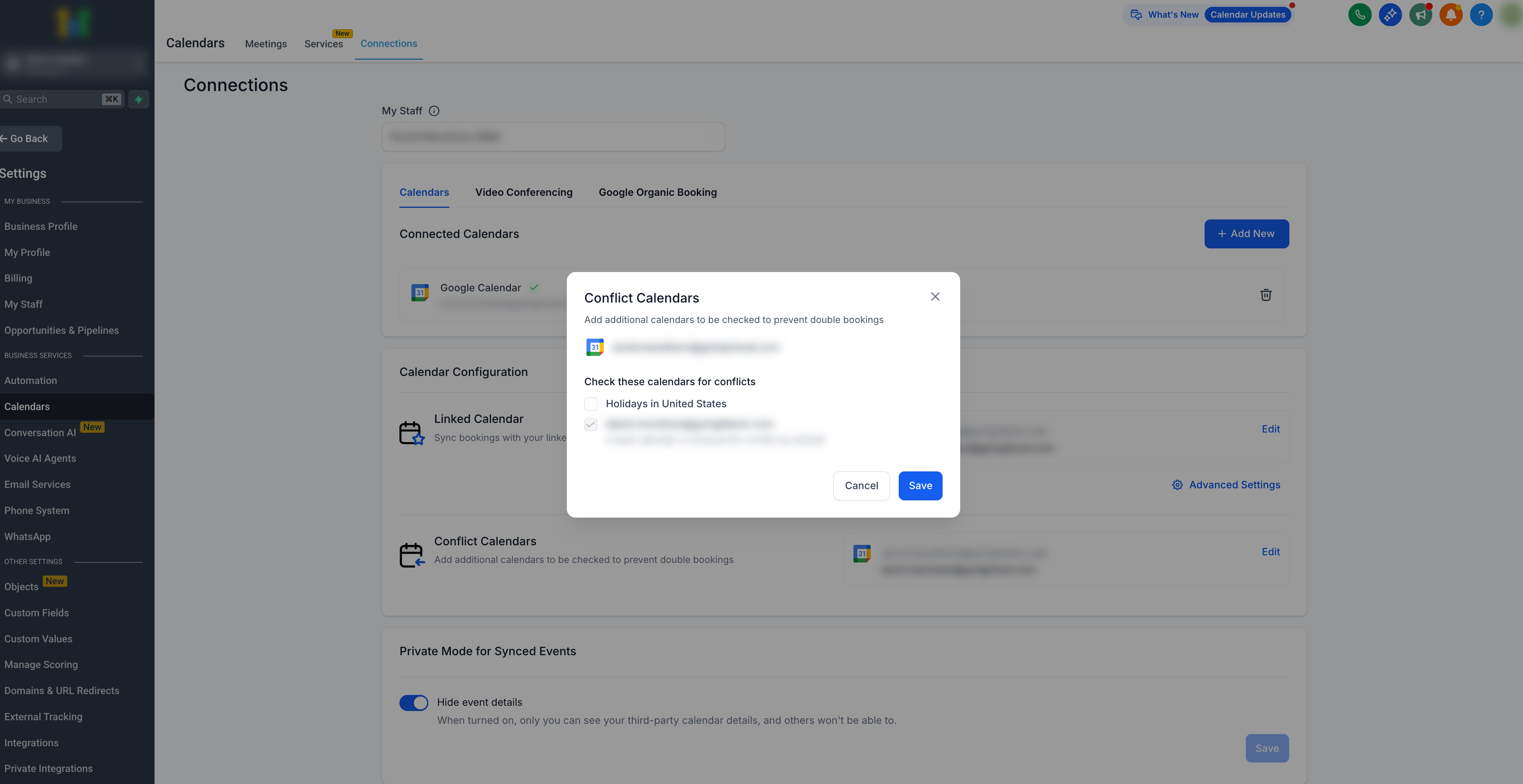
Events from third-party calendars added as conflict calendars are synced to the system, blocking your availability for the event's duration.
The availability is blocked only if the event is marked as 'BUSY' in the third party calendar. For events marked as 'FREE', the events are fetched in the system but the availability remains open.
This ensures accurate availability and avoids double bookings. You can add multiple calendars to be checked to prevent double bookings.
Frequently Asked Questions
Q: Can I connect more than one Google Calendar?
Yes. Multiple Google Calendars can be connected by using the Add New option on the connections page.
Q: What permission level is required to sync events to Google Calendar?
Writer’s access is required to push events created in the system to Google Calendar. Read-only access is sufficient if you only want to pull events into the system.
Q: What is the difference between a linked calendar and a conflict calendar?
A linked calendar syncs events both ways, while a conflict calendar is used only to block availability and prevent double bookings.
Q: Will events marked as “Free” block my availability?
No. Only events marked as Busy on a third-party calendar block availability.
Q: Why are Google Meet links not being generated for my appointments?
Google Meet links are generated only when Google Calendar is set as the linked calendar.
Q: Can I use multiple conflict calendars at the same time?
Yes. You can add multiple calendars as conflict calendars to ensure accurate availability.
Need More Help?
If you need additional assistance with calendar connections or availability syncing, use the in-app help search to explore related documentation on calendar settings, scheduling, and integrations.
If issues persist, open the Help option from within your account to reach the support team for further guidance.