
Connecting an Outlook calendar allows appointments and availability to stay aligned automatically. Once connected, bookings remain consistent across calendars, reducing scheduling conflicts and ensuring availability reflects real-time changes. This setup is designed to keep everything organized without requiring ongoing manual updates.
TABLE OF CONTENTS
- Overview
- Connecting Your Outlook Calendar
- Understanding Calendar Configuration
- How Availability Stays Accurate
- FAQs
- Need More Help?
Overview
When an Outlook calendar is connected, scheduled bookings can be synced in both directions based on your configuration. New appointments created through the system can be added directly to your calendar, while existing calendar events can be used to block availability. This creates a reliable scheduling experience and helps prevent double bookings.
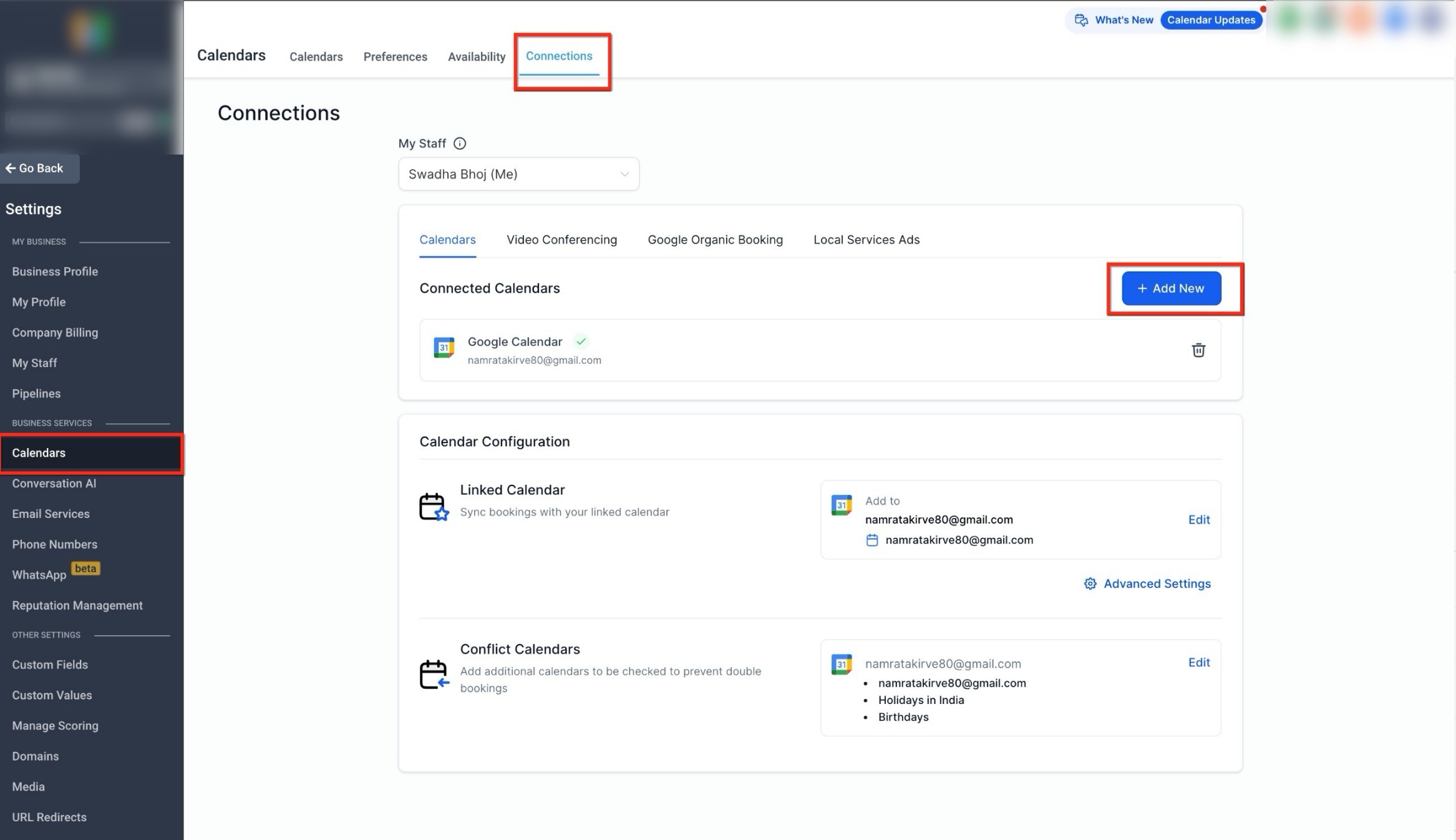
This screen shows where external calendars are managed and connected. It is the starting point for adding an Outlook calendar.
Connecting Your Outlook Calendar
The connection process begins from the calendar connections area, where new calendar sources can be added. From here, Outlook can be selected and securely authenticated so events can begin syncing.
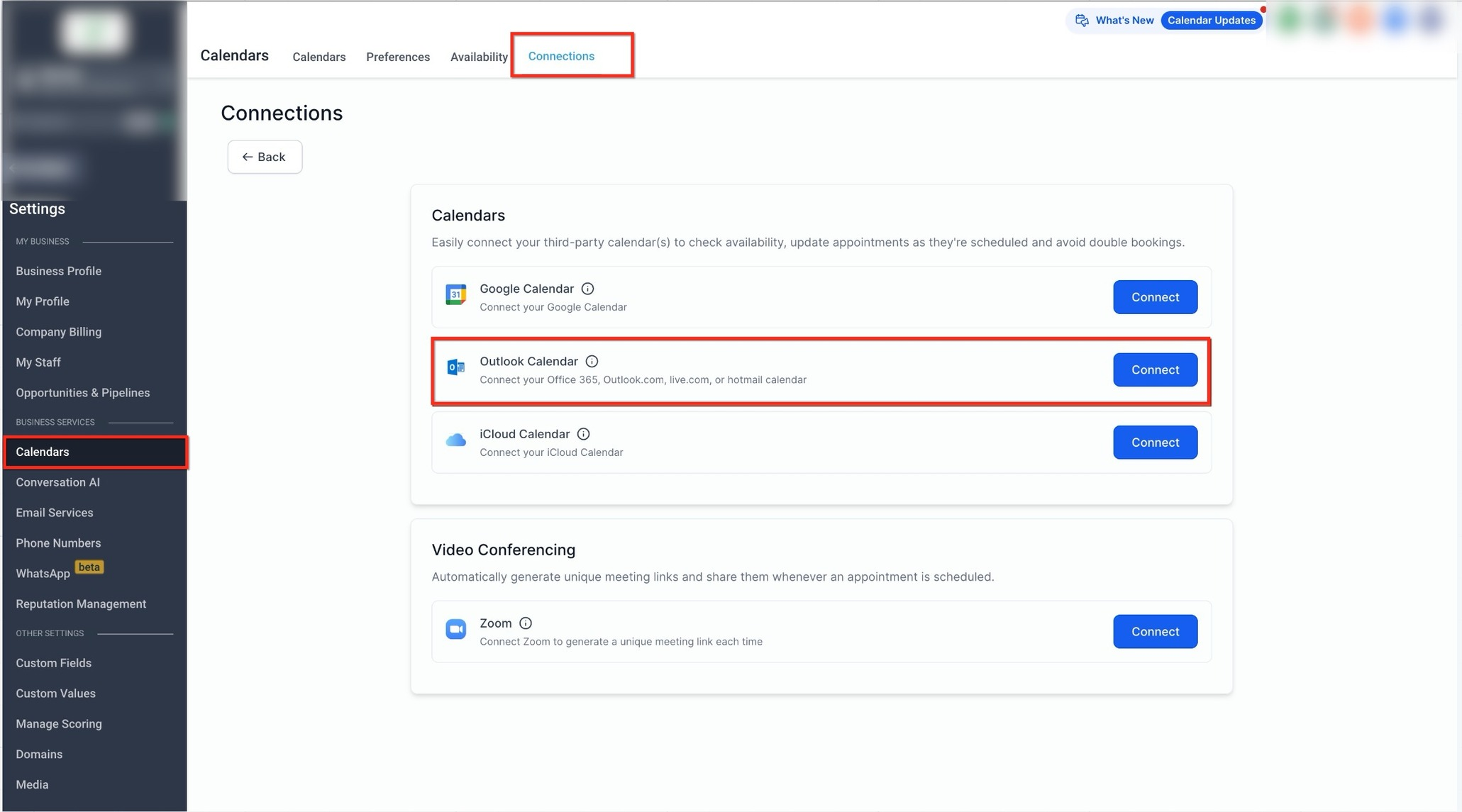
This view highlights the option to add a new calendar connection. Selecting this allows Outlook to be chosen as the calendar source.
After selecting Outlook, you’ll be prompted to sign in and approve access so events can sync correctly.
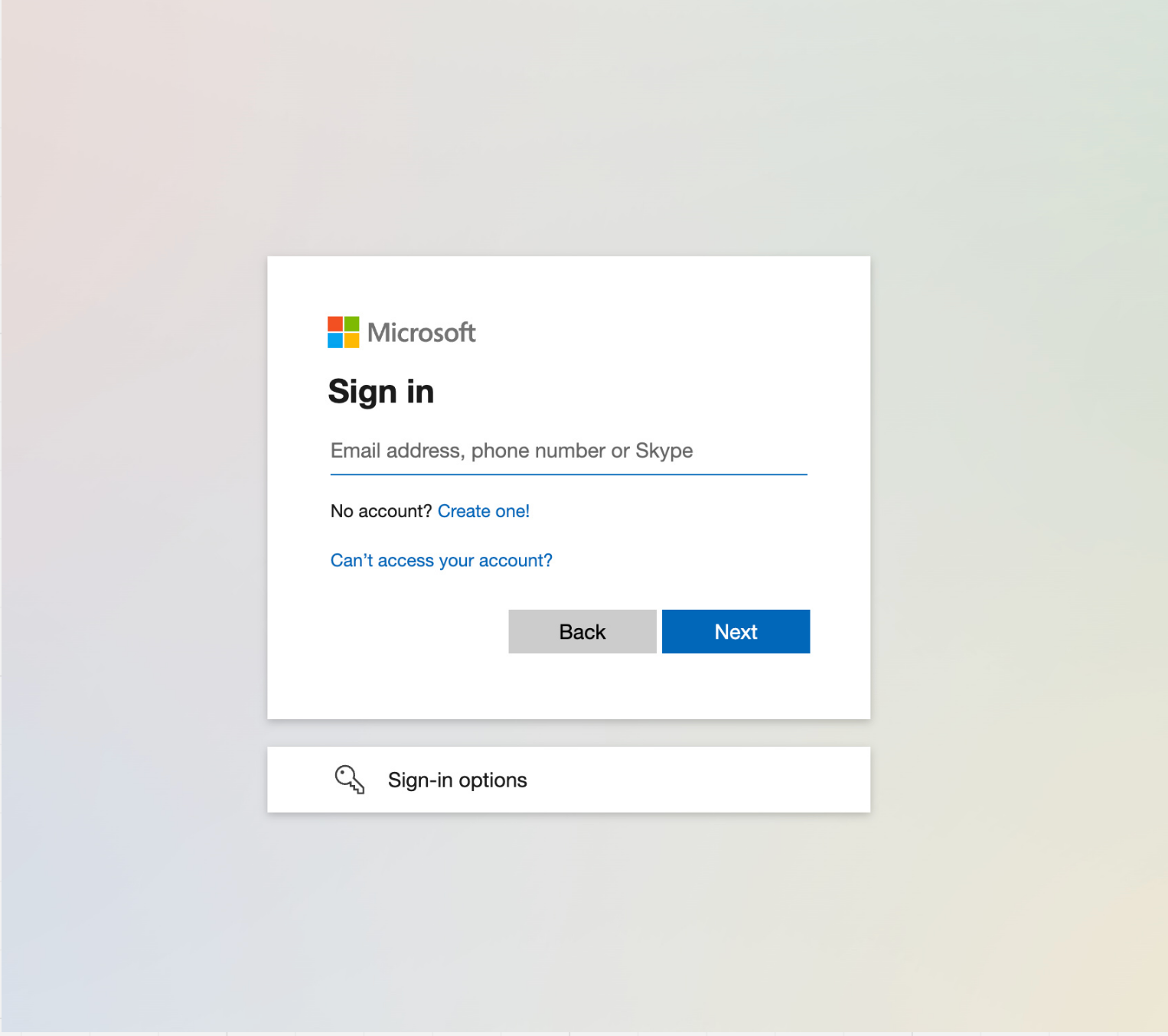
This screen appears during authentication. Signing in and granting permission completes the connection process.
Once authenticated, the Outlook calendar appears as a connected calendar and is ready for configuration.
Understanding Calendar Configuration
After connecting a calendar, configuration determines how events sync and how availability is calculated. Two settings control this behavior: Linked Calendar and Conflict Calendar.
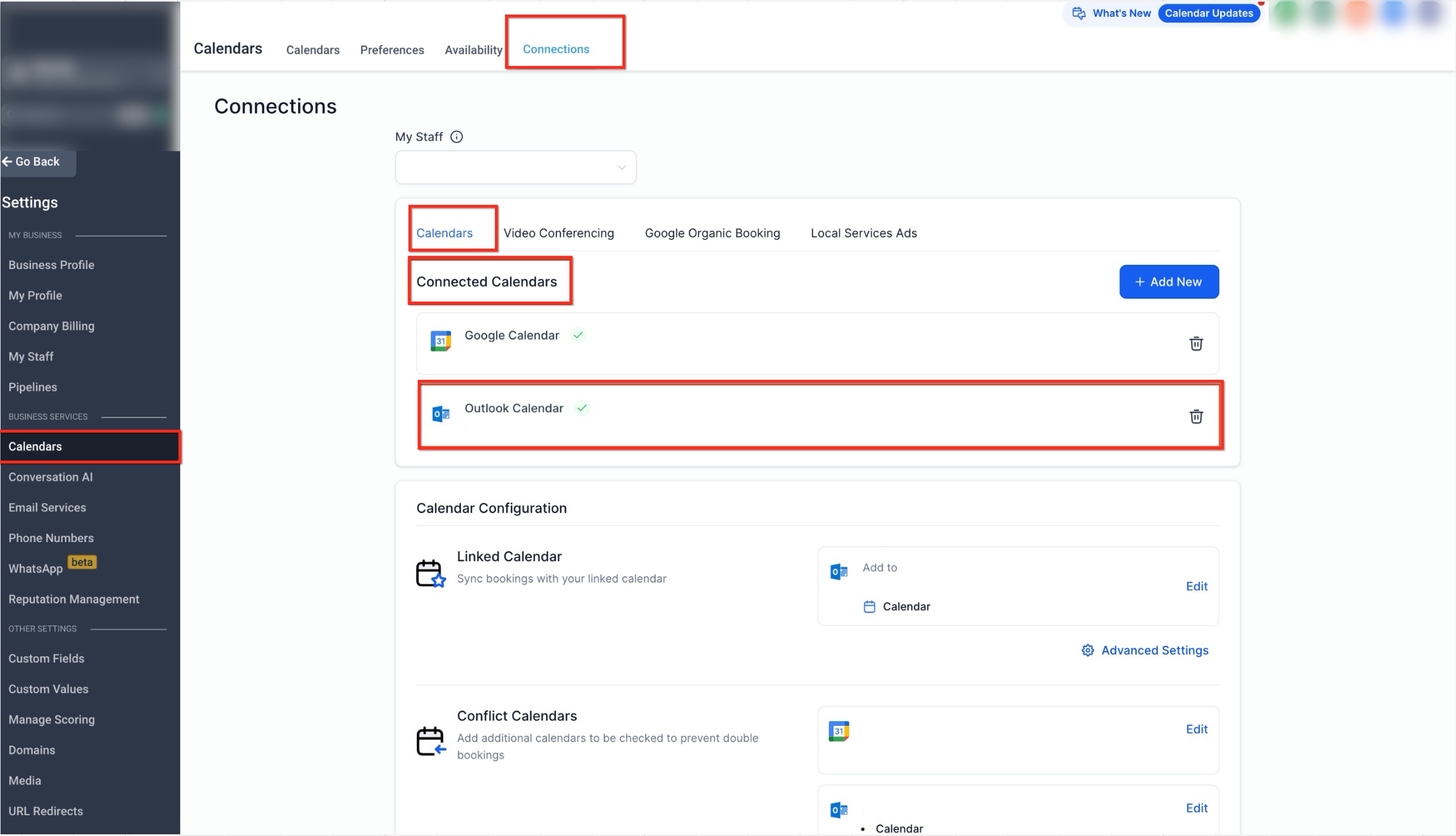
This section shows where linked and conflict calendars are configured.
The Linked Calendar is where new bookings created through the system are added automatically. Events created directly on this calendar are also fetched back into the system, keeping both views synchronized.
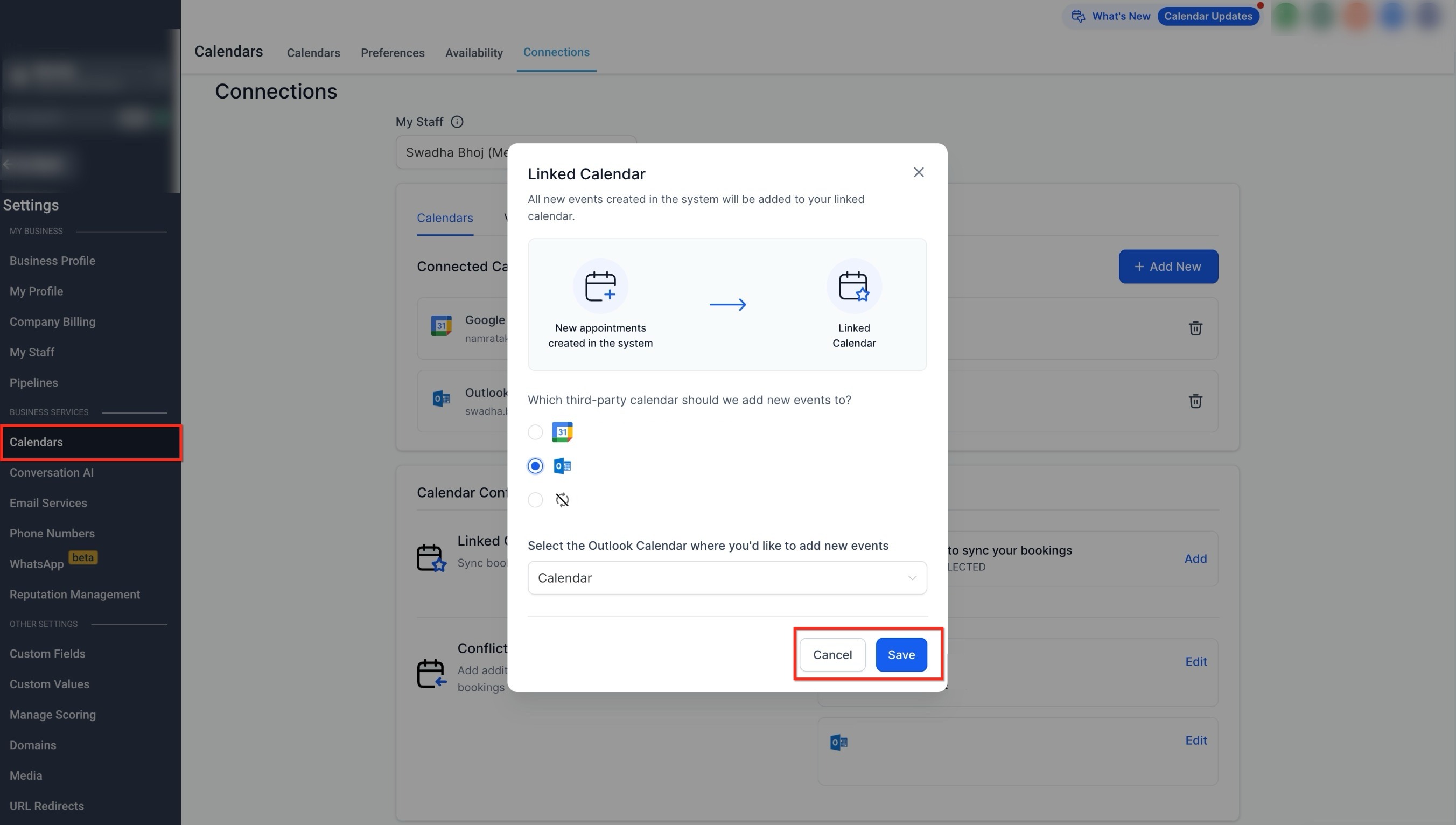
This screen shows how a specific Outlook calendar is chosen to receive new bookings.
The Conflict Calendar is used to check availability. Events marked as busy block booking times, while events marked as free do not affect availability. Multiple calendars can be added here to ensure schedules remain accurate.
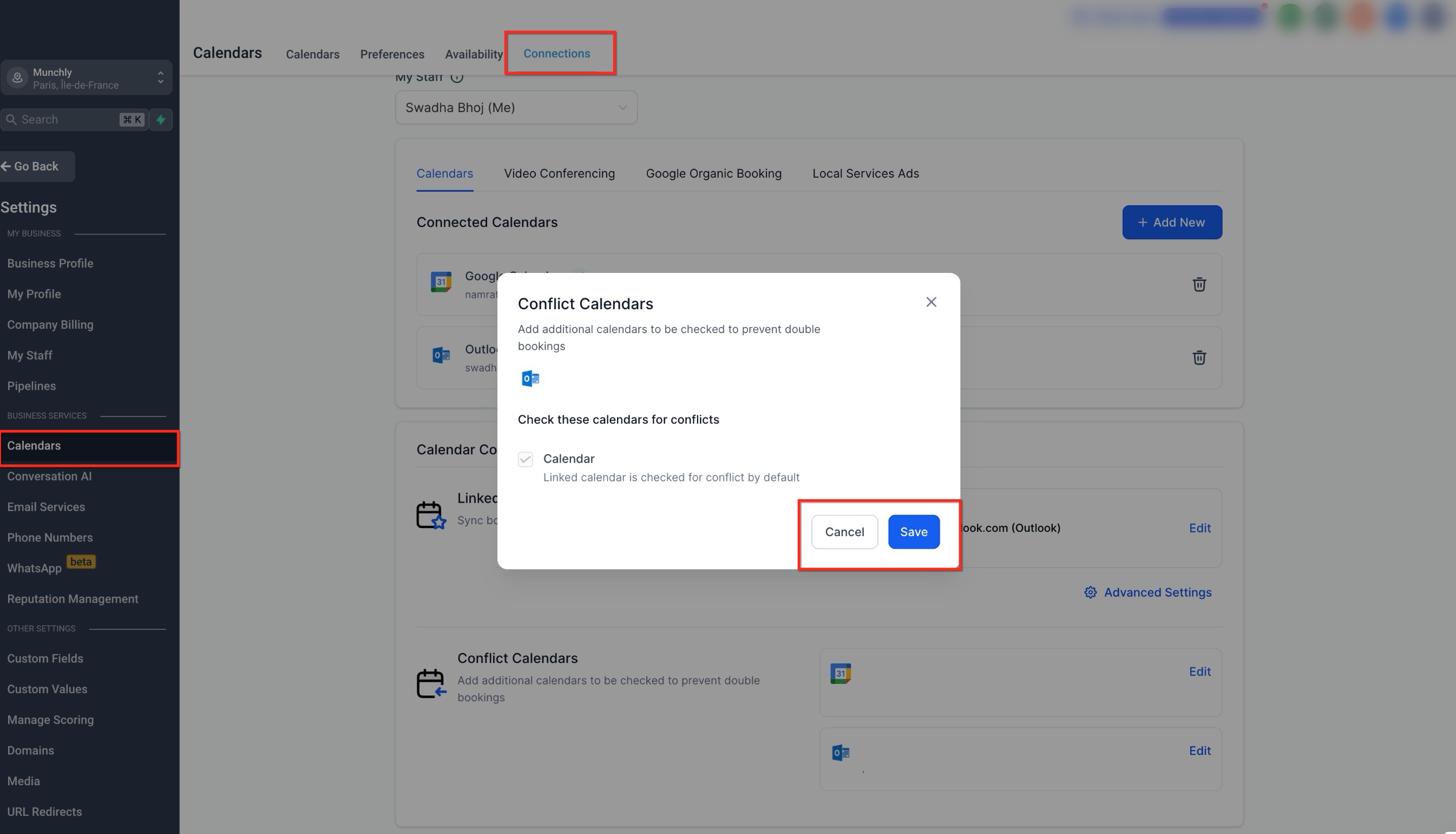
This view shows how calendars are selected to detect scheduling conflicts.
How Availability Stays Accurate
Once configured, availability updates automatically. Busy events block time slots, free events remain visible without blocking availability, and new bookings sync without delay. This ensures scheduling remains accurate without manual adjustments.
FAQs
Q: Will existing Outlook events appear after connecting?
Only events created after the connection is completed are synced automatically.
Q: Can more than one Outlook calendar be connected?
Yes, multiple calendars can be connected, but only one can be selected as the linked calendar.
Q: What happens if an event is marked as free?
Free events appear on the calendar but do not block availability.
Q: Can synced events be edited from the system?
Edits should be made directly in Outlook to ensure proper synchronization.
Q: Does this connection work with event-style calendars?
Event-style calendars are not supported for this connection.
Need More Help?
If you need additional guidance with calendar connections, availability behavior, or scheduling setup, use the in-app help search to explore related articles or contact support for further assistance.