
This guide explains how to connect an iCloud calendar to keep your appointments synchronized and availability accurate. Once connected, events from your iCloud calendar are reflected automatically, helping prevent double bookings and ensuring a smooth scheduling experience.
TABLE OF CONTENTS
- Prerequisites
- Generate an App-Specific Password
- Connect Your iCloud Calendar
- Configure Calendar Sync Settings
- Linked Calendar
- Conflict Calendars
- Important iCloud Sync Limitations
- FAQs
- Need More Help?
Prerequisites
Before starting, make sure you have access to the Apple account associated with the iCloud calendar you want to connect. Two-factor authentication must be enabled on your Apple account, and you will need to generate a unique app-specific password. If you plan to add new appointments to your iCloud calendar, the calendar must allow write access. If you only need to read events, read-only access is sufficient.
Generate an App-Specific Password
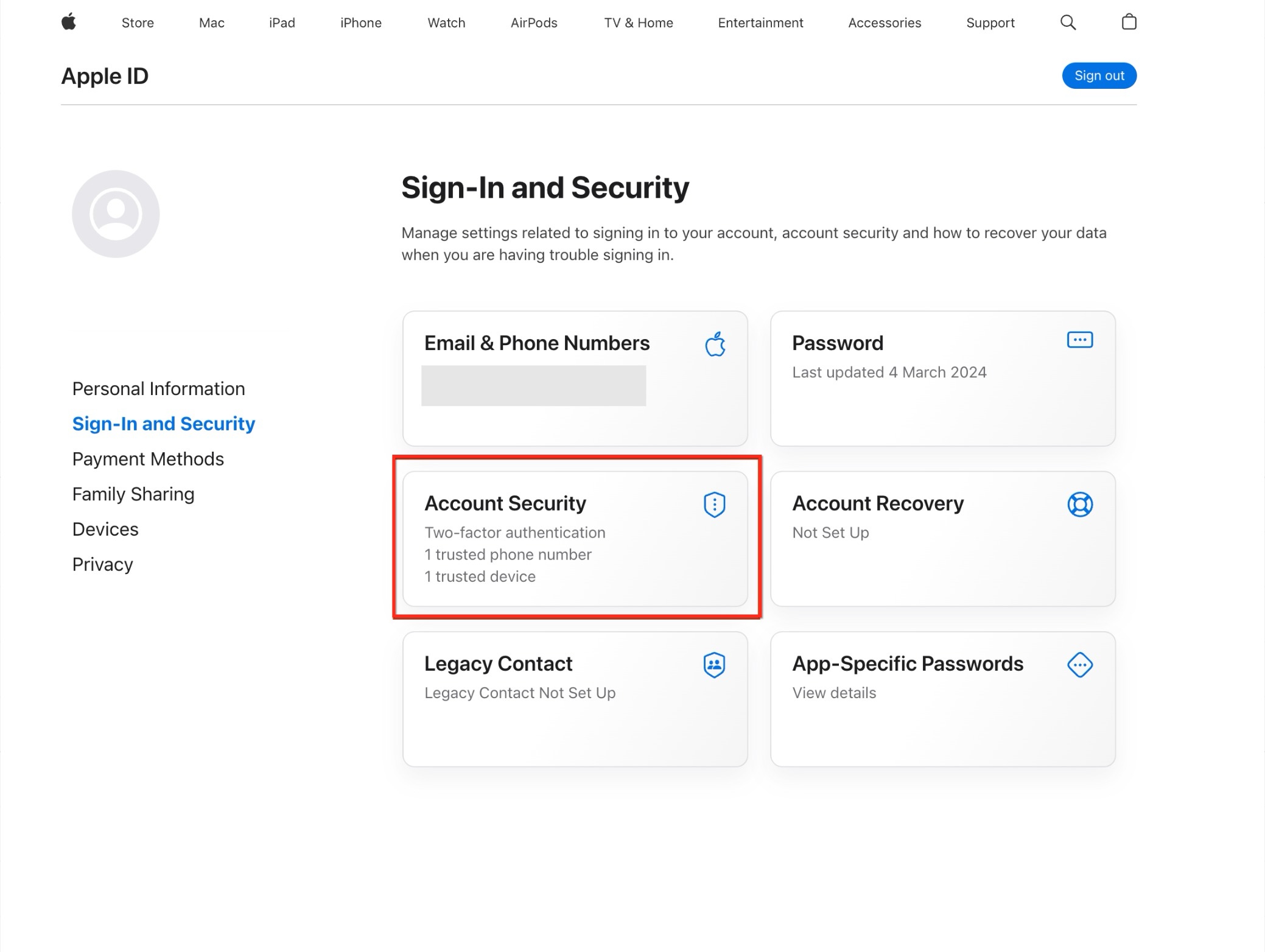
To securely connect an iCloud calendar, Apple requires an app-specific password. This password is different from your regular Apple account password and is used only for third-party connections.
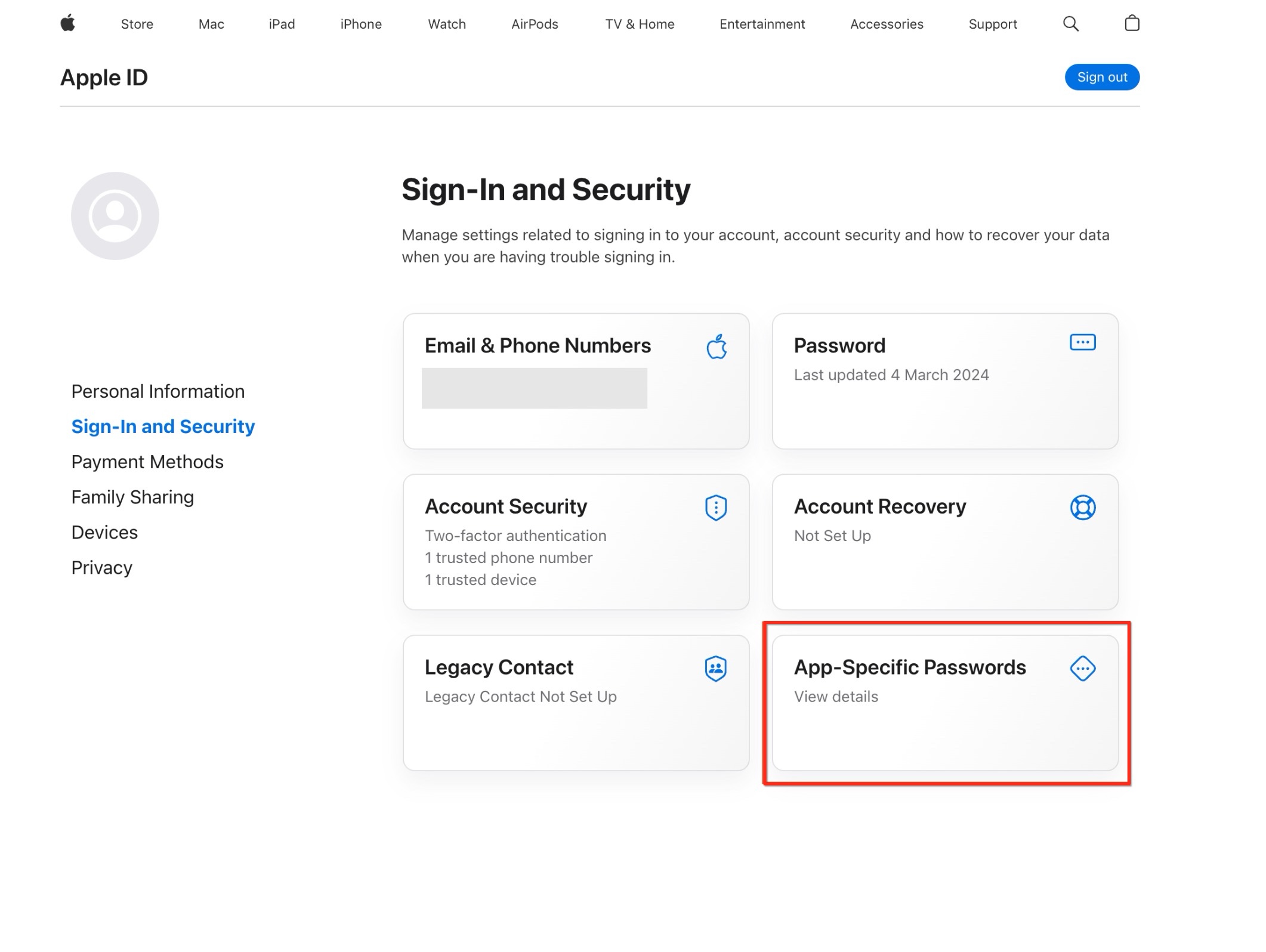
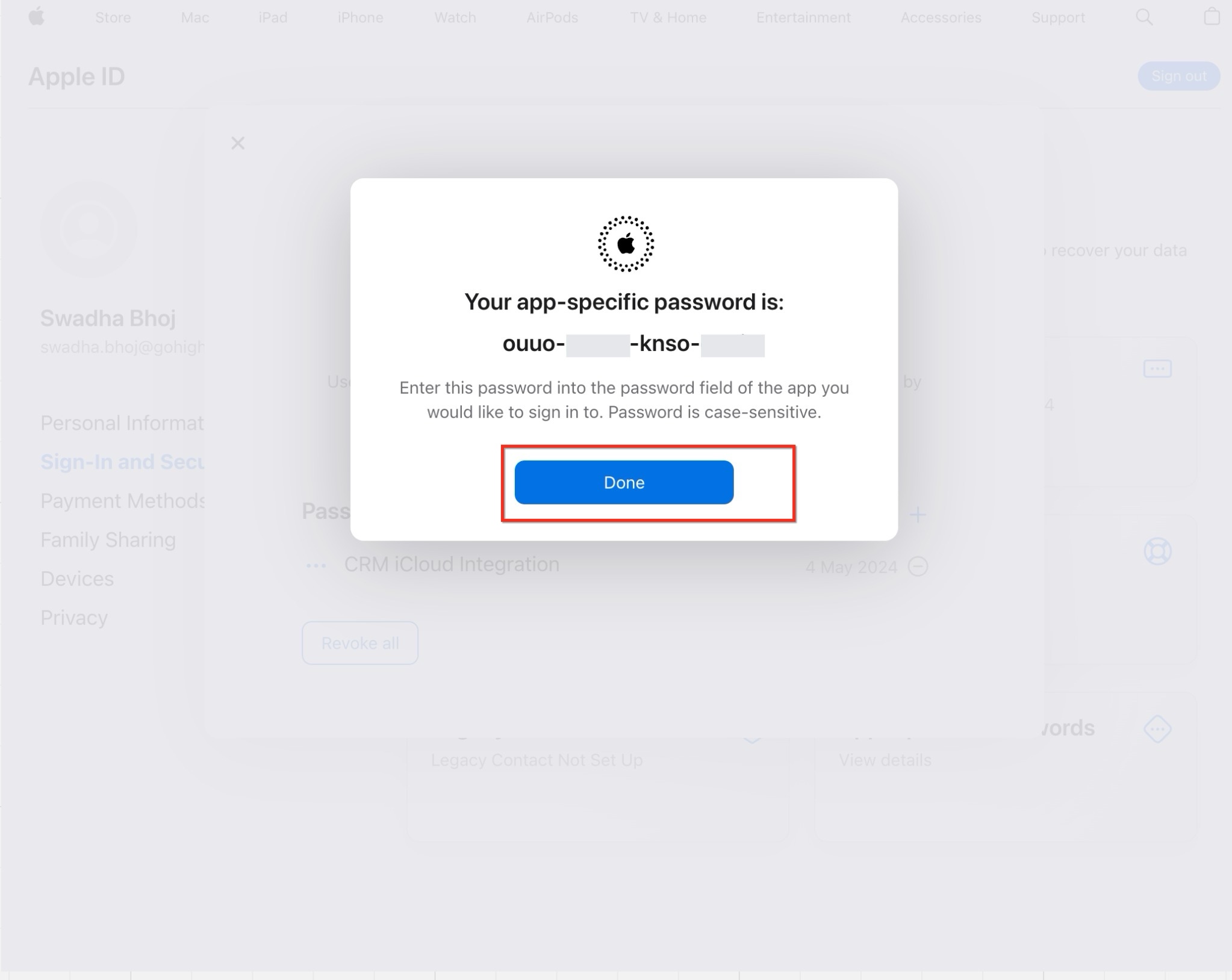
Sign in to your Apple account and open the Sign-In and Security section. From there, locate App-Specific Passwords.
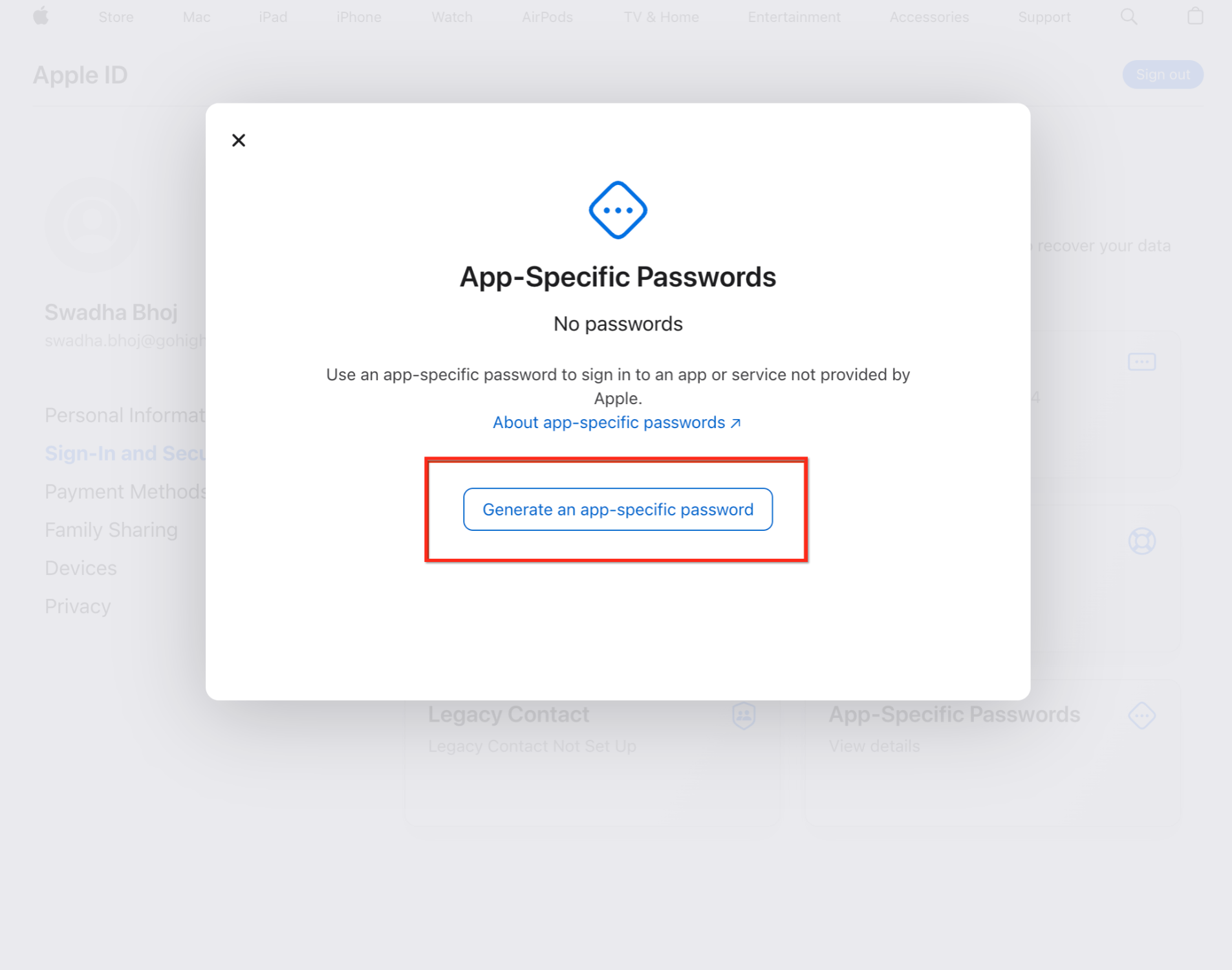
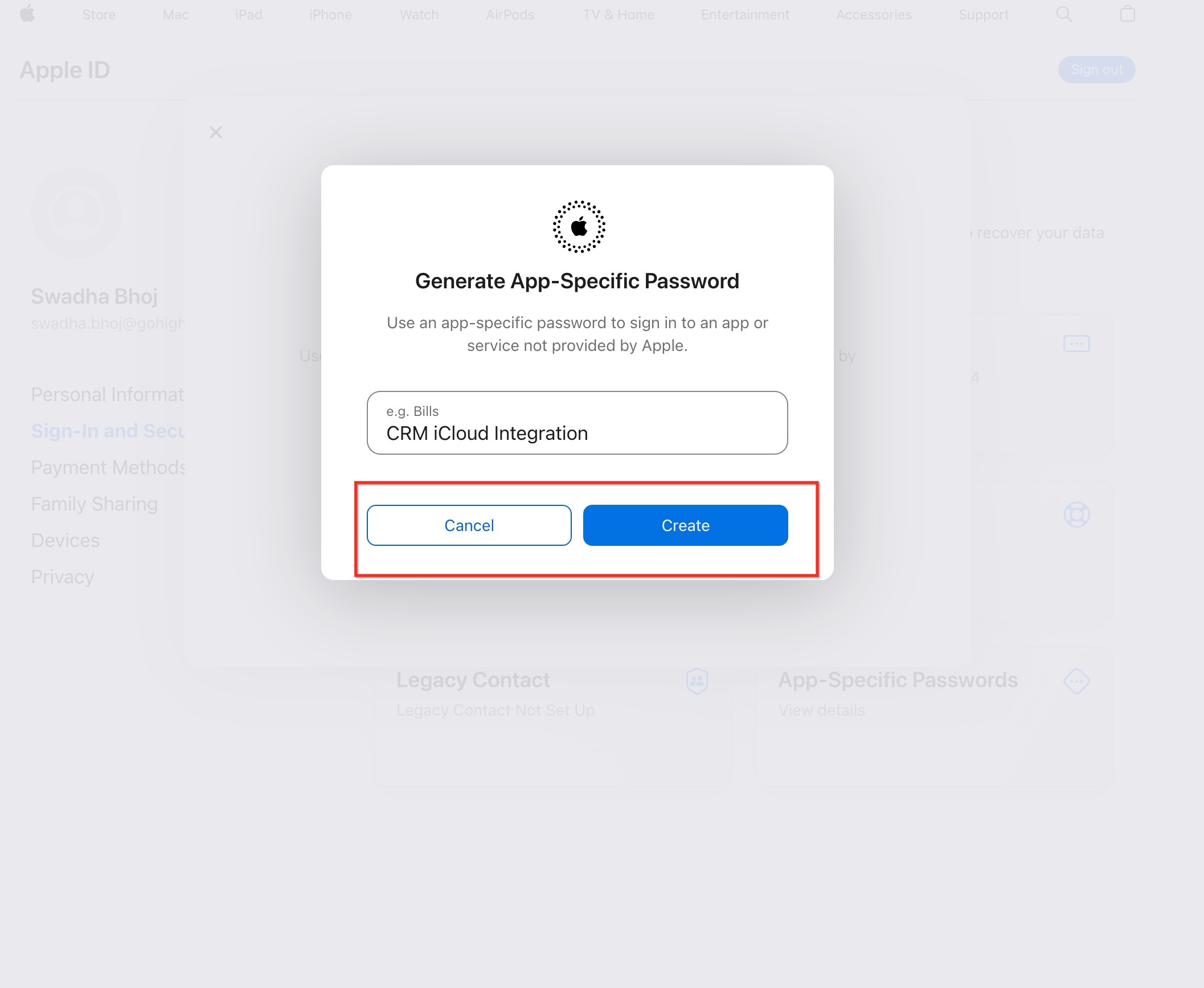
Create a new password by selecting the option to generate one. Use a recognizable label so you can identify it later.
Once generated, copy the password and store it securely. You will need it during the connection process.
Connect Your iCloud Calendar
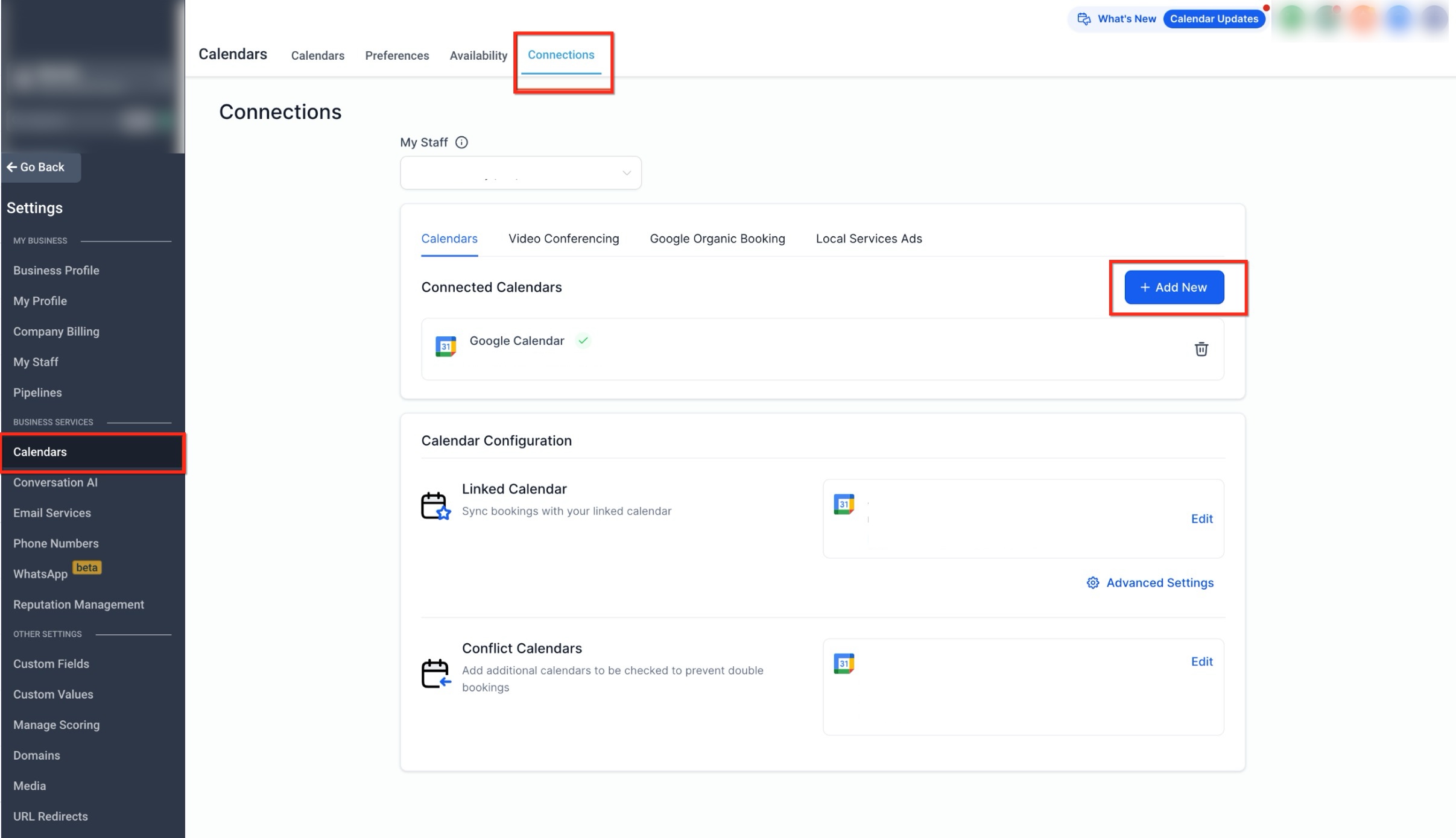
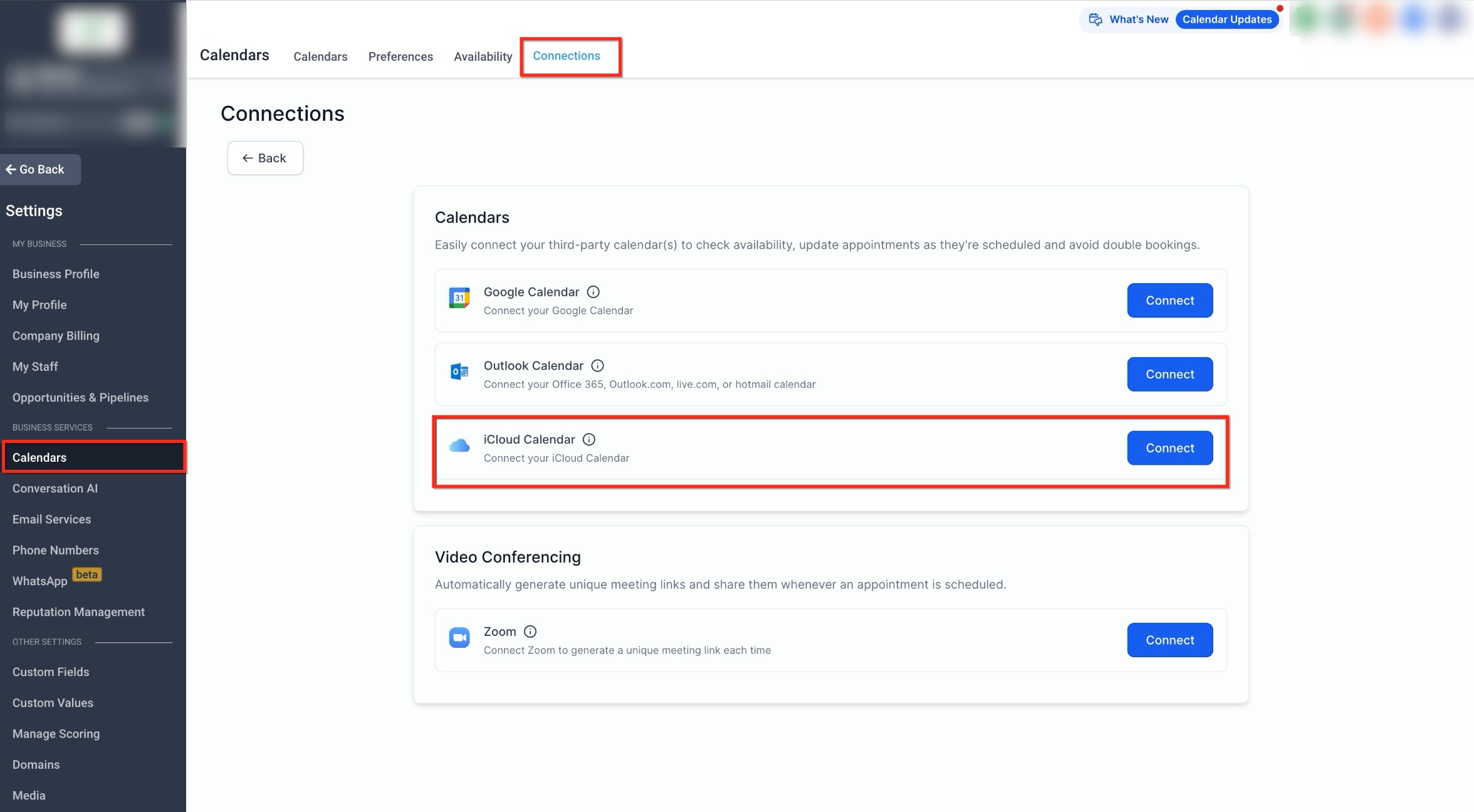
Open the calendar connections area and choose to add a new calendar connection. From the available options, select the iCloud calendar option.
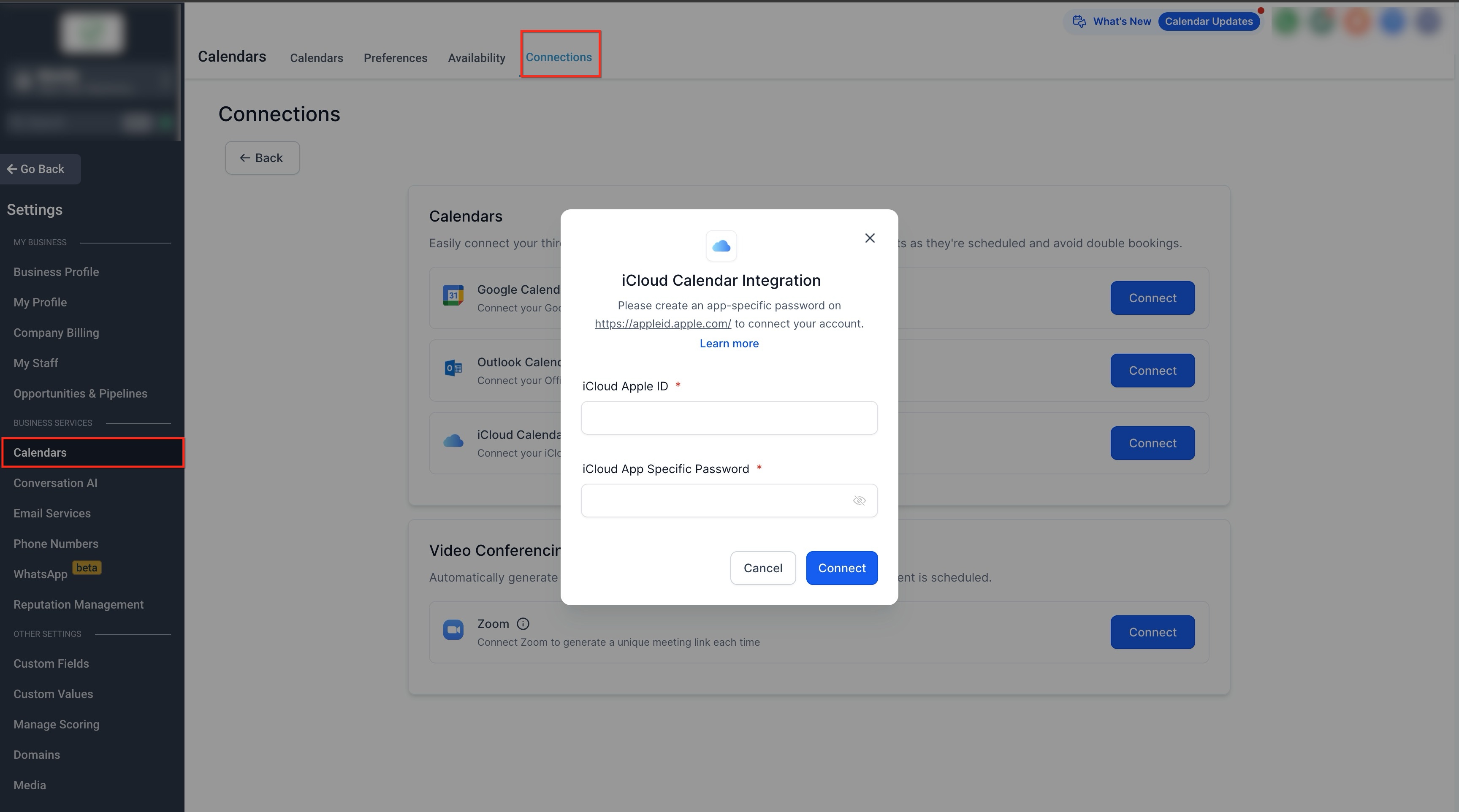
Enter your Apple ID email address along with the app-specific password you generated earlier. Confirm to complete the connection.
When the connection is successful, your iCloud calendar will appear in the list of connected calendars.
Configure Calendar Sync Settings
After connecting, calendar configuration ensures appointments sync correctly and availability stays accurate.
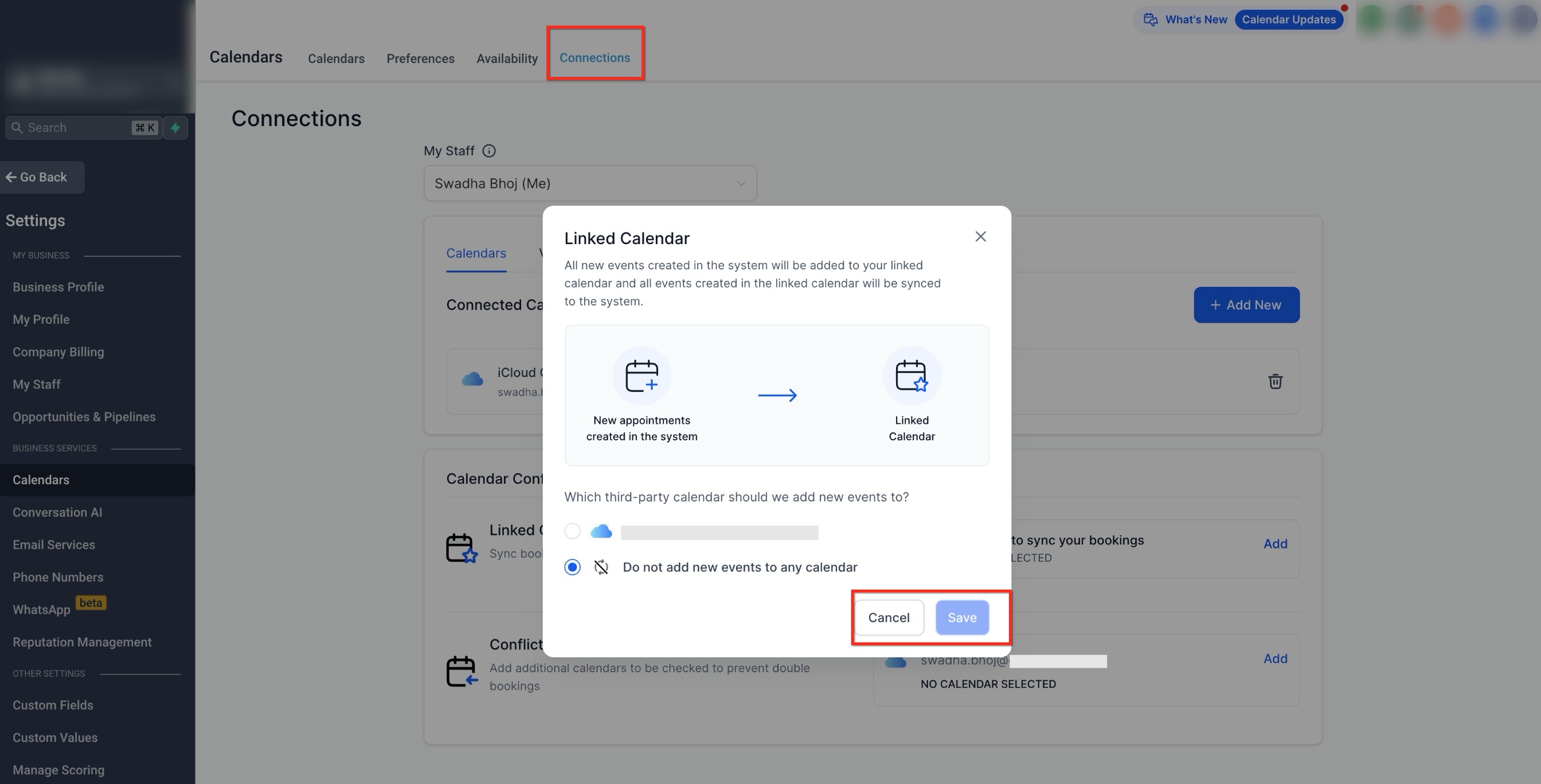
Linked Calendar
The linked calendar determines where new appointments are added. Any new appointment created will be written to this calendar, provided write access is enabled. Events created directly in the linked calendar are also synced back.
Conflict Calendars
Conflict calendars are checked to block availability when events already exist. Only events marked as Busy will block time; events marked as Free will not affect availability.
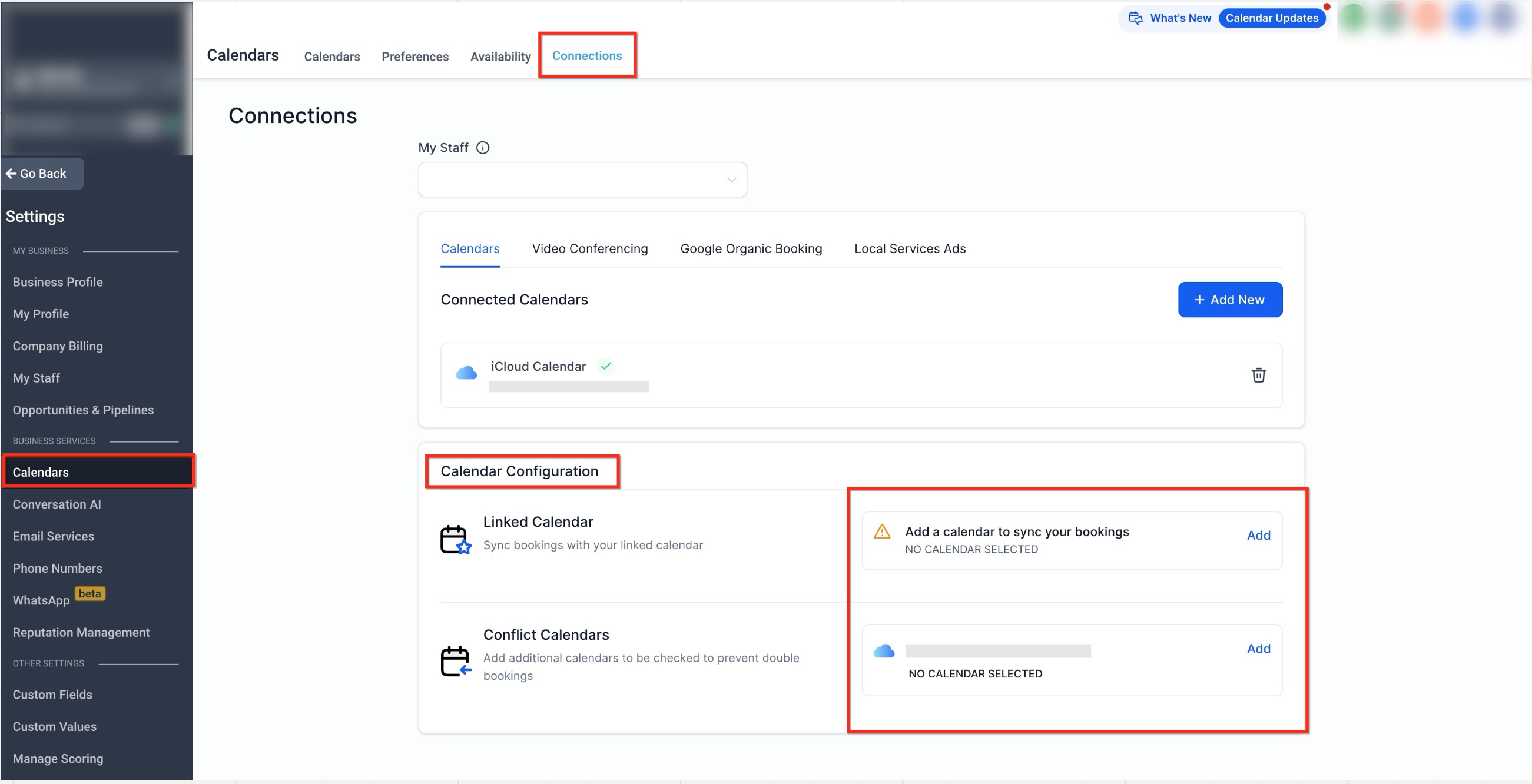
You can add multiple calendars to check for conflicts, which helps prevent overlapping bookings.
Important iCloud Sync Limitations
iCloud calendars use a default sync method. All incoming events are treated as blocked time, and contacts are not created for event guests. Additionally, blocked time created manually does not sync back to iCloud.
FAQs
Q: Why do I need an app-specific password?
Apple requires app-specific passwords to securely connect third-party services without exposing your main account password.
Q: Can I choose which events block my availability?
Yes. Only events marked as busy in your iCloud calendar will block availability.
Q: Will contacts be created from iCloud events?
No. Events synced from iCloud are treated as blocked time only, without creating contact records.
Q: Can blocked time created here sync back to iCloud?
No. Blocked time created manually is not written back to iCloud calendars.
Need More Help?
If your calendar is not syncing as expected, confirm that two-factor authentication is enabled, the app-specific password is valid, and the correct calendars are selected for linking and conflict checks. Reconnecting the calendar can often resolve permission or sync issues.