
Connecting Calendly allows your scheduled events to automatically appear as appointments in your calendar system. Once connected, new bookings sync in real time, helping you keep schedules accurate, reduce manual work, and ensure guest information is captured consistently.
This integration is designed for simplicity and reliability, so your scheduling process stays organized without extra steps.
TABLE OF CONTENTS
- What’s Required to Connect Your Calendly Account
- Connecting Your Calendly Account
- How Event Syncing Works
- Updating Calendar Selections
- Removing Calendly or Deleting Synced Events
- Limitations
- Frequently Asked Questions
- Need More Help?
What’s Required to Connect Your Calendly Account
You’ll need access to a Calendly account and at least one calendar you’re part of. Only events created on selected calendars will be synced.
Connecting Your Calendly Account
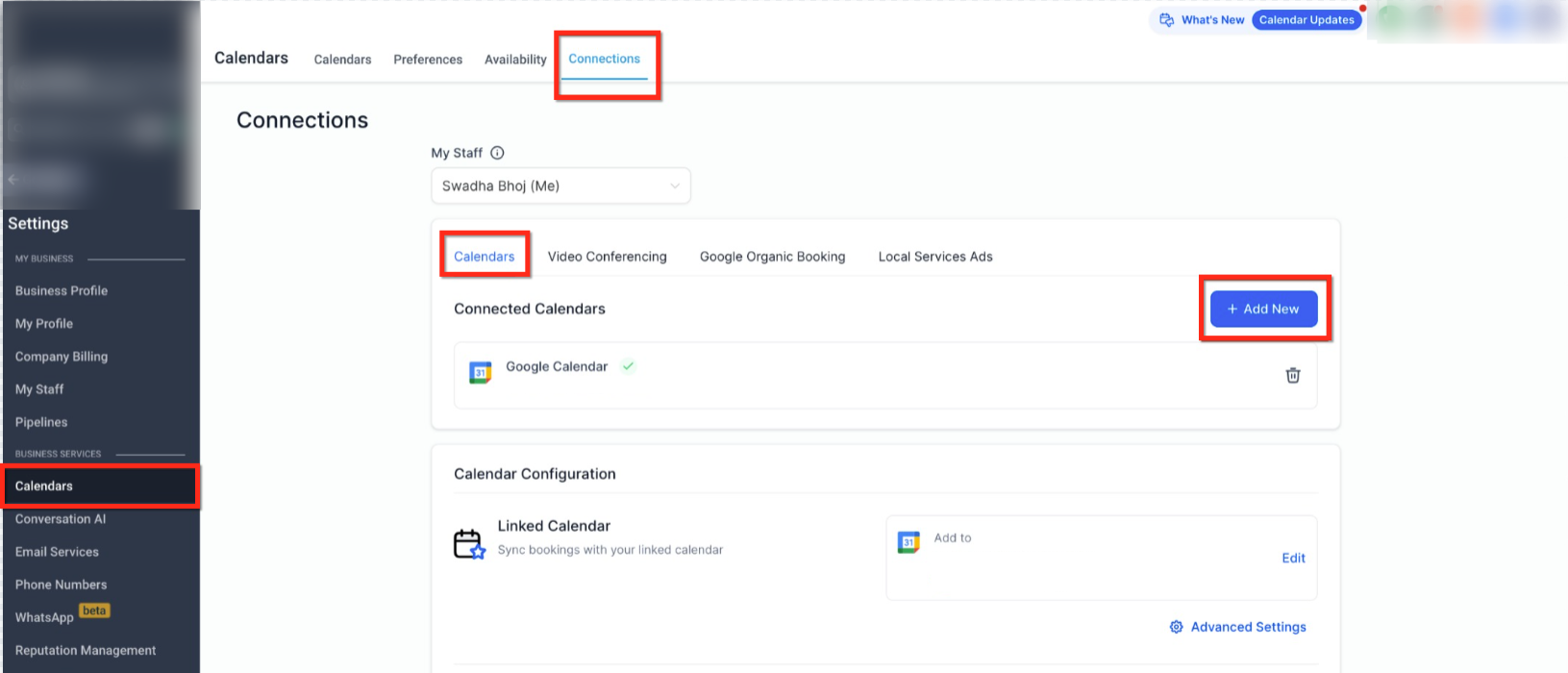
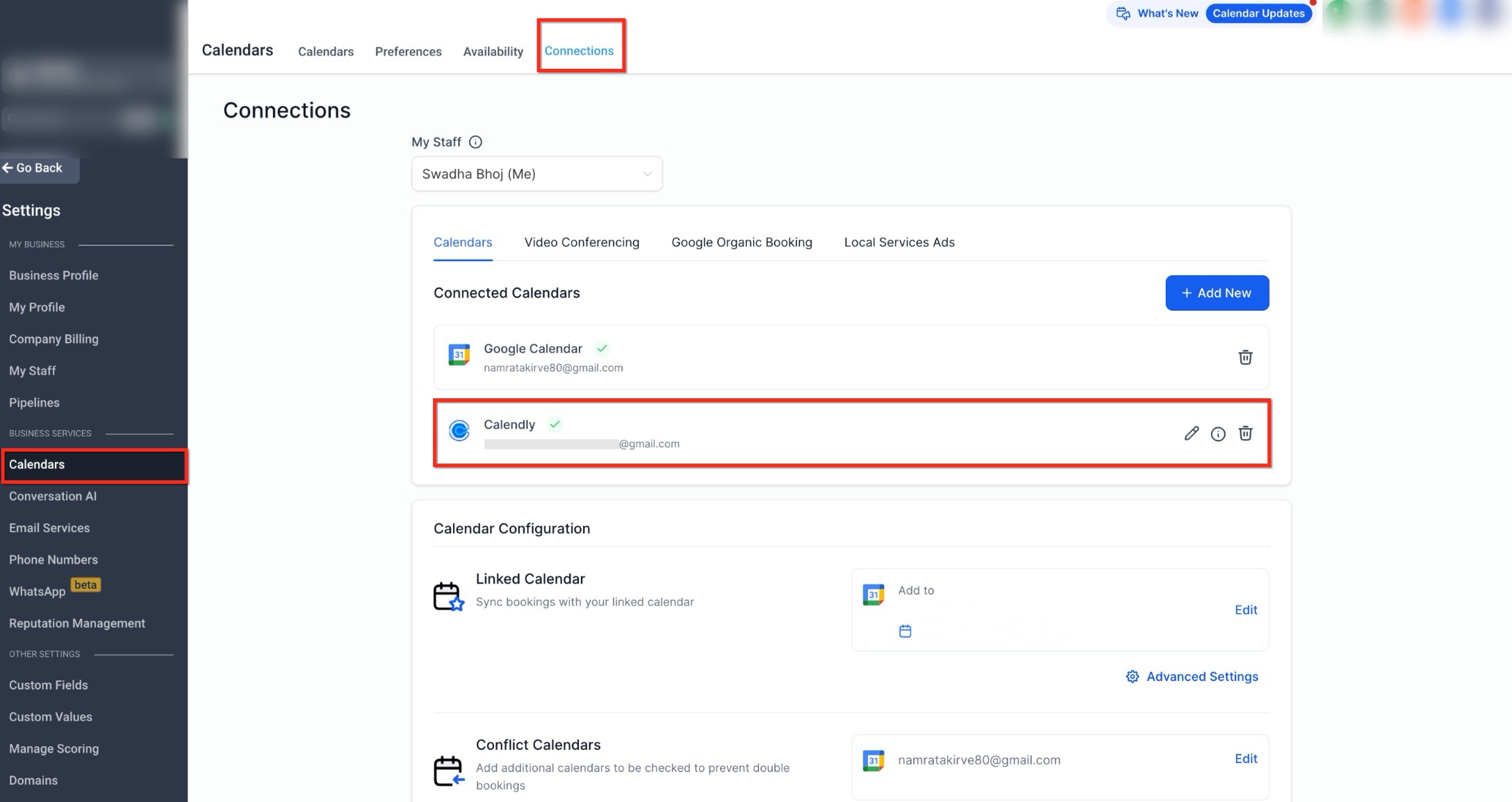
Accessing Calendar Connections
This screen shows where calendar integrations are managed and where new connections can be added.
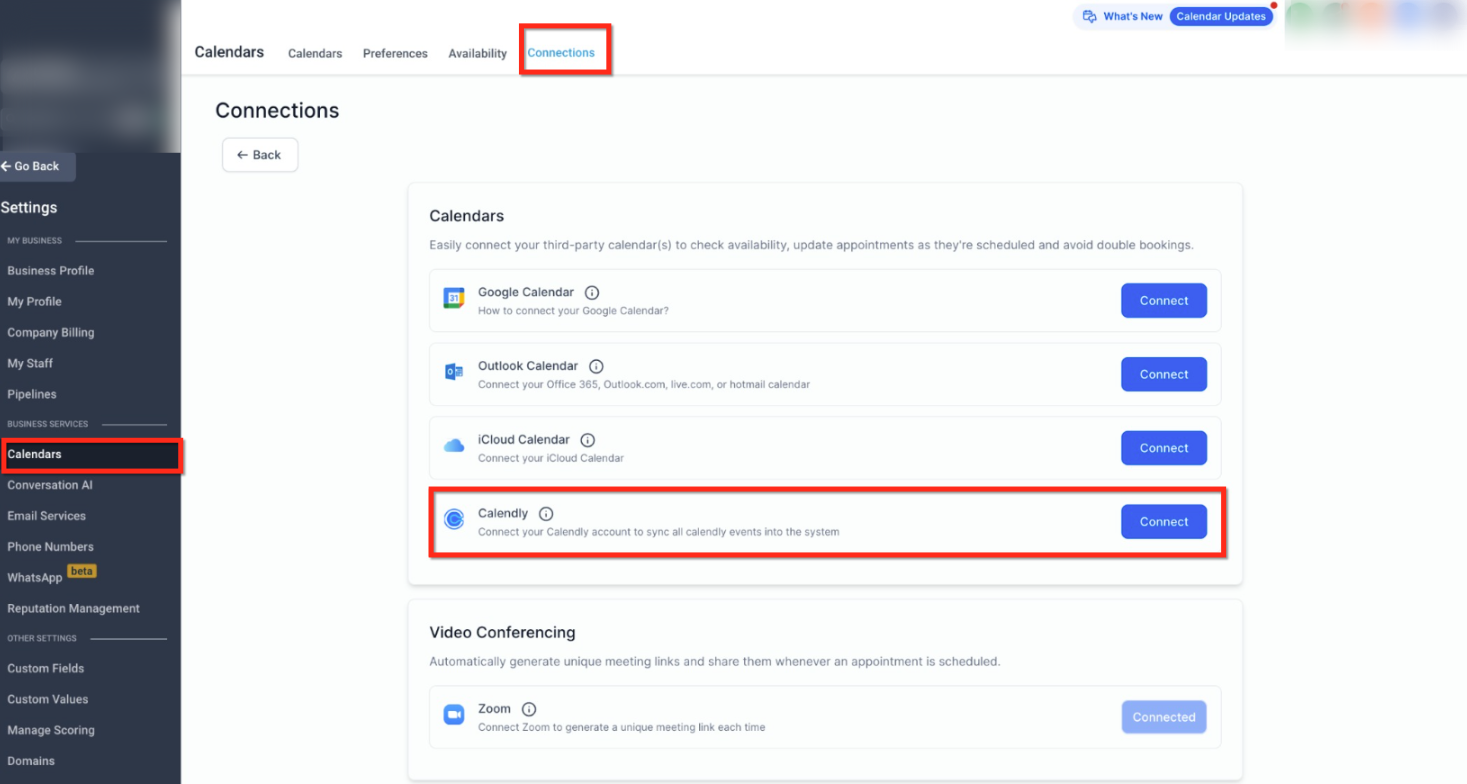
Selecting Calendly as a Calendar Source
This view highlights Calendly as one of the available calendar connection options.
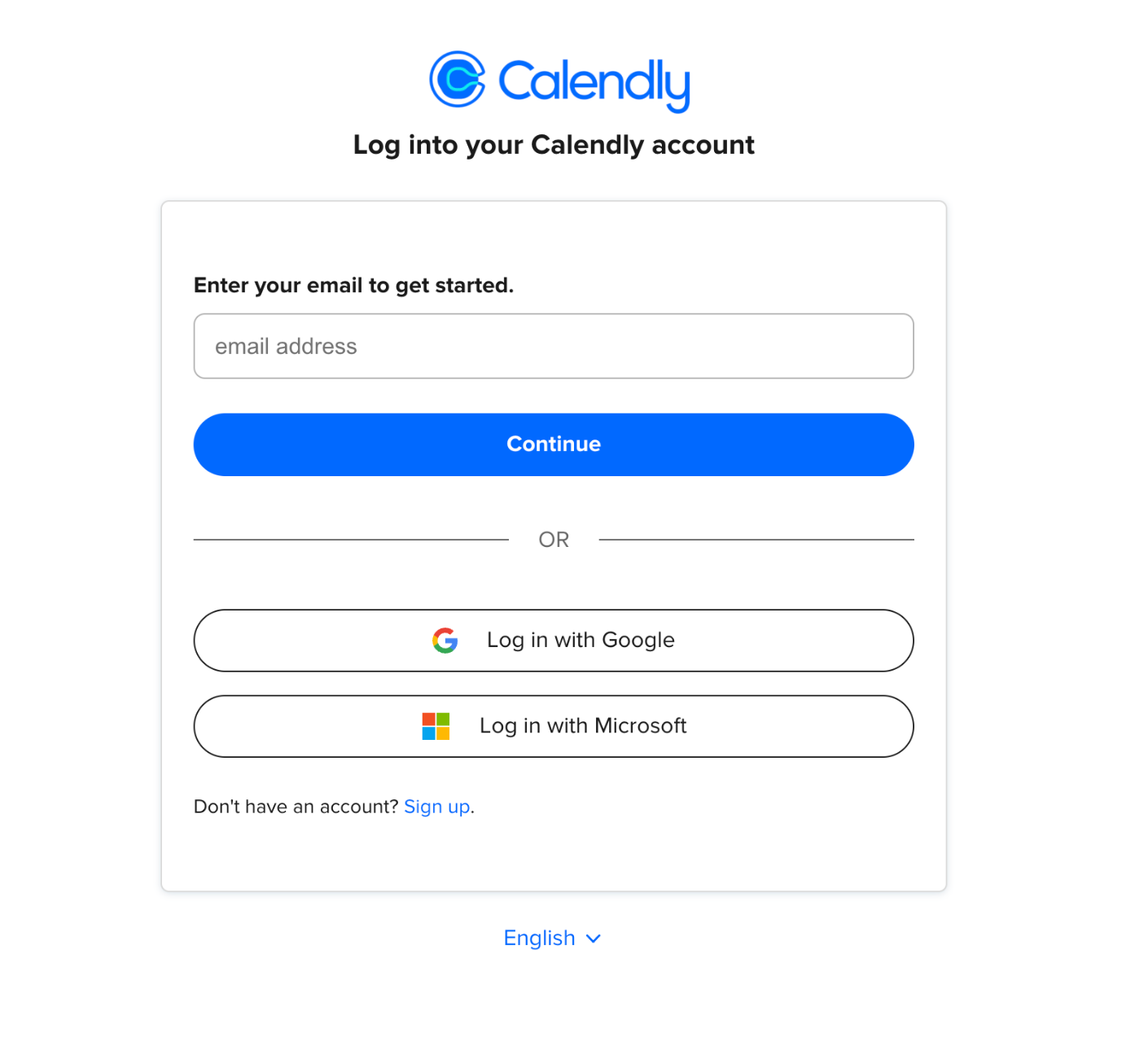
Secure Calendly Sign-In
This screen appears when authorizing access to your Calendly account.
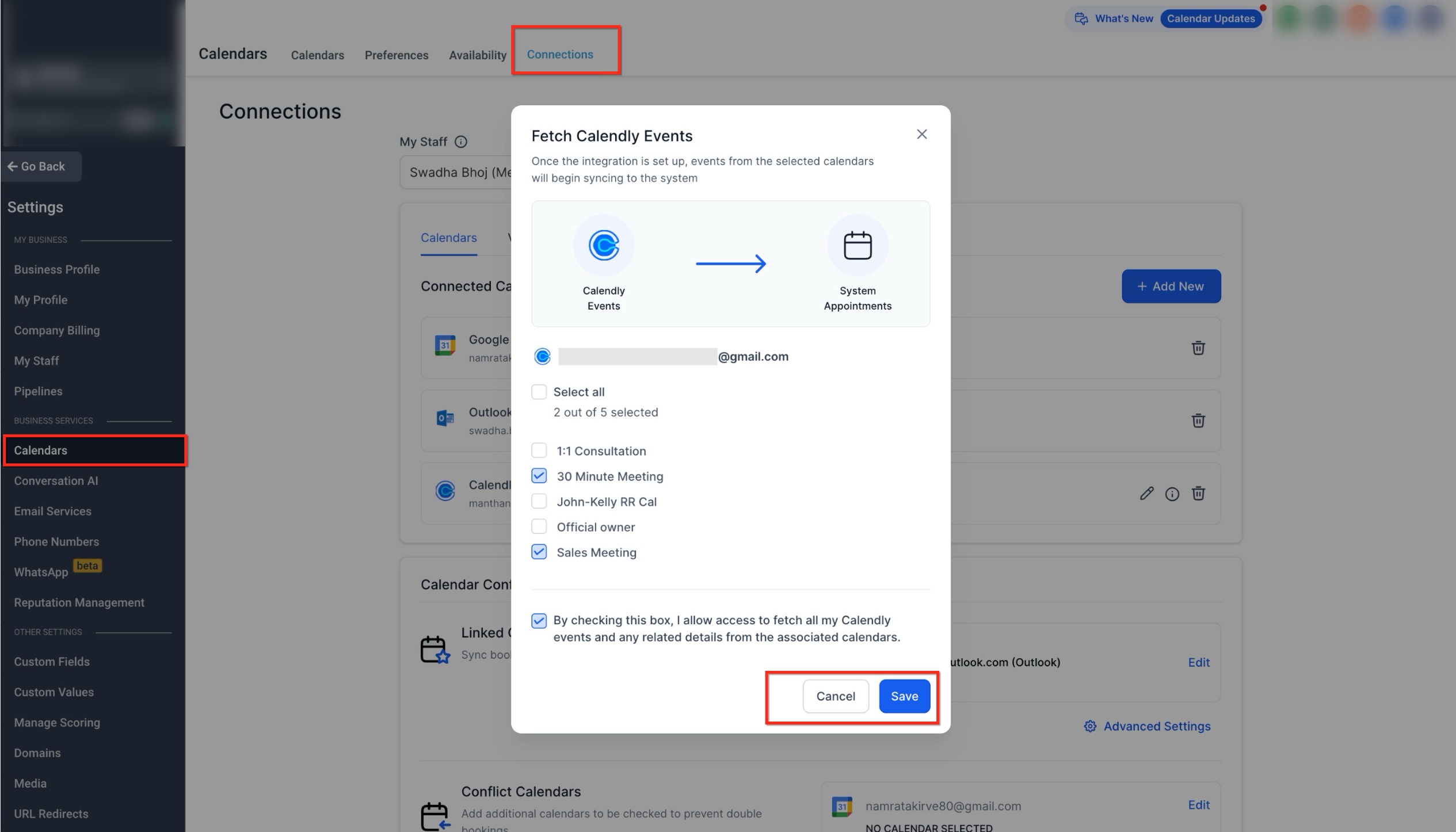
Choosing Calendars to Sync
Here you select which Calendly calendars should send events into the system.
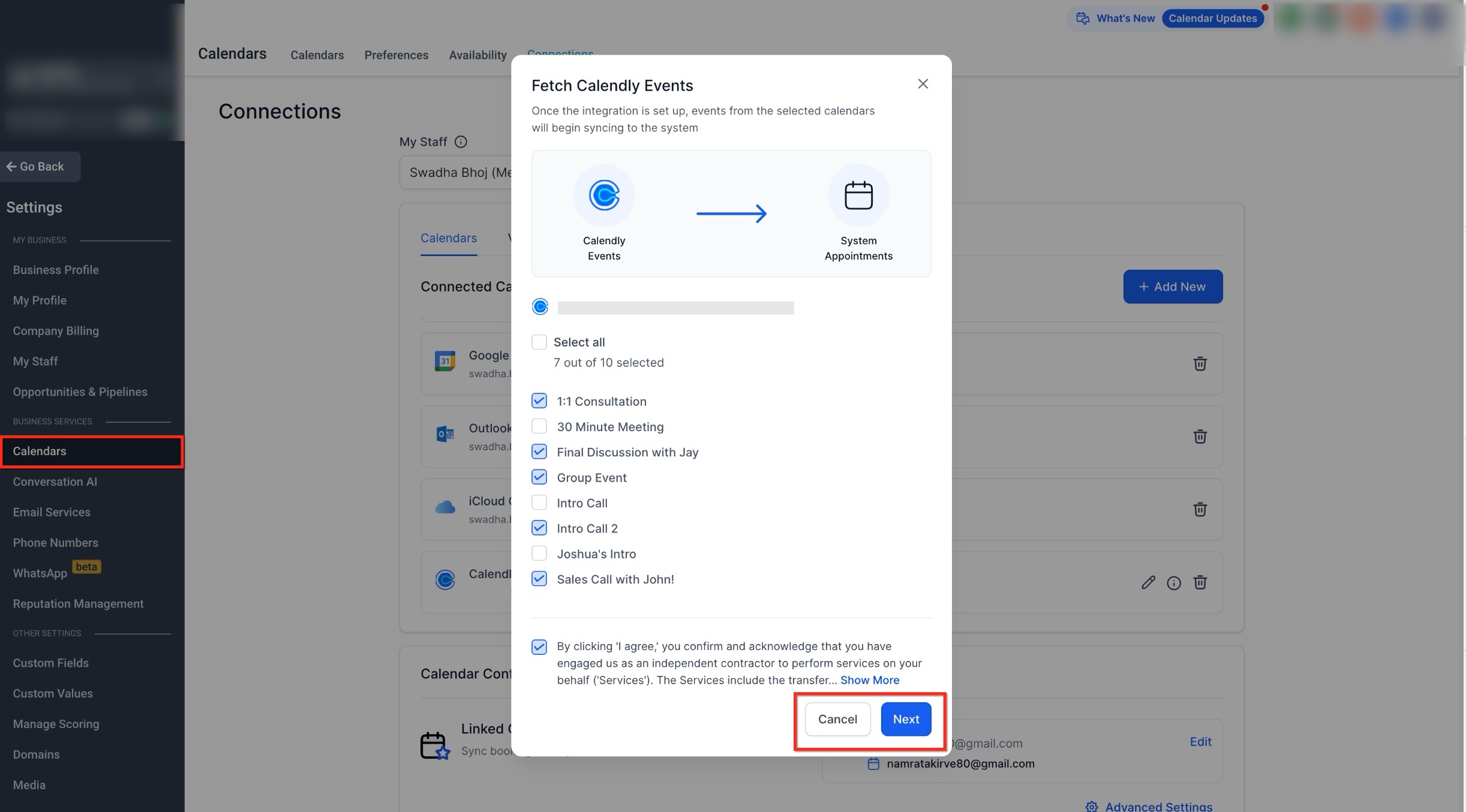
Granting Permission to Fetch Events
This confirmation ensures events can begin syncing once the connection is saved.
Only events created after the connection is completed will be imported.
How Event Syncing Works
Calendly events are imported in a one-way flow.
Events are fetched from Calendly into the system
Changes must be made directly in Calendly
Imported events cannot be edited after syncing
Each synced event is treated as an appointment. If guest details are included, contact records are created automatically, making follow-ups easier.
If a calendar is removed and later re-added, only newly created events will sync.
Updating Calendar Selections
You can change which Calendly calendars are synced at any time.
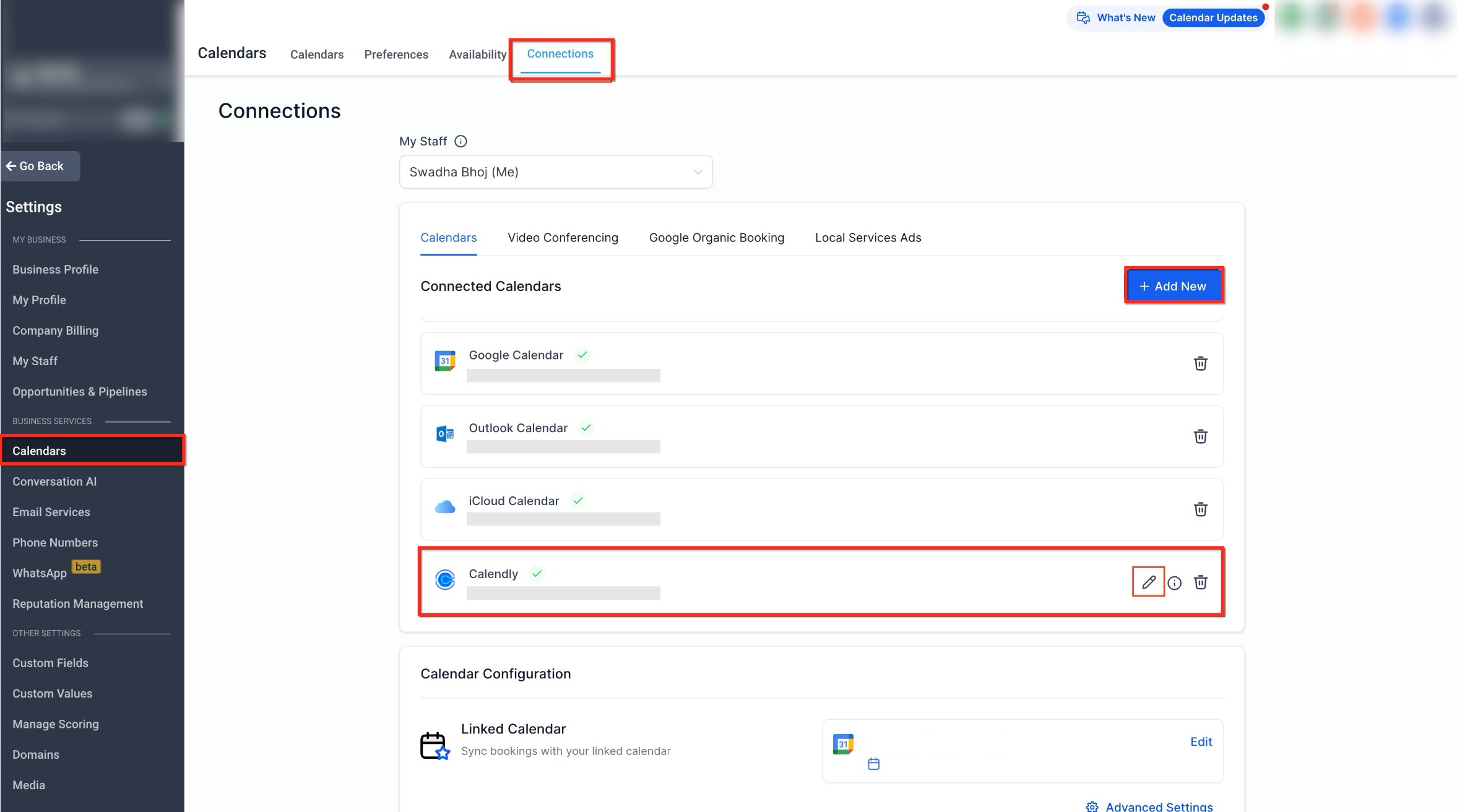
Managing Connected Calendars
This view shows all connected calendars and available actions.
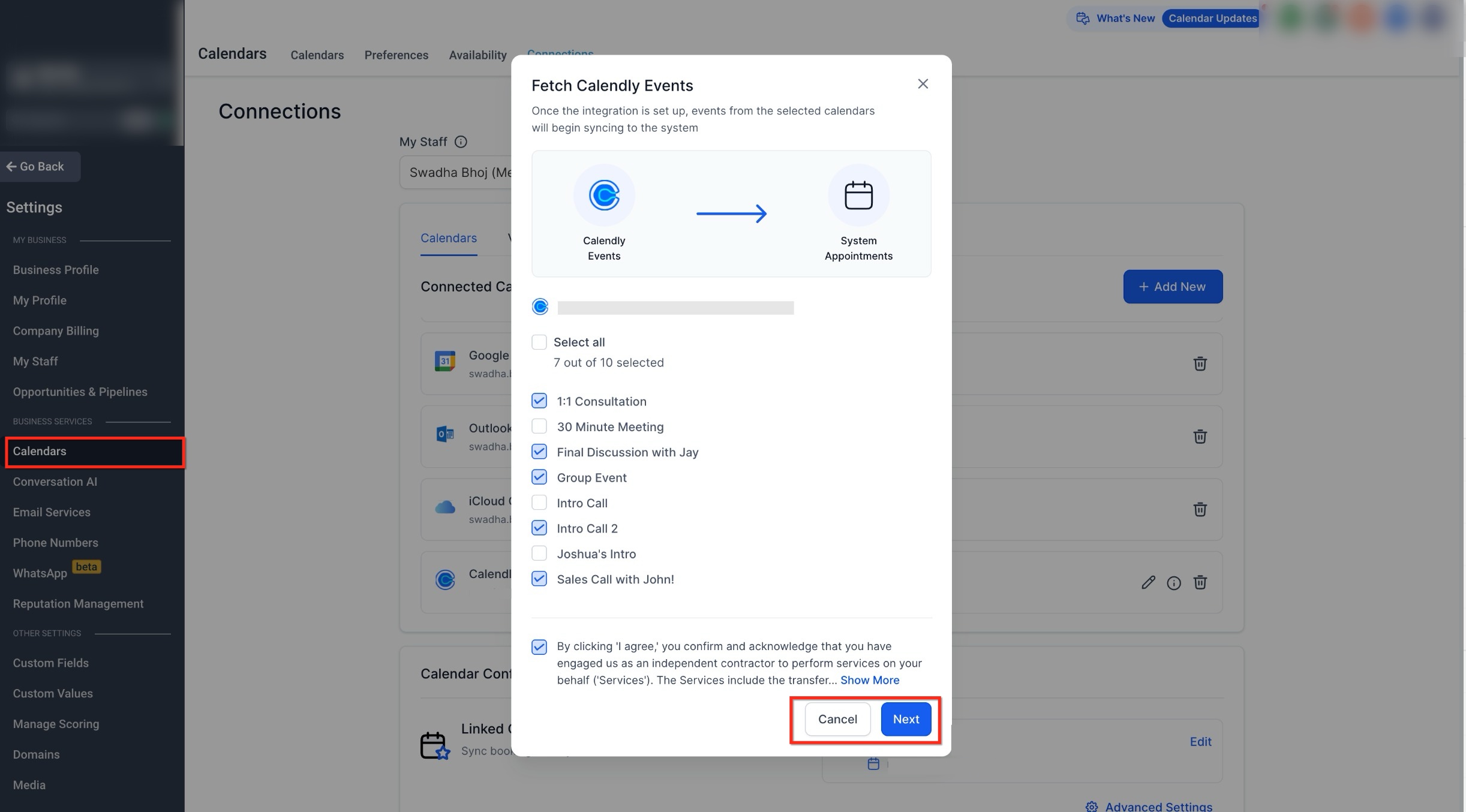
Editing Synced Calendars
Here you can add or remove calendars from syncing.
Changes affect future events only.
Removing Calendly or Deleting Synced Events
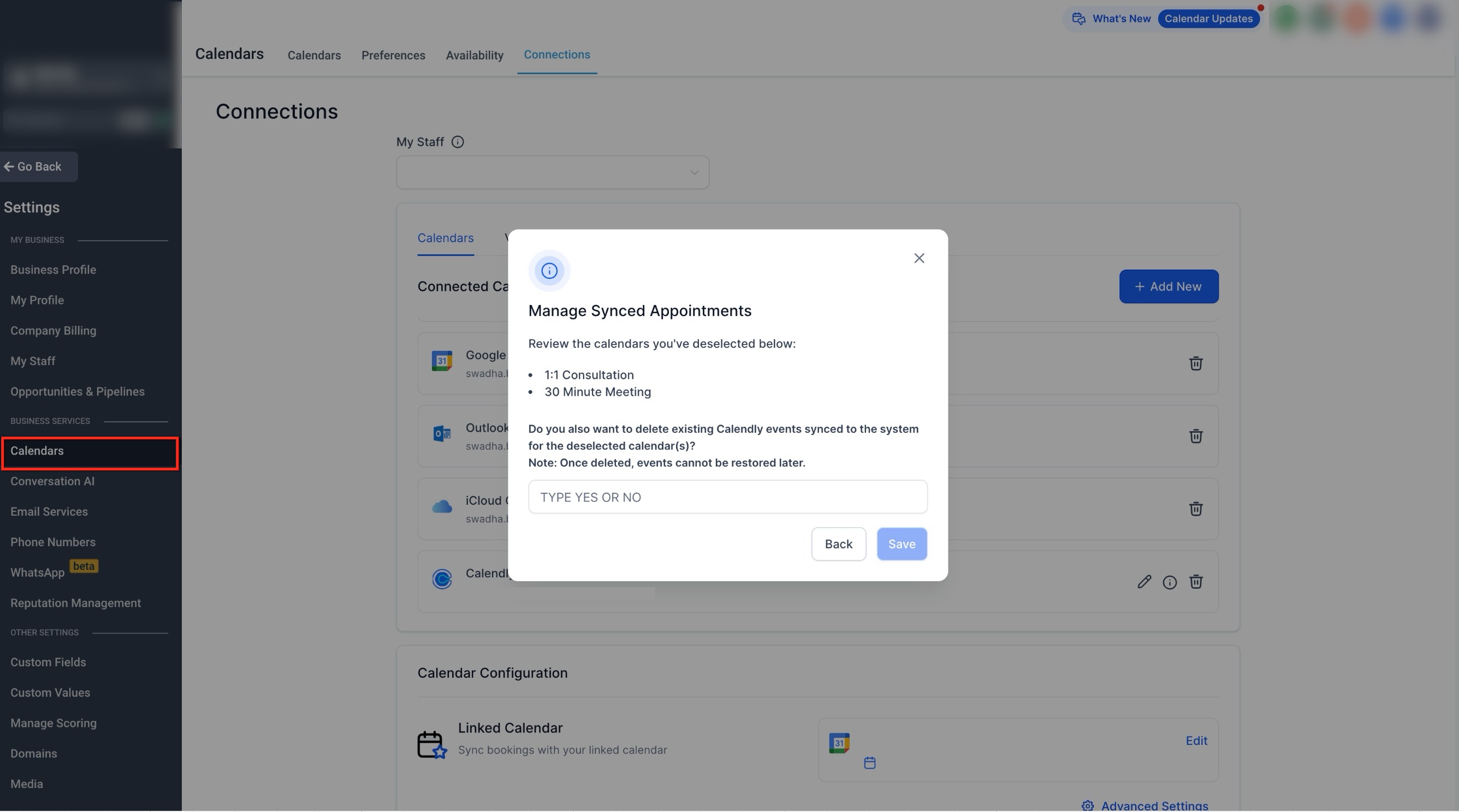
Handling Existing Synced Events
This prompt appears when removing a calendar and asks whether existing events should also be deleted.
Disconnecting the Calendly Integration
This confirmation appears when removing the integration entirely.Deleted events cannot be restored. Reconnecting later will sync only new events.
Limitations
Only one Calendly account can be connected per user
The same Calendly account cannot be shared by multiple users at the same time
Event syncing is one-way only
Past events are not backfilled
Frequently Asked Questions
Q: Which Calendly events are synced after connecting my account?
Only events created after the connection is completed are synced. Events created before the connection are not imported.
Q: Can I choose which Calendly calendars or event types are synced?
Yes. You can select which calendars or event types should sync and update those selections at any time.
Q: What happens if I remove a calendar or disconnect the Calendly integration?
New events will stop syncing. You may also be prompted to delete previously synced events, which cannot be restored once removed.
Q: Can synced events be edited after they appear?
No. Synced events cannot be edited after they appear. Any changes must be made directly in Calendly to remain accurate.
Need More Help?
Use the in-app help search to explore related articles about calendar connections, appointment syncing, and scheduling behavior, or contact support for additional assistance.