
This article explains every metric shown in paid search ads reporting so you can quickly understand campaign performance, optimize ads, and demonstrate return on investment. Each definition explains what the metric means, why it matters, and how it’s commonly used when reviewing results.
TABLE OF CONTENTS
- Key Reporting Metrics
- Impressions
- Clicks
- Conversions
- Client Spend
- Average CPC (Cost per Click)
- Cost per Conversion (CPA)
- Conversion Rate
- Revenue
- ROI (Return on Investment)
- Sales
- CPS (Cost per Sale)
- Leads
- CPL (Cost per Lead)
- Frequently Asked Questions
- Need More Help?
Key Reporting Metrics
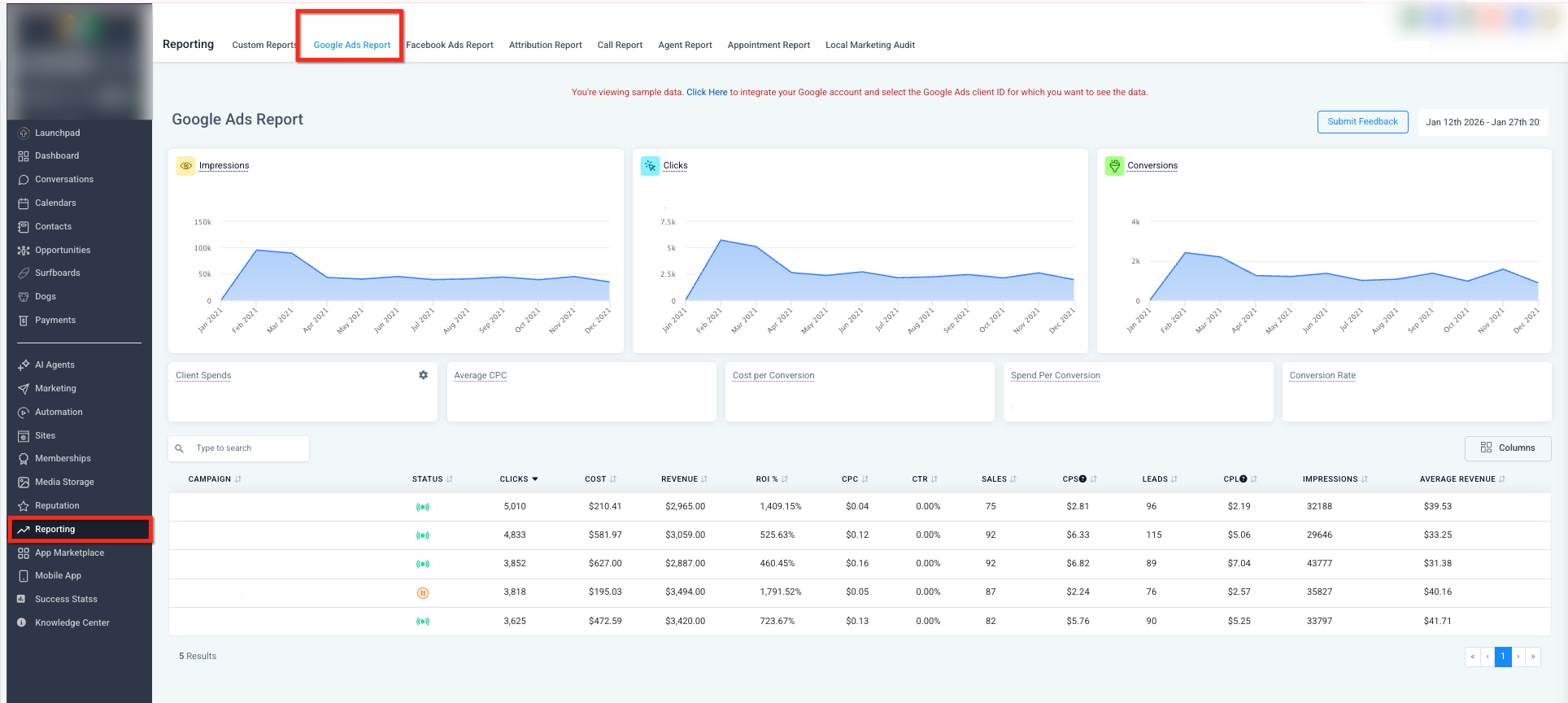
This view shows the main reporting dashboard where overall performance metrics, trend charts, and campaign tables are displayed.
Impressions
Impressions represent the number of times an ad was displayed to users across the ad network. This includes appearances in search results and partner placements.
A higher impression count typically means your ads are eligible to show more often based on targeting, bids, and budget.
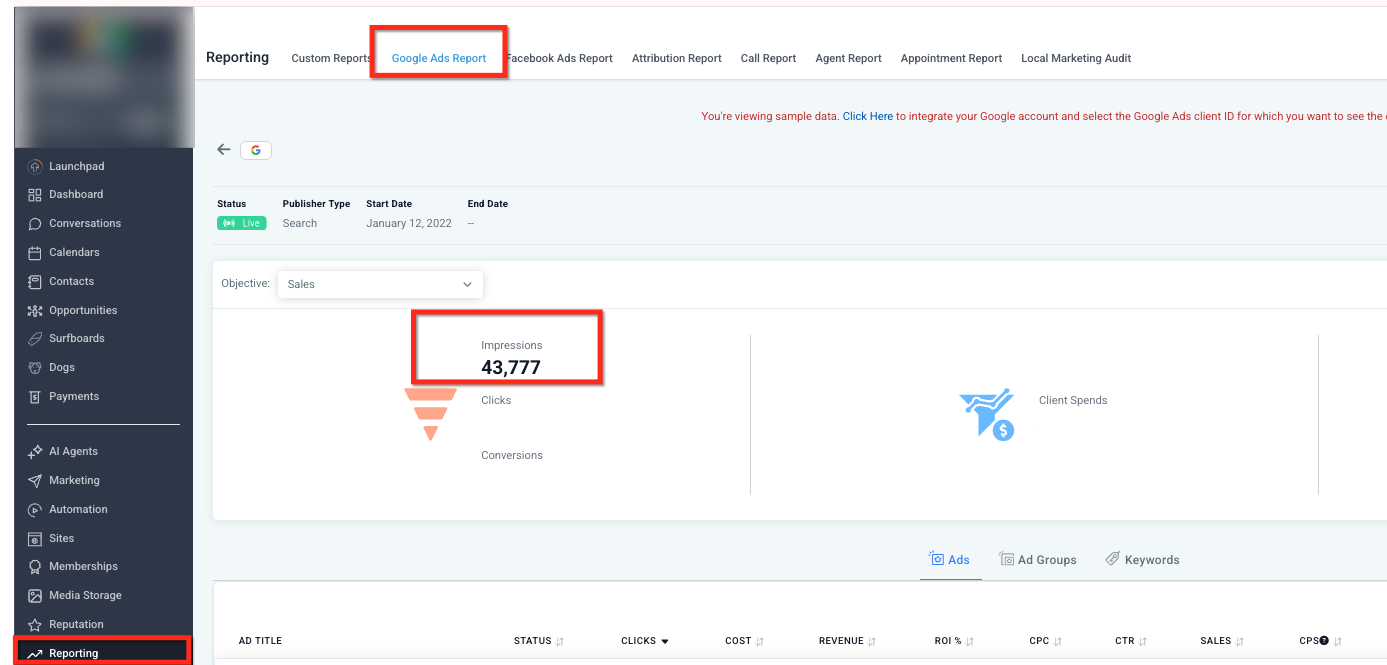
This chart highlights how often ads were shown during the selected date range and how visibility trends change over time.
Clicks
Clicks measure how many times users interacted with an ad by selecting it. This could include clicking a headline, call button, or other interactive element.
Clicks help indicate how compelling your ad messaging is to the audience seeing it.
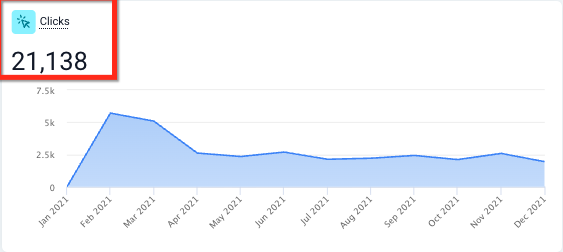
This chart shows total clicks and click patterns across the selected timeframe, helping identify engagement peaks and drops.
Conversions
Conversions track the number of valuable actions completed after someone interacts with an ad.
Common examples include:
Form submissions
Phone calls
Purchases
Other tracked actions you’ve defined as conversions
A higher conversion count usually indicates stronger alignment between ads, audience, and landing experience.
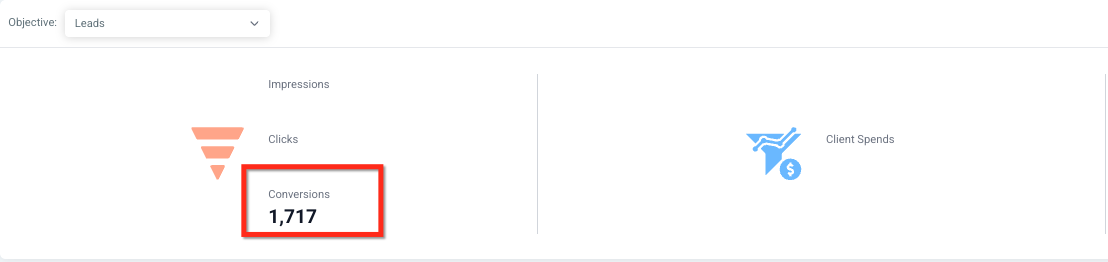
This chart displays total conversions and how they change over time, helping assess campaign effectiveness.
Client Spend
Client Spend reflects total advertising spend plus any configured management fees.
This metric may be restricted based on permissions and may not be visible to all users.
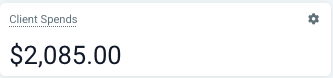
This value highlights how much was spent during the selected reporting period.
Average CPC (Cost per Click)
Average CPC shows the typical amount paid for each click.
Formula:
Total Ad Spend ÷ Total Clicks
Higher CPC values often indicate more competitive targeting or higher-cost audiences.
Cost per Conversion (CPA)
Cost per Conversion shows the average cost to generate one conversion.
Formula:
Total Ad Spend ÷ Total Conversions
This metric helps evaluate how efficiently campaigns generate meaningful actions.
Conversion Rate
Conversion Rate is the percentage of clicks that resulted in a conversion.
Formula:
(Conversions ÷ Clicks) × 100
Example:
50 conversions from 1,000 clicks = 5% conversion rate.
A higher conversion rate usually reflects stronger messaging and landing page relevance.
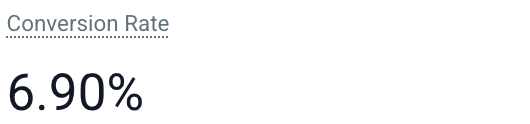
This metric shows how efficiently clicks are turning into conversions.
Revenue
Revenue represents the total value attributed to closed deals that originated from ad-driven leads.
This value is typically based on a numeric value field set on each deal. Only numeric values should be entered if your system requires numbers only.
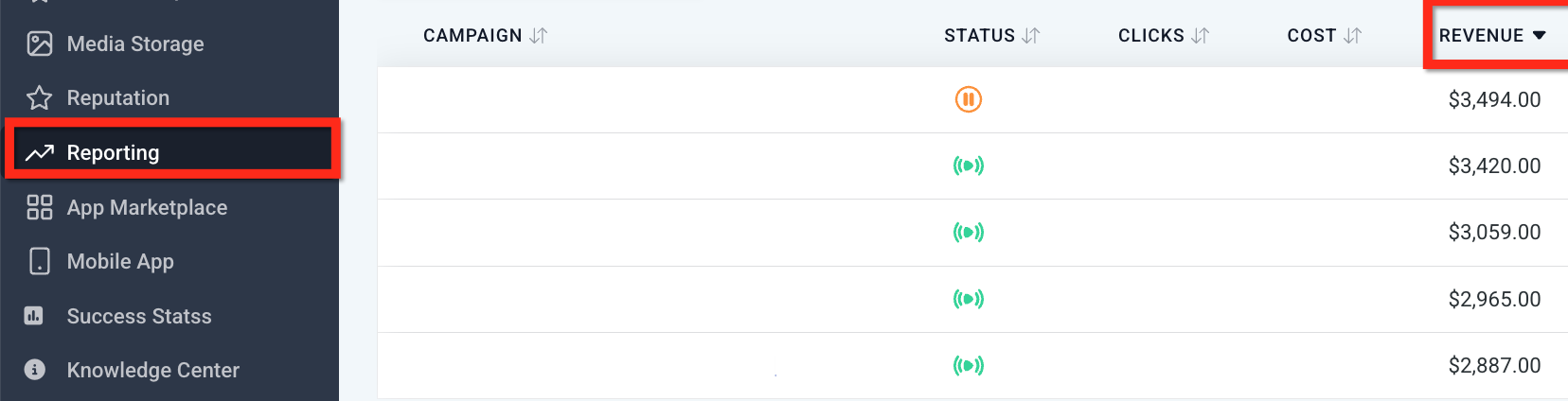
This column shows revenue tied to campaigns or ads that resulted in closed outcomes.
ROI (Return on Investment)
ROI measures how profitable advertising efforts are.
Common formula:
(Revenue − Ad Spend) ÷ Ad Spend
ROI can be evaluated at an overall level or by individual campaign.
Sales
Sales represent the number of deals that have been moved to a closed or won status. This helps connect ad performance to actual business outcomes.
CPS (Cost per Sale)
CPS shows the average cost required to generate one sale.
Formula:
Total Ad Spend ÷ Number of Sales
This metric is most useful when deal tracking is consistent and accurate.
Leads
Leads represent new prospects created and still in an open status.
Leads may come from:
Forms
Chat conversations
Phone calls
Other tracked actions
These prospects have not yet been marked as closed or lost.
CPL (Cost per Lead)
CPL shows the average cost to generate a lead.
Formula:
Total Ad Spend ÷ Number of Leads
CPL helps compare efficiency across campaigns and audiences.

This table allows side-by-side comparison of clicks, spend, leads, sales, and efficiency metrics.
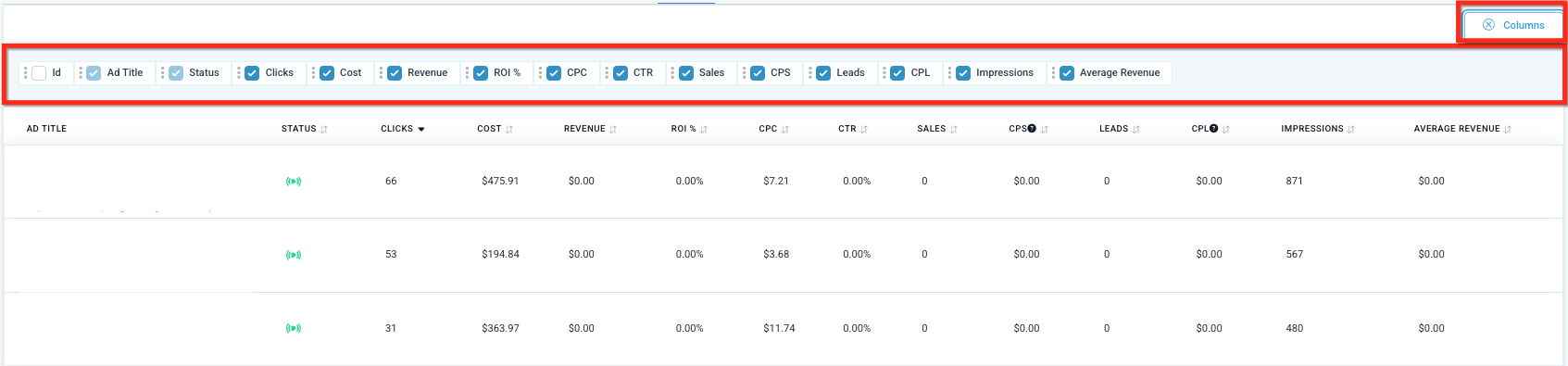
This control allows selecting which metrics appear in the table, making it easier to focus on the data that matters most.
Frequently Asked Questions
Q: Why do my reporting numbers differ from what I see in other tools?
Differences can occur due to time zones, date ranges, attribution rules, or filtering. Always confirm both views use the same settings.
Q: How do I make sure revenue and ROI are accurate?
Ensure each deal has a numeric value and is marked as closed when won. Revenue and ROI calculations rely on those values.
Q: Do I need conversion tracking set up for these metrics to work?
Yes. Conversions and conversion rate depend on correctly configured tracking.
Q: Can I view metrics by campaign or ad group?
Yes, where supported. Filters and breakdowns allow performance to be reviewed at different levels.
Q: Why are CPL or CPS high for some campaigns?
This usually indicates high spend with low lead or sales volume. Review targeting, messaging, landing experience, and tracking accuracy.
Need More Help?
If you need help interpreting a specific metric or understanding reporting behavior, use the in-app help or support options available in your account. Searching the help center using the metric name can surface related guidance. If questions remain, contact support with your selected date range, filters, and the metric you’re reviewing.