
Automatically collecting payments for recurring invoices helps eliminate manual follow-ups and ensures consistent cash flow. This feature allows invoices to be charged automatically on their due date using a selected payment method. It reduces missed payments, improves efficiency, and creates a smoother experience for both you and your customers.
TABLE OF CONTENTS
What Auto Payment Means for Recurring Invoices
Auto payment ensures that invoice amounts are automatically charged on the due date without requiring customer action each time. Once enabled, payments are processed using a selected card option, allowing recurring billing to run seamlessly.
How to Enable Auto Payment
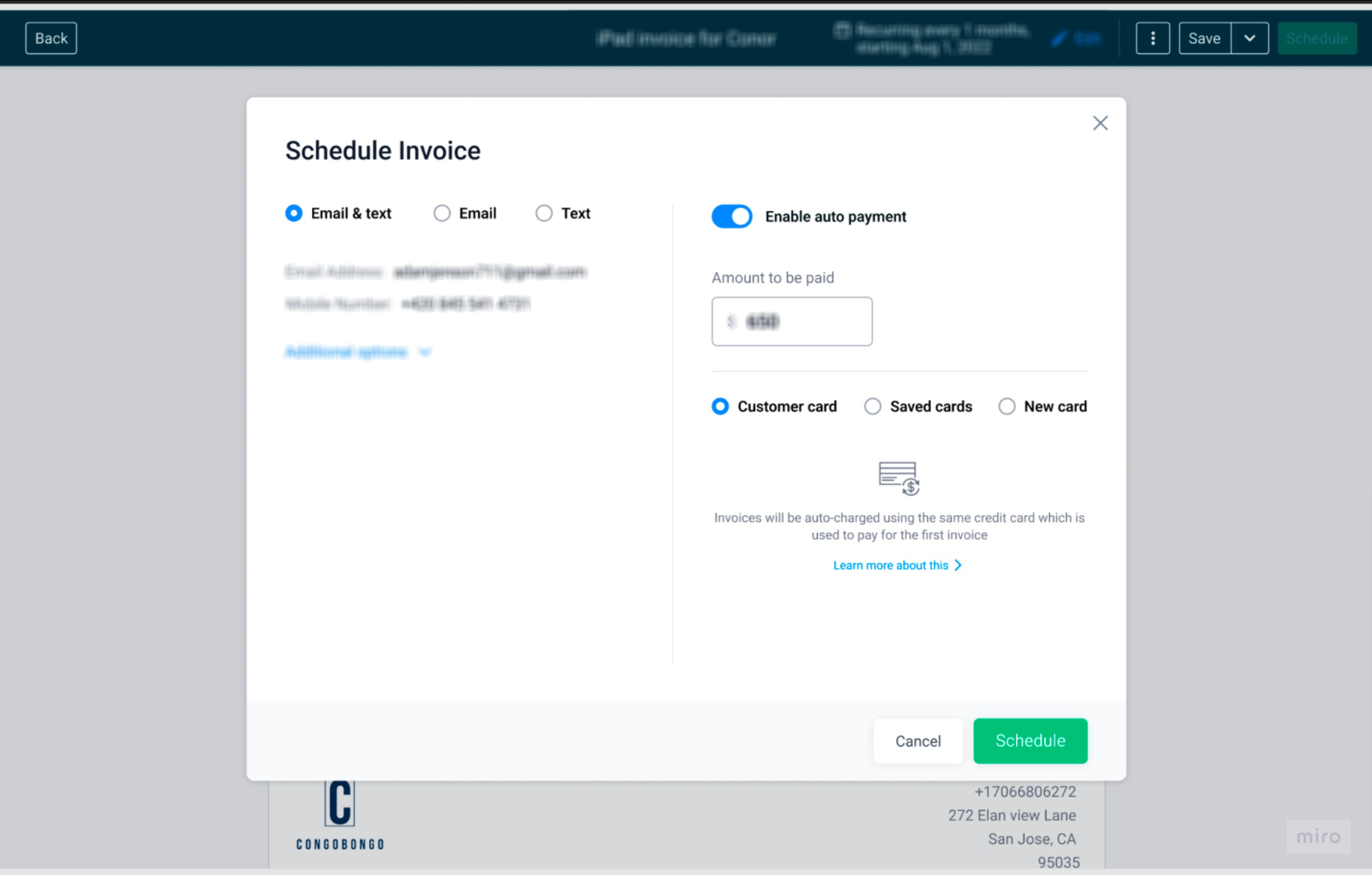
This screen shows where you enable automatic payments while scheduling a recurring invoice. Toggle the auto payment option on and confirm the amount to be charged.
To enable auto payment, open your recurring invoice and schedule it. Turn on the auto payment option, select the payment method, and confirm the amount to be charged. Once enabled, future invoices will be charged automatically.
Payment Method Options Explained
Different payment options give flexibility in how charges are processed:
Customer Card: Uses the card the customer uses for their first successful payment
Saved Card: Uses a previously stored card for the customer
New Card: Allows entering a new card specifically for recurring charges
Each option determines how payments are handled across future invoice cycles.
Managing Auto Payment Settings
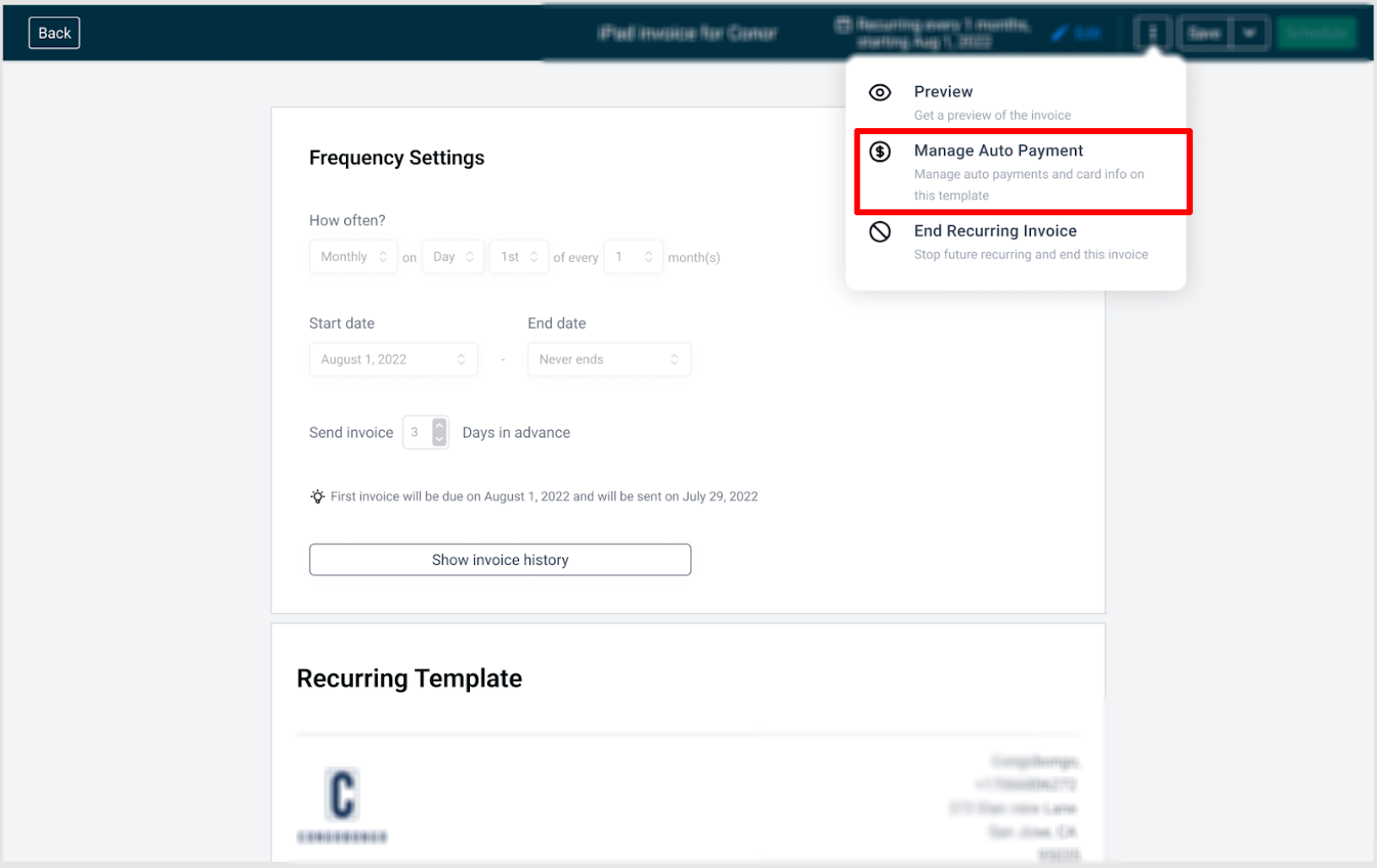
This view shows where to access auto payment settings from the invoice menu. Click the menu and select the option to manage auto payments.
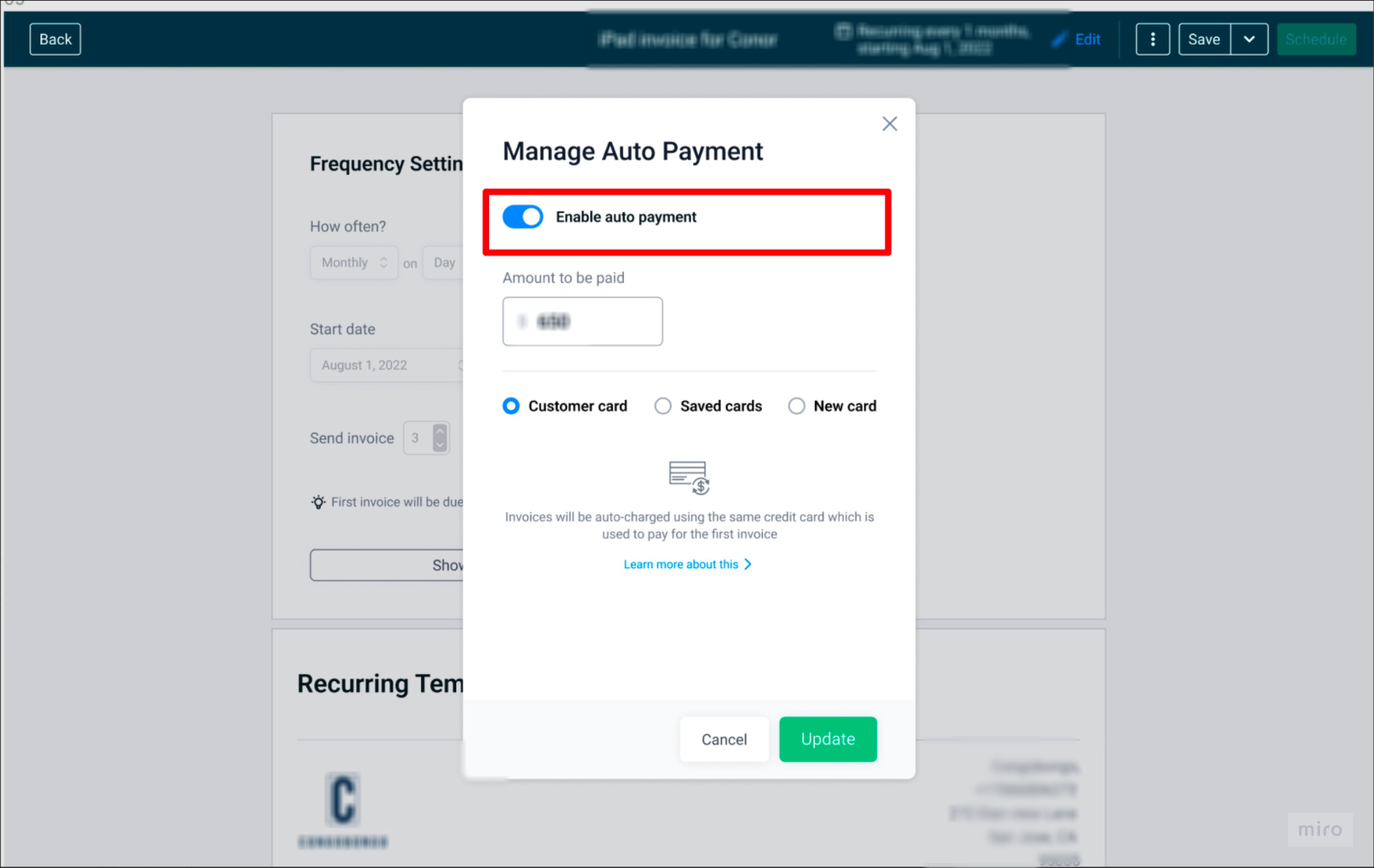
This screen allows you to turn auto payments on or off and select the desired payment method. Toggle the setting and click update to apply changes.
You can update or disable auto payments at any time by opening the invoice settings. Turn the toggle off to stop future automatic charges or update the payment method as needed.
How Notifications Work
Customers and users receive notifications for:
Successful payments
Failed payment attempts
Upcoming automatic charges (sent in advance based on settings)
Changes made to invoices before payment
These notifications ensure transparency and allow timely action if needed.
What Happens If Auto Payment Fails
If a payment attempt fails, both you and the customer are notified immediately. The system will retry the payment up to two additional times, each spaced 24 hours apart.
If all retries fail, the customer must complete the payment manually. If the customer updates their card and completes payment successfully, that card will be used for future charges.
Retry Attempts for Failed Payments
Automatic retries happen up to two times after the initial failure, with a 24-hour gap between attempts. After that, no further automatic attempts are made for that invoice cycle.
Ending or Updating Auto Payments
Auto payments can be stopped or modified at any time from the invoice settings.
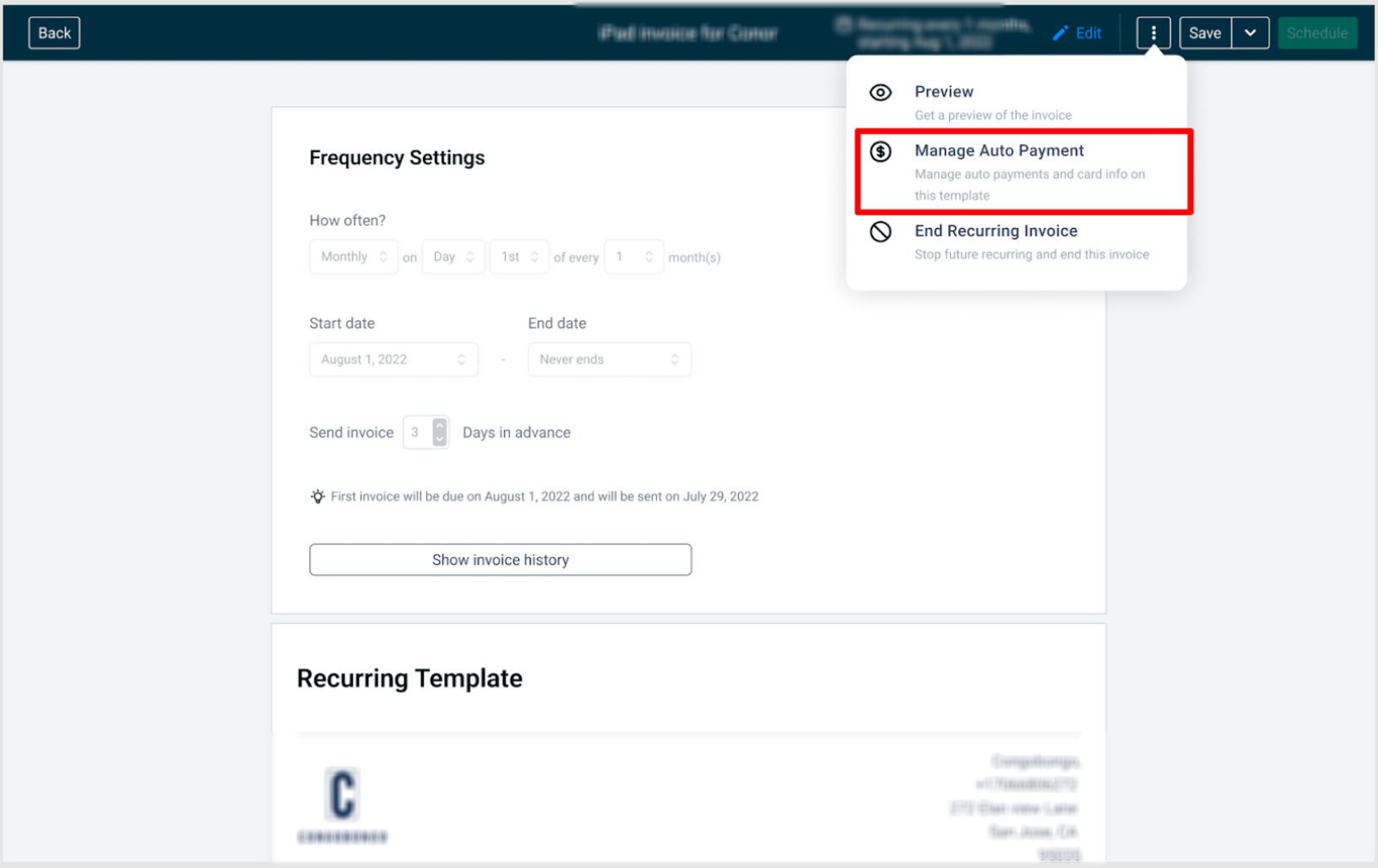
This screen shows how to access the auto payment management option and disable automatic billing for future invoice cycles.
Disabling auto payment prevents future invoices from being charged automatically but does not affect past transactions.
Frequently Asked Questions
Q: Can auto payment be enabled after a recurring invoice is already active?
Yes, auto payment can be turned on at any time from the invoice settings.
Q: What happens if the customer updates their card after a failed payment?
The new card will be used for future automatic payments once the payment is successfully completed.
Q: Will customers be notified before being charged?
Yes, customers receive advance notifications before automatic charges are processed.
Q: Can I choose which card gets charged?
Yes, you can select between customer card, saved card, or a new card.
Q: Does disabling auto payment cancel the invoice?
No, it only stops automatic charges. The invoice will still exist and can be paid manually.
Need Help?
If automatic payments are not working as expected or you need assistance configuring payment options, reach out to support for guidance.