
When a recurring subscription payment fails, an invoice is automatically generated so the customer has another way to complete payment. Automatic retries can also attempt to recover the payment according to your configured schedule. You can control the number and timing of retry attempts and decide whether a subscription remains unpaid or is canceled if recovery is unsuccessful.
TABLE OF CONTENTS
- What Are Failed Subscription Payment Retries?
- Key Benefits of Failed Payment Retries
- How Failed Subscription Payments Are Handled
- How Retry Scheduling Works
- How to Configure Failed Payment Retries
- What Happens When Payment Is Recovered?
- What Happens When All Retries Fail?
- Best Practices for Failed Subscription Payments
- Frequently Asked Questions
- Need Help?
What Are Failed Subscription Payment Retries?
Failed payment retries give recurring subscriptions additional opportunities to collect payment after an initial charge is unsuccessful. An invoice is also generated for the failed payment, allowing the customer to complete payment without waiting for the next automatic retry.
The two recovery methods work together:
- Automatic retry: The saved payment method is charged again according to the configured retry schedule.
- Invoice payment: The customer can use the generated invoice to complete payment before the next scheduled retry.
If the invoice is paid before the next retry, the remaining retry process stops.
Key Benefits of Failed Payment Retries
Failed payment retries provide a structured way to recover recurring revenue while giving customers time to resolve payment issues.
- Automatic recovery: Retry unsuccessful subscription payments without manually processing each charge.
- Flexible scheduling: Configure up to three retry attempts and choose the delay before each attempt.
- Multiple payment options: Customers can pay the generated invoice while automatic retries are pending.
- Subscription continuity: Successful recovery can return an eligible subscription to Active status.
- Final-status control: Decide whether a subscription remains Unpaid or is automatically canceled after all retries fail.
- Consistent management: Updated retry settings can affect applicable subscriptions already going through the retry process.
How Failed Subscription Payments Are Handled
Understanding the recovery process helps you determine what customers experience after a recurring payment fails.
- An invoice is automatically generated for the failed payment.
- The customer can use the generated invoice to complete payment.
- Automatic payment retries begin according to the configured retry schedule.
- The customer can complete invoice payment while automatic retries are pending.
- If payment succeeds before the next retry, additional retries stop.
- If payment is recovered and no other invoice remains pending for the subscription, the subscription can return to Active status.
- If every configured retry fails, the subscription remains Unpaid unless automatic cancellation has been enabled.
When a customer uses a new eligible payment method while paying the generated invoice, that payment method may also be used for future subscription payments.
How Retry Scheduling Works
Retry scheduling controls how many additional collection attempts are made and how long the system waits between them. This gives customers time to resolve temporary payment issues while keeping unpaid subscriptions manageable.
You can configure:
- Up to three retry attempts.
- A delay of 1, 3, 5, or 7 days for each configured retry.
The default configuration uses three retry attempts with a one-day delay between attempts.
How to Configure Failed Payment Retries
Configuring retry behavior determines how long payment recovery continues and what happens if every collection attempt is unsuccessful.
Open Subscription Retry Settings
Go to Payments → Settings → Subscriptions.
Locate Manage failed payments for subscriptions.
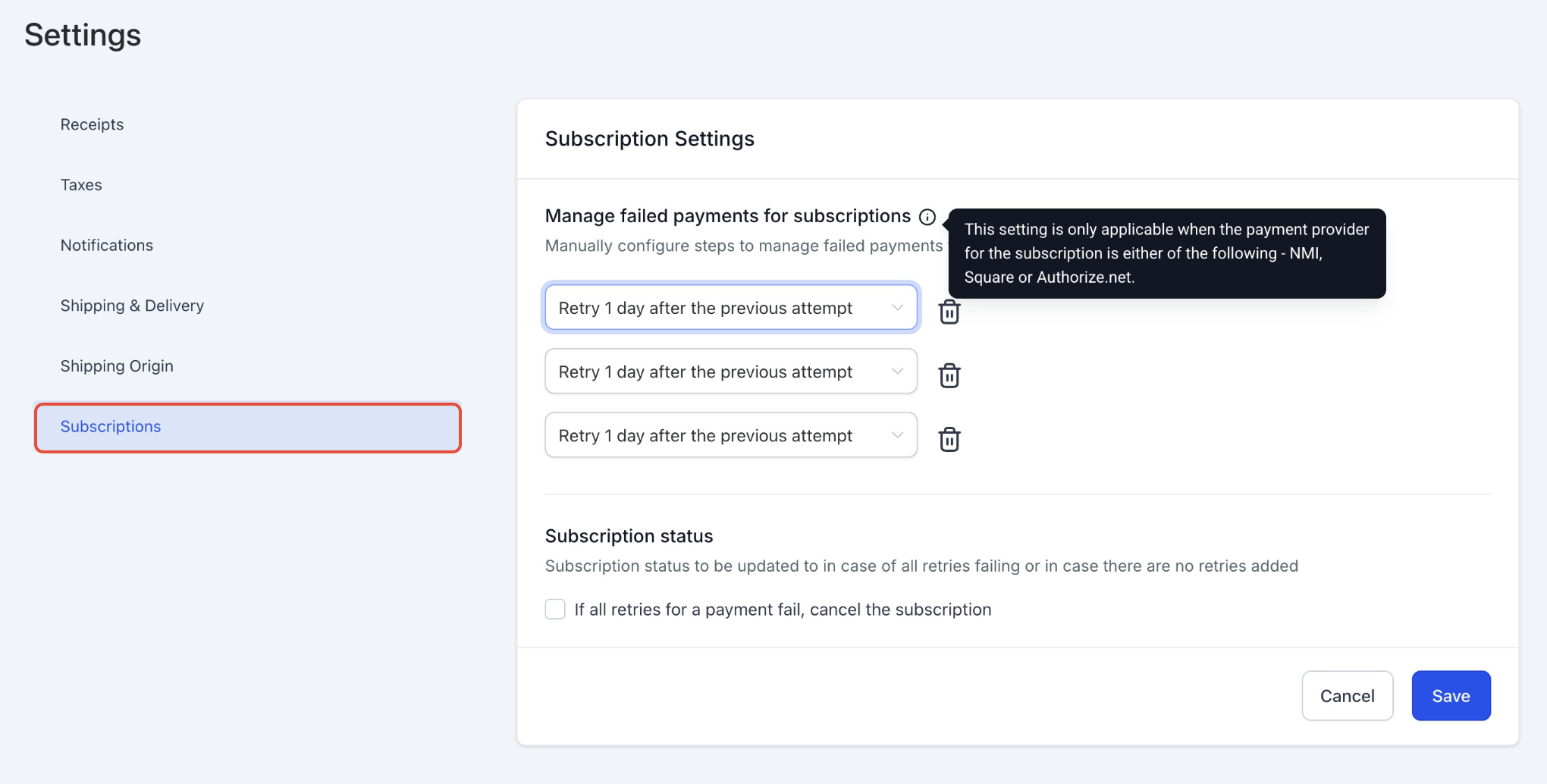
Open the subscription settings and locate the failed-payment retry controls before changing the recovery schedule.
Choose the Retry Schedule
Select the delay for each retry attempt you want to use.
Available intervals include:
- Retry 1 day after the previous attempt
- Retry 3 days after the previous attempt
- Retry 5 days after the previous attempt
- Retry 7 days after the previous attempt
Use the delete icon beside a retry when you want to remove that attempt.
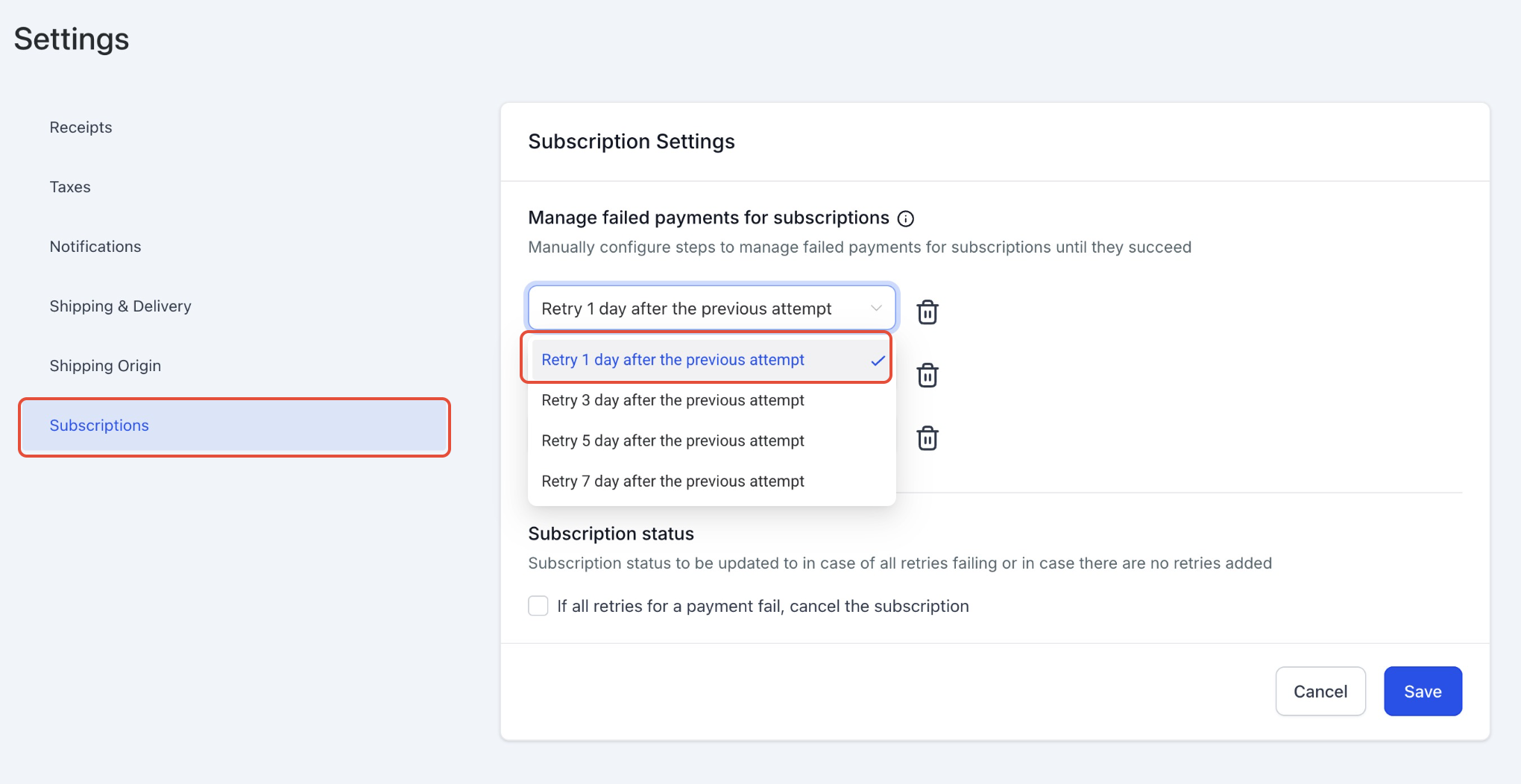
Open the retry dropdown and choose how many days the system should wait after the previous attempt before trying the payment again.
Save the Retry Configuration
Review the complete retry sequence, then click Save.
What Happens When Payment Is Recovered?
A successful recovery allows the subscription to continue without requiring you to recreate it. Payment may be recovered through an automatic retry or when the customer pays the generated invoice.
When payment succeeds:
- The successful transaction is recorded.
- The related payment obligation is resolved.
- Remaining retries for that failed payment stop.
- The subscription can return to Active when no other invoice remains pending against it.
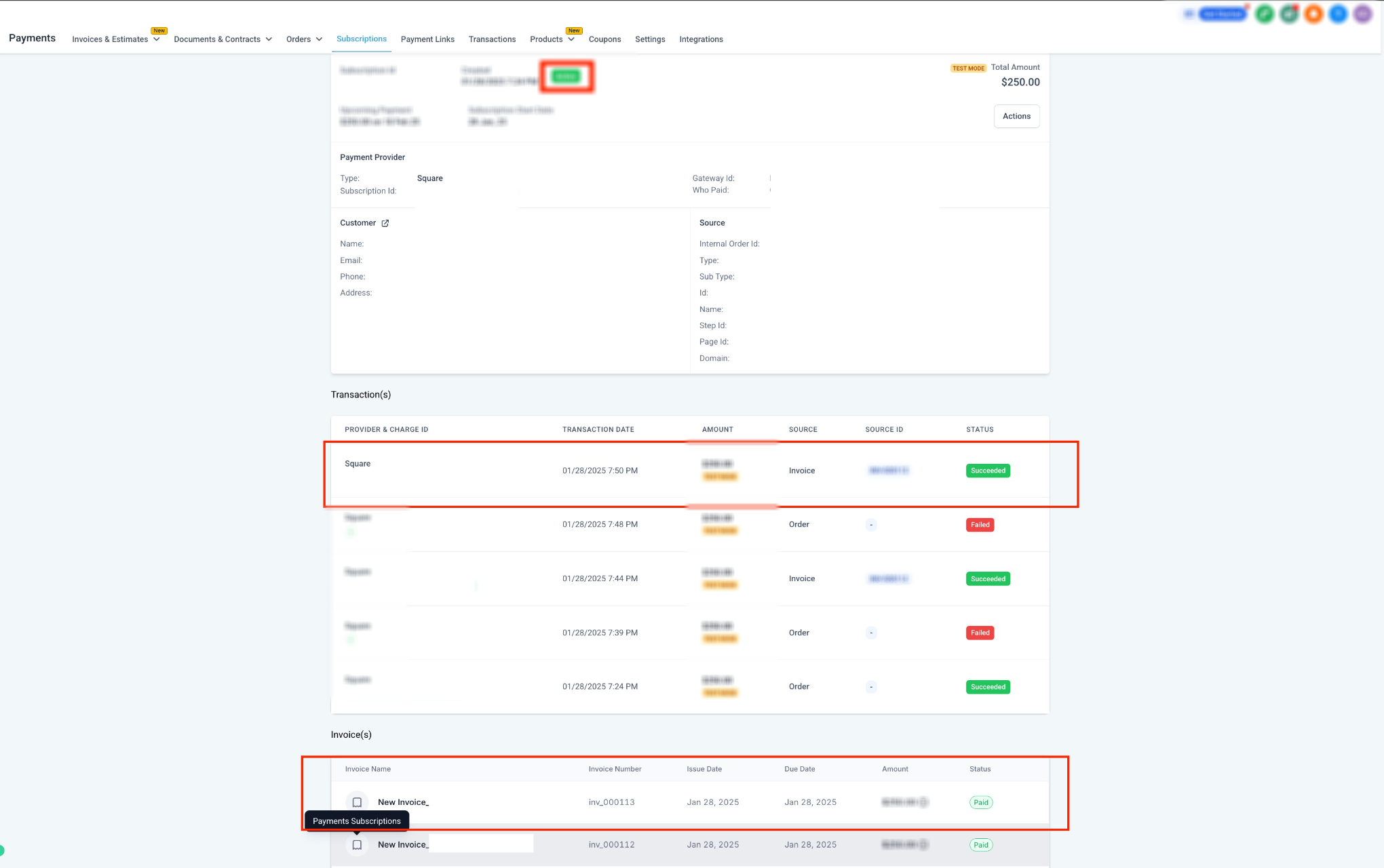
Open the subscription after payment succeeds and confirm that the status is Active and the successful transaction appears in the payment history.
What Happens When All Retries Fail?
A subscription that cannot be recovered needs a clear final status so unpaid subscriptions can be identified and managed appropriately.
If all configured retries fail, the subscription remains Unpaid unless automatic cancellation has been enabled.
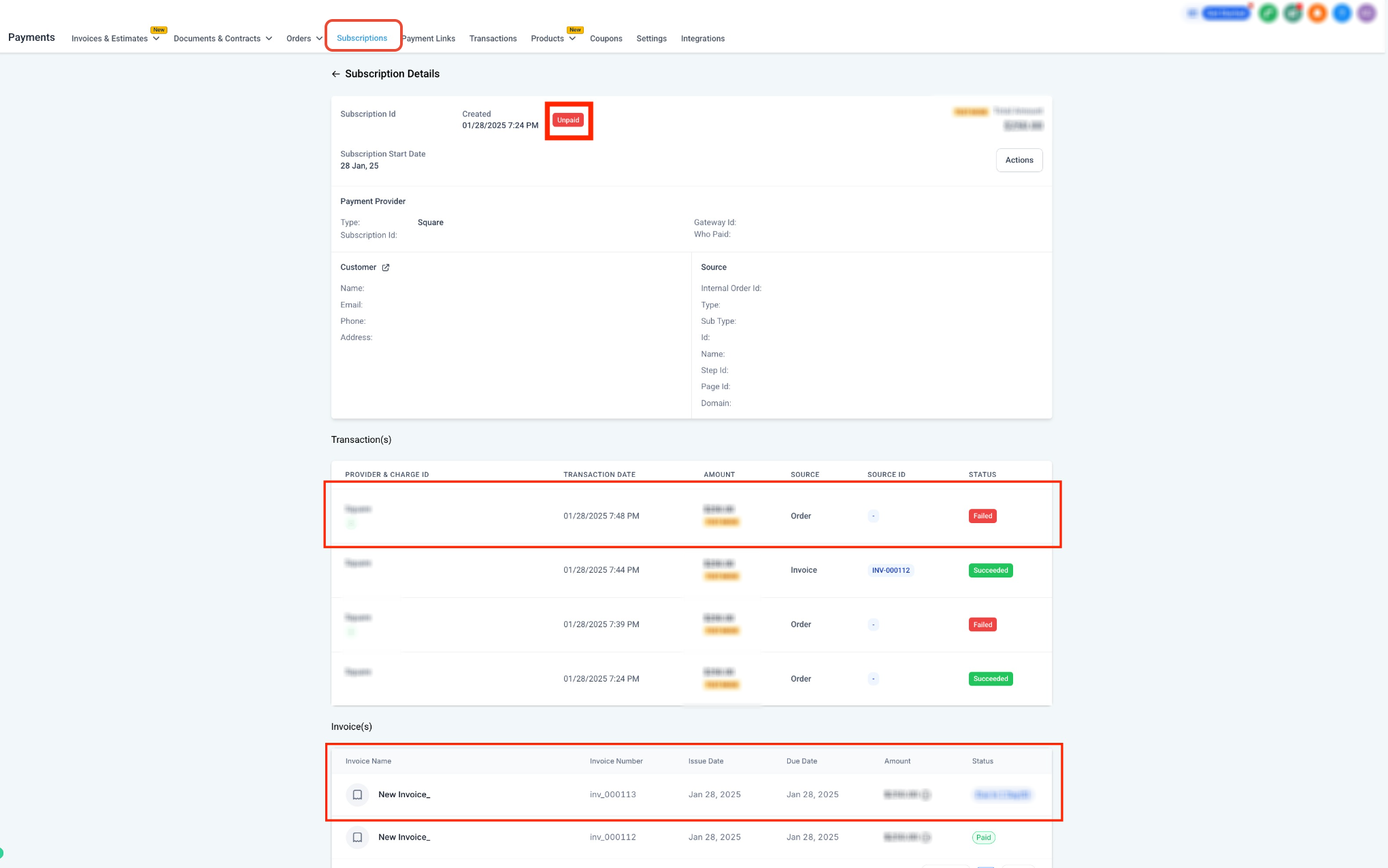
Open the subscription after the final unsuccessful attempt and confirm the Unpaid status and failed transaction history.
Automatically Cancel After All Retries Fail
You can choose to cancel the subscription automatically when every configured retry has been unsuccessful.
Go to Payments → Settings → Subscriptions and locate Subscription status.
Enable:
If all retries for a payment fail, cancel the subscription
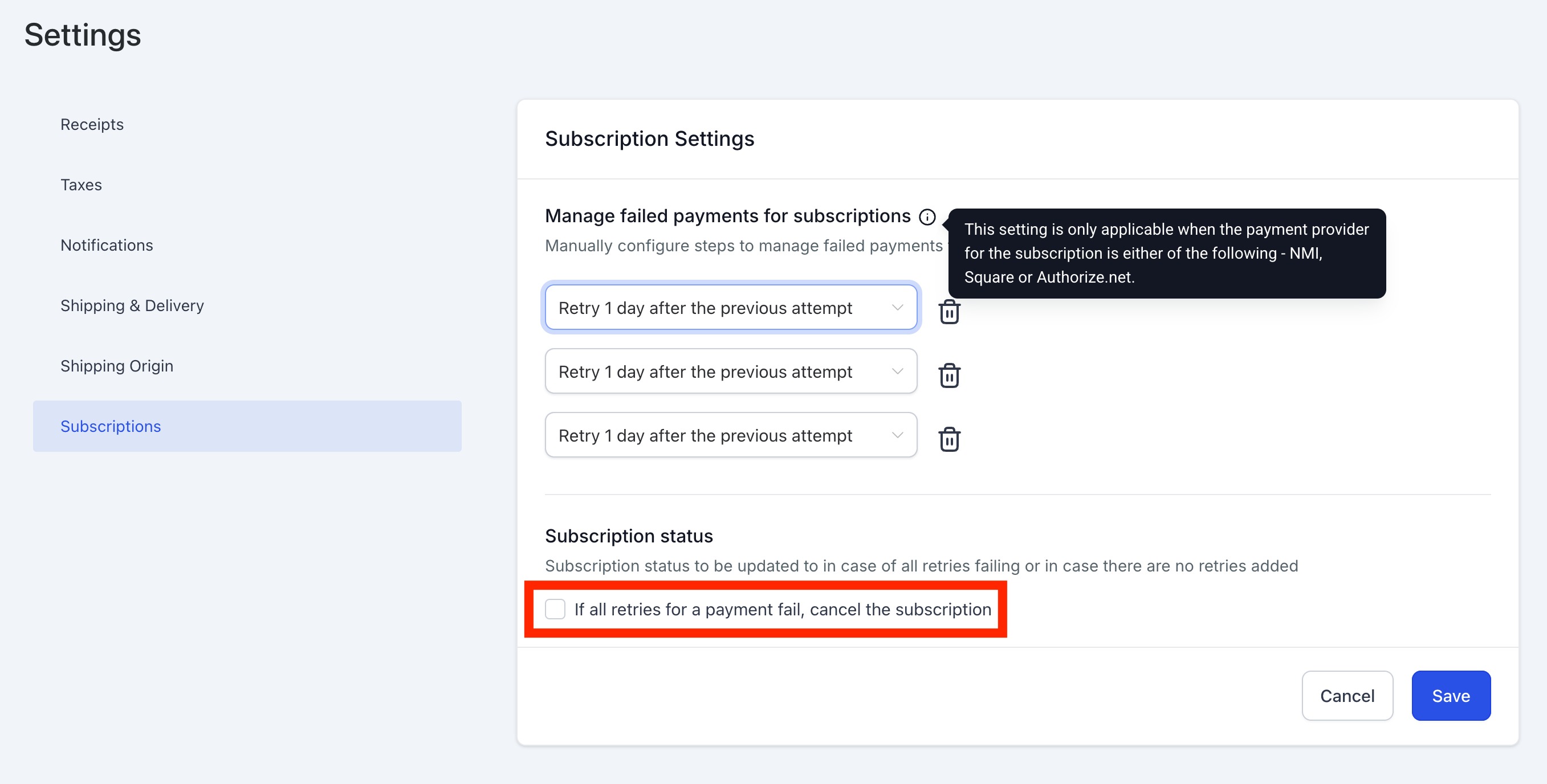
Enable the cancellation option when subscriptions should automatically be canceled after all configured recovery attempts fail, then click Save.
Best Practices for Failed Subscription Payments
A clear recovery strategy can reduce failed renewals while keeping subscription records and outstanding balances easier to manage.
- Choose a retry schedule that gives customers enough time to resolve temporary payment issues.
- Review active retry cycles before changing retry settings.
- Monitor Unpaid subscriptions regularly when automatic cancellation is disabled.
- Review generated invoices before attempting additional manual collection.
- Confirm that the subscription returns to Active after successful recovery.
- Check for other unpaid invoices if a successfully recovered subscription does not become active.
- Use automatic cancellation only when it matches your subscription and customer-service policies.
Frequently Asked Questions
Q: How many times can a failed subscription payment be retried?
You can configure up to three additional retry attempts.
Q: How long can I wait between retry attempts?
Each retry can be configured for 1, 3, 5, or 7 days after the previous attempt.
Q: What happens if the customer pays the generated invoice before the next retry?
The payment is recorded and the remaining retry process for that failed payment stops.
Q: Can a customer use a different payment method on the generated invoice?
The customer can use an eligible payment method available through the invoice. The payment method used may also become available for future subscription payments.
Q: What happens if every automatic retry fails?
The subscription remains Unpaid unless the option to automatically cancel it after all retries fail is enabled.
Q: Do changes to retry settings affect subscriptions already being retried?
Yes. Updated retry settings can affect applicable subscriptions that are already going through the retry process.
Q: Why is a subscription still unpaid after a payment succeeds?
Check whether another invoice remains outstanding for the subscription. The subscription can return to Active only after the required payment obligations have been resolved.
Q: Why do I not see the failed-payment retry settings?
The subscription may use a payment connection that does not support configurable retries. Confirm that the connection used for recurring payments supports this feature.
Q: Do I need to create an invoice manually when a subscription payment fails?
No. An invoice is automatically generated for the failed subscription payment.
Need Help?
If a failed subscription payment is not retrying or the subscription status does not update as expected, first review the payment history and current retry configuration.
Verify that:
- The subscription uses a payment connection that supports configurable retries.
- At least one retry attempt is configured.
- The expected retry date has been reached.
- Recent changes to the retry schedule were saved.
- The customer has not already paid the generated invoice.
- The transaction history shows whether each attempt succeeded or failed.
- No other unpaid invoice is preventing the subscription from returning to Active.
- The automatic cancellation setting matches the status you expect after all retries fail.
If the issue continues, capture the subscription status, retry configuration, invoice status, transaction history, and expected retry date before contacting support.