
Receipts and flexible payment options play a major role in improving customer experience and increasing conversions. With the PayPal Payment Element, you can now offer PayPal and PayLater as payment methods across multiple payment surfaces, making it easier for customers to complete transactions.
This feature allows you to accept payments through PayPal in forms, invoices, payment links, and order forms—giving customers more choice and improving checkout performance.
TABLE OF CONTENTS
- What is the PayPal Payment Element?
- Benefits of Using PayPal in Payment Elements
- Where PayPal Can Be Used
- How to Enable PayPal in the Payment Element
- Important Notes
- Frequently Asked Questions
- Need Help?
What is the PayPal Payment Element?
The PayPal Payment Element allows you to accept payments using PayPal and PayLater within your existing payment setup. It adds trusted, widely used payment options to your checkout experience without requiring complex setup.
Customers can securely complete payments using their PayPal account or choose PayLater (if eligible), helping reduce friction during checkout.
Benefits of Using PayPal in Payment Elements
Adding PayPal improves both customer experience and payment success rates by offering familiar and flexible payment options.
More Payment Choices: Customers can choose PayPal or PayLater instead of only card payments
Higher Conversion Rates: Trusted payment methods reduce drop-offs
Seamless Checkout Experience: Smooth and secure payment flow
Global Accessibility: PayPal supports international customers
Quick Setup: Easily integrates into existing payment workflows
Where PayPal Can Be Used
PayPal works across multiple payment experiences, allowing you to collect payments in different ways.
Websites & Funnels: Accept payments using order forms
Forms & Surveys: Use payment collection elements
Invoices: Allow clients to pay invoices via PayPal
Payment Links: Share direct payment links with PayPal enabled
Online Stores: Offer PayPal during checkout
How to Enable PayPal in the Payment Element
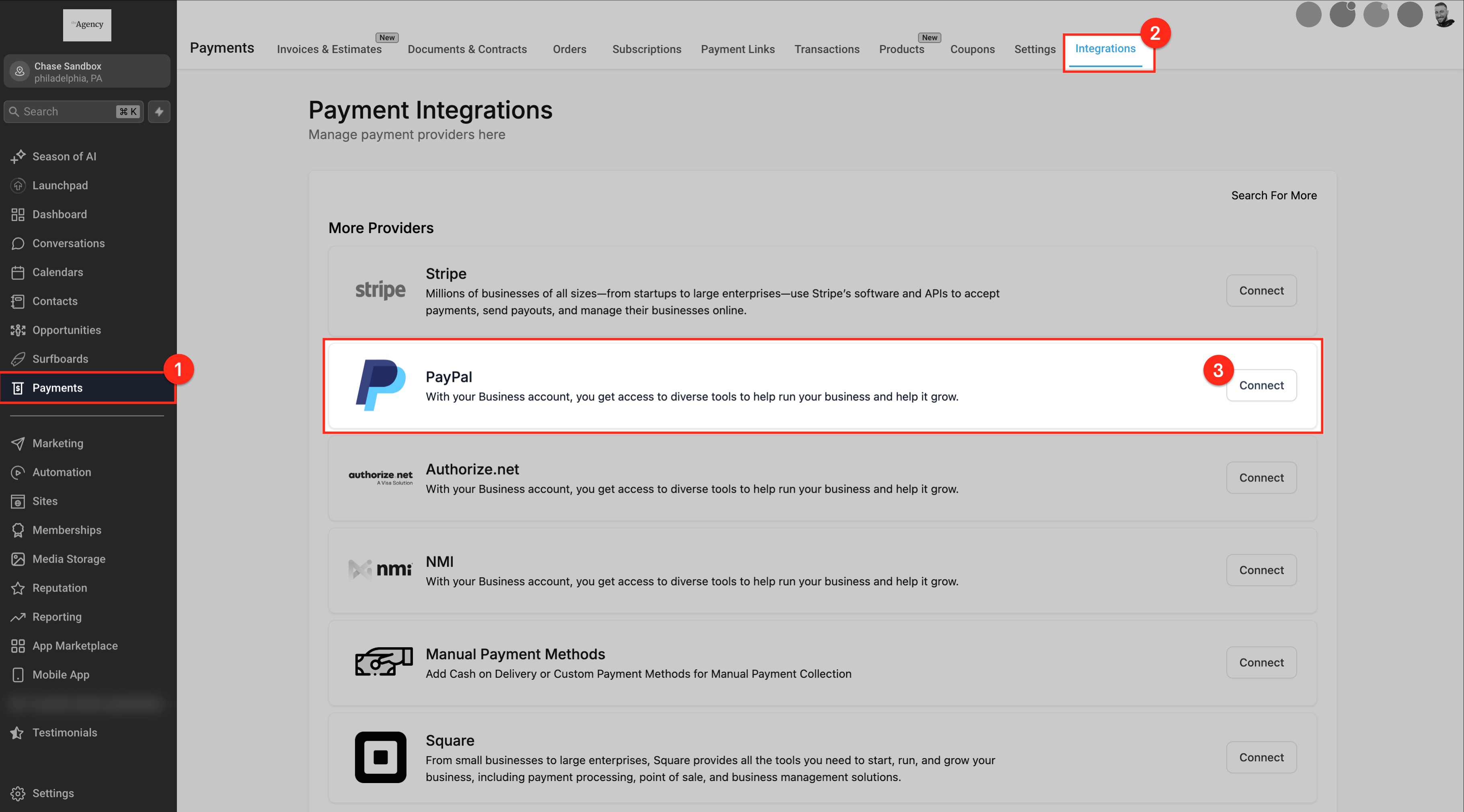
This image should show where to connect your PayPal account and enter credentials.
To start accepting PayPal payments, connect your PayPal account in your payment settings.
Go to your payment integrations section
Select PayPal
Enter your Client ID and Secret Key
Save your settings
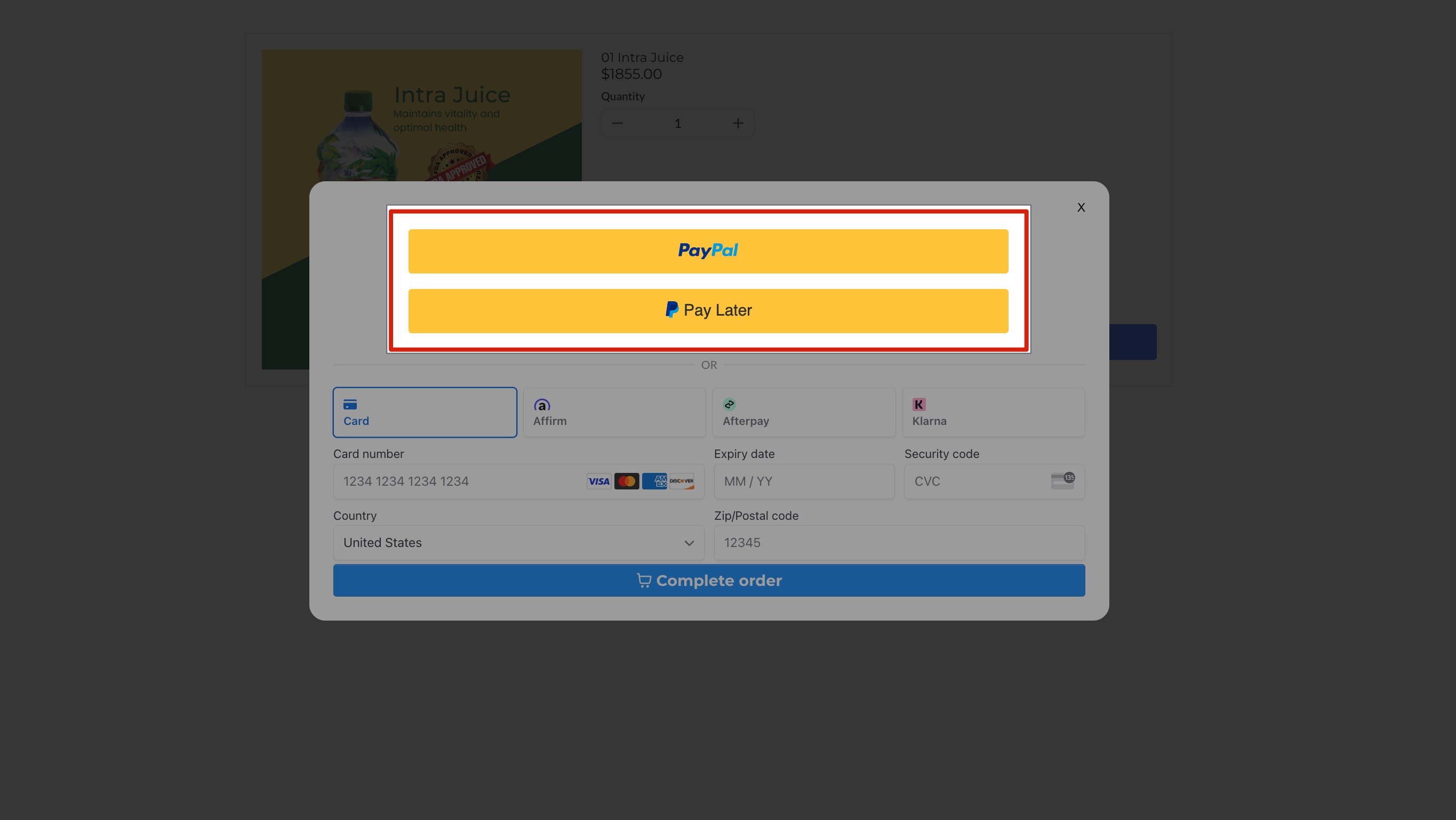
This image should show where to add payment elements or order forms.
To enable PayPal at checkout:
Add a payment element where you collect payments
Use the appropriate payment component based on your setup:
Forms/Surveys → Use Collect Payment element
Websites/Funnels → Use Order Form elements
Ensure your payment element is updated to the latest version
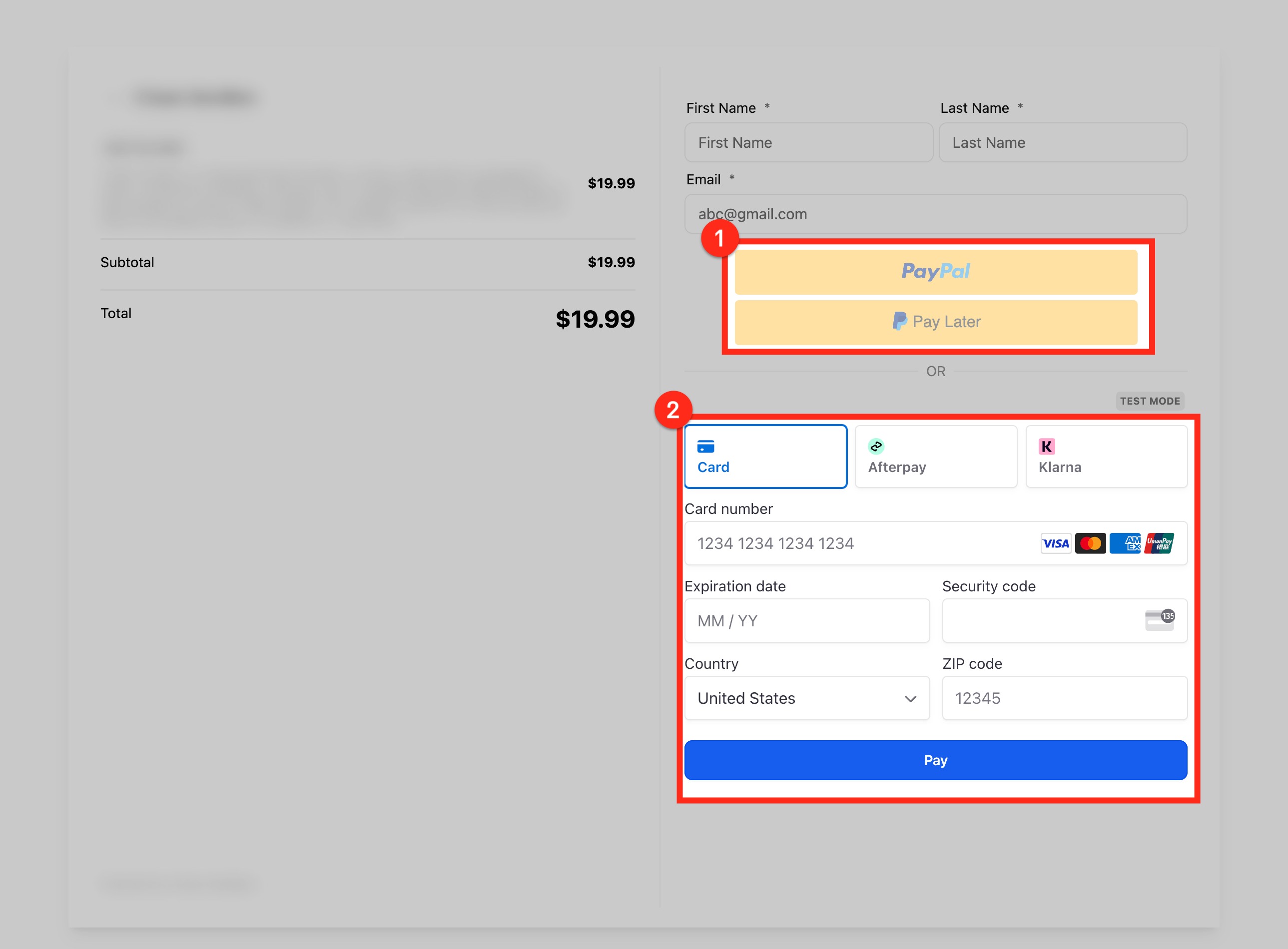
This image should show the checkout preview where PayPal buttons appear.
PayPal buttons only appear in preview or live mode.
Preview your form, page, or funnel
Confirm PayPal options are visible to customers
Important: PayPal buttons will not appear inside the builder view.
Important Notes
Older order forms may not support PayPal
If created before updates, remove and re-add the element
PayLater availability depends on customer eligibility
PayPal works alongside other payment methods
Frequently Asked Questions
Q: How do I get PayPal Client ID and Secret Key?
Log into your PayPal developer account and create an app to generate these credentials.
Q: Can customers choose between PayPal and other payment methods?
Yes, customers will see all available payment options during checkout.
Q: Why don’t I see PayPal buttons in the builder?
PayPal buttons only appear in preview or live mode, not inside the editor.
Q: Do I need to update existing payment elements?
Yes, older elements must be updated or re-added to support PayPal.
Q: Is PayLater always available?
No, availability depends on customer eligibility and PayPal conditions.
Need Help?
If you need assistance enabling PayPal or troubleshooting payment elements, contact support or refer to your payment setup documentation.