
Sync Edits to Template controls whether a workflow email stays connected to its original email template. Enable continuous sync to keep both versions updated together, or turn it off to customize the workflow email independently. You can also use Sync Once to copy the current template into a workflow email without enabling ongoing sync. This guide explains the available sync settings, how they work, and how to manage linked workflow email actions.
TABLE OF CONTENTS
- What Is Sync Edits to Template?
- Key Benefits of Sync Edits to Template
- Prerequisites and Limitations
- How Continuous Sync and Sync Once Work
- Default Sync Settings
- How to Enable or Disable Continuous Sync
- How to Use Sync Changes and Sync Once
- Frequently Asked Questions
- Need Help?
What Is Sync Edits to Template?
When you add an existing email template to a Send Email workflow action, the action uses its own version of that content. The Sync Edits to Template setting determines whether edits to the workflow email and the linked source template update each other automatically.
This option applies to email actions that use an existing template. It is not available for every email creation method.
Key Benefits of Sync Edits to Template
Choosing the right sync setting helps you reuse email templates while controlling whether edits remain local to a workflow or update shared template content.
- Consistent Messaging: Keep shared workflow emails aligned with their source template when continuous sync is enabled.
- Safe Customization: Adapt an email for one workflow without changing the original template when sync is disabled.
- Selective Updates: Refresh an independent workflow email with Sync Once without enabling ongoing synchronization.
- Better Visibility: Review which workflow email actions are linked to a template and whether continuous sync is enabled.
Prerequisites and Limitations
Before managing synchronization, confirm that the email action uses an existing template. Understanding how each sync setting works helps you avoid unintended changes to shared email content.
- Existing Template: The Sync Edits to Template setting applies to Send Email actions that use an existing email template.
- Workflow Access: Open Automation → Workflows to review or change synchronization for a workflow email.
- Template Access: Open Marketing → Emails → Templates to review linked workflow actions through Sync Changes.
- Continuous Sync: When enabled, changes to either the workflow email or its original template can update both versions.
- Sync Once: One-time synchronization is available for eligible workflow email actions with continuous sync disabled.
Important: Review the original template and workflow email before enabling continuous sync or using Sync Once. These actions can change the content of linked workflow emails.
How Continuous Sync and Sync Once Work
Continuous sync controls future edits between the workflow email and its source template. Sync Once is a separate one-time update that copies the current template content into a selected workflow email.
| Mode | What Happens | Best For |
|---|---|---|
| Sync ON | Edits to the workflow email update the source template, and template edits update the workflow email. | Messages that should stay aligned. |
| Sync OFF | The workflow email and source template remain independent. Later edits to either do not update the other. | Workflow-specific versions. |
| Sync Once | Copies the current template content into the workflow email one time while continuous sync remains off. | Refreshing selected independent emails. |
Important: With continuous sync enabled, editing a workflow email can also update the shared source template. Before using Sync Once, review both the template and workflow email because the one-time update applies the template's current content to the selected action.
Default Sync Settings
Checking the current sync setting before editing helps prevent unintended changes to shared templates.
- New Send Email actions using a template: Continuous sync is OFF by default.
- Existing email actions: The setting can be ON or OFF depending on the action's history. Check the current setting before making edits.
How to Enable or Disable Continuous Sync
Configure synchronization directly inside the workflow email action to control whether future edits remain independent or continue updating the linked template.
- Go to Automation → Workflows and open or create a workflow.
- Add or edit a Send Email action.
- Choose Select Existing Template and select a saved email template.
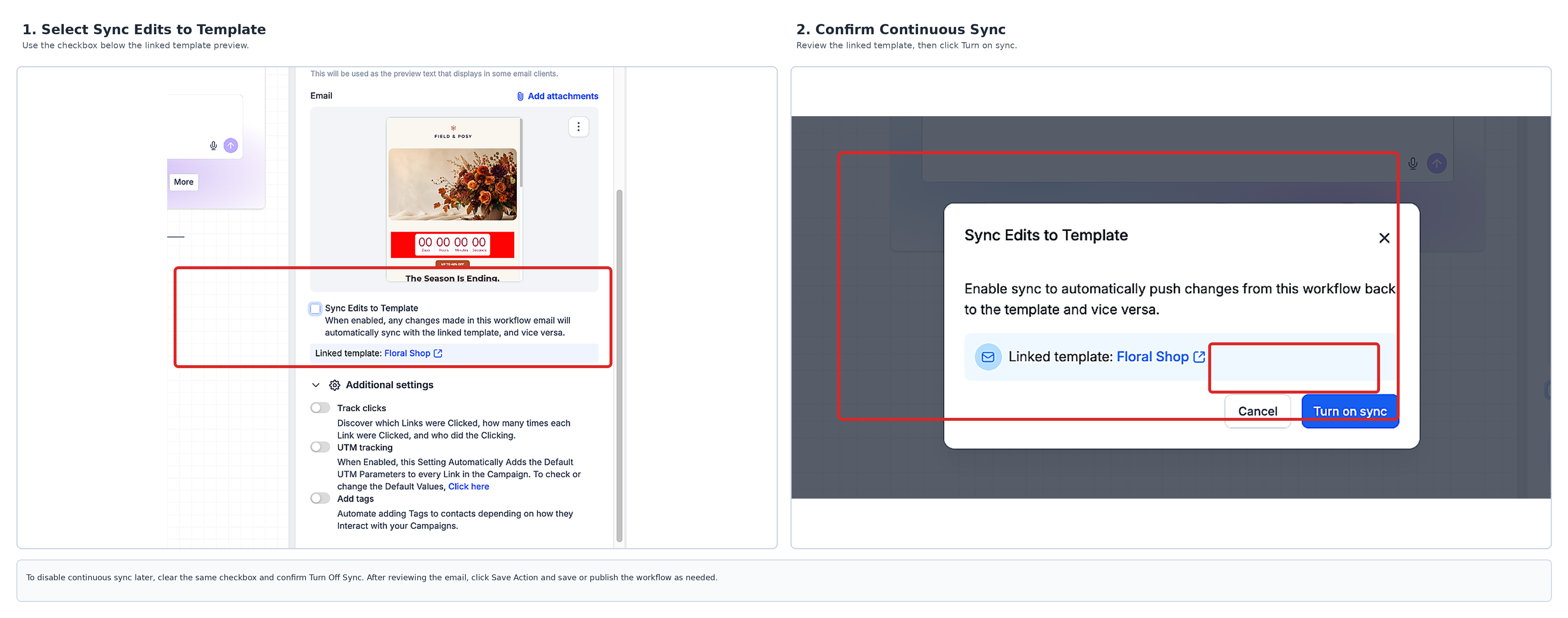
- Find Sync Edits to Template below the template preview and check its current state.
- To enable continuous sync, select the checkbox and confirm with Turn On Sync when prompted.
- To disable continuous sync, clear the checkbox and confirm with Turn Off Sync when prompted.
- Review the email content and click Save Action. Save or publish the workflow as needed.
How to Use Sync Changes and Sync Once
The template-side Sync Changes dialog lists workflow email actions linked to a selected template. From this dialog, you can review continuous-sync status and apply the template's current content once to eligible workflow email actions.
- Go to Marketing → Emails → Templates.
- Find the source template.
- Open the template's three-dot menu (…) and select Sync Changes.
- Review each linked workflow email action and its Continuous Sync status.
- Select the applicable actions with continuous sync disabled.
- Click Sync Once to copy the template's current content to the selected actions.
- After the success confirmation, review the updated email actions in their workflows.
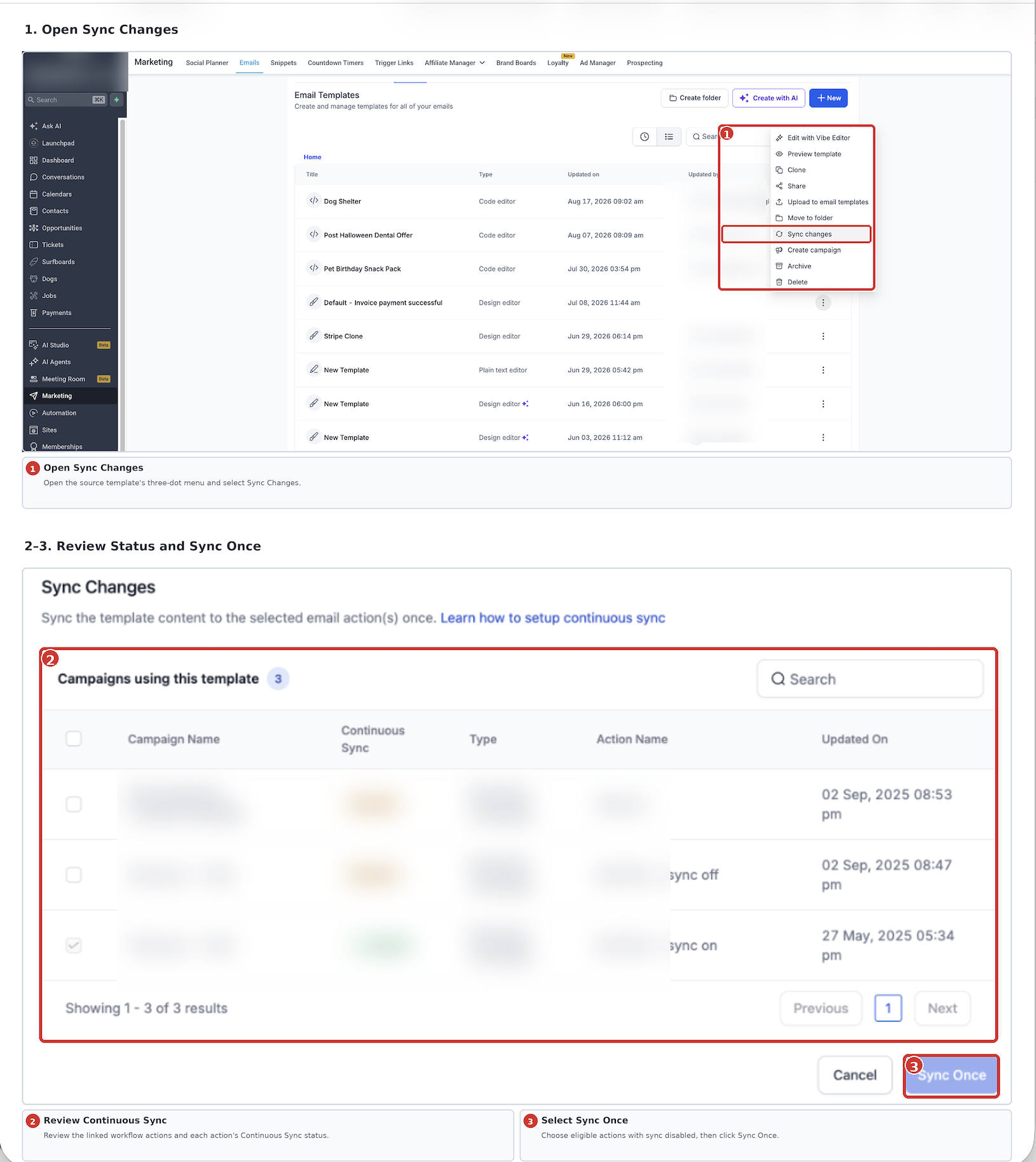
Important: Sync Once does not enable continuous sync. If continuous sync is enabled for an action, open that Send Email action and change Sync Edits to Template there. You cannot disable continuous sync from the Sync Changes dialog. To turn it off, open the corresponding Send Email workflow action and clear Sync Edits to Template.
Frequently Asked Questions
Q: Can I turn sync on or off after setting up an email action?
Yes. Open the Send Email action, change Sync Edits to Template, and confirm the change.
Q: Can workflow emails using the same template have different sync settings?
Yes. Each workflow email action can have its own continuous-sync setting. The Sync Changes dialog can show linked actions with continuous sync enabled or disabled.
Q: Can I preview what Sync Once will change?
The available documentation does not describe a built-in comparison preview. Review both the source template and workflow email before applying the one-time update.
Q: What happens to sync settings when I duplicate a workflow?
The sync setting is documented as being preserved in duplicated workflows. After duplication, check the linked template and current checkbox state before making edits.
Need Help?
If you experience issues with email template synchronization, review the Sync Edits to Template setting in the applicable workflow email action.
If changes to a workflow email are unexpectedly affecting its source template, check whether continuous sync is enabled.
If a Sync Once update does not produce the expected result, review the selected source template, linked workflow email actions, and their continuous-sync status.
Remember that continuous sync cannot be disabled from the Sync Changes dialog. Open the applicable Send Email action to change that setting.
If the issue persists, contact support for assistance. Include a description of the issue, the steps you followed, and any relevant error messages or screenshots.