
The Companies feature allows you to manage relationships at the company level instead of focusing only on individual contacts. This is especially useful when working with multiple contacts from the same organization or when you need a centralized view of business-level information.
With Companies, you can store essential details, create custom fields, filter and sort records, and search across both standard and custom data fields. This ensures your team always has structured, organized access to company information.
TABLE OF CONTENTS
- What Is the Companies Feature?
- Search Across Standard and Custom Fields
- Example Use Cases
- Frequently Asked Questions
- Need Help?
What Is the Companies Feature?
The Companies feature allows you to organize and manage business entities separately from individual contacts. This enables better visibility into company-level data, activities, and relationships.
Instead of managing separate contact records without context, Companies provides a consolidated view of business information such as:
Company name
Phone number
Email address
Website
Address details
Description
Custom business attributes
This structure improves organization, segmentation, and reporting.
Create, Edit, and Save Company Details
You can easily add new companies or update existing records to keep business information accurate and current.
Add a New Company
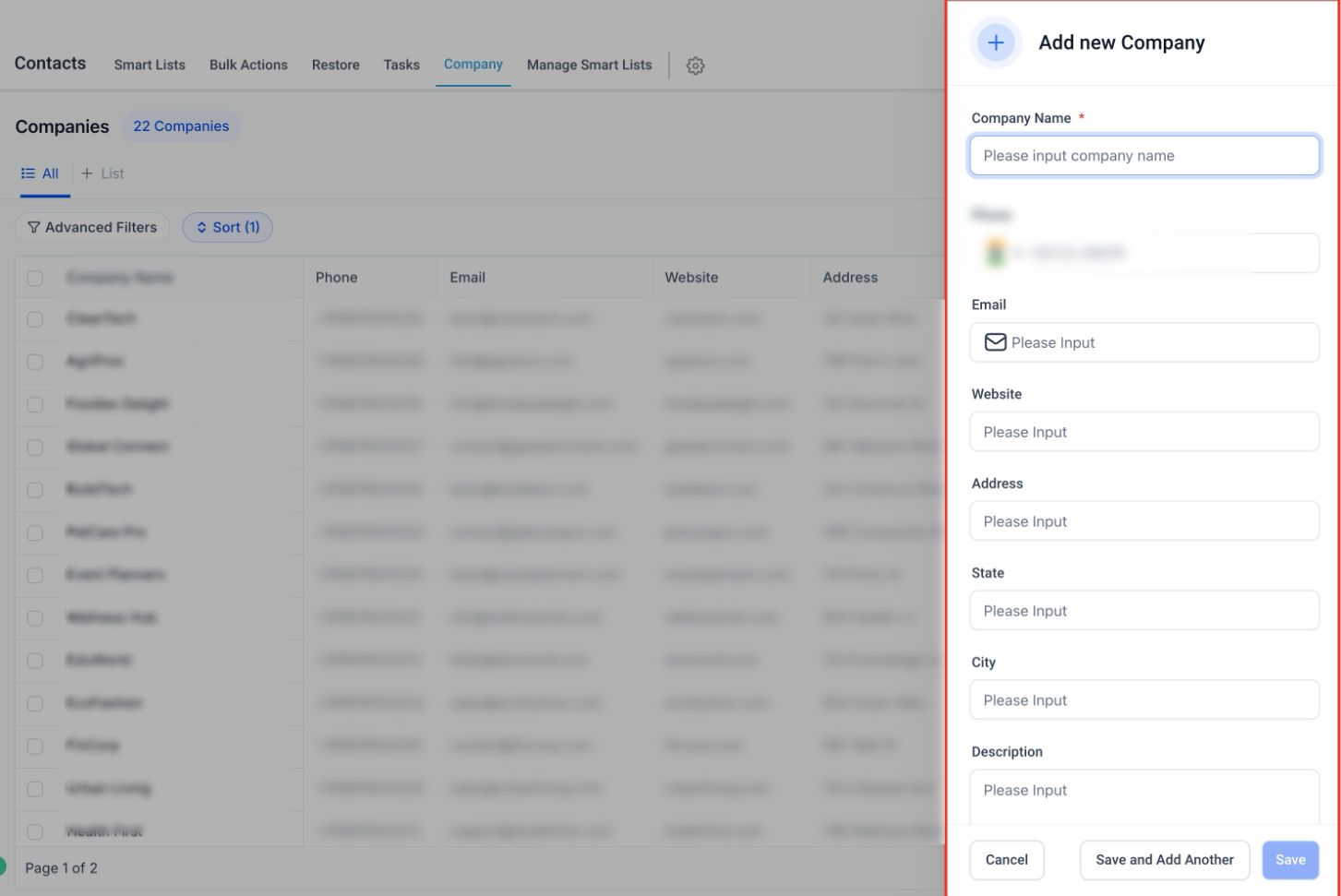
To create a new company:
Navigate to Contacts.
Click the Company tab.
Select Add Company.
Enter the required details.
Click Save.
Company Details Panel
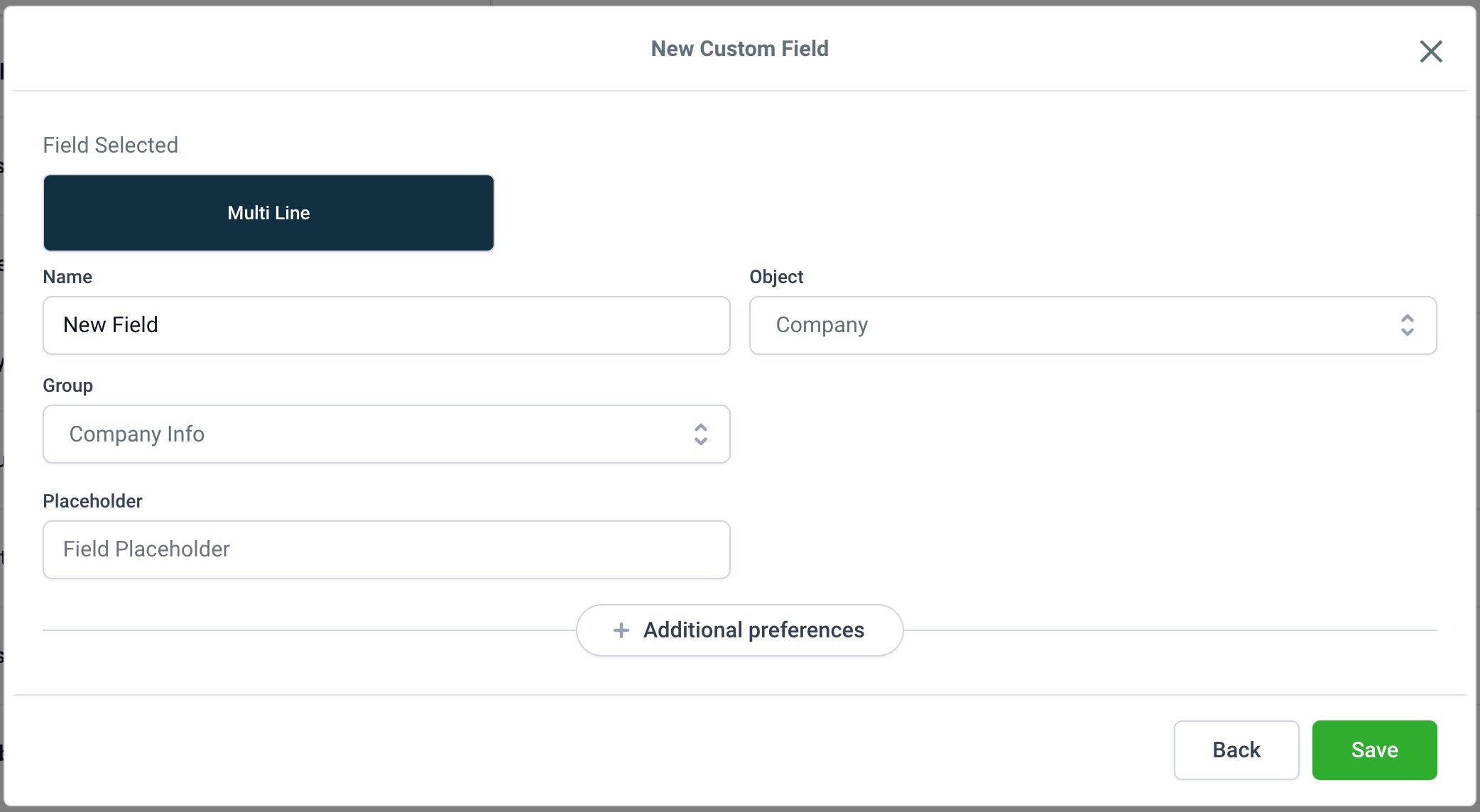
You can store:
Company Name
Phone Number
Email Address
Website
Address (State, City, Postal Code, Country)
Description
Keeping all business-level information in one place improves collaboration and accuracy.
Create and Manage Custom Fields
Custom fields allow you to capture additional company-specific data tailored to your business.
You can create fields such as:
Industry type
Revenue range
Number of employees
Internal classifications
Service categories
Create a Custom Field
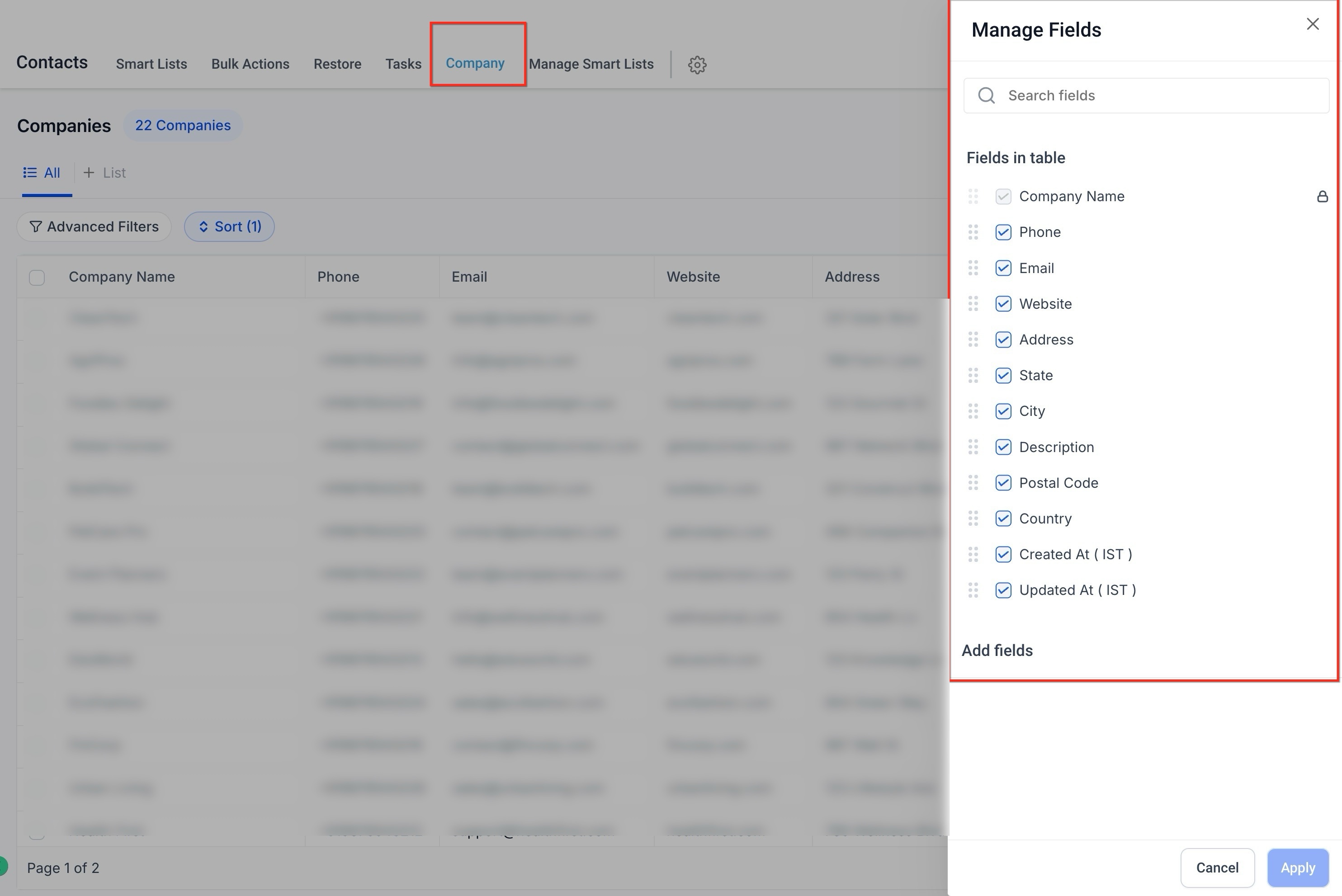
To create a custom field:
Click Manage Fields.
Select Add Field.
Choose the field type.
Enter the field name.
Assign it to the Company object.
Click Save.
Custom fields allow you to personalize how company data is tracked and segmented.
Customize the List View
The Companies list view can be customized to display only the fields that matter most to your team.
Manage Displayed Columns
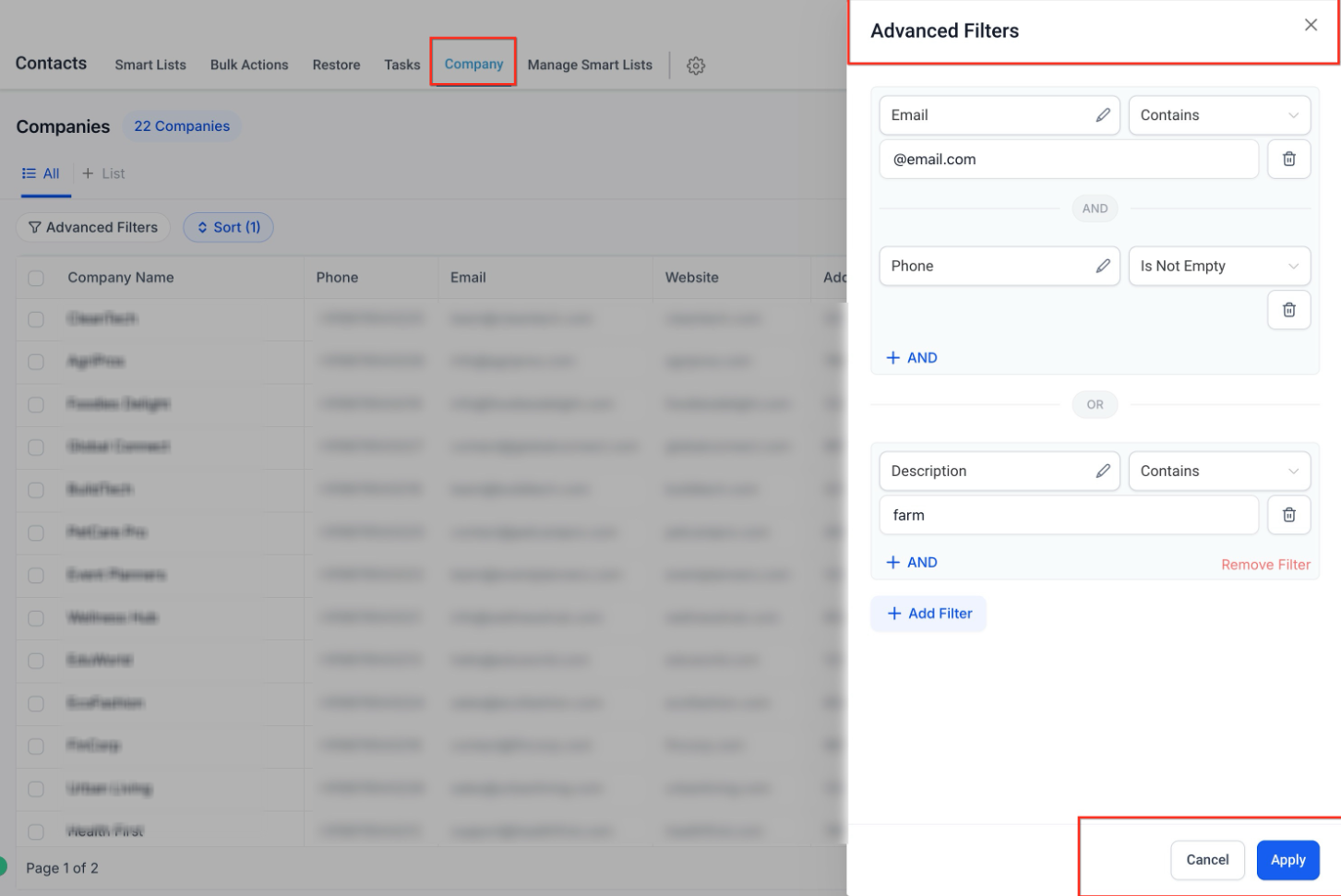
To customize your list view:
Click Manage Fields.
Select or deselect columns.
Click Apply.
You can control visibility of fields such as:
Website
State
City
Description
Custom fields
This ensures a cleaner and more efficient working view.
Advanced Filters
Advanced Filters help you narrow down company records based on specific conditions.
Apply Filters
You can filter by:
Standard fields (Email, Phone, City, State)
Custom fields
Multiple AND / OR conditions
This allows you to quickly find:
Companies in a specific region
Businesses with missing phone numbers
Companies matching industry criteria
Companies with certain descriptions
Advanced filtering improves segmentation and data accuracy.
Sorting
Sorting helps you organize company records for quick review.
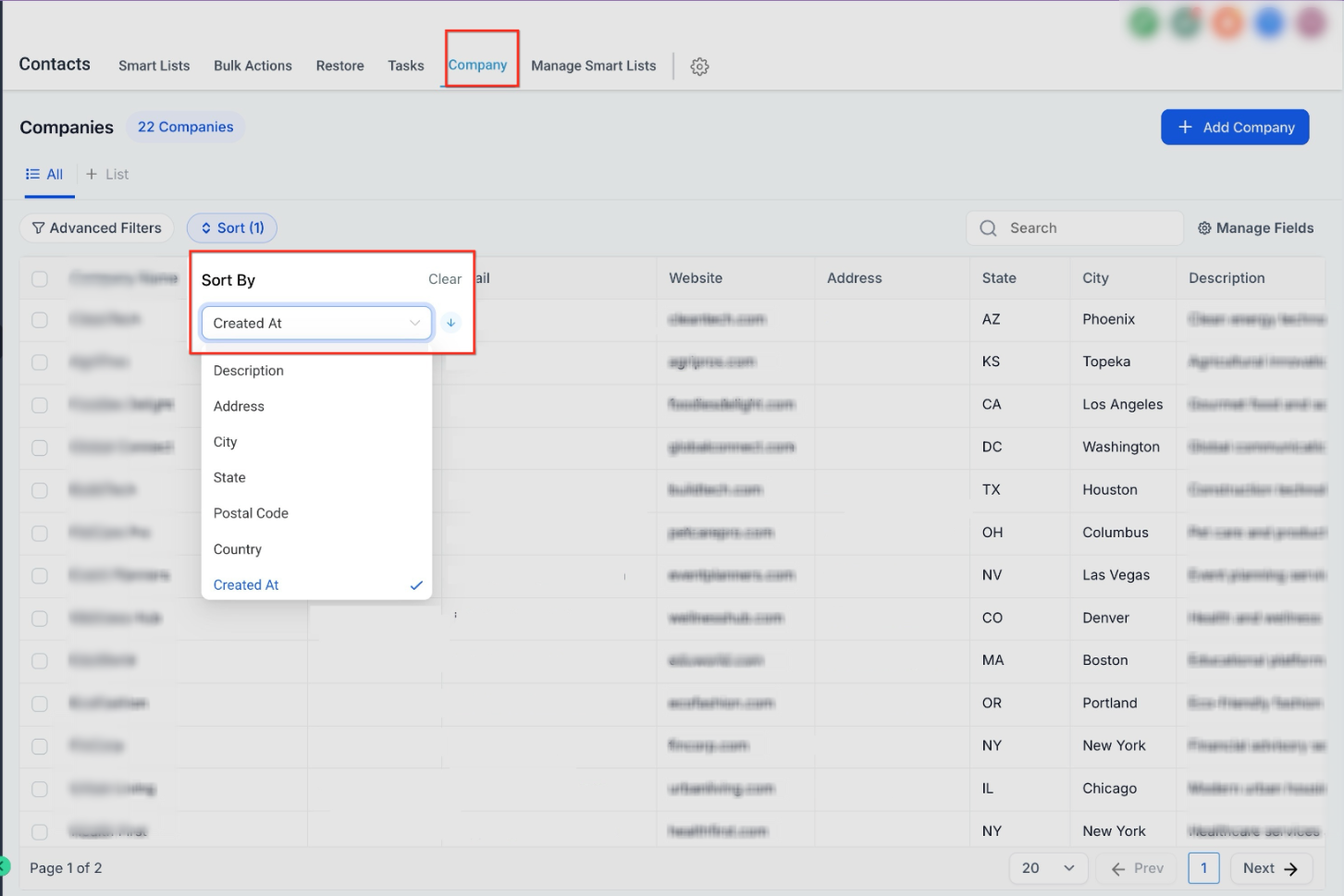
Sort Companies
You can sort by:
Company Name
Created Date
Address
City
State
Postal Code
Custom fields
Sorting allows you to prioritize the most relevant records for your workflow.
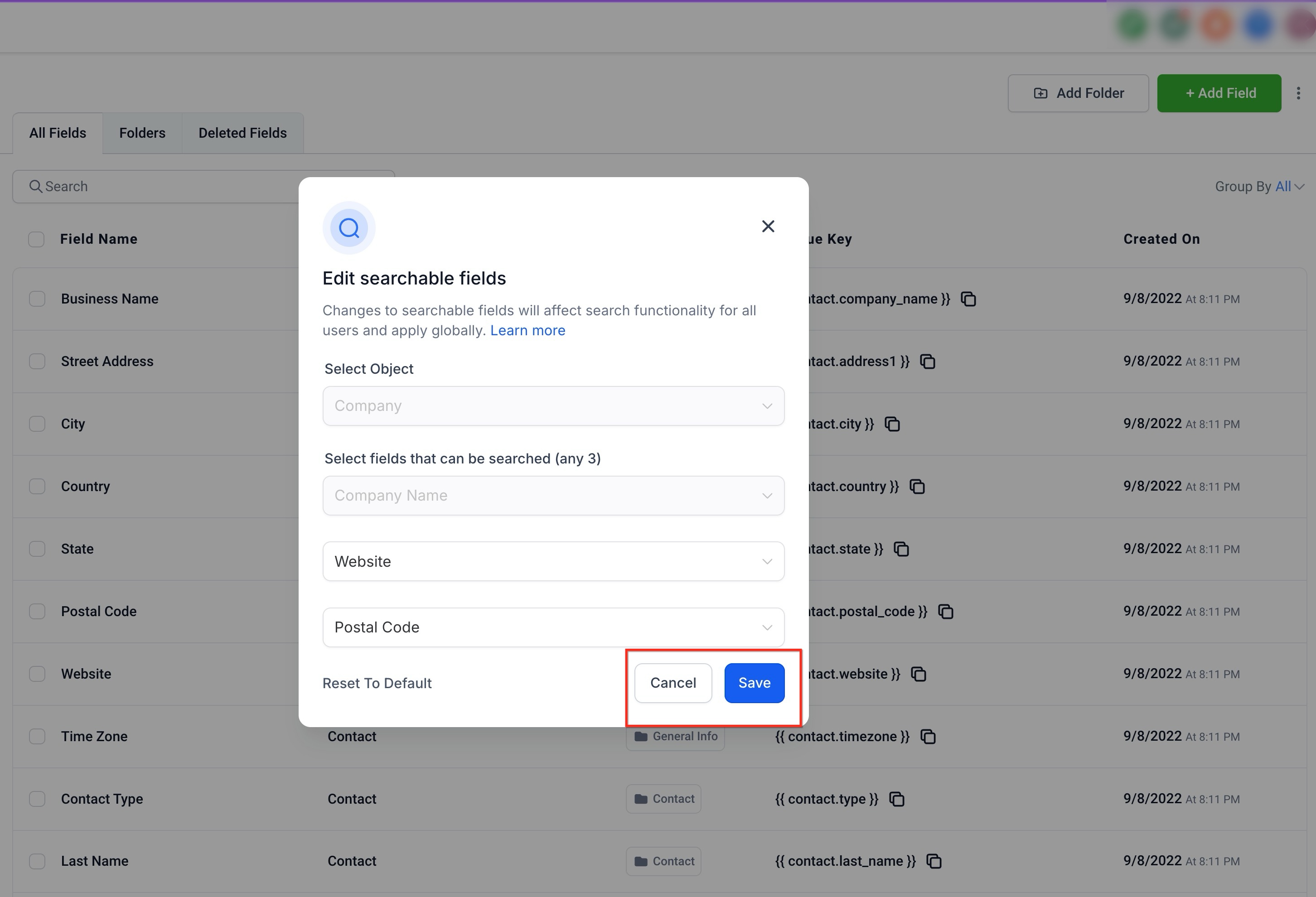
Search Across Standard and Custom Fields
The Search function allows you to quickly locate company records.
Search supports:
Company Name
Phone Number
Email Address
Address fields
Custom fields (when configured as searchable)
This ensures that even as your database grows, information remains easy to find.
Example Use Cases
Sales Teams
Track prospect companies and maintain structured business records to improve pipeline visibility.
Account Management
Maintain up-to-date company-level data for partners, vendors, and clients.
Marketing Teams
Segment companies by industry, location, or custom field criteria for targeted campaigns.
Frequently Asked Questions
Q: Can I link multiple contacts to one company?
Yes. Multiple contacts can be associated with the same company record.
Q: Can I create unlimited custom fields?
You can create multiple custom fields based on your account limits and configuration.
Q: Can I filter using custom fields?
Yes. Custom fields can be used in Advanced Filters once created.
Q: Does customizing the list view affect other users?
Column visibility applies to your current view but searchable field settings may apply globally.
Q: Can I search by custom fields?
Yes, if those fields are configured as searchable.
Need Help?
If you are experiencing issues with Companies:
Confirm the correct object (Company vs Contact) is selected when creating fields.
Ensure custom fields are properly saved.
Refresh the page if filters or sorting do not update.
Verify permissions if certain options are not visible.
If issues persist, gather:
The steps you took
Screenshots (if applicable)
The field name or filter being used
Then contact support with those details for faster assistance.