
Custom Objects allow you to structure your data in a way that reflects how your business actually operates. This guide explains what Custom Objects are, when to use them, and how to decide if they are the right fit for your needs.
Custom Objects help you organize and manage data that does not fit into standard records like contacts, companies, or deals. By creating your own structured records, you can track unique business entities, improve automation, and maintain a clean, scalable system.
TABLE OF CONTENTS
- What Are Custom Objects?
- Why Use Custom Objects?
- When Should You Use Custom Objects?
- When to Use Standard Records Instead
- Common Examples
- How to Create a Custom Object
- What’s Next?
- Frequently Asked Questions
- Need Help?
What Are Custom Objects?
Custom Objects are flexible data structures that allow you to create and manage records for anything your business tracks beyond standard entities.
They can represent items such as:
Properties
Pets
Projects
Subscriptions
Policies
Each Custom Object includes:
Its own records and fields
Relationships with other records
Compatibility with automation and reporting tools
Why Use Custom Objects?
Custom Objects help you move beyond a basic system and build a structured environment that mirrors real-world operations.
Key advantages include:
Better Organization: Keep unrelated data out of core records
Scalability: Manage large datasets without clutter
Accurate Automation: Build cleaner workflows with structured data
Advanced Relationships: Link multiple records together easily
When Should You Use Custom Objects?
Custom Objects are most useful when your business needs to track structured data that is not tied directly to a person or company.
You should use them when:
You are tracking assets, listings, or items
You need repeatable and structured records
You require relationships between multiple data types
Examples:
Properties linked to buyers and agents
Pets linked to owners
Projects linked to clients
When to Use Standard Records Instead
Custom Objects are powerful, but they are not always necessary.
Avoid using them when:
A standard record already meets your needs
You need built-in communication tools like email or campaigns
You are duplicating existing data structures
In these cases, it is better to use segmentation tools or filters instead.
Common Examples
Good Use Cases
Real Estate: Track properties with pricing, status, and location
Veterinary Clinics: Store pet records with medical details
Project Management: Track projects linked to clients
Not Recommended
Event Attendees: Standard records work better for communication
Internal Notes: Use notes or tasks instead of creating objects
How to Create a Custom Object
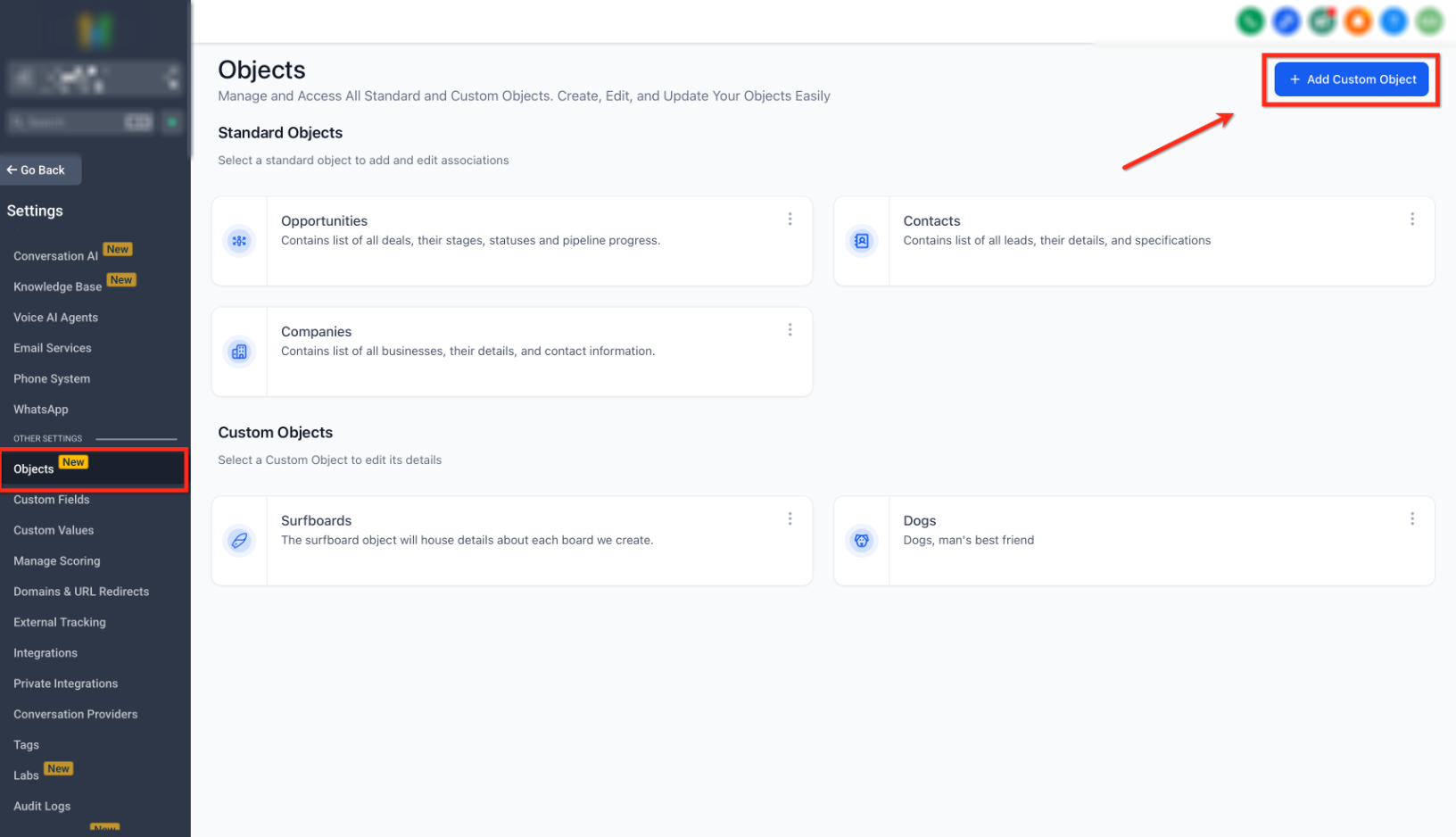
This screen shows where to access object management and create a new custom object.
Click on Objects in settings and then select Add Custom Object.
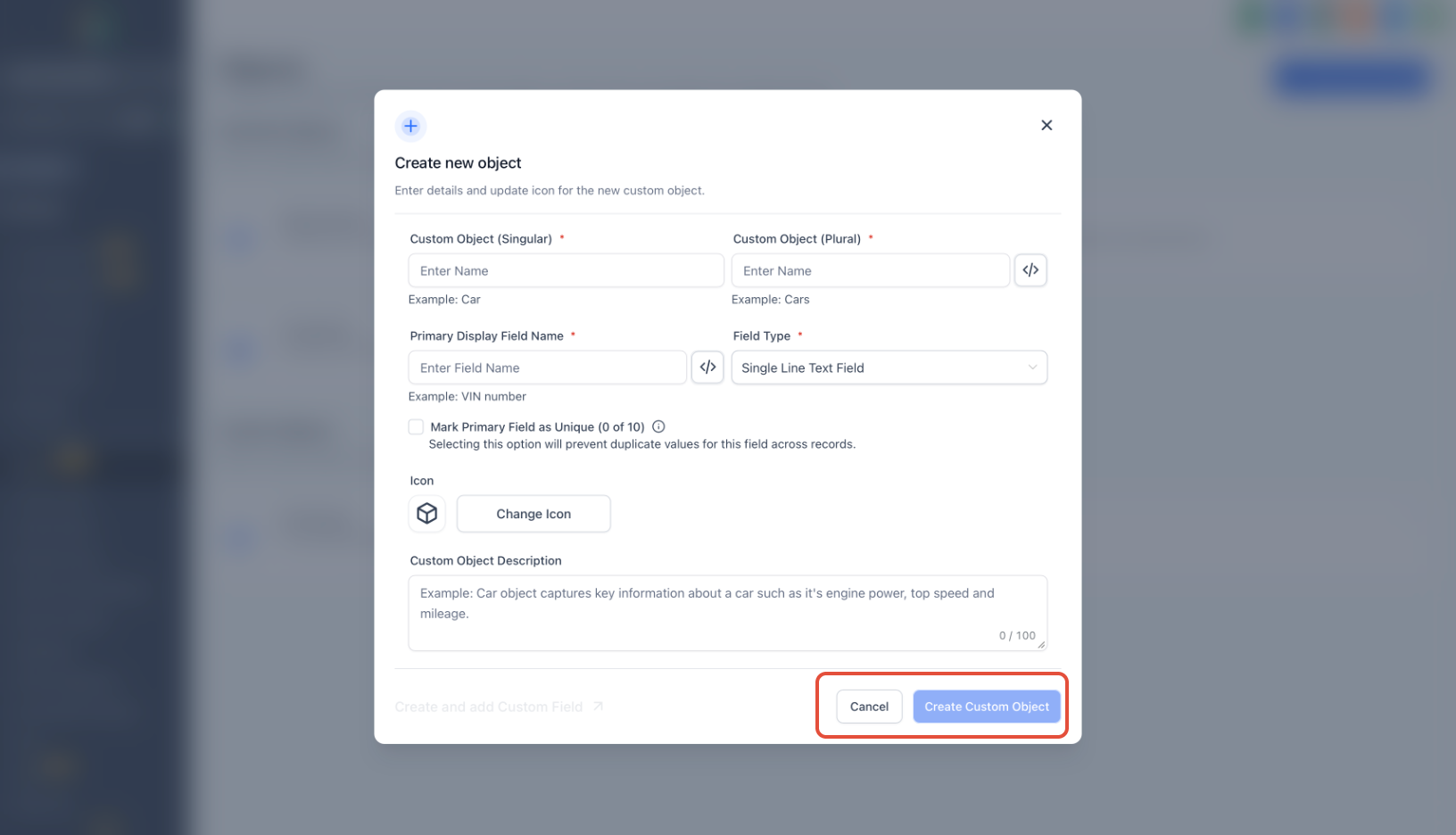
This screen displays the setup form for creating a custom object.
Enter the object name, define the primary field, choose the field type, and click Create Custom Object.
What’s Next?
After creating a Custom Object, you can:
Add custom fields
Define relationships between records
Build workflows and automations
Create forms to collect data
Use dashboards for reporting
Frequently Asked Questions
Q: What is the main purpose of Custom Objects?
Custom Objects help you track structured data that does not belong to standard records.
Q: Can Custom Objects be linked to other records?
Yes, they can be connected to multiple types of records to build relationships.
Q: Should I always use Custom Objects for new data?
No, only use them when standard records cannot handle your use case effectively.
Q: Do Custom Objects support automation?
Yes, they can be used in workflows, forms, and reporting.
Need Help?
If you need assistance setting up Custom Objects or deciding the right structure for your data, reach out to support or your system administrator for guidance.