
Custom object records allow you to store and manage structured data tailored to your business needs. This guide explains how to create, update, connect, and delete records efficiently while keeping your data organized and accessible. By following these steps, you can maintain clean, scalable records that support your workflows and reporting.
TABLE OF CONTENTS
- What Are Custom Object Records?
- Key Benefits of Custom Object Records
- Creating a New Custom Object Record
- Updating an Existing Custom Object Record
- Managing Related Objects
- Deleting a Custom Object Record
- Important Notes
- Best Practices
- Frequently Asked Questions
- Need More Help
What Are Custom Object Records?
Custom object records provide a flexible way to store and manage information that goes beyond standard data fields. They allow you to track unique entities such as assets, profiles, items, or any business-specific data in a structured format.
These records help centralize information, making it easier to manage relationships, maintain accuracy, and improve visibility across your data.
Key Benefits of Custom Object Records
Custom object records enhance how you organize and manage specialized data.
Flexible Data Structure: Store information tailored to your business needs
Improved Organization: Keep custom records structured and easy to manage
Better Visibility: Access and update records from a centralized view
Stronger Relationships: Connect records to other data for better context
Creating a New Custom Object Record
Creating a new record allows you to start tracking custom data. Only the primary field is required during creation, and additional details can be added later.
To create a new record:
Navigate to the custom object from the left-hand navigation menu
Click Add in the top-right corner
Enter the required value for the primary field
Click Save to create the record
Use Save and Add Another to continue creating multiple records
Only the primary field is required at this stage. Additional fields can be updated after the record is created.
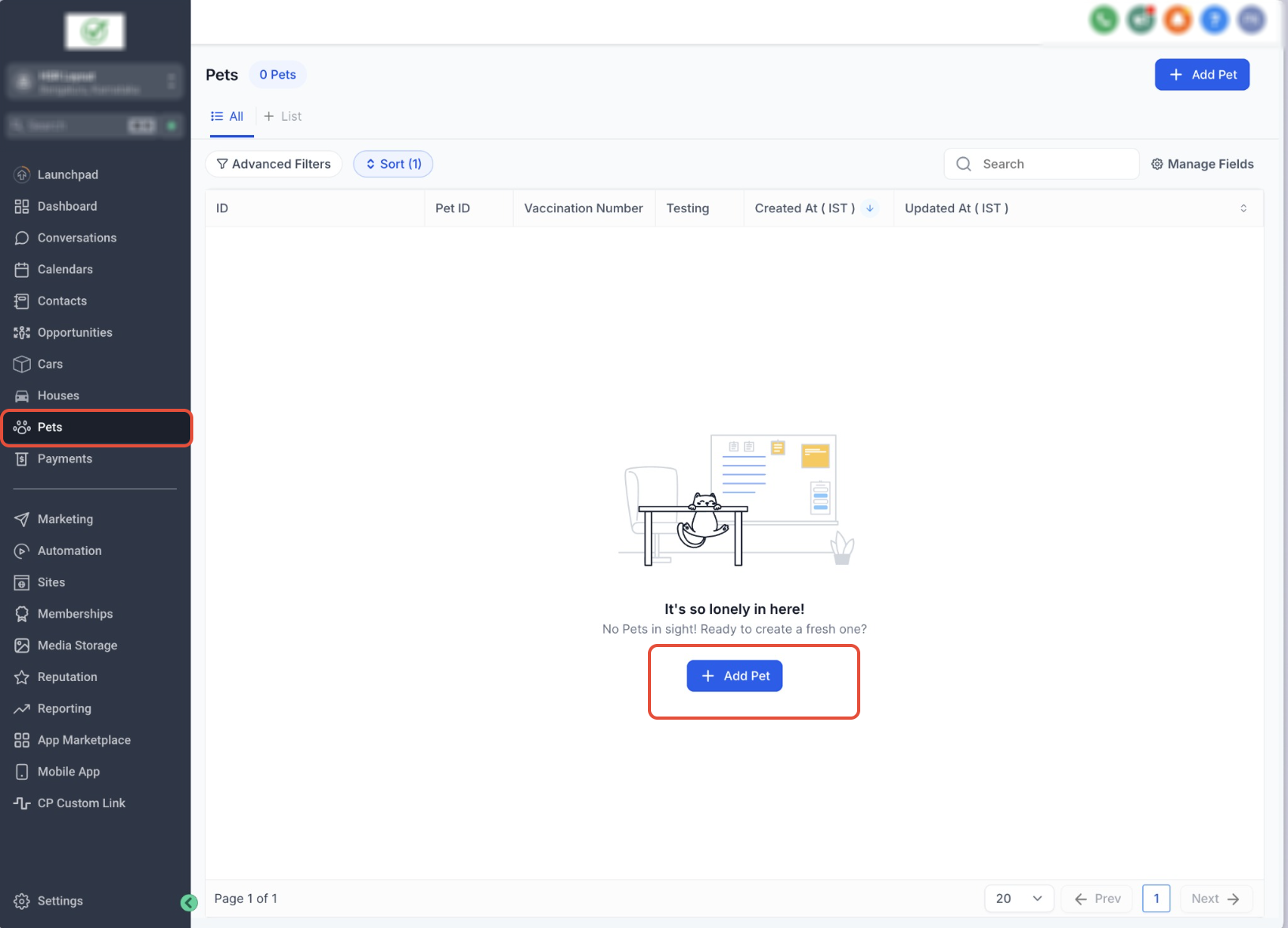
This image shows where to select a custom object from the navigation menu before creating a new record.
Action: Open the desired custom object to begin adding records.
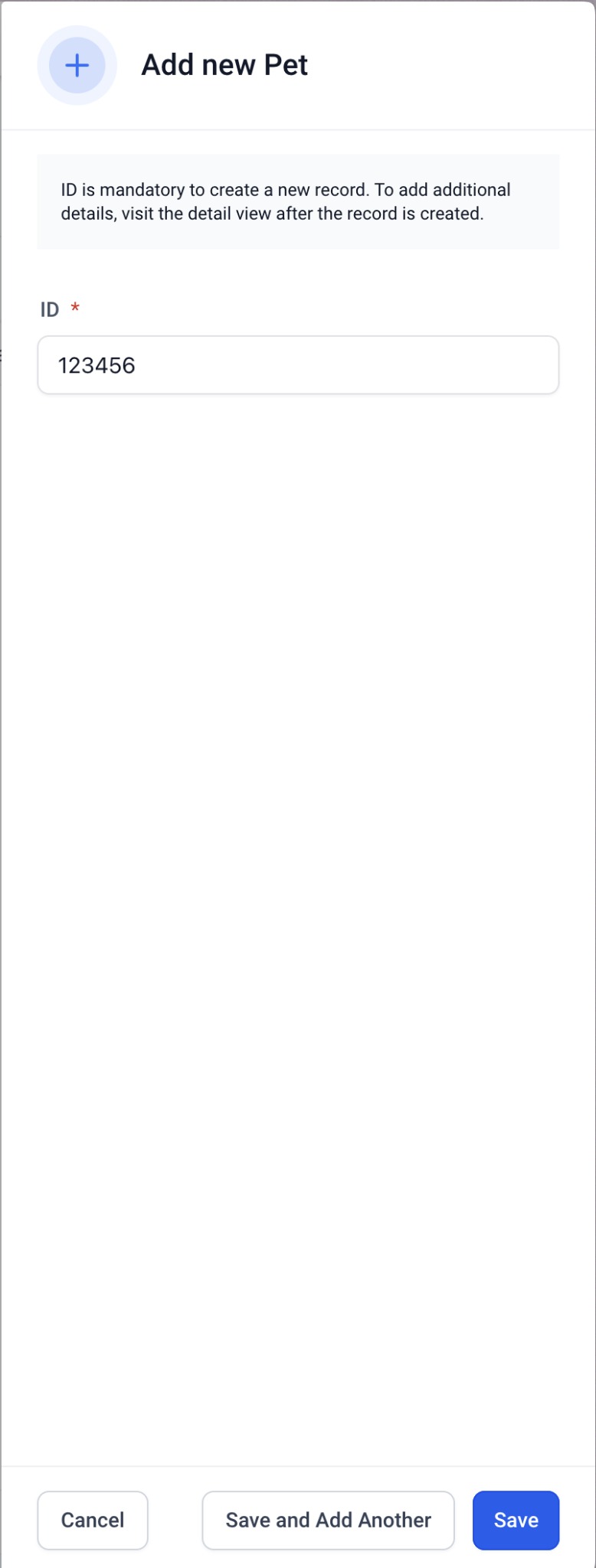
This image shows the form where you enter the required primary field when creating a record.
Action: Enter the required value and click Save.
Updating an Existing Custom Object Record
Updating records ensures your data remains accurate and up to date as information changes over time.
To update a record:
Open the custom object containing the record
Click the record name to open its details
Edit the necessary fields (text, number, dropdown, etc.)
Click Save to apply changes
Click Cancel if you do not want to save updates
Keeping records updated improves reporting accuracy and data reliability.
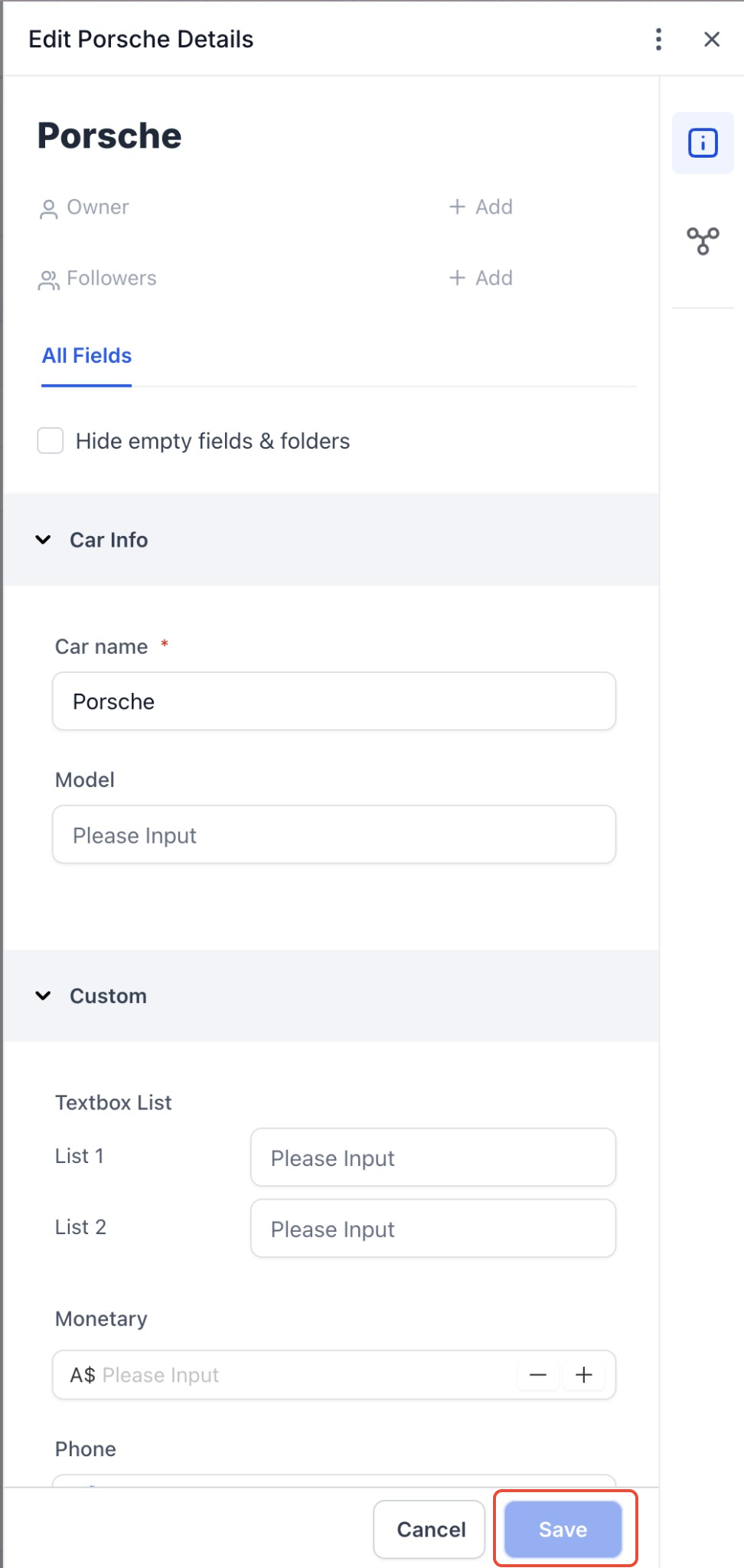
This image shows the record details panel where fields can be edited.
Action: Modify the required fields and click Save.
Managing Related Objects
Related objects allow you to connect records to other records, providing better context and visibility across your data.
To manage related objects:
Open a custom object record
Locate the Related Objects section
Click Add next to the object type you want to associate
Search and select the record you want to link
Save the association
Once linked, associated records appear in the Related Objects panel for quick access.
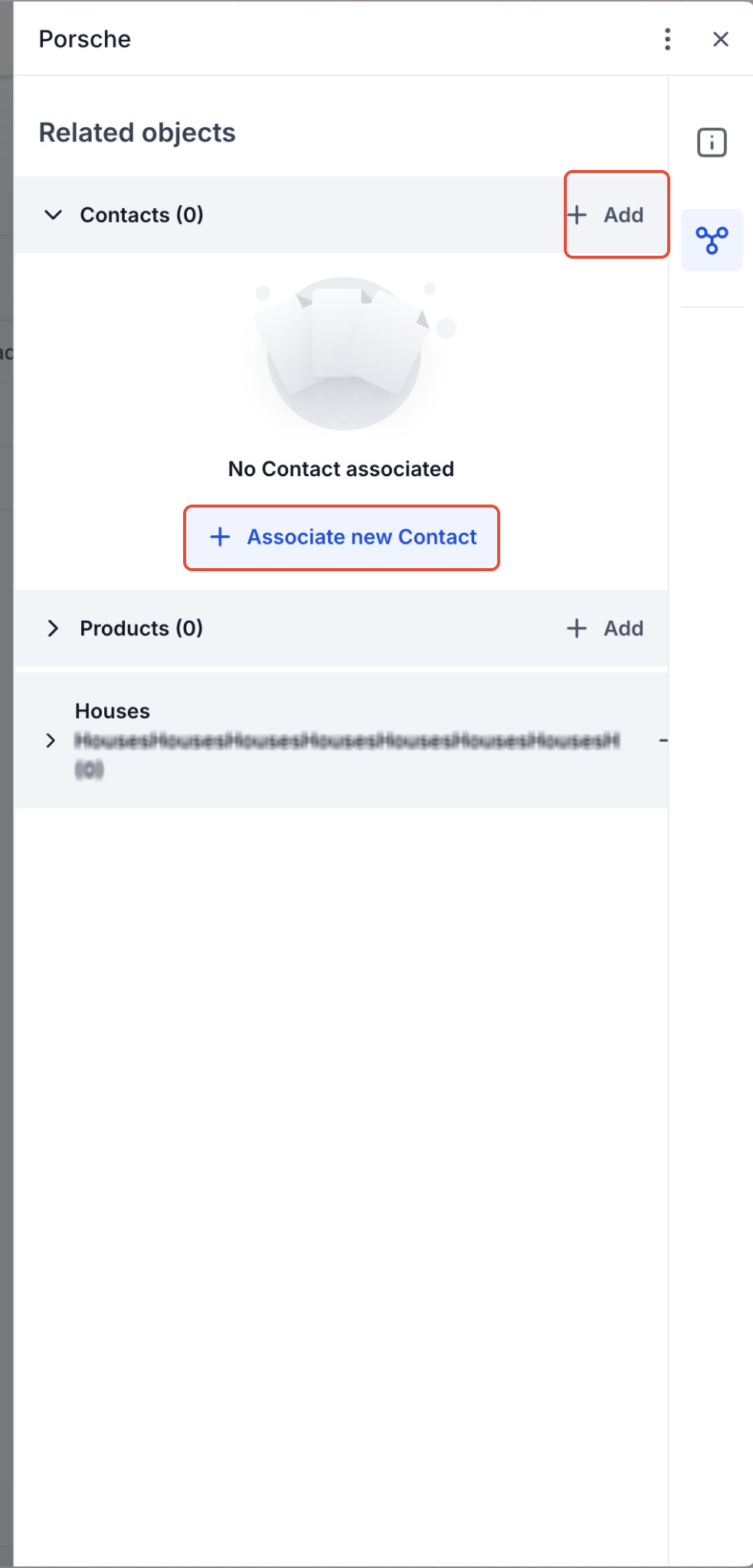
This image shows where associated records appear within a record.
Action: Click Add to associate another record.
Deleting a Custom Object Record
Deleting a record permanently removes it from your data. This action should only be used when the record is no longer needed.
To delete a record:
Open the record you want to remove
Click the three-dot menu in the top-right corner
Select Delete Record
Confirm the deletion
Deleting records cannot be undone, so review carefully before proceeding.
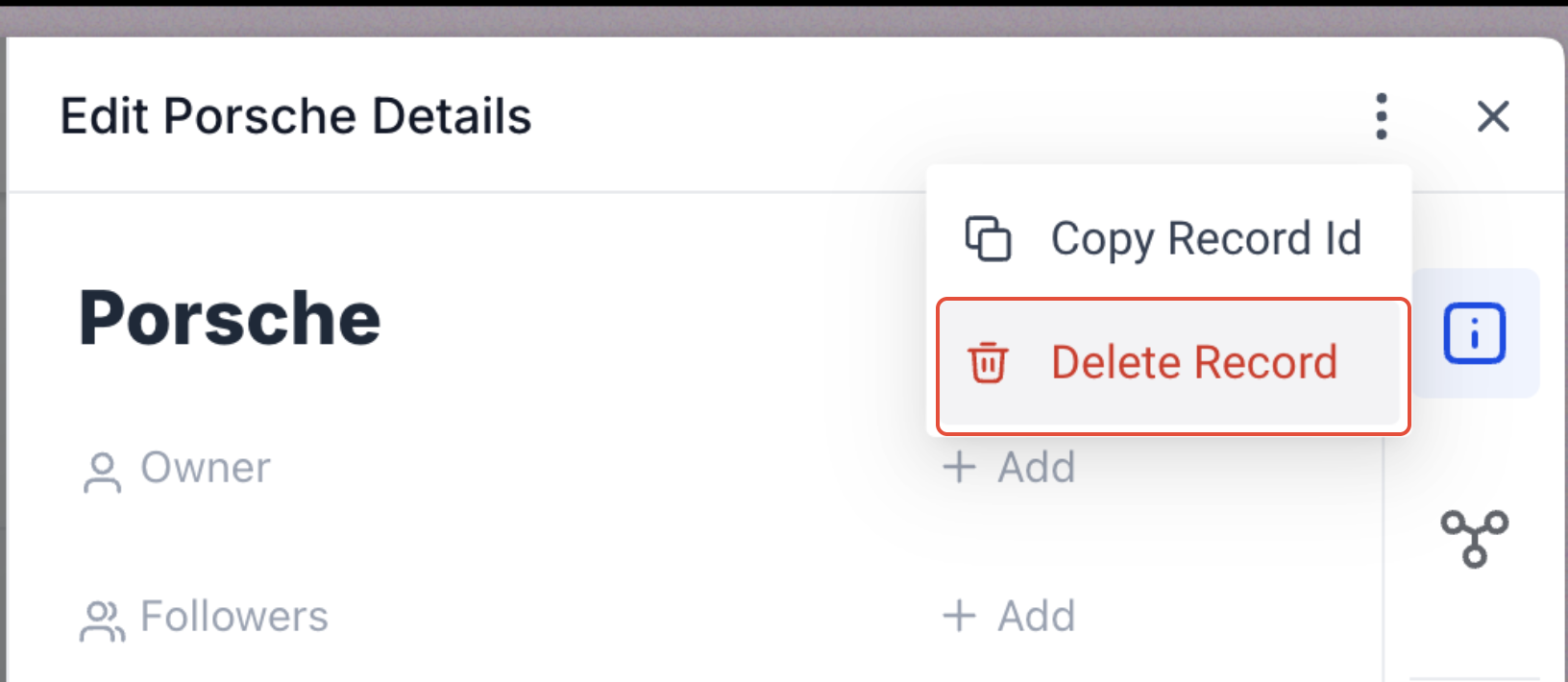
This image shows where to access the delete action from the record menu.
Action: Select Delete Record and confirm.
Important Notes
Understanding these behaviors helps prevent data issues and ensures proper usage.
Only the primary field is required during record creation
Additional fields can be updated later
Related objects can be added at any time
Deleted records cannot be restored
Best Practices
Following these practices helps maintain clean and effective data.
Use clear and consistent naming for records
Avoid duplicate entries
Regularly update records to keep information accurate
Use related objects to connect meaningful data
Periodically review and clean unused records
Frequently Asked Questions
Q: Do I need to complete all fields when creating a record?
No. Only the primary field is required. Additional fields can be added later.
Q: Can I edit a record after saving it?
Yes. You can update any record at any time.
Q: Can I associate records with other records?
Yes. Use the Related Objects section to link records.
Q: Can deleted records be recovered?
No. Deleted records cannot be restored.
Q: Where can I view associated records?
Associated records are visible in the Related Objects section of the record.
Need More Help
If you need assistance managing custom object records, search the Help Center for related topics or contact support for additional guidance.