
Custom Object access is now available across more plans, allowing you to use pre-built objects while maintaining controlled access to advanced features. This update introduces limited usage access, upgrade prompts, and upcoming support for snapshots—helping you manage and organize your data without requiring full configuration access.
TABLE OF CONTENTS
- What Are Custom Objects Access Levels?
- Key Benefits
- How to Access Custom Objects
- What You Can and Cannot Do
- Upgrade Options
- Frequently Asked Questions
- Need More Help
What Are Custom Objects Access Levels?
Custom Object access levels determine what actions you can perform based on your current plan. While some plans allow full creation and configuration, others provide access to use existing objects with certain limitations.
This structure ensures you can still manage records, relationships, and data efficiently while maintaining system consistency and control over advanced features.
Key Benefits
Understanding how access works helps you make the most of Custom Objects while planning future upgrades.
Controlled Access: Use Custom Objects without risking unintended structural changes
Flexible Usage: Manage records, fields, and associations within existing objects
Guided Upgrades: Upgrade prompts clearly indicate when advanced features are needed
Scalable Growth: Start with usage access and expand capabilities as your needs grow
How to Access Custom Objects
Accessing Custom Objects is simple and depends on your permissions and plan level. If certain features are restricted, an upgrade prompt will guide you.
Open Settings from your dashboard
Navigate to Custom Objects
Select an object to view available records and details
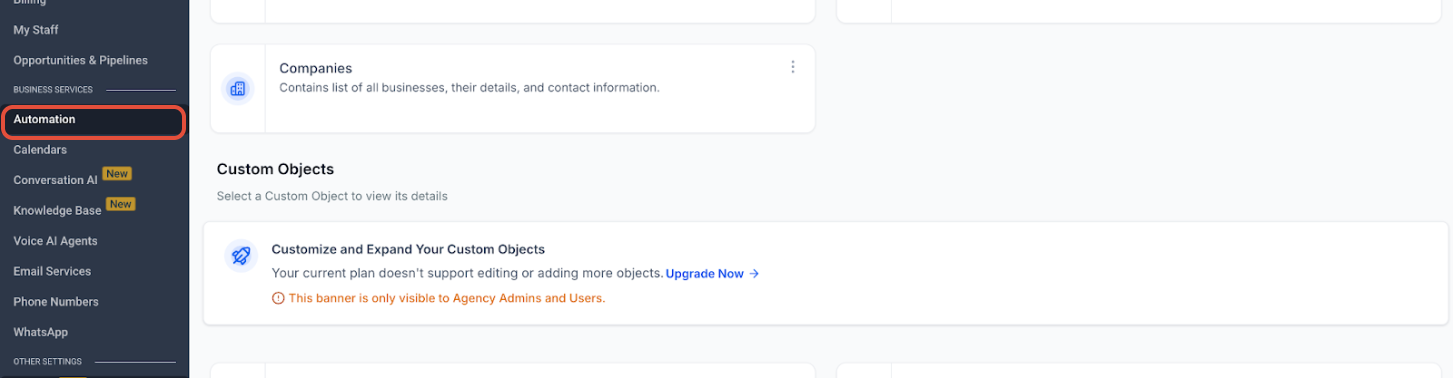
This screen displays the Custom Objects section where an upgrade banner appears if advanced functionality is restricted.
What you’re seeing: A banner indicating that creating or editing object structures is not available on your current plan.
What to do: Review the message and click Upgrade Now if you need full access to create or modify Custom Objects.
Once access is available:
Existing Custom Objects will appear in your account
You can begin working with records, fields, and associations
Future snapshot functionality will allow importing ready-made objects
What You Can and Cannot Do
Access levels define which actions are available and which require an upgrade.
Allowed Actions
View and use existing Custom Objects
Add and edit records
Create and manage fields within objects
Manage associations between records
Restricted Actions
Creating new Custom Objects
Editing object structure (such as display names or icons)
Modifying system-level configurations
All associations remain many-to-many, allowing flexible relationships between records.
Upgrade Options
Upgrading unlocks full control over Custom Objects, including creation and structural customization.
To upgrade:
Click the upgrade banner inside the Custom Objects section
Follow the upgrade steps provided
Contact support if you need assistance
After upgrading, you will gain:
Full object creation capabilities
Structural editing access
Advanced customization options
Frequently Asked Questions
Q: Can I create Custom Objects on my current plan?
No. Creating new Custom Objects requires access to a higher plan.
Q: Can I still use Custom Objects without upgrading?
Yes. You can use existing objects and manage records, fields, and associations.
Q: Can I edit the structure of a Custom Object?
No. Structural edits such as display names or icons are restricted without upgrading.
Q: Will I see a prompt if a feature is restricted?
Yes. An upgrade banner will appear guiding you to unlock full access.
Q: Can I import Custom Objects using snapshots?
Yes. Snapshot support is being introduced, allowing you to load Custom Objects into your account.
Need More Help
If you need help accessing Custom Objects, understanding feature limitations, or upgrading your plan, open the Help Center or contact support for assistance.