
Advanced Filters allow you to quickly narrow down and locate specific records within your custom objects. By applying multiple conditions across fields, you can refine your data view and focus only on what matters most.
TABLE OF CONTENTS
- What are Advanced Filters?
- Key Benefits of Advanced Filters
- How to Use Advanced Filters
- How It Works
- Important Notes
- Example Use Case
- Frequently Asked Questions
- Need Help?
What are Advanced Filters?
Advanced Filters help you search and segment your custom object data using multiple conditions. Instead of manually scanning records, you can apply filters across fields like owner, dates, or custom attributes to instantly find the right data.
This is especially useful when working with large datasets or complex records.
Key Benefits of Advanced Filters
Precise Data Search: Quickly find specific records using multiple conditions
Flexible Logic: Combine filters using AND/OR logic for deeper filtering
Supports Custom Fields: Filter using both default and custom object fields
Improved Efficiency: Save time by narrowing results instantly
Better Data Control: Focus only on relevant records without clutter
How to Use Advanced Filters
Advanced Filters are designed to be simple but powerful. Follow the flow below to apply filters effectively.
Access the Advanced Filters Panel
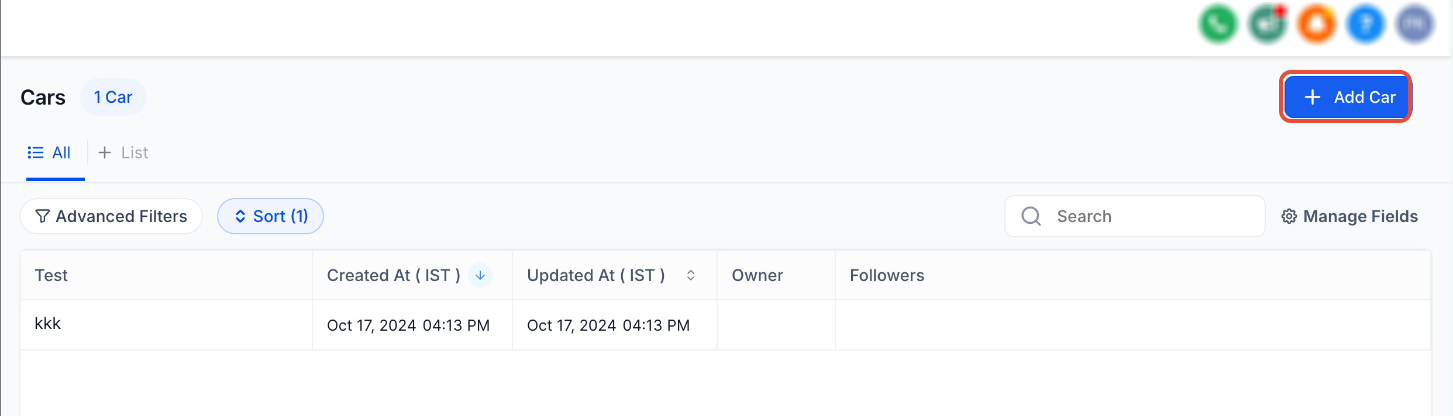
Place this image here showing the main list view with the Advanced Filters button.
Click on “Advanced Filters” at the top of your custom object list view to open the filter panel.
Select and Add Filter Fields
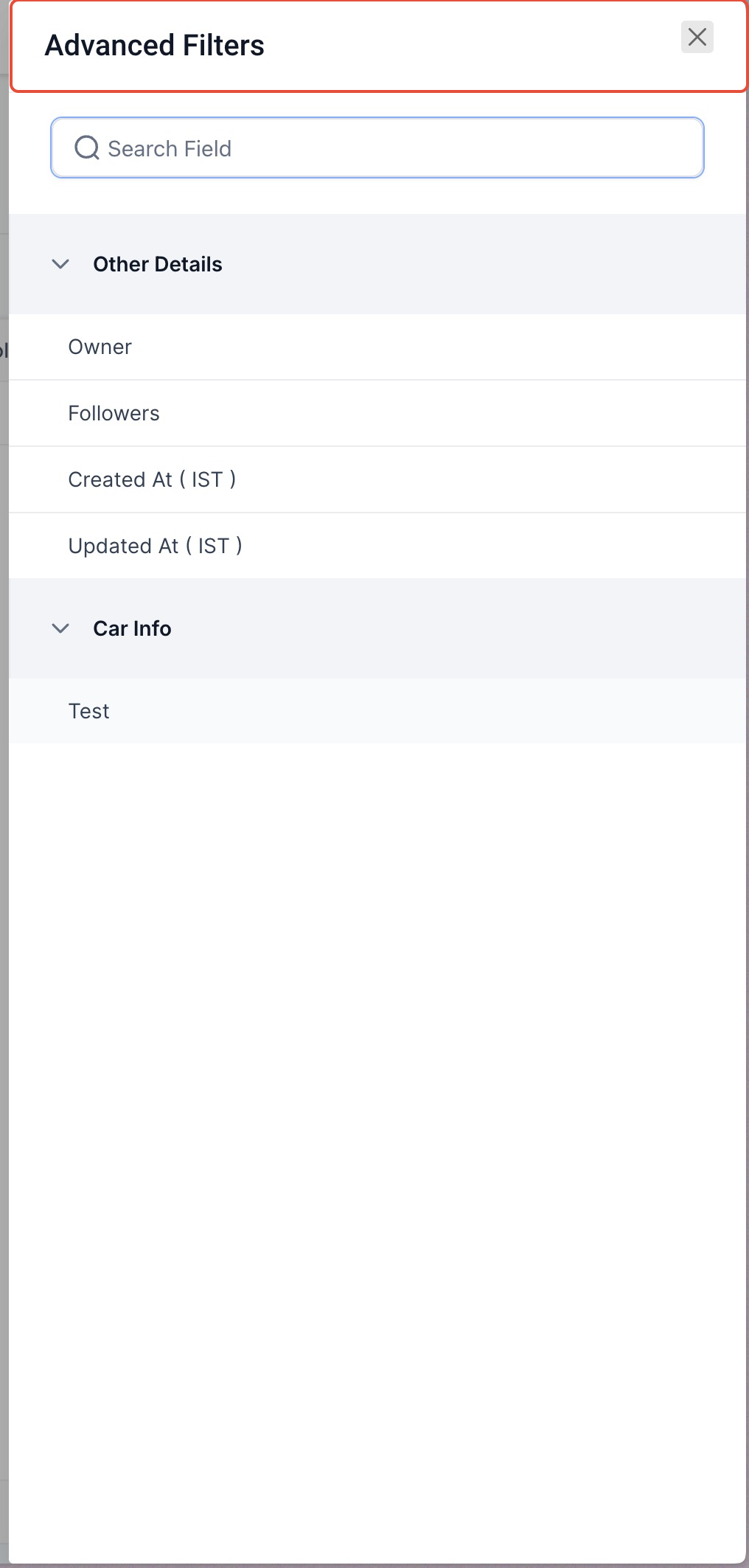
Place this image here showing the field selection menu.
Use the search bar or browse categories to select fields you want to filter by. You can choose from:
Default fields (e.g., Owner, Created Date)
Custom fields (e.g., Car Info, custom attributes)
Click on a field to add it as a filter condition.
Apply Filter Conditions
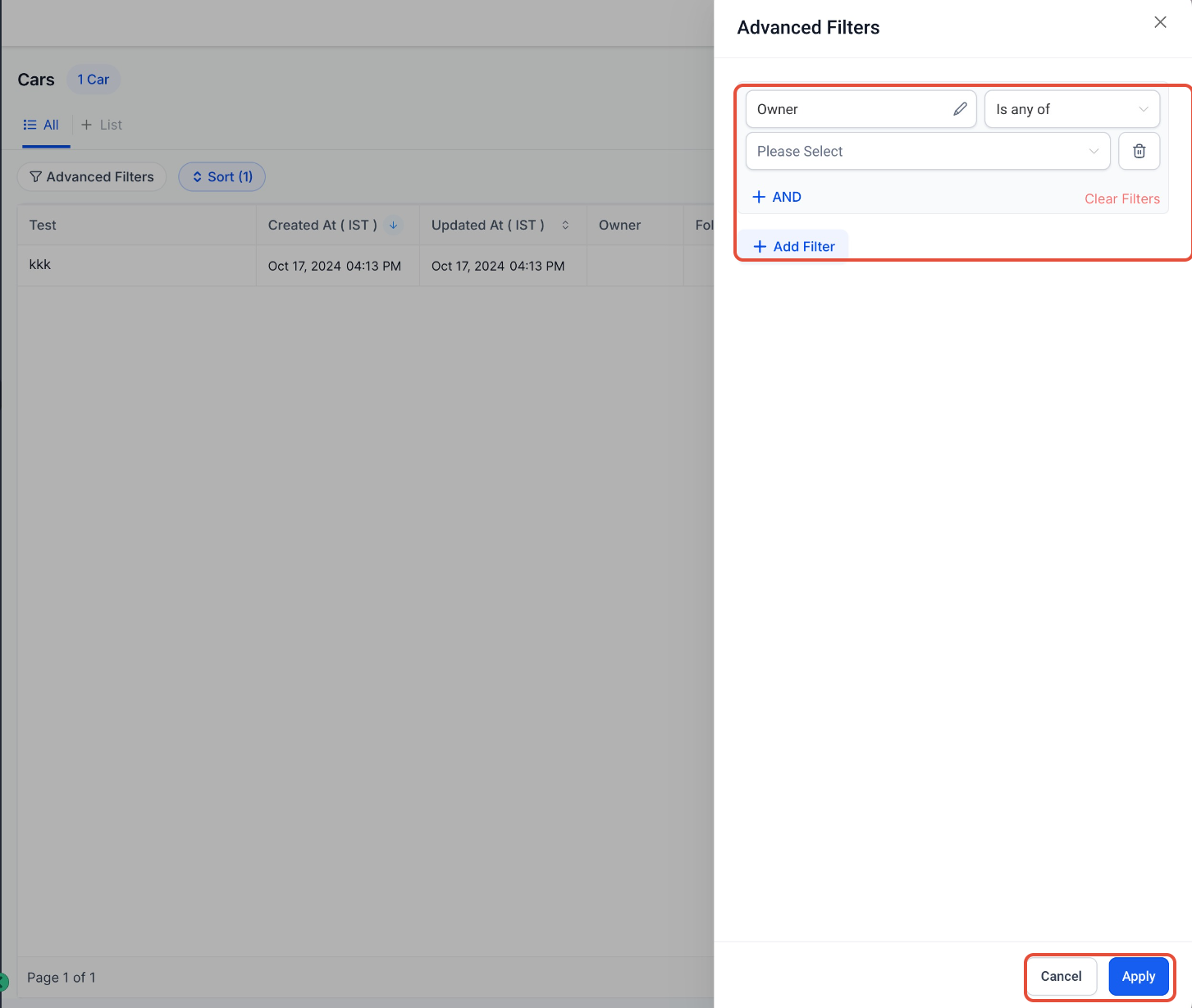
Place this image here showing the filter configuration panel.
Set conditions for each selected field, such as:
Equals
Is any of
Contains
You can combine multiple filters using:
AND → All conditions must match
OR → Any condition can match
Click Apply to filter your data instantly.
How It Works
Once applied, filters update your list view immediately. Only records matching your conditions will be displayed.
You can:
Add multiple filters for deeper segmentation
Adjust filter order for clarity
Remove filters anytime
Important Notes
Filters apply only to your current view and are not saved automatically
You can modify or reset filters at any time
Support for saving filters may be introduced in future updates
Availability of Custom Objects may depend on your subscription plan
Example Use Case
If you want to find all records created in the last week and assigned to a specific owner:
Add a filter for Created Date
Add a filter for Owner
Combine them using AND logic
This instantly narrows your results to only relevant records.
Frequently Asked Questions
Q: Can I filter using custom fields?
Yes, Advanced Filters support both default and custom object fields.
Q: Can I combine multiple filters?
Yes, you can use AND/OR logic to create complex filtering conditions.
Q: Are filters saved automatically?
No, filters apply only to the current view and are not saved.
Q: Can I remove filters easily?
Yes, you can delete individual filters or clear all filters from the panel.
Q: Why don’t I see Advanced Filters?
This feature may depend on your subscription plan.
Need Help?
If you need help using Advanced Filters or troubleshooting your setup, contact support or your system administrator for assistance.