
Custom Object List View provides a clean, table-based layout that helps you organize, scan, and manage your records more efficiently. By allowing you to sort data and control which fields are visible, this feature makes it easier to focus on what matters most and streamline your daily workflow.
TABLE OF CONTENTS
- What is Custom Object List View?
- Key Benefits of Custom Object List View
- Custom Objects in a List View
- Sorting Across Fields
- Customizable Fields
- How It Helps Your Workflow
- Important Notes
- Frequently Asked Questions
- Need Help?
What is Custom Object List View?
Custom Object List View displays your records in a structured table format with rows and columns, similar to a spreadsheet. This layout improves visibility and makes it easier to manage large sets of data without switching between multiple screens.
Instead of opening individual records, you can quickly review, compare, and update information directly from one centralized view.
Key Benefits of Custom Object List View
Clear Data Visibility: View all records in a structured table for quick scanning
Flexible Sorting: Organize records based on important fields
Customizable Layout: Show only the fields you need
Better Organization: Keep complex data clean and easy to navigate
Improved Efficiency: Reduce time spent searching for information
Custom Objects in a List View
A table layout makes it easier to understand your data at a glance by displaying records in rows and fields in columns.
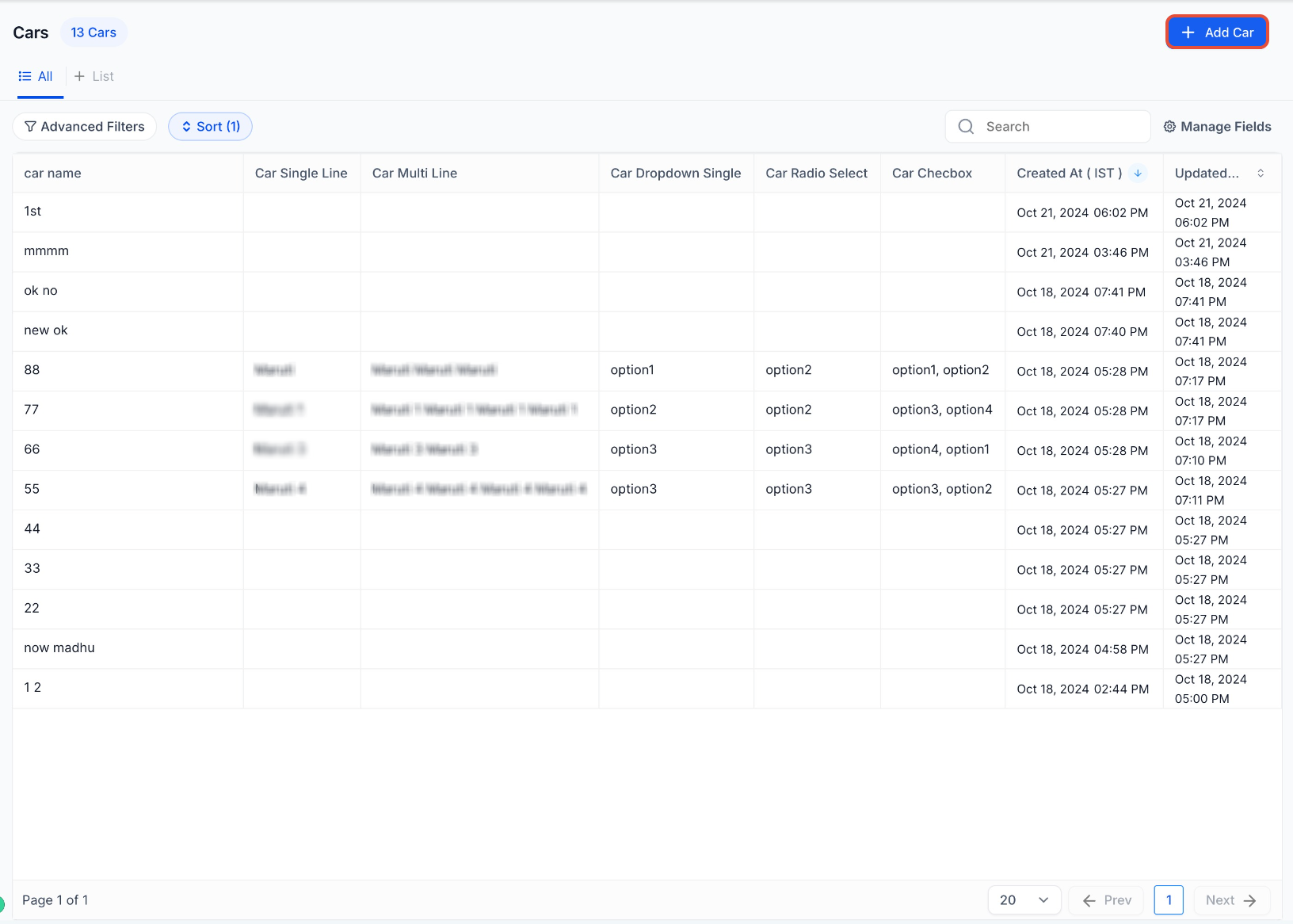
This image shows the full list view with multiple records and fields displayed in a table format.
Use this view to quickly scan, compare, and manage your data across all records.
Sorting Across Fields
Sorting helps you organize records based on specific fields like creation date or last updated time.
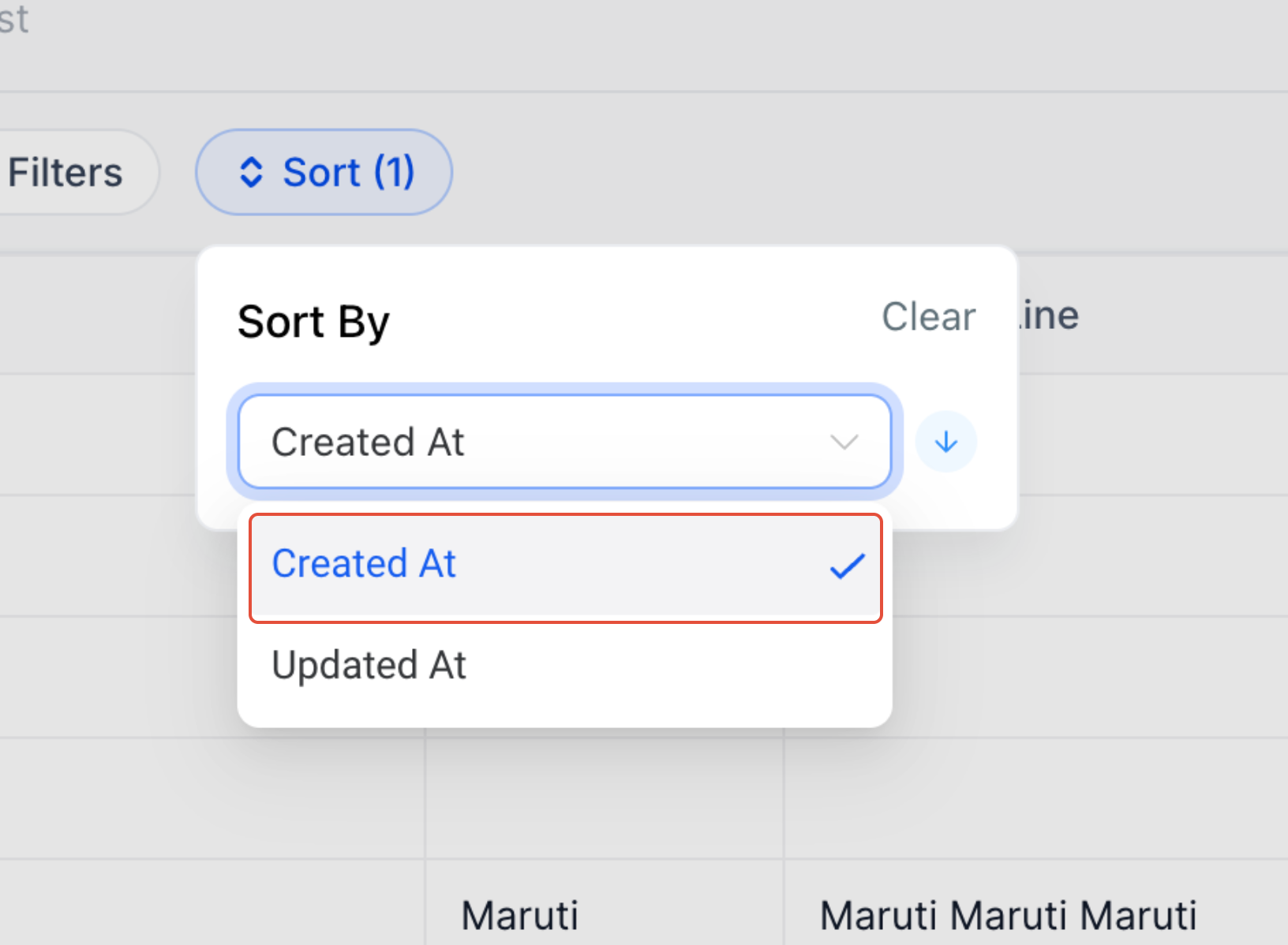
This image shows the sort dropdown menu with options like “Created At” and “Updated At.”
Click the sort option, select a field, and choose ascending or descending order to instantly reorganize your data.
Customizable Fields
You can control which fields appear in your list view to reduce clutter and highlight important information.
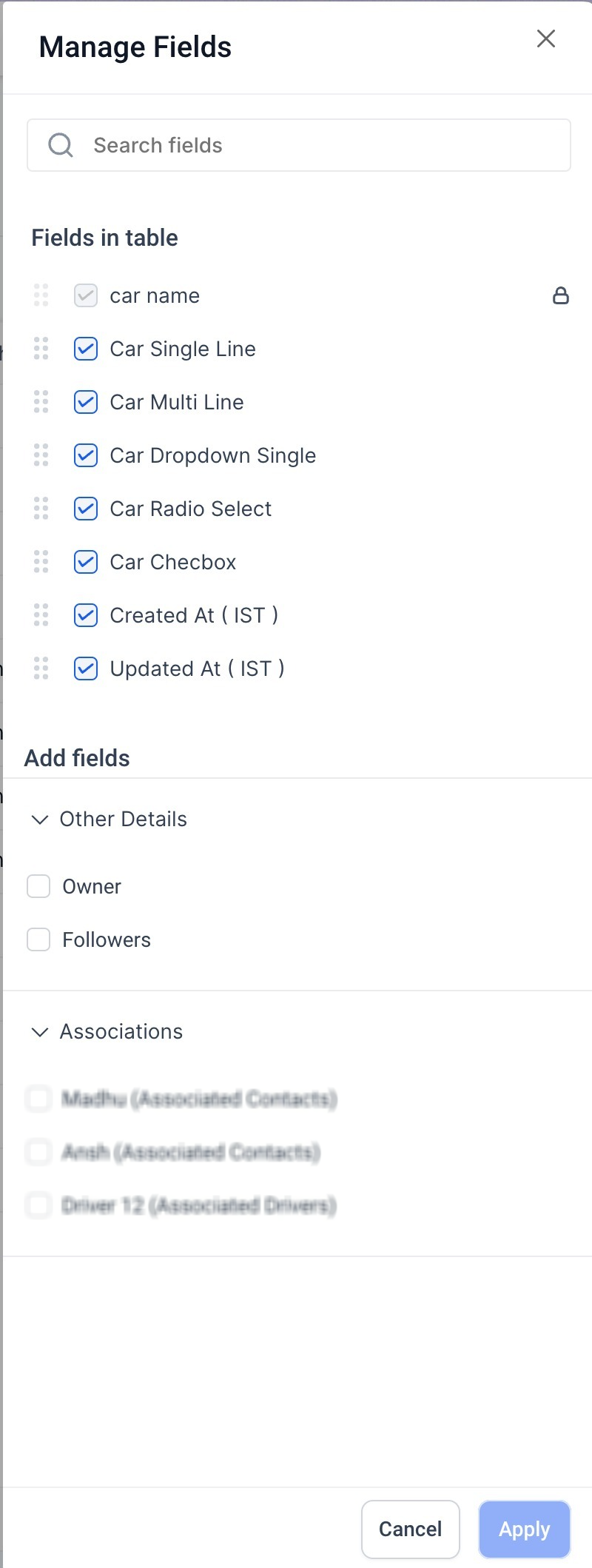
This image shows the field selection panel where you can choose which fields to display.
Use this panel to add, remove, reorder, or include associated fields based on your needs.
How It Helps Your Workflow
Custom Object List View adapts to your workflow by allowing you to:
Focus only on relevant data
Reduce visual clutter
Quickly locate and update records
Customize views for different teams or processes
This flexibility helps improve productivity and keeps your workspace organized.
Important Notes
Custom Objects may only be available on certain subscription plans
Field customization applies only to your current view
Sorting changes how data is displayed, not the actual data
Frequently Asked Questions
Q: Can I customize which fields appear in the list view?
Yes, you can select, reorder, and remove fields using the Manage Fields option.
Q: Can I sort records by any field?
Yes, sorting is available across supported fields such as Created At and Updated At.
Q: Will my changes affect other users?
No, view customization is user-specific and does not impact other users.
Q: Can I include associated records in the list view?
Yes, associated fields can be added through the field customization panel.
Q: Does sorting change my data permanently?
No, sorting only changes how records are displayed.
Need Help?
If you need help customizing your list view or managing your data, contact support or your system administrator for assistance.