
Connect your Facebook and Instagram channels to manage lead generation ads. Capture high-quality leads directly from social media. Facebook and Instagram Lead Ads let you capture prospect information from Meta ads and manage campaign setup directly in Ad Manager.
TABLE OF CONTENTS
What are Facebook and Instagram Lead Ads?
Lead generation campaigns can use Facebook lead forms to collect information such as a prospect's name, email address, phone number, or answers to custom questions.
Facebook and Instagram Lead Ads in Ad Manager allow you to create and manage Meta lead generation campaigns from Marketing > Ad Manager. When form fields are mapped to the appropriate contact fields, submitted lead information can be organized in the CRM for follow-up and automation.
How to Setup Facebook/Instagram Lead Ads
Step 1: Open and Activate Ad Manager
Ad Manager must be activated before Meta assets can be connected and campaigns can be created.
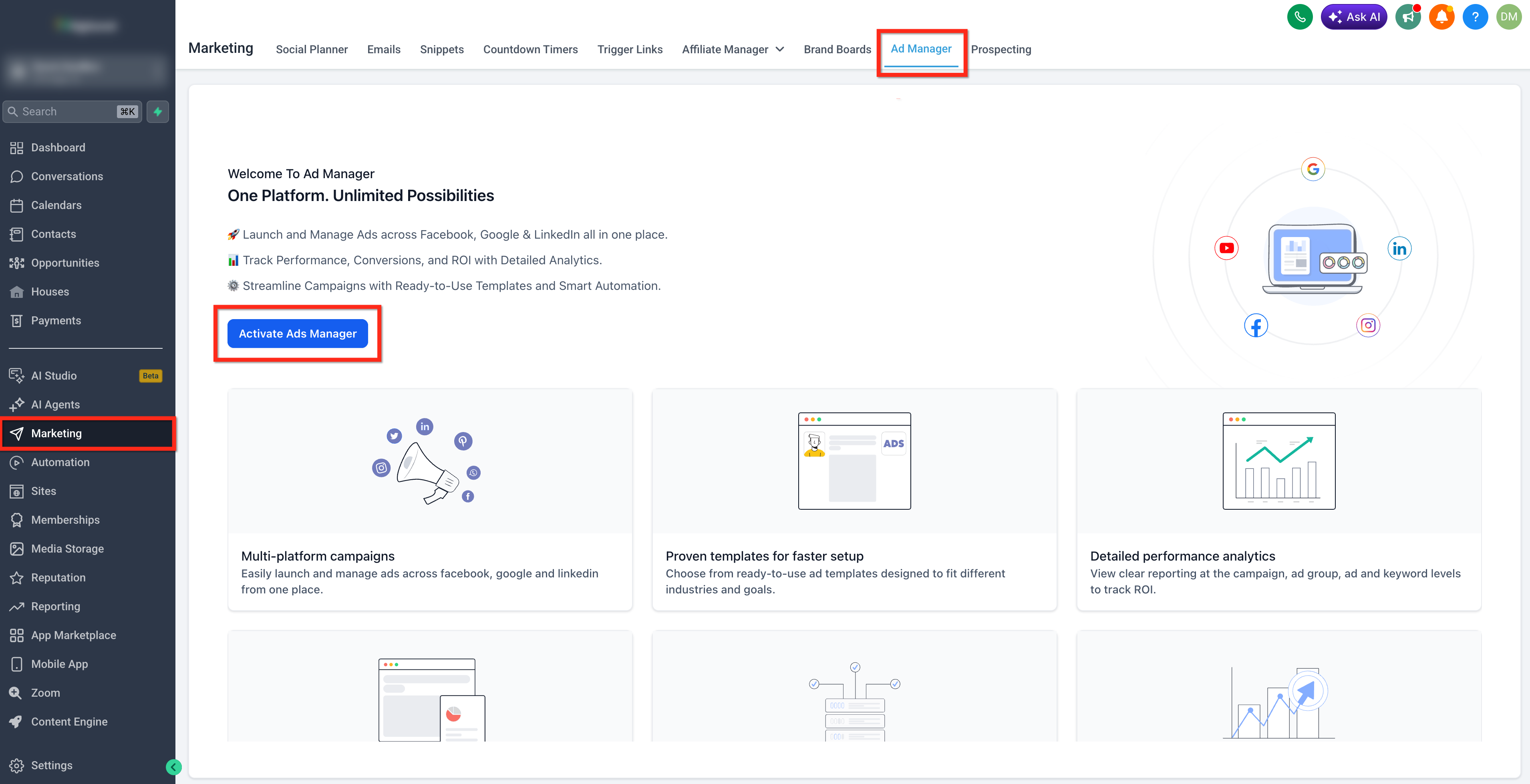
- Navigate to Marketing > Ad Manager.
- If Ad Manager has not been activated, click Activate Ads Manager
Step 2: Connect Facebook
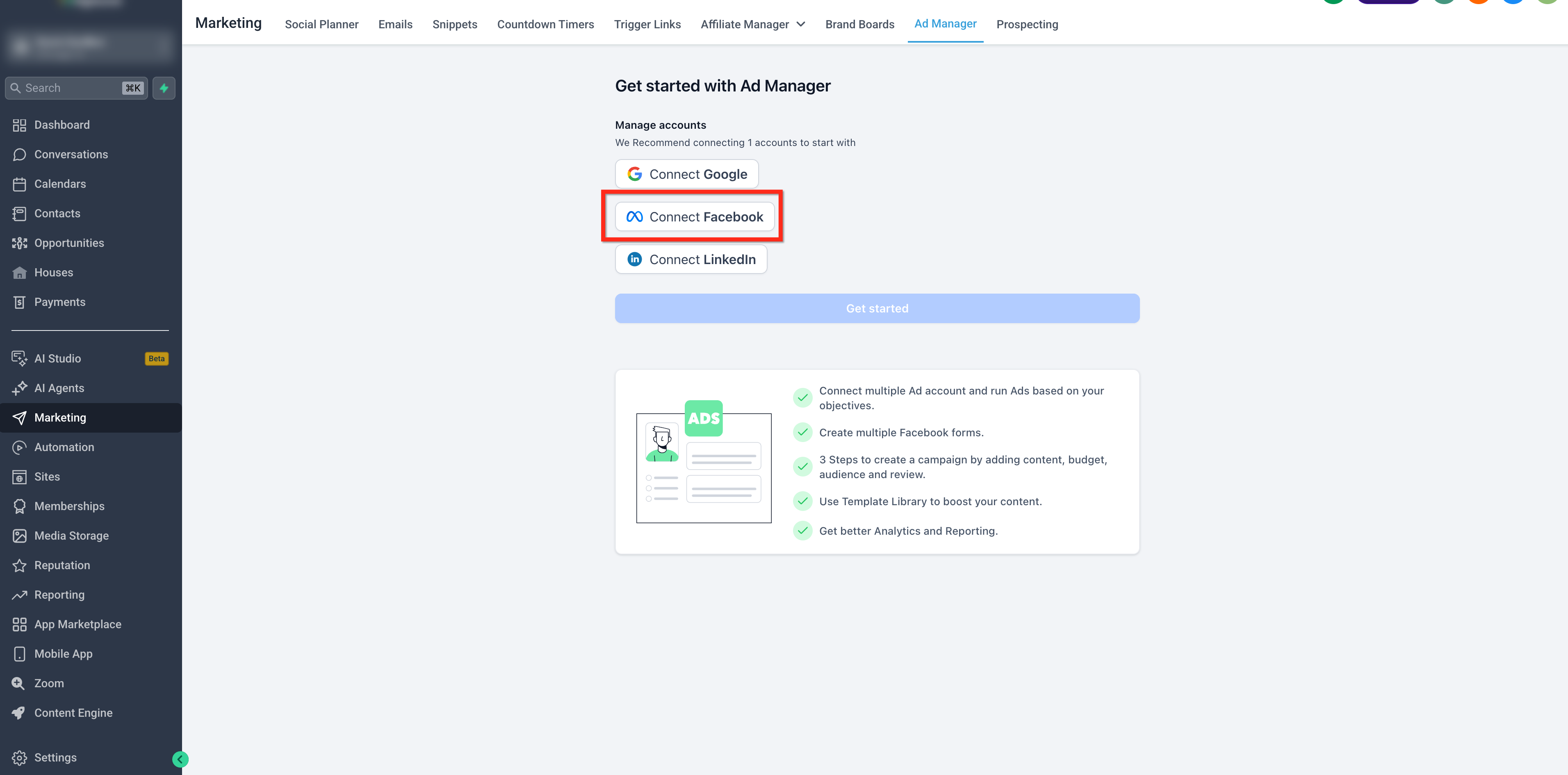
- From the Ad Manager onboarding screen, click Connect Facebook.
- Complete the Facebook login or authorization flow and grant the requested permissions to LeadConnector.
Step 3: Select a Meta Ads Account
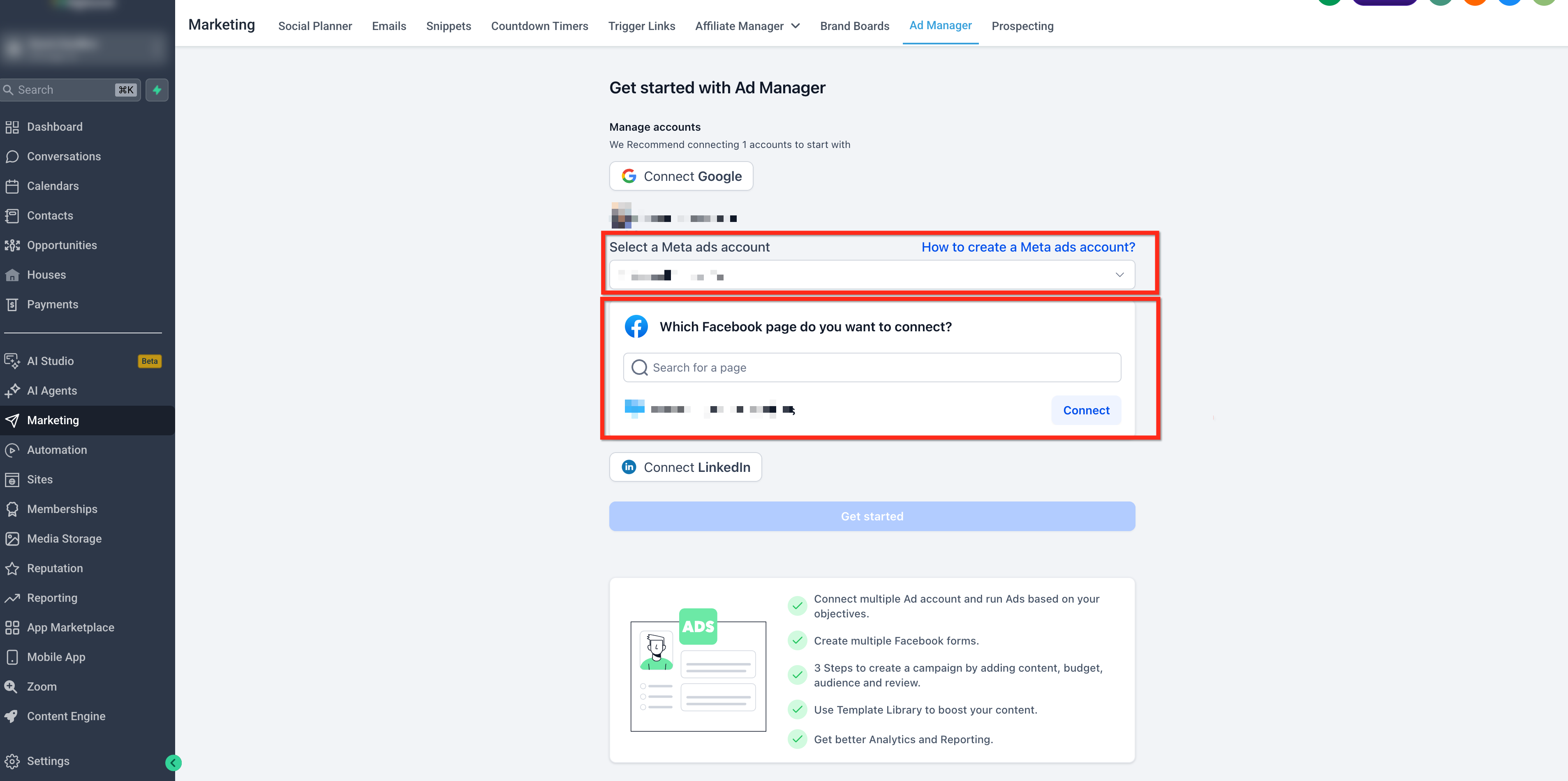
- Locate Select a Meta ads account dropdown or search field to find and select the correct ad account.
- Under the Facebook Page selection area, search for and select the page you want to use. Then click Connect.
- Once the page is connected, click the Get Started button.
Step 4: Create a Campaign
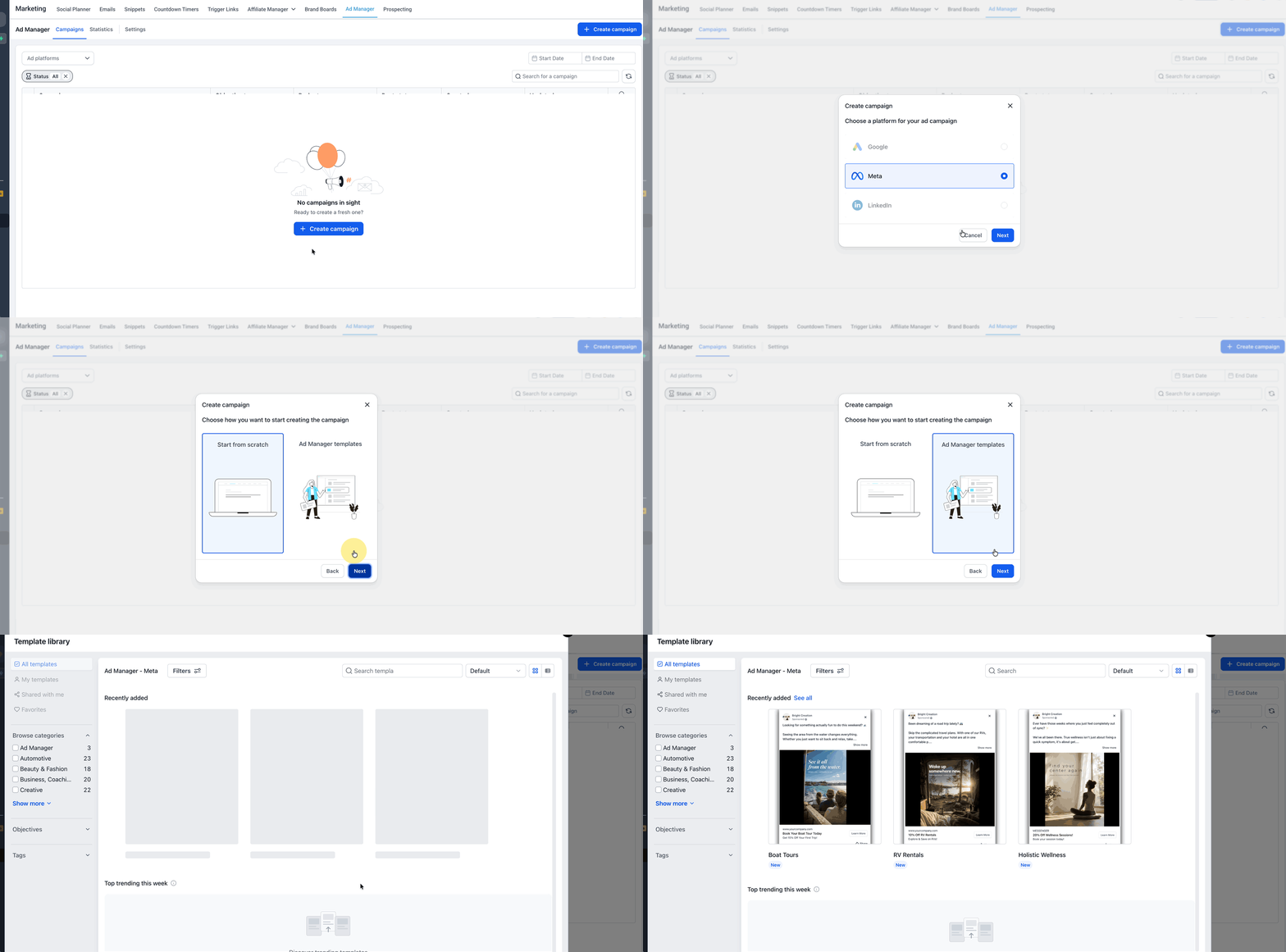
- Click + Create Campaign.
- Select Meta as the platform.
- Click Next.
- Choose to start from scratch or use an available Ad Manager template.
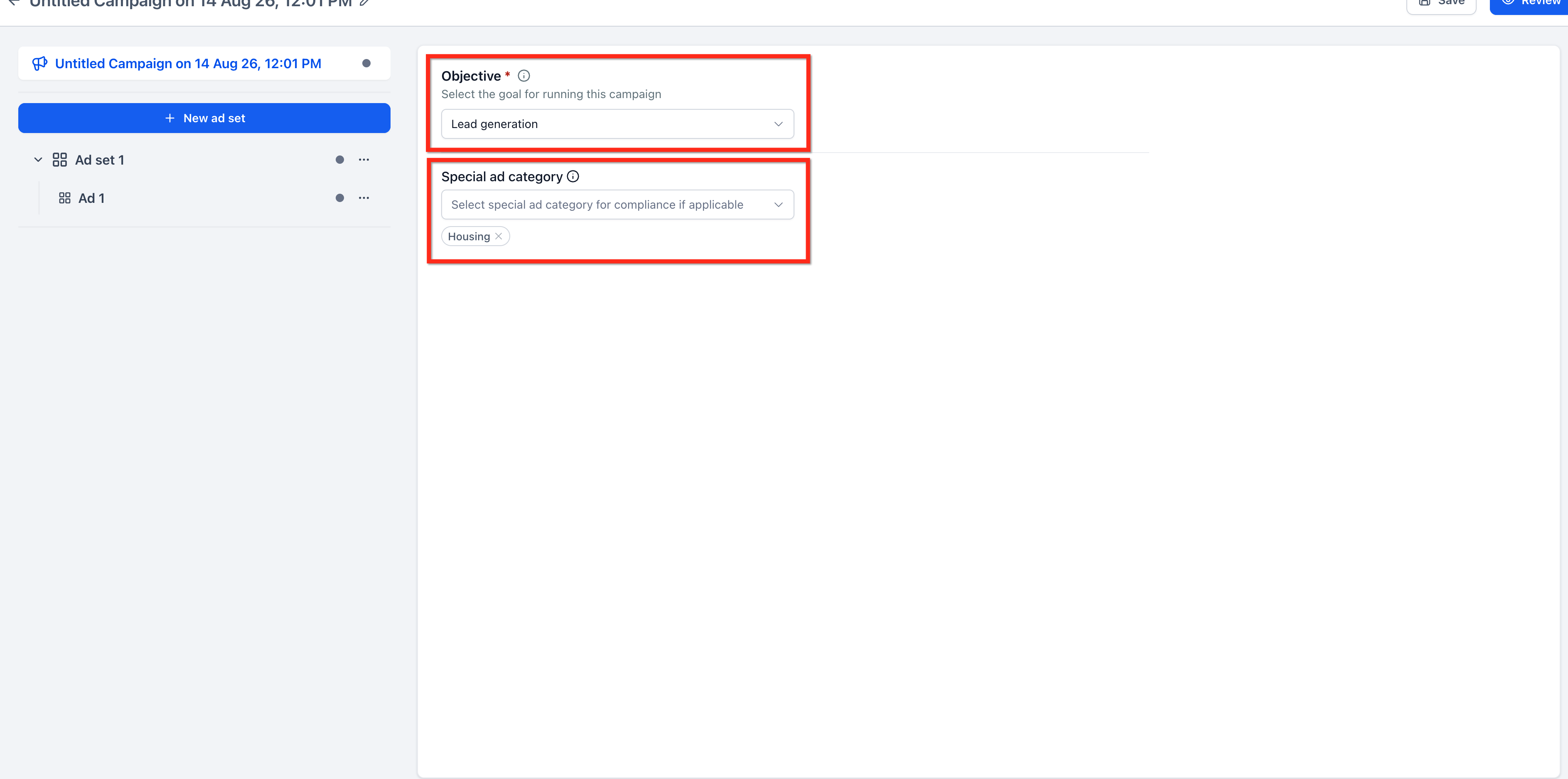
Step 5: Select the Lead Generation Objective
- Select Lead Generation as the campaign objective.
- If applicable, select the appropriate Special Ad Category. If the campaign does not fall within a special category, choose the applicable not-applicable option.
- Continue to the ad set configuration.
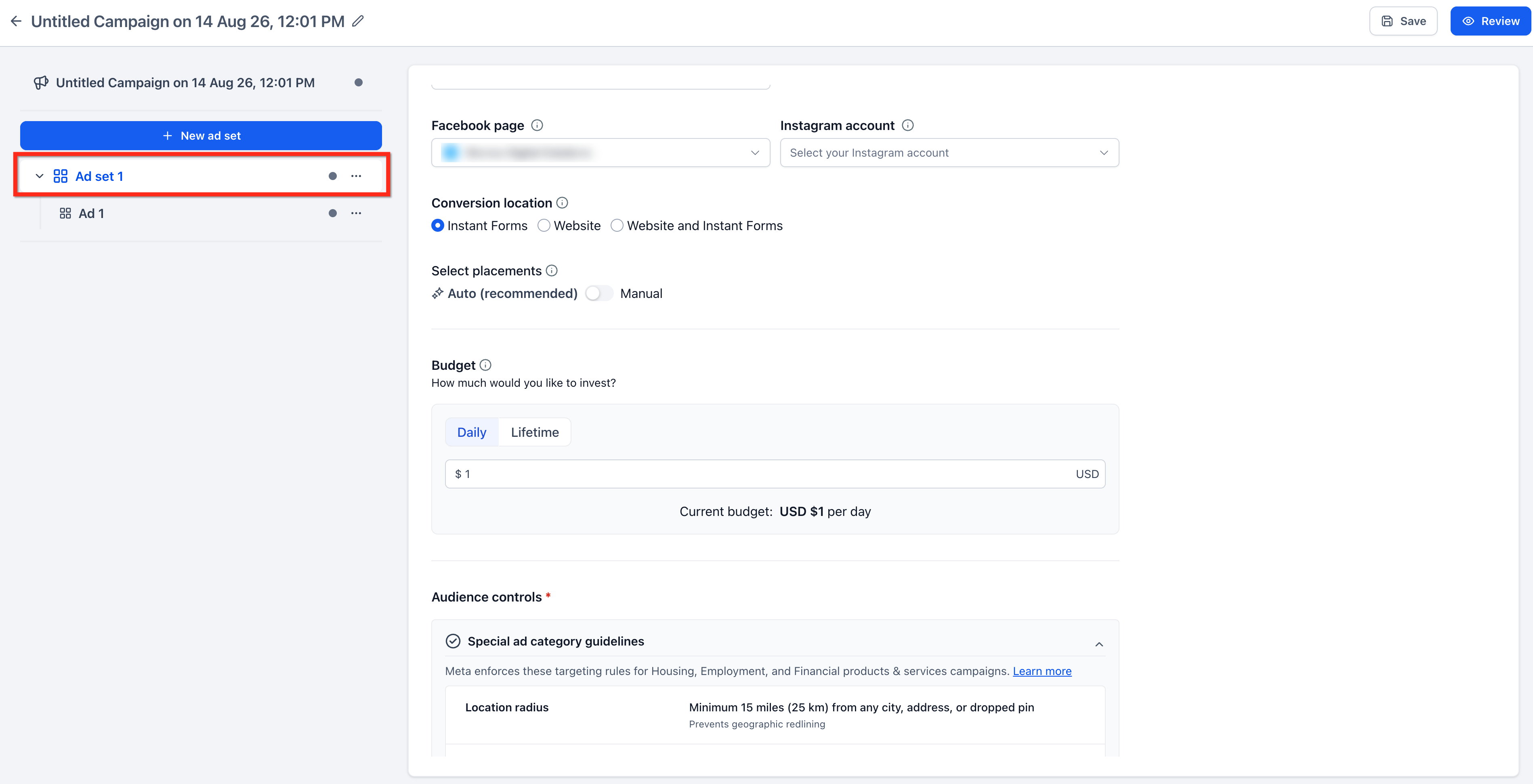
Step 6: Configure the Ad Set
Configure the available ad set settings, including:
- Enter an Ad Set Name.
- Select the Facebook Page.
- Select an Instagram Account, when applicable.
- Choose your Placements.
- Set the Budget and applicable schedule.
- Configure the Audience and location settings.
Meta ad spend is charged through the payment method connected to the selected Meta ads account.
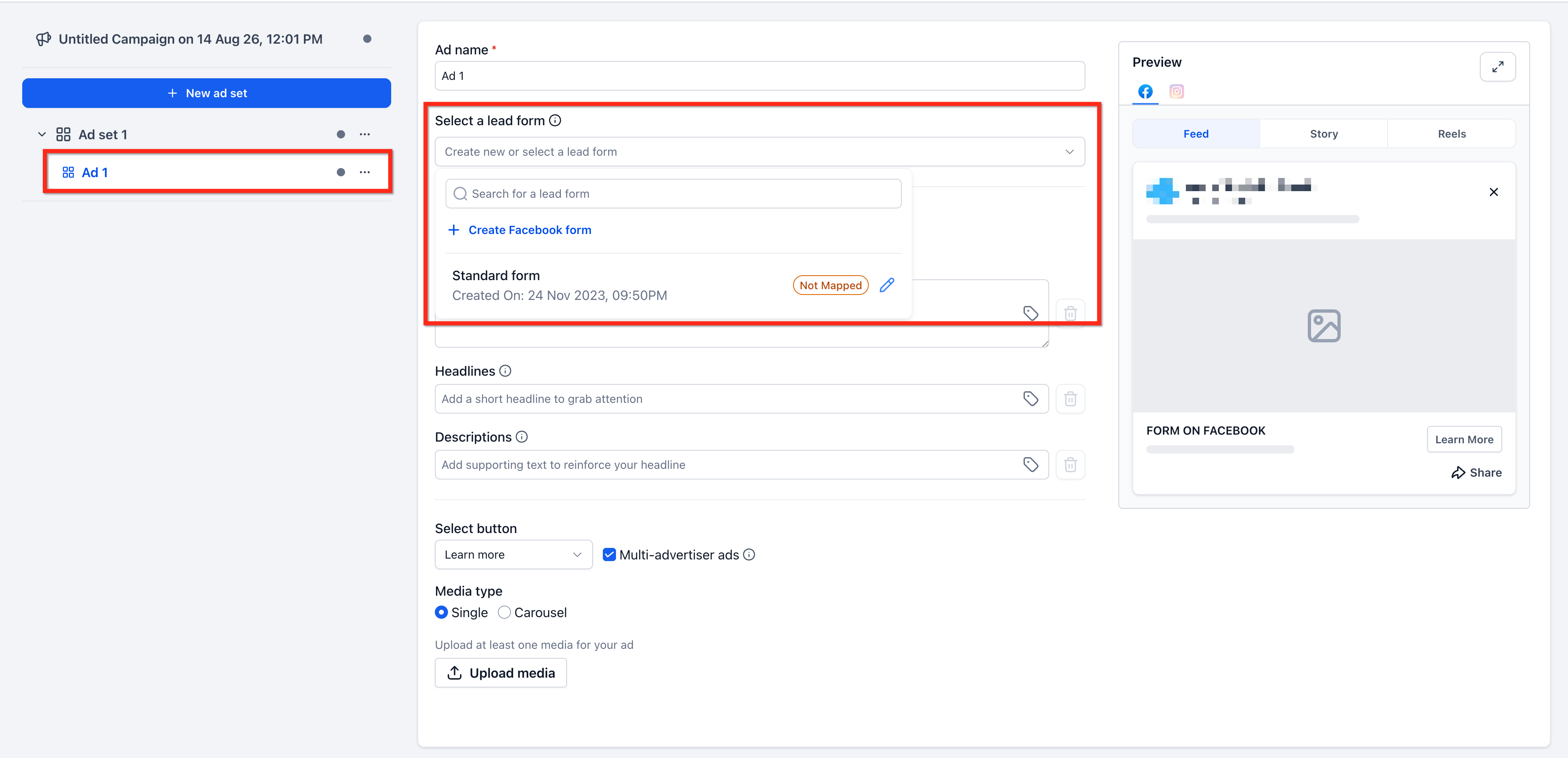
Step 7: Create or Select a Facebook Lead Form
- At the ad level, select Facebook Lead Form when prompted for the lead destination or supported lead capture option.
- Open the lead form dropdown.
- Select an existing form or click Create Facebook Form.
If selecting an existing form, review its mapping before continuing. When the system indicates that form fields are not mapped, use the mapping prompt to connect the form fields to the appropriate CRM fields.
If creating a new form, select + Create Facebook form then complete all required information to create the form.
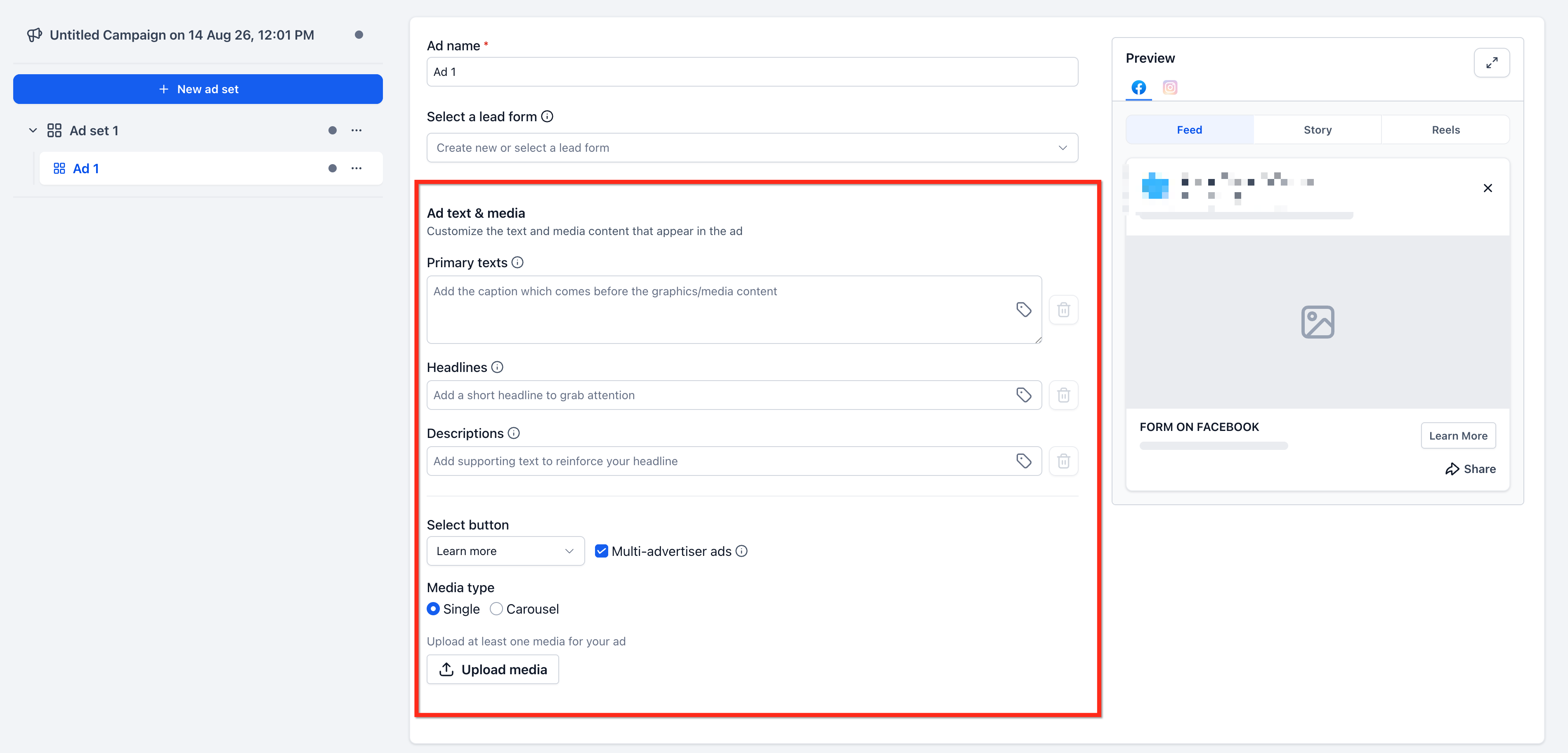
Step 8: Configure the Ad Creative
- Enter an Ad Name.
- Add the Primary Text.
- Add a Headline.
- Add a description when appropriate.
- Select the desired Call to Action.
- Upload the applicable image, carousel, or video media.
When the campaign is ready, click Review, confirm the campaign details then click Publish Campaign Now.
Publishing an Existing Ad
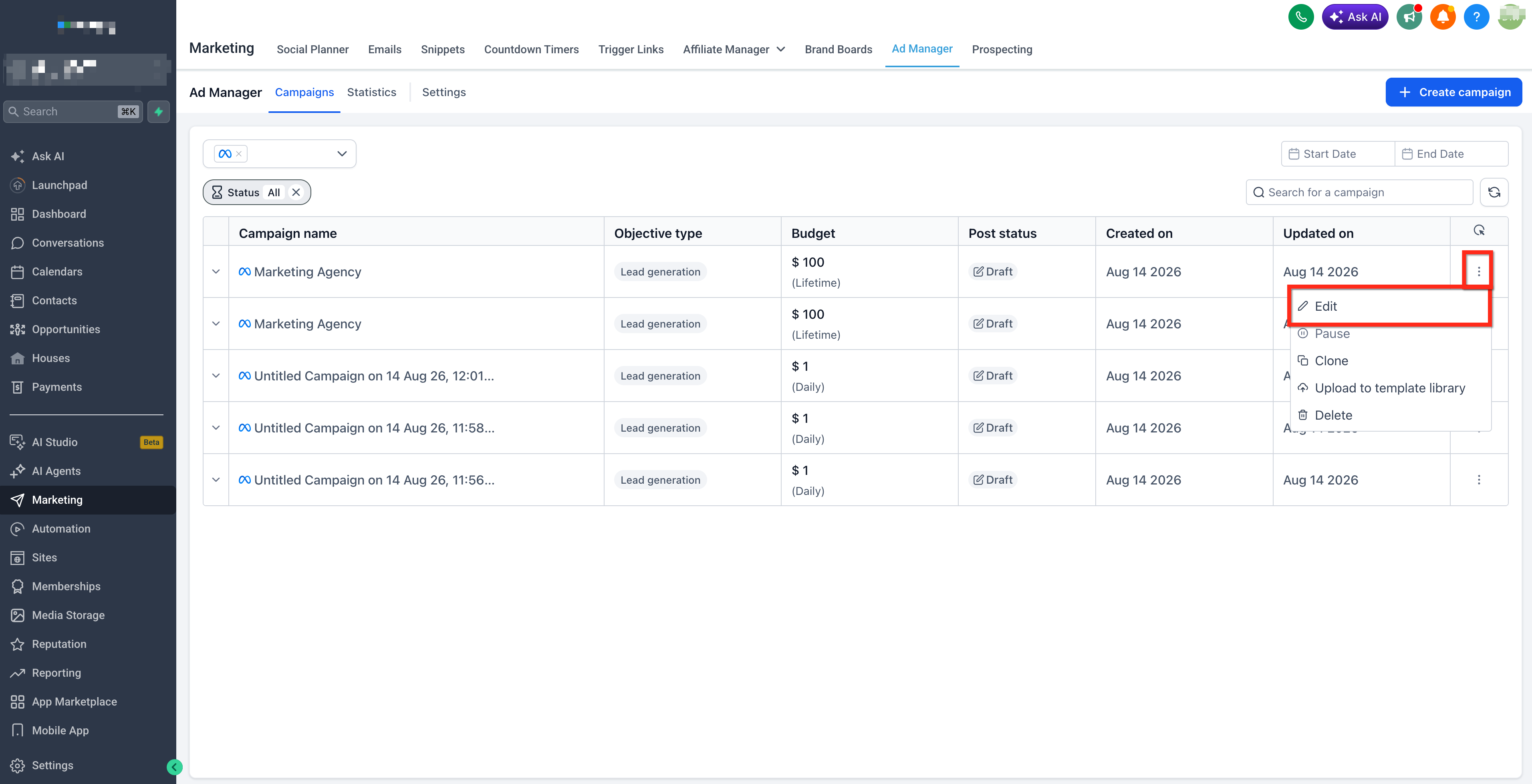
Editing and publishing an existing ad is useful when an ad already exists in Ad Manager but still needs to be reviewed or published. This workflow allows you to return to the existing campaign configuration rather than creating a new campaign from the beginning.
- Navigate to Marketing > Ad Manager.
- Locate the applicable ad or campaign.
- Click the three-dot action menu.
- Click Edit.
- Review the available campaign, ad set, and ad settings.
- Continue to the final review and publishing stage.
- Click the applicable Publish action and confirm the publication.
Frequently Asked Questions
Q: Do I need a Meta ads account to use Ad Manager for Facebook and Instagram ads?
Yes. A Meta ads account must be selected during Ad Manager setup before the onboarding flow can be completed.
Q: Why is the Get started button disabled?
The button remains unavailable until the required Ad Manager connection steps are complete. Confirm a Meta ads account has been selected and a Facebook Page shows as connected.
Q: Why is field mapping important?
Field mapping connects Facebook form responses with the corresponding CRM fields. Proper mapping helps ensure details such as name, email, phone number, and custom responses are stored in the correct contact fields.
Q: Can I use an Instagram account with the campaign?
Yes, an Instagram account can be selected at the ad set level when available. If an Instagram account is not connected, campaign behavior can depend on the available Meta configuration and selected placements.
Q: Can Facebook Lead Ad submissions trigger workflows?
Yes. When the Facebook integration and lead syncing are configured, Facebook Lead Ad submissions can be used with automation, including the Facebook Lead Form Submitted workflow trigger.
