
Accepting payments online should be simple, secure, and reliable. Connecting a payment provider allows you to process transactions, manage subscriptions, and streamline customer payments without friction.
This guide walks through how to connect Stripe so you can start accepting payments quickly and efficiently.
What is Stripe Integration?
Stripe integration enables you to securely accept credit card payments, manage subscriptions, and handle transactions directly within your system. By connecting your Stripe account, you create a seamless payment experience for your customers while maintaining full control over billing and reporting.
This connection ensures that all transactions are processed securely and that payment data flows correctly into your system for tracking and management.
Key Benefits of Stripe Integration
Connecting Stripe provides several advantages that improve both customer experience and operational efficiency:
Secure Payments: Process transactions safely with trusted payment infrastructure
Faster Checkout: Reduce friction with streamlined payment flows
Subscription Management: Easily handle recurring billing and plans
Centralized Tracking: Keep all payment activity in one place
Scalable Setup: Support growth with flexible payment capabilities
How To Connect Stripe
Proper setup ensures payments are processed without issues. Follow the steps below to connect your Stripe account.
Step 1: Navigate to Payment Integrations
Open your Payments section and access the integrations area where payment providers are managed.
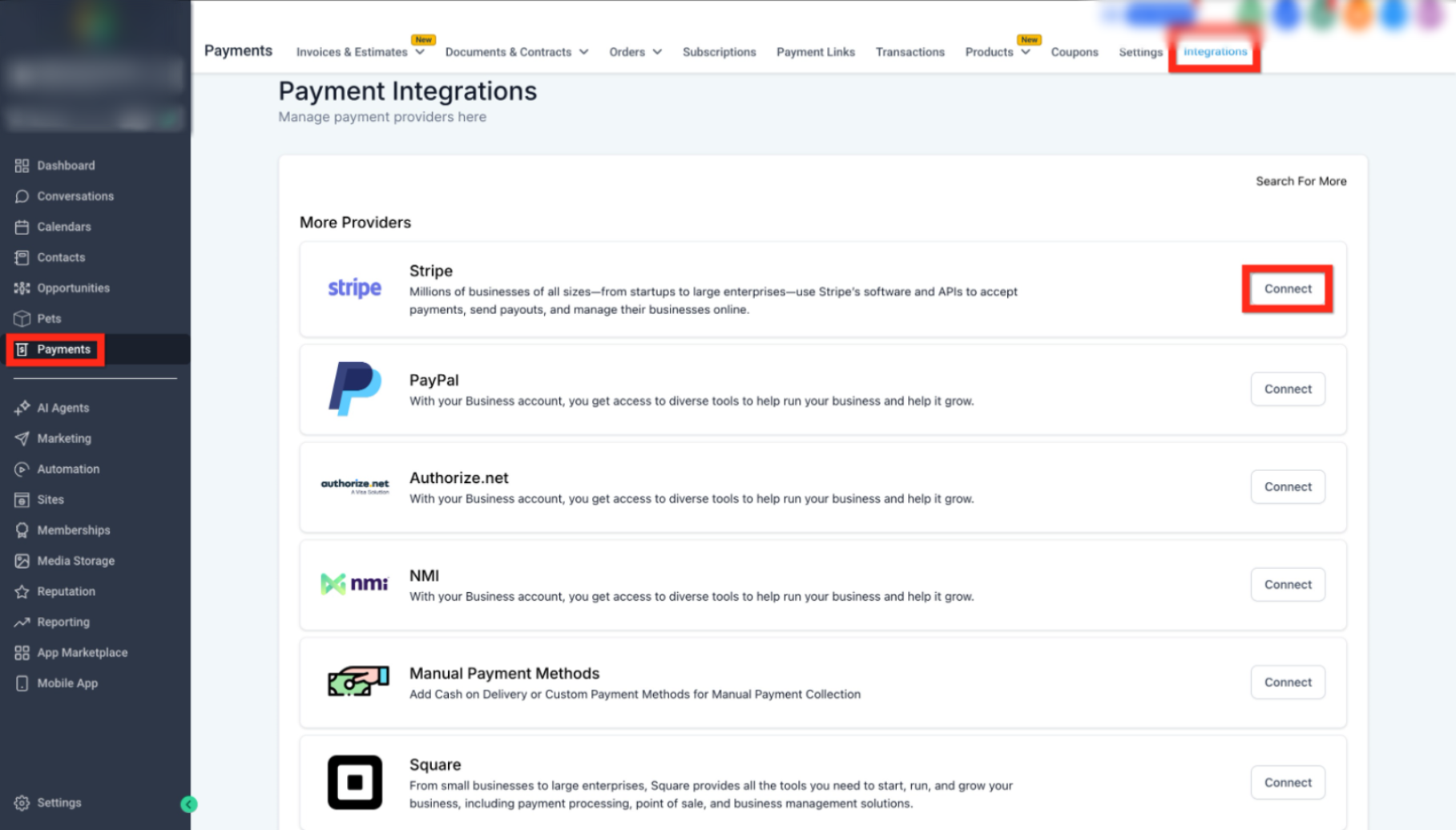
This image shows where to locate the Payments section and open the Integrations tab.
Click Payments in the left navigation
Select Integrations from the top menu
Step 2: Select Stripe and Start Connection
Locate Stripe in the list of available providers and begin the connection process.
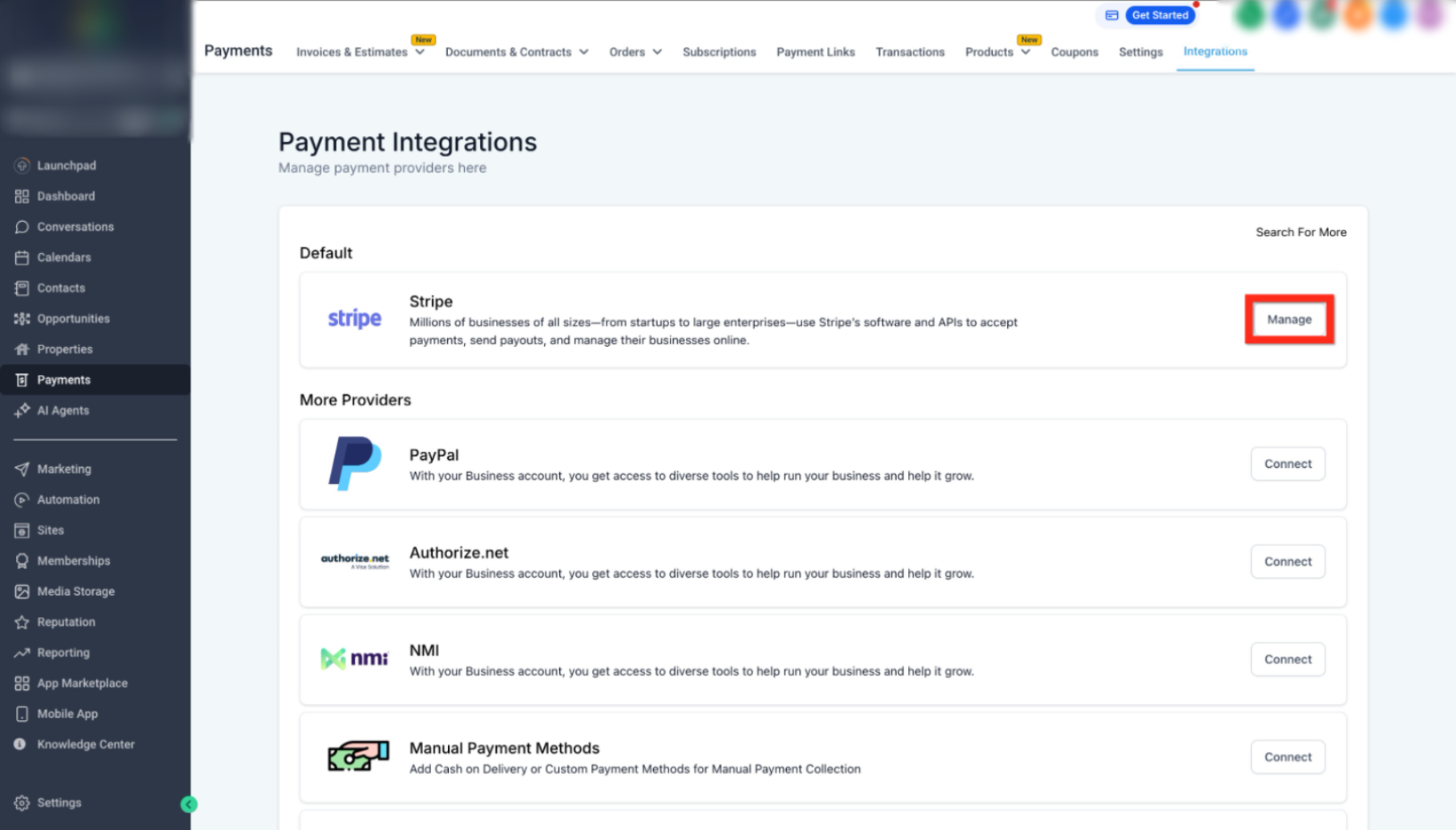
This image highlights the Stripe option and the Connect button.
Find Stripe under available providers
Click Connect to proceed
Step 3: Sign In or Create Your Account
You will be redirected to a secure login page to authenticate your Stripe account.
Enter your Stripe credentials
Or create a new account if needed
Step 4: Authorize the Connection
Grant the necessary permissions to complete the integration.
Review access permissions
Click Authorize to finalize the connection
Once complete, your account will be successfully connected.
Step 5: Confirm and Manage Integration
After connecting, you will see the option to manage your integration.
Verify the connection status
Click Manage to update or review settings
Best Practices for Payment Setup
Following these recommendations helps ensure smooth payment processing:
Use a verified Stripe account before connecting
Double-check account permissions during setup
Test payments after integration to confirm functionality
Keep billing and product data organized for accurate reporting
Frequently Asked Questions
Q: What happens after I connect Stripe?
You can immediately start accepting payments, subscriptions, and transactions.
Q: Can I disconnect Stripe later?
Yes, you can manage or disconnect the integration at any time from the integrations page.
Q: Do I need a Stripe account before connecting?
Yes, you will need to sign in or create one during the setup process.
Q: Is payment information stored securely?
Yes, all payment data is handled securely through the payment provider.
Q: Can I use multiple payment providers?
Yes, you can connect additional providers depending on your needs.
Need More Help?
If you need assistance setting up payments or troubleshooting your connection, visit the Help Center or contact support for guidance.