
The Client Portal brings notifications from supported applications, including Communities and Courses, into one central location. You can review activity, open notifications, and manage how you receive updates. Notification preferences let you customize email and push alerts for supported events. This guide explains how to access notifications, adjust your preferences, and manage individual Community email subscriptions.
TABLE OF CONTENTS
- What Are Client Portal Notifications?
- Key Benefits
- Prerequisites and Limitations
- How to Access Notifications
- What Notifications You Will Receive
- Managing Notification Preferences
- Notification Options for Individual Users
- Notification Controls for Portal Owners
- How to Manage Your Notification Preferences
- Unsubscribe from a Specific Community Email
- Frequently Asked Questions
- Need Help?
What Are Client Portal Notifications?
Client Portal Notifications provide a centralized location for reviewing activity from the Client Portal and its supported applications, including Communities and Courses.
Notifications help users stay informed about important updates, such as community activity, course certificates, and engagement with posts or comments. Depending on the event and available settings, notifications may appear within the application or be delivered through email or mobile push notifications.
Users can customize supported notification preferences to receive the updates most relevant to them.
Key Benefits
Client Portal notification controls make it easier to stay informed without receiving unnecessary alerts. Centralized access and customizable preferences provide greater control over communication and engagement.
- Centralized notification access: Review notifications from the Client Portal, Communities, and Courses in one location.
- Personalized preferences: Enable or disable supported email and push notifications based on the types of updates you want to receive.
- Community engagement awareness: Stay informed about community activity, including updates and interactions with posts or comments.
- Flexible email subscriptions: Unsubscribe from eligible Community email notification types without disabling unrelated notifications.
- Clear notification controls: Identify settings managed by a portal owner through the information displayed in the notification preferences interface.
Prerequisites and Limitations
Notification availability depends on the supported applications, event types, and notification controls available in the Client Portal. Understanding these limitations helps you manage notification preferences effectively.
- You must be able to access the Client Portal or a supported application, such as Communities or Courses, to manage your notification preferences.
- Email and push notification options vary by event type.
- Push notifications are available for supported mobile app notifications.
- Some notification settings may be controlled by the portal owner and cannot be changed by individual users.
- Granular unsubscribe options are available only for supported Community email notification types.
- An unsubscribe preference applies to the specific community and notification type identified during the unsubscribe process.
How to Access Notifications
The notification center brings activity from the Client Portal and supported applications into one location. You can review updates and open notifications to view additional details or take the relevant action.
- Open the Client Portal or a supported application, such as Communities or Courses
. - Locate the bell icon within the application.
- Click the bell icon to access your notifications.
- Review the available notifications, including updates from supported applications.
- Click a notification to view its details or open the associated activity.
Community activity can generate in-app and email notifications based on your notification preferences.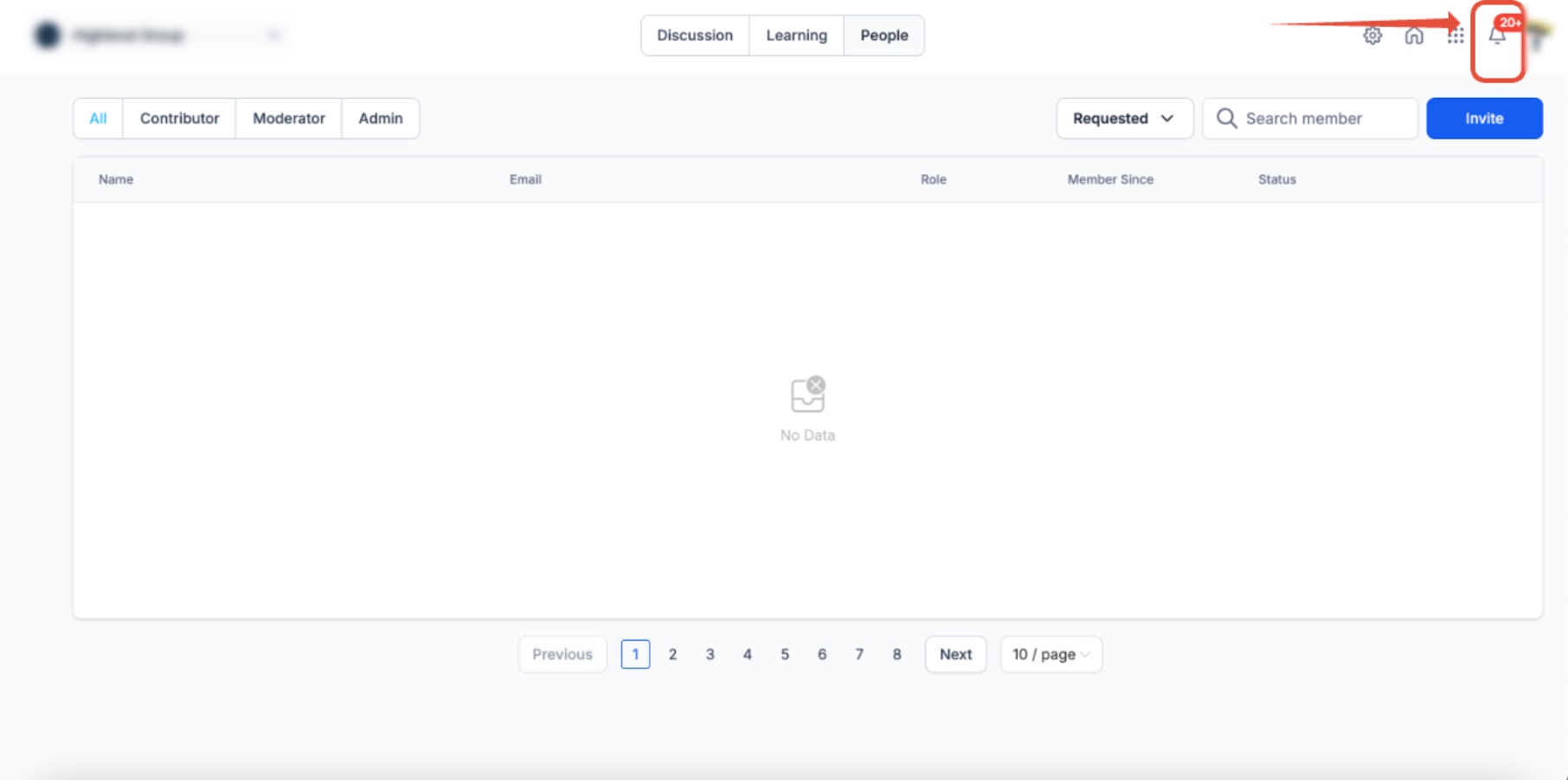
Note: When a notification links to a Community post, the post may open in a dedicated full-page view on the web for easier reading.
What Notifications You Will Receive
The Client Portal supports notifications for different activities and events. Available notification types help users stay informed about discussions, membership activity, courses, and other interactions.
The following table shows Community notification types and their supported delivery channels.
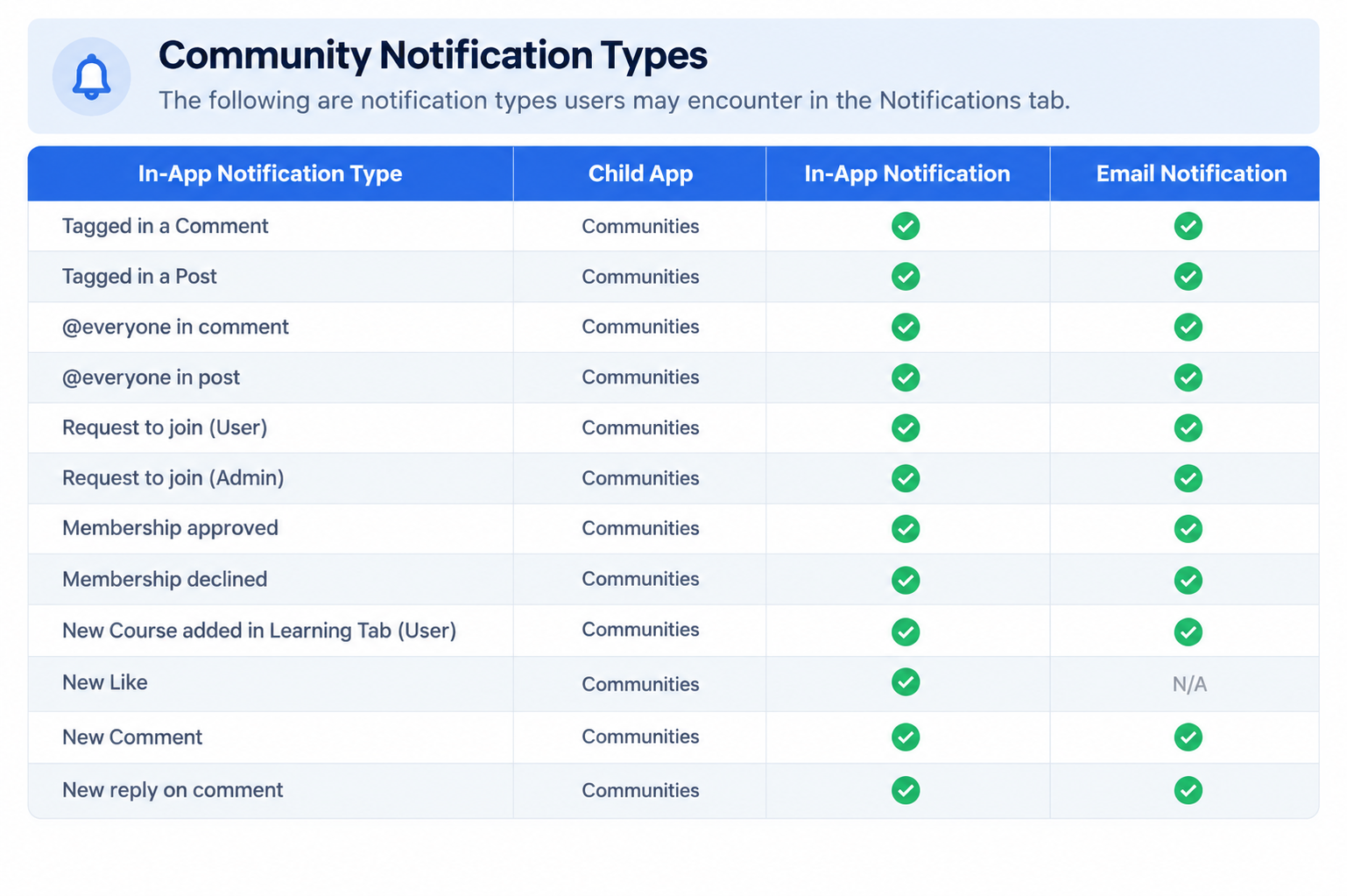
Supported notification events include:
- Being tagged in a Community comment or post
- Mentions using @everyone in a post or comment
- Community membership requests
- Membership approvals or declines
- New courses added to the Learning tab
- New likes on Community content
- New comments and replies
Note: Not every notification type supports every delivery method. Granular unsubscribe availability may also vary by Community email notification type.
Managing Notification Preferences
Notification preferences determine which supported events generate email or push alerts. Customizing these settings helps you receive relevant updates while reducing unnecessary notifications.
Individual users can manage supported preferences through their Client Portal settings. Portal owners can also control certain notification settings that affect available user options.
For eligible Community emails, members can unsubscribe from a specific notification type for an individual community without disabling other Community or platform emails.
Notification Options for Individual Users
Individual notification controls let you decide whether to receive email or push alerts for supported events. These settings provide greater flexibility while keeping relevant activity available through the notification center.
Users can independently enable or disable supported email and push notifications for the following event types:
- Community updates: Receive notifications about supported Community activities and updates.
- Course certificates: Receive notifications related to course certificates.
- Likes on posts: Receive notifications when supported posts receive likes.
- Likes on comments: Receive notifications when supported comments receive likes.
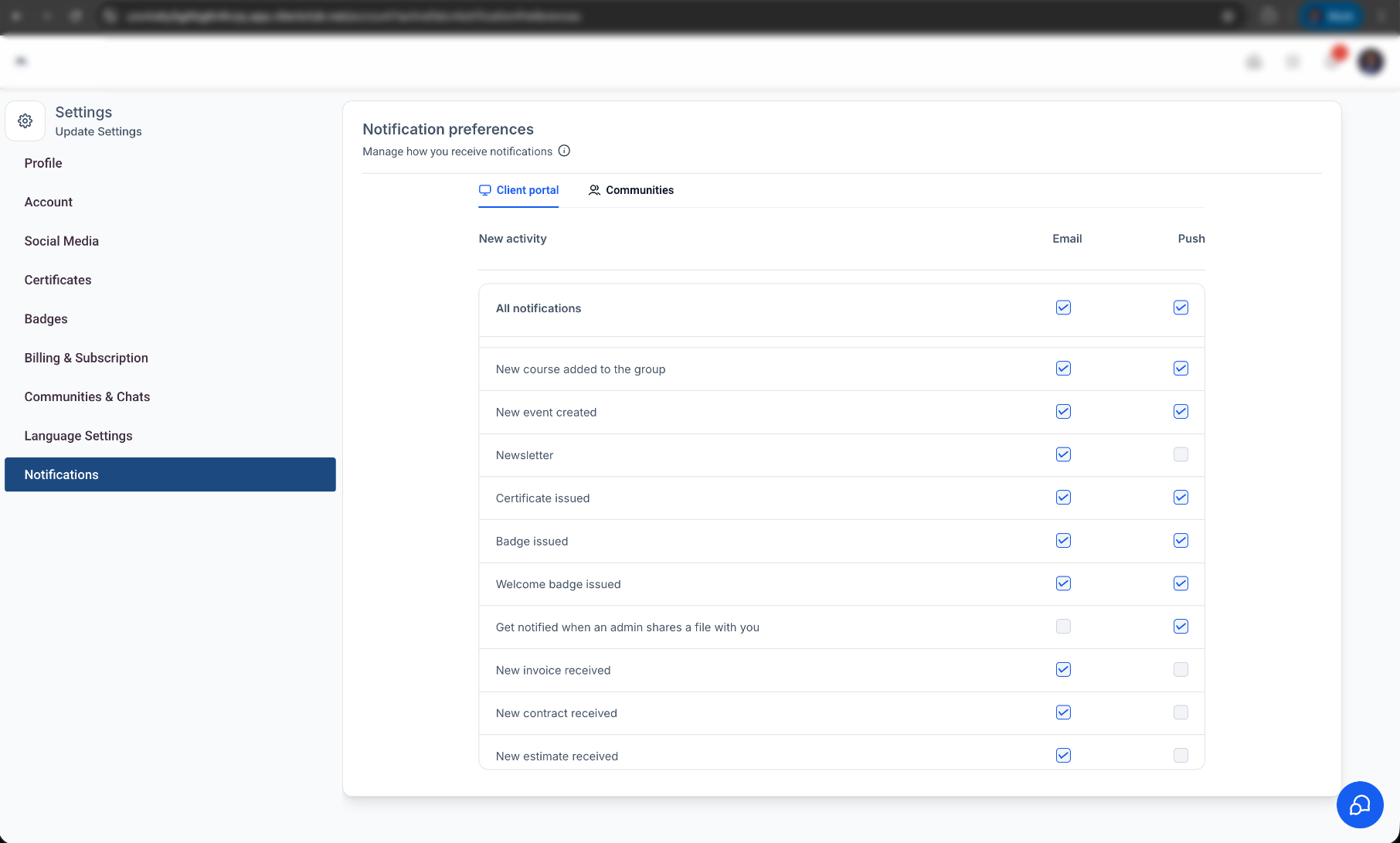
Notification preferences are available through Manage Your Account in the Client Portal.
Some Community email notifications also support an individual unsubscribe option. This lets you stop a specific notification type for one community without changing unrelated notification preferences.
Notification Controls for Portal Owners
Portal owners can control certain notification defaults that affect engagement-related alerts. These controls help maintain consistent notification behavior across the portal.
Supported owner-controlled settings include:
- Post-like email notifications: Enable or disable email notifications for likes on posts.
- Comment-like email notifications: Enable or disable email notifications for likes on comments.
Some owner-controlled settings may override individual notification preferences.
When a setting is locked, users see a tooltip explaining that the notification option is managed by the administrator.
How to Manage Your Notification Preferences
You can adjust supported email and push notifications directly from your account settings. These preferences help you customize how you receive updates from the Client Portal and supported applications.
- Open the Client Portal, Communities, or Courses area.
- Click your profile icon in the upper-right corner.
- Select Manage Your Account from the dropdown menu.
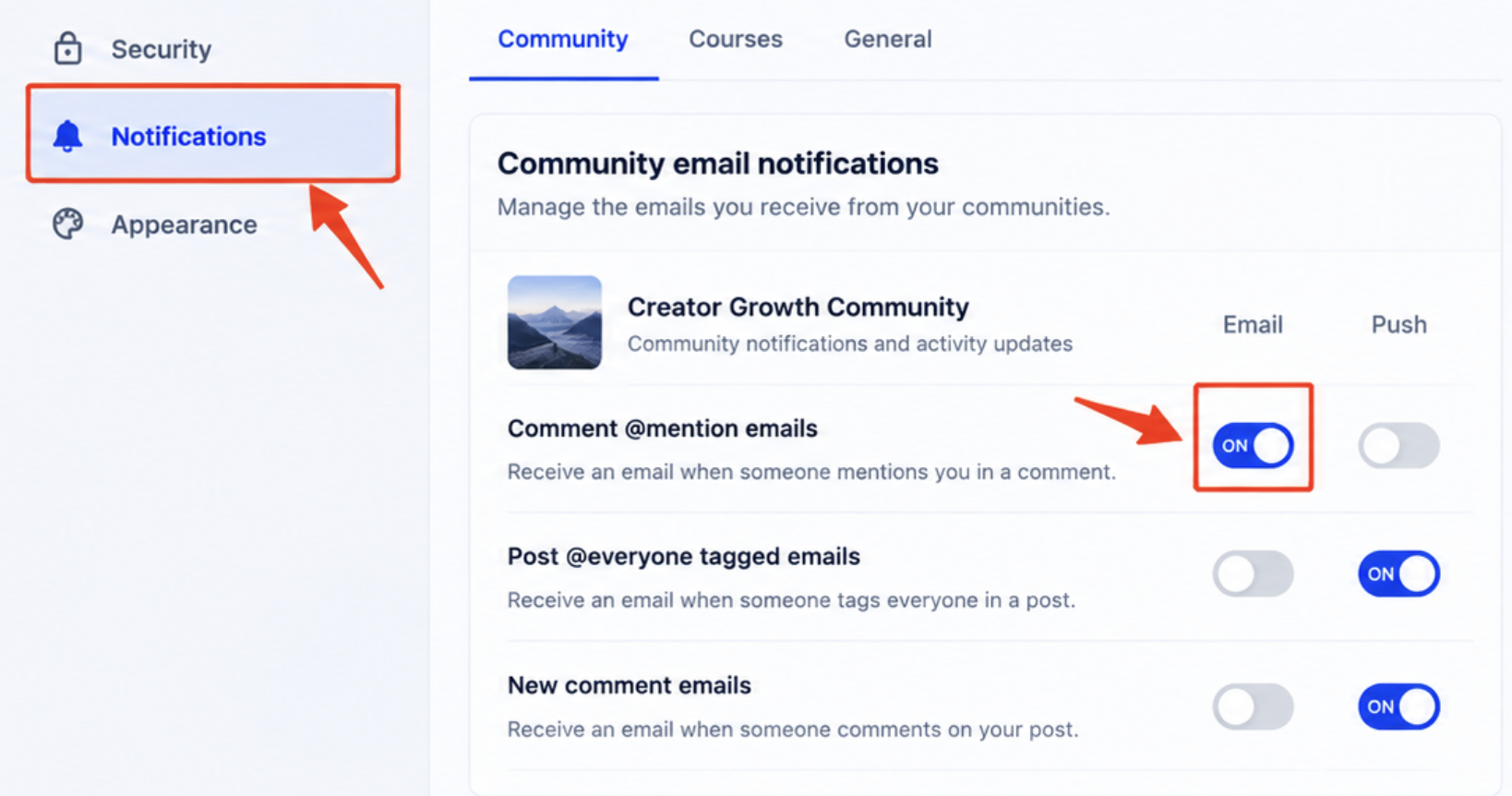
- Click Notifications in the left-hand menu.
- Review the available notification categories and event types.
- Use the available Email and Push controls to enable or disable supported notifications.
You can return to these settings whenever you need to change your preferences. Eligible Community email notifications that were previously disabled through an unsubscribe link can also be re-enabled here.
Unsubscribe from a Specific Community Email
Eligible Community emails include unsubscribe controls that allow you to stop a particular notification type for a specific community. This helps reduce unwanted emails while preserving other important updates.
The unsubscribe preference applies only to the community and notification type identified on the unsubscribe confirmation page.
How to Unsubscribe from a Community Email
Use the unsubscribe link in an eligible Community email to adjust that notification type without affecting unrelated emails.
- Open an eligible Community notification email.
- Click Unsubscribe in the email.
- Review the community name and notification type displayed on the confirmation page.
- Confirm your unsubscribe preference.
After confirming:
- Future emails matching the selected community and notification type stop.
- Other notification types from the same community continue according to your existing preferences.
- The same notification type from other communities remains enabled.
- Unrelated platform emails remain unaffected.
Invalid or Expired Unsubscribe Links
An unsubscribe link may be unavailable if it is invalid, expired, or has already been used. In these cases, the unsubscribe request does not change your notification preferences.
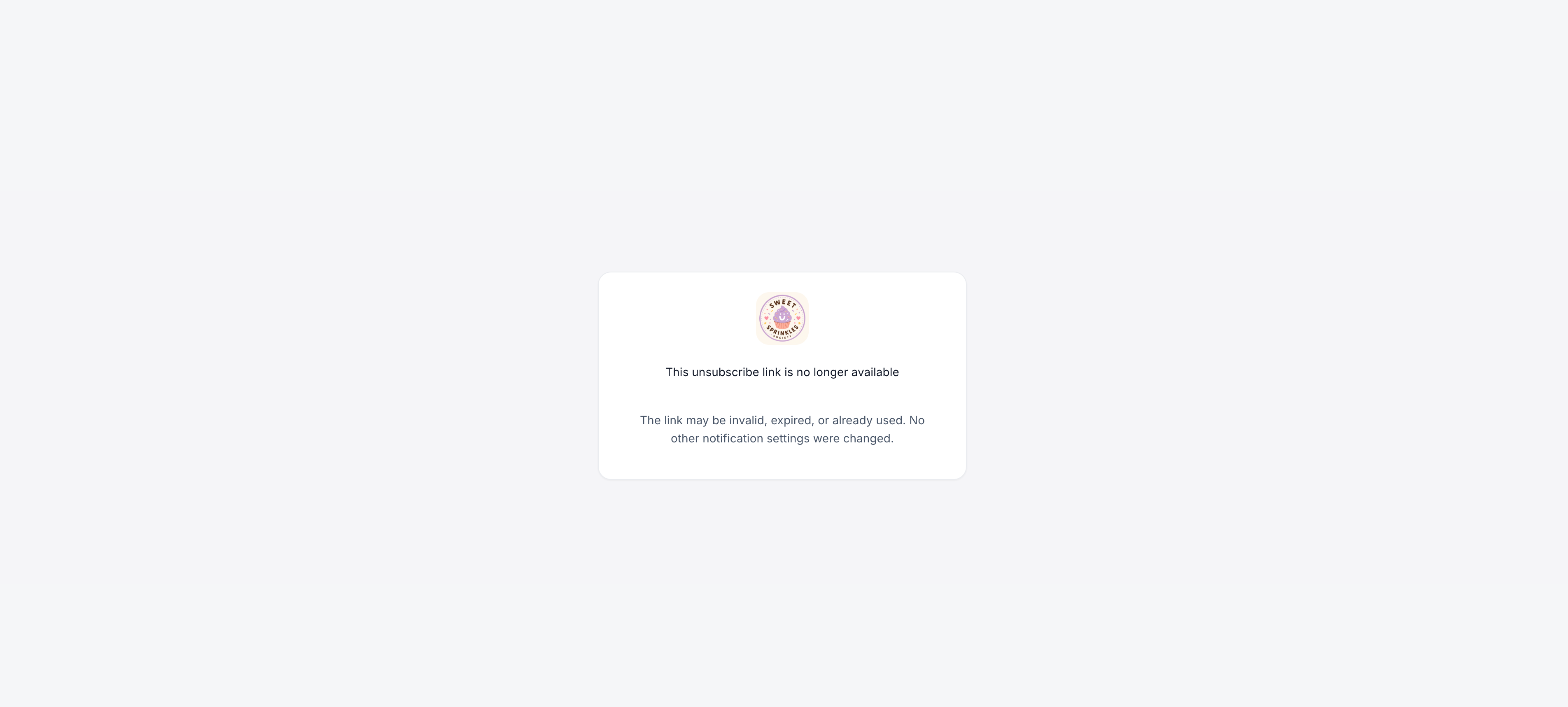
If the unsubscribe link is unavailable, use the notification settings in the Client Portal to review or update your preferences.
Re-enable Community Email Notifications
You can restore a previously disabled Community email notification from your account settings whenever you want to receive that update again.
- Open the Client Portal, Communities, or Courses area.
- Click your profile icon.
- Select Manage Your Account.
- Click Notifications.
- Locate the applicable Community notification preference.
- Enable the notification again.
Frequently Asked Questions
Q: Can I unsubscribe from one Community email without disabling all Community emails?
Yes. Eligible Community emails support unsubscribing from a specific notification type for the community that generated the email. Other Community and platform emails remain enabled.
Q: Will unsubscribing stop other notification types from the same community?
No. Other notification types from that community continue according to your existing preferences.
Q: Will the same notification type be disabled for my other communities?
No. The unsubscribe preference applies only to the community identified on the confirmation page.
Q: What happens if an unsubscribe link is invalid, expired, or has already been used?
No notification preferences are changed. You can review or update your preferences from the notification settings in the Client Portal.
Q: Can I turn a Community email notification back on after unsubscribing?
Yes. Open Manage Your Account, select Notifications, and re-enable the applicable Community notification.
Q: Why can't I change one of my notification settings?
Some notification settings are controlled by the portal owner. When a setting is locked, a tooltip indicates that the option is managed by the administrator.
Q: Can I manage email and push notifications separately?
Yes. For supported notification types, email and push notifications can be enabled or disabled independently. Available delivery methods vary by event type.
Q: Where can I find notifications from Communities and Courses?
Open the notification center using the bell icon in the Client Portal or supported application. Available notifications appear in the centralized notification area.
Need Help?
If you have trouble accessing notifications, changing notification preferences, or managing Community email subscriptions, contact support for assistance.
When contacting support, include a description of the issue, the notification type involved, any relevant error messages, and the steps you have already tried. This information can help identify and resolve the problem.