
Prospect Migration allows you to move prospects into linked accounts so they can be managed more effectively with account-level tools and follow-up processes. This makes it easier to organize leads, personalize nurturing, and improve conversion efforts while keeping visibility across your overall prospecting activity.
TABLE OF CONTENTS
- What is Prospect Migration?
- Prerequisites
- Key Benefits of Prospect Migration
- How to Use Prospect Migration
- What Happens After Migration?
- Flexible Reuse of Prospects
- Frequently Asked Questions
- Need Help?
What is Prospect Migration?
Prospect Migration allows you to transfer selected prospects into a linked account for more focused follow-up and management. Once moved, the destination account can work those prospects using its own tools, workflows, and communication processes.
This helps improve lead handling by allowing teams to engage prospects closer to where action happens, while still keeping the prospect available for future use.
Prerequisites
Before migrating prospects, confirm the following:
The destination account must have an active Premium Prospecting subscription
Prospects must already exist and be available for selection
You must have access to the Prospecting settings area
Key Benefits of Prospect Migration
Prospect Migration helps improve lead organization and follow-up efficiency.
Better Lead Delegation: Move prospects into the right account for localized follow-up
Improved Nurturing: Use account-level workflows, automations, and communications
Stronger Organization: Keep prospect activity tied to the account managing the lead
Continued Visibility: Retain access to the original prospect record for future actions
How to Use Prospect Migration
Migrating prospects is a simple process that starts from the Prospecting dashboard and ends with moving selected prospects into a linked account.
Step 1: Access the Prospecting Dashboard
Start by opening the Prospecting area from your main navigation.
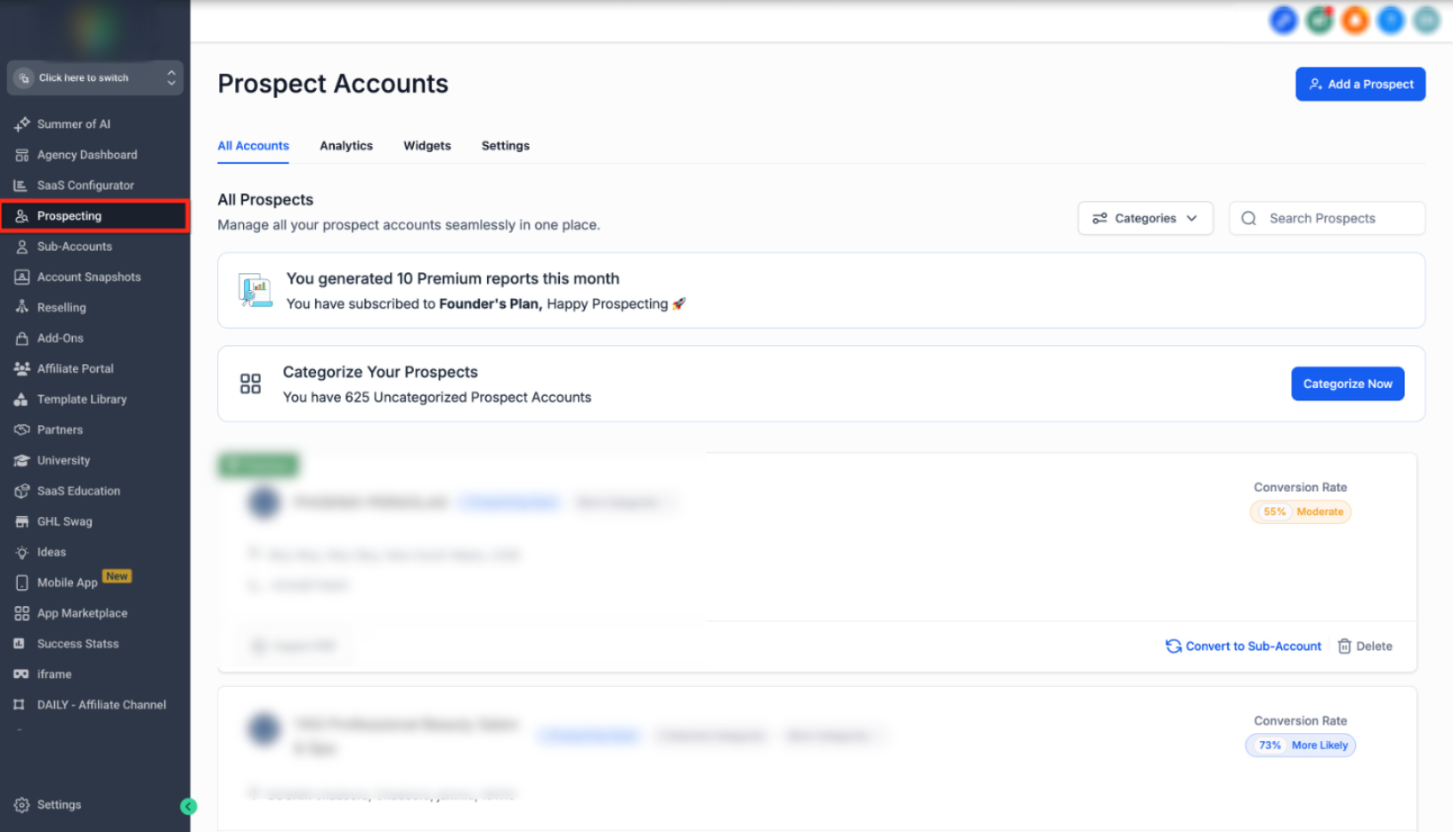
This screen shows where to access the Prospecting dashboard.
You should begin by clicking Prospecting in the left-hand navigation menu. This opens the main Prospect Accounts area where prospecting activity is managed.
Step 2: Open the Migration Settings
Next, go to the migration area inside Prospecting settings.
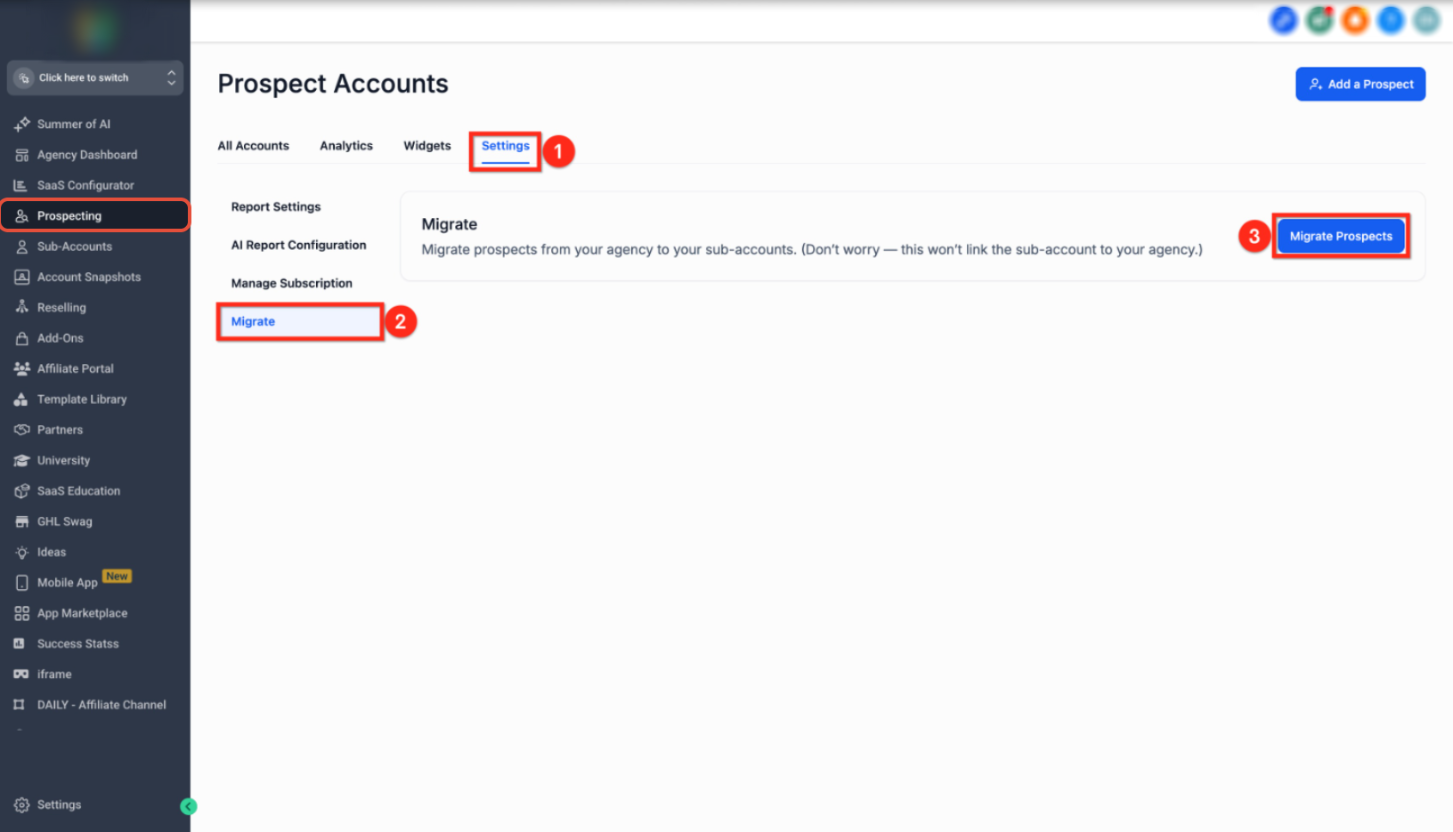
This screen shows where the migration feature is located.
From the Prospecting dashboard, click Settings, then select Migrate, and then click Migrate Prospects to open the migration window.
Step 3: Select the Destination Account
Once the migration window appears, choose the account where the prospects should be moved.
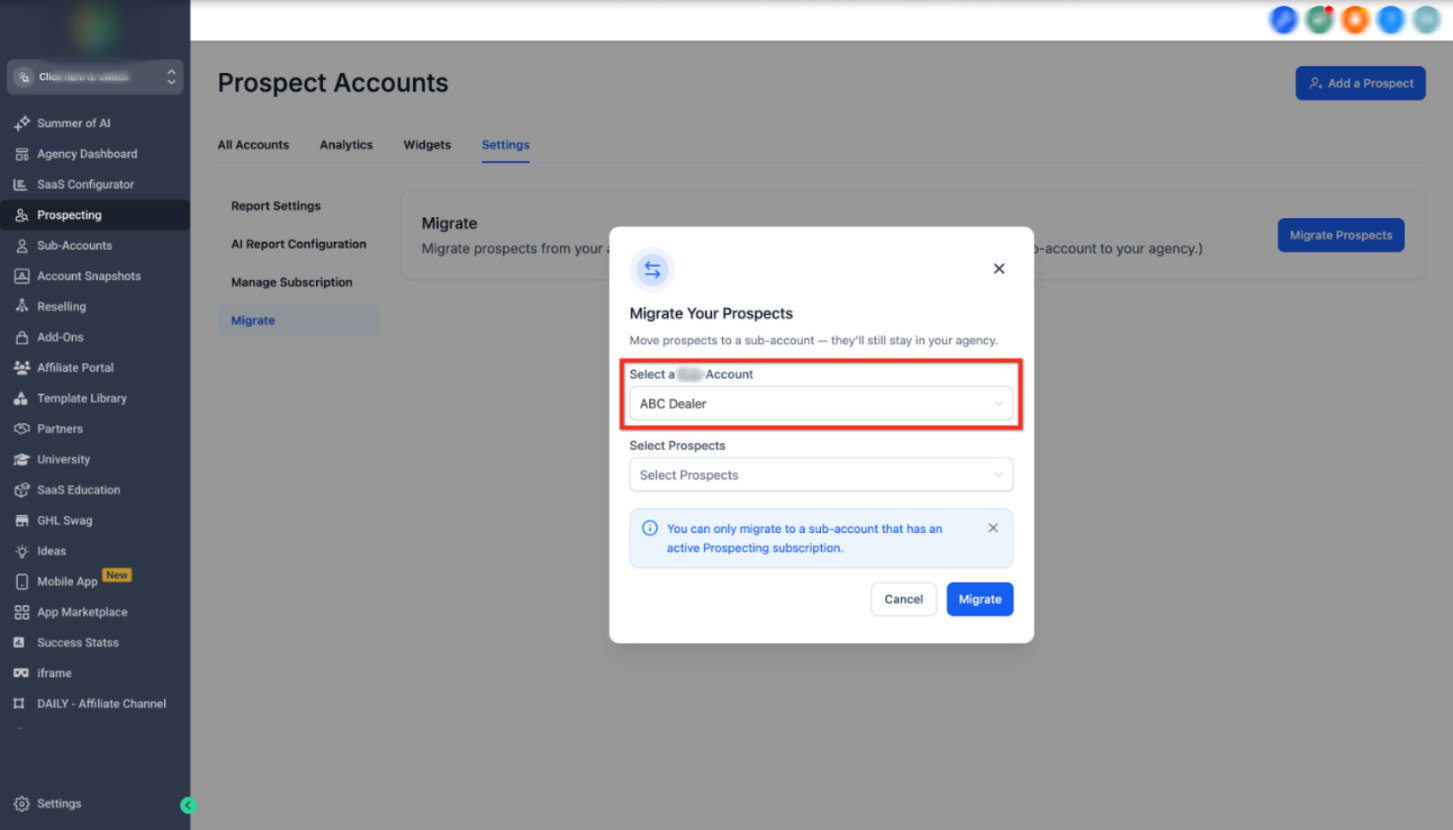
This screen shows the account selection field inside the migration modal.
Use the Select a Sub-Account dropdown to choose the destination account. Only accounts with an active Prospecting subscription will be available for selection.
Step 4: Choose the Prospects to Migrate
After selecting the account, choose one or more prospects to move.
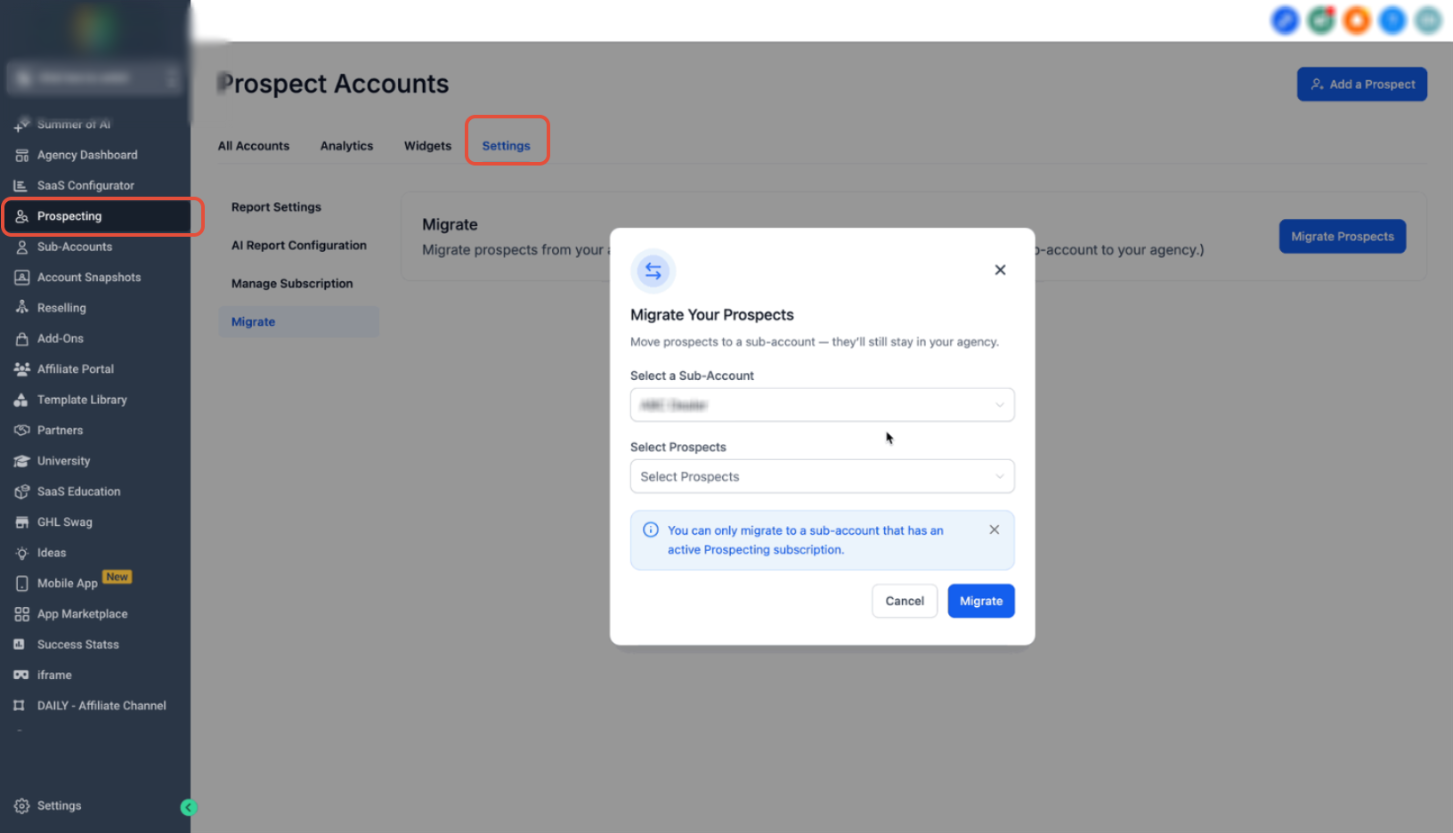
This screen shows the migration modal after the destination account has been selected.
Open the Select Prospects dropdown and choose the prospects you want to migrate. You can select individual prospects or multiple prospects depending on your needs.
Step 5: Execute the Migration
After confirming both the destination account and selected prospects, complete the transfer.
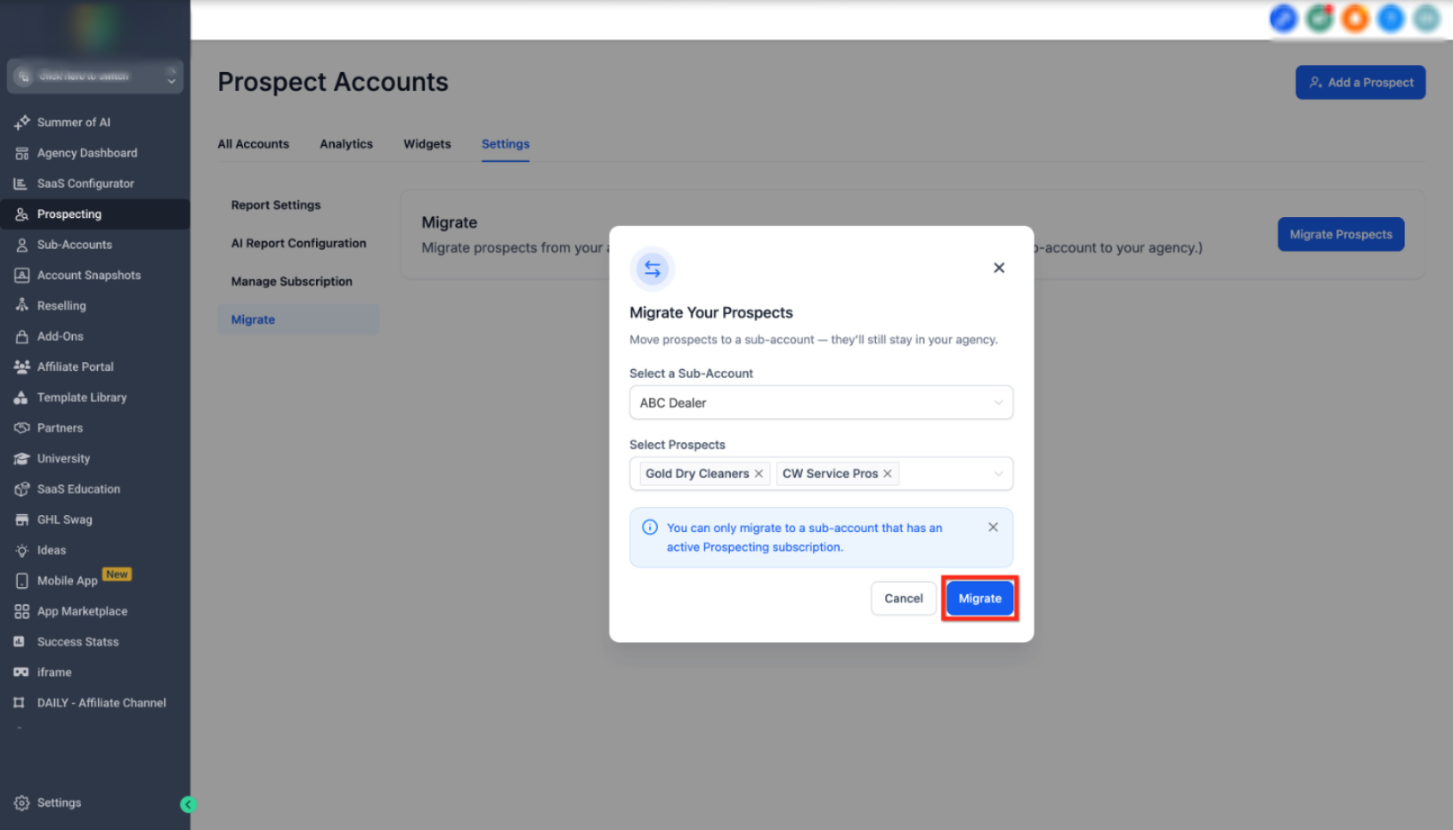
This screen shows the final migration step after prospects have been selected.
Click Migrate to move the selected prospects into the chosen account.
What Happens After Migration?
After migration is completed:
The selected prospects are added to the destination account
Prospect data remains intact during the transfer
The original prospect remains available for future actions
This allows teams to work the prospect inside the linked account while preserving flexibility for future use.
Flexible Reuse of Prospects
Migrated prospects are not locked to a single account.
The same prospect can be migrated to multiple accounts over time
Data stays available for reuse
This gives you more flexibility when distributing leads across teams or accounts
Frequently Asked Questions
Q: Are prospects removed after migration?
No. Prospects remain available and can still be used again later.
Q: Can I migrate more than one prospect at a time?
Yes. You can select multiple prospects during migration.
Q: Why can’t I see an account in the dropdown?
Only accounts with an active Prospecting subscription can be selected.
Q: Does prospect data stay intact after migration?
Yes. The migration keeps the prospect’s available information with the record.
Q: Can I migrate the same prospect again later?
Yes. Prospects remain reusable for future migrations.
Need Help?
If you need assistance with migrating prospects or managing your prospecting setup:
Open the Help Center from your dashboard
Search for topics like Prospecting, Accounts, or Lead Management
Contact Support for additional help