
This guide explains how to use the Prospecting Tool to search for potential leads, review key business insights, view available decision-maker details, and remove prospects you no longer need. You’ll also see where optional automation settings can be configured to support follow-up.
TABLE OF CONTENTS
- What the Prospecting Tool Does
- Access the Prospecting Area
- Find and Select a Prospect
- Review a Prospect’s Overview
- View Decision-Maker Details
- Remove a Prospect You Don’t Need
- Optional: Reporting Visibility
- Optional: Automation Settings for Follow-Up
- Review Online Reputation and Feedback Signals
- FAQ
- Need Help?
What the Prospecting Tool Does
The Prospecting Tool helps you identify potential customers, organize them in one place, and review business insights that can guide outreach. Depending on what’s available for a business, you may also see contact details and social/profile links for decision-makers.
Access the Prospecting Area
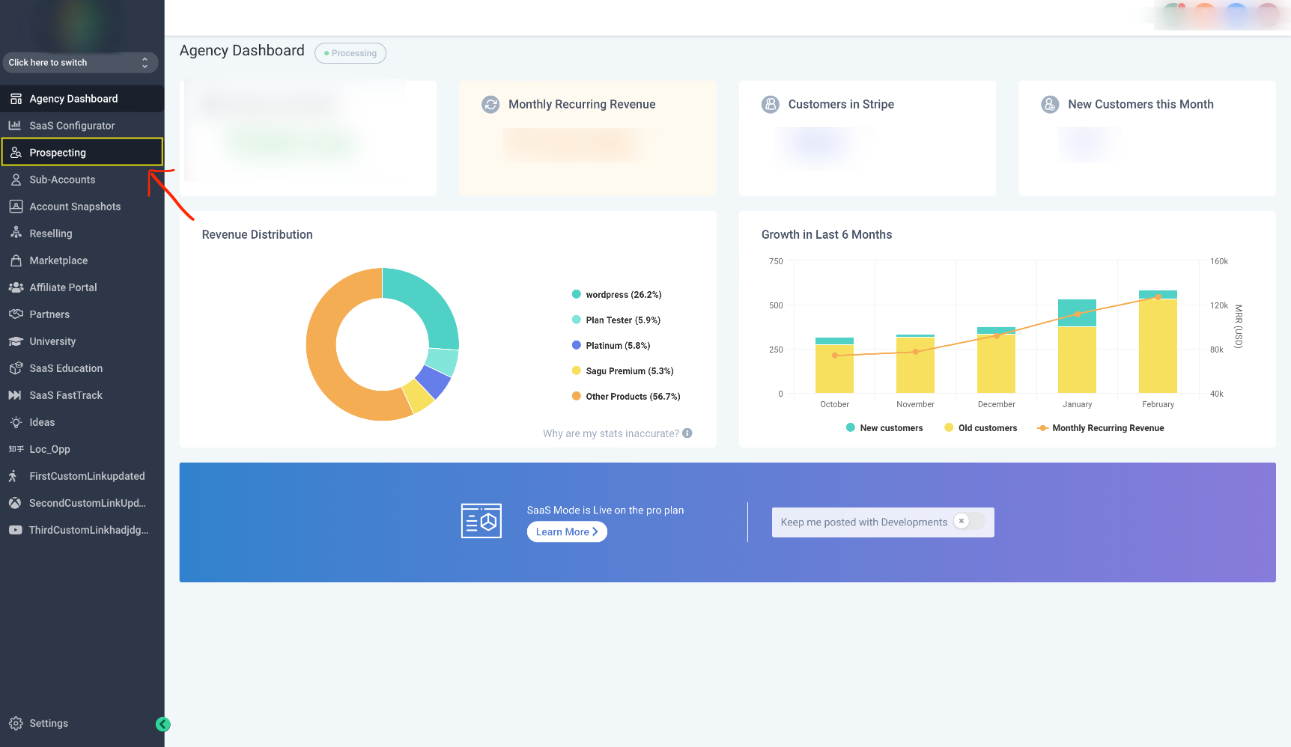
Use the left-hand navigation to click Prospecting. This opens the area where prospects and related insights can be accessed and managed.
Find and Select a Prospect
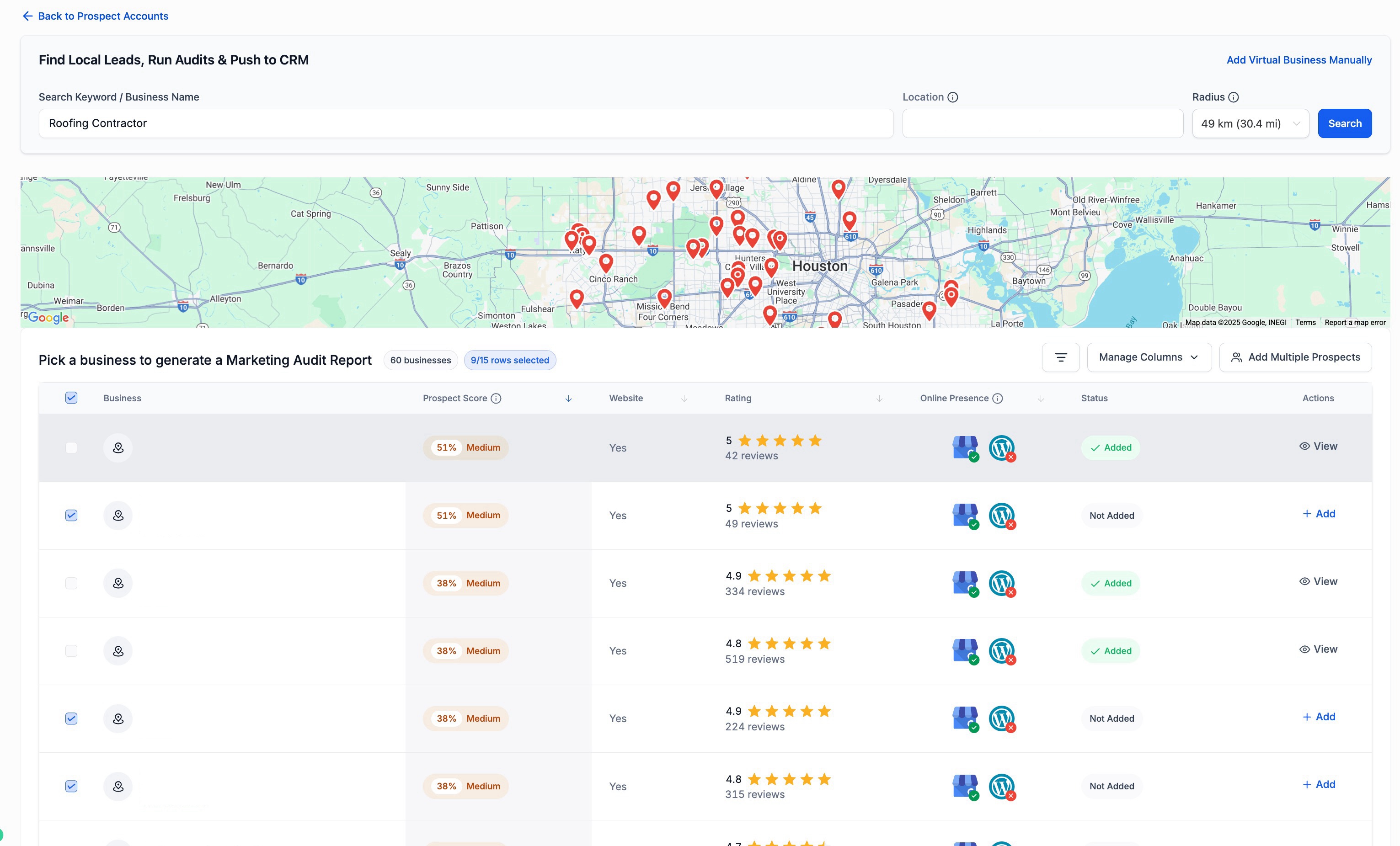
Open a prospect record, then click the tab that shows contact or decision-maker information (often labeled as a contact-focused tab). Use this view to confirm you’re looking at the correct prospect before taking any actions.
Review a Prospect’s Overview
After selecting a prospect, review the summary area to understand what information is available (business identifiers, basic details, and any available insights). This is the best place to confirm you’re working with the correct record before editing, sharing, or deleting.
View Decision-Maker Details
If the tool has contact information available, you can review key details such as:
Name and role/title (when available)
Location (when available)
Contact methods like email or phone (when available)
Profile links (when available)
Use these details to decide who to contact first and which outreach method makes the most sense.
Remove a Prospect You Don’t Need
Deleting a prospect is permanent and cannot be undone. Only delete a prospect when you’re confident you no longer need the record.
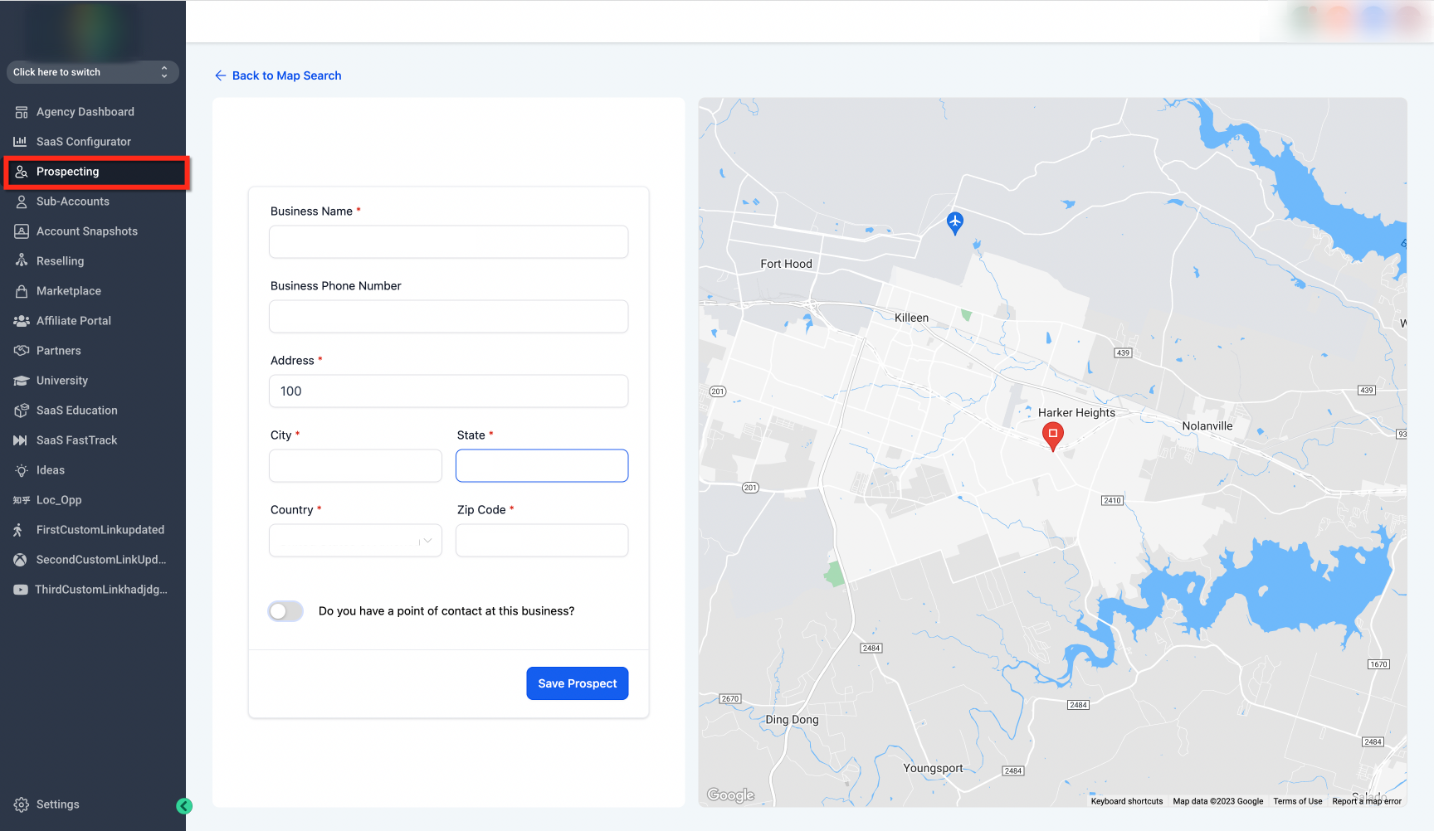
From the prospect list, click the Delete option for the prospect you want to remove. Confirm you’re selecting the correct prospect before continuing.
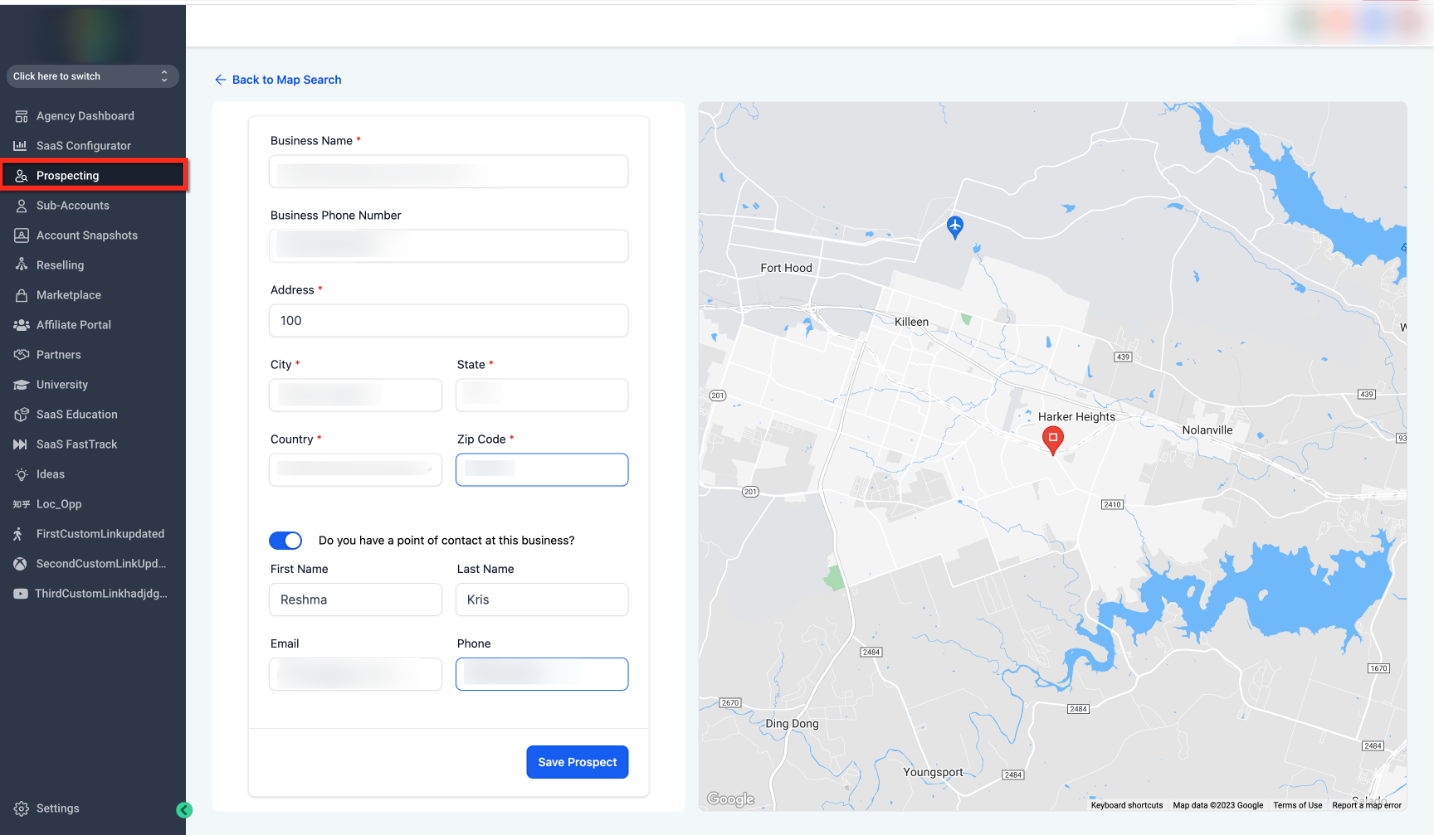
If your screen shows a confirmation-style panel, pause and review what will happen next. Only proceed after confirming you’re working on the right item and understand the impact.
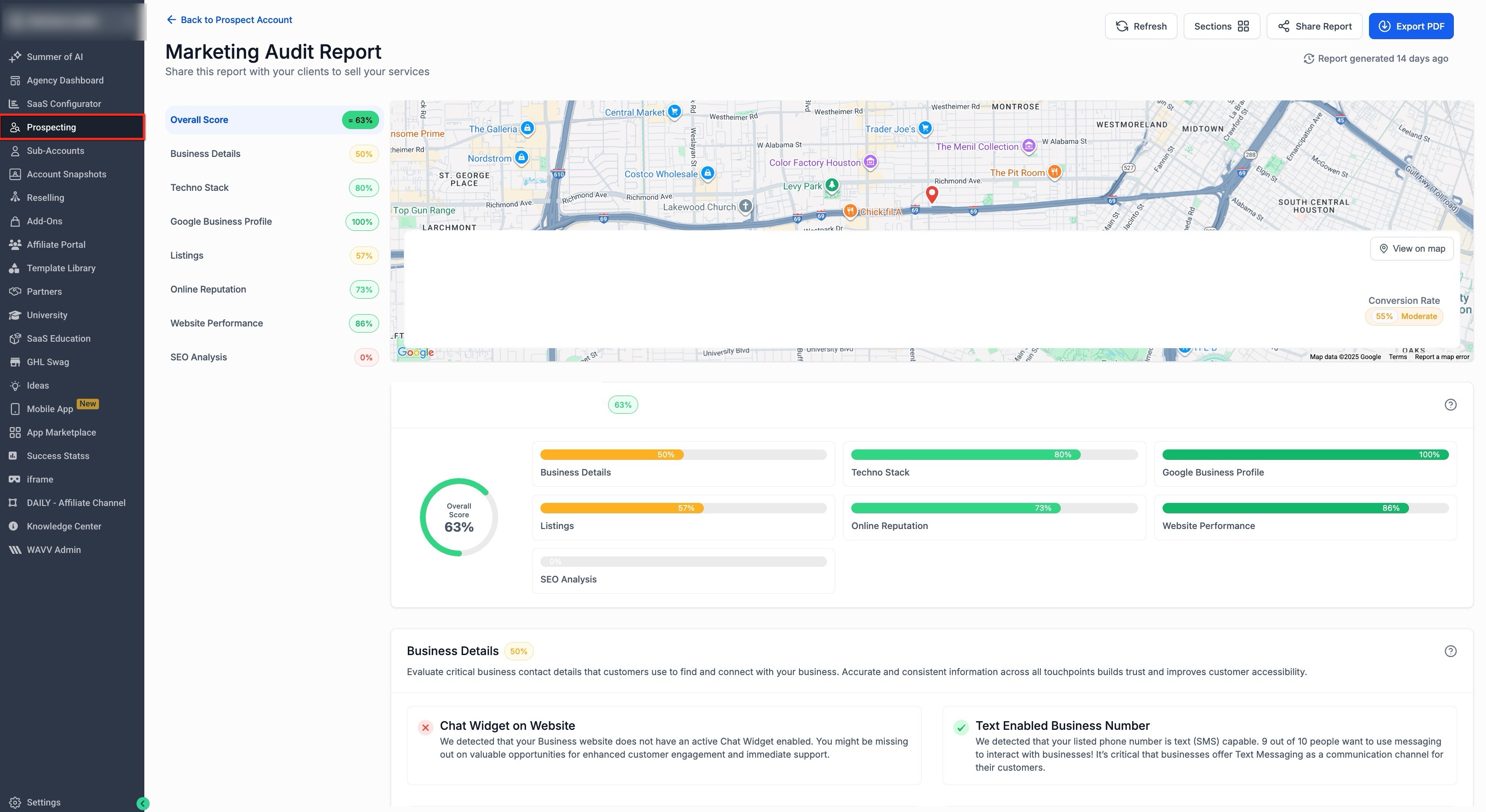
Use the Sort control (for example, sorting by created date or name) to quickly locate the prospect or related saved record you want to review or manage.
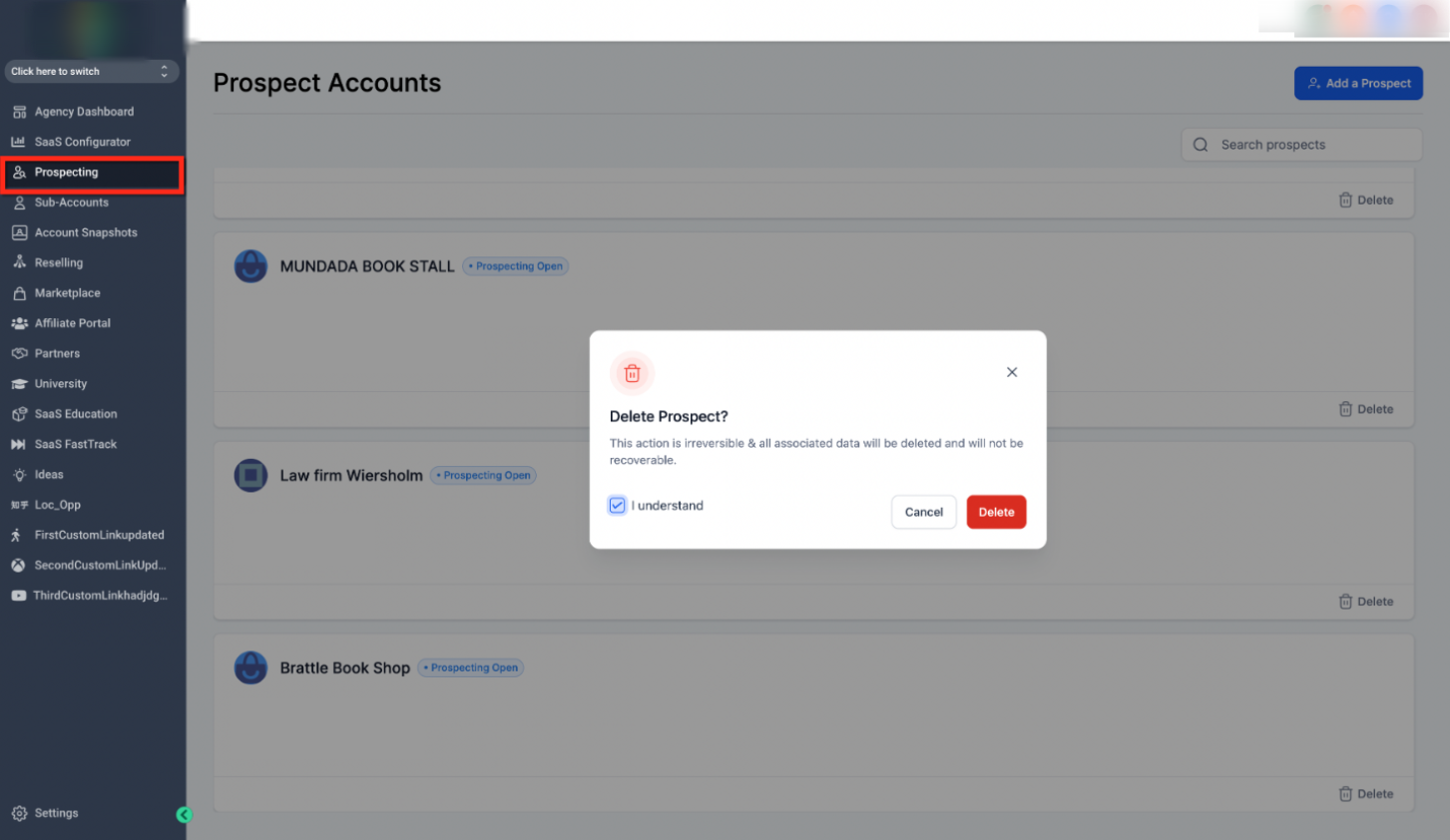
In the confirmation window, check the acknowledgment box (if shown), then click Delete to permanently remove the prospect. If you’re unsure, click Cancel instead.
Optional: Reporting Visibility
Some accounts include reporting views that summarize activity and performance. These can help you understand engagement trends at a high level.
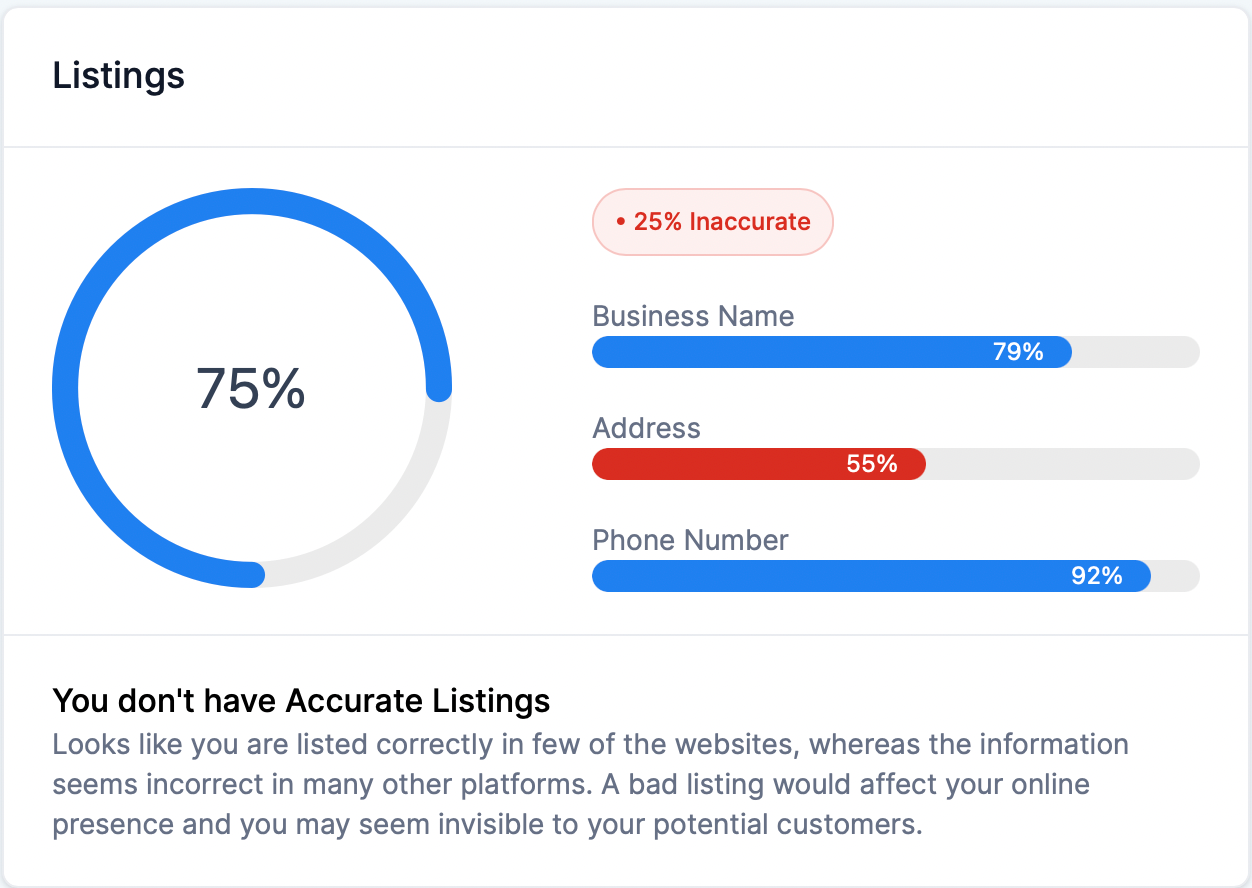
Use the reporting area to scan performance rows and statuses. This can be helpful for reviewing outcomes after outreach or campaign activity.
Automation Settings for Follow-Up
If your setup includes automation tools, you may be able to configure follow-up actions (for example, calls or messages) that run after a prospect-related event occurs.
In the automation builder, select the action you want to run (for example, a call-related action or a message action). Choose only the action that matches your intended follow-up.
In the trigger setup screen, choose the event that should start the automation (for example, when a status changes). Confirm the selected trigger and filters so the automation runs at the right time.
Review Online Reputation and Feedback Signals
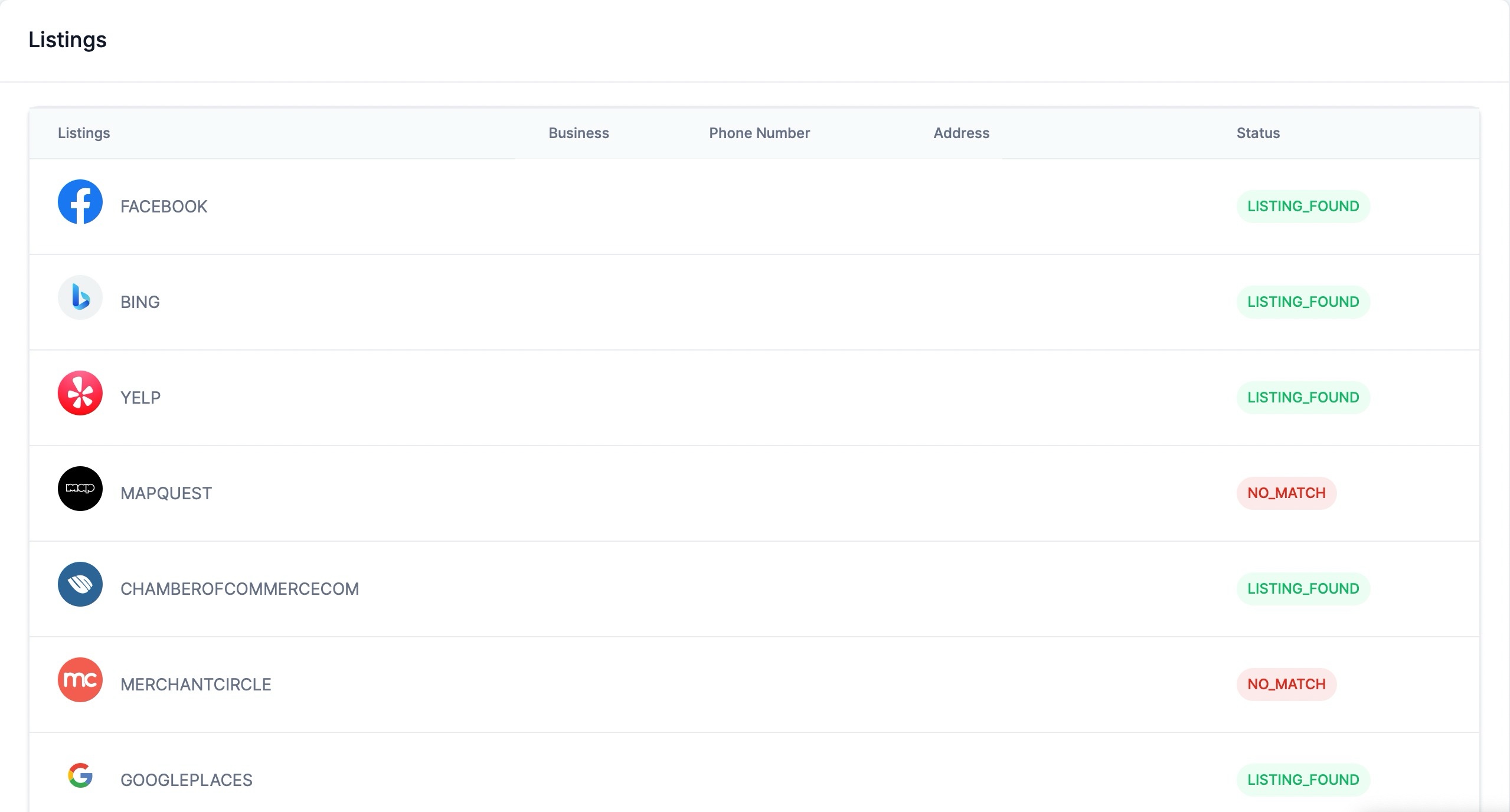
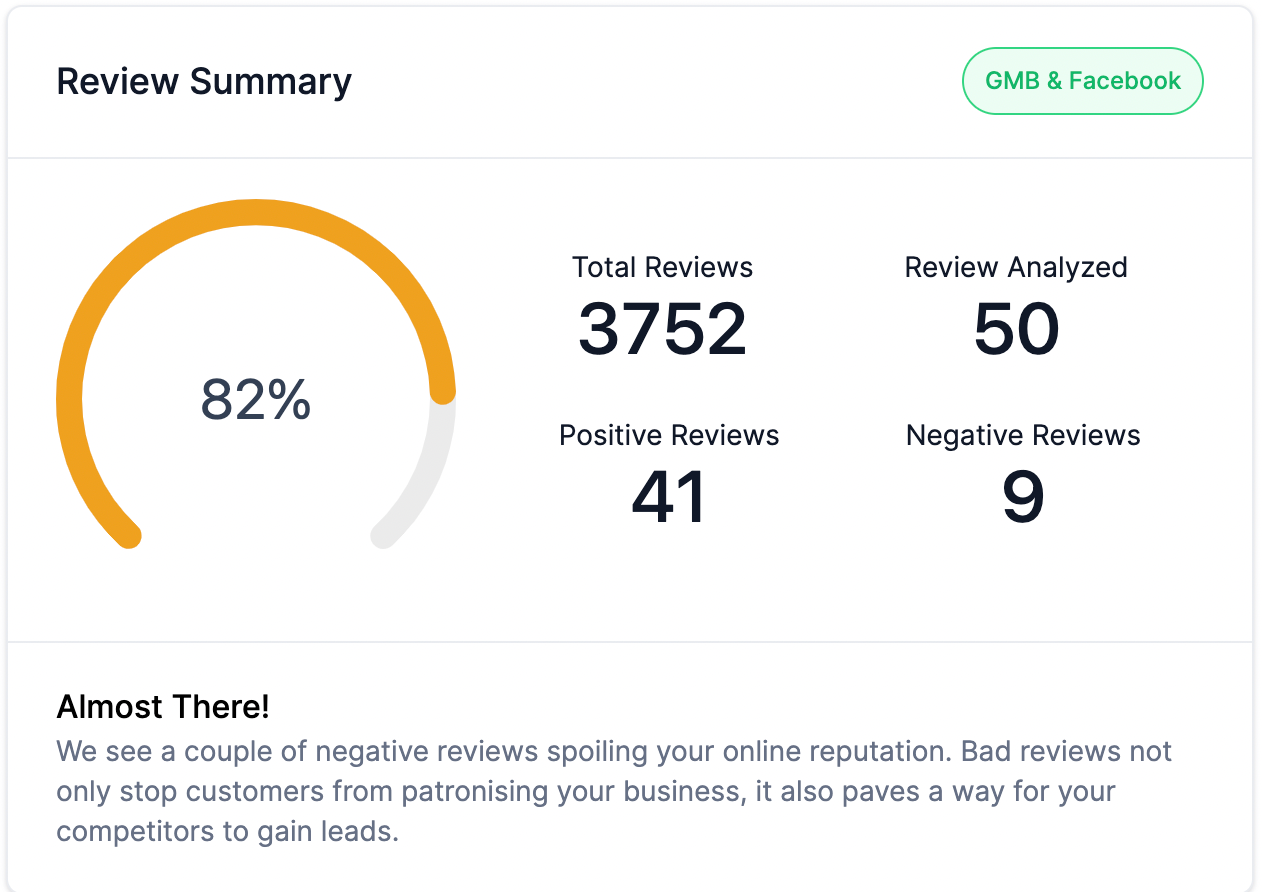
Prospect insights may include reputation indicators and review summaries from major online sources. Use this section to identify gaps and opportunities you can address during outreach.
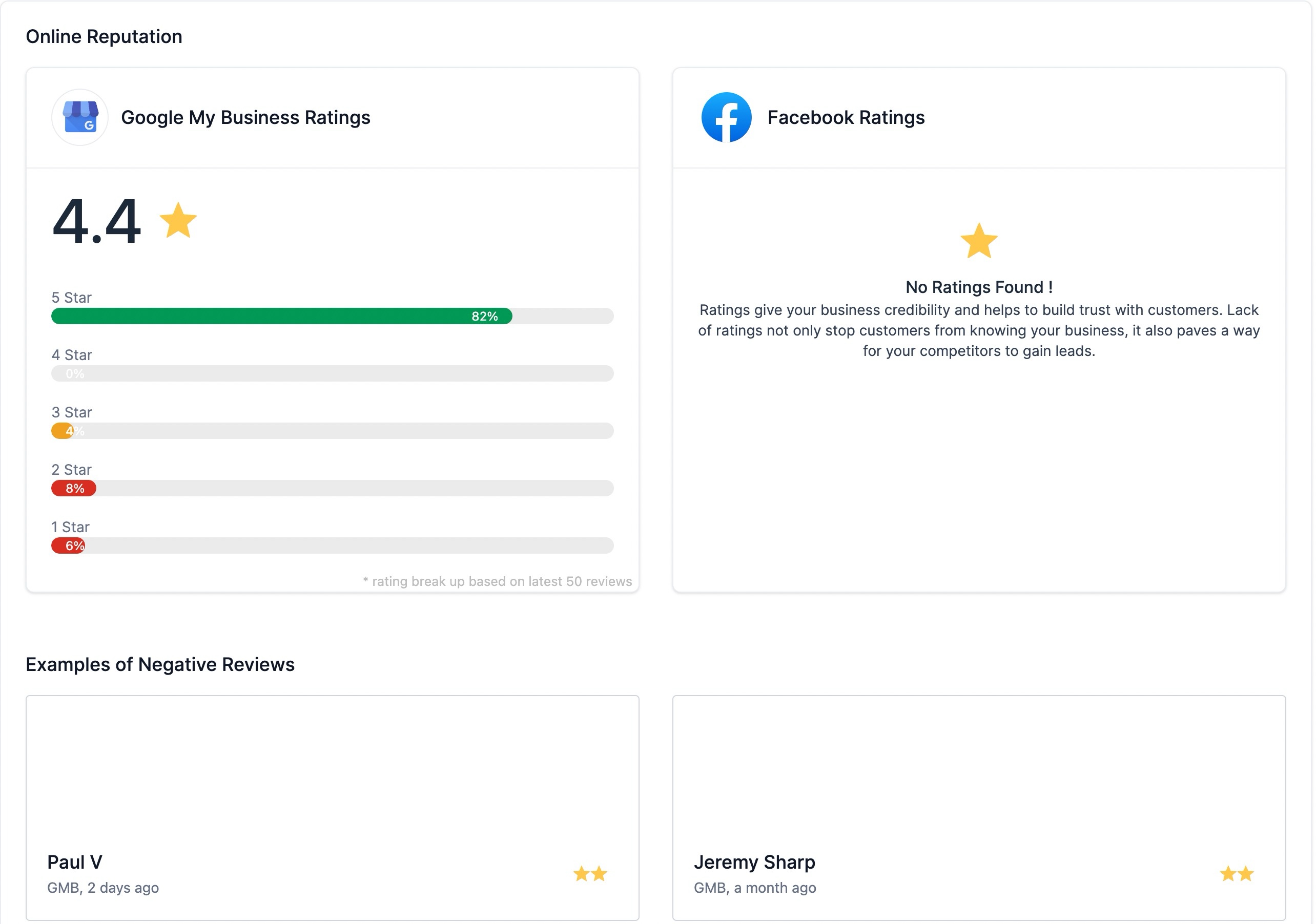
Use this view to evaluate overall ratings, rating distribution, and examples of customer feedback (when available). This can help you prioritize which businesses to contact and what improvement areas to discuss.
FAQ
Q: What happens if I delete a prospect by mistake?
Deleting a prospect is permanent. If you remove the wrong record, you will need to add the prospect again.
Q: Can I keep a prospect without reaching out right away?
Yes. You can keep prospects saved and return later when you’re ready to take action.
Q: Why don’t I see contact details for every prospect?
Contact details depend on what information is available for that business. Some prospects may not include decision-maker information or direct contact methods.
Q: Do prospect insights always include ratings or reviews?
Not always. Reputation data appears only when it can be found and matched to the business.
Q: If I set up automation, will it affect all prospects?
Automation behavior depends on the trigger and filters you configure. Use narrow filters if you only want automation to run for specific conditions.
Need Help?
If you’re not seeing expected prospect details, can’t find a prospect after searching, or a delete/automation action doesn’t behave as expected, check these first:
Confirm you’re in the correct workspace or account context.
Refresh the page and try opening the prospect again.
Verify you have the required permissions to delete records or edit automation settings.
If the issue continues, contact support and share the prospect name and a screenshot of what you’re seeing.