
The Points of Contact tab helps you quickly find decision-makers and key contacts inside a saved prospect account. It surfaces role details, location, and available contact methods so you can personalize outreach and avoid guessing who to message.
TABLE OF CONTENTS
- What Is the Points of Contact Tab?
- Open a saved prospect account
- Switch to the Points of Contact tab
- How to Use These Details for Better Outreach
- Frequently Asked Questions
- Need Help?
What Is the Points of Contact Tab?
The Points of Contact tab is a dedicated view inside a prospect account that displays the most relevant people associated with that business. Instead of relying on a single generic contact, you can review individuals, understand their role, and choose the best outreach approach.
What You Can See in Points of Contact
Depending on what data is available, you may see:
Role and title (for example, owner, manager, or specialist)
Location (helpful for local context and messaging)
Business email and phone (when available)
Social profile links (when available), so you can match your outreach channel to where they’re active
How to Access Points of Contact
Open a saved prospect account
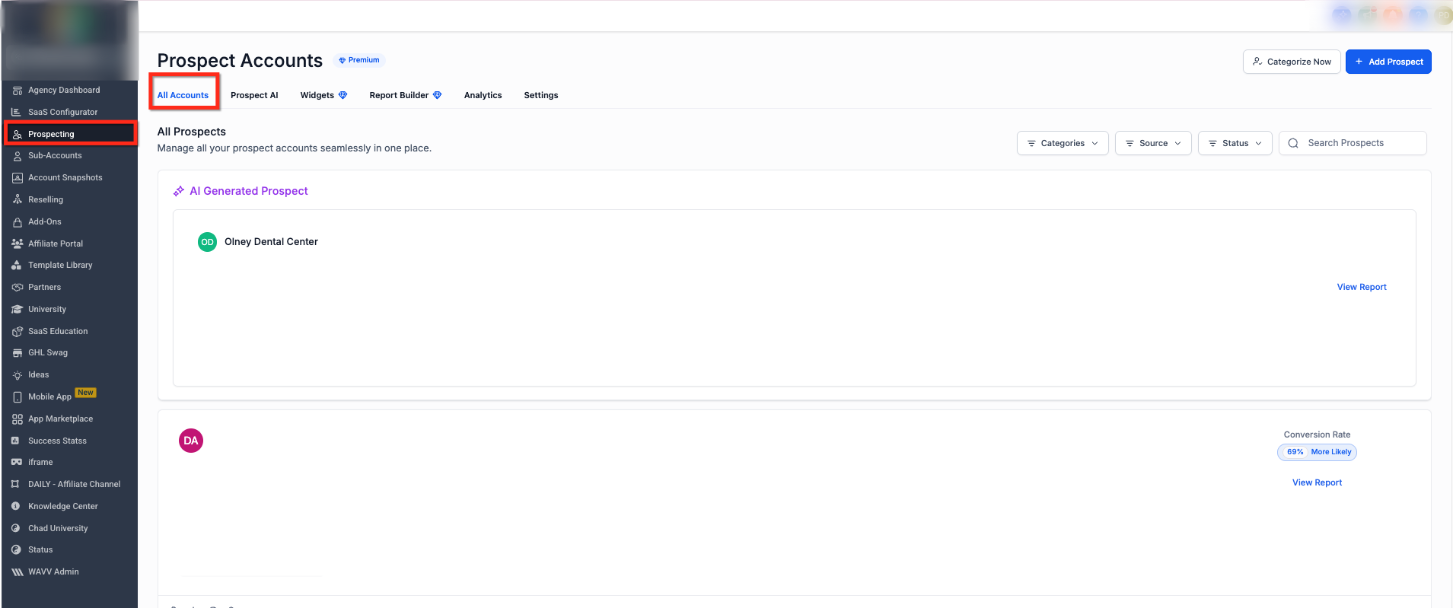
Use the prospect list to locate the business you want to review, then open that prospect account to view its details.
Switch to the Points of Contact tab
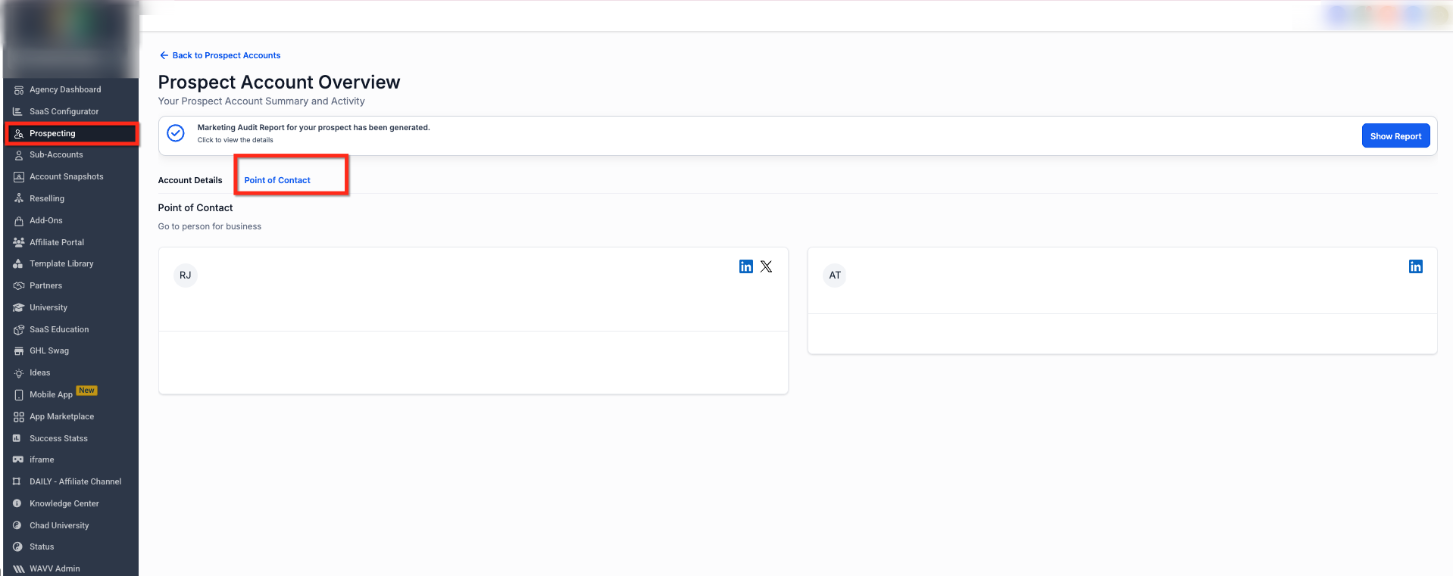
Inside the prospect account, select Points of Contact to view individual contacts. Use this screen to review titles, locations, and available contact methods, then decide who you want to reach out to first.
How to Use These Details for Better Outreach
Use the information in Points of Contact to:
Identify the right person to contact based on job role and relevance
Personalize your message using role and location context
Choose a better channel (email, phone, or social profile link when available)
Reduce wasted outreach by avoiding generic or mismatched contacts
Frequently Asked Questions
Q: Do all prospects include contact names and direct details?
Not always. Some prospects may have limited public or available data, so certain fields (like phone, email, or social links) may not appear.
Q: Why do I see some contacts but no social profile links?
Social links only appear when they are available for that contact. If they are not available, the contact may still show other details (like role or location).
Q: Can I use these details to decide who to contact first?
Yes. The tab is designed to help you quickly prioritize the most relevant decision-maker or stakeholder based on role and context.
Q: I opened a prospect account but don’t see the Points of Contact tab—what should I check?
Make sure you opened the prospect account details view (not a partial preview), then refresh and try again. If it still doesn’t appear, contact support with a screenshot.
Need Help?
If you are not seeing the Points of Contact tab or contact details look incomplete:
Confirm you are viewing a saved prospect account, not a preview screen.
Refresh the page and open the prospect again to reload the latest details.
If social links or phone/email are missing, it usually means those details were not available for that specific prospect. Try another prospect to compare.
If the page loads but the tab stays empty, capture a screenshot of the prospect account view and share it with support along with the prospect name and the time you attempted access.