
You can personalize the structure of your Prospect Reports by choosing which sections to include and controlling the order they appear. This helps you present the most relevant insights first, hide sections you don’t need, and keep reports consistent across your team.
You can either:
Set a default layout that applies to reports going forward, or
Make a one-time layout change for a single report without affecting others
TABLE OF CONTENTS
- What This Feature Does
- When to Use It
- Open the Default Layout Settings
- Show or Hide Report Sections
- Reorder Report Sections
- Customize a Single Report Only
- Frequently Asked Questions
- Need Help?
What This Feature Does
Prospect Report layout customization lets you control:
Which sections appear in a report
The order sections appear in the report
This layout applies to the on-screen report view and (when available) exported versions of the report.
When to Use It
Use layout customization when you want to:
Lead with the most important insights (for example, scores or performance summaries)
Hide sections that are not relevant for a specific audience
Keep report structure consistent for future reports
Adjust one report for a specific prospect without changing your default layout
Open the Default Layout Settings
This action opens the screen where you control the default structure for future reports.
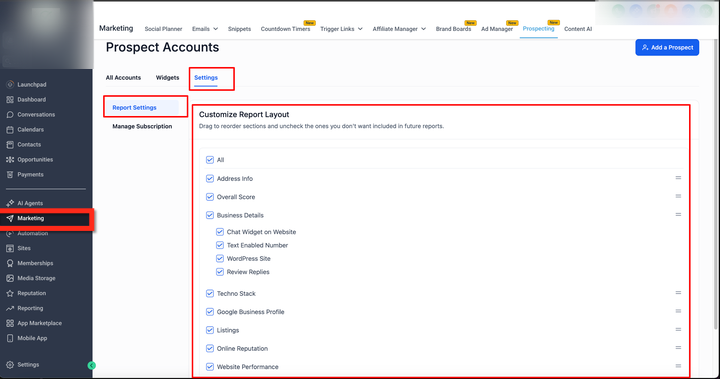
This screenshot shows where to open the report layout settings area. Use this screen to access the section list where you can turn sections on/off and reorder them for the default layout.
What to do on this screen:
Click into the report layout settings area shown
Confirm you can see the list of report sections with selection controls and reorder handles
Show or Hide Report Sections
This action controls whether a section appears in your default report layout.
What to do:
Review the list of available sections
Turn sections on to include them
Turn sections off to remove them from the report
What happens next:
The next time a report uses the default layout, it will follow your updated section visibility
Reorder Report Sections
This action changes the sequence sections appear in your default report layout.
What to do:
Drag sections using the reorder handles
Arrange sections in the order you want your report to follow
What happens next:
Reports using the default layout will display sections in your saved order
Customize a Single Report Only
If you want a one-off layout for one report (without changing your default), you can adjust that report directly.
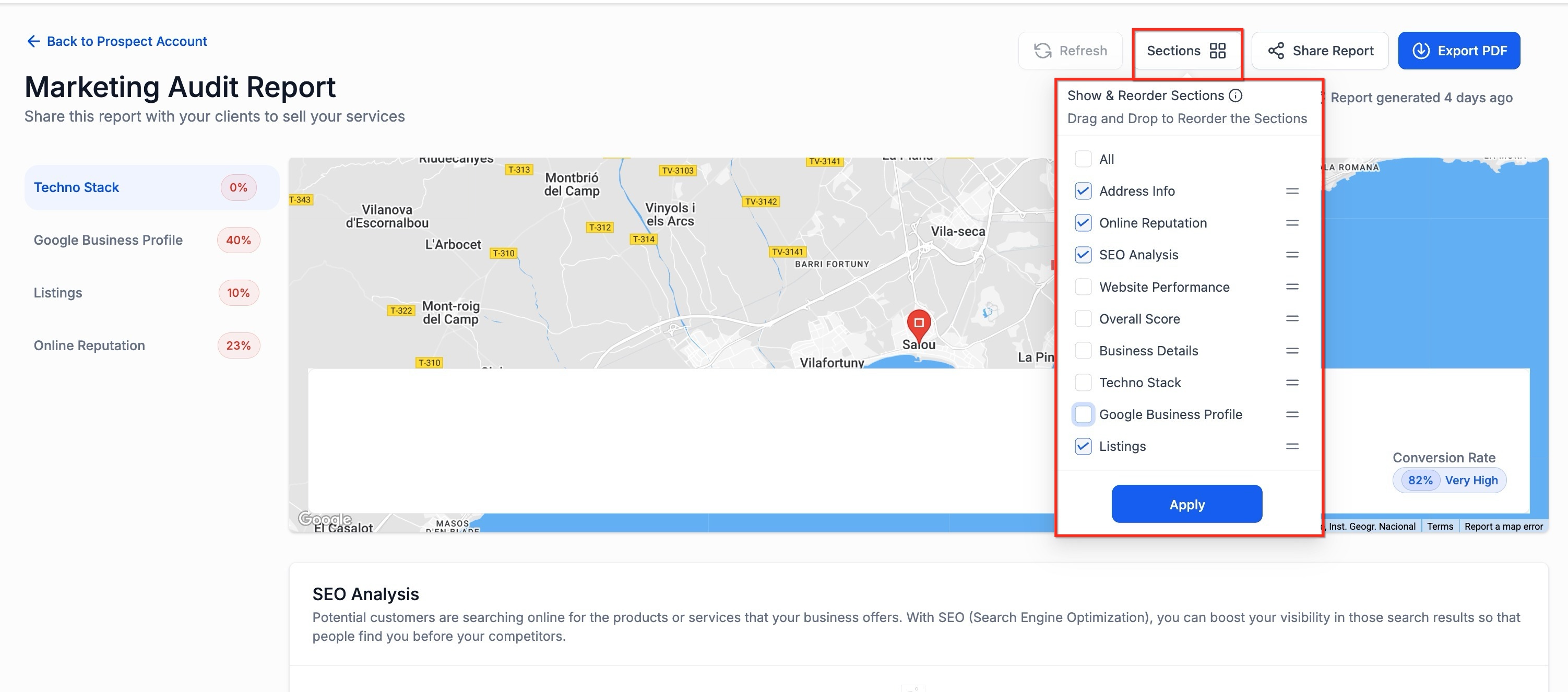
This screenshot shows the “Sections” panel inside a report. Use this panel to hide/show sections for that specific report and drag sections to reorder them. Select Apply to confirm.
What to do in this panel:
Click Sections in the report (top-right area shown)
Check or uncheck sections to include or exclude them for this report
Drag sections to reorder them
Click Apply to save changes for this report only
What happens next:
Only the current report reflects these changes
Your default layout remains unchanged
Frequently Asked Questions
Q: Does changing the default layout update every existing report automatically?
Default layout changes apply going forward for reports using the default structure. Reports that were customized individually may keep their unique layout.
Q: Can I hide a section for just one report?
Yes. Open that report, use the Sections panel, and apply the change so it affects only that report.
Q: Will the section order affect exported versions of the report?
If your report export uses the same layout structure, section order and visibility should match the on-screen report. If you notice a mismatch, refresh and export again.
Q: Why don’t I see my changes after saving or applying?
Refresh the report view and confirm the change was saved (default layout) or applied (single report). If it still doesn’t update, clear browser cache and reload.
Q: What if I remove the wrong section by mistake?
Reopen the layout controls and re-enable the section. You can always turn sections back on.
Need Help?
If your layout changes aren’t showing or the section order doesn’t update, check the following:
Confirm you updated the default layout (saved) or a single report (applied)
Refresh the report view after making changes
Try exporting again after refreshing (if applicable)
Clear browser cache and reload the report
If you still need assistance, share:
Whether you changed the default layout or a single report
Which sections you expected to appear (or be hidden)
A screenshot of your layout panel and the report view after the change