
You can control exactly which sections appear in your Marketing Audit Reports and define the order in which they display. This allows you to tailor reports to your audience, highlight key insights first, and maintain a logical presentation flow across both the web version and exported PDF.
This guide walks you through how to select sections, reorder them, and apply your changes correctly.
TABLE OF CONTENTS
- Why Customize Report Sections?
- Access Report Section Controls
- Select Report Sections
- Reorder Report Sections
- Apply and Generate the Report
- Tips for Customizing Reports
- Frequently Asked Questions
- Need Help
Why Customize Report Sections?
Customizing report sections helps you:
Prioritize high-impact insights at the top
Remove unnecessary data
Present information in a logical sequence
Maintain consistency across shared and exported reports
Section visibility and order apply to:
The web-based report
Shared report links
Exported PDF versions
Access Report Section Controls
To begin customizing a report:
Open the Marketing Audit Report you want to adjust.
Locate the Sections button in the top-right corner of the report.
Click Sections to open the layout control panel.
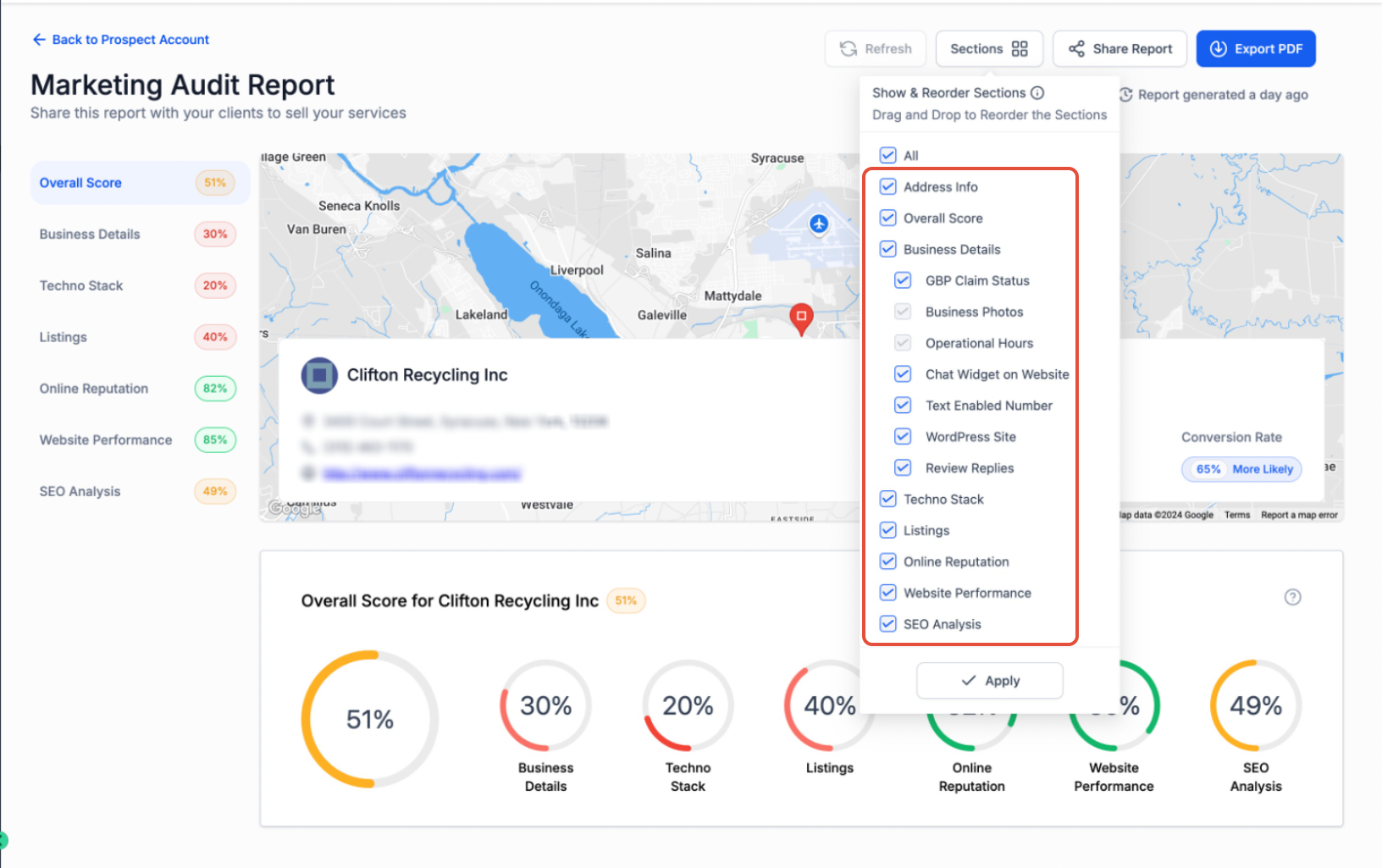
This image shows the Sections dropdown panel open inside a Marketing Audit Report. It displays:
Section checkboxes
Drag handles for reordering
The Apply button
Action: Click the Sections button in the top-right corner to open this panel and begin customizing your report layout.
Select Report Sections
Once the Sections panel is open:
Check the boxes next to the sections you want to include.
Uncheck any sections you want to hide.
You can include as many or as few sections as needed.
Changes are not applied until you click Apply.
Reorder Report Sections
To rearrange sections:
Hover over a section name.
Click and hold the drag handle next to it.
Drag the section up or down to your preferred position.
Release it when it is placed correctly.
This allows you to control the visual flow of your report.
This image shows a report after sections have been reordered. Notice how:
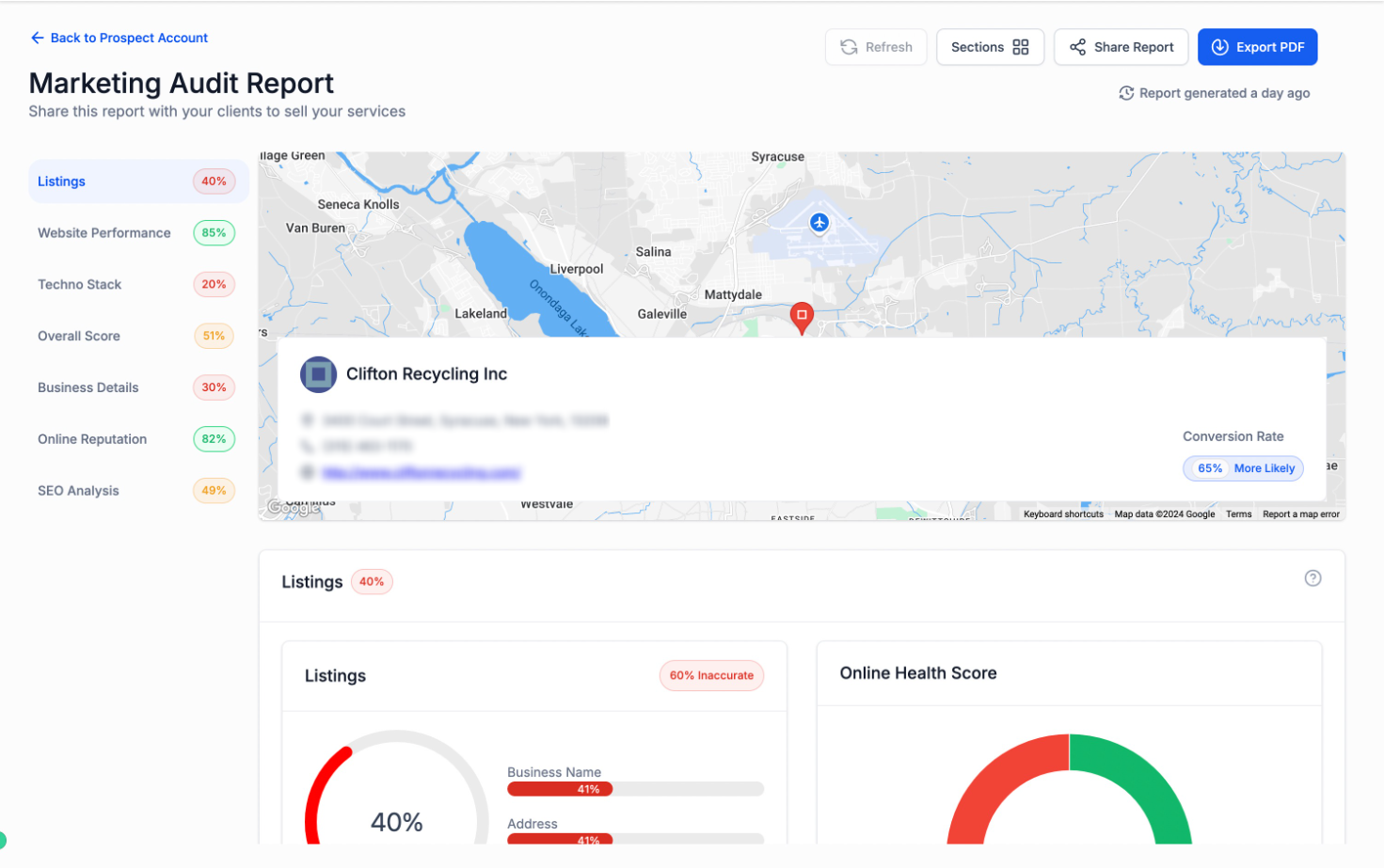
The selected section appears higher in the left navigation.
The content area reflects the new order.
The layout changes immediately after applying.
Action: Drag sections into your desired order, then click Apply to confirm the updated layout.
Apply and Generate the Report
After selecting and arranging sections:
Click Apply in the Sections panel.
The report updates immediately.
Generate or export the report as needed.
The custom structure will now appear in:
The live web view
Shared links
Exported PDF versions
Tips for Customizing Reports
To create effective, professional reports:
Prioritize Key Insights: Place the most impactful sections near the top.
Maintain Logical Flow: Start with summary metrics, then move into detailed breakdowns.
Keep Reports Focused: Only include sections that add value.
Review Before Exporting: Always scan the report before sharing or exporting.
Frequently Asked Questions
Q: Do section changes affect the exported PDF?
Yes. Section visibility and order apply to both the web report and the exported PDF.
Q: Can I hide a section temporarily?
Yes. Uncheck the section in the Sections panel and click Apply.
Q: Can I reorder sections after generating the report?
Yes. You can adjust sections at any time before exporting or sharing.
Q: Why don’t I see my changes?
Make sure you clicked Apply after selecting or reordering sections. If needed, refresh the report.
Need Help
If your report layout changes are not saving or appearing correctly:
Confirm you clicked Apply inside the Sections panel.
Refresh the report page.
Ensure you are editing the correct report.
Try clearing your browser cache if updates do not display.
If the issue continues, contact Support and include:
A screenshot of your Sections panel
The name of the report you are editing
A brief description of what is not updating
Support can help verify layout settings and ensure your report structure updates properly.