
KYC (Know Your Customer) verification is a crucial step to ensure the authenticity and security of user identities. This article covers best practices for completing verification, common mistakes to avoid, and how to access KYC verification anytime without waiting for a phone number application.
Persona is the identity-verification provider used to verify the real person responsible for a Phone-managed account. Verification may be required for eligible phone-number purchases and can also be reused during applicable compliance processes.
Important: Persona verifies identity only. It does not replace A2P 10DLC registration, Toll-Free Verification, CNAM, SHAKEN/STIR, or other required compliance processes.
TABLE OF CONTENTS
How to Complete Persona Verification Before It Is Required
You don't have to wait until you're applying for a phone number or registration to start your KYC verification. You can manually trigger the verification process anytime directly from your account settings. This allows you to get verified early and avoid delays when you're ready to port or register a number.
Navigate to the following path in your account:
Account Settings → Phone System → Additional Settings → KYC Verification → Complete Verification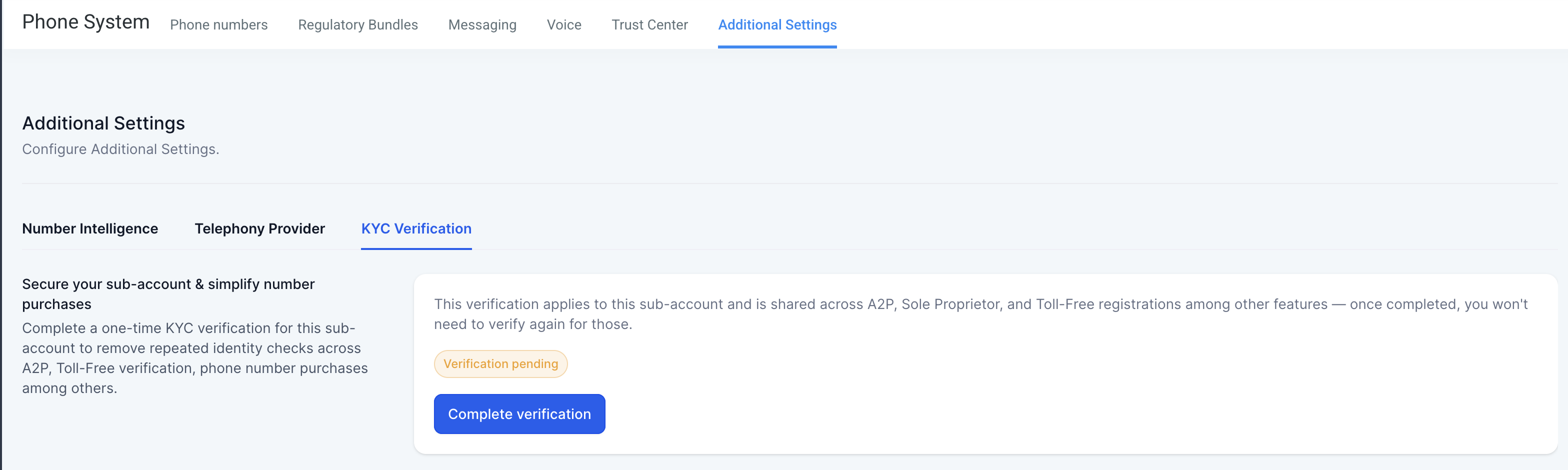
Completing Persona verification in advance can help reduce delays when you later purchase eligible phone numbers or complete applicable compliance actions.
Best Practices for KYC Verification
Each user is allowed a maximum of 10 attempts to complete their verification. Double-check your information and documents before submitting each attempt. Repeated failed attempts may result in delays or temporary restrictions from retrying the process.
Tip: Ensure your ID photo is clear, not cropped, and that your information matches exactly with your registration details.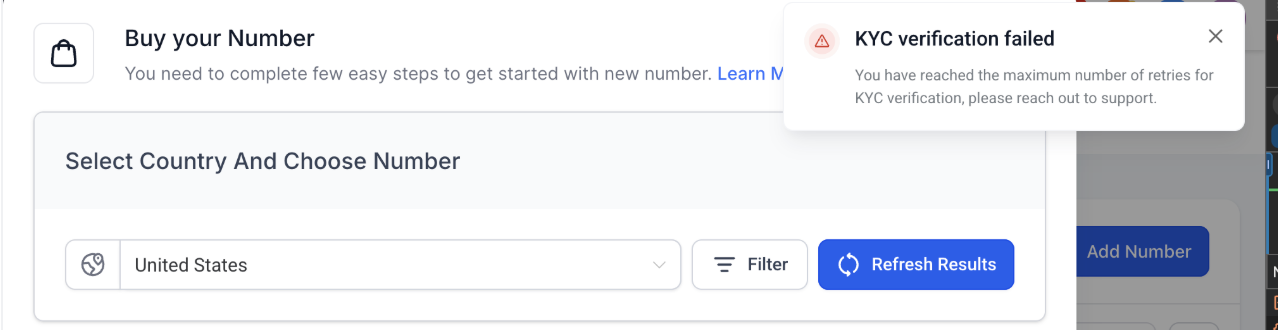
If you encounter a "Session Expired" message, it usually means your verification session wasn't completed, for example, if you closed the browser or navigated away before finishing.
Prevention: Once you begin KYC verification, avoid closing, refreshing, or leaving the browser tab until all steps are completed. Closing too early will leave your verification status as "Pending" until the system automatically updates, which typically takes up to 24 hours.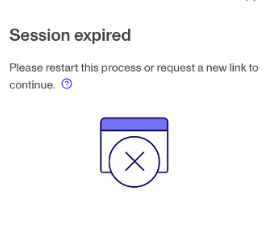
If it persists: If the issue continues beyond 24 hours, submit a support ticket so our team can review your case and reset your verification session.
Use a Supported Government-Issued ID
Upload a valid government-issued identification document from the options presented during the Persona verification flow. Supported document types vary by country and verification context and may include a passport, national ID card, or driver's license.
Use an original, unexpired document and make sure all information is clearly visible.
Acceptable documents include:
- Passport
- National ID card
- Driver's license (if locally issued)
Note: Acceptable documents can vary from country to country.
Do not submit screenshots, scanned copies, photocopies, or an image of an ID displayed on another screen. Capture the original supported identification document directly during the Persona flow.
Upload only: Images of the original, physical ID card. This maintains authenticity and prevents verification delays or rejection.
Additional Tips for a Smooth Experience
- Use a well-lit environment when taking document photos to ensure clarity.
- Avoid glare, blur, or cropped edges on your ID images.
- Ensure your name and date of birth match your registered account details exactly.
- Do not use an expired card — your ID must be valid.
- Have a stable internet connection and sufficient time to complete the process in one sitting.
- The real person whose identity is being verified must personally complete the ID and live-selfie steps. You can use a supported desktop or mobile device, but another person should not complete the identity verification on your behalf.
Once you start the verification process, keep your browser tab open and avoid refreshing or navigating away. Closing the tab will interrupt your session and require you to restart.