
Skip the inventory hassle and still sell branded merch. Connect your CRM store to Printify’s catalog of 1,000+ products and 85+ global print providers, and every order is made on demand—no boxes, no bulk buys.
TABLE OF CONTENTS
- What is Printify Integration?
- Key Benefits of Printify Integration
- Important Notes & Limitations
- How To Generate Printify API Token
- How To Connect Printify with CRM
What is Printify Integration?
Printify Integration connects your CRM Ecommerce store to Printify’s print-on-demand (POD) platform. Once connected, you can import products you designed in Printify, automatically forward customer orders for production, and receive real-time fulfillment updates—so you can sell custom goods with zero upfront stock risk. Print-on-demand lets items be printed only after a sale is made, freeing you from inventory costs and bulk-order commitments.
Key Benefits of Printify Integration
- Fast launches: Access 1,000+ customizable products to spin up new lines quickly.
- Regional speed & pricing: Tap 85+ print providers for competitive rates and quicker local delivery.
- Always accurate listings: Variants, prices, and images sync automatically.
- Hands-off fulfillment: Orders auto-push to Printify and go to production—no manual re-entry.
- End-to-end tracking: Get automatic partial and complete fulfillment updates.
- Multi-store control: Manage multiple storefronts from one Printify account and view performance by location.
Important Notes & Limitations
- Imported products publish live by default—double-check before you launch sales.
- Uninstalling the integration does NOT delete previously imported products.
- Printify only creates an order if a print provider can fulfill the destination country, variant, and shipping method you selected.
- All design work happens inside Printify; CRM only manages inventory and orders for already-synced items.
- You’ll need a Printify API token to authenticate the connection.
How To Generate Printify API Token
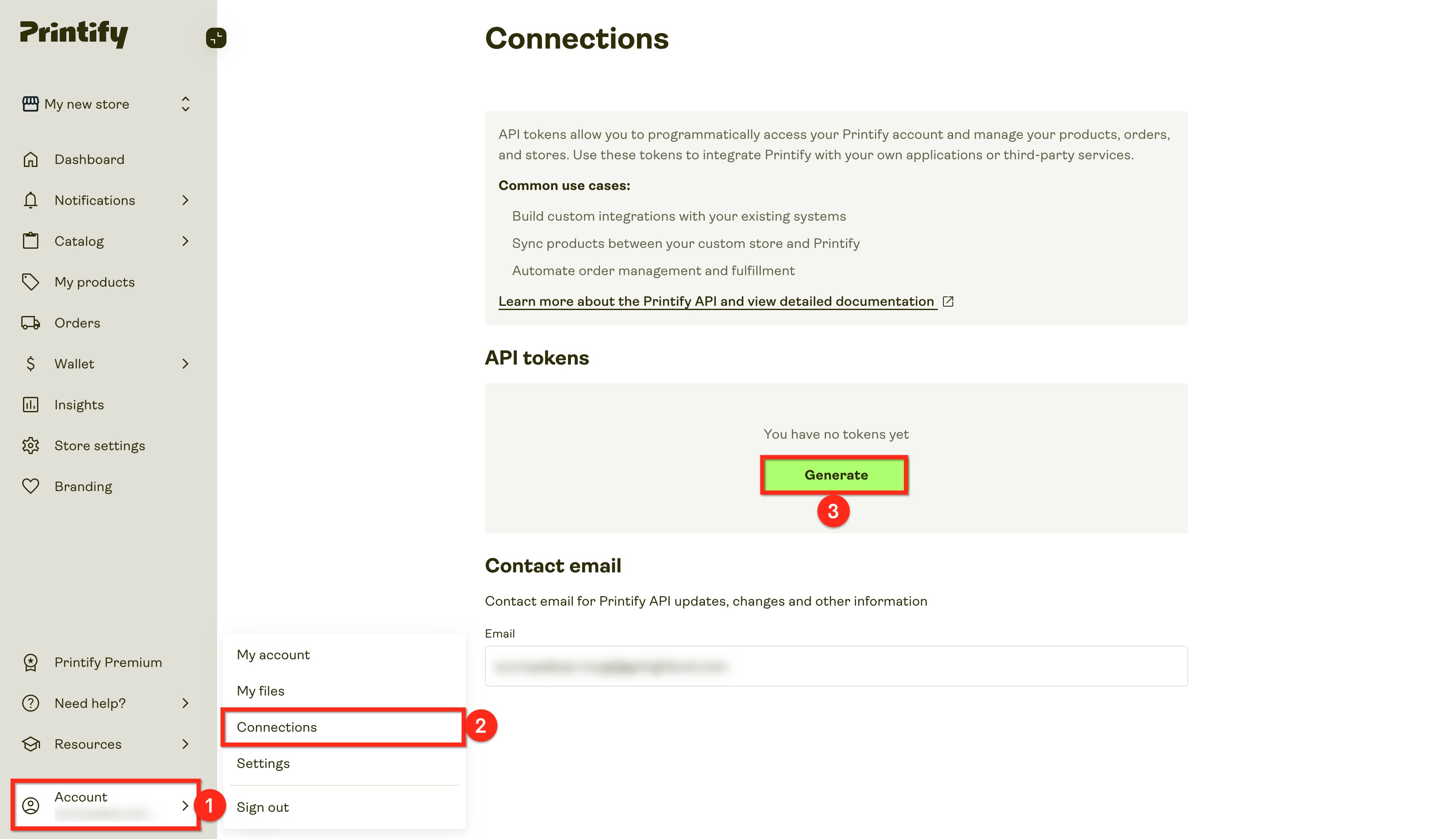
- Log in to Printify and click on Account.
- Click on Connections.
- Click on the Generate button under API Tokens.
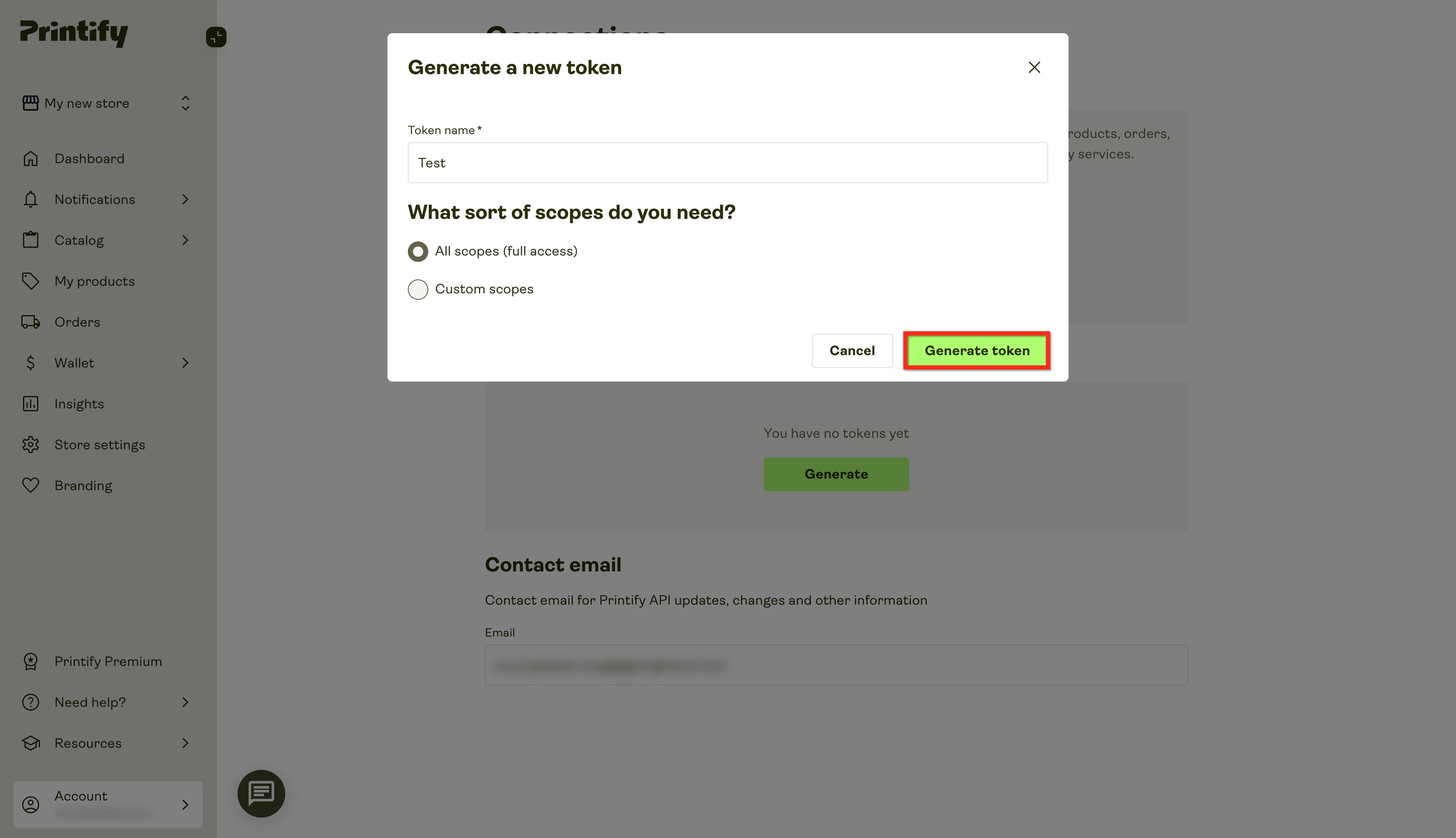
- Name the token, select scopes, and click on Generate.
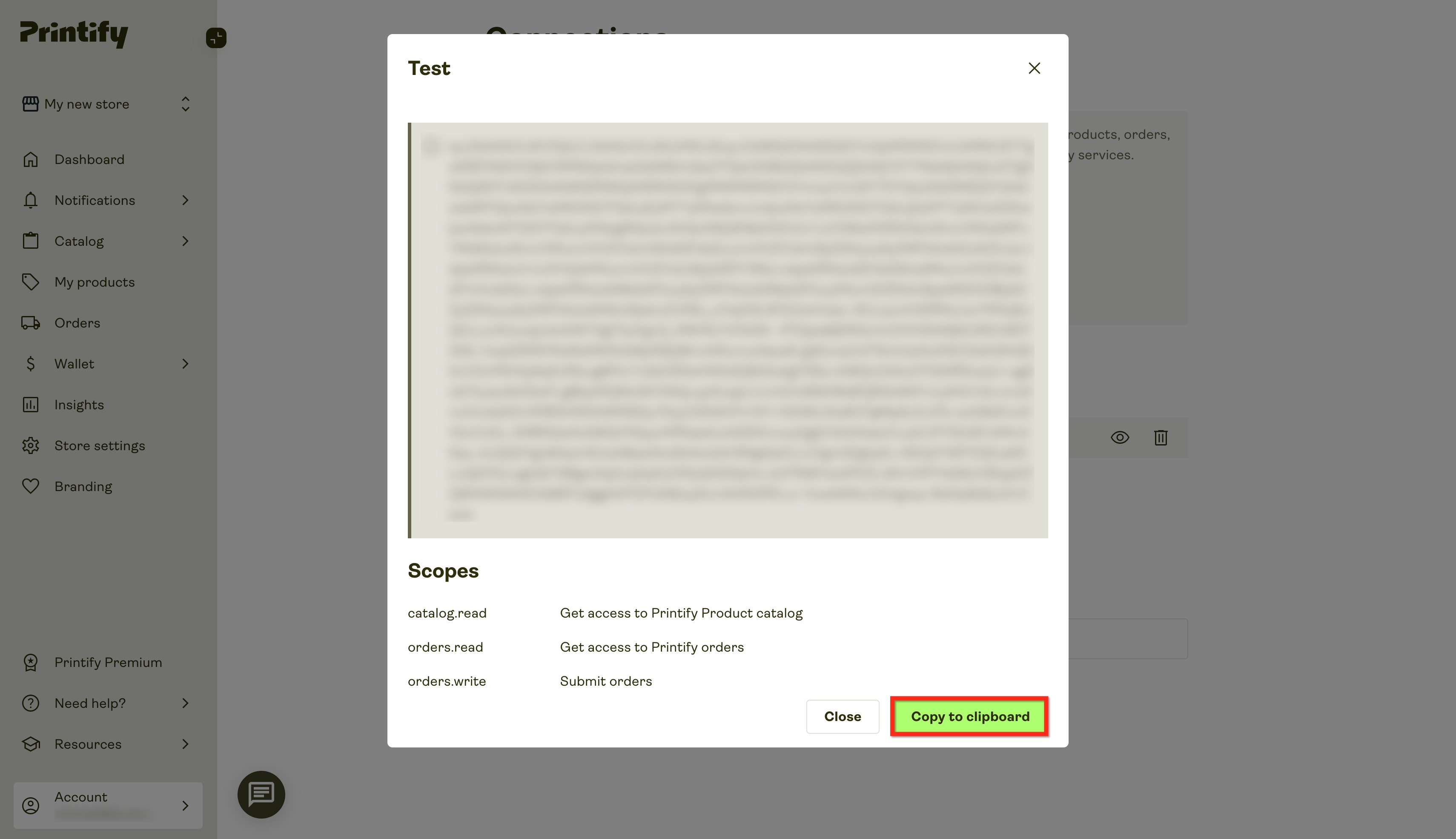
- Copy the key by clicking on Copy to Clipboard.
How To Connect Printify with CRM
Connecting takes just a few minutes, correct setup ensures orders flow smoothly:
- In your sub-account, open App Marketplace.
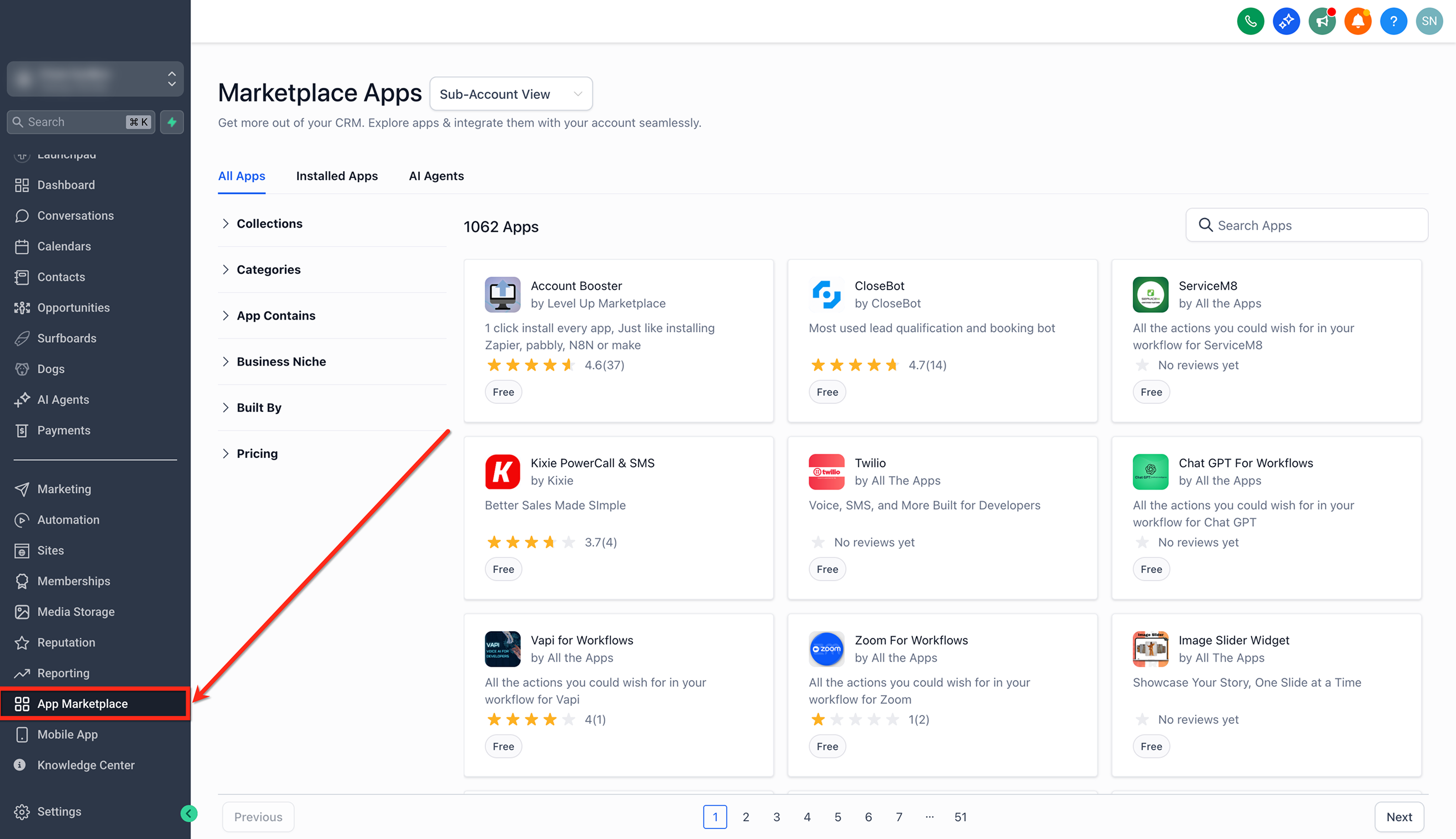
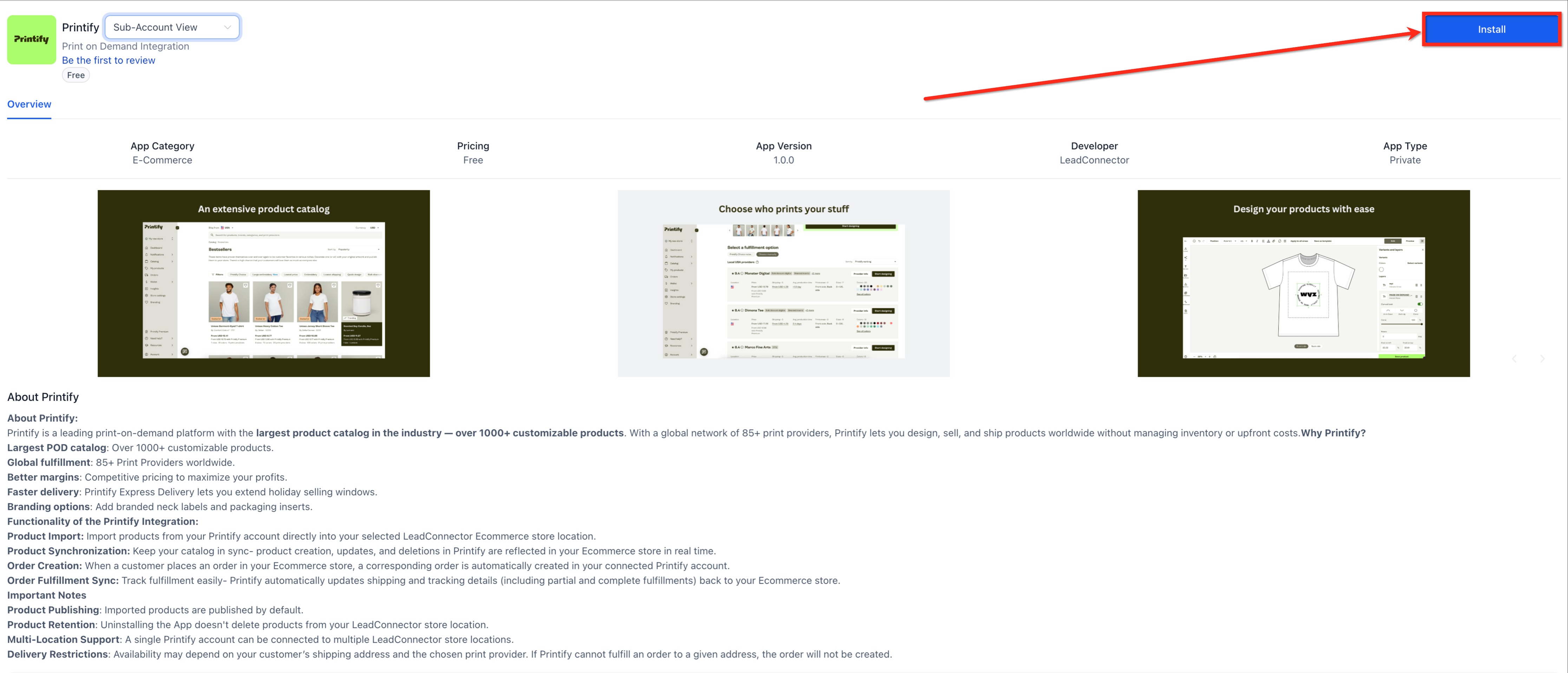
- Search Printify and click on the Install button.
- Paste your PrintifyAPItoken in the Printify Token box and click on Continue.
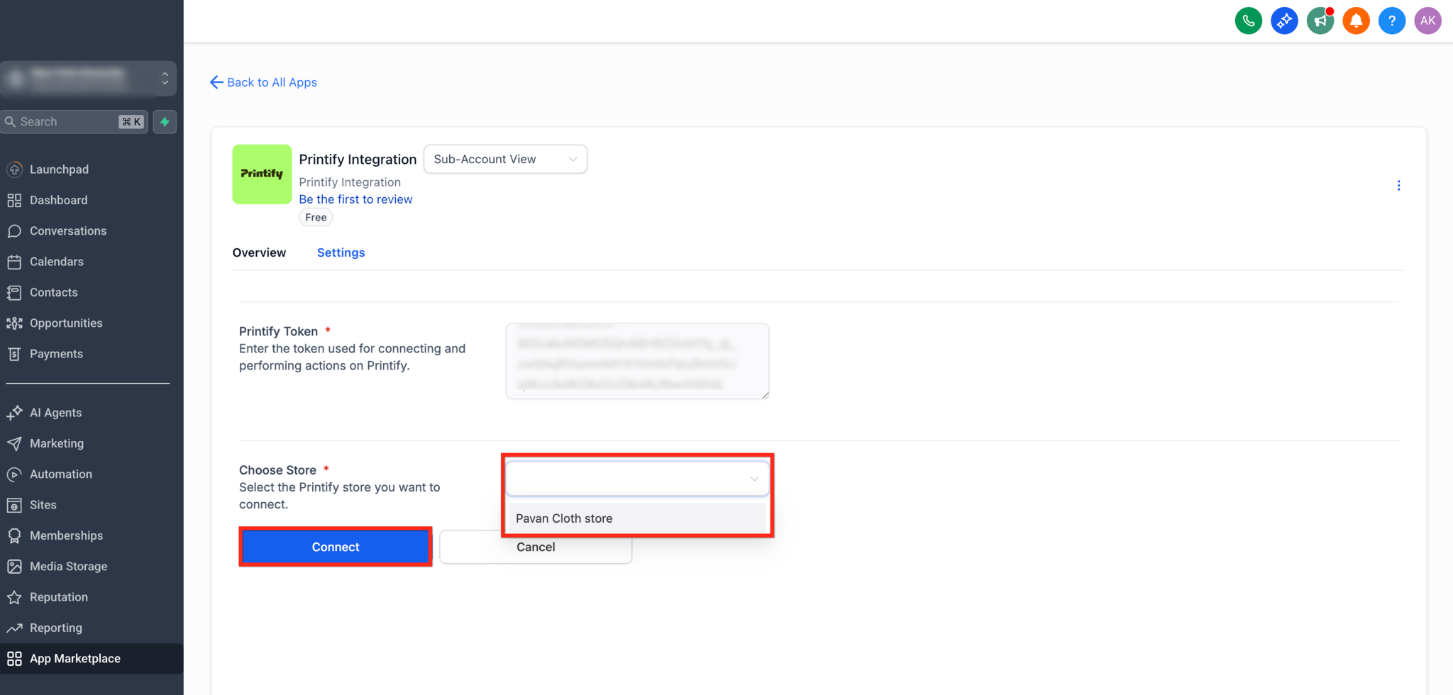
- Choose an existing Printify store or create a new one and click on Connect.
- Import products and publish them directly into your store.
- Start selling — orders will sync automatically to Printify for fulfillment. Enable the automatic fulfilment in Printify.
Need Help?
If you experience issues connecting Printify, importing products, or syncing orders, review the following before contacting support:
Printify connection issues: Confirm that the Printify API token is valid and has the required permissions. If needed, generate a new API token in Printify and reconnect the integration.
Products are not importing: Verify that the products are correctly configured and published in your Printify store before attempting to import them.
Orders are not syncing to Printify: Make sure automatic fulfillment is enabled in Printify and that the selected print provider supports the customer's destination, product variant, and shipping method.
Product design or fulfillment issues: Product designs, print-provider availability, production, and fulfillment are managed by Printify. Contact Printify Support for assistance with these issues.
If the issue is related to the CRM integration or continues after checking the steps above, contact Support and include relevant screenshots, affected product or order details, and a description of the issue.