
What does the QuickBooks integration do?
The QuickBooks integration creates a seamless connection between your CRM and QuickBooks, ensuring your customer data, invoices, and payments stay in sync without manual intervention.
Your CRM → QuickBooks
1. Automatically create or update customers
Customers are automatically created in QuickBooks whenever they engage in billable activity inside your CRM.
If a matching email already exists in QuickBooks, the existing customer is updated instead of duplicated.
2. Sync payment activity as sales receipts
Whenever a payment is made through your CRM—such as via order forms, subscriptions, membership checkouts, or calendar payments—a corresponding sales receipt is automatically created in QuickBooks.
3. Create and sync invoices
When an invoice is marked as sent inside your CRM, a matching invoice is created in QuickBooks. The integration continues to sync invoice updates, including:
Invoice number
Payment status (paid, voided, etc.)
Issue and due dates
Customer details
Billing email
Total invoice value
Amount paid
Line item names
Discounts & taxes (for U.S. regions, they adjust within the item pricing; for all other regions, they sync as individual fields)
Important:
✔️ Only newly created invoices in your CRM will sync to QuickBooks.
❌ Existing invoices created before the integration are not synced unless imported.
QuickBooks → Your CRM
1. Sync existing & new QuickBooks contacts
All existing contacts stored in QuickBooks will be imported into your CRM.
The system continues to sync new QuickBooks contacts automatically (may take up to 5 minutes).
2. Trigger review automation (optional)
When QuickBooks records a customer’s first fully paid invoice (balance = $0), your CRM can automatically send a review request.
This feature can be turned on or off in the integration settings.
3. Import historical invoices
If enabled during the initial setup, your CRM will import previously created invoices from QuickBooks.
Note:
Editing these imported invoices inside your CRM will not sync changes back to QuickBooks.
This process will not create a sync loop. Invoices imported from QuickBooks are not pushed back into QuickBooks.
How to Integrate QuickBooks
Navigate to Settings → Integrations
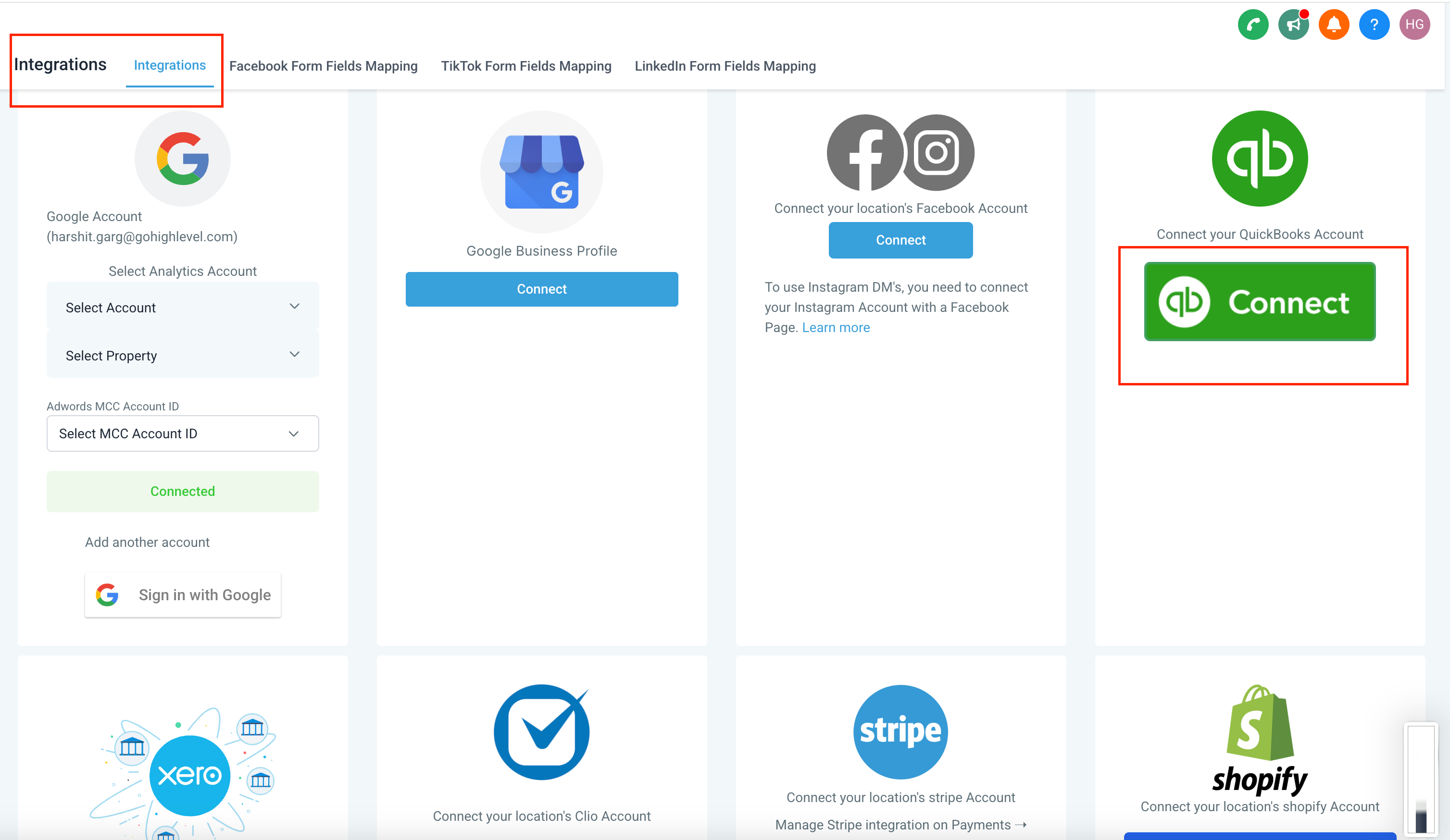
Select “QuickBooks Connect”
(Optional) Enable Import Invoices to bring in historical QuickBooks invoices
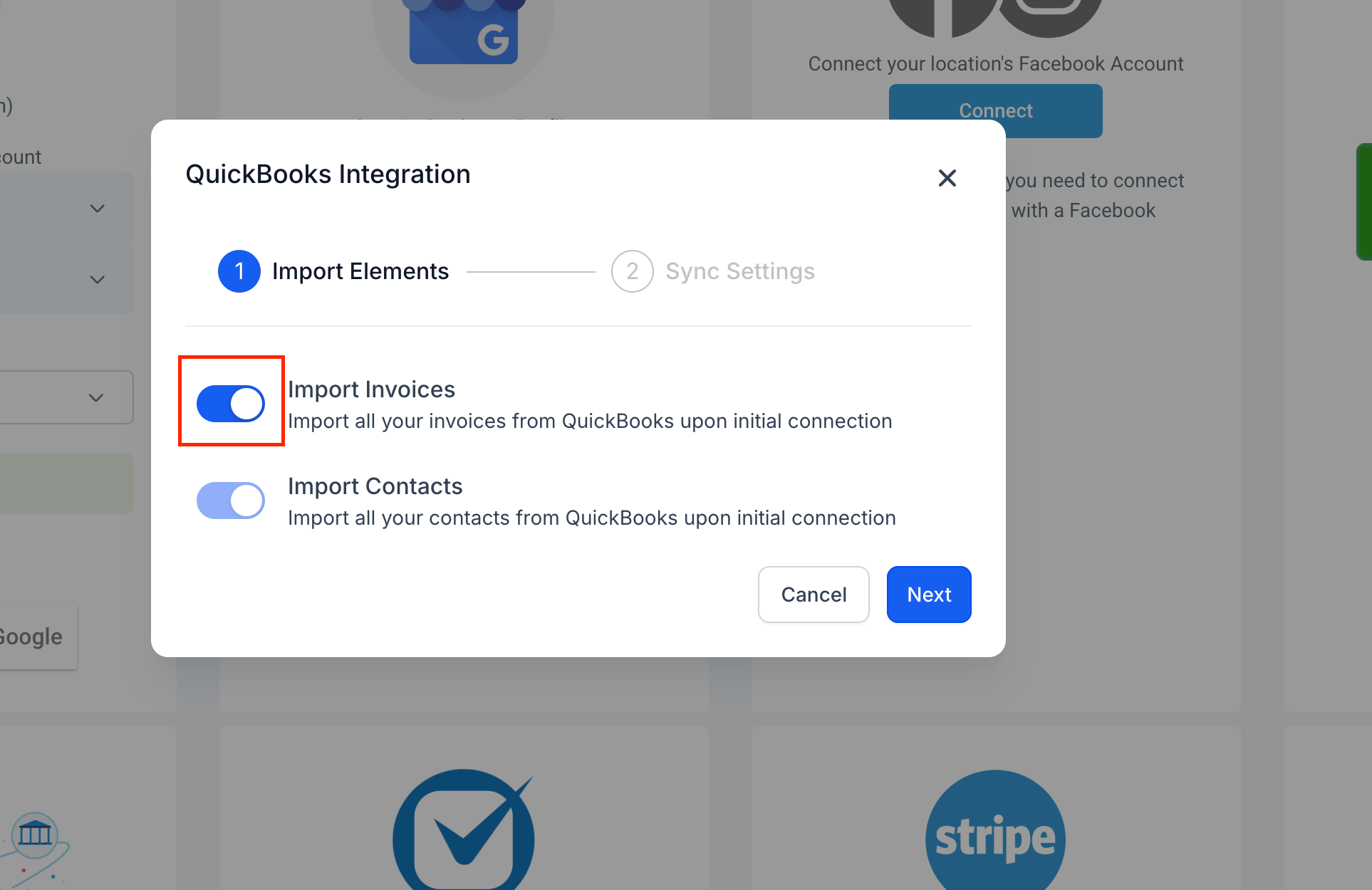
(Optional) Enable Review Automation
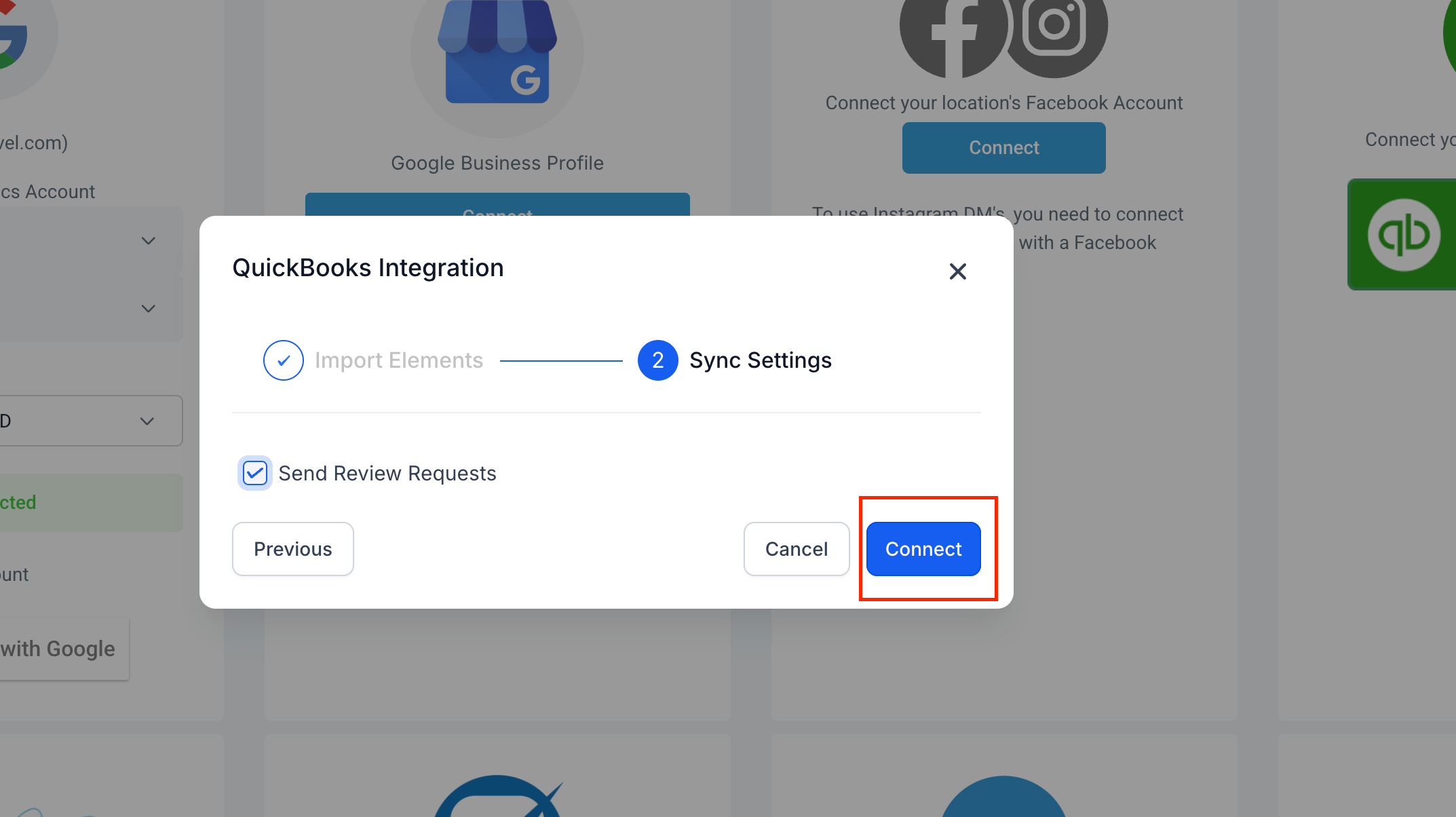
Click Connect and log in using your QuickBooks credentials
Accept all permission prompts to complete the integration
Frequently Asked Questions
Q: What does the QuickBooks integration do?
The integration syncs all existing and new QuickBooks contacts into your CRM, optionally sends review requests when a customer’s first invoice is fully paid, and logs sales receipts for payments processed in your CRM. It also creates and updates invoices in QuickBooks whenever invoices are sent or modified in your CRM.
Q: Will the integration sync existing QuickBooks invoices to my CRM?
Yes—if you enable Import Invoices during setup, the system will pull in all previously created QuickBooks invoices into your CRM.
Edits made to these historical invoices in your CRM will not sync back to QuickBooks.
If you do not enable this option, only new invoices created in your CRM will sync to QuickBooks going forward.
Q: How does the integration handle customers that already exist in QuickBooks?
If QuickBooks already has a customer with the same email address, the integration updates that customer's record and associates transactions with it.
If no match exists, a new customer record is automatically created in QuickBooks.
Q: Are taxes and discounts included in synced invoices?
Yes. Taxes and discounts are fully included:
U.S. accounts: Taxes & discounts are incorporated into item pricing.
Other regions: Taxes & discounts sync as separate fields.