
Overview
The Xero integration allows your CRM to automatically sync contacts and invoices into Xero, reducing manual accounting work and ensuring consistency across both systems. With accurate tax mapping, multi-currency support, and real-time invoice updates, this integration helps streamline financial workflows so you can focus on running your business. The Xero integration provides a one-way sync that sends invoices from your CRM into Xero. Contacts are imported from Xero into your CRM so invoices can be matched correctly. If no matching contact is found at the time of sync, a new contact is automatically created in Xero.
What Syncs Today
Contacts (Xero → Your CRM)
Active contacts from Xero are imported into your CRM during setup.
If an invoice is synced and no matching contact is found, the system will create a new contact in Xero automatically.
Invoices (Your CRM → Xero)
When you create an invoice inside your CRM, the following details sync to Xero:
Contact mapping
Line items (names, quantities, prices, discounts)
Taxes
Currency
Status updates (Sent, Partially Paid, Void)
Note: Products/Items are not created in Xero; line items only live on the invoice.
Taxes
The system applies the correct tax rate automatically:
If the tax exists in Xero → it’s used.
If the tax does not exist → it is created in Xero during the sync.
Currencies
The invoice currency is passed to Xero.
If it doesn’t already exist, it is added to the Xero organization.
Ensure your Xero plan includes multi-currency support.
Statuses
Your CRM syncs invoice statuses like:
Sent
Paid
Partially Paid
Void
What Does NOT Sync
❌ Receipts
Receipt syncing is not supported yet (coming soon).
❌ Products / Items Catalog
Line items sync only at the invoice level. No product records are created in Xero.
Key Benefits of the Xero Integration
Using the Xero integration in your CRM helps you:
- Keep contacts accurate across systems
Contacts sync in automatically, and new ones can be created on the fly during invoice sync.
- Automate invoice creation
Invoices created in your CRM instantly appear in Xero—no more duplicating them manually.
- Maintain consistent tax rules
The integration maps taxes precisely, even for multi-component tax structures.
- Sync invoice statuses
Status changes in your CRM are reflected in Xero, reducing reconciliation work.
- Ensure accurate multi-currency support
Currencies are applied and added automatically when needed.
- Filter and select accounts for posting
Only payment-enabled accounts appear when selecting the default account for invoices.
How to Set Up the Xero Integration
Step 1: Navigate to the Xero Integration
Go to Settings → Integrations → Xero inside your CRM.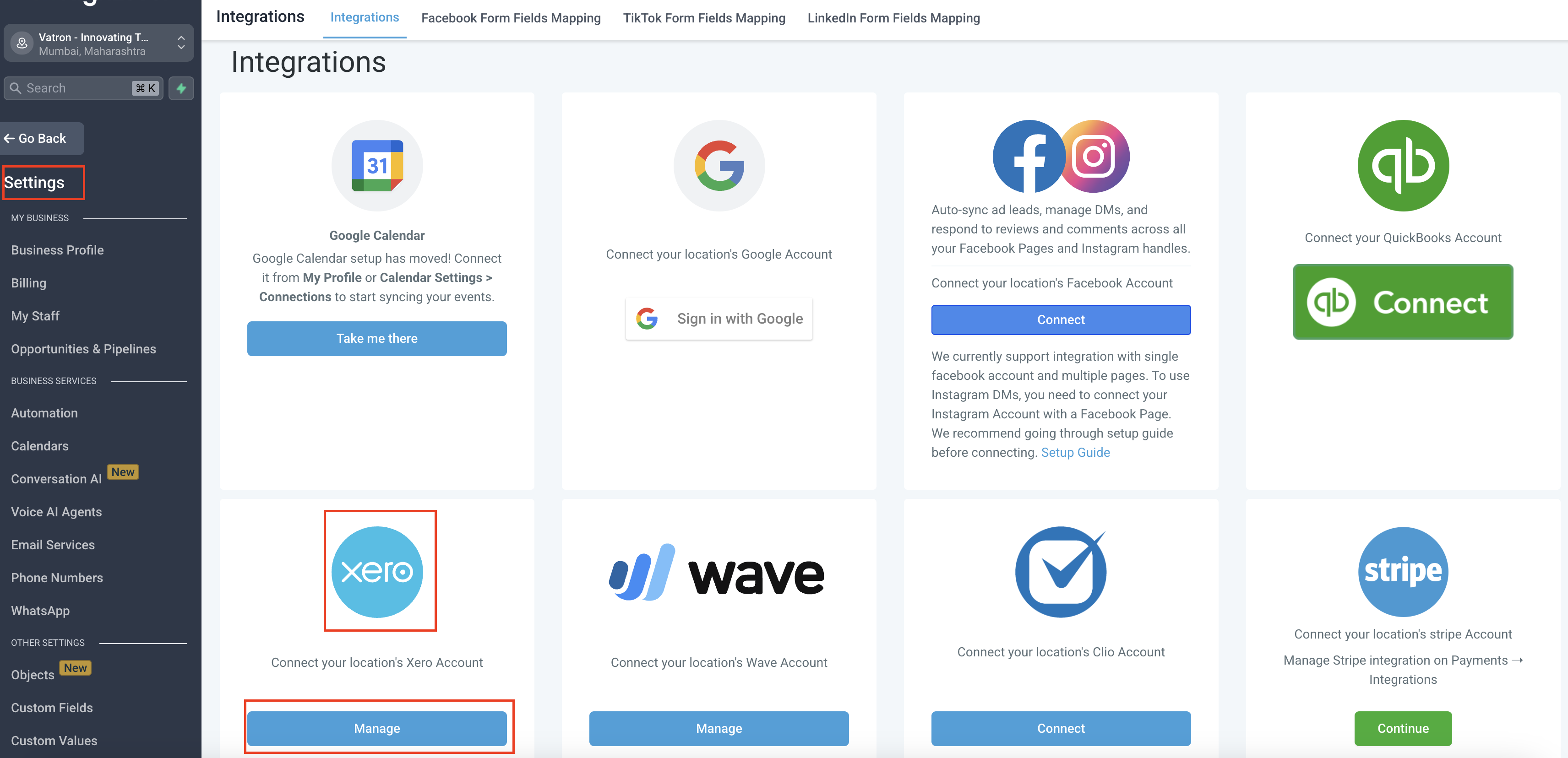
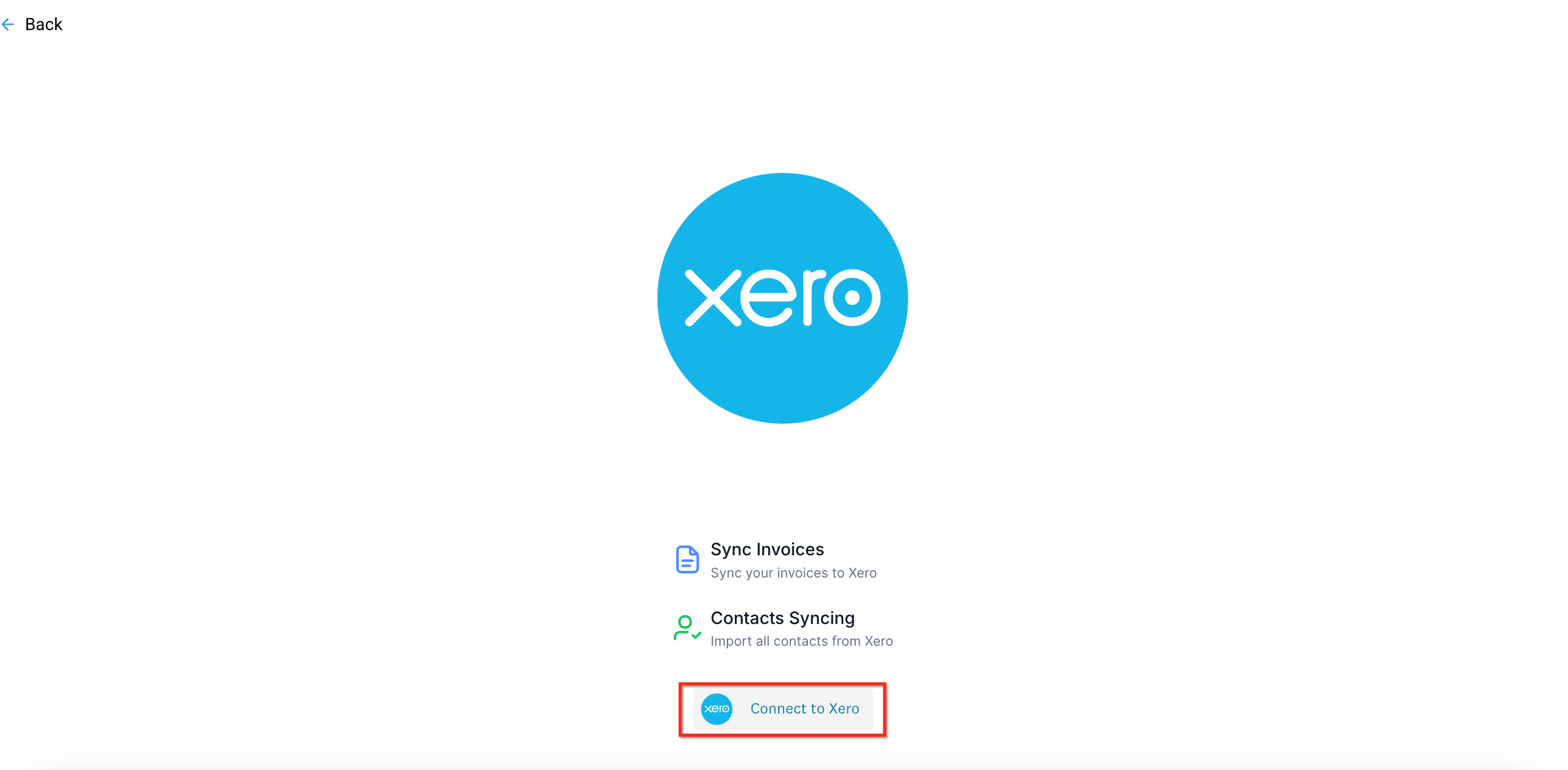
Step 2: Connect to Xero
Click the Xero integration tile, then select Connect.
A secure Xero authorization window will open.
Step 3: Sign In & Authorize Access
Log in to your Xero account (if prompted).
Select the organization you want to connect.
Click Allow Access to approve the connection.
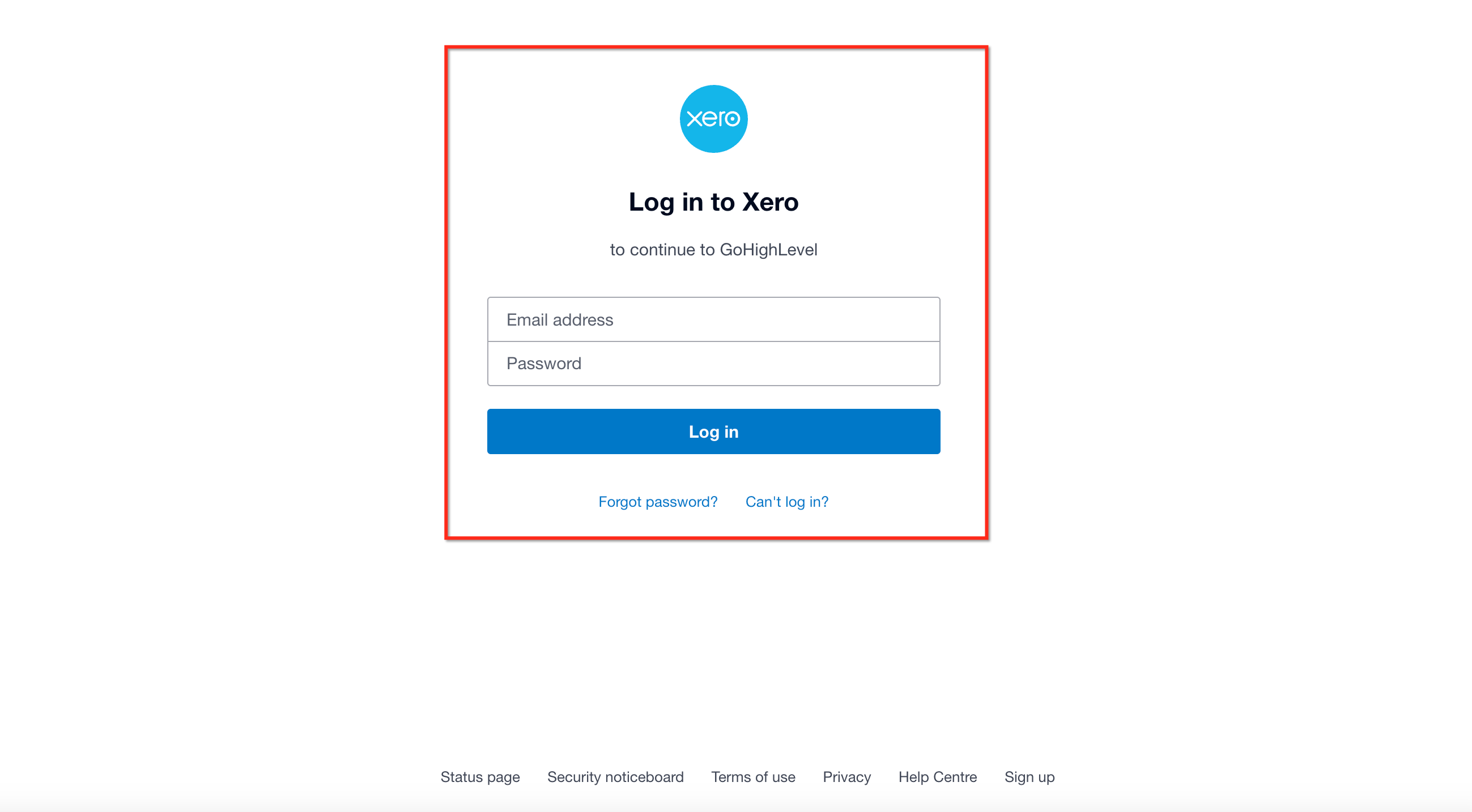
Your CRM requests standard permissions needed to read contacts and create invoicing transactions.
Step 4: Choose a Default Account
After connecting, select the Xero account you want invoices to post to.
Only accounts with payments enabled will appear.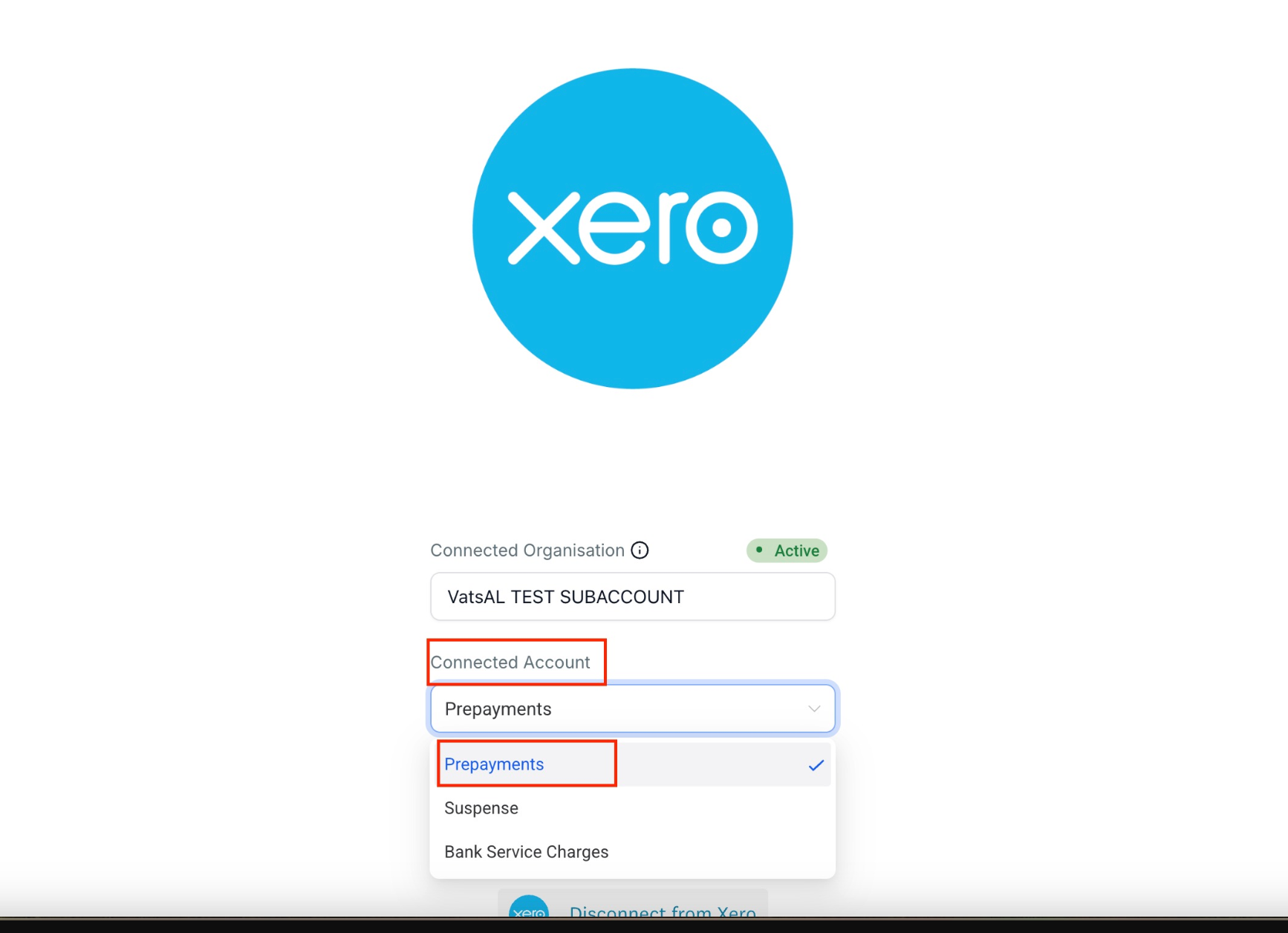
How to Enable Your “Chart of Accounts” for Use
If you don’t see your Chart of Accounts inside the CRM after connecting, follow these steps in Xero:
https://help.leadconnectorhq.com/support/solutions/articles/155000006216-how-to-view-all-chart-of-accounts-within-the-xero-integration-
1. Go to Settings in Xero
From your Xero dashboard, choose your organization → click Settings.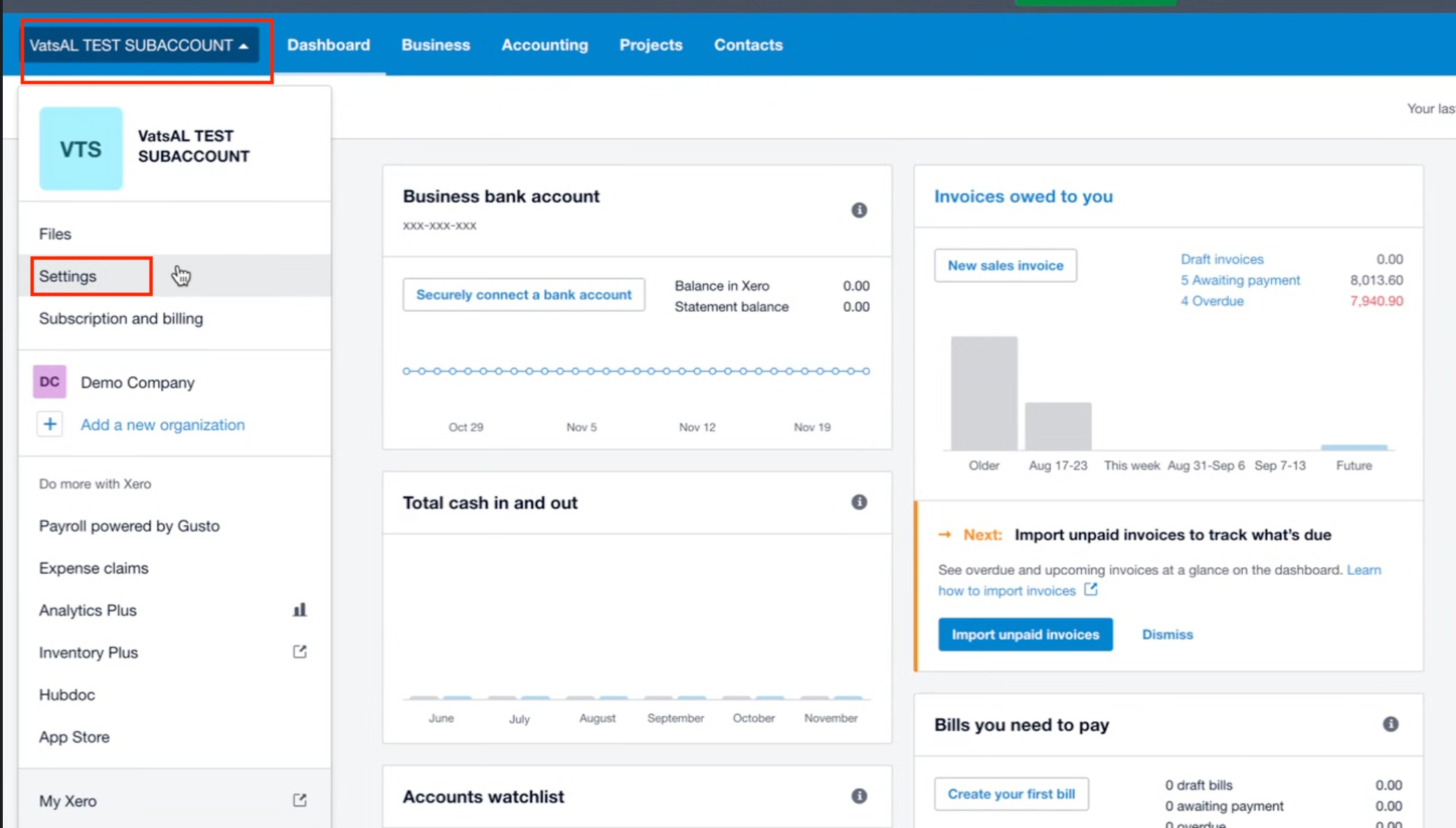
2. Open Advanced Settings
Scroll and select Looking for advanced settings?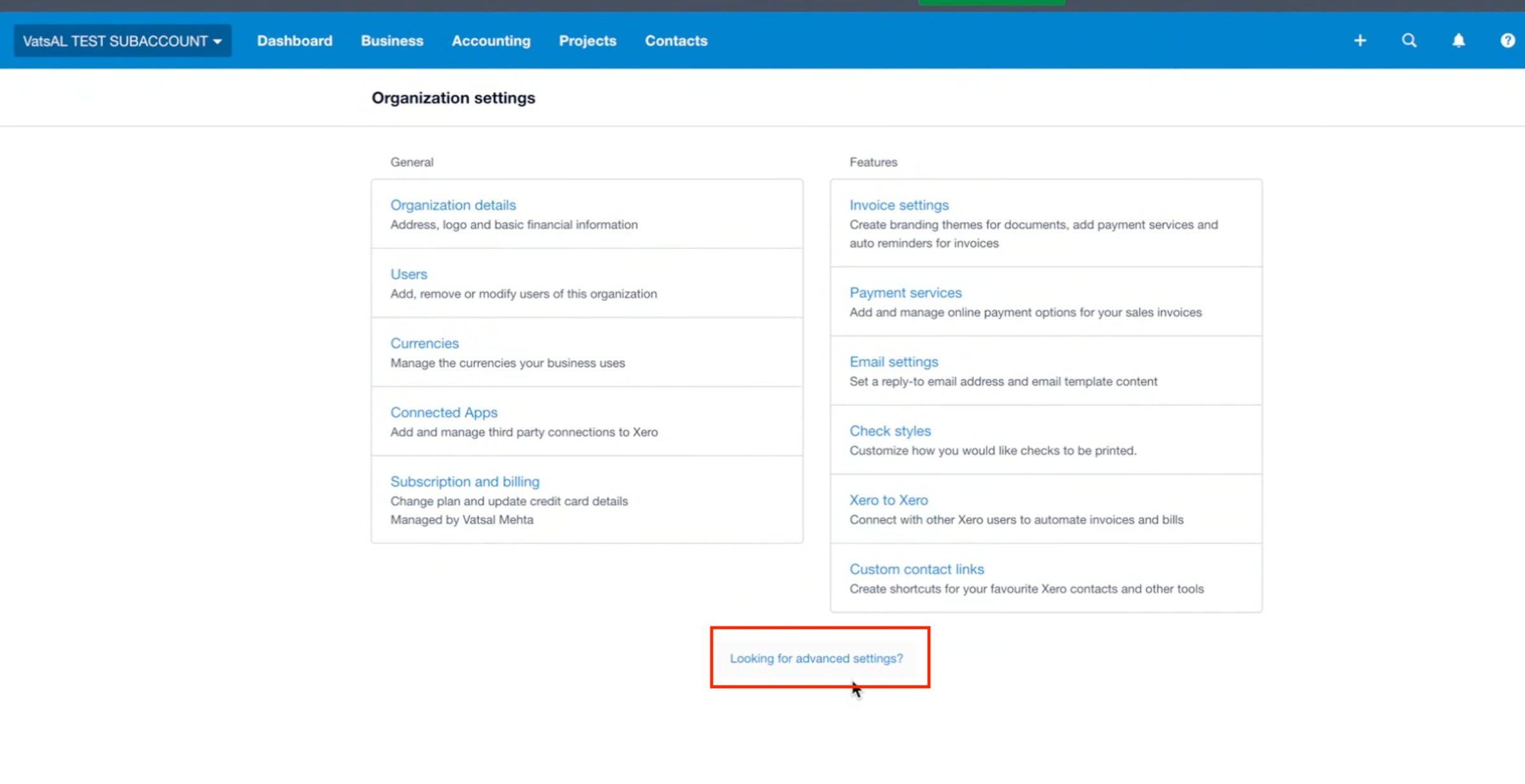
3. Select Chart of Accounts
Go to Advanced Accounting → Chart of Accounts.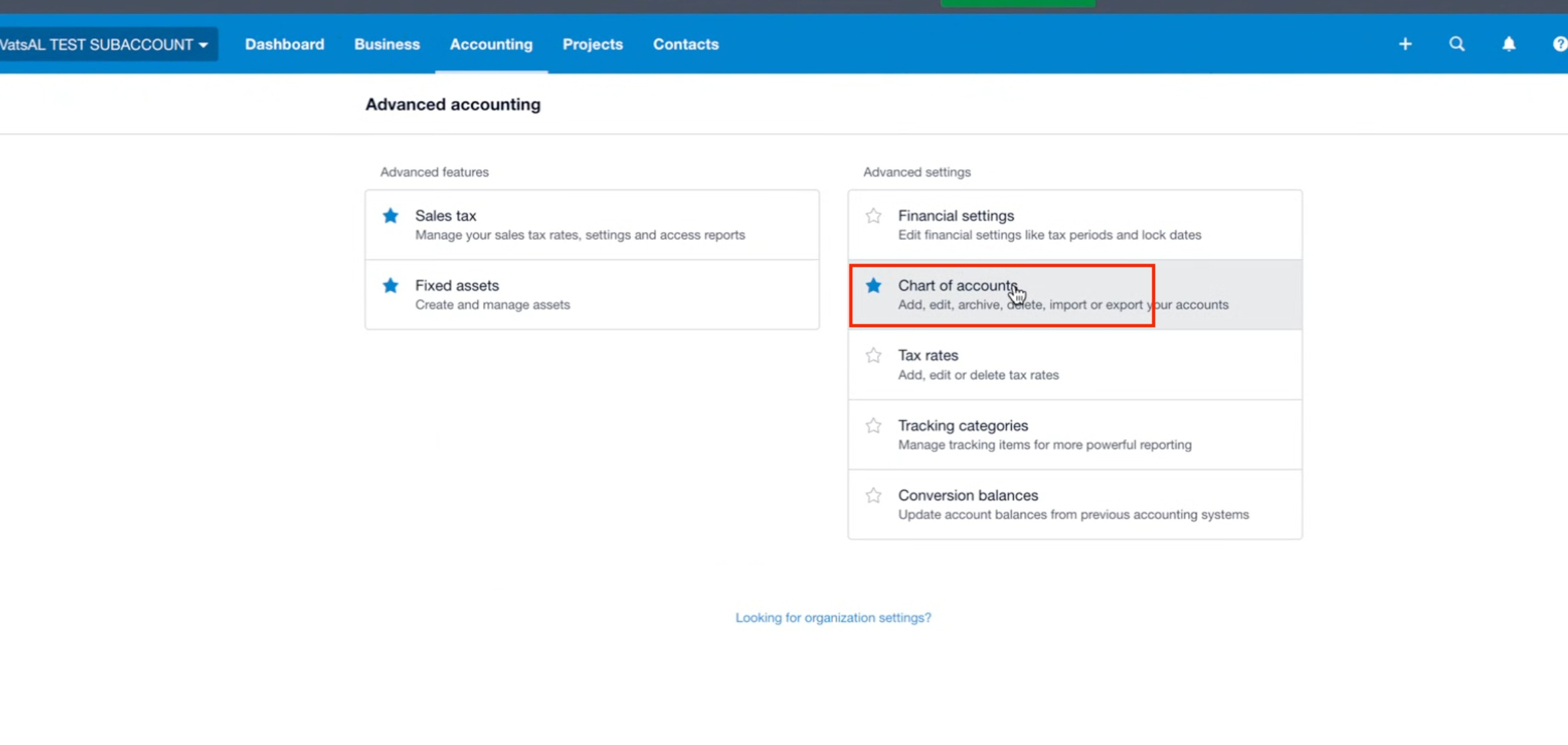
4. Choose Your Account
Select the account you want to use (e.g., Prepayments).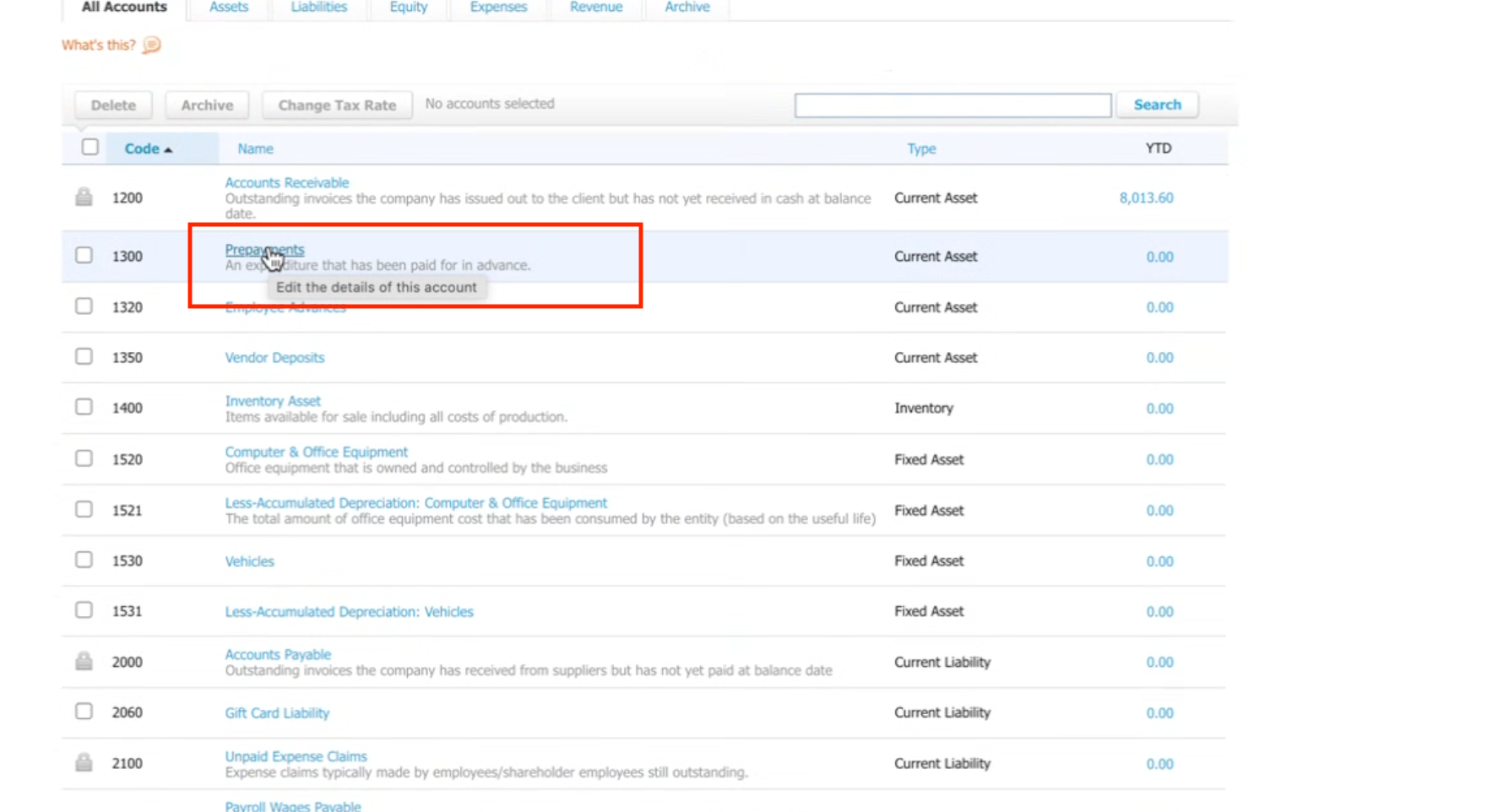
5. Enable Payments
In the account settings popup:
Tick Enable payments to this account
Then click Save.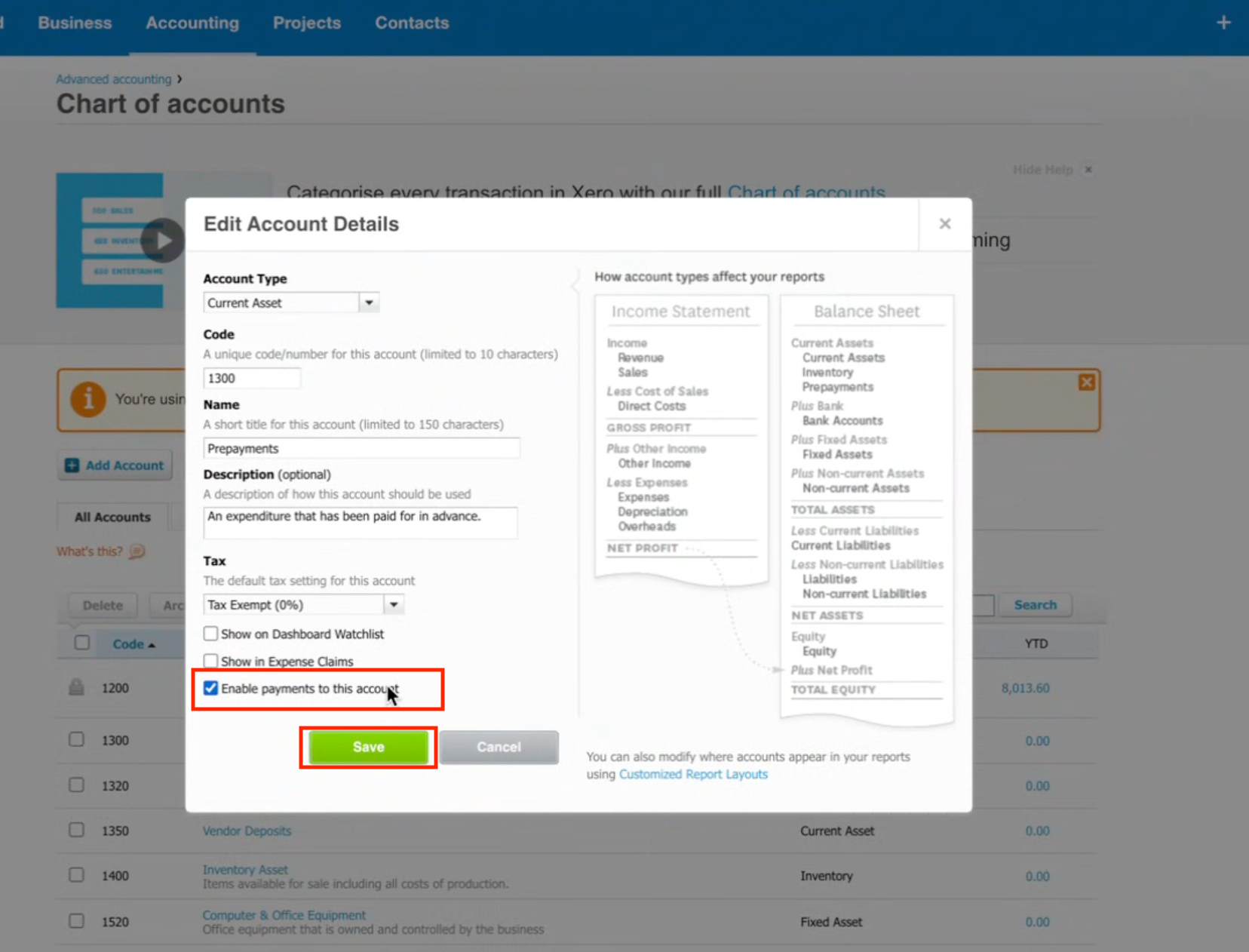
6. Return to Your CRM
The account you enabled will now be selectable when configuring your integration.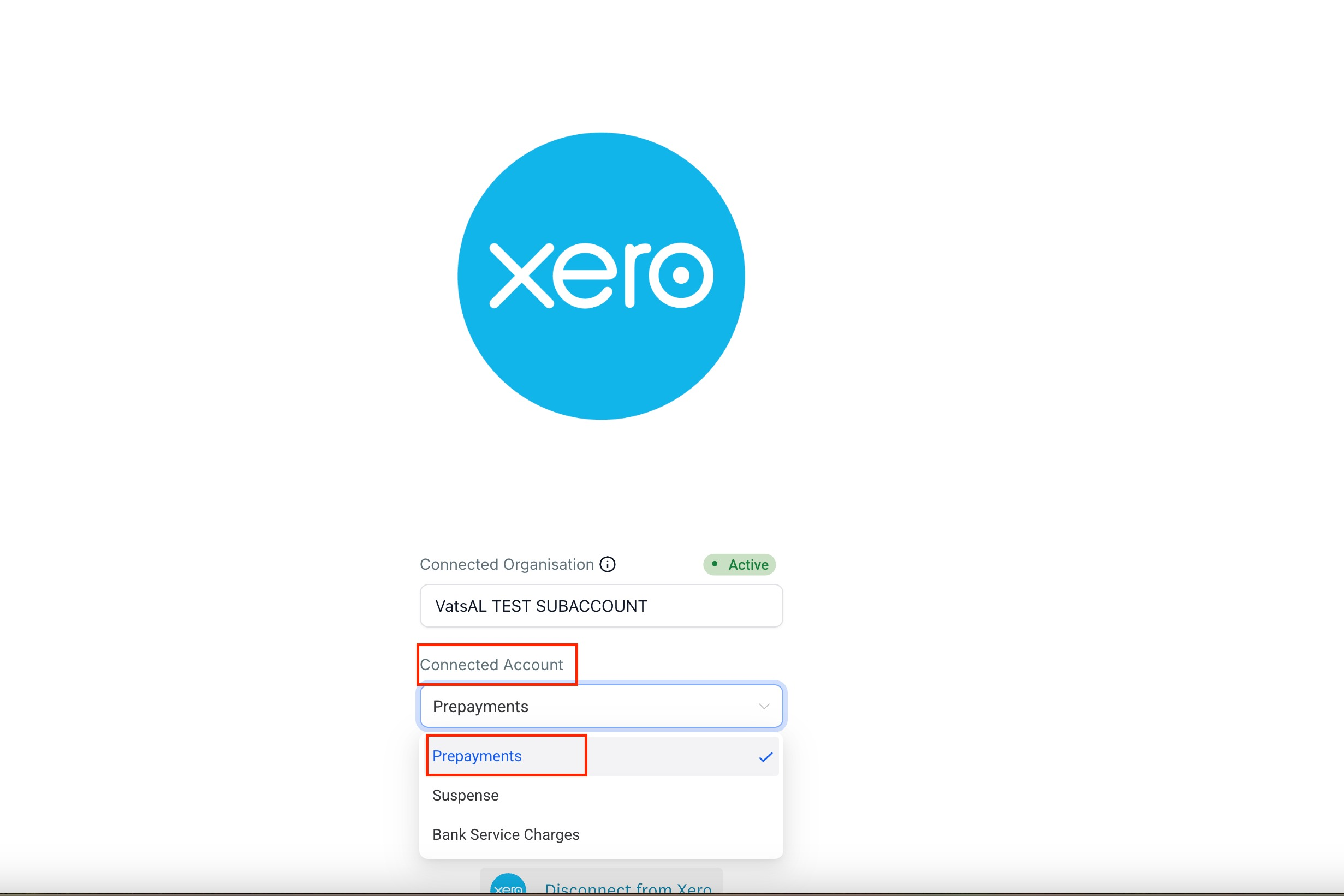
How the Integration Works
1. Contact Import (Xero → Your CRM)
When the integration connects:
Active Xero contacts automatically import into your CRM.
Imported contacts help ensure correct invoice mapping.
If no matching contact is found during invoice sync, the system creates one directly in Xero
2. Invoice Sync (Your CRM → Xero)
When you create or send an invoice:
The system posts an invoice into Xero containing:
Contact Information
Matched with imported contacts or created automatically in Xero if missing.
Line Items
Includes item name, amount, quantity, and discounts.
(Products/Items are not created in Xero.)
Tax Mapping
Existing Xero tax rates are used when matched.
New tax rates are created if needed.
Currency
Invoice currency is transferred to Xero.
If not enabled, the system adds it (requires a Xero multi-currency plan).
3. What’s Out of Scope by Design
No receipt syncing
No item catalog syncing
No syncing of receipt PDFs or expenses
No inventory or product management
4. Disconnections & Best Practices
If you use advanced tracking categories or specialized revenue accounts in Xero, set your default invoice posting account carefully.
Avoid mapping bank accounts to invoice line items to prevent Xero validation errors.
If the integration disconnects, simply reconnect via Settings → Integrations → Xero.
Frequently Asked Questions
Q: Is this a one-way or two-way sync?
One-way.
Contacts import from Xero into your CRM, and invoices sync from your CRM to Xero.
Q: Will new contacts be created in Xero?
Yes.
If no matching contact exists, your CRM creates a new one in Xero during invoice sync.
Q: Do product/items sync to Xero?
No.
Line items appear on the invoice only—no product catalog entries are created.
Q: How are taxes handled?
Matched taxes use the existing Xero tax rate.
Unmatched taxes are created automatically in Xero.
Q: How are currencies handled?
Your CRM passes the invoice currency to Xero and adds the currency to your organization if needed.
Ensure your Xero plan supports multi-currency.
Q: Are receipts synced?
No, not at this time.
Q: Can multiple Xero organizations be connected to one CRM account?
Currently, no.
Each CRM account connects to a single Xero organization.
Q: Where do I manage or disconnect the integration?
Go to Settings → Integrations → Xero.
Q: What does the error “Organisation is not subscribed to currency XXX” mean?
This appears when the invoice currency isn’t enabled in Xero.
Enable multi-currency in your Xero plan or activate the specific currency.
Q: How do I reconnect after disconnecting?
Return to Settings → Integrations → Xero and click Connect again to authenticate.