
Connect and manage multiple Google accounts from a single location to simplify access to supported integrations and services. This feature allows you to add additional Google accounts, choose a primary account, and switch between connected accounts when needed.
TABLE OF CONTENTS
- What is Google Account Management?
- How to Connect a Google Account
- How to Add Additional Google Accounts
- How to Set a Primary Google Account
- How to Disconnect a Google Account
- Frequently Asked Questions
- Need Help?
- SEO Information
- Properties
What is Google Account Management?
Google Account Management allows you to connect and manage multiple Google accounts within your location. This makes it easier to use supported Google-powered features while maintaining flexibility across different business accounts.
You can connect multiple Google accounts, designate one account as the primary account, and manage account access directly from the Integrations area.
Key Benefits of Managing Multiple Google Accounts
Managing multiple Google accounts helps keep integrations organized while providing flexibility for businesses that use more than one Google login.
Multiple Account Support: Connect more than one Google account to the same location.
Primary Account Selection: Choose which connected account should serve as the primary account.
Simplified Management: View, update, and manage connected accounts from one location.
Flexible Access: Switch between accounts without reconnecting integrations each time.
Centralized Control: Easily add or remove accounts as business needs change.
How to Connect a Google Account
Begin by accessing the Integrations area where Google account connections are managed.
Open Google Integrations
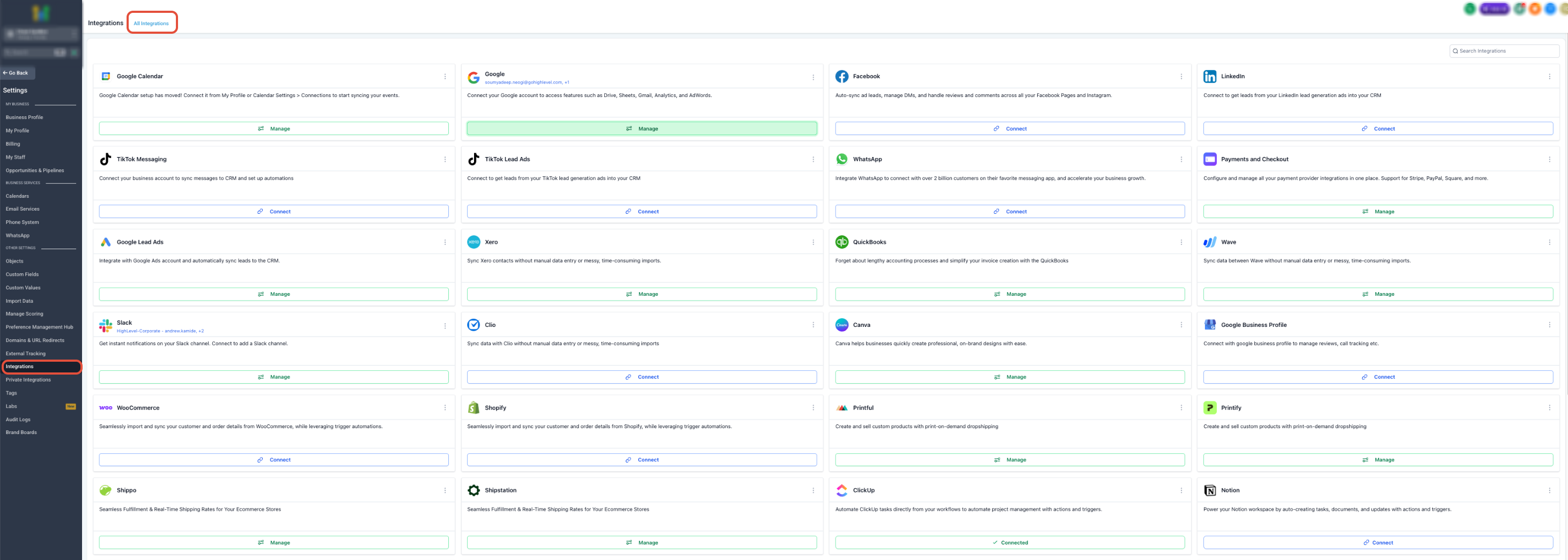
This screen shows the Integrations page. Locate the Google integration card and click Manage to open your connected Google accounts.
After opening the integration, you will see all currently connected Google accounts.
How to Add Additional Google Accounts
Additional Google accounts can be connected at any time.
Add Another Google Account
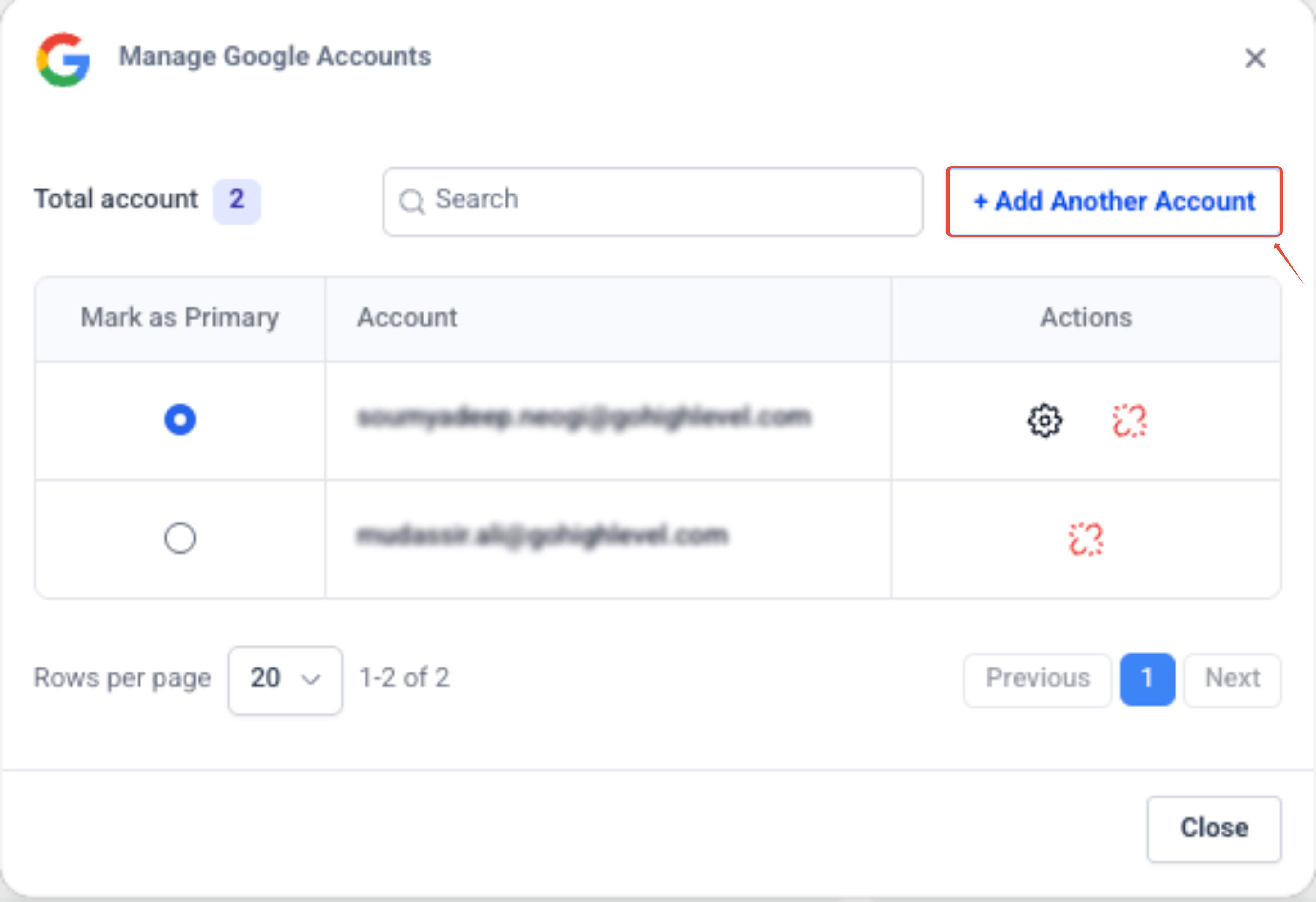
This screen displays the Google Account Management window. Click Add Another Account to connect an additional Google account.
After clicking the button:
- Sign in to the Google account you want to connect.
- Complete the authorization process.
- Return to the account management screen.
- Verify the account appears in the connected account list.
How to Set a Primary Google Account
One connected account can be designated as the primary account.
Select a Primary Account
This screen shows the connected Google account list. Use the Mark as Primary option to select which account should be treated as the primary account.
When a primary account is selected:
- The selected account becomes the default Google account for supported integrations.
- Only one account can be marked as primary at a time.
- You can change the primary account whenever needed.
How to Disconnect a Google Account
If an account is no longer needed, it can be removed from the connected account list.
From the Google Account Management screen:
- Locate the account you want to remove.
- Open the Actions column.
- Select the disconnect option.
- Confirm the removal.
After disconnecting:
- The account will no longer be available for supported Google integrations.
- Any integrations relying on that account may require reconnection.
- If the removed account was the primary account, select a new primary account.
Frequently Asked Questions
Q: How many Google accounts can I connect?
You can connect multiple Google accounts and manage them from the same location.
Q: Can I change my primary Google account later?
Yes. You can update the primary account at any time from the Google Account Management screen.
Q: What happens when I disconnect a Google account?
The account will no longer be available for supported Google integrations and may require reconnection if used elsewhere.
Q: Can I reconnect a previously disconnected account?
Yes. Simply use the Add Another Account option and complete the authorization process again.
Q: Why don’t I see the Google integration?
Verify that you have the necessary permissions to access integrations and that Google integrations are available for your location.
Need Help?
If you are unable to connect a Google account, do not see the expected account in the account list, or experience issues setting a primary account, first verify that you completed the Google authorization process successfully and that the correct Google user account was used during sign-in.
If problems persist, reconnect the account and confirm that all required permissions were granted during authorization. For additional assistance managing connected Google accounts or troubleshooting integration issues, contact your account administrator or support team.