
The Monday.com integration allows you to connect workflows directly with your project management boards to automate task creation, status updates, and board synchronization. This enables real-time coordination between project tracking and CRM-driven automation.
With native triggers and actions, you can automatically create boards, update items, archive groups, and respond to board activity without relying on third-party automation tools. This makes it easier to keep teams aligned and reduce manual project coordination.
TABLE OF CONTENTS
- What Is the Monday.com Integration in Workflows?
- Why It Matters
- Available Triggers (Monday.com → Workflows)
- Available Actions (Workflows → Monday.com)
- Connecting Your Monday.com Account
- How Monday.com Triggers Work
- Best Practices & Recommendations
- Common Use Cases
- Project Status → Client Communication
- Internal Task Sync
- Frequently Asked Questions
- Need Help?
What Is the Monday.com Integration in Workflows?
The Monday.com integration allows workflows to send and receive updates between your CRM and Monday boards. This enables real-time syncing of items, statuses, column values, and user assignments.
This integration is commonly used by teams that:
Track onboarding and deliverables in boards
Manage production or content calendars
Trigger communication when project statuses change
Synchronize project tracking with CRM updates
Why It Matters
Automating board activity reduces manual updates and ensures accurate project visibility.
With this integration, you can:
Eliminate reliance on third-party automation tools
React instantly to board, item, and status changes
Keep communication, CRM updates, and project tools aligned
Reduce cross-team coordination friction
Available Triggers (Monday.com → Workflows)
These events can initiate a workflow when activity occurs inside Monday.com.
Any Column Value Changed in Board
Triggers when a specific column (status, date, owner, or custom column) changes on a board item.
Any Item Moved to a Group
Fires when an item moves between groups.
New Board
Triggers when a new board is created.
New Item in a Board
Fires when a new item is added to a selected board.
New Subitem in Board
Triggers when a new subitem is created.
New Update in Board
Fires when a new comment or update is added to an item.
New User
Triggers when a new user is added to the workspace.
These triggers support real-time automation for onboarding, delivery workflows, and internal project tracking.
Available Actions (Workflows → Monday.com)
Workflows can perform the following actions inside Monday.com.
Create New Board / Group / Column / Item / Subitem
Create new structures dynamically from a workflow.
Update Item / Update Subitem
Modify column values such as status, due date, owner, or custom fields.
Archive Board / Archive Group
Automatically archive boards or groups.
Delete Item / Delete Group
Remove items or groups when no longer needed.
Get Board Items
Retrieve all items from a board for syncing or reporting.
Find Items by Column Value
Search items dynamically using status, owner, or custom column values.
Find Items by ID
Locate a specific item using its item ID.
Connecting Your Monday.com Account
Before using triggers or actions, your account must be connected.
Connect Monday.com from Integrations
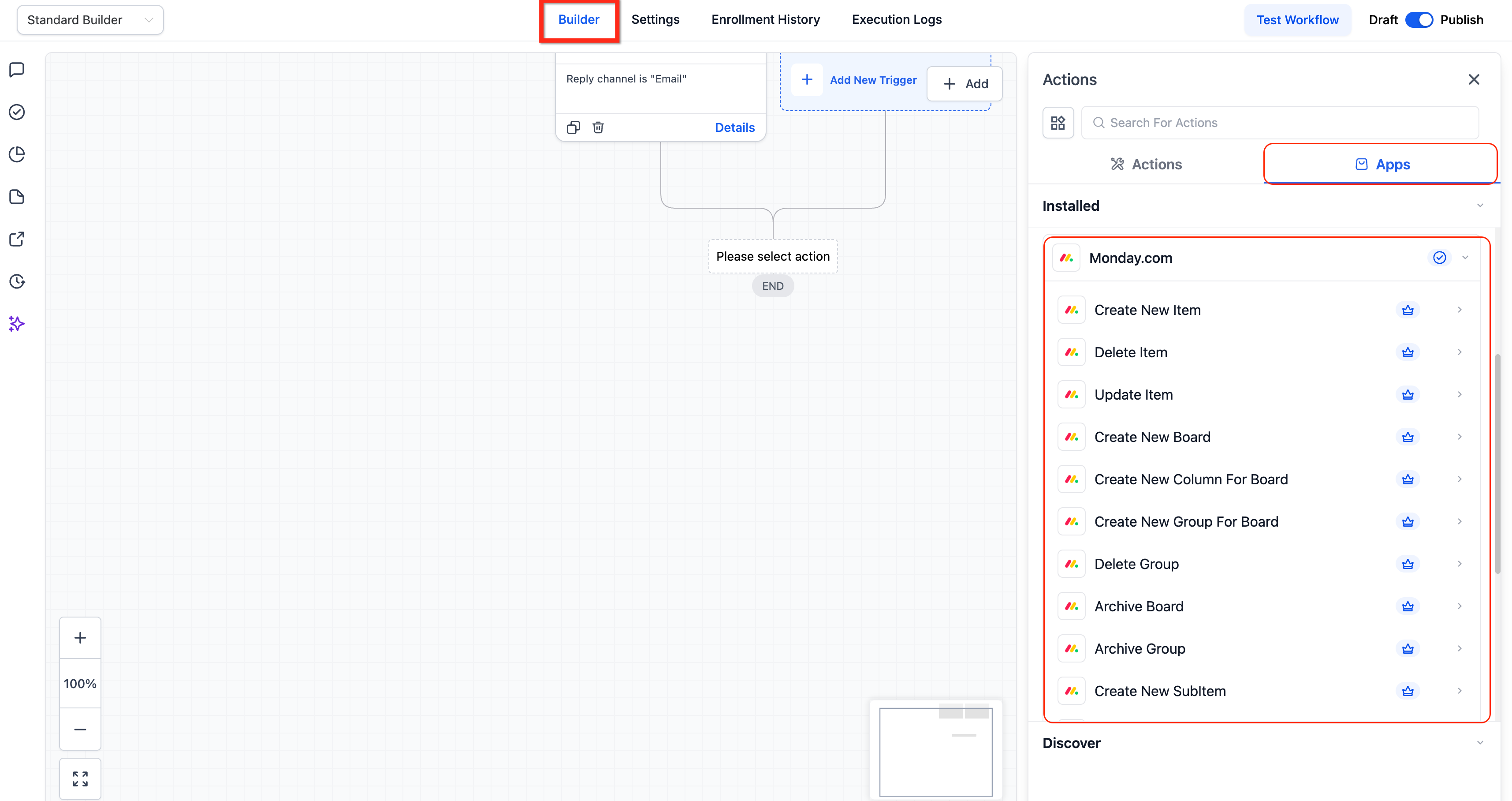
Go to Settings → Integrations, locate Monday.com, and click Connect to authorize your account using your API key.
After successful authentication, Monday triggers and actions will become available inside workflows.
Add Monday.com Trigger or Action in Workflow Builder
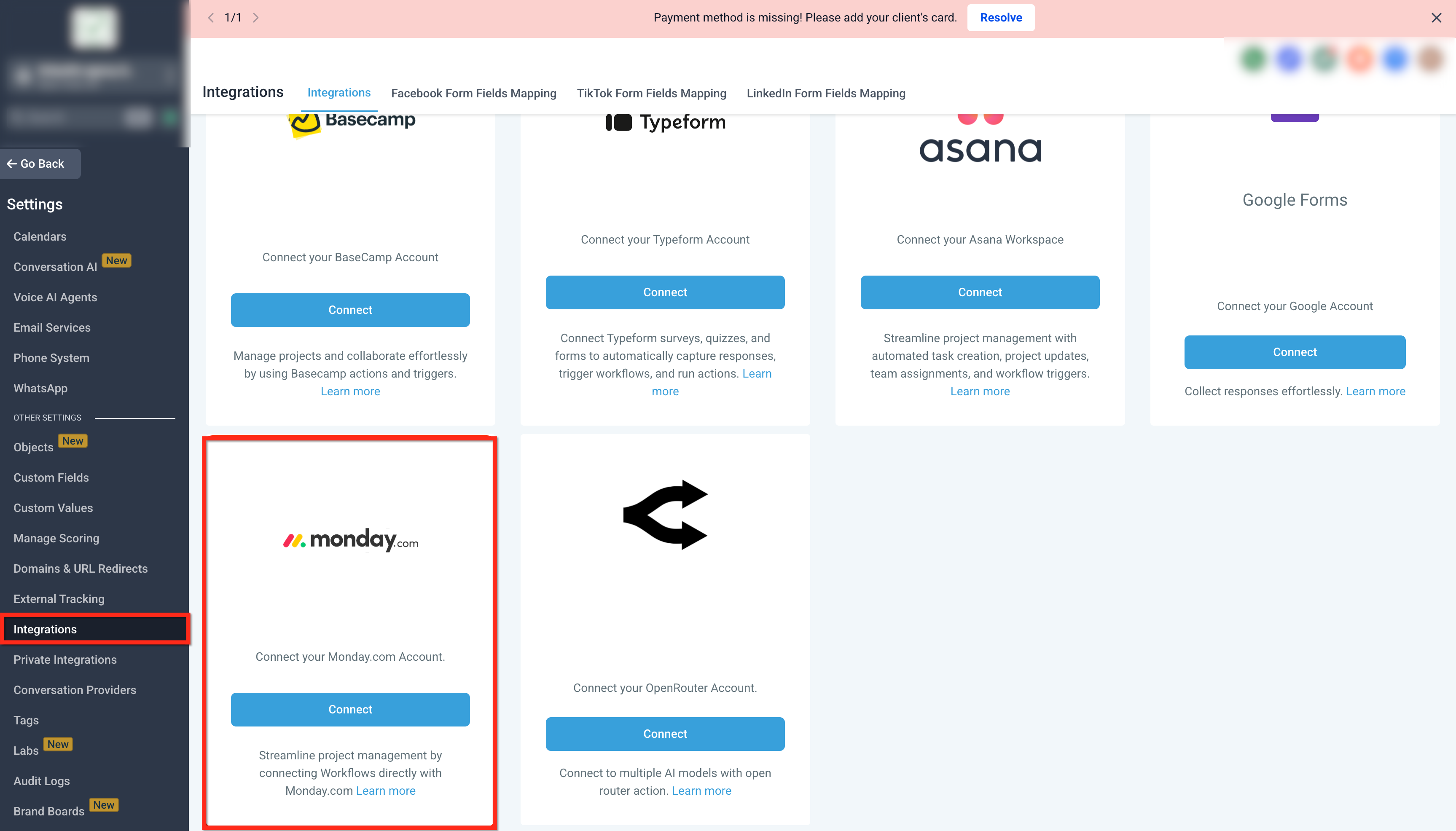
In Automation → Workflows, click Add Trigger or Add Action, open the Apps tab, and select Monday.com to view available triggers and actions.
This allows you to configure automation between boards and workflows.
How Monday.com Triggers Work
Monday.com triggers are event-based and operate near real-time.
To configure:
Select the trigger type (for example, New Item in Board).
Apply filters such as board, column, or group.
Test the trigger to fetch live sample data.
Use dynamic fields (item name, status, owner, dates) in downstream workflow actions.
Proper filtering ensures workflows only execute when relevant updates occur.
Best Practices & Recommendations
Apply column-specific filters for “Column Value Changed” triggers to prevent unnecessary executions.
Store item IDs in custom fields when syncing across systems.
Test triggers before publishing to confirm board data pulls correctly.
Avoid overly broad triggers that monitor entire boards without filters.
Common Use Cases
Client Onboarding Automation
Goal: Sync onboarding items with CRM and internal notifications.
Trigger: New Item in Board (Client Onboarding)
Workflow Steps:
Create or update contact record
Send internal notification
Log onboarding status
Update board item status
Result: Onboarding activity automatically syncs across systems.
Project Status → Client Communication
Goal: Notify clients when a project reaches completion.
Trigger: Column Value Changed (Status → Completed)
Workflow Steps:
Send client notification
Create CRM note
Archive item in board
Notify internal team
Result: Clients and teams stay informed without manual follow-up.
Internal Task Sync
Goal: Synchronize project tracking across tools.
Trigger: New Item in Board (Design Tasks)
Workflow Steps:
Create corresponding task in another system
Store Monday item ID
Send internal notification
Update board item with reference link
Result: Teams maintain visibility without duplicate manual entry.
Frequently Asked Questions
Q: Are Monday.com triggers instant?
Triggers operate near real-time based on board events and updates.
Q: Is this a two-way sync?
Workflows execute in one direction per trigger. Additional workflows can be created for reverse logic if needed.
Q: Do I need a paid plan to use the integration?
Most features work across plans, but advanced board capabilities may depend on your subscription level.
Q: Are Monday.com triggers and actions billed?
Yes. They follow standard premium workflow billing rules.
Q: Can I update multiple columns at once?
Yes. Update Item and Update Subitem actions support mapping multiple column values.
Need Help?
If the integration is not functioning as expected:
Confirm your account is connected
Verify your API key is valid
Ensure correct board and column selection
Review workflow execution logs
If issues persist, provide workflow configuration details and example execution logs when contacting support.