
Learn how to connect Google Forms, use the New or Updated Response trigger, retrieve forms and response data with workflow actions, test the integration, and correctly create a contact when a Google Forms response does not match an existing CRM record.
A Google Forms response does not automatically create a CRM contact. If your workflow needs a contact record, use Find Contact to look for an existing match. On the Contact Not Found branch, add and configure a separate Create Contact action before continuing with contact-based follow-up.
2. Key Benefits of Google Forms in Workflows
3. Prerequisites for Google Forms Triggers and Actions
4. Google Forms Triggers in Workflows
5. Google Forms Actions in Workflows
6. How To Connect and Use Google Forms in Workflows
7. Common Use Cases
8. Frequently Asked Questions
9. Need Help?
What is Google Forms in Workflows?
Google Forms in Workflows connects a Google account with the automation builder so activity from a Google Form can start a workflow or provide data to later workflow steps. Triggers monitor form-response activity, while Google Forms actions retrieve form or response information during an automation.
This makes Google Forms useful for lead intake, onboarding, surveys, feedback, event registrations, internal requests, and other processes where submitted information needs to drive automated follow-up.
Key Benefits of Google Forms in Workflows
Using Google Forms directly in workflows reduces manual handling after a response is received and gives submitted information a clear path into CRM, communication, and internal processes.
- Automated Follow-Up: Start a workflow when a new or updated Google Forms response is detected.
- Faster Lead Handling: Search for an existing contact and create one when the workflow is intentionally configured to do so.
- Flexible Data Retrieval: Find forms or response data during later workflow steps.
- Better Internal Coordination: Use submitted information in tasks, notifications, pipeline processes, and other connected workflow actions.
- Personalized Automation: Pass relevant response data into later workflow steps for more tailored follow-up.
Prerequisites for Google Forms Triggers and Actions
Connecting the correct Google account before building the workflow ensures the automation can access the intended forms and response data. The connected Google account must have access to the forms you plan to use.
- Open the appropriate sub-account.
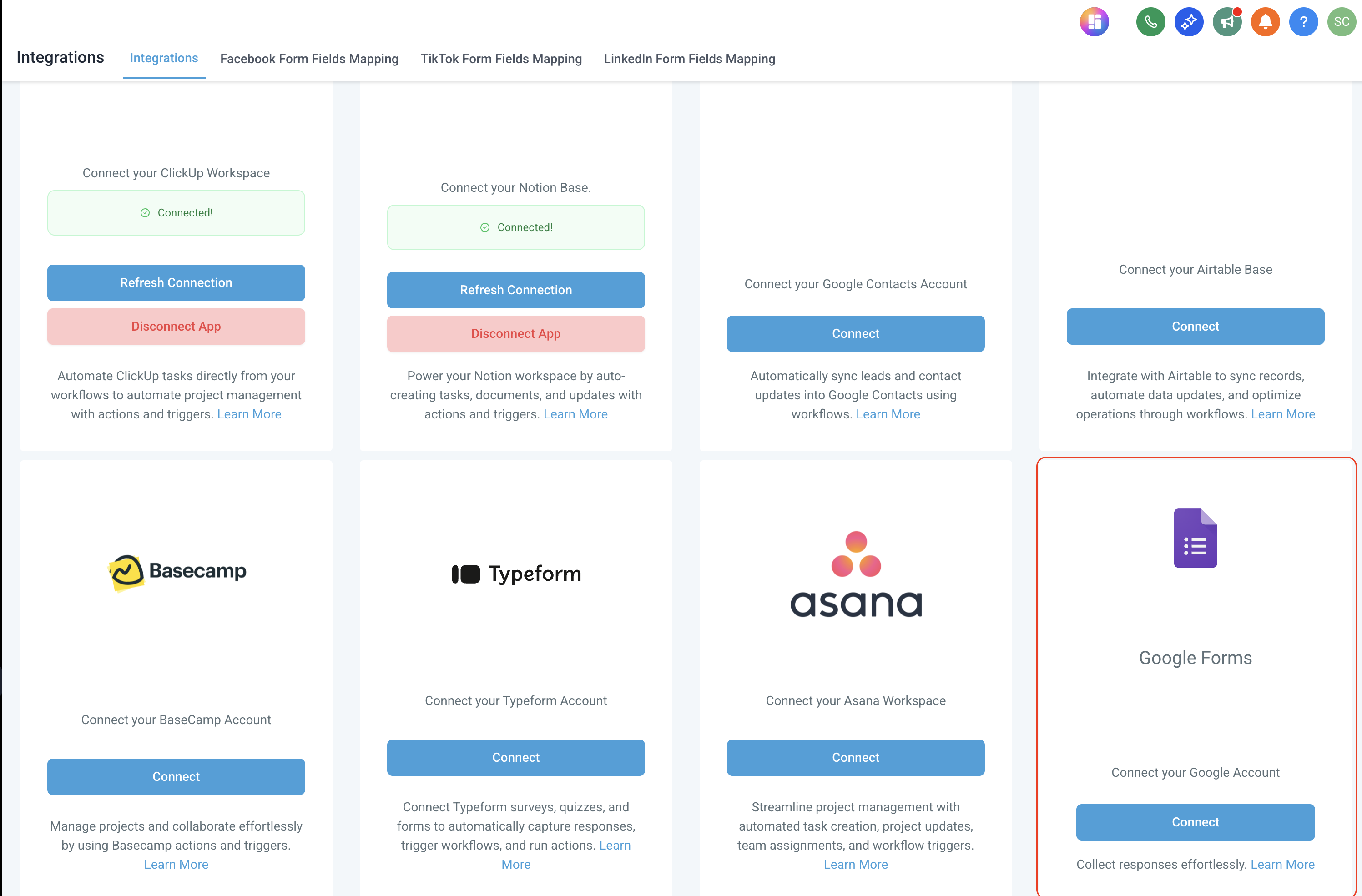
- Go to Settings → Integrations.
- Stay on the All Integrations tab.
- Find Google Forms.
- Click Connect.
- Sign in with the Google account that can access the required forms.
- Review and approve the requested permissions.
- Confirm the integration displays as connected before building the workflow.
Tip: If a form does not appear during workflow configuration, first confirm that the connected Google account has permission to access that form.
Google Forms Triggers in Workflows
The Google Forms trigger determines when form activity should begin a workflow. Understanding the polling behavior is important because a submission or update may not enter the workflow immediately.
New or Updated Response
New or Updated Response starts the workflow when a new Google Forms response is detected or when an existing response is updated.
| Behavior | What to Expect |
|---|---|
| Response Type | Supports both new responses and updates to existing responses. |
| Polling | Checks for response activity on an approximately 5-minute interval. |
| Timing | The workflow may not start immediately after a form submission or update. |
| Testing | Use a real test submission or update and allow time for polling to detect it. |
Google Forms Actions in Workflows
Google Forms actions retrieve forms or response information after a workflow has already started. Returned values can then support later workflow logic, contact management, email, tasks, notes, opportunity actions, or other configured steps.
| Action | Use It When |
|---|---|
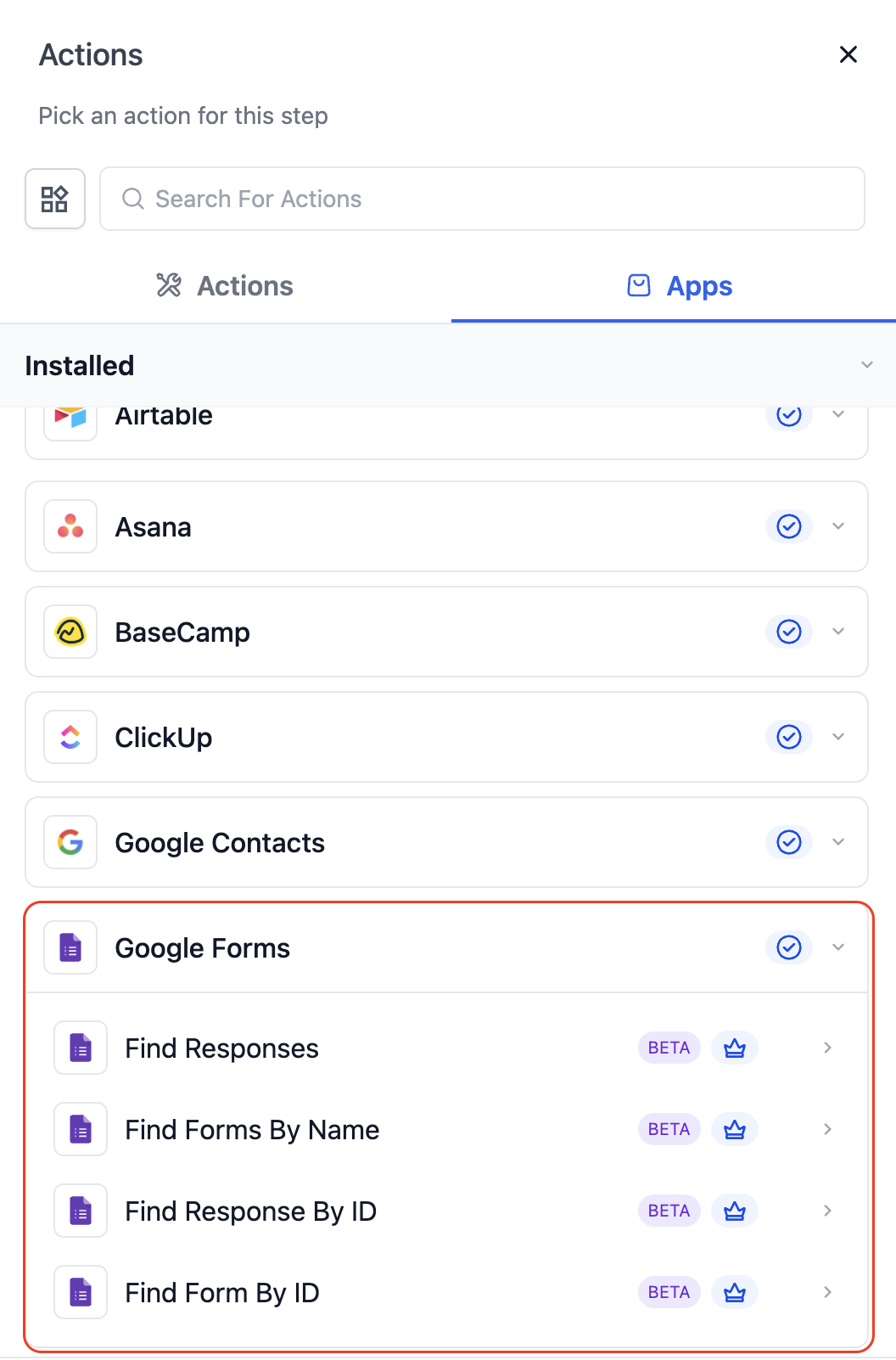
| Find Responses | You need response data associated with a Google Form for later workflow processing. |
| Find Forms By Name | You want to locate a Google Form using its name. |
| Find Response by ID | You already have a response ID and need the specific matching response. |
| Find Form By ID | You already know the Google Form ID and want to retrieve that form directly. |
Google Forms actions are lookup actions. They retrieve Google Forms information. Creating a CRM contact requires a separate contact workflow action such as Create Contact.
How To Connect and Use Google Forms in Workflows
A complete setup includes the Google Forms connection, the correct workflow trigger or action, and a realistic test submission. Testing before publishing helps confirm that the expected form is accessible and the response data is available to later steps.
Step 1: Open the Workflow Builder
- Go to Automation → Workflows.
- Create a new workflow or open an existing workflow.
Step 2: Add the Google Forms Trigger
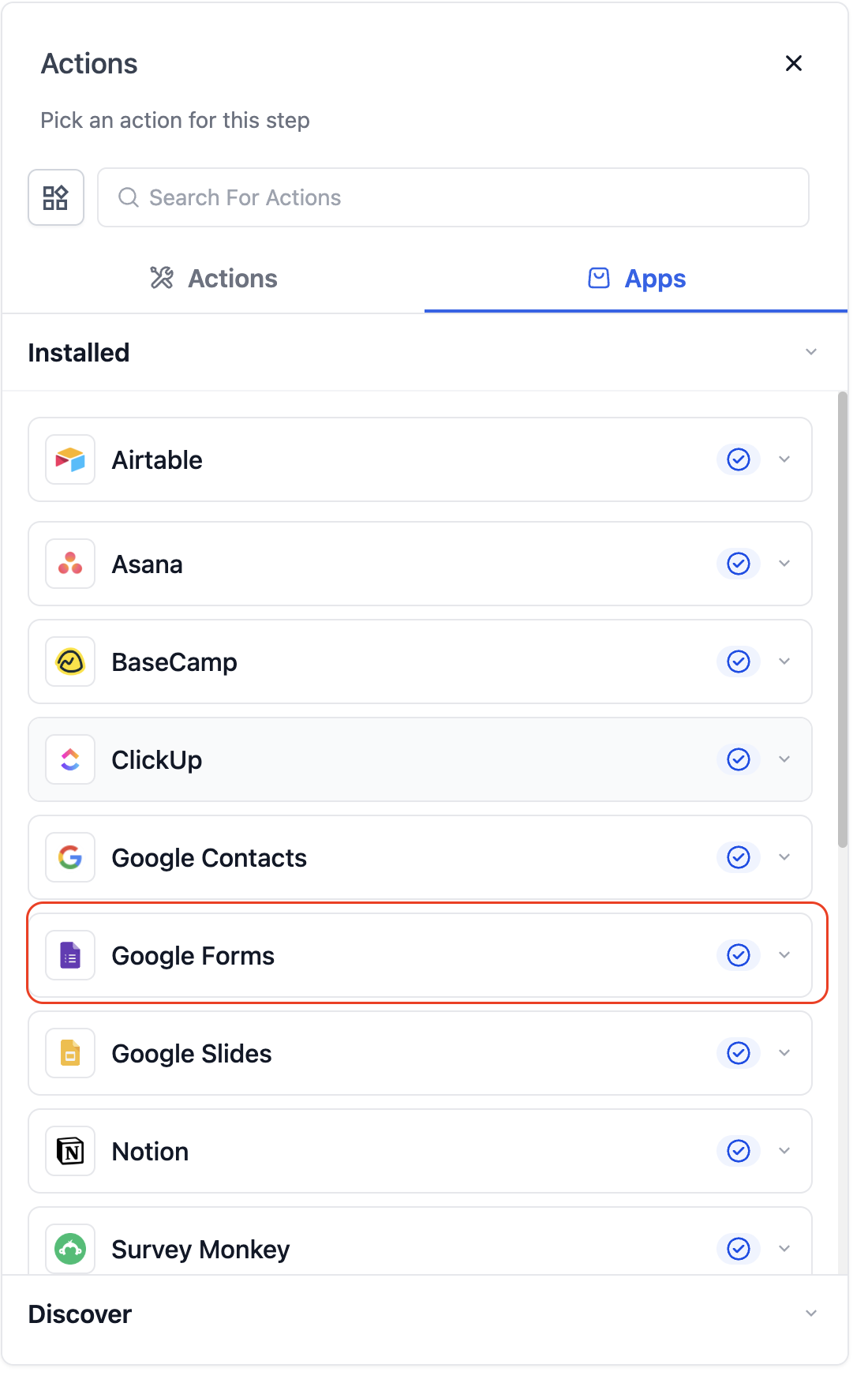
- Select Add Trigger.
- Search for Google Forms.
- Choose New or Updated Response.
- Select the Google Form you want to monitor.
- Save the trigger settings.
Step 3: Add Google Forms Actions When Needed
- Click the + icon at the point where the workflow should retrieve Google Forms data.
- Search for Google Forms.
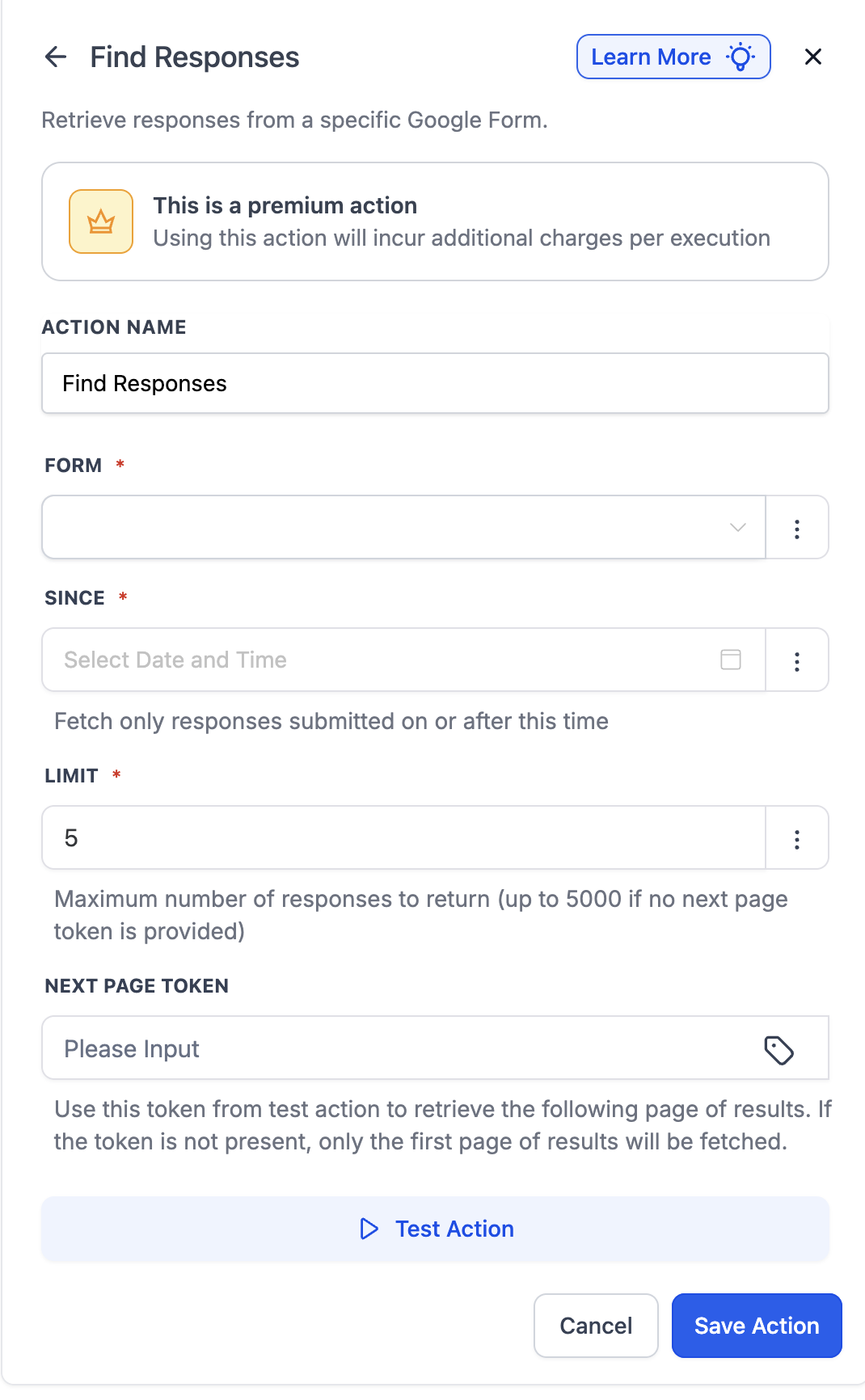
- Choose the appropriate action, such as Find Responses, Find Forms By Name, Find Response by ID, or Find Form By ID.
- Configure the required form or response values.
- Save the action and use its returned data in later workflow steps as needed.
Step 4: Test and Publish the Workflow
- Save the workflow configuration.
- Publish the workflow.
- Submit a real test response to the selected Google Form or update an existing response.
- Allow approximately 5 minutes for polling to detect the activity.
- Review the workflow execution and confirm the response data reaches the intended downstream actions.
Common Use Cases
Google Forms can act as the starting point for workflows that need to identify a contact, notify a team, update a pipeline, or launch additional processing. The examples below demonstrate how Google Forms data can be combined with other workflow actions.
Use Case: Webinar Interest Form Automation
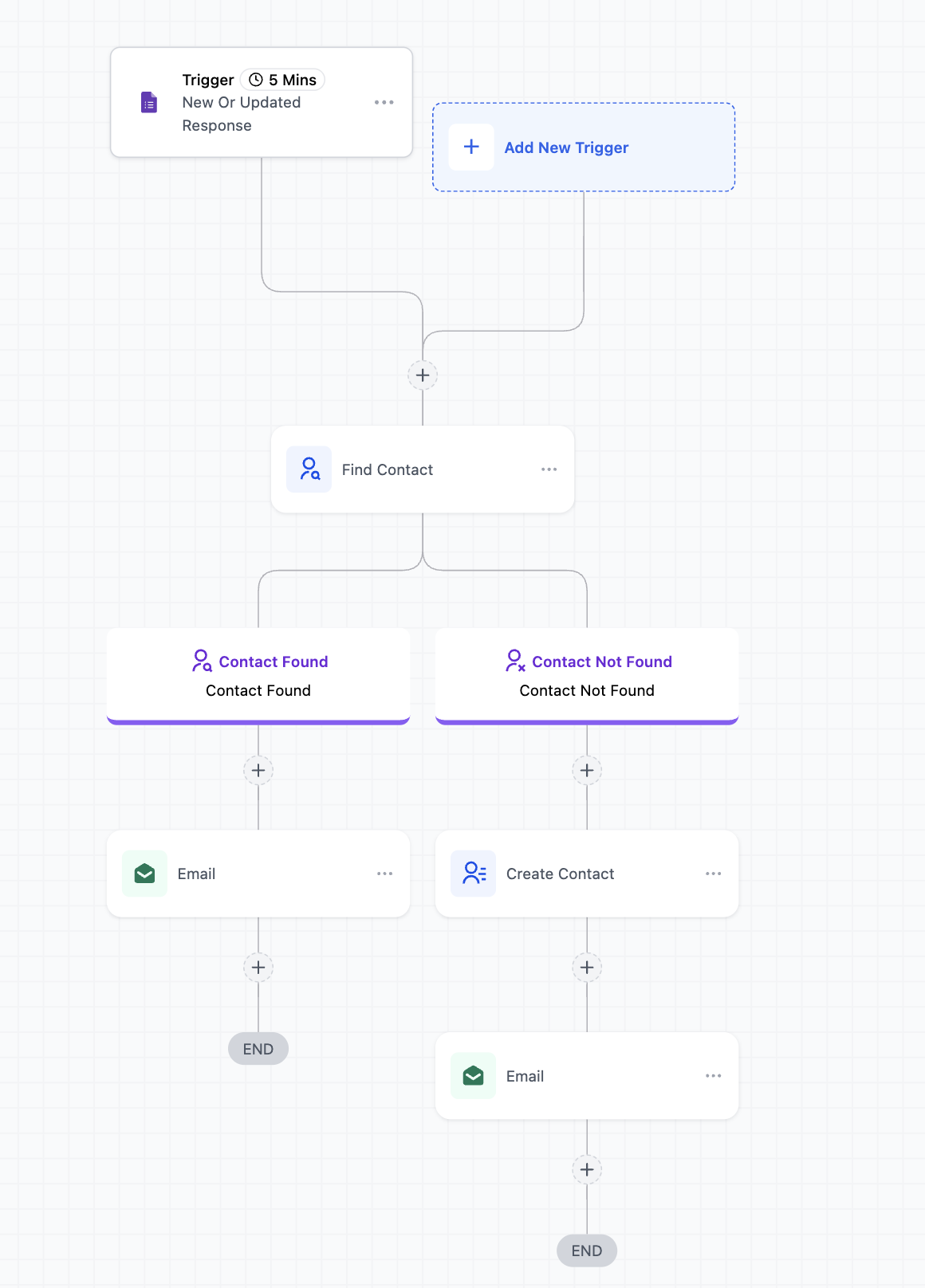
A webinar-interest Google Form can start a workflow that checks whether the respondent already exists as a contact, creates the contact when necessary, and then sends the appropriate confirmation.
- Trigger — New or Updated Response: Select the webinar Google Form.
- Find Contact: If the form collects an email address, map that response into the Find Contact action.
- Contact Found: Continue the existing-contact path, such as sending the webinar confirmation or updating the contact.
- Contact Not Found: Add a separate Create Contact action, map the name, email, phone, and other required values from the Google Forms response, then continue to the confirmation step.
Key distinction: Find Contact only searches for a matching CRM record. It does not create one when no match is found. The Create Contact action must be intentionally added to the Contact Not Found branch.
Use Case: Google Form Submission → Slack Notification
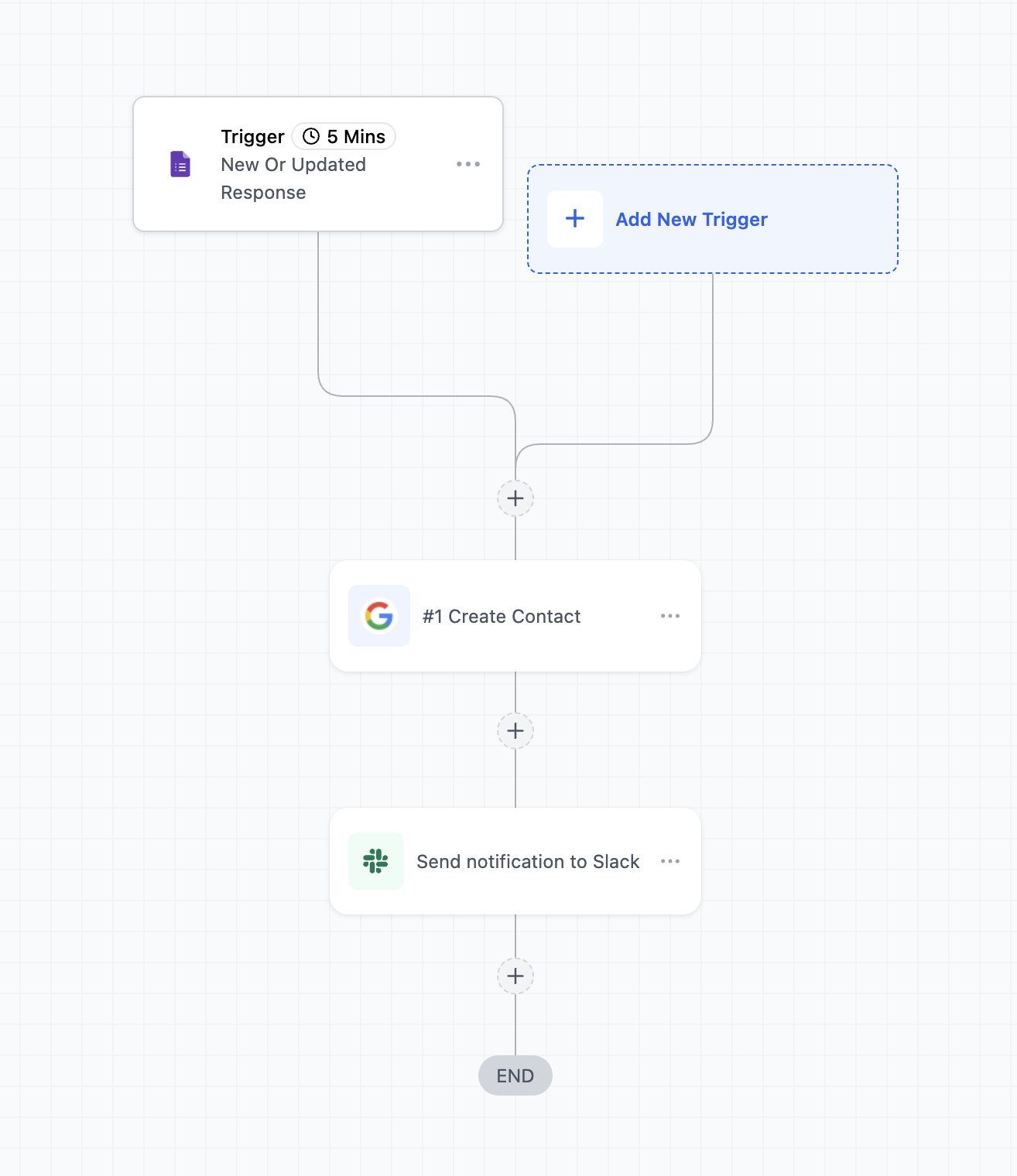
A new or updated form response can notify an internal Slack channel after the Google Forms trigger detects the response. This is useful when sales, support, or operations teams need visibility into new submissions.
- Use New or Updated Response as the Google Forms trigger.
- Add the appropriate Slack notification action.
- Map useful response values such as name, email, phone, company, or submitted answers into the Slack message.
- Publish and test the workflow with a real Google Form submission.
Use Case: Marketing Inquiry → Research → Task → Pipeline → Email
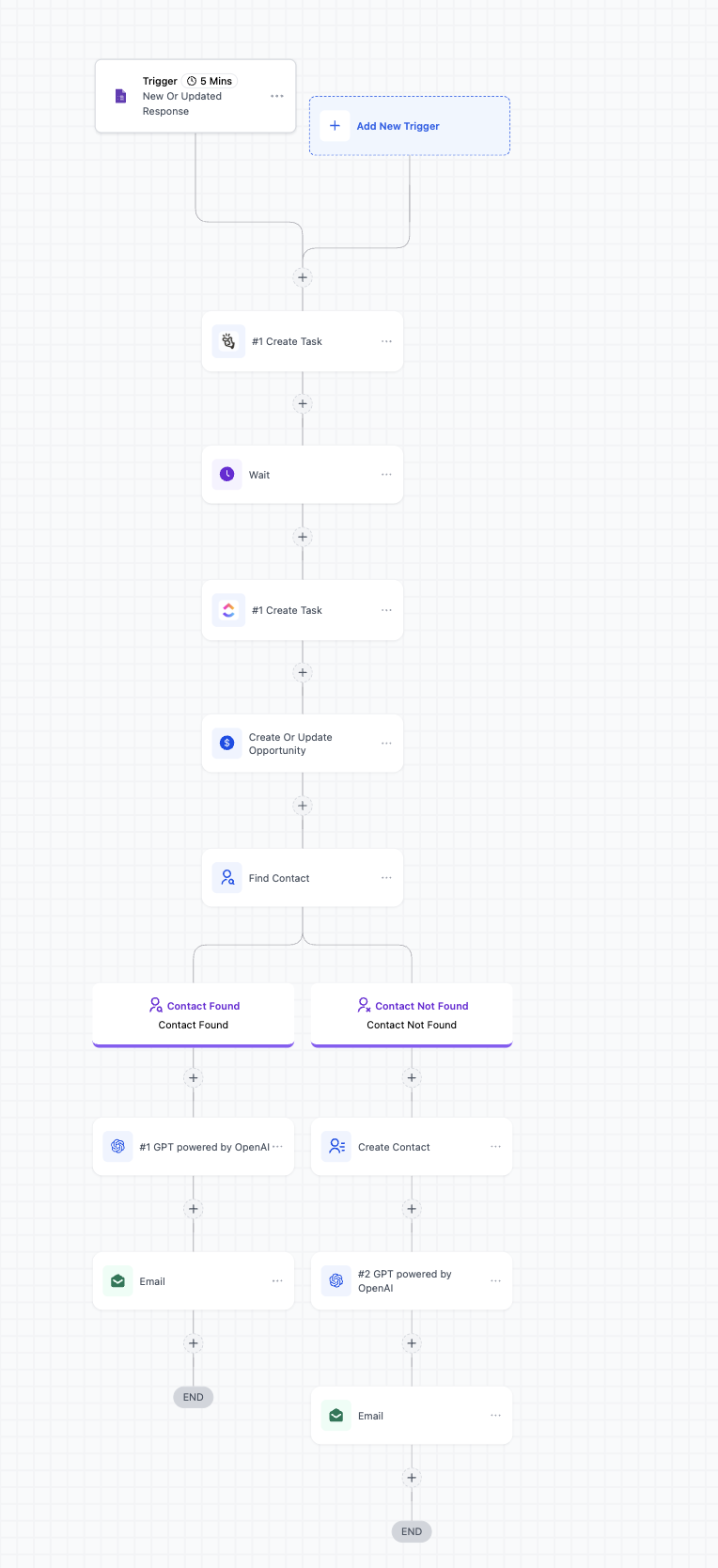
A connected Google Form can serve as the intake point for a more advanced workflow that enriches a prospect, creates internal work, updates an opportunity, checks for a contact, and sends personalized follow-up.
- Trigger: A new or updated Google Forms response is detected.
- Research: Pass relevant submitted information into a connected research or AI action when applicable.
- Internal Task: Create an internal task containing the prospect and response details.
- Pipeline: Create or update the appropriate opportunity.
- Contact Handling: Use Find Contact first. If no contact is found, use Create Contact before running contact-dependent communication actions.
Frequently Asked Questions
Need Help?
If a form or response is not appearing, first confirm that Settings → Integrations → Google Forms shows the correct Google account as connected and that the account has access to the intended form.
If a new submission does not start the workflow immediately, allow time for the approximately 5-minute polling interval and confirm the workflow is published. Test with a real new submission or an update to an existing response.
If the workflow reaches Find Contact but no CRM record is created, inspect the Contact Not Found branch. A Create Contact action must be present and its required fields must be mapped from the available Google Forms response data.
If the workflow still does not behave as expected, review the workflow execution history for the trigger and action inputs/outputs, confirm the connected account permissions, and provide the workflow name, affected form, test submission time, and execution details to your administrator or support team.