
Schema Markup Generator is a native tool in the Website & Funnel Builder that lets you create, validate, and publish schema markup (JSON-LD) for a page. This article explains what the feature is, why it matters, and how to add and manage schema on your Websites and Funnels.
Note: Schema Markup Generator (AI & Manual) is a FREE Tool.TABLE OF CONTENTS
- What is Schema Markup Generator?
- Key Benefits of Schema Markup Generator
- How to Use AI to Generate Schema Markups
- How To Manually Generate Schema Markups
- Supported Schema Types for Manual Method
- Important Notes
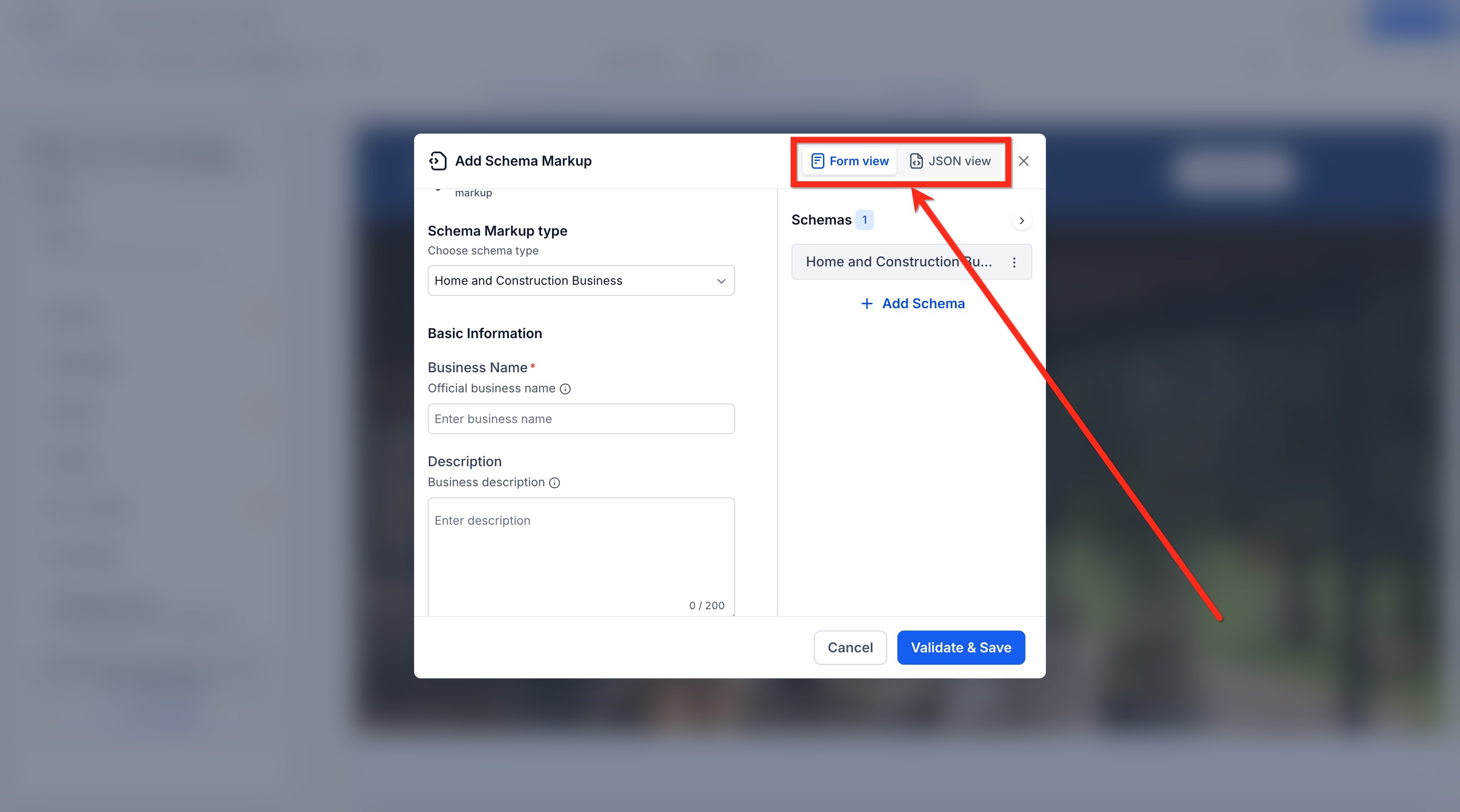
- Schema Views: Form View vs JSON View
- Best Practices for Success
- Most Useful Schema Types for Local Businesses
- Good to Know
- Frequently Asked Questions
What is Schema Markup Generator?
Schema Markup Generator is a native tool in the Website & Funnel Builder that allows you to create, validate, and publish schema markup (structured data) for individual pages. Structured data helps search engines and AI systems interpret key details like your business type, products, FAQs, articles, events, and more.
Note: Schema is page-specific and does not carry over to other pages or funnel steps.Key Benefits of Schema Markup Generator
140+ Schema Types: Covers common schema types such as LocalBusiness, Product, Article/BlogPosting, FAQPage, Event, Organization, and more.
Form View (No-code): Guided fields make it easy to complete schema details without technical knowledge.
JSON View (Advanced): Paste or write JSON-LD directly when you need full control.
Built-in Validation: Highlights issues when saving so you can fix schema problems before publishing.
One-Click Save & Publish Flow: Schema is saved to the page configuration and goes live when the page is published.
Multiple Schemas Per Page: Add and manage more than one schema type on the same page (for example, LocalBusiness + FAQPage).
How to Use AI to Generate Schema Markups
AI-powered schema generation allows you to automatically create structured data based on your page content. This helps improve search visibility and ensures your schema is accurate without manual setup.
Before generating schema markup, it’s important to prepare your page correctly. AI relies on existing content to determine the appropriate schema types and values, so incomplete pages may result in inaccurate or limited schema output.
Before You Start
Before generating schema markup:
Make sure your page content is fully completed
AI analyzes existing content to generate accurate schema
Schema is applied per page and does not carry over to other pages
Go to Sites.
Click Funnels or Websites (whichever you want to add schema to).

Create a new Funnel/Website, or edit an existing one.

Click Edit on the specific Website page or Funnel step you want to update.

Click on SEO & AI search optimization.
Click on Schema Markup. (Make sure the page already has content. Schema Markup AI cannot generate schema for an empty page.)
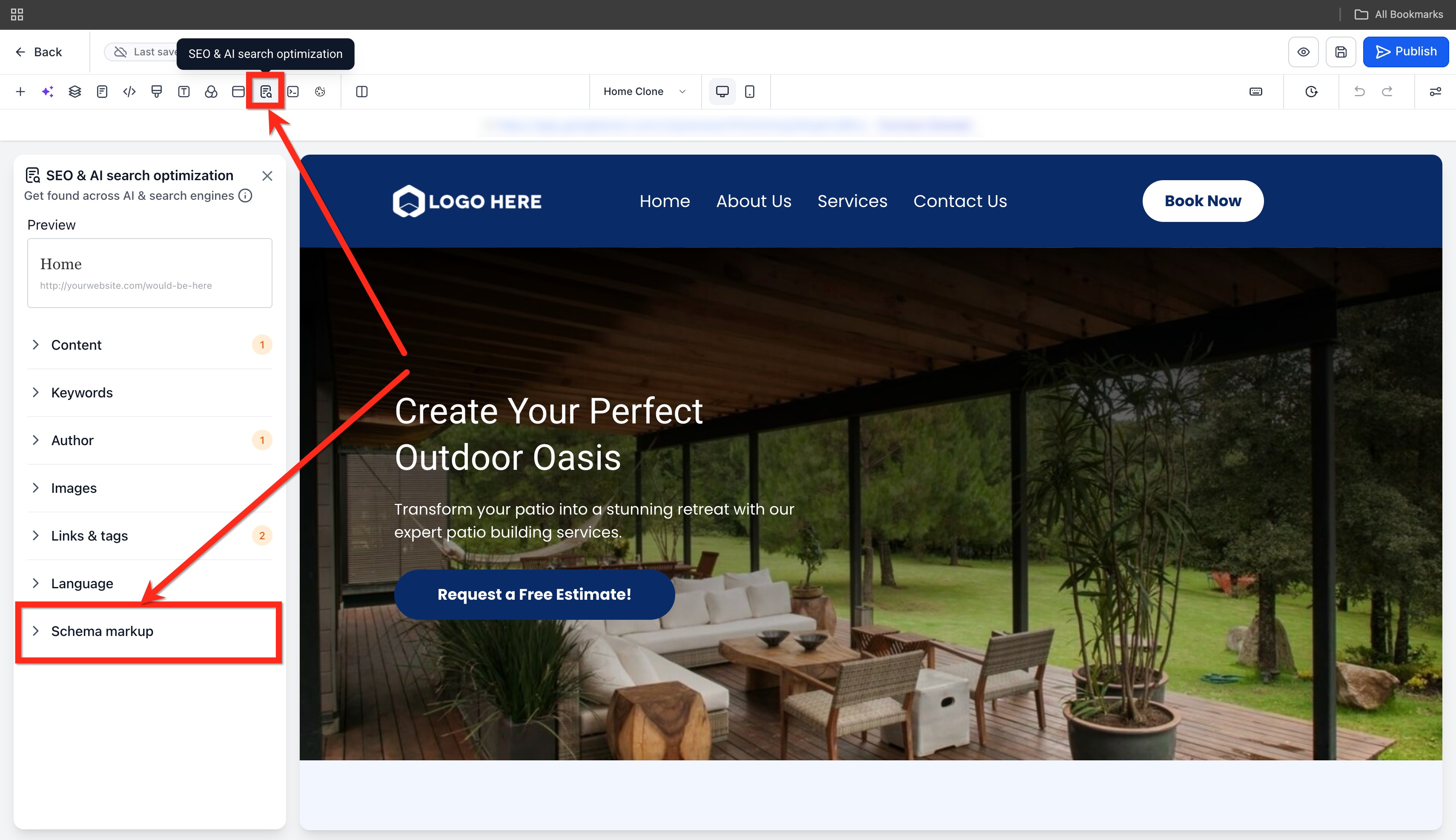
- Click + New Schema button and select Create with AI option.

Enter a well detailed and relevant prompt and click on the Send Message button.

Wait for AI to analyze the page and generate the most relevant schema markup.

Click on the View Schema Markup button and Review the generated schema and any populated values in Form and JSON view.

You can add, modify and delete the schemas directly from the chat window.

Click on Validate and Save.

Confirm the generated schema appears under Active Schemas.
Publish the page to make the schema live.

How To Manually Generate Schema Markups
Correct setup starts by opening the exact Website page or Funnel step you want to optimize and then adding schema that matches the content visitors can see. Because schema is page-specific, you’ll repeat these steps for each page or step where you want structured data.
Go to Sites.
Click Funnels or Websites (whichever you want to add schema to).
Create a new Funnel/Website, or edit an existing one.
Click Edit on the specific Website page or Funnel step you want to update.
In the left panel, open SEO & AI search optimization.
Click on Schema Markup.

Click + New Schema button and select Add Schema option.

In the pop-up, click on the + Add Schema option.

Select a schema type from the dropdown (for example: Local Business, FAQ Page, Product, Article/Blog Posting).

Add your schema details using one of the following:
Form View: Fill out the guided fields.
JSON View: Paste or write your JSON-LD.

Add the necessary information as per your chosen category.

Click Validate & Save.

If validation fails, fix the highlighted fields or JSON formatting issues.

14. Save & Publish the Website page or Funnel Step to make the schema live.
Supported Schema Types for Manual Method
Schema Markup Generator supports a wide range of schema types so you can match structured data to your page goals. Using the correct schema type improves clarity for search engines and AI systems and helps your page qualify for enhanced results where applicable.
Common supported types include:
Organization
Website
Breadcrumb List
Article / Blog Posting
FAQ Page
QA Page
How To
Video Object
Person
Product
Local Business
Event
Offer
Review
Aggregate Rating
Recipe
ImageObject
Service
Course
Note: This includes child types under each category (for example, LocalBusiness subtypes).Important Notes
Schema cannot be generated for empty pages
Always review AI-generated schema before saving
Each page requires its own schema setup
Updating page content may require regenerating schema
Schema is only applied after publishing
Schema Views: Form View vs JSON View
Choosing the right editing view helps you work faster and reduce errors. Form View is ideal for most users, while JSON View is best when you need to paste schema from another source or customize advanced fields.
Form View
Best for no-code setup
Uses guided fields to complete required and recommended properties
Helps avoid formatting mistakes
JSON View
Best for advanced users and developers
Allows direct JSON-LD editing or pasting existing schema
Useful for adding specialized properties not shown in Form View
Best Practices for Success
Accuracy is critical: Only mark up information that’s visible on the page. Never add fake reviews or hidden content.
Keep it current: Update schema when business hours, prices, or contact information changes.
Use specific types: Choose “Dentist” instead of generic “LocalBusiness” when possible—the more specific, the better.
Combine multiple schemas: Your homepage can include both Organization and LocalBusiness schema for comprehensive coverage.
Add schema to all key pages: Homepage, contact page, product/service pages, and blog posts all benefit from appropriate schema markup.
Most Useful Schema Types for Local Businesses
Local Business: Essential for any business with a physical location. Includes name, address, phone, hours, and service area.
Product: For items you sell. Shows prices, availability, ratings, and images directly in search results.
Service: For services you offer. Displays service descriptions, pricing, and service areas.
Review: Customer testimonials that appear as star ratings in search results (must be real reviews).
FAQ: Questions and answers that expand directly in search results.
Event: Workshops, sales, classes, or any scheduled occurrence. Shows dates and registration links.
Good to Know
Schema is page-specific and does not automatically carry over to other pages or funnel steps.
Schema can appear in the editor or preview after saving, but it becomes live only after the page is published.
Schema is not auto-generated when creating a new page with AI—add it manually after content is finalized.
Keep schema updated when visible details change (for example: business hours, pricing, contact information).
Frequently Asked Questions
Q: How does schema selection differ between manual setup and AI-generated schemas?
In manual setup, the available schema types are limited to a predefined list—usually the most commonly used ones for SEO, AEO (Answer Engine Optimization), and GEO (Generative Engine Optimization).
With AI, there is no such limitation. The AI can generate any valid schema type based on the content of the page.
Q: Can AI generate schema types that are not available in the manual list?
Yes. AI can analyze the page content and create schema markup using any valid schema type, even if it is not included in the manual selection options.
Q: Do I need technical knowledge to use Schema Markup Generator?
No. Form View is designed for no-code setup. Advanced users can use JSON View to paste or customize JSON-LD.
Q: Where does the schema get published on my page?
Schema is published as JSON-LD in the page’s <head> when the page is published.
Q: Why do I see schema in preview but not on the live page?
Saving stores schema for the page, but it only goes live after you publish the page or funnel step.
Q: Can I add more than one schema type to a single page?
Yes. You can add and manage multiple schemas per page (for example, LocalBusiness + FAQPage).
Q: Can I paste schema from another tool or website?
Yes. Use JSON View to paste your JSON-LD, then click Validate & Save to check for issues before publishing.
Q: What does “Validate & Save” check?
Validation helps identify missing or incorrect fields and formatting issues so you can correct problems before publishing.
Q: Should my schema match what’s visible on the page?
Yes. Only add structured data that reflects real content users can see to avoid misleading markup.
Q: Can I generate schema without page content?
No. The page must contain content for AI to generate accurate schema.
Q: Can I edit the generated schema?
Yes. You can modify schema in both form view and JSON view before saving.
Need Help?
If you need a hand setting this up, you’re not alone. Double-check that your settings are saved correctly and that all required fields are filled out. Small details can make a big difference in how things function.
If you’re still running into issues, reach out to your account administrator or support team for guidance. They can walk you through the setup and help make sure everything is working as expected.