
The Generate Response action allows you to use advanced AI models directly within workflows to create dynamic, context-aware responses from prompts you define. This enables automated content creation, intelligent replies, summarization, and AI-driven decision logic inside your automation flows.
The action sends your prompt to the selected AI model and returns a generated response that can be used in later workflow steps. This makes it possible to build automated messaging, personalized follow-ups, and structured AI-powered processes without manual input.
TABLE OF CONTENTS
- What Is the Generate Response Action?
- How the Action Works
- Connecting Your OpenRouter Account
- Action Configuration
- Using the Generated Output
- Common Use Cases
- Best Practices
- Frequently Asked Questions
- Need Help?
What Is the Generate Response Action?
The Generate Response action enables workflows to send prompts to an AI model and receive generated output in real time. The response can then be inserted into messages, stored in custom fields, or used to drive conditional workflow logic.
This action supports:
Custom prompts
System-level behavioral instructions
Workflow variables
Multiple AI model selections
How the Action Works
When a workflow reaches this action:
The selected AI model is invoked
The optional System Prompt defines tone or behavior
The main Prompt is sent to the model
The model generates a response
The response becomes available for use in later workflow actions
The output can be mapped or reused anywhere within the workflow.
Connecting Your OpenRouter Account
Before using the Generate Response action, your account must be connected.
Connect OpenRouter from the Integrations Page
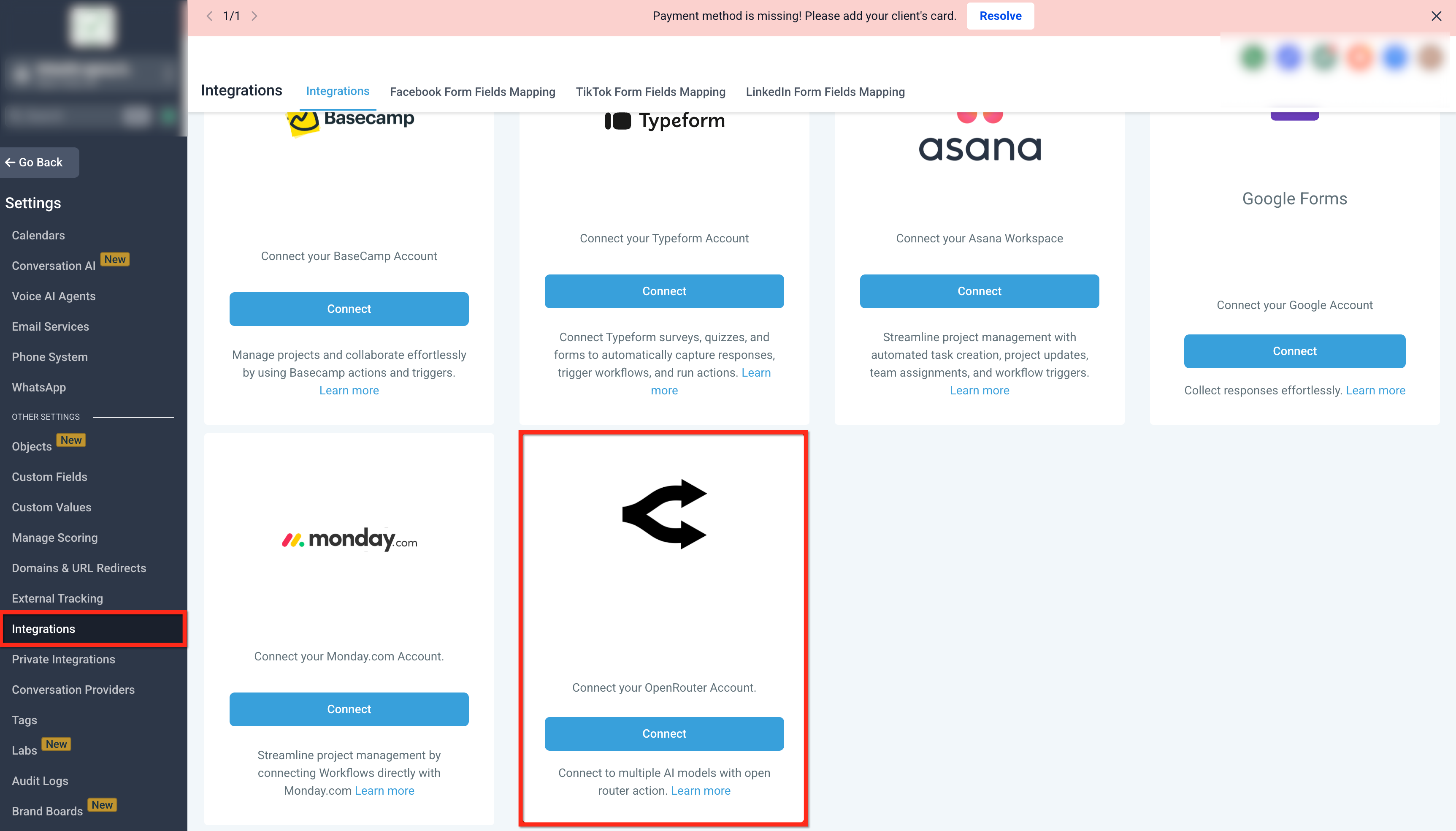
Navigate to Settings → Integrations, locate OpenRouter, and click Connect to authorize your account using your API key.
After successful authentication, OpenRouter actions will appear inside workflows.
Add Generate Response from the Apps Tab
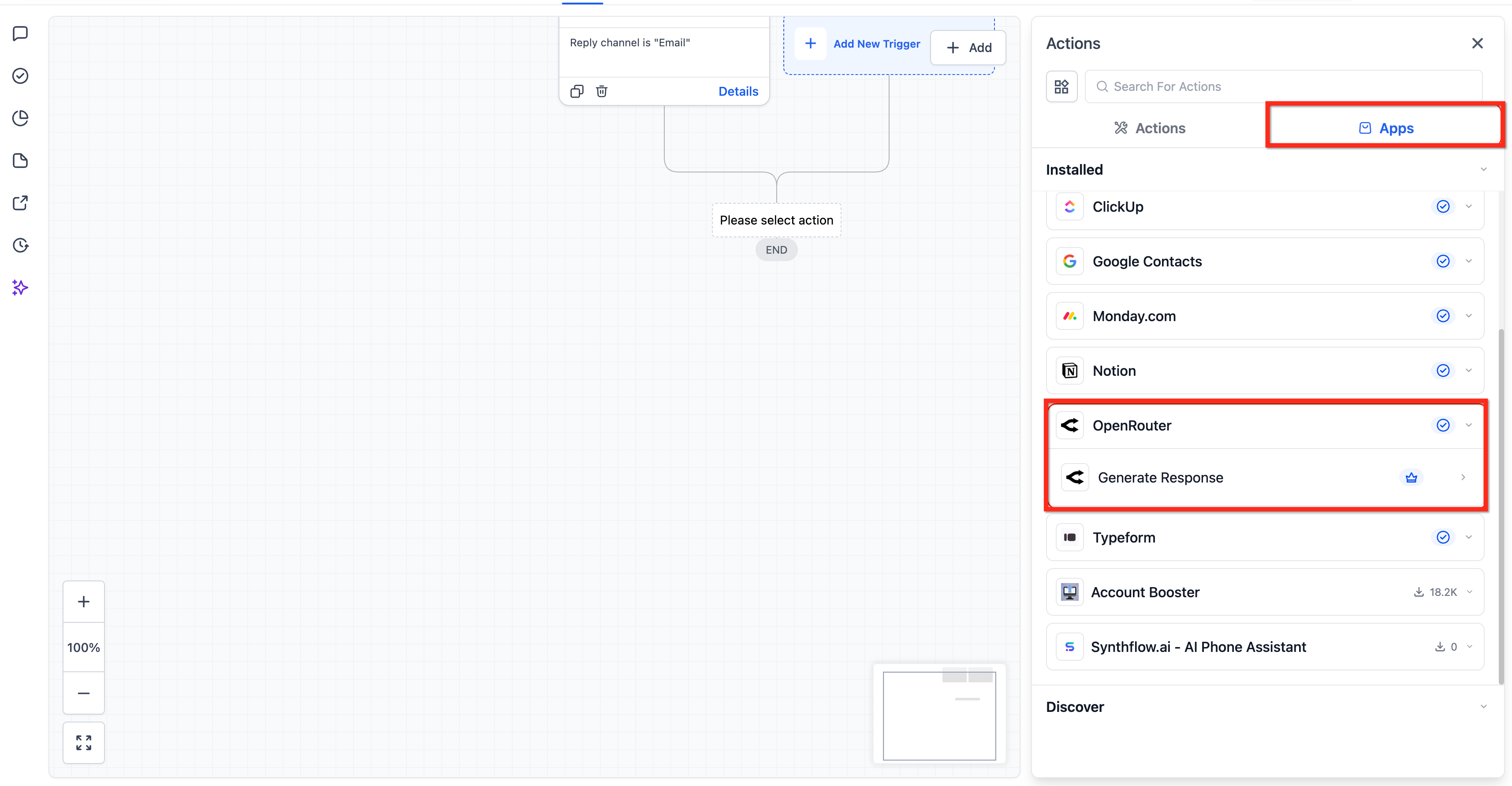
Inside the Workflow Builder, click Add Action, open the Apps tab, and select OpenRouter → Generate Response.
This makes the AI action available within your workflow sequence.
Action Configuration
The Generate Response action includes three primary configuration fields.
1. System Prompt (Optional)
The System Prompt defines the AI’s overall role, tone, or behavior. It influences how the model responds but does not contain the primary request.
Examples:
“You are a helpful customer support assistant.”
“Respond in a concise and professional tone.”
“You are an expert marketing copywriter.”
Use this field to guide style, formatting, or intent.
2. Prompt (Required)
The Prompt contains the main instruction or question sent to the AI model.
You may include:
Plain text
Workflow variables
Custom instructions
Examples:
“Write a follow-up email for {{contact.first_name}} about their missed appointment.”
“Summarize the following message in one sentence: {{inbound_message.body}}”
“Generate a short sales pitch for this service: {{custom.service_description}}”
This field determines what the AI produces.
3. Model (Required)
Select the AI model that will generate the response.
Models may differ in:
Response quality
Speed
Cost
Creativity
Choose a model appropriate for your workflow objective.
Using the Generated Output
The AI-generated response can be used in several ways:
Inserted into SMS, Email, or messaging actions
Stored in a custom field
Used inside conditional logic
Passed to additional AI or workflow actions
This enables advanced automation sequences based on AI output.
Common Use Cases
Below are practical examples of how the Generate Response action can be used.
AI-Generated Replies
Automatically draft responses to inbound messages.
Message Summarization
Condense long form submissions or conversation threads into brief summaries.
Personalized Follow-Ups
Create dynamic follow-up emails or SMS using contact data.
Marketing Content Generation
Generate headlines, ad copy, or campaign messaging.
Intelligent Workflow Routing
Use AI output to determine next workflow steps.
Best Practices
Be specific in your prompt for higher-quality responses
Use the System Prompt to control tone and structure
Test multiple models to determine best performance
Keep prompts concise and clear
Use workflow variables to personalize output
Store responses when needed for multi-step workflows
Frequently Asked Questions
Q: Can I use workflow variables in the prompt?
Yes. Supported workflow variables can be used in both the System Prompt and Prompt fields to personalize AI responses.
Q: What is the difference between System Prompt and Prompt?
The System Prompt defines tone or behavior, while the Prompt contains the main instruction sent to the model.
Q: Which AI model should I choose?
Model choice depends on your use case. Lightweight models work well for simple tasks, while advanced models are better suited for creative or complex responses.
Q: Can I store the AI-generated response in a custom field?
Yes. The generated output can be mapped to custom fields or reused in later actions.
Q: Do OpenRouter actions cost extra?
Yes. OpenRouter actions follow standard premium workflow billing rules, and AI usage charges apply according to your OpenRouter subscription.
Q: Are AI credits included?
No. AI usage is billed separately based on your OpenRouter account usage.
Need Help?
If the Generate Response action is not working as expected:
Confirm the integration is connected
Verify your API key is valid
Ensure the correct model is selected
Review workflow execution logs
If issues persist, provide your workflow configuration and execution logs when contacting support.