
The AI Decision Maker allows you to automatically route contacts through different workflow paths based on engagement, company size, behavior, and other data points. Instead of building complex logic trees with multiple conditions, you can provide plain-English instructions and let AI determine the most appropriate branch.
This action simplifies workflow routing while maintaining accuracy and flexibility across large volumes of contacts.
Note: This is a premium action. Each execution will incur additional charges.
TABLE OF CONTENTS
- What is AI Decision Maker?
- Key Benefits of AI Decision Maker
- How To Set Up AI Decision Maker
- Popular Use-case
- Frequently Asked Questions
What Is AI Decision Maker?
AI Decision Maker acts as an intelligent routing engine inside workflows. Rather than relying on traditional if/then rules or manually configured filters, you describe routing conditions in plain English.
The AI evaluates contact data and determines the correct branch automatically. This allows workflows to adapt dynamically without requiring ongoing logic updates.
Key Benefits of AI Decision Maker
Reduces Workflow Maintenance
Once configured, AI dynamically adapts to changes in contact data, reducing the need to update multiple filters and conditional rules.
Scales Easily with Growth
Whether routing hundreds or thousands of contacts, the AI handles complexity without slowing workflow performance.
Eliminates Human Error
AI-based decision logic removes inconsistencies caused by missed or overlapping conditional rules.
Plain-English Instructions
No coding or rule stacking is required.
How To Set Up AI Decision Maker
Follow these steps to insert and configure the action in your workflow.
Step 1: Choose or Create a Workflow
Log into your account.
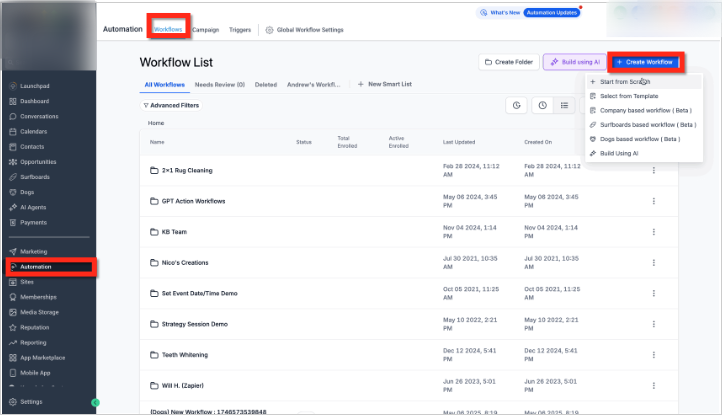
Click Automation in the left menu.
Edit an existing workflow or click + Create Workflow to build a new one from scratch, template, or recipe.
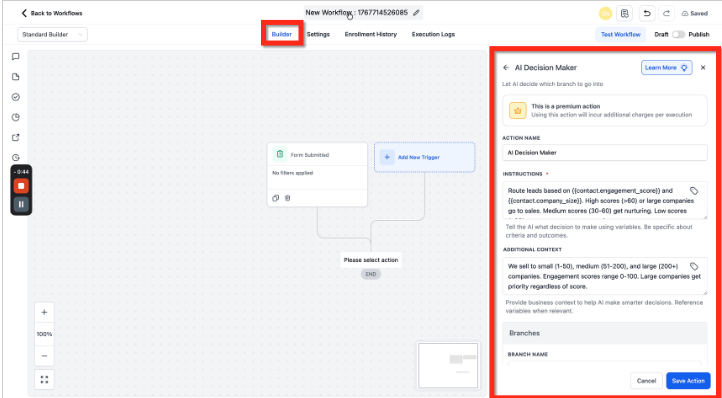
Ensure a trigger is set (e.g., Contact Changed or Form Submitted).
Click the + icon inside the workflow builder.
In the right-side panel, scroll to AI Actions.
Select AI Decision Maker.
Use a clear Action Name to keep branching-heavy workflows organized.
Step 3: Write Clear AI Instructions
Use the Instructions field to describe how contacts should be routed.
Be specific about what the AI should evaluate, such as engagement score, industry type, or company size.
Use the variable picker (tag icon) to insert dynamic fields like:
{{contact.engagement_score}}
{{contact.company_size}}
{{contact.tags}}
This ensures the AI evaluates real contact data.
Example Instruction
Look at the contact’s engagement score and company size.
If the engagement score is over 60 OR they work at a large company, send them to sales.
If the engagement score is between 30–60 and it’s a small or medium company, send them to email nurturing.
If the engagement score is under 30, send them to a re-engagement campaign.
Important
The AI requires context to make informed decisions. Always include relevant contact fields, custom fields, tags, or data from previous workflow steps.
Examples of useful variables:
Contact details: {{contact.email}}, {{contact.phone}}
Custom fields: {{contact.lead_score}}, {{contact.company_size}}
Tags: {{contact.tags}}
Data from prior steps (forms, surveys, etc.)

Step 4: Add Additional Context
Use the Additional Context field to provide supporting information that improves AI accuracy.
Include business rules, segmentation definitions, or operational constraints.
Example
We sell software to companies with 10–500 employees.
Small companies have 1–50 employees.
Medium companies have 51–200 employees.
Large companies have 200+ employees.
Engagement scores range from 0–100.
Our sales team can handle about 20 new leads per week.
Providing structured context improves routing accuracy.

Step 5: Default Branch
The Default Branch is automatically included and acts as a fallback for contacts who do not meet other conditions.
The branch name is locked as “Default Branch.”
It ensures uninterrupted workflow execution.
It cannot be deleted or renamed.
This branch prevents contacts from getting stuck.

Step 6: Add Custom Branches
Create additional branches to route contacts based on specific criteria.
Each branch should include:
A clear Branch Name (e.g., “High Priority – Sales”)
A short description explaining when contacts should enter that path
Example:
Route to Sales if {{contact.engagement_score}} > 60 OR company size is Large.

Step 7: Add More Branches
Click + New Branch to define additional routing paths.
Use clear naming and concise descriptions for each branch. This allows you to tailor follow-ups such as:
Discount offers
Product education
Case studies
Re-engagement campaigns

Step 8: Save the Action
Once all instructions and branches are configured, click Save Action.
The workflow will now automatically evaluate contacts and route them based on AI-driven decision logic.
Popular Use Case
Spam Submission Detection
Use AI Decision Maker to evaluate website form submissions.
Route form details into the AI Decision Maker.
Instruct the AI to classify submissions as spam or authentic.
Provide examples of spam to improve classification accuracy.
Create opportunities only for legitimate submissions.
This reduces manual review and protects pipeline quality.
Frequently Asked Questions
Q: How does the AI decide where to send someone?
The AI reads your instructions and evaluates the included contact data to determine the most appropriate branch.
Q: What if someone doesn’t match any rules?
They are automatically routed to the Default Branch.
Q: Can I delete or edit the Default Branch?
No. The Default Branch is permanent and ensures fallback routing
Q: How do I check where a contact went?
Use the Execution Logs tab within your workflow to review routing paths.
Q: Can I use data from forms or surveys?
Yes. Include variables from previous workflow steps using the variable picker.
Need Help?
If AI Decision Maker is not routing contacts as expected:
Confirm that the correct contact fields or variables are included in your Instructions.
Verify that relevant data exists on the contact record.
Ensure the workflow is saved and published.
Review the Execution Logs to confirm which branch was selected.
Test using sample contacts with known data to validate routing logic.
If issues persist, gather your workflow configuration and a sample contact record before contacting support.